All CRM 2013 and CRM Online customers have access to the CRM for Tablets app that’s available for Windows 8, iOS and Android devices. Since it’s an app from the new age of mobile computing, the users can simply download it from the respective app store of the platform provider and install it. Configuring the app to connect with your CRM organization can however prove to be a bit trickier task than this.
If you’re using CRM Online hosted by Microsoft in their data centers, connecting the tablet app to the CRM server in the cloud is usually a straightforward process. Just enter the URL for your organization, then punch in the credentials and off you go. Well, to be more precise, upon your first connection the organization you’ll be taken to a screen that asks you to hold on tight while the app is being set up. This is because all of the metadata related to your CRM organization’s customizations first needs to be loaded, so that you’ll see your own CRM instead of some generic, hard coded menus and fields. This step can take quite a while to finish, but just hold on tight, it’s worth it.
If you’ve got your own on-premises CRM server or you’re logging to CRM Online via your on-premises Active Directory credentials, you may need to work a bit harder to achieve connectivity between the CRM for Tablets app and the CRM server. This is because in both of these scenarios you will have ADFS (Active Directory Federation Services) sitting there in the middle, processing your login request and validating your user credentials. Of course the same technology is also used behind the pure cloud CRM Online service, but MS has done the configuration work for you, whereas with on-premises components you’ll be in charge of performing this.
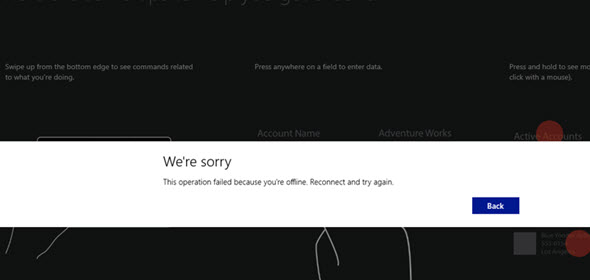
Recently I was faced with a situation where a customer had deployed Dynamics CRM 2013 SP1 on-premises and done the Internet Facing Deployment via Windows Server 2008 R2 ADFS 2.0, published via Forefront TMG (Threat Management Gateway) 2010. Accessing CRM via the web client through the IFD address was working as expected, so was the CRM Outlook client. CRM for Phones was connecting without issues and I could even connect to the server via tools like XrmToolBox with no issues. There was just one problem: the CRM for Tablets wouldn’t connect to the server, no matter what. In the process of troubleshooting this particular scenario I learned a thing or two about the tablet app connectivity as well as server configuration tasks, so I thought I’d share my findings here on my blog. I’m by no means an expert on anything surrounding ADFS , but I’m stubborn enough to keep searching for answers until I find some from the great wide web.
RTFM – Read The Friendly Manual(s)
First of all, you’ll need to know your ADFS version, since there’s a few new hoops you’ll need to jump through when working with Windows Server 2012 R2 and the latest ADFS 2.2 (sometimes referred to as ADFS 3.0, since official version numbers seem to have been dropped by MS, in favor of just shipping ADFS together with Windows Server releases). The architecture of ADFS has changed considerably from earlier 2.0 and 2.1 versions, with no more IIS in the background, so the configuration process for CRM IFD also differs from the previous experience.
You’ll find the extra steps listed on this article: Configure Windows Server 2012 R2 for CRM mobile clients. On the ADFS 2.2 server you’ll need to enable forms authentication manually, since it’s not enabled by default, like in previous versions. Then you need to run a Powershell script on the CRM server to configure the OAuth provider. Finally, you should register the CRM for Tablets app ID’s with the ADFS server via another Powershell script.
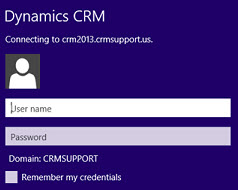 You may run into an issue with the login process where the user is prompted for their AD credentials via the standard Windows domain dialog window repeatedly. This is because of some incorrect authentication settings that apparently are caused by the CRM IFD configuration process itself. To avoid these issues, you should run a repair installation on the CRM 2013 server with the Web Application Server role deployed, after you’ve done the IFD configuration and before you attempt to log in with the CRM for Tablets app.
Another aspect is the requirements imposed by the new Windows 8.1 version of the tablet app. Because of the changes on the OS layer, it’s no longer possible for Win8 apps to connect to any random server at will, but rather the developer has to specify the URL’s of these servers before publishing the app to the Windows Store. For CRM Online the domains for the service are known in advance, but for an on-premises deployment they could be absolutely anything. To overcome this, you’ll need to add a registry entry onto your device before attempting to connect to your server, otherwise the tablet app will just sit there and do nothing. Go to the page Set up CRM for Tablets, expand the section “what the admin needs to do” and grab the Powershell script from there. Running it on your device will prompt you for the CRM organization URL and create the necessary registry key for you. (more…)