
Tag: environments

  • PPAC is your new Dynamics 365 Admin Center

    PPAC is your new Dynamics 365 Admin Center

    When talking to Microsoft cloud customers about Power Platform as the enabler for low-code app creation by citizen developers, we often find that also Dynamics 365 has already been deployed for one purpose or another within that organization. Typically it’s not the same people who are deeply engaged with the development of corporate wide CRM systems and these new type of agile solutions that Power Apps represents. Yet they share mostly the same architecture from a platform perspective (and increasingly on the client side, too), so the overlap and differences from an admin perspective are a source of confusion for many IT departments.

    Earlier it’s been perfectly possible to perceive the administrative tasks for these two ends of the MS Business Applications spectrum to be separete, since there has been different admin centers for all products. From now on, this will no longer be the case, as can be seen from a recent message posted by Microsoft in the M365 Message Center:

    Transition to Power Platform Admin Center (PPAC)

    We are reaching out to inform you that the Dynamics 365 admin center, Power Automate admin center and Power Apps admin center will be deprecated on June 30, 2020 and will be replaced with the Power Platform admin center. This change will provide a unified portal to manage your environments and settings within Dynamics 365 and Power Platform. To learn more about its capabilities, please visit this site.

    I don’t think many people (well, anyone, to be honest) will miss the Power Apps or Power Automate admin centers, as these have always been corners of the Power Platform that mostly served to confuse admins rather than offer them a clear view of what they can & need to manage. The new Power Platform Admin Center (a.k.a. PPAC, accessible via https://aka.ms/ppac) has been an easy sell for this audience, as it has offered a single place for common features like capacity management and analytics.
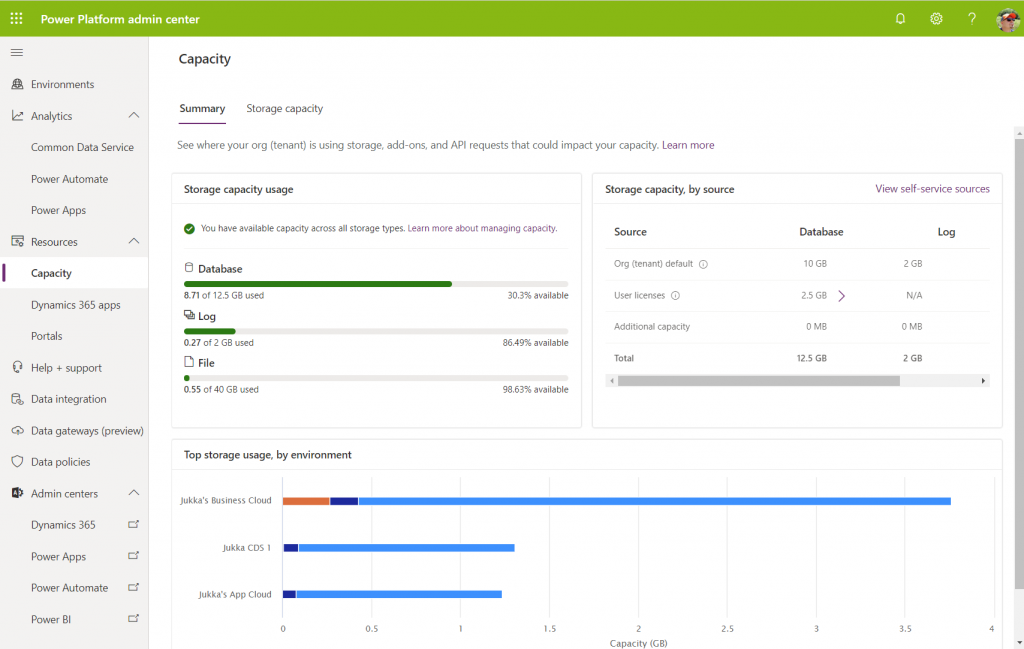
    As for the Dynamics 365 Admin Center, that has been around much longer than the whole Power Platform concept. Originally built to be the CRM Online Admin Center, it has been the place for all instance management actions (sandbox copies/resets), version updates, features related to 1st-party apps and AppSource solutions, even Dynamics 365 Portals administration. It never was a sight for sore eyes either, but it served as the toolkit for Dynamics CRM pros to get the admin job done. And now it’s going away:

    Just in case you’re reading this after July 31st and you don’t get to admire the old Admin Center anymore, below is what the experience used to be like. Let’s have a look at each of the available tabs and how they now map to features in PPAC.
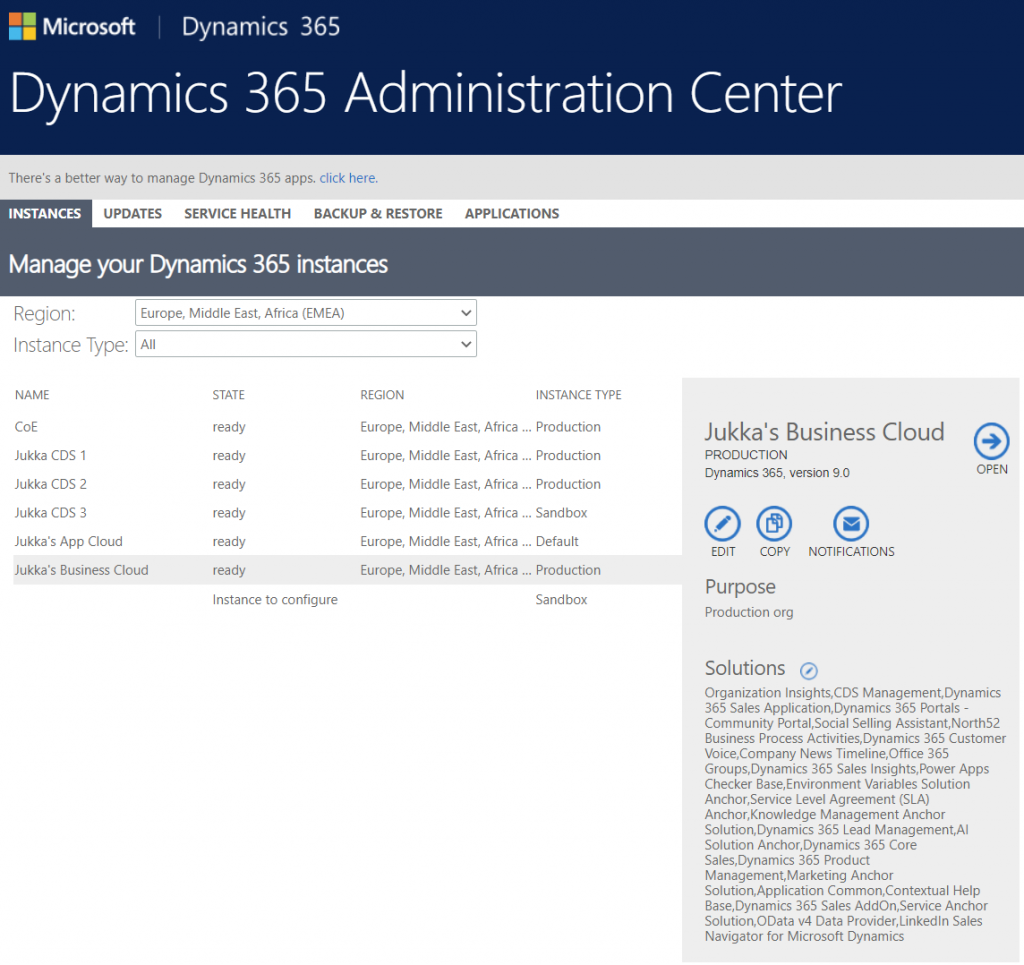
    Instances was the equivalent of what is nowadays called environments. Due to sharing the same back-end architecture, the Dynamics 365 Admin Center has displayed also CDS environments that had no relationship to Dynamics 365 products for over 2 years already. On the other hand, the new environments view in PPAC does not reveal the information about whether Dynamics 365 apps are in place or not, so prepare to have some other mechanism like the CoE Starter Kit to help you keep track of what apps are in which environments.

    Updates became a redundant tab some time ago, as Microsoft removed the need for customers to schedule their environment version updates via the Customer Driven Update mechanism. Today the continuous deployment mechanism will roll out the new versions to all customers on the same date (per geo), according to the timeline communicated on the Dynamics 365 release schedule and early access page, following the geo specific dates on the GA deployment page.

    Service health is of course an important topic, but the actual information about service outages and other issues has been incorporated into the Microsoft 365 Service Health dashboard common to all business services in the MS public cloud. PPAC environments list does have a “State” column that could presumably indicate if there is a specific issue that’s not affecting all customers, simliar to what the Dynamics 365 Admin Center view on instance health offered.
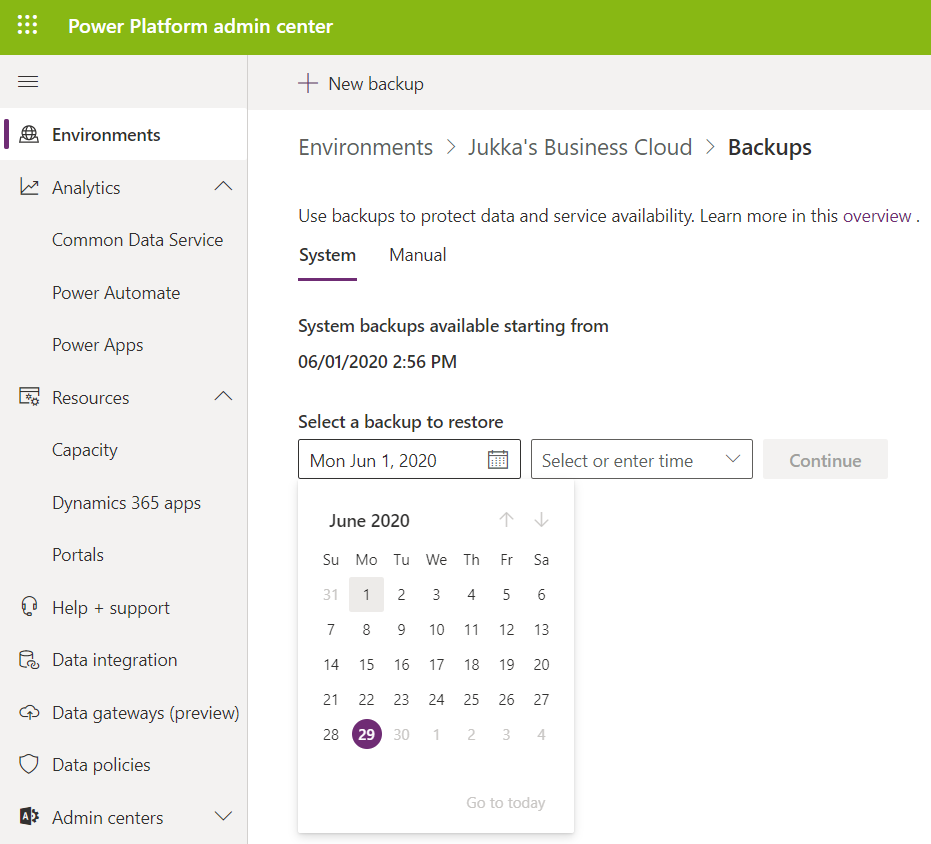
    Backup & restore has already been forwarding folks into PPAC for a while now, so obviously all the features needed for environment creation, copies etc. has been transitioned there. Backups is actually vastly improved compared to the Dynamics CRM days, since now we can freely choose any point in time from past 28 days to return to, with no specific backup actions needed from the admins. This is thanks to the Automated Backups feature of Azure SQL, now available for Dynamics 365 based business applications environments. It’s worth noting that “naked CDS” environments and sandboxes only get 7 days of backups, though.

    What about application updates?

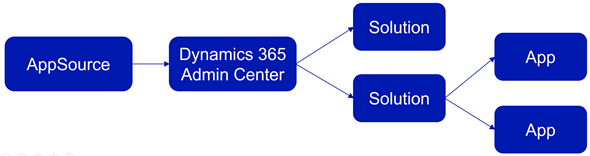
    The CDS core platform itself follows the update schedule outlined above, but the lifecycle of the actual apps that run on the platform has been a separate story. In fact, the whole concept of what an “App” exactly is was complex already before the merging of XRM and Power Apps into a single platform, thanks to what the App Module in Unified Interface and AppSource as a delivery channel were trying to use that particular concept for. Back in January 2018 I tried to explain this scenario with an illustration like the one below. Now with Canvas Apps and Model-driven Apps thrown into the mix, it’s probably a topic worth a whole blog post of its own to once again try and decypher the various meanings of those three innocent looking letters…
    The Applications tab in Dynamics 365 Admin Center was always a bit of a mystery. It seemed like a bin of random links to app specific configuration pages hosted outside of the Power Platform. Whatever was there can surely be put better into context somewhere else.

    Then there was that other place for your apps – meaning the environment specific list of solutions found inside Dynamics 365 Admin Center after you selected an instance. Clicking on the Solutions icon gave you a list of solutions that were either “installed”, “not installed”, “installation failed” or “upgrade available”. Here’s an example:
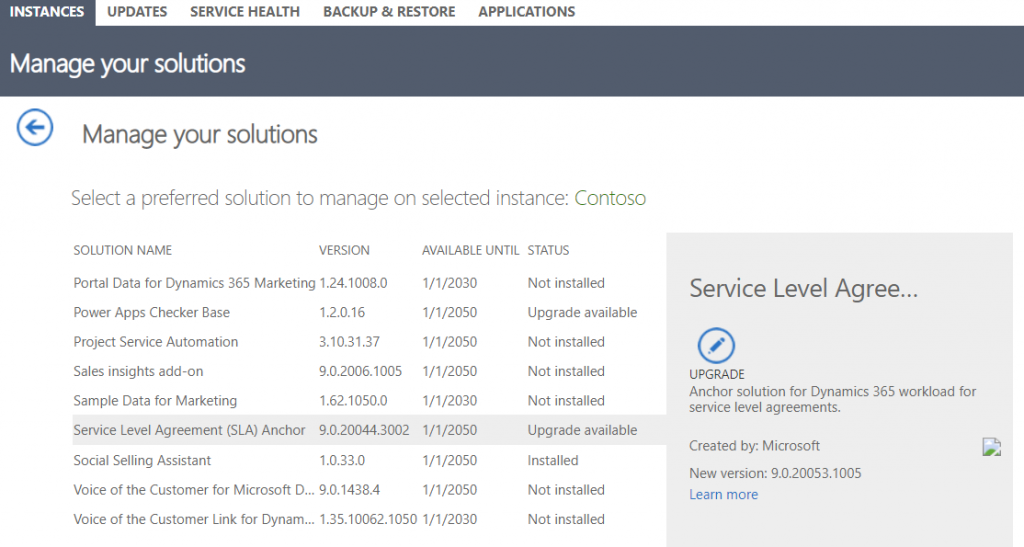
    Looking for this same information within PPAC, I see that I can select an environment, go to its Dynamcis 365 apps from the Resources box and browse through a list that resembles the old view (yet doesn’t have the exact same solutions). One thing that’s not very well presented is the version numbers, which you have to dig out via a hover action to get the last digits:
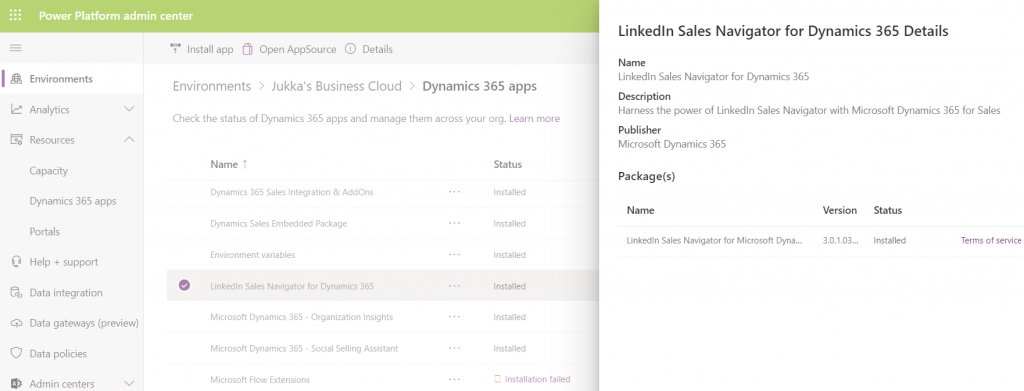
    As of today, there isn’t a way for you to upgrade solutions from here. Nor will you see if there is an upgrade available. In the example, there would actually be an update to LinkedIn Sales Navigator, which I see from the classic Admin Portal. I can also manually install that solution if I go to “install app”, select the app I already have, then re-install it (thanks for the tip, Joris!). I’ve been informed that there will be an fix applied to PPAC shortly that will make the Update option visible in the list of apps for the tenant, as described in the documentation page Manage Dynamics 365 apps.

    Regardless of the navigation path, though, I believe the concept of an Update button is from a bygone era. In the best case you should not see such an option anywhere. Zero-click updates are the way to go.

    Let’s step back for a moment and think about how the old solution upgrade experience worked. In order to know that there was something new for me as an admin to deploy, I had to open each environment’s Solutions list, browse through the paginated list of solutions that were either installed or not installed, then spot one that said “upgrade available”. OK, I see there is “Service Level Agreement (SLA) Anchor” that could be moved up from the deployed version 9.0.20044.3002. to 9.0.20053.1005. Great. So what’s new in that and how will that impact my applications?

    *Crickets*

    That’s the response to basically all solutions ever offered via the old Admin Portal. I don’t think the “Learn more” link associated with the solution upgrade has ever taken me to a page that had proper release notes specific to the solution in question. At best it’s a link to product documentation, at worst it’s a complete placeholder link to microsoft.com that was inputed because the field has been set as required in the solution publishing process.

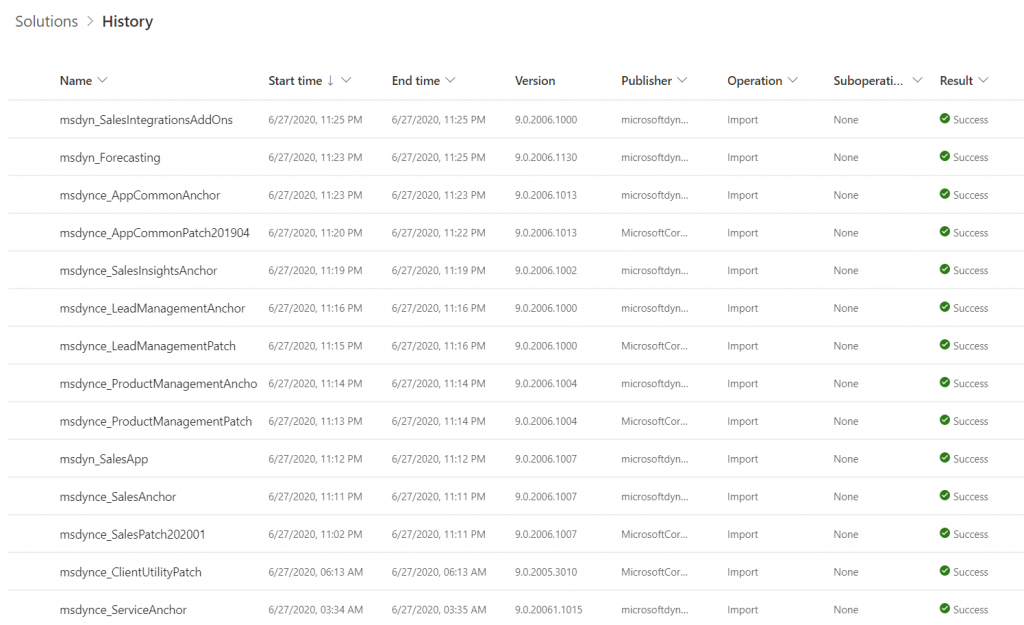
    Obviously this wasn’t the way to go, so a new direction was needed. After all, it makes no sense to require an admin to perform the upgrade steps for a solution when he or she cannot make a meaningful go/no-go decision about it due to lack of information. While there is a beautiful illusion of control in having an “Update” button to click, it’s important for everyone to understand that Microsoft has already been pushing weekly (sometimes daily) updates to tens and tens of internal solutions in your Dynamics 365 environments. You can view this list from the Power Apps Maker Portal (not directly from PPAC unfortunately), under Solutions – See history.
    Automatic updates are the way to go, not just for the platform but also the apps. Dynamics 365 app teams have published their Automatic Update Policy posts for Field Service, Project Service and most recently Marketing. Running manual solution upgrades through the Admin Portal isn’t really a part of this modern world anymore. Therefore it shouldn’t make much difference how or where this is presented in PPAC. What you should care more about in the new Admin Center is seeing how the various apps across all your tenant’s environments are doing in terms of capacity consumption, usage analytics, do you have the necessary DLP policies in place and so on. The role of a Power Platform Administrator can be quite different than what the traditional CRM admins were used to, so it’s natural that the admin tools will also need to evolve to better reflect this.

  • Dynamics 365 & Power Platform licensing FAQ, February 2020

    Dynamics 365 & Power Platform licensing FAQ, February 2020

    Here’s a collection of recent questions from the Dynamics 365 and Power Apps use community on licensing topics. The answers are my own interpretations, based on what I’ve seen from MS or other community members. It’s a point-in-time blog post that may well be outdated tomorrow already. Please do also leave a comment if you see errors in the answers I’ve written.

    As always with enterprise software licensing, ultimately the answers need to come from materials published by the software vendor, i.e. Microsoft. At the end of the day the customer is always responsible for being compliant with their own legal agreements that may have specific terms included.

    Team Members

    Q1: What’s changing in the 2020 Release Wave 1 for users equipped with Dynamics 365 Team Member license?

    The release plan contains several items that talk about licensing enforcement. So, the actual rights for Team Member licenses are not changing, but there will be technical limitations on what the users are actually allowed to do. I’ve blogged about the underlying mechanism for linking service plans to application types, which will first be used for Team Members and down the line probably also for other licensing types.

    2020 Release Wave 1 will introduce three new App Modules with pre-configured experiences for Team Members: Sales Team Member, Customer Service Team Member and Project Resource Hub. See my review of the early access version of these New Team Member Apps for Dynamics 365 for more details.

    Q2: When will the technical enforcement be enabled in our Dynamics 365 environment?

    For new customers, Microsoft intends to switch on the restrictions in April 2020. For existing customers with Team Member users, the change won’t happen overnight. Expect to see further communication from MS on this if your organization is affected by the changes.

    Update: On Feb 24th Microsoft published the following “Dynamics 365 – Team Member License Enforcement Notification” in the Microsoft 365 Message Center (MC204622) visible to administrators:

    To facilitate a smooth transition to the new Team Member app experiences, all existing customer organization instances, which will be impacted by this change, will be granted an additional grace period until June 30, 2020.

    Update 2: due to COVID-19, Microsoft has postponed several deadlines for updates and deprecations. The latest guidance for Team Member licensing enforcement is now:

    To facilitate a smooth transition, all customer organization instances that are created before April 1, 2020 have been granted an additional grace period until January 31, 2021.

    Q3: The entities we use with Team Member license in our environment are not included in the standard apps, can we add them?

    Yes. Customizing the aforementioned App Modules is allowed, as long as you follow the instructions given by Microsoft:

    “Team Member apps can be tailored to more closely fit your organization’s industry, nomenclature, and unique business processes, just like other model-driven apps built on Common Data Service. However, these customizations will need to conform to the Dynamics 365 Team Members use rights detailed in the licensing guide. While customizing the app, you can add 15 additional entities. These additional entities can be any Common Data Service core entities, or you can create custom entities.”

    Q4: The new Team Member apps ship with dedicated security roles. Does it mean we’re only able to assign these to the TM users and nothing else?

    There is currently no restriction on what roles you can assign to users with a Team Member license. The way I see it, the OoB security roles are primarily used for granting access to the App Modules and stripping down features within the app that are not within the original design scope.

    Q5: If we need users to access more than 15 entities, what are our options?

    The App Modules for Team Members will technically enforce a limit on how many entities can be added. Now, keep in mind that the App Module itself doesn’t restrict what’s actually visible in the UI when looking at an entity form. For example, an account form can have many related entities shown that are not part of the App Module specification. If you don’t directly need to navigate to the entity but rather use them to describe properties of the main entity (say, account plans related to an account), then there might not even be a problem here.

    If you need to browse through lists of tens of different entities, then you’re really pushing the boundaries of what Team Member licenses are intended for. Anyway, you could consider alternative access mechanisms alongside the Unified Interface App Module to cover these scenarios. Reporting tools could be a better way to present large quantities of data that are going to be read-only for the users. By purchasing a Power BI license for users that are equipped with Team Member licenses already, you would have full access to read the business data in CDS via reports and dashboards – as well as use Power BI for any other analytics needs within the organization.

    Q6: Our users are accessing data mainly via the Dynamics 365 App for Outlook, is this going to be available to Team Members?

    Yes. The Licensing Guide specifically lists this as the first use right for Team Members in Appendix A: “Access Anywhere: Web App, Mobile App, Tablet App, via Outlook.”

    Q7: Can we also leverage Canvas apps with the Team Member license?

    Yes and no. You can use embedded Canvas apps within a Model-driven app entity form, since these are just customizations within the app itself. However, you can’t access standalone Canvas apps with just a Team Member license.

    Q8: What about if we have Office 365 license that gives access to Power Apps AND a Team Member license, could we then build a Canvas app that reads Dynamics 365 data?

    Probably not, as this would require access to Premium Connectors. The CDS Current Environment Connector is the only non-deprecated way to access Dynamics 365 data (in the “product formerly known as Customer Engagement”, not talking about Operations or Business Central here), so this will likely be the technical blocker that stops you from building the custom app.

    Power Apps

    Q9: If we were to move our licenses from Team Members to Power Apps per App plan, what will the main differences be in the user experience?

    Power Apps licenses are meant for custom apps, meaning there will not be a preconfigured App Module from Microsoft. That’s no big deal, since creating new Model-driven App Modules is very simple. You can choose the entities you need in the app, design a sitemap to provide the navigation experience for accessing these, give your app a name, hit “publish” and have a custom App Module available to the users. There aren’t any fundamental differences between what a Sales Team Member app and “Our Customer Management app” look like to the users, as they’ll all be Model-driven apps presented via Unified Interface.

    Q10: Are there still restricted entities in Dynamics 365 that you can’t access with Power Apps licenses?

    Yes, there are, but no one knows exactly which entities. We are still waiting for Microsoft to update the list of Restricted entities requiring Dynamics 365 licenses, to align with what was supposed to be the October 2019 licensing model update. Eventually there will be new information published, but the current situation is quite challenging for both customers and ISVs to navigate past the Power Apps potholes.

    Compared to Team Member rights, a Power Apps premium license grants you access to create-read-update-delete (CRUD) entities like accounts, leads and opportunities that are read-only for Team Members. Also there are no 15 entity max limits in the Power Apps world, so your custom app can have a CDS data model that’s very complex. When you’re working with entities you create yourself, there are no restrictions at all. When you touch something built by MS for their first party apps, there’s a chance that limitations will apply at some point.

    Q11: If we would like to allow also external users to access Power Apps in our tenant, can we do that without buying a Power Apps Per App Plan or Per User Plan for everyone?

    With Canvas apps, there is the option for “bring your own license” (BYOL) available, which I’ve covered in this blog post. For Model-driven apps, this isn’t possible today. Power Apps Portals is always an option if you’re willing to re-build your app as a portal UI. (See also the Capacity topics below.)

    Q12: We’ve bought Power Apps per App Plan licenses for our users, now how do we assign these to the custom Model-driven app we’ve built?

    This is currently a tricky process, since Microsoft is still working on the proper mechanism to associate app passes with Model-driven apps. Follow these steps published on Magnetism Solutions blog and you should be able to pull it off. The Canvas app side is much easier and better documented by Microsoft.

    Q13: It seems that we can’t assign the app passes to both our production and test environments. Is this a bug or a feature?

    It’s a feature. While Dynamics 365 licenses like Team Member grant access to any number of environments in your tenant, the Per App Plan is actually a “Per App Within an Environment Plan”.

    Q14: From a licensing perspective, what are the differences between a Dynamics 365 environment and a pure CDS environment without Dynamics 365 Apps?

    Power Apps users can access any environment, if they have the Per User Plan or a Per App Plan app passes assigned in that environment. Dynamics 365 users are only allowed to use environments that have one or more Dynamics 365 Apps installed. So, if you build a small expense tracking app in a pure CDS environment, a user with $10 or $40 Power Apps licenses can use it, but a user with a $95 Dynamics 365 Enterprise App license can’t.

    Q15: If we start with a pure CDS environment to build a custom data model for our custom apps and later want to add a Dynamics 365 first party App from Microsoft, how does that work?

    Today you can’t deploy Dynamics 365 Apps into a pure CDS environment, so the only way would be a data migration project from your CDS environment to a new Dynamics 365 environment. It’s a technical limitation that MS surely wants to remove at some point, but right now you can’t step up from custom app to first party app via a license purchase alone.

    Capacity

    Q16: We want to build solutions that go beyond the personal productivity apps that the Default Environment is really only good for. What do we need for adding more environments, to leverage CDS and do proper ALM?

    Creating a new environment requires database storage capacity, since every blank environment consumes 1 GB before you even store any data there. This is the only cost associated with environment creation, you don’t need any instance licenses for sandboxes anymore like Dynamics 365 used to require earlier.

    If you purchase even a single Dynamics 365 license or a Power Apps Per User Plan license, you’ll get the 10 GB default capacity for database storage. If you only purchase Power Apps Per App Plans, it’s 1 GB. Each additional user accrues 250 MB more, if you buy Dynamics 365 Enterprise Apps or Power Apps Per User Plans. With Power Apps Per App Plan or Power Automate Per User Plan the users only accrue 50 MB. With Dynamics 365 Team Member or Professional App licenses, there’s no accrual per user.

    The default environment already burns 1 GB of your database capacity, so creating new environments may not possible without buying a capacity add-on license – unless you’ve bought one license that increases your default capacity to 1o GB (hint: always buy one).

    Q17: We have integrated other systems with Dynamics 365 / CDS and are now worried about the cost of API calls. How much will we have to pay for these?

    If the integration is accessing CDS as a non-licensed application user, the number of API calls that you have available for free is determined based on the types of licenses in your tenant. With at least one Dynamics 365 Enterprise App user, you get in total 100k requests per 24h, every day of the month. With Professional licenses this falls to 50k and with Power Apps / Automate it’s 25k. Anything beyond that requires buying dedicated capacity add-on licenses.

    Now, even though you can buy the license already, you can’t assign it yet. Since there also isn’t any API usage telemetry available to customers yet, we’re not in a situation right now where the system usage would be technically limited based on overage.

    Q18: Power Apps Portals, is the login capacity license starter level of 100 logins / $200 per day or per month?

    That’s 100 logins per month. A login session lasts 24 hours, after which a new login is consumed from the licensed capacity. If a user logs in every first day of the month, that’s a $2 per month cost. If they log in every working day of the month, the cost would be around $20 per month for Portal access, which is twice the price of a Power Apps Per App Plan. For higher volumes of Portal usage, there are discount tiers available to bring down the costs. Note that you need to purchase a sufficient amount of capacity in advance, based on how many logins you expect to have in any given month, because unused capacity does not roll over to the next month.

    There’s more!

    I’ve written several blog posts about the licensing topic, which you can browse through right here. If you want to keep up with the latest news around Power Platform, please feel free to subscribe to the Thinking Forward blog updates.