
The Common Data Service is often though as a relational data store that resembles the former XRM database. While there is backward compatibility in the sense that you can do everything with CDS that you could in XRM (Online), the real power of the cloud platform comes from going beyond those limits. Earlier I’ve talked about how The Real Common Data Emerges as we start to work with a variety of different data types and even reaching out into the Azure Data Lake as part of leveraging the Dynamics 365 first-party apps. This time I want to drill deeper into the specifics of images and files as new field types available in CDS.
Feature announcements from Microsoft
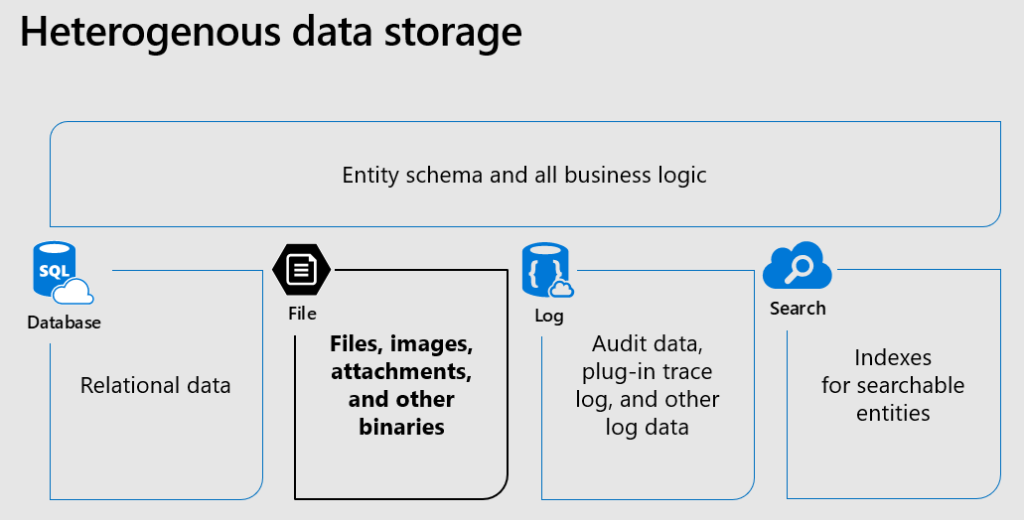
The concept of CDS heterogenous data storage was demonstrated back in Business Application Summit 2019 in June. As illustrated below, alongside the traditional SQL database for relational data, CDS now offers also the option for binary (file) data stored in Azure Blob Storage and log data in CosmosDB, as well as search indexes offered via Azure Search. All of these are are available under the common entity schema and business logic defined in CDS, without requiring the app makers to think about what data goes into which specific service and how. This is how the Power Platform provides a higher level of abstraction compared to code based app development on top of the raw Azure services.
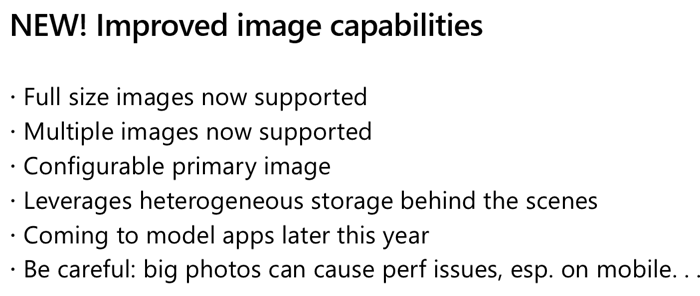
Fast forward a few months to Ignite 2019 in November, where Ryan Jones presented a session on “Connecting Power Apps, Power Automate, Power BI and the Common Data Service with data”. The capabilities promised for the new image data type were as follows:
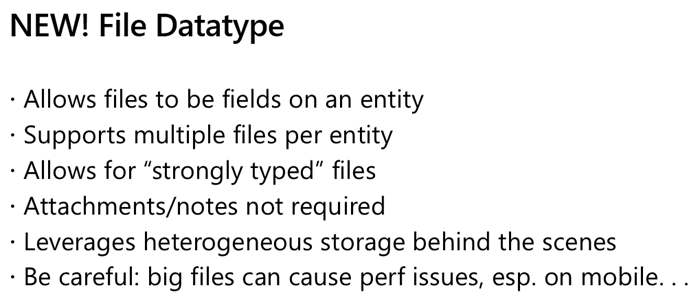
And here’s the equivalent slide for file data type:
In December 2019 there have now been announcements made on the Power Apps blog about Introducing File and Image datatype, as well as the availability of the public preview of file attributes on Power Apps Canvas apps. Things are still in the process of rolling out and support for Model-driven apps hasn’t yet even been demonstrated anywhere, so this isn’t something you can jump into using right away.
Scenarios for files in CDS
Traditionally in the world of CRM projects we’ve always advised against putting files into the database. “Keep ’em in SharePoint” has been the standard answer, which still makes a lot of sense for any collaboration on content creation, document versioning and so on. The SharePoint document management integration in CDS offers an out-of-the-box experience that generates document locations linked to specific records in CDS and allows working with them through the Model-driven app UI. If you’re happy with auto-generated folders under a single document library on a single SharePoint site for all the records of a particular CDS entity (like accounts), there’s no need to look any further. In real world customer environments the OoB integration is often not sufficient, and I’m really glad that things are improving with the Microsoft Teams based document management integration offering a more practical security and data location model. (Note that currently the Teams integration can’t be enabled for pure CDS environments without Dynamics 365 apps.)
The problem that still remains is that both the direct SharePoint-CDS integration as well as the Teams-SharePoint-CDS combo don’t offer much business process context for the files. It’s more of a helpful tip like “hey, if you’re looking for documents related to this account/project/order/inspection, try searching from this folder”, rather than a very specific instruction about which particular file contains information on what step of a business process managed in CDS. You also can’t really verify whether a required document exists in the system before proceeding further in the process, since all you have is links to a folder which might or might not contain that file – or multiple copies and various different file types when what you’d really need is a single required PDF, like a signed agreement document.
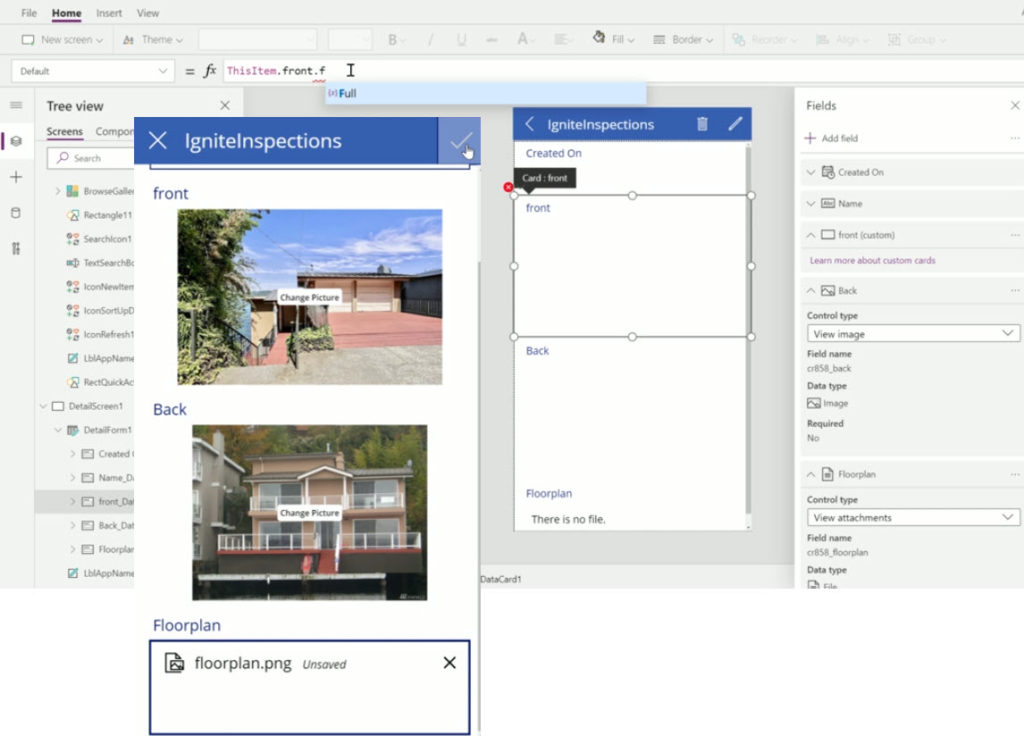
With the new file and image datatypes, you can actually define a specific field to store a specific type of document or image. This will let you know exactly what the business purpose of a particular piece of binary data is, which means you can develop app functionality like user interface and business logic around it. It’s no longer just 0…N files linked from another system (like SharePoint), it becomes an integral part of your business process. The demo that Ryan Jones did at Ignite about an inspections app is a good example of what the “strongly typed” image and file data could be in practice:
Having rich metadata about what a particular document represents in the real world is great, but what’s an even bigger benefit is the security model around it. As anyone with an XRM background knows, the ways in which you can configure the security model in CDS is very advanced, offering granular control of who can create, read, update and delete data. You have security roles, business unit hierarchies, position hierarchies, owner teams, access teams, sharing, even field level security. Any security logic that you apply on the entity that’s hosting the file or image field will also guard access to the binary content. If you’ve ever tried to sync the security information between a Dynamics 365 based CRM system storing customer records and the SharePoint environment storing the related documents, you’ll know how difficult and error prone this attempt is. The security concepts of those two systems are inherently different and even Microsoft is unlikely ever offer anything close to 1:1 integration (Teams is about as close as you can get.) For access control of sensitive documents and images, these new datatypes in CDS are therefore a very attractive option.
Attachments (annotations) vs. file/image datatype
Let’s not forget that it has always been possible to store binary data in CDS, even in the on-premises days. All your tracked Dynamics 365 emails will have automatically uploaded their every attachment into the Note entity. Additionally the users have been able to add notes with attachments on the Timeline of any entity where the attachment feature has been enabled.
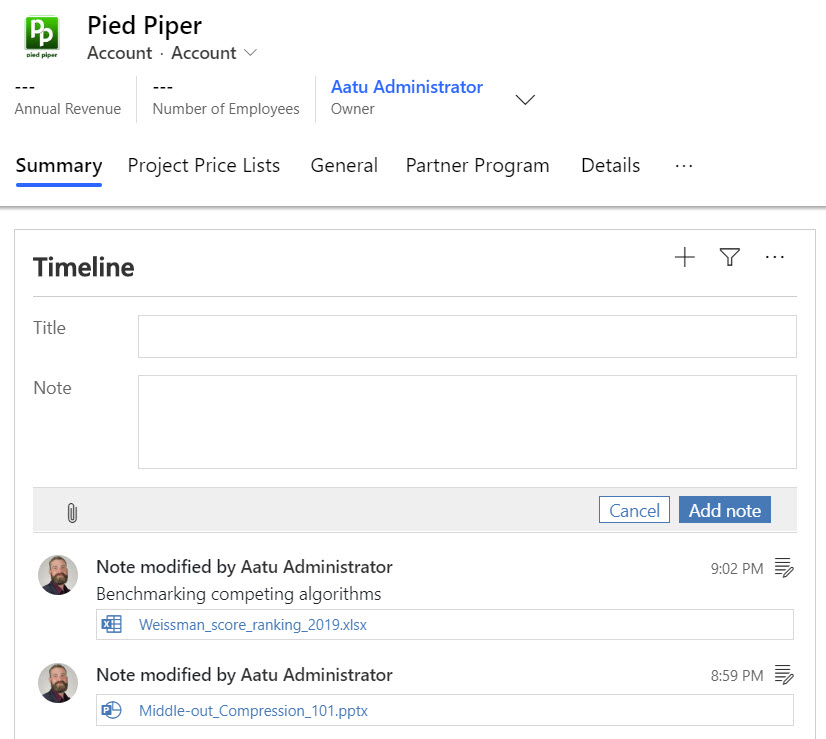
As part of the new storage capacity model launched in April 2019, Microsoft will have already migrated all of the attachments previously stored in the SQL database to Azure Blob Storage behind the scenes for any Online environment. However, this doesn’t make the attachments feature any more modern and you should seriously consider not using it in the future (where possible). While there is a somewhat better security story with the data all being behind CDS APIs, you won’t find any customization options here to align the data in Notes entity with your business requirements nor the desired application UI. It’s a fixed way of representing file data alongside the customizable relational business data model, inherited from the Dynamics CRM days rather than a feature designed for the Power Platform era.
In the meantime, with the lack of better support for image handling, many of us have surely explored the capabilities of building a Power Apps Canvas App that could perform what the above Ignite inspection demo app does. Dropping a camera control on the Canvas App is so easy, yet storing the captured image into CDS alongside the other inspection data has been next to impossible. Yes, attachments as a separate control has been available for Power Apps makers for quite some time, but patching the image data from somewhere else into a new CDS attachment record is the tricky part. Complex record references like the Regarding field on the Note entity in CDS have long been a stumbling block for Canvas Apps, and as of today you still can’t write data to that field. Jumping through hoops made of Flows and Custom Connectors is hardly the kind of seamless experience you’d expect from a low-code application platform when working with camera images, so there definitely has been a big demand for the image datatype to come and replace the clunky attachment feature.
Back when CDS was just the storage place for structured data that was accessed via the metadata driven UI of Model-driven apps for CRM scenarios, there weren’t that many places where visually pleasing stuff like images could have been used. The entity image with its glorious 144×144 resolution has been cool for demo data, but how many customers have actually ended up populating logos, profile pics, product images or other visuals in there? With the rise of citizen developers armed with Canvas apps that offer pixel perfect UI development, the situation is now quite different and there’s an expectation to be able to work with full-size images as well as showing thumbnails for visualizing the business records.
Things to keep an eye on
As mentioned earlier, we haven’t yet been able to truly validate in real life Power Apps what functionality files and images support. I’m expecting there will be further chapters in the story of how heterogenous storage in Common Data Service evolves over time, so the first release for Canvas Apps and later Model-driven apps may not yet be feature complete. How the data will work with PCF controls/components and other features of Power Platform (automation, offline, search, AI…) is going to be a big factor in deciding whether storing files and images into the dedicated CDS datatypes is the right call for your app. Of course you’ll also need to examine the options from the other Microsoft clouds: Azure and Office.
If you’re doing custom code development and expect to deal with a large amount of binary data in your app, doing the math on storage cost between the configuration friendly CDS and raw Azure Blob Storage is probably going to be an item on your solution design agenda. Just like with relational data, CDS is always going to be priced as a premium service compared to things like Azure SQL, because it provides you so many layers of additional features you’d otherwise have to build and maintain. Storage is only one part of the equation, but of course you’ll need to ensure the business case is valid when consuming Power Platform storage capacity with its associated services.
If the applications you build are aiming to support the collaboration of information workers over unstructured data like Word documents with co-authoring and several versions, then that data clearly doesn’t belong into CDS. Use MS Teams as the security mechanism where possible and allow the users to work with the documents through SharePoint, offline synced OneDrive folders, Office applications on any device etc. If there is an end product that comes from this collaborative process and needs to be carried along in a structured business process, then that file could well be stored into a CDS file attribute.
It will be interesting to see how Microsoft will align these file & image attribute features with the existing attachments feature. Having a predefined number of fields per entity where you can drop a single file is obviously quite a different experience than an open “folder” that could accept as many files as needed. Although on the schema level, also the Notes (annotation) collection only accepts just one attachment per each note and the rest is just UI. Whether we’ll receive a true customizable Notes feature from MS with metadata support and a modern control to complement the standard Timeline visualization on the Model-driven app as well as the attachments control on the Canvas side is something that remains to be seen. I’m also expecting to see some community contributed PCF controls in the near future around the new datatypes.



