Tag: Dataverse

  • Virtual Dataverse tables with no code, via Connectors

    Virtual Dataverse tables with no code, via Connectors

    The concept of a virtual table (previously: virtual entity) has existed in the Dataverse platform for quite some time already. The feature was originally introduced before XRM and Power Apps merged. This in turn means that the Connector feature used by Canvas apps and Power Automate flows is an alternative approach for the same core need: how to work with data that’s not physically stored within Dataverse?

    Since there are still three different flavours of Power Apps , let’s quickly recap what each of them think about data location:

    • Model-driven apps: “I’ll let you work with any business data, as long as it’s stored within Dataverse.”
    • Power Apps portals: “I’m essentially an external facing version of Model-driven apps, so I follow the same principle.”
    • Canvas apps: “Your data may be in whatever system you want! Just point me to the right API and wrap a Connector around it & we’re sorted.”

    The term “Model-driven” refers to the existence of a clearly defined data model, on top of which the visible app UI and background features (security, search etc.) are then generated by the Dataverse platform. You get all those features because a specific set of rules exists on how different types of data are related to one another.

    Canvas apps enjoy the freedom of taking some data from source A, another piece of data from source B, mashing them together in a common gallery, stitched together with a few lines of Power Fx code. The downside is that the app maker needs to build many of the generic features that in the Model-driven world would just magically appear within the app module.

    The best possible outcome would of course be if Power Apps were able to offer both the freedom of a Connector based Canvas app and the strong relational data management capabilities of Model-driven apps. While we are not quite there yet, some elements of the unified app / platform story are starting to emerge.

    Connectors in Model-driven apps

    Ultimately Microsoft wants to bring the Canvas and Model-driven app types as close together as possible. This means expanding the capabilities for working with external data sources in Dataverse to cover also the Connector technology. At Build 2021 the session “Dataverse for Developers” introduced the latest updates on what the sources for virtual tables can be:
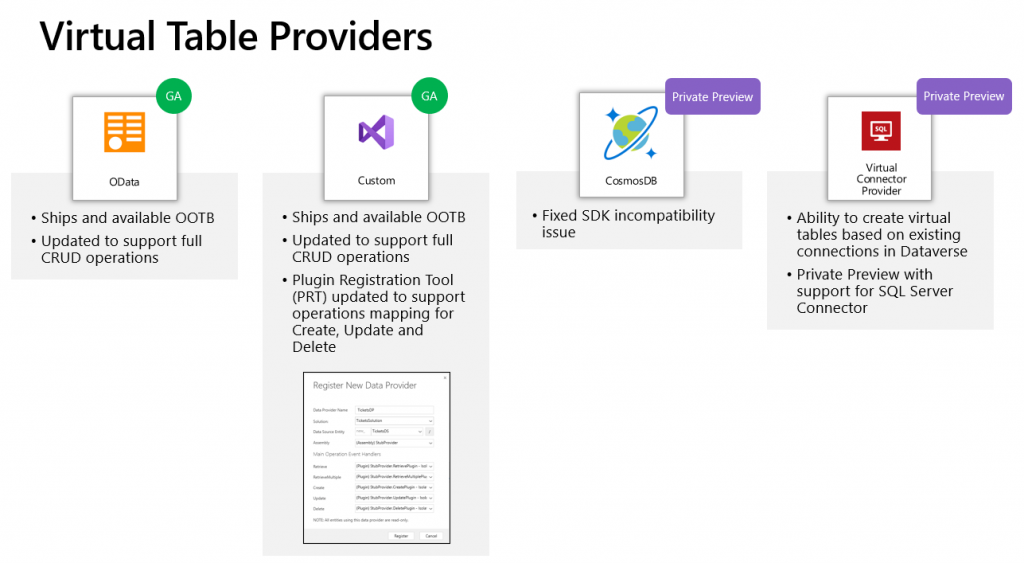
    Previously the options for adding virtual tables to Dataverse was pretty much a pro-dev targeted story. The requirements for OData feeds were such that I don’t think I ever managed to find a sample feed to try out the feature. Same for the custom connectors, which are created via writing your own plugins. Technically they can be built, but if the requirements are similar to that of a traditional data integration approach, then it doesn’t exactly revolutionize the low-code data story of Dataverse.

    The new preview for Virtual Connector Provider looks more interesting, though. Supporting out-of-the-box connectivity to SQL Server databases is definitely a scenario that’s closer to the no-code level where I personally prefer to operate on. So, I decided to go and see how far this track can take me in building a Model-driven app that actually works with data not physically stored inside Dataverse.

    Even though the documents still say “private preview”, anyone can install the Virtual connectors in Dataverse solution from AppSource today:
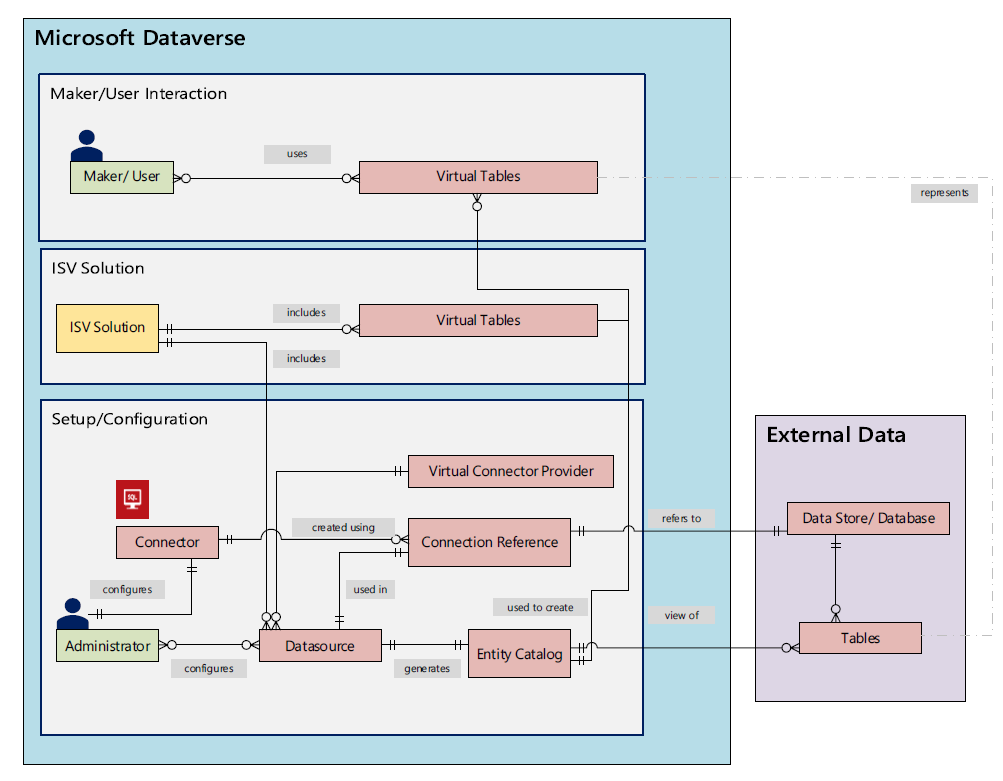
    There’s a Power CAT Live video on YouTube that introduces the solution. If you’re like me and you prefer consuming written information instead of video walkthroughs, this PDF document will be the place to go for understanding the feature. Inside it you will find this diagram that explains the architecture of how concepts like connectors, data sources, connection references etc. relate to this new Virtual Connector Provider.
    Setting up SQL Server tables to expand your Dataverse

    I have a demo AdventureWorksLT database deployed in SQL Azure, just like the one used in Microsoft’s feature documentation for virtual connectors. I had already earlier used this demo SQL database as a data source for Power Apps Canvas apps, which meant I had an existing connection available in Power Apps Maker portal. Authentication is done with SQL username/password combo in my connection, but Azure AD authentication would also be an option if you’d rather not have stored credentials within the connection.

    After following the step-by-step instructions, including setting up an application user / service principal for the virtual connector provider, I had a brand new table visible in my Dataverse environment: “Entity Catalog for AdventureWorksLT”.
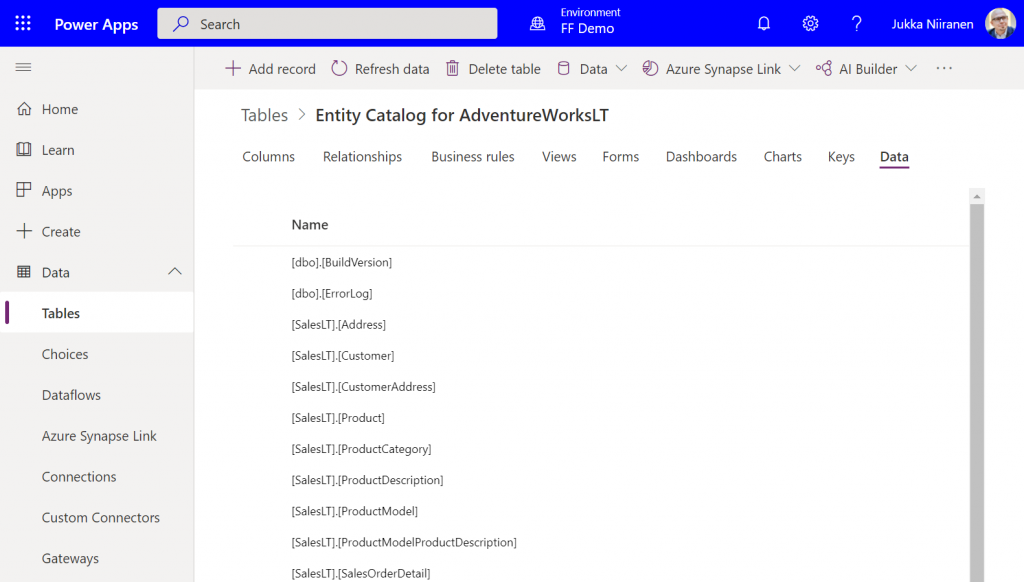
    Cool, we have a “table of tables”! I can see all the SQL Server database tables available via this connection. By opening up one of these records, I can specify that I want to create the corresponding SQL table as a Dataverse virtual table.
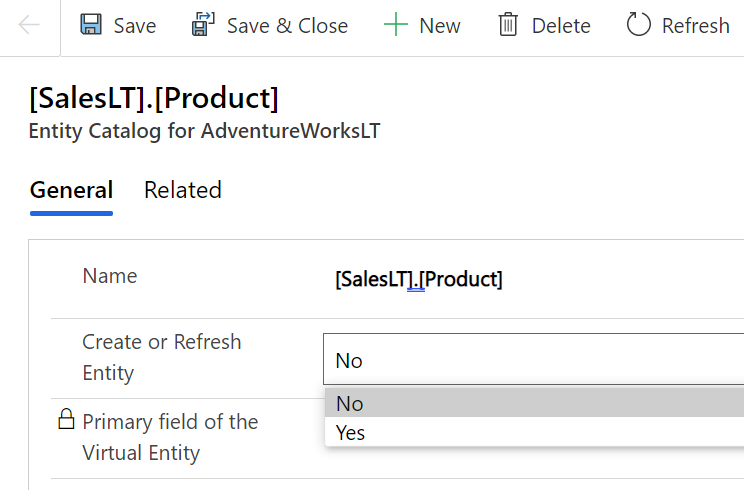
    I picked the Product and Product Category tables from there. (Note: modifying the table properties in the Power Apps UI doesn’t seem to work, so use the legacy web client and Solution Explorer to change things like table name.) After this, the virtual connection provider nicely maps all of the available columns in SQL into a matching Dataverse column, with the correct data type.
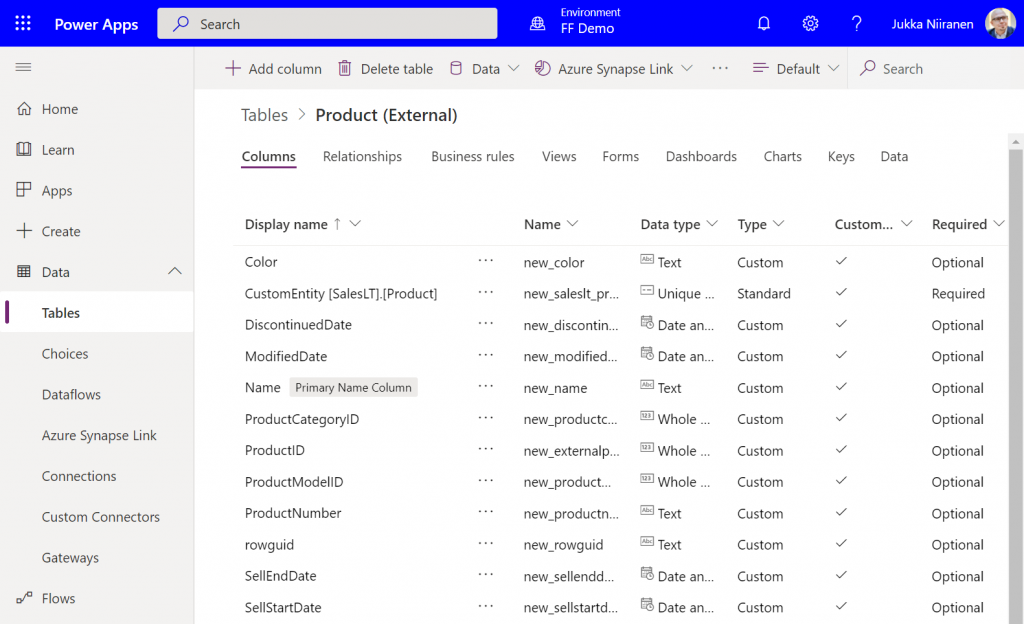
    I can then do the standard configuration tasks I’d perform for a native Dataverse table, such as adding views and modifying form layouts. Of course there are a number of considerations for virtual tables when it comes to the Power Apps features they support. Still, whatever works here is exactly the same experience from an app maker perspective, whether the table is “real” or virtual.

    Building a Model-driven app with virtual tables

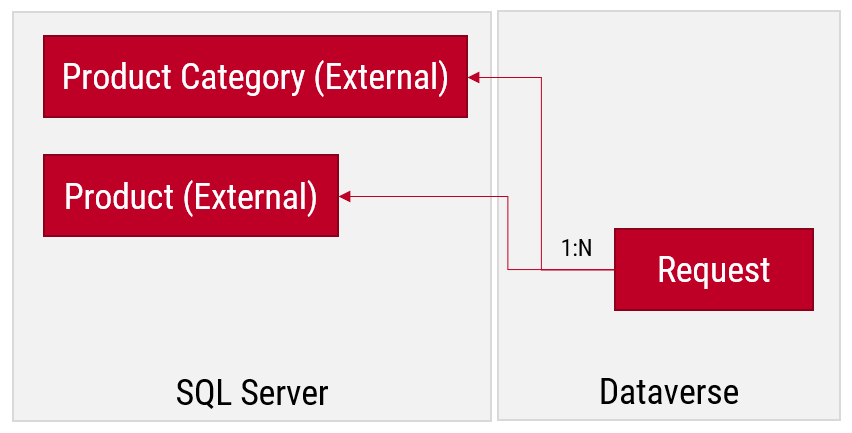
    I created a small demo app module for testing how the different table types can co-exist and work together. I added a custom table called “Requests” and added it as the child table for both Product and Product Category virtual tables coming from SQL.
    Let’s first go and browser the external data from a view. Opening up the Products table, the experience is in practice the same as if I was browsing native Dataverse records. I can create a personal view “products currently sold” that filters out all products with a value in SellEndDate field. I can sort based on the SellStartDate. I can filter to see only products with Color value Black.
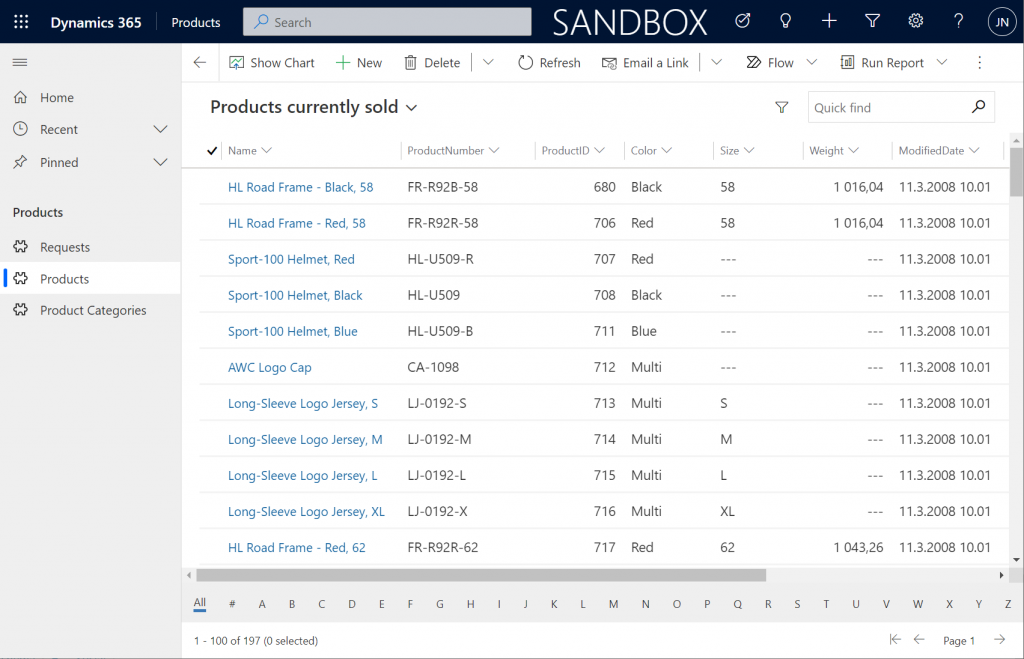
    This is already pretty darn impressive for someone coming from a Model-driven background. Sure, in the Canvas world I’ve been able to easily point a gallery to a SQL table and view the data, but having all of it available within the pre-generated Model-driven UI is a major step beyond that.

    Let’s try out how the native Dataverse table + external SQL Server tables work together on a form. Upon adding a new Request, I’m able to reference the related Product Category and Product tables via the standard lookup, just like everything would be stored in a single system. Behind the scenes, the native Request record will get references stored to the external Product Category and Product tables from SQL.
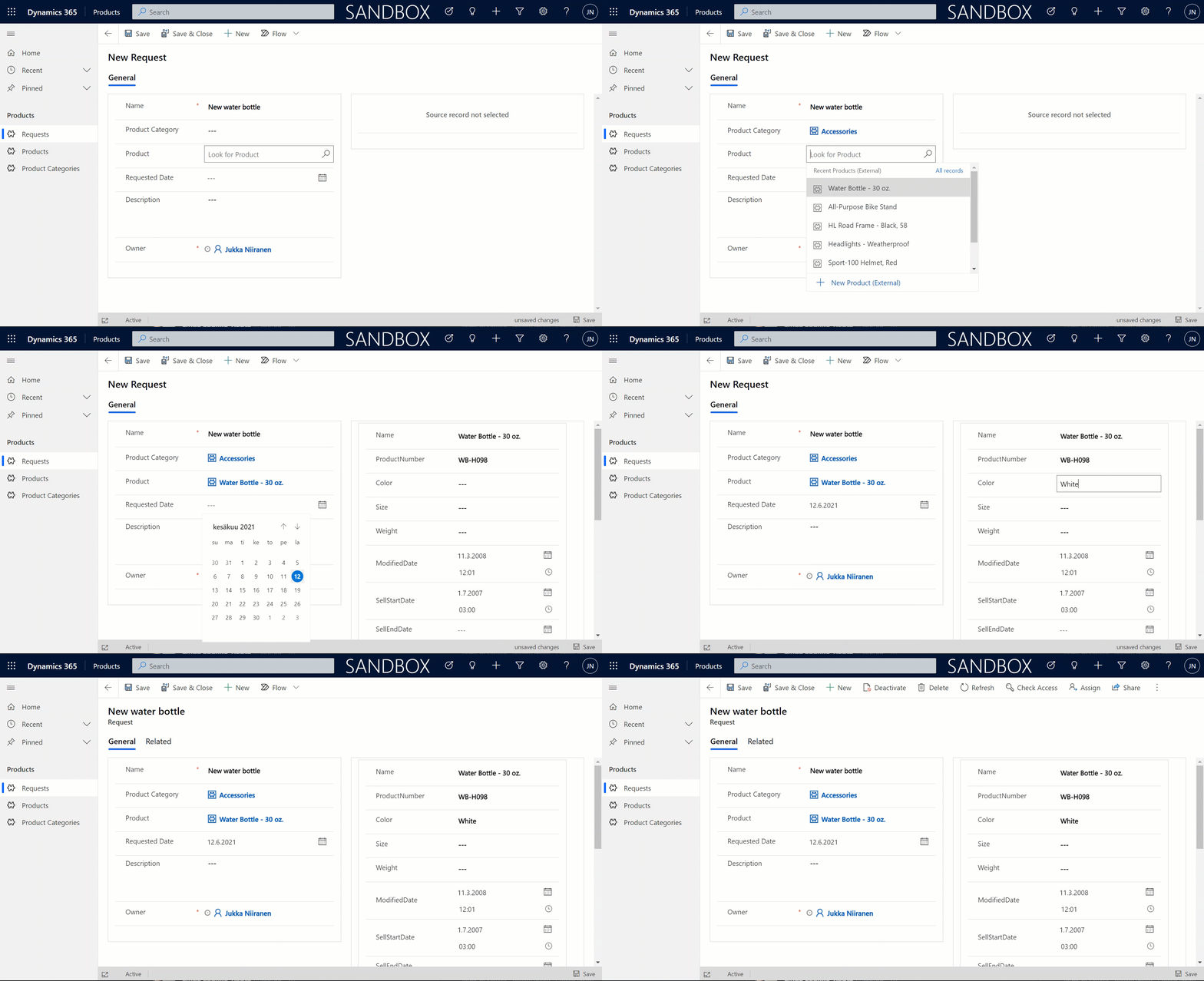
    But wait, there’s more! Did you notice that my Request form actually used the Form Component Control to show an embedded form of the Product table on the right side? Immediately upon populating the lookup field on the left side I see all the details of the selected product, just as if they were regular fields of the current record.

    In the above example I’m actually editing the Color field of the chose product with the value “White” before creating my request record. What this means is that within the same save event not only am I creating a new row in the Request table in my Dataverse, I’m also directly updating the data in my SQL Server’s Product table.
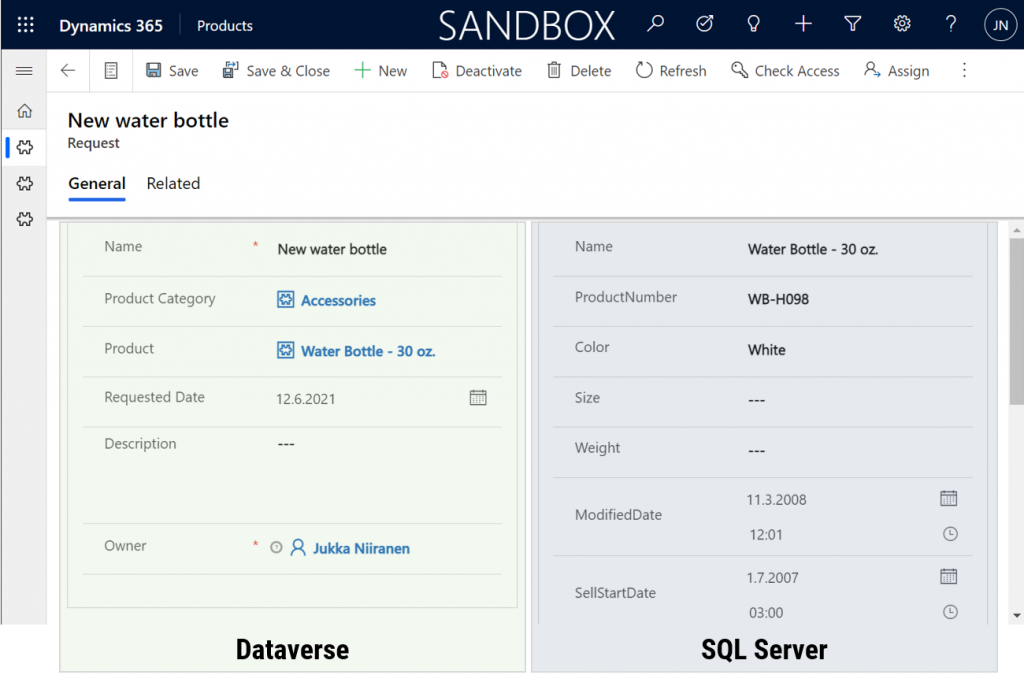
    That is powerful! No custom code was needed in creating an app UI that talks with multiple different line of business systems in real-time, on the very same form.

    From databases to Dataverses

    This simple example of simultaneously performing CRUD operations on data stored in different systems via a Power Apps form illustrates the reason why Dataverse needs to be seen as much more than just a database. It’s purpose is to be a value-add layer on top of different data storage systems, making them easy to leverage in your business apps. We already see today with the Dataverse file & image data getting stored in Azure Blob Storage and audit log entries in CosmosDB, alongside the core relational data in Azure SQL.

    The Virtual Connector Provider and virtual tables take things one step further. Especially in scenarios where you’d need to reference master data from an external system, there may not be a need to physically replicate it into Dataverse (perhaps you also want to reduce the storage costs). Specifying the virtual presence of such data will however make it appear as if it was part of the platform, thus brining it into both Model-driven apps and Canvas apps in a unified way. Even adding support for Dataverse business events to cover Power Automate is technically possible for virtual tables, although these understandably will require pro-developer involvement to get the external systems in sync with the API.

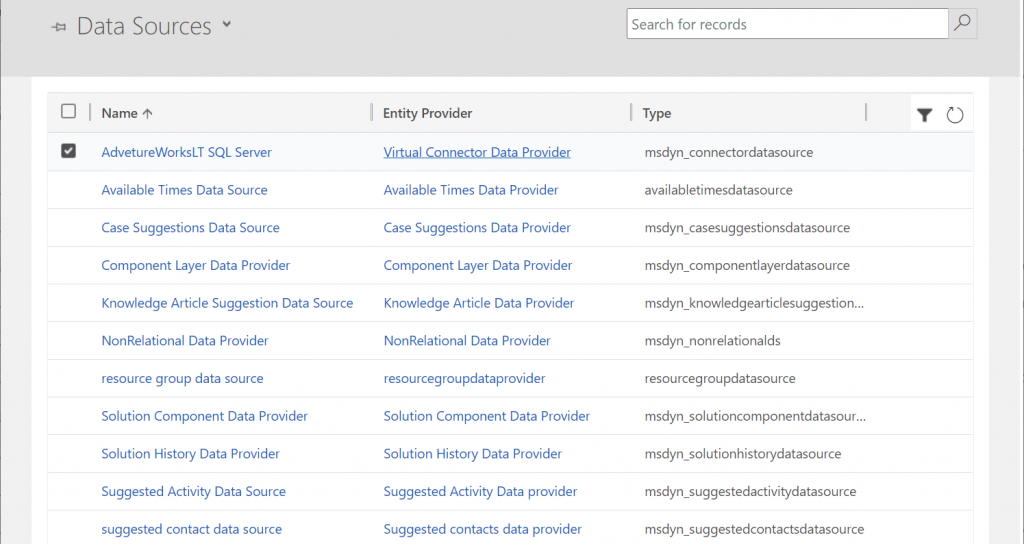
    Behind the scenes, these same concepts for virtual entities / tables are already being used by Microsoft in their first-party app features. By browsing the Data Sources within an environment we can see features like case/contact/activity suggestions listed here, as well as platform capabilities like component layers or non-relational data provider.
    Two years ago I wrote a blog post called “The Real Common Data Service Emerges” where I explored the direction where Dataverse (then CDS) was going. Since then we have seen Microsoft make the export of relational business data to a data lake a straightforward process with the built-in Azure Synapse Link for Dataverse. Similarly the import capabilities into Dataverse have expanded as the Dataflows / Power Query support keeps improving. Combine these physical data import/export pipelines with the virtual layers that the connector technology may soon offer for several tabular data sources and we’ve got a highly capable low-code toolkit for business data management needs in the Power Platform.

    You need to keep in mind that there are many considerations (read: limitations) for using virtual tables to review before deciding if they are a good fit for your business requirements. Even in building the above demo app there were things that don’t quite work the same way as with real Dataverse tables. For instance, I can’t specify a 1:N relationship between the two virtual tables for Product Categories and Products. Quick Find on the SQL data doesn’t seem to produce any meaningful results. Referencing virtual tables via lookups in a Canvas app seems to not retrieve related data at all times. Not to mention the fact that in two different environments the whole Virtual Connector Provider configuration process got stuck before any SQL tables ever materialized in the Entity Catalog.

    So, keep in mind that this is a preview of things to come, rather than production ready functionality to use today.

    Update 2021-08-20: the feature has now been officially released in public preview format, with new documentation available. Check out the Docs page “Create virtual tables using the virtual connector provider (preview)” that contains the information previously only available in the aforementioned PDF.

  • One-to-one relationships and forms within forms

    One-to-one relationships and forms within forms

    There’s no such thing as 1:1 relationship in Dataverse, and hence your Power Apps Model-driven apps or Dynamics 365 Customer Engagement apps can’t directly have such a data model. Only 1:N (one-to-many), N:1 (many-to-one) and N:N (many-to-many) relationships are available between tables, be it standard or custom ones.

    In practice, even the N:N relationship doesn’t actually exist in the database. While the Dataverse table configuration UI allows you to create this relationship type, it actually consists of a hidden intersect table and two 1:N / N:1 relationships that connect the actual tables together (see Dataverse table relationships documentation). Seasoned XRM professionals may even discourage the use of native N:N relationships, as you lose some control and visibility to the relationship due to its hidden nature.

    Just because it’s not available in the platform, doesn’t mean there aren’t many real life business scenarios where a requirement to have exactly one record per a record in another table. (OK, “rows” in the latest Dataverse terminology, but I prefer the business process lingo where “record” still is more appropriate.) Also, like with N:N relationships, just because it’s not directly possible to create one, doesn’t mean we couldn’t build the required functionality by using the no-code tools in Power Platform.

    In this blog post I’ll demonstrate not only how to create a 1:1 relationship but also how you can offer a pretty nice user experience for working with related records – thanks to the new Form Component Control feature. I’ve covered the feature details in an earlier blog post (“Relational data on Model-driven forms, part 2: Form Component Control”) so please refer to that for more info.

    Why would we need 1:1 relationships?

    From a theoretical data modelling perspective, you probably shouldn’t be splitting data into multiple tables if there is only a single match expected from either side. On a practical level there can be reasons why it makes sense to not cram everything into a single table, though.

    A common source of such requirements are the restrictions of access rights to data. Let’s say that the contact information of a person needs to be widely available to users of the application for various purposes (billing, marketing etc.). However, this contact also happens to be a patient, with details about his or her medical profile being recorded into the same system. Only the doctors should have access to this data. A single contact will match a single patient record (or none, if it has been created for other purposes). If these are in two separate tables, granting access rights can be easily achieved via standard Dataverse security roles: everyone sees the contact table data, but only doctors see the patient details.

    “Couldn’t we just use field level security to hide the confidential stuff?” We could, but you have to evaluate whether the approach will really scale to how the system will be used. You see, in addition to security we’ll also need to consider if we’re overloading a single table with too much data. There are hard limits of the maximum number of columns that SQL Server supports for a single table. Thanks to the value-add provided by Dataverse, adding one column into the data model can create many columns in SQL. This means you don’t have anywhere near the 1024 columns per table at your disposal. Also, if you’re working with a standard CDM entity like contact, there will already be close to 300 attributes taking up space before you extend the data model for your specific needs.

    I was recently working with a customer that is planning to use Dynamics 365 Customer Service for managing all their service requests in every department they have. This will mean that tens of different types of services will be creating case records into the system. The amount of service specific information that must be available to be captured on case records is easily hundreds, if not thousands of fields. Adding all of these to the case (incident) table wouldn’t be feasible, so instead the solution architecture was designed to incorporate “service detail” tables specific to each service. Each case will have one (or zero) of these records, so it’s a 1:1 relationship between the standard case table and these custom service detail tables.

    Establishing 1:1 in the data model

    In the scope of our example, the data model will consist of these main tables:

    • Service 1, Service 2, …, Service N: parental record under which the cases will be created. Think of these as service contracts that a contact person can have for one or more services.
    • Case: the standard Dataverse / Dynamics 365 table, with lookups to all of the aforementioned Service tables. No other service specific data is stored here.
    • Service 1 Detail, Service 2 Detail, …, Service N Detail: service specific information that should be found from under each Case, depending on which service it applies to.

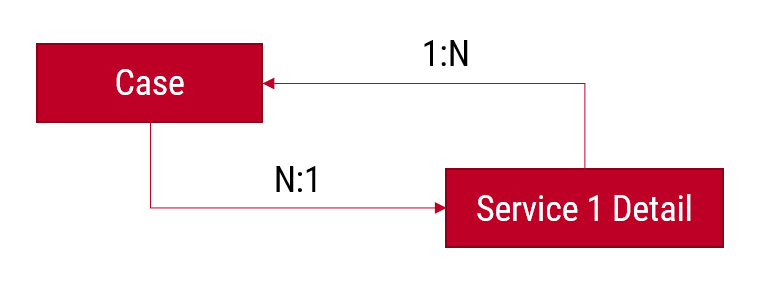
    Just like the N:N relationships in Dataverse consist of two 1:N’s, the same applies to our manually created 1:1 relationship. Only this time we’re not going to need an intersect table, rather we’ll just link the two records together via the relationships like this:

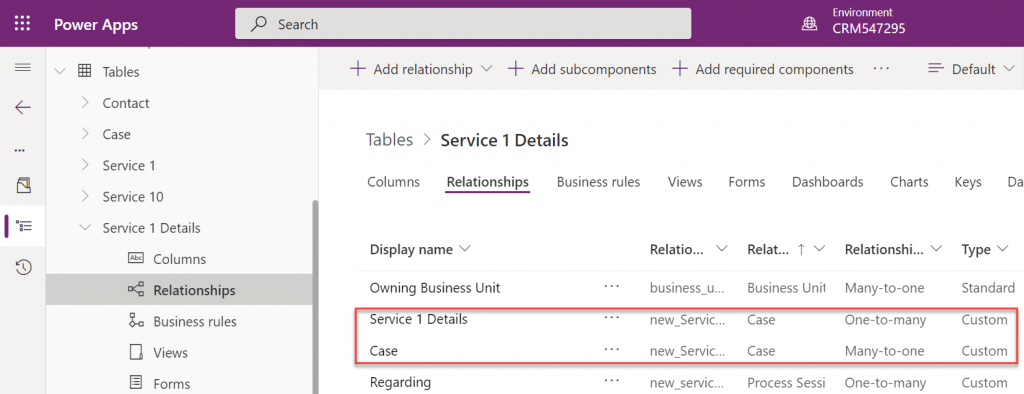
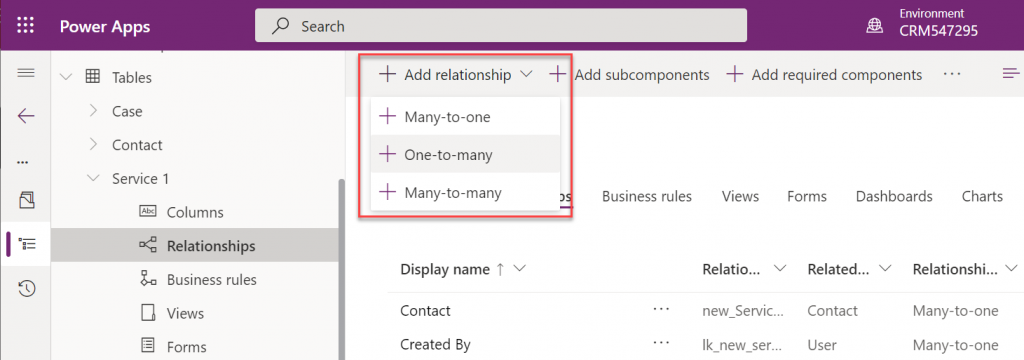
    The Case record will be parental to the Service Detail record, but at the same time the Service Detail will be the Case’s parent. These will appear just as two custom relationships under our table:

    Next, we’ll want to ensure that there is always one and only one Service Detail record for a case – IF the case is related to the delivery of the specific Service. Furthermore, we’ll want to get the Service Detail created automatically immediately after case creation, so that users can start entering data on it.

    The real-time requirement rules out Power Automate that is asynchronous by nature, so we’ll use the classic XRM workflow engine instead. There will be two levels in the automation:

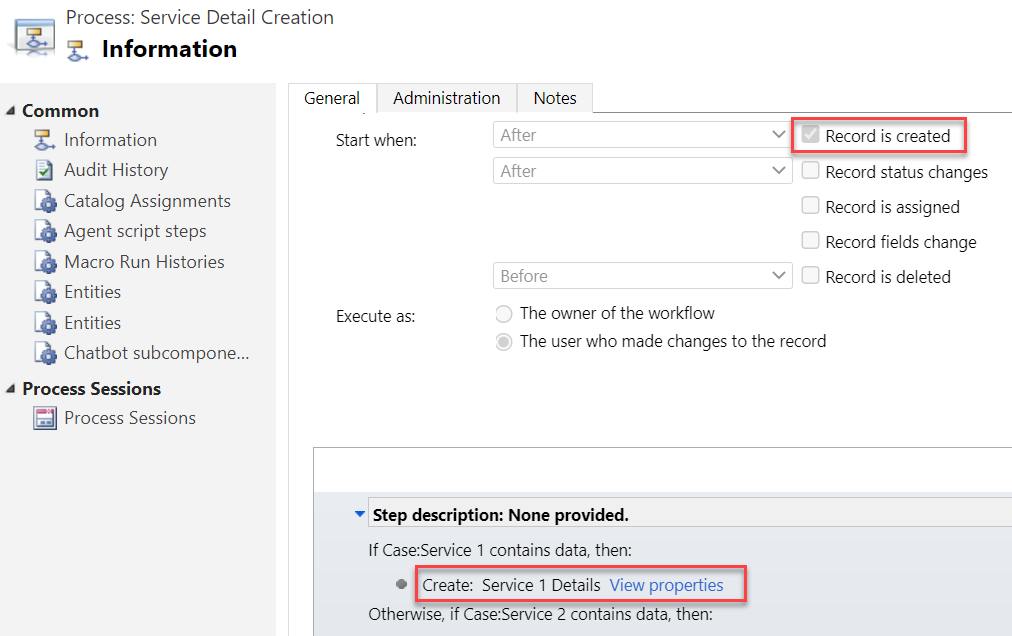
    1. When a Case record is created, check which of the many Services it is linked to and create a record in the corresponding Service Detail table (establish 1:N relationship).
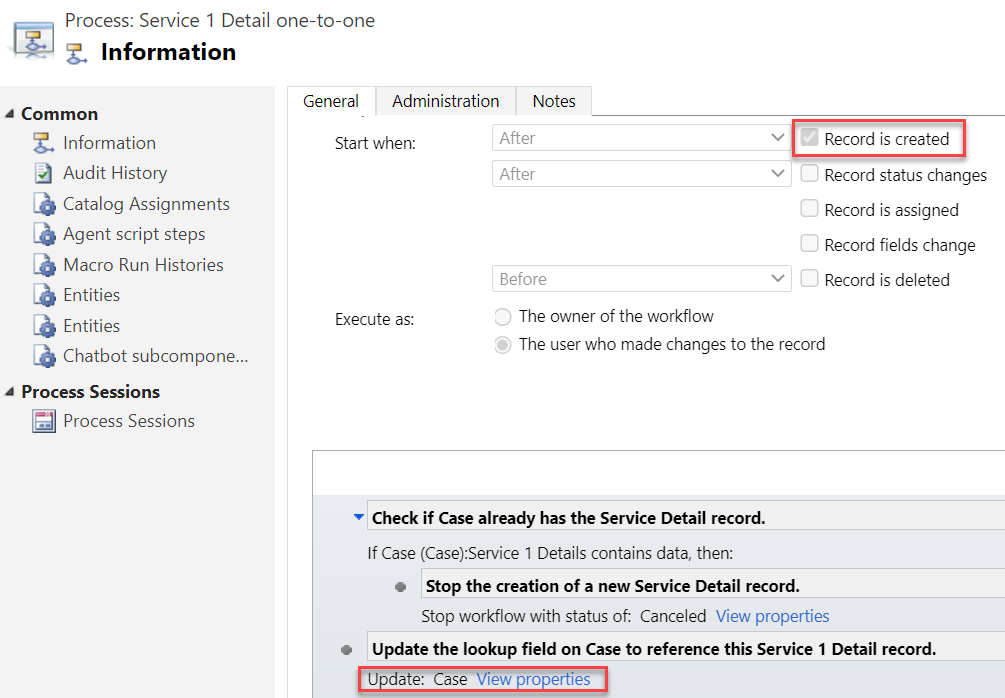
    2. When a Service Detail record is created, update its parent Case with a reference that sets the Service Detail to also be the parent of that Case (establish N:1 relationship).

    Workflow 1 looks like this:

    It will then in turn trigger workflow 2:

    Notice that we have a check in place that stops the creation of a Service 1 Detail record if one already exists for the Case. If the lookup to Service 1 Detail is empty, we put the reference to our newly created record there and establish the 1:1 relationship.

    Working with 1:1 data in the user interface level

    This is where the Form Component Control comes in handy. In short, the control is meant to allow both the display and inline editing of a parental record’s form, embedded inside another form. An example of the standard data model use cases would be to show the fields of a the customer contact on a Case form and allow the service representatives to update them without having to open the actual Contact form.

    It works in our 1:1 scenario, whereby we can edit the Service Details fields directly on Case form. The reason is that not only is the Service Detail a child record of the Case, it is also the parent – thanks to what we’ve just built above.

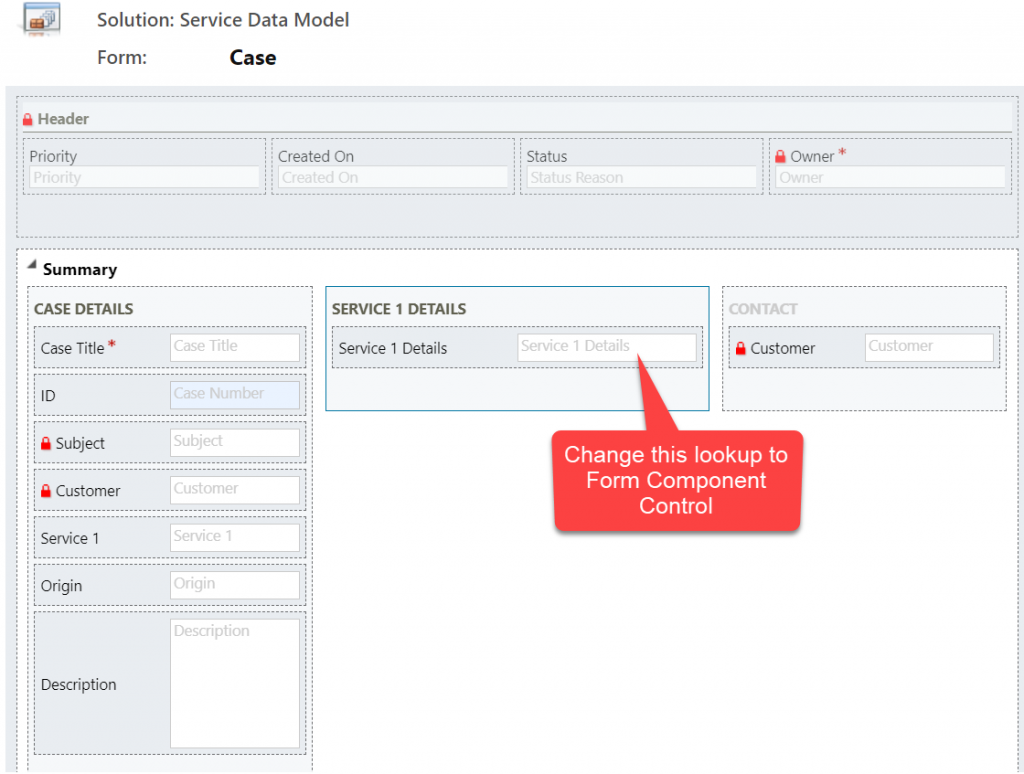
    You’ll find the explanation of how to use Form Component Controls in my earlier blog post. For now you need to do the configuration in the legacy Solution Explorer side, by editing the form and setting one of the lookup fields to be rendered as Form Component Control:

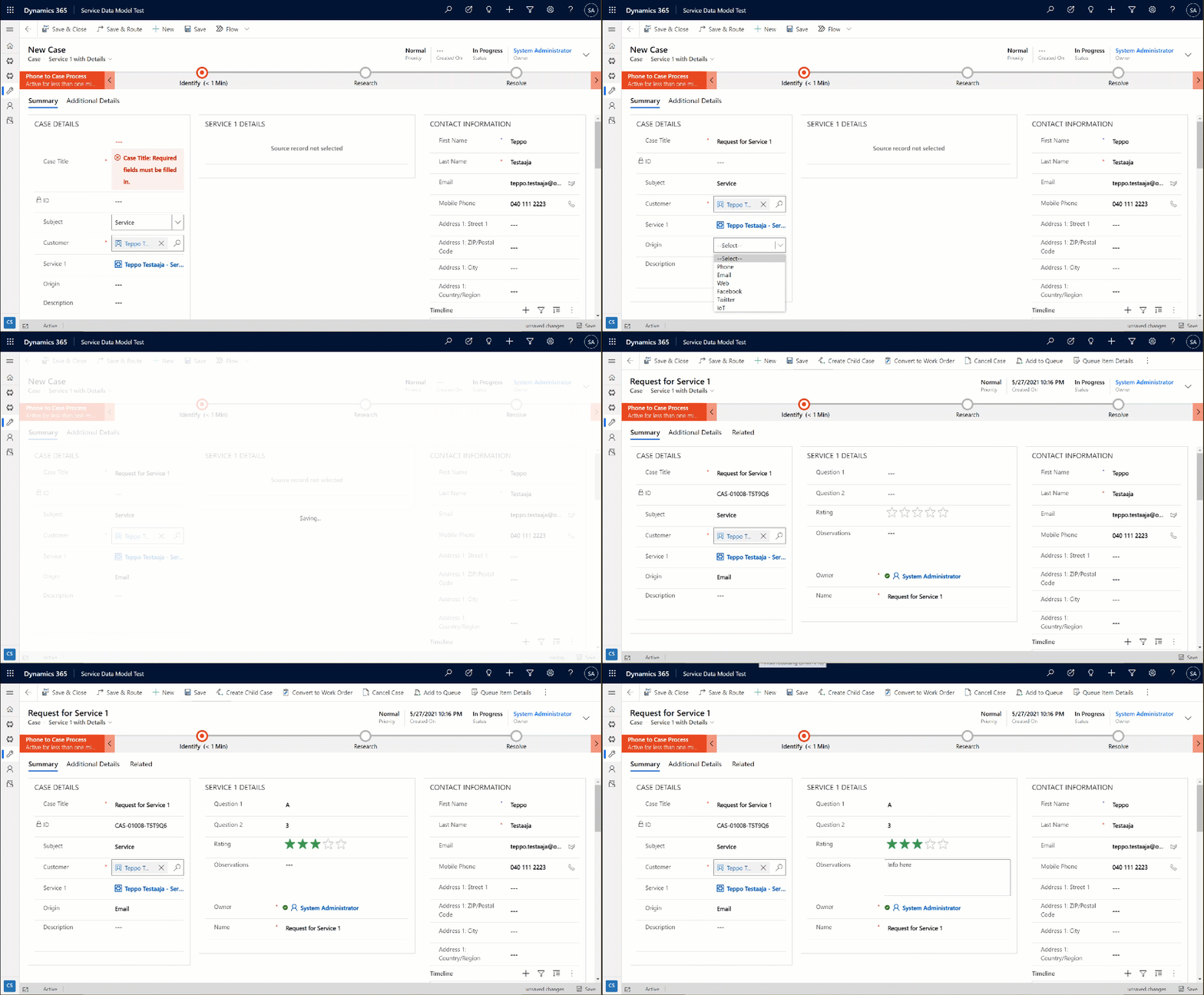
    Now when we create a new Case record and have the Service 1 lookup value populated, after the first save the user can immediately continue to fill the Service 1 Detail values right within the same Case form:

    The beauty here is that for the user who’s working with a Case record, they won’t need to know there are two different Dataverse tables used for storing the data. Both the Case record details, Service 1 Details and even the Contact record details are all editable on the single screen. The world looks flat, regardless of our data model with several relationships configured behind the scenes.

    Conclusions

    Dataverse offers you plenty of configuration tools to get creative with both the data model and the UI in Model-driven Power Apps. While the standard hierarchical structure of parent-child records and table (entity) specific forms is the most common pattern, there are alternatives that may be useful when faced with more complex business requirements.

    Dividing the business data into multiple tables with 1:1 relationship may sometimes be perfectly justified, to accomodate the security and data storage requirements. The user interace of Model-driven apps today offers great tools like the Main Form Dialog and Form Component Control to simplify working with proecsses that span across different tables in the underlying database.

    If you’d like to see Microsoft implement a native one-to-one feature for Dataverse, please vote on this idea.

  • Dataverse for Teams as your CoE platform

    Dataverse for Teams as your CoE platform

    If you’re serious about leveraging Power Platform low-code tools in your organization, then you definitely should be using the Power Platform Center of Excellence Starter Kit (CoE) from Microsoft. This is the best way to get an understanding of what happens in all the environments across your tenant – ranging from small experiments by citizen developers to enterprise wide systems running on Dataverse, like Dynamics 365 Customer Engagement apps.

    The latest CoE update is a big milestone, since it enables the installation of these tools into any Dataverse for Teams environment (DV4T). Why is this a big deal? Because it removes a few licensing blockers that might have previously stopped organizations from deploying the CoE or making the most of its capabilities.

    The first upside is you no longer need to consume Dataverse storage capacity for the CoE deployment. That isn’t actually such a big of a deal, since the CoE Starter Kit data usually doesn’t really take much storage space at all (unless you’ve got a huge enterprise tenant). A nice bonus from this is that you can now deploy CoE in a demo / trial environment with no paid capacity available.

    You still need some actual Power Platform licenses to run CoE, though. Remember: Microsoft 365 does not contain Power Platform licenses – not even at E5 level. From the CoE setup prerequisites, we can find the following statement about Power Automate licenses:

    If you are using the CoE Starter Kit in a Dataverse for Teams environment, a Power Automate per user license will be required for the admin running the sync flows. No additional licenses will be required for users interacting with any of the canvas apps.

    CoE setup prerequisites

    Now, the really big thing is that by using Dataverse for Teams as opposed to the full Microsoft Dataverse, every user with a Microsoft Teams license is allowed to interact with the CoE data and processes. This means that you can actually invite all citizen developers in your organization to participate in the governance practices and automations directly – regardless of whether they already have a premium Power Apps license assigned to them.

    If you only perceive Power Platform governance to be about restrictions and enforcement of policies by IT admins, then the differences between the old & the new model aren’t that big. If, on the other hand, you believe in the power that low-code has to democratize technology and make it accessible to every developer, be it a pro or a citizen one, then this Teams based deployment option is something you’ll definitely want to explore.

    Installation

    Let’s try things out in a new DV4T environment, to see how the deployment process differs from the traditional set up of CoE core components. There’s a different solution package aimed at the Teams deployment option. We’ll need to have an environment provisioned in our chosen team before the installation, so just create one dummy app if you’re using a new team for CoE purposes.

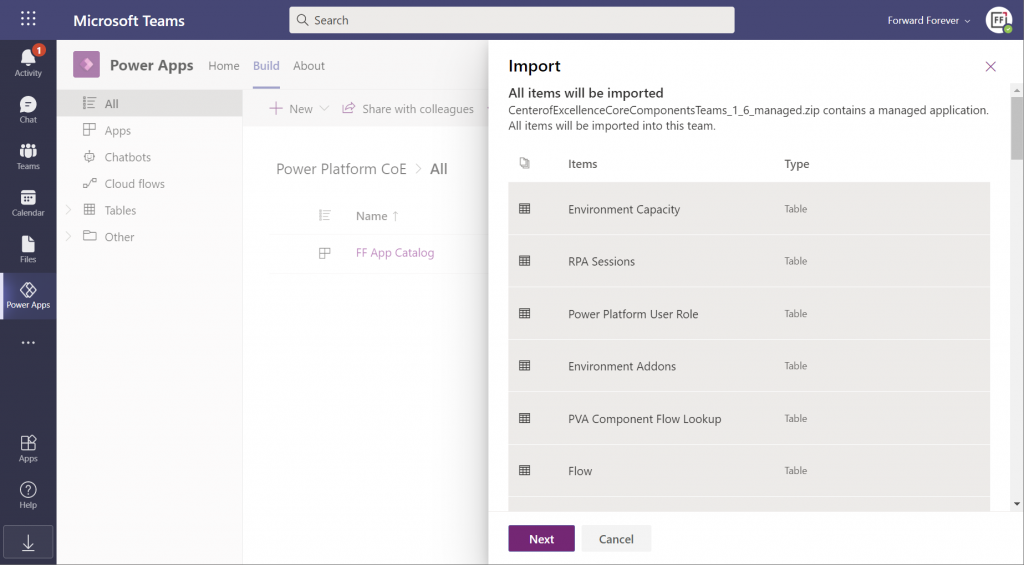
    The import (and export) options within the Power Apps app in Microsoft Teams have only recently been enabled. Importing the managed solution zip file into DV4T gives you a bit different experience than what we’ve been accustomed to in the Dataverse side, by listing all the items that are part of the import:

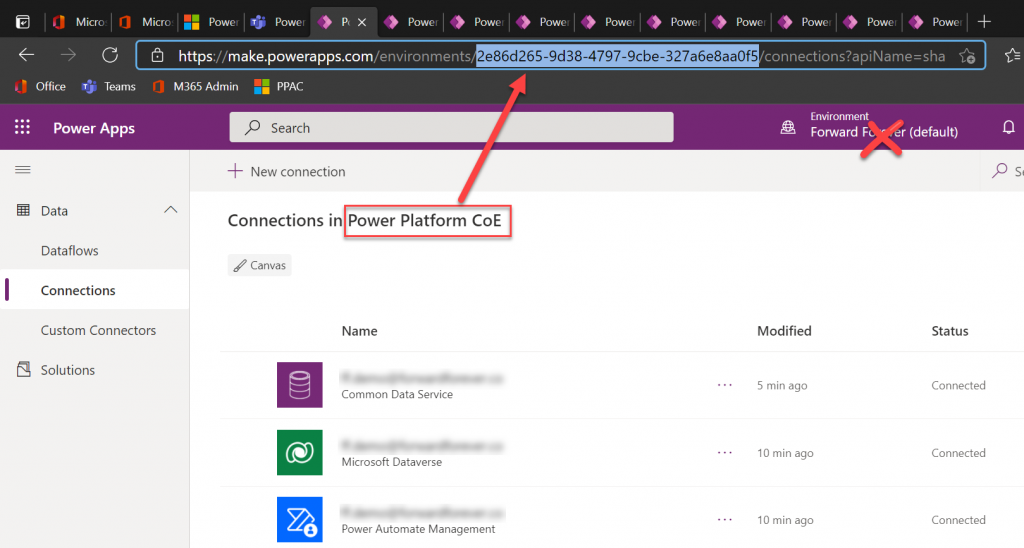
    Next we need to create a bunch of connections before proceeding further with the installation, to allow CoE to perform the necessary data retrieval through a wealth of APIs. This process will give you ~10 new browser tabs that show the traditional non-Teams version of the Maker Portal. A bit of a click show – but luckily there’s one upside to it.

    While you can’t open the DV4T environment directly in the Power Apps Maker Portal (as of now), you can hack the URL to get access to this full maker UI. So, as you’re adding all the required connections, grab the environment GUID from the address bar in one of the aforementioned tabs. Use that GUID to replace the zeros in the following URL:

    https://make.preview.powerapps.com/environments/00000000-0000-0000-0000-000000000000/home

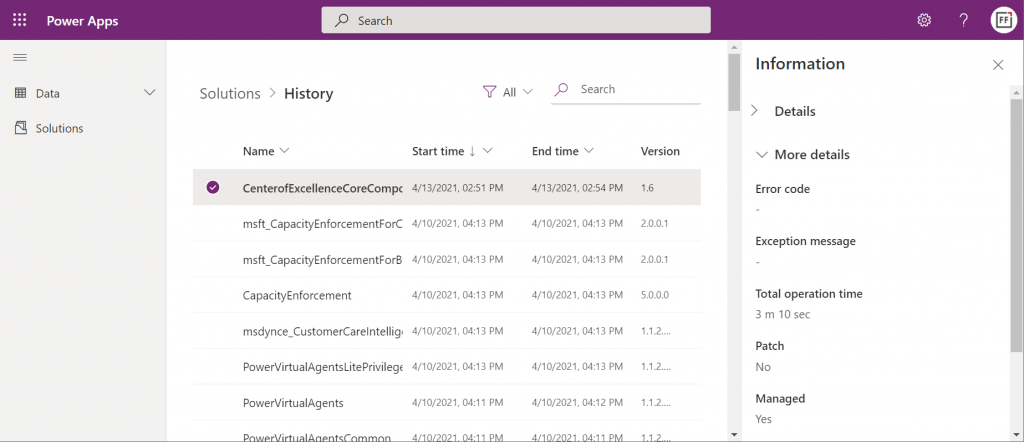
    Now you have a proper Power Apps browser tab that’s independent from Teams yet lets you browse through the environment’s components. For instance, we can go and check the solution history view, to verify that the Center of Excellence Core Components solution imported successfully in 3 minutes 10 seconds:

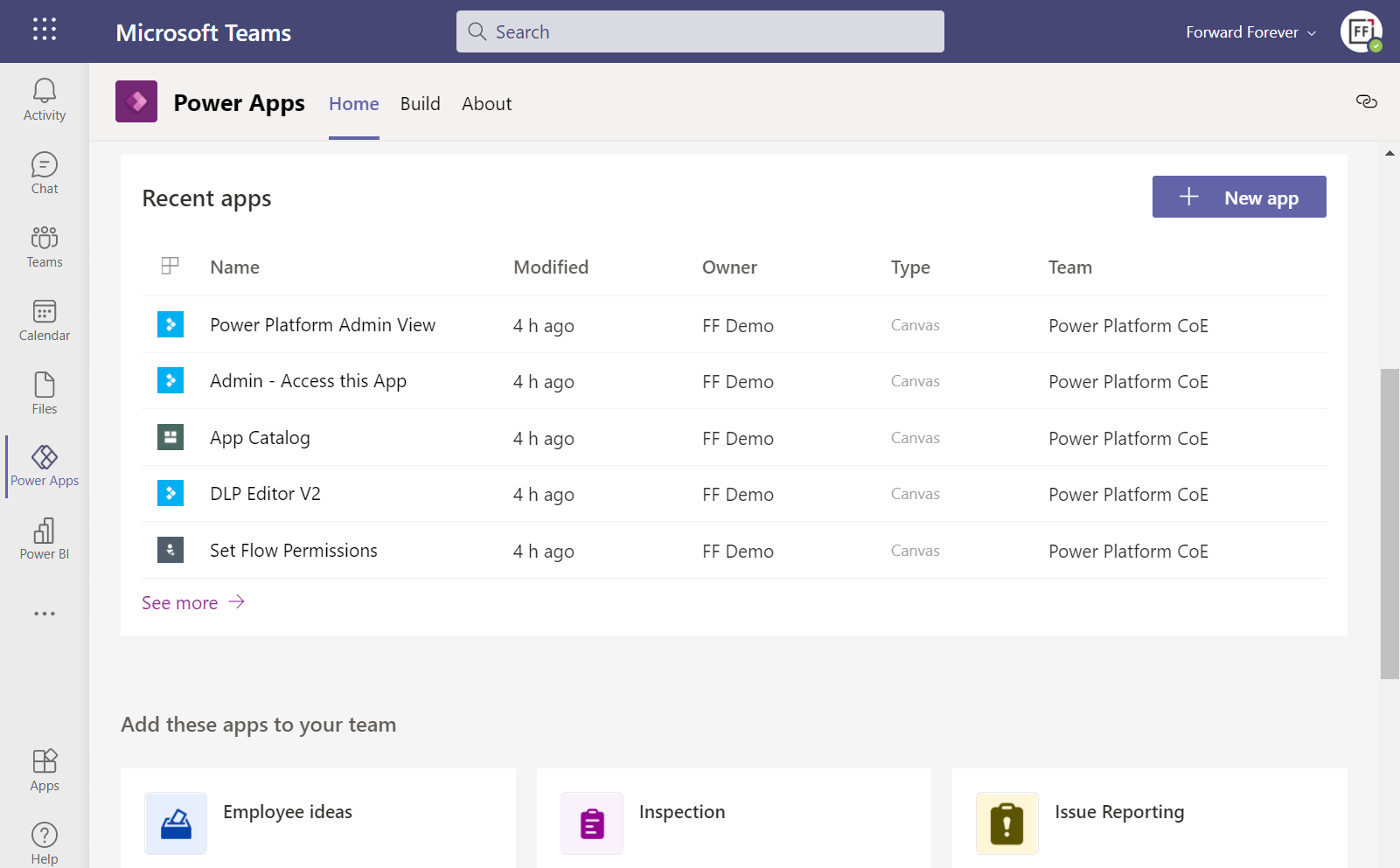
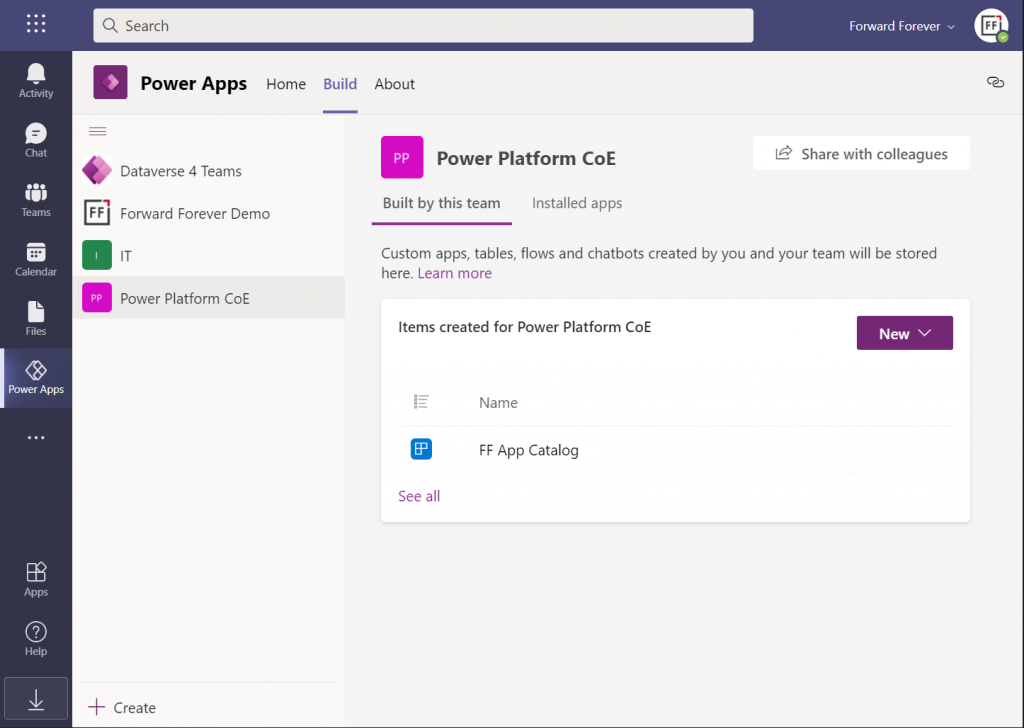
    Hmm, but why can’t I see anything yet on the Power Apps Teams UI? Even if I click “See all” then I only see that one dummy app I added earlier, to get the DV4T environment provisioned.

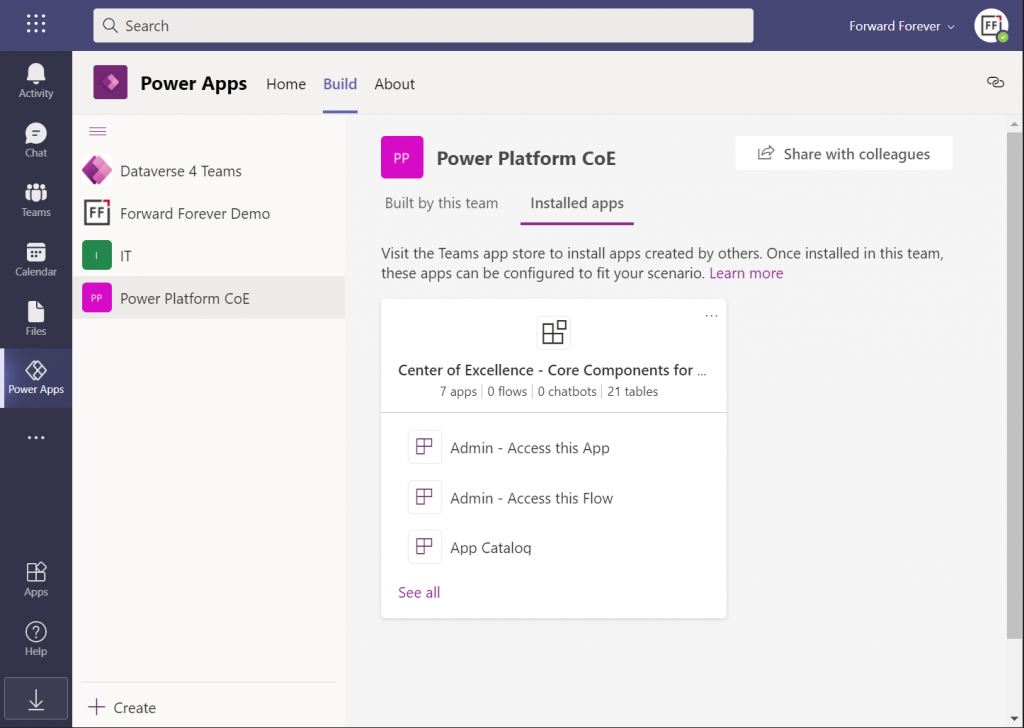
    The secret is in you choice of tabs within the Power Apps app. Specifically, instead of the “built by this team” tab you need to have a look at the “installed apps” tab. Ah! So, it looks like the managed solutions that you import into a DV4T environment are actually treated like Teams apps here – rather than just a list of components like we know them from the XRM era.

    In fact, while we can import solutions into DV4T, the whole concept of a solution package isn’t actually visible when viewing the world from a Microsoft Teams perspective. Also during the import process, we’re importing “a managed application” rather than a managed solution. Make of that what you will.

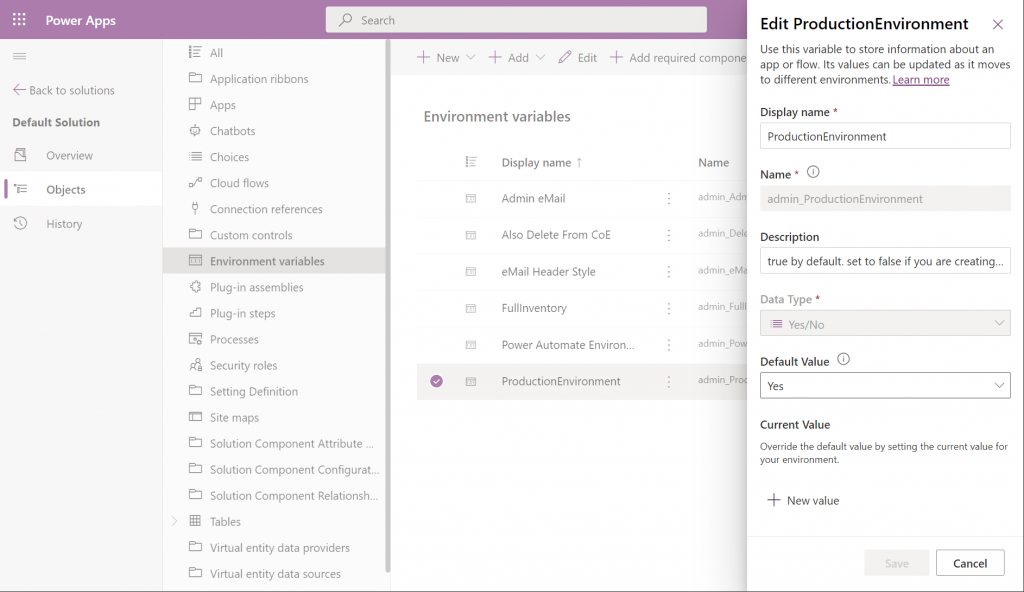
    By using the full Power Apps Maker portal we have access to not just individual solutions in the DV4T environment but all the components when accessing them via the Default Solution. For example, managing things like Environment Variables can easily be achieved here:

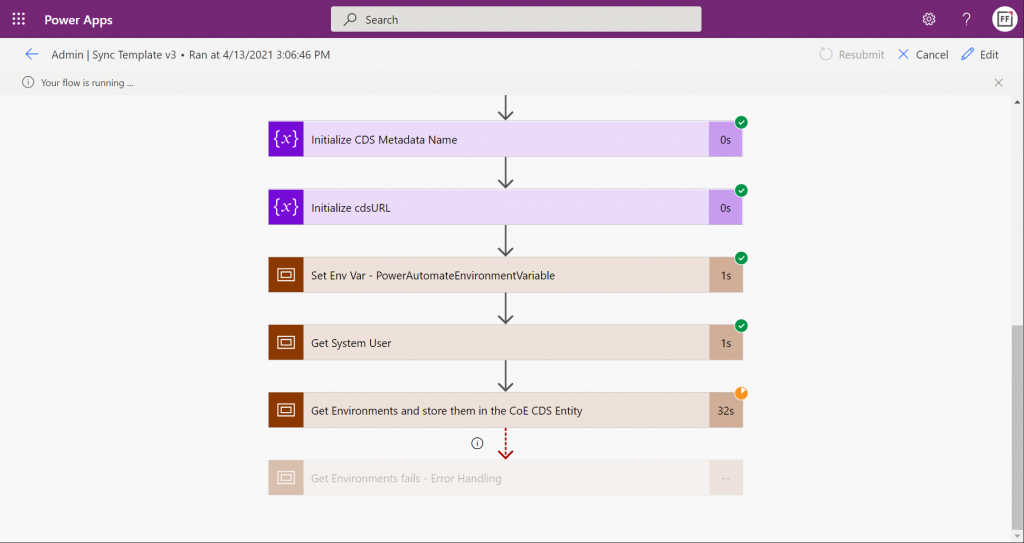
    Let’s get everything configured and move into the CoE core components deployment step that’s common to all environments: sync template flows activation. This will populate the tables in our CoE Dataverse environment with information about environments (how recursive…), apps, flows, makers and so on:

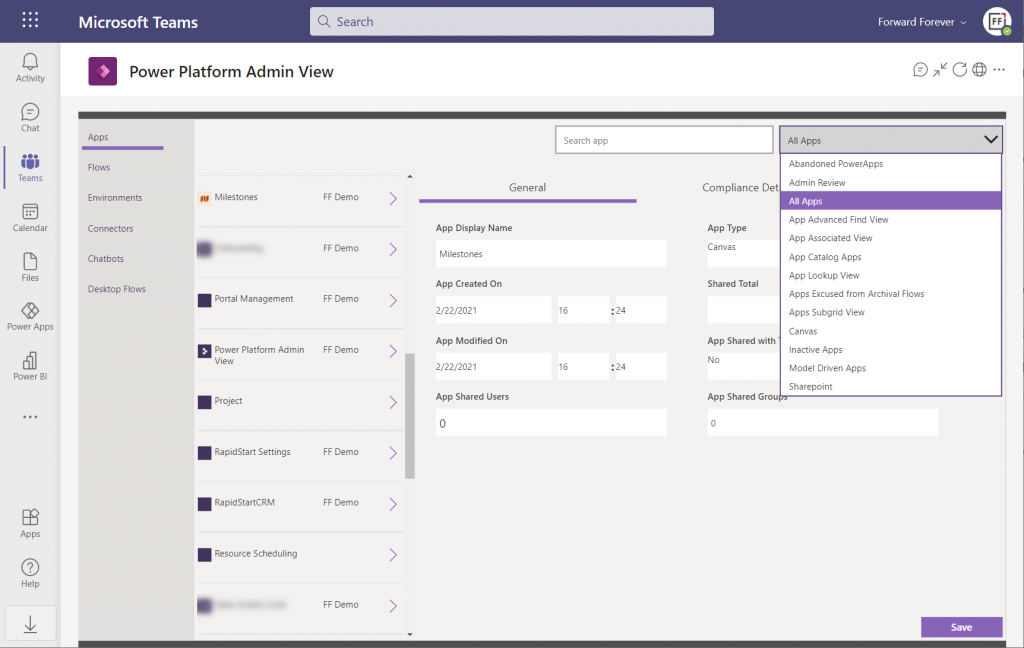
    Once the data is in, we can admire it via the Power Platform Admin View app. Oh, but wasn’t that a Model-driven app? And Dataverse for Teams doesn’t currently have support for those, right?

    Luckily there’s a new Canvas version of the Admin View available instead. Compared to the full Model-driven version, it’s… Well, how should I say this? “You get what you pay for.” Still, it gives a UI for browsing and editing the contents of your CoE environment’s tables. For those admins with little or no exposure to all goodies that the Model-driven apps and Dynamics 365 products offer, this may be perfectly sufficient for basic data management needs.

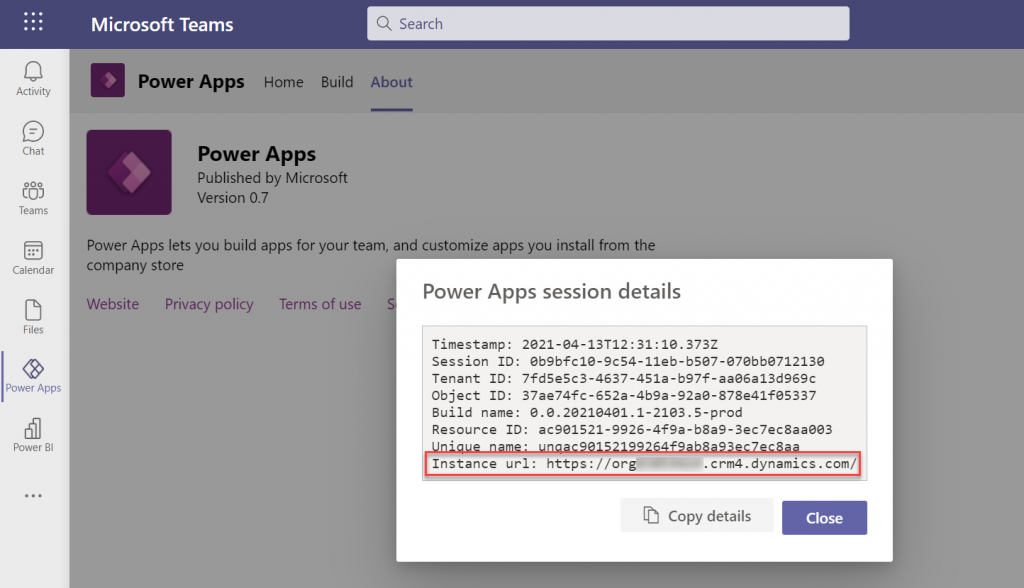
    How about the Power BI dashboard then? That has always been a nice tool in the CoE Starter Kit to demonstrate the wealth of different elements and data points of the platform. The good news is, the same version that’s used for the full Dataverse based CoE deployments is applicable also to CoE in Dataverse for Teams. The one trick you need to know, though, is how to find the Org URL for DV4T:

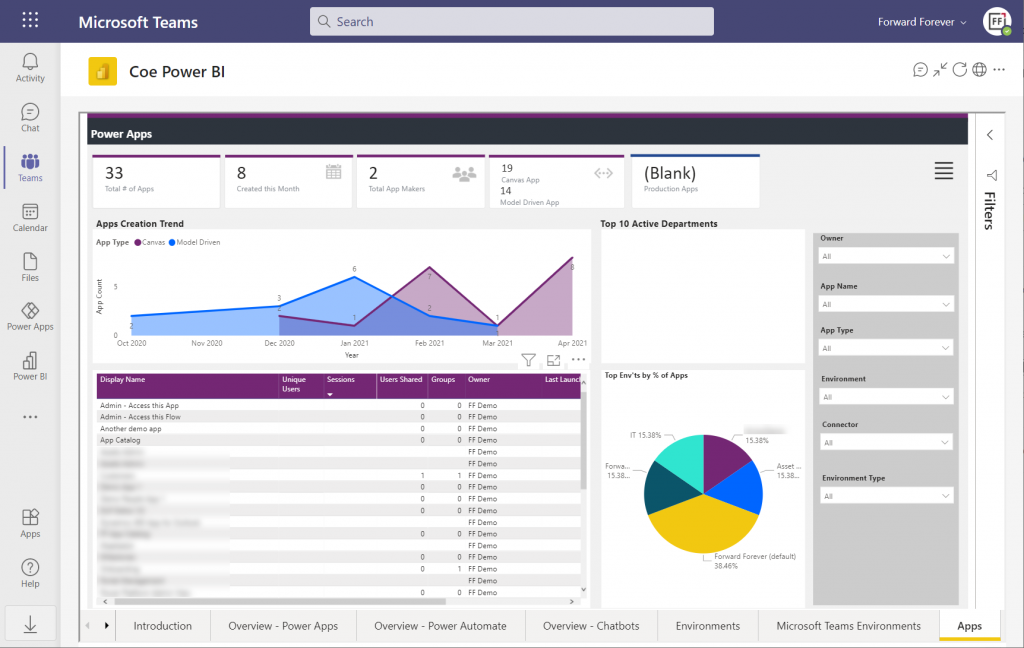
    Paste the instance URL without “https://” and trailing “/” into the parameter field when configuring the Power BI dashboard for CoE. Import the .pbix into a new workspace, create a Power BI app from it and publish it to the end users. After pinning it into a Teams channel tab, we now have a lot more visual method for exploring the apps, flows and other elements in our tenant’s Power Platform environments:

    There’s of course plenty of other useful apps in the CoE Starter Kit, both in the Core Components solution and further packages. In fact, when you look at the comparison table of what’s supported in Microsoft Dataverse vs. Dataverse for Teams, the differences boil down to the lack of a Model-driven admin app.

    Conclusions

    Despite of some of the new hoops you need to jump through to work with the simplified maker UI within Teams, the installation process of the Center of Excellence Starter Kit works pretty well in this deployment option, too. I’m actually surprised how well the CoE team has managed to “retrofit” the earlier solutions to work within the limits of DV4T.

    This highlights an important question which I’m sure many people in the Power Platform community have been wondering about: how far will Dataverse for Teams actually go? Sure, if we analyze the detailed feature comparison between Dataverse editions, it’s easy to identify limitations in existing business applications that wouldn’t really fit within the Teams edition. At least yet.

    While I don’t believe we’ll see the full feature set of Microsoft Dataverse unlocked for usage with Teams licenses alone, I also don’t think it’s going to be severely handicapped – intentionally at least. There’s a lot for MS to gain in pursuing the Teams as a platform story when competing against tools like Zoom or platforms like Salesforce + Slack. By attracting as many app makers and users onto the platform and then upselling them on premium Power Apps & Power Automate licenses when things like 3rd party connectivity or enterprise data platform features are needed, the revenue stream can be pretty darn nice still.

    One final thing to keep in mind about CoE is that it’s actually a great showcase in itself of what Microsoft’s low-code tools can do. It’s built with the very same Power Platform tools that it is used for managing. All the APIs, automations, reports and apps use publicly available technology that the customers also could apply for their own scenarios. Put into a different business context, these are the kinds of big systems that could evolve on top of the platform over time, to guide pretty much any digital process.

  • Year 2020 in Microsoft Business Applications

    Year 2020 in Microsoft Business Applications

    Recently I had the privilege to make my sixth appearance in the CRM Rocks podcast run by Markus Erlandsson. Between our first session back in October 2013 and today, the world of CRM has certainly gone through a lot of interesting events. It’s amazing that out of those ~2600 days in between, there are now more days when a product named “Dynamics CRM” has NOT existed than it has.

    CRM of course still is very much a “thing” – it just isn’t the center of the Business Applications universe anymore. In our podcast with Markus we talked about the broader scope of what has happened with both the first-party Dynamics 365 applications as well as the Power Platform in the year 2020. Put on your headphones and listen to the CRM Rocks episode right here.

    The topics in the podcast also tie in nicely with another tradition of mine, which is writing these end of the year retrospectives about the top 3 topics that I’ve found to be most interesting or impactful for our ecosystem. Before we get started with the fourth edition in this series, let’s quickly check back on what themes I picked out last year at the end of 2019. They were: 1) low-code movement, 2) licensing confusion, 3) data story evolved.

    All fairly hot topics still today – which is of course the reason why I emphasized their importance one year ago. Now for 2020, this time I’ll keep you on the edge of your seat by introducing the top 3 in reverse order. Hold on tight, here we go!

    Nr. 3 from 2020: Renaming frenzy

    We all know that Microsoft loves updating not just their software but also the terminology used for referring to these products. CRM is of course a prime example of this. Microsoft’s isn’t always “following the money” by sticking to industry standard names, rather they prefer to reimagine the categories in which their technology can be used for solving new business problems.

    In 2020 we saw the iconic Office 365 brand get removed from the official vocabulary of Microsoft’s list of products available for purchase. Like with CRM, the actual technology and the customer use cases for the products didn’t see any major overhaul overnight. Previously there were SKUs in the price list branded Office 365 and Microsoft 365, which caused confusion for the customers, according to Microsoft’s own branding change announcement. Luckily now everything is crystal clear and no one will be talking about Office 365 in the year 2021 anymore. (Right?)

    While Offi… sorry, I mean Microsoft 365, is a mainstream product used by pretty much all customers in the MS Cloud, its rebranding in Spring 2020 turned out to be just a warm up for the real main event of 2020 that took place in July. I’m of course talking about the rise and fall of Microsoft Dataflex. In may have only lasted for exactly 3 weeks but the Dataflex era will surely be remembered as the crazy days of software branding.

    Luckily the Dataflex saga started in the middle of the year, which means we were able to catch the season finale before 2020 ended. The revised names of “Microsoft Dataverse” and “Microsoft Dataverse for Teams” were revealed in the GA launch of what used to be codename Project Oakdale. These names have persisted for six weeks already without changes, so they seem to be the real deal now.

    Following along the path travelled by CRM and XRM earlier, the three letter acronym of CDS is therefore now officially deprecated. What were perhaps more shocking casualties of the year 2020 were the terms “entity”, “field”, “record”, “option set” and “two options”. (I’m not counting “multi select option sets” in this list since everyone who’s had to deal with them probably hated them already, so good riddance.)

    As for how many adjustments there were to products in the Dynamics 365 family, I honestly can’t even tell. The fact that I needed to do a dedicated “why MS product naming is complex” type of a blog post to analyze the phenomena should be firm enough evidence that the renaming frenzy definitely was one of the top themes of 2020.

    Nr. 2 from 2020: Power Platform licensing complexity growth

    Measured by my own articles and the comments I’ve been hearing, there seems to be no end to how much headache the licensing of different Power Platform components is causing to people. Even though most of the last major changes to the licensing model were actually introduced already in 2019, I think the impact from them has only now started to hit home with a lot of the technical folks when trying to apply the new rules in real life scenarios.

    Earlier in the year there was a lot of fuss around the coming technical enforcement of access rights on the app module level. The immediate attention was of course on the arrival of Dynamics 365 Team Member licensing enforcement and the targeted app modules offered by MS while they would be blocking all other standard and custom apps. This was supposed to take place already on April 1st, but then COVID-19 came around and the deadline was pushed to January 31, 2021.

    We did still see a growing number of technical limitations implemented to keep customers in compliance with the licensing terms while using MS cloud services. The CDS Dataverse storage capacity in particular became a big practical blocker for customers wanting to leverage multiple Power Platform environments to some ALM practices for their low-code apps.

    While storage consumption is already enforced today, the big question on every developer’s mind (well, at least those who follow what the Power Platform community talks about) must be the API call limits. We’ve been getting a few bits & pieces of information here & there from MS about how they actually plan to keep track of the API quota for different operation types, but no definitive guide exists today. The eventual enforcement of these rules could potentially lead into future troubleshooting patterns where we could replace “DNS” with “licensing” in this popular meme:

    In the year 2020 I wrote in total 9 blog posts on the topic of Microsoft Business Applications licensing – including a 4 part series on the various sources of complexity in licensing. As for Microsoft, during the year 2020 they didn’t manage to launch the licensing consumption metrics dashboard that has been promised for Power Platform Admin Center ever since the October 2019 licensing model came into effect (on paper). With all these factors combined, licensing complexity in my eyes earns again a place in the 2020 Top 3 themes, just like it did in 2019. Let’s see if in 2021 things will settle down a bit and we’ll finally gain more confidence in understanding and managing the licensing costs of solutions built on top of Power Platform.

    Nr. 1 from 2020: Microsoft Teams as a platform

    There’s not a single doubt about what the year 2020 will be remembered for on a global scale. The total impact from the COVID-19 pandemic reaches far beyond the mere side effect that it had on us information workers, with everyone being forced to join the #WFH trend and getting used to all of our work being remote work. Still, that is the most immediately and easily observable part of what the virus did to us. As a result, for pretty much anyone working in the MS ecosystem, 2020 became the year of Teams, Teams and a whole lot more Teams.

    Working from home proved to information centric businesses that a surprisingly high percentage of those processes that weren’t fully digital before COVID-19 struck could actually be turned into such when no other option was given. While this will give a major boost to future digital transformation investments for sure, it also demonstrated how little new tech was actually need at the end of the day to make the typical business processes work without any sort of physical encounter. Already with our collaboration tools of 2020 and the low-code application platforms of 2020, many teams have learned to creatively solve their problems and get the job done. No massive multi-year initiatives and agile software development projects with big budgets were needed to reach “good enough for now”.

    In 2019 Microsoft started promoting Power Platform as “the platform for every developer” by addressing the pro developer audience on the benefits they could reap from adopting low-code tools as part of their app development toolkit. In 2020 it was time to address a much wider audience of power users, by promoting Microsoft Teams as a platform for the apps they could be creating for themselves, for their teams, or for their entire organization.

    Power Platform as a whole has managed to reach 1o million monthly users, based on the latest Microsoft FY21 Q1 earnings call. While that’s an impressive figure, it’s nothing compared to the 115 million daily active users that Microsoft Teams has. In my own analysis on this Teams as a Platform motion, I wrote about how Teams is gradually transforming into the next Windows:

    Teams is now the closest thing that Microsoft has at its disposal to transform into an OS style fabric that connects a significant share of information workers globally.

    By bundling the basic Dataverse functionality inside Microsoft Teams both in technical and licensing terms, I’d say we’re seeing the low-code equivalent of what the Internet Explorer + Windows bundle represented back in the early days of the commercial usage of the web. It will be pretty tough for the competing vendors to find their way inside any existing corporate IT infrastructure on the same breadth as what Teams has already achieved.

    Teams of course was delivered there as part of the licensing payload of Office 365, which lead to competing workplace messaging platform Slack to file an antitrust complaint against Microsoft in the EU in July 2020. Later in December when the business app platform vendor Salesforce acquired Slack and announced it plans to use it to “create the operating system for the new way to work”, this kind of validated the strategy that MS had followed with Teams all along.

    The way I see it, Business Applications will increasingly be presented within the context of where the work actually gets done. They will become more targeted for the specific user groups and use cases that may well be unique to every organization. The complex ERP style systems of record will still exist behind the scenes, to orchestrate how work gets assigned, scheduled and invoiced. For the actual end user experience of interacting with these work processes, though, it will likely be closer to just using an app inside Teams than what is required operating the complex UIs of traditional enterprise applications. This is why the biggest theme of 2020 in Microsoft Business Applications has to be the concept of Teams as a key layer in the application platform story.

  • How naming works in the Power Platform universe

    How naming works in the Power Platform universe

    After the peculiar episode in July-August timeframe when Microsoft first tried to rebrand the Common Data Service and had to later cancel their plans, we’ve been eagerly awaiting to hear what they are actually going to call CDS from now on. Yesterday the Teams based features known as Project Oakdale finally went GA and now we know the answer. I won’t focus here on the actual features, but you can read my thoughts on them from the Forward Forever team’s blog:

    Hello Microsoft Dataverse

    The mapping of the old & new names is quite straightforward:

    • CDS = Dataverse
    • Project Oakdale a.k.a. “CDS Lite” = Dataverse for Teams

    Not all that different from their initial plans of using the name “Dataflex”, which didn’t go through since the owner of that trademark considered it to be an infringement and sued MS. Is the name “Dataverse” unique then? Not entirely, as there appears to be at least the Harvard Dataverse out there. Luckily it’s not as directly related to low-code application development platforms as the DataFlex that caused grief the last time.

    Just because there are other existing products out there in the IT space that use a particular word, this doesn’t mean new products would never appear in the market with the same name. As an example, last month a service called Microsoft Clarity was made Generally Available. Is “Clarity” a brand name that isn’t used by any other IT product? Of course it isn’t. The first thing that comes to my mind is Clarity PPM project & portfolio management software, but search engines will reveal many others. Heck even MS has acquired a BI software company called ProClarity back in 2006.

    That’s just how it goes in the real world. Coming up with a name that hasn’t ever been used before yet also means something is not an easy task. If instead of a Globally Unique ID you’re aiming for a product name that actually contains some hints about what the product does, then your choices will always be limited.

    Ah, the Choice / Choices in life…

    Which brings us to:

    Terminology updates inside the Dataverse

    Not only does the name of the technolgy itself change from CDS to Dataverse, there have been a number of terminology updates to the foundational concepts of the data platform:

    • Entity > Table
    • Field / Attribute > Column
    • Record > Row
    • Option set / Picklist > Choice
    • Multi select option set > Choices
    • Two options > Yes/No

    For a quick explanation about the scope of changes, see this short video by David Yack:

    I bet this is a bigger change for many of the professionals in Power Platform and Dynamics 365 area than the new Dataverse brand. We’ve been talking about entities ever since the birth of MS CRM and now all of a sudden the idea of “entities are much, MUCH more than a mere database table” should be replaced with “fine, they are tables”.

    Why are these changes necessary then? Largely for the same reasons why a more approachable name was needed for CDS: the target group for this technology is no longer the same – it is considerably broader. Microsoft doesn’t want the platform to be an exclusive club for those who thoroughly understand the business process management and data modeling techniques offered by their products, sometimes only after having gone through training courses and technical certifications. No, this needs to be something a power user that’s equipped with nothing more than a Microsoft Teams license can quickly figure out on their own.

    The path towards Teams as a platform brings more changes than just new names for familiar things. Previously the data model construction was a back-end task handled largely separately from configuring the app’s front-end. With Dataverse for Teams and later presumably in other UI’s, too, the interactive table editor supports both data model design and data entry all in one – much like a pre-built app รก la Microsoft Lists does today. It doesn’t remove all the other functionality of entities in the underlying relationship management system, but it makes these optional at the start. You could just build a table like in Excel or Access, then later take it further as the app requirements become better defined.

    For those who have mastered the earlier XRM universe, the simplification of the terminology that was very specific and accurate to what the platform does may feel like a slap in the face. How can Microsoft tell us that we should pretend that it’s just a database table when we know the reality as well as the history? There isn’t much of an upside for these technical professionals in the new naming – at least if they don’t need to interact much with business users unfamiliar with the core concepts of CDS.

    We’ll get over it, though. Developers and even many no-code customizers will probably hold on to the entity/field terminology for quite a while – especially when on the API level everything the terms are not expected to change (at least for now). Having this dual reality of tables and entities isn’t going to present a huge cognitive challenge for those who’ve been with the platform for a longer time. The old content from pre-Dataverse era may cause confusion for the newbies, but we’ve already been through the merger of Power Apps & XRM a short while ago, which had a much more profound impact on the names of concepts in the platform. This too shall pass.

    While it may not be of much consolation, there’s one thing that we know won’t change: this changing of product and feature names isn’t ever going to stop.

    Why is this naming thing so hard in BizApps?

    I’m not going to write a four-part series on the product naming complexity just yet (like I did on the complexity of Power Platform licensing). Let’s try and keep it within this blog post for now. So, here are four reasons that make naming especially tricky in the context of Microsoft Business Applications are:

    1. Ambiguity
    2. Hierarchy of concepts
    3. Shifting product boundaries
    4. Marketing goals vs. market needs

    1. Ambiguity

    In a universe as broad as Power Platform, there can easily be overlap in naming elements of that platform that serve different purposes but really should have a fairly generic name. As an example, “a Power Apps portal” and “the Power Apps portal” are 2 different things. Excuse me, what?!? Yes, it’s all in the documentation. Power Apps portals are one of types of apps you can build, whereas the Power Apps portal is the place to create new tables and columns. People tend to refer to the latter one as the Maker Portal thanks to its URL, but it’s good to keep in mind that URLs in Power Platform do also change occasionally.

    Layout components

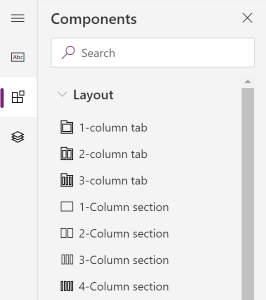
    This is why we now have Model-driven app forms which use the word “column” for both describing a field on a form as well as the number of adjacent containers within a tab or section. The original intentions for using easy and generic terms can sometimes create confusing results. If not in their native English language then most probably somewhere down the line when the terms get localized to a multitude of different languages.

    2. Hierarchy of concepts

    You won’t always have a clear view of what individual products and technologies will eventually be needed when pursuing a particular vision. Thinking about what CDS was called initially, it wasn’t a separate “thing”. It was embedded within the Common Data Model concept introduced in 2016. It took a year for this vision to evolve to a level where the actual data platform functionality operated by Microsoft was named Common Data Service and the earlier CDM term was dedicated to the idea of a shared schema across business apps from different vendors. It’s easy to see these should be 2 different things, but finding the right way to put them out there took a few iterations.

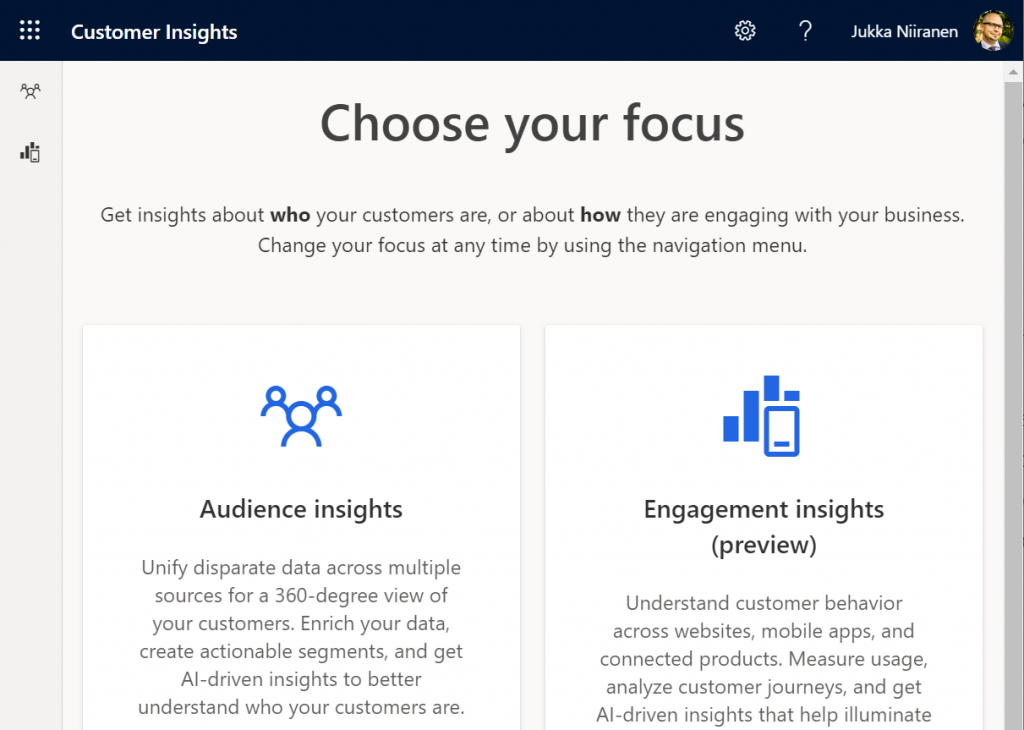
    Another example where things are a bit further already when a the need for redefining the terminology arises is Customer Insights. Microsoft has been shouting a lot about the booming demand for their Customer Data Platform solution (CDP, a generic term like CRM). Recently they’ve had to reshuffle the Insights deck of cards to ensure the gameplay works smoothly, so a hierarchy like this has been introduced:

    • Customer Insights: the top level concept of Microsoft’s CDP
      • Audience Insights: the features that were initially called Customer Insights, now referred to merely as a “capability” of CI.
      • Engagement Insights: announced originally as an independent product called Product Insights, now in preview as another capability of CI

    3. Shifting product boundaries

    Microsoft today excels in understanding the importance of their technology stack. You could also call it the platform approach in this context, but the point remains the same. Their products rarely get developed in isolation these days, rather there is (at least seemingly) a big push for combining elements of existing services to create new products. The problem is, though, that this game of connecting the dots isn’t ever really over.

    Survey feedback management was first brought into the Business Applications portfolio via acquiring an ISV product called Mojo Surveys that had been built on the XRM platform. After some rearchitecting and rebranding it was launched as Microsoft Voice of the Customer (VoC). The capabilities for the survey form design were quite lacking compared to the simplified UX in Microsoft Forms that had been developed internally on the Office 365 side of the house. Instead of retrofitting the form designer into VoC, MS decided to take CDS as the process and data management engine to give birth to a more structured feedback management tool, called Forms Pro. VoC was then deprecated and customers were asked to migrate to Forms Pro instead.

    In this process the technical capability of feedback management had hopped over the fence from the Dynamics side to the Office side. This was somewhat problematic from a business perspective, as well as causing confusion between the non-Pro and Pro usage of Forms. So, Microsoft ended up doing a further reimagining of EFM and rebranded Forms Pro to Dynamics 365 Customer Voice, bringing it back to the BizApps side where it started from.

    Returning to the previous example, before we had Dynamics 365 Customer Insights, the product names Microsoft used for referring to the same concept included “Cortana Intelligence Customer Insights” and “Azure Customer Insights”. The earlier Azure products that were offered in preview had to be scrapped and rebuilt as a Dynamics 365 product to finally see the GA milestone. Today it makes far more sense to have these type of packaged AI capabilities in the BizApps portfolio than in the Azure service catalog, but it wasn’t always obvious – especially back when Dynamics was just about CRM and ERP.

    4. Marketing goals vs. market needs

    Product marketing at Microsoft is in an endless pursuit of finding the best story that can sell customers a shiny new vision of what results they could achieve – if they choose the right technology from MS. Making a single purchase isn’t enough. You have to get the customers hooked on buying more from you, which leads to the invention of new things to sell. It’s easy to understand the incentives that lead to such actions, but they can sometimes end up irritating the customer who’s already made a purchase based on their own understanding of their needs.

    When Microsoft decided in 2016 that it would no longer sell a product called CRM, you could argue that their vision for tearing down the traditional CRM and ERP silos was logically a goal worth pursuing. The side effect from this product marketing goal was that when Microsoft took away the name “CRM”, they didn’t give anything new to replace it with. Reluctantly the Customer Engagement name was introduced a bit later, only to be quietly discontinued.

    The CRM systems that customers had deployed didn’t disappear anywhere of course. Companies offering professional services around them first struggled in migrating from Dynamics CRM consulting to Dynamics 365 CE consulting, and now they’re even more confused about what to call themselves.

    Microsoft’s branding changes aren’t ever exactly applauded in the partner or customer space, since renaming CDS to Dataflex to Dataverse will always cause extra work for them and give little in return. Removing an entire category like CRM has a far bigger impact than changing A to B. Redefining concepts and their boundaries is of course a very powerful way to stir things up and generate motion in the markets. I can’t say that I personally have any regrets on moving on from CRM, yet it’s easy to understand why not everyone is cheering when someone comes and says “what you’re doing is no longer a thing – time to reimagine everything!”