Tag: data

  • Did Power Apps really leak your customer data?

    Did Power Apps really leak your customer data?

    Recently Power Apps made the headlines in a way that Microsoft would have liked to avoid at all cost:
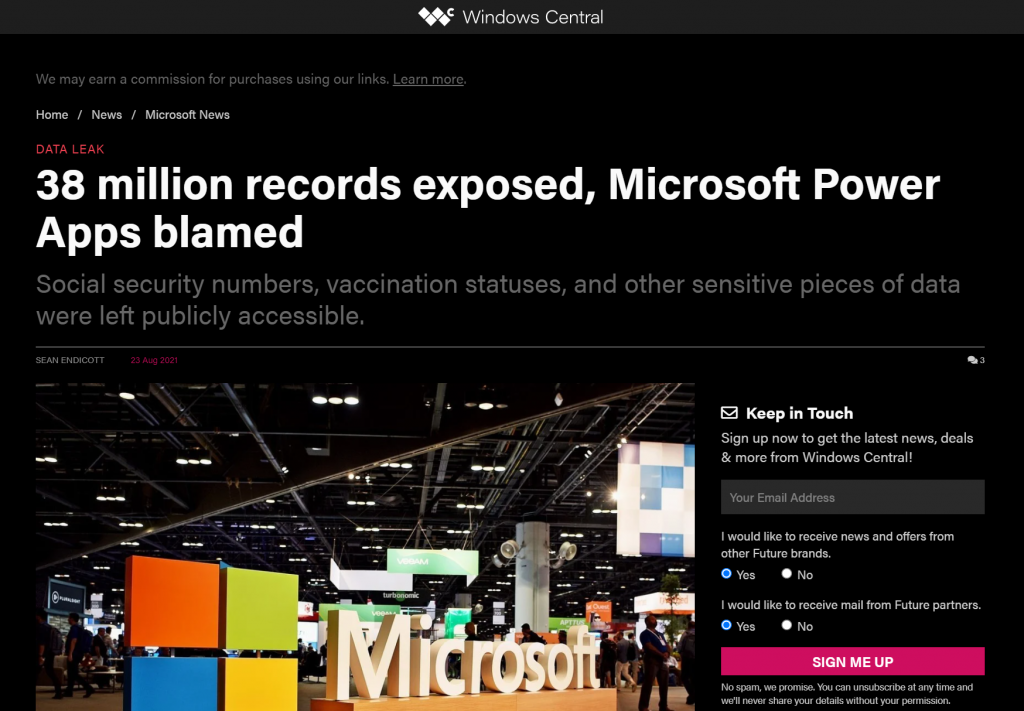
    The news headlines today aren’t exactly the most neutral source of information, but luckily we also have access to the full report from the security research team at UpGuard. Here’s what happened according to them:

    The UpGuard Research team can now disclose multiple data leaks resulting from Microsoft Power Apps portals configured to allow public access – a new vector of data exposure. The types of data varied between portals, including personal information used for COVID-19 contact tracing, COVID-19 vaccination appointments, social security numbers for job applicants, employee IDs, and millions of names and email addresses.

    UpGuard

    Sounds serious, and it certainly shouldn’t be sweapt under the rug by anyone working with Microsoft Power Platform. We have a lot to learn from an incident like this and the concerns it may bring up along with it. As these low-code technologies become more widely used across different industries, not all publicity will be positive.

    There have of course been some concerns raised by IT practitioners already before this Portals incident on what’s the general impact that low-code platforms will have on business solutions development. How to secure customer data and to build proper governance practices around these tools is a topic that is often covered when talking about Power Platform with customers.

    I personally already used the above headline as an example in a governance workshop with a customer on the very next day after the report was published. The discussion was quite neutral and it served well in acknowledging both the important role that Power Platform tools can have in business processes, as well as the need for practices that allow them to be safely used in developing new solutions.

    The other alternative where such a topic would not be proactively addressed in a transparent manner could instead lead to more controversial reactions down the road. Some people may have negative experiences in their past that might lead to seeing these new events as an enforcement of their existing beliefs.

    It’s hard to prevent people from drawing the wrong conclusions based on incomplete information if we don’t bring all the relevant pieces into light. To help in such examination of the evidence, in this blog post I’ll present some fictitious statements that could potentially be made based on reading the news headlines. Then I’ll offer my own perspective on whether they would be justified or not.

    “Bugs in Microsoft’s software caused the data leak!”

    This wasn’t an actual bug, rather an unfortunate feature. As the report title from UpGuard hints, it was “by design” when examined from a technical perspective. Also, that was the initial response from Microsoft’s side, as shown in the report:
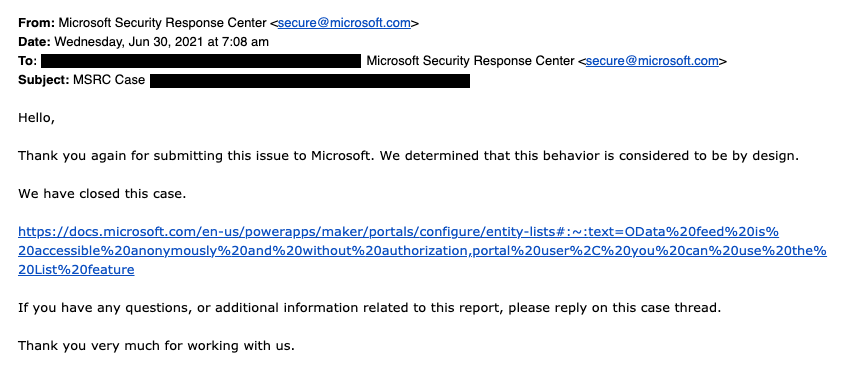
    The above response is in my opinion the biggest mistake from Microsoft in this whole incident. Being tone deaf when presented with something that had already proven to be a pattern leading to unintended disclosure of confidential customer data via numerous Power Apps Portals out there is… Well, it’s what happens in large corporations, unfortunately.

    What was this “by design” feature then? In the state that the Portals configuration experience was at the time of the investigation, there wasn’t any strong push from the product side to make the data tables used in the portal as private. It was a neutral platform built specifically to take records from your organization’s internal Dataverse tables into a public website, then giving you the choice to either show all the contents to anyone, or limit the visibility through a very granular security model to only a small subset of records.

    As an example: you could show all the available locations where COVID-19 vaccinations were being offered (public table). Then you’d give the logged in user the ability to create an appointment record (private table with access control). Both are an integral part of the business process managed via a portal, yet the rules for showing them to the website visitors are directly opposite. The technical platform has to cater to both these requirements.

    As it happened, there was a way through which the portal developer could forget to enable the table permissions that the private data should have in all areas where it was used. Now, the reason why this mistake wasn’t immediately obvious was that the Power Apps Portal product included a feature that allowed publishing this data as OData feeds. These would not be visible in the website pages necessarily, but they were technically available as long as you knew the right path from where to search for them.

    In our example, a public OData feed of locations could have been useful for integration purposes. For reservations made by private individuals, an unauthenticated feed would never be a good idea. Yet the platform didn’t know what the developer wanted.

    After this incident was reported by UpGuard, Microsoft changed the defaults and made it require more conscious effort to publish the feeds for unauthenticated consumption.

    “Poor default settings in the Portal product were dangerous!”

    There’s no denying that discovering more than a thousand Power Apps Portals misconfigured to expose confidential data to unauthenticated users is a big number. Yet the total number of Portals out there is… well, let’s just say it’s certainly multiple times that.

    As part of their research, UpGuard enumerated through the various available powerappsportals.com and microsoftcrmportals.com subdomains to programmatically scan the sites with potential unintended OData feeds published. Many were found through this method, but still this problem affected only a small subset of all Portals websites out there.

    The majority of Portals developers will have been aware of the setting that must be enabled for any data that you don’t want to be publicly available on your website. Nick Doelman explains the “Enable Table Permissions” setting very clearly in his excellent blog post. It’s not really fair to claim that this would have been impossible to notice while building your Portal app:
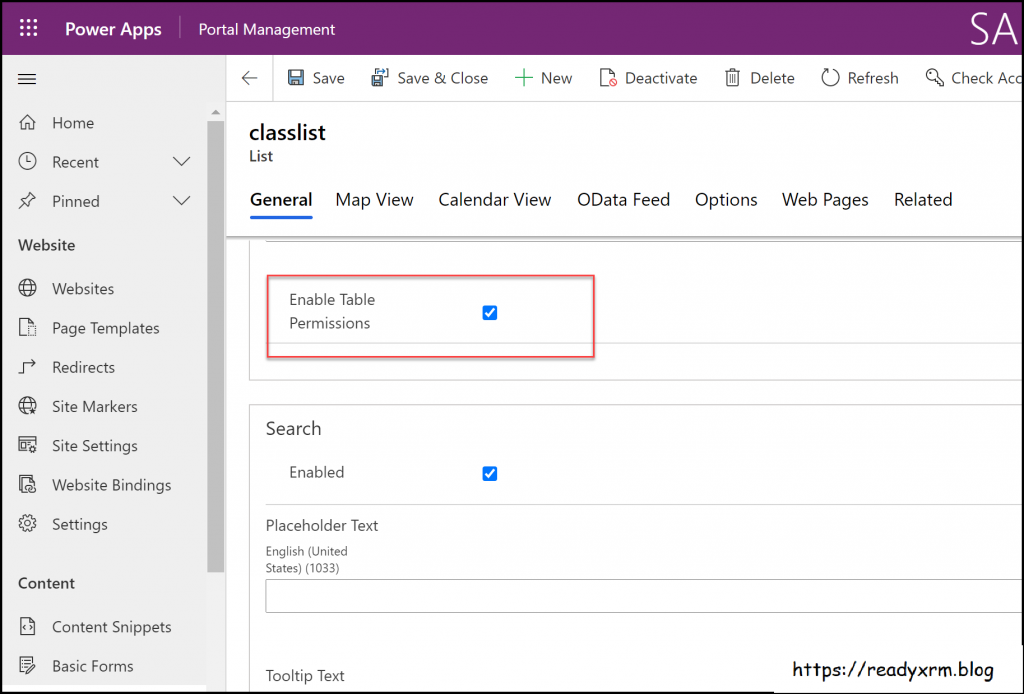
    If it has been news to you and you have built websites with Power Platform tools, then I seriously recommend you to take advantage of this generous offer by Nick and enroll for his Power Apps portals Security Deep Dive course:

    Update 2021-08-31: you should also check this video from George Doubinski about the Portals behaviour before & after the default setting change:

    “Microsoft should prevent such things from happening on their cloud service!”

    Power Platform is a suite of low-code tools that allows you to build your own apps. Whatever business logic the published app contains is ultimately the responsibility of the app creator. Same goes for the data you manage with that app. Technology providers can’t easily stop people from building unfit solutions with their products.

    There’s a great analogy in George Doubinski’s blog post “How to secure Power Apps portal from making the news” that I’ll repeat here. If you’re a company selling nail guns and a few unfortunate customers of yours shoot themselves in the foot – what should you do about it? Sure, your product probably came with all kinds of instruction manuals and warning signs that try to explain the importance of learning how to use such power tools. Similar to how Microsoft now shows a banner saying “table permissions should be enabled for this record or anyone on the internet can view the data”, to try and warn people not to hurt themselves.

    Let’s look at an example from another area of Power Platform that I cover frequently in my blog: licensing. Any customer could easily use this platform to build an automation that is a clear violation of the multiplexing rules of the very same platform’s licensing terms. Just create a Power Automate cloud flow that automatically pushes all new opportunities from your Dynamics 365 Enterprise Sales app into a SharePoint list accessible to your whole organization with no Dynamics licenses assigned to them. Congratulations, you’ve again used the powerful tool to hurt yourself in a way that the vendor couldn’t have stopped.

    “I knew citizen developers couldn’t be trusted to build real business applications. So much for low-code!”

    Did you look at the types of customers that suffered from this data leak? If not, I’ll list some of them from the UpGuard report here, to give perspective:

    • American Airlines
    • Ford
    • State of Indiana
    • New York City Municipal Transportation Authority
    • Microsoft

    These don’t sound exactly like the kind of organizations where a lone citizen developer who discovered a neat tool in his Office 365 app launcher just went ahead and built a portal on top of millions of rows of contact records and other sensitive data. If I had to guess, I’d assume there has been a proper development team working on many such customer facing services – not just citizens.
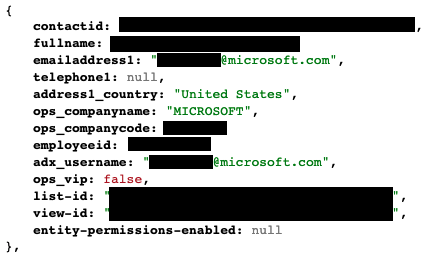
    The above picture is an example from the report’s contents that was captured via the unsecured OData feeds. It is from the Global Payroll Services Portal for Microsoft employees, built (presumably) by professionals working with software. Despite of all the resources and knowledge behind these, the misconfiguration of a Power Apps Portal still went into production sites.

    Although not directly related to this incident, on the very same week there was also another unfortunate data leak reported concerning the Microsoft cloud. Only this time it was around CosmosDB and the database primary keys that got leaked, exposing private data from thousands of Azure customer organizations. The misconfiguration seems to have been carried out by Microsoft software developers while they were integrating Jupyter Notebooks with CosmosDB to provide a new platform feature to customers.

    Regardless of whether you are clicking through low-code configuration pages or writing your own lines of custom code, mistakes can happen.

    “Suites like Power Platform are becoming way too complex for anyone to keep track of all these features & settings that can cause harm!”

    This is certainly true in the sense that a single person will not have an A-to-Z understanding of Power Apps in Canvas/Model-driven/Portals flavor, Power Automate in the cloud and on the desktop, Power Virtual Agent, Dataverse, AI Builder, Power BI and its data platform back-end… It’s way too much for anyone to consume as documentation, let alone master in practice.

    We should be asking where the assumption actually comes from that an app maker or developer should have end-to-end knowledge of the whole Microsoft low-code stack? Whether you’re a customer or a partner, it’s very important for you to not be blinded by all the flashy product demos and testimonials on “how company X digitally transformed themselves, using software suite ABC”. It doesn’t all happen thanks to this one mythical app hero who can take on any challenge – rather it’s the result of the right person finding the right tool to solve one specific problem at a time. Repeatedly, at scale.

    Low-code is a team sport and you will increasingly see the fusion development approach be promoted by Microsoft. This emphasizes the fact that an optimal mix of business domain expertise and technical software development skills is a better approach to achieving long term business value with low-code than relying on lone superheroes to do it all. In the end, just because you’re not writing as much code as earlier doesn’t mean the resulting systems would be simple:

    Low-code tools may be easy to approach, but the solutions you create with them can be as complex to manage as custom software.

    The data leak was the result of a feature built into the platform that the persons developing the customer specific solution were not aware of. They didn’t purposefully create the OData feeds, rather the software product generated them based on the underlying logic of how it was meant to streamline certain app development tasks. The best chances for having awareness of all these moving parts in the end solution is to ensure people have a realistic opportunity to focus on their primary tools and continuously sharpen their skills.

    “This incident proves you need product X / service Y from partner Z to be safe with Power Platform!”

    Events like these are bound to inspire companies working in the Microsoft ecosystem to try and gain exposure of their own by riding on the news wave. It never hurts to sprinkle a little FUD tactics on top of your marketing message, right?

    Now, I have to be transparent and admit right away that we are in the business where the questions and concerns coming from Microsoft customers are addressed via our advisory services. Even though we educate organizations on governance best practices and have delivered a few Power Apps Portals solutions to them, I would not make any statements like “buy from us and you’ll never have these kind of problems”. There’s two reasons for this:

    1. Our aim is to help customers take ownership of their digital tools, not to be the ones who build everything for them & maintain it. New app makers will make mistakes as they learn & grow, they just need a safe space for this (read: not a public website).
    2. I know how hard it would be to build a technical solution to audit every little detail that could go wrong in the various use cases where Power Platform is be used.

    Let’s examine the details of this particular data leak. First of all, to have any technical level protection, you would need a service that can tap into Power Apps Portals specifically. Running something that monitors only Canvas Apps or Model-driven Apps won’t help you here. Even the Power Platform Center of Excellence (CoE) Starter Kit from Microsoft only has the Portals data inventory as a backlog item as of now. If no public APIs are available to tap into a Microsoft cloud service, then you’re unlikely to find any software to do the required tricks for you.

    Even if we’d have the same level of telemetry data access as Canvas Apps do, what’s the likelihood of the specific setting in question (Enable Table Permissions) to be exposed and monitored? Well, it is data stored inside Dataverse tables and could be queried via Advanced Find as showed by Nick, so in retrospect we could technically have audit tools built for it. But why would someone built such a third-party product when Microsoft already offers Portal Checker to all customers?
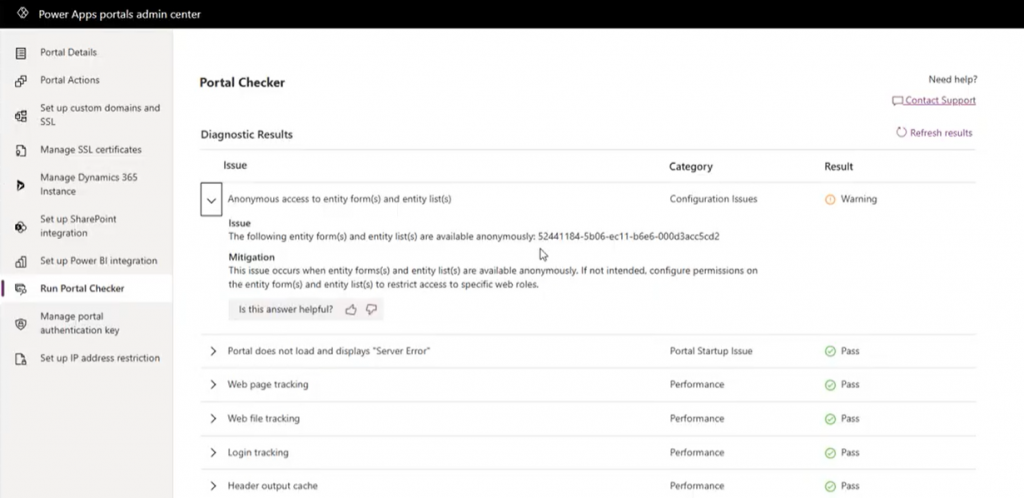
    So, there’s unlikely to be an easy & all encompassing solution out there that would address all your Power Platform security and governance concerns. I could even bet that some of the Portals websites that suffered from the OData leak will have been reviewed by security professionals from outside the Microsoft ecosystem and still the issue was not discovered. Probably because they didn’t know where to look.

    Because it’s an ever evolving cloud platform, it was possible for Microsoft to quickly react to the incident via a change in their original design, as well as by notifying the customers potentially affected by it. Today the risk of unintentional data exposure is technically lower and the public awareness of such possible misconfiguration among the Power Platform app maker community is much higher.

    Yet we have no way to guarantee what will happen tomorrow. Something similar may be discovered in a different part of the platform that will again require attention and action. I think all we can really do is to keep our eyes open and be ready to learn from the new discoveries shared by the network around us.

  • Virtual Dataverse tables with no code, via Connectors

    Virtual Dataverse tables with no code, via Connectors

    The concept of a virtual table (previously: virtual entity) has existed in the Dataverse platform for quite some time already. The feature was originally introduced before XRM and Power Apps merged. This in turn means that the Connector feature used by Canvas apps and Power Automate flows is an alternative approach for the same core need: how to work with data that’s not physically stored within Dataverse?

    Since there are still three different flavours of Power Apps , let’s quickly recap what each of them think about data location:

    • Model-driven apps: “I’ll let you work with any business data, as long as it’s stored within Dataverse.”
    • Power Apps portals: “I’m essentially an external facing version of Model-driven apps, so I follow the same principle.”
    • Canvas apps: “Your data may be in whatever system you want! Just point me to the right API and wrap a Connector around it & we’re sorted.”

    The term “Model-driven” refers to the existence of a clearly defined data model, on top of which the visible app UI and background features (security, search etc.) are then generated by the Dataverse platform. You get all those features because a specific set of rules exists on how different types of data are related to one another.

    Canvas apps enjoy the freedom of taking some data from source A, another piece of data from source B, mashing them together in a common gallery, stitched together with a few lines of Power Fx code. The downside is that the app maker needs to build many of the generic features that in the Model-driven world would just magically appear within the app module.

    The best possible outcome would of course be if Power Apps were able to offer both the freedom of a Connector based Canvas app and the strong relational data management capabilities of Model-driven apps. While we are not quite there yet, some elements of the unified app / platform story are starting to emerge.

    Connectors in Model-driven apps

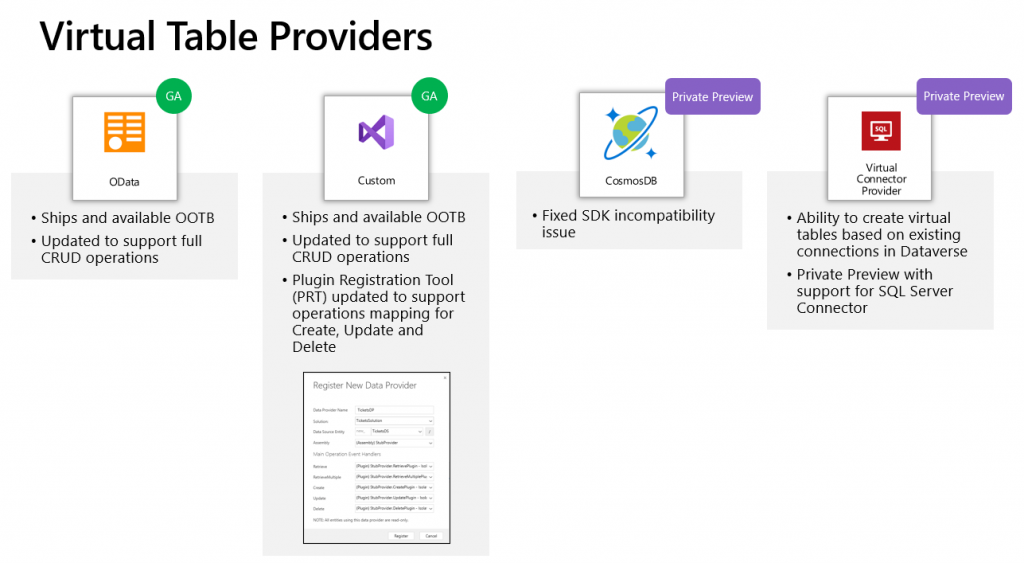
    Ultimately Microsoft wants to bring the Canvas and Model-driven app types as close together as possible. This means expanding the capabilities for working with external data sources in Dataverse to cover also the Connector technology. At Build 2021 the session “Dataverse for Developers” introduced the latest updates on what the sources for virtual tables can be:

    Previously the options for adding virtual tables to Dataverse was pretty much a pro-dev targeted story. The requirements for OData feeds were such that I don’t think I ever managed to find a sample feed to try out the feature. Same for the custom connectors, which are created via writing your own plugins. Technically they can be built, but if the requirements are similar to that of a traditional data integration approach, then it doesn’t exactly revolutionize the low-code data story of Dataverse.

    The new preview for Virtual Connector Provider looks more interesting, though. Supporting out-of-the-box connectivity to SQL Server databases is definitely a scenario that’s closer to the no-code level where I personally prefer to operate on. So, I decided to go and see how far this track can take me in building a Model-driven app that actually works with data not physically stored inside Dataverse.

    Even though the documents still say “private preview”, anyone can install the Virtual connectors in Dataverse solution from AppSource today:

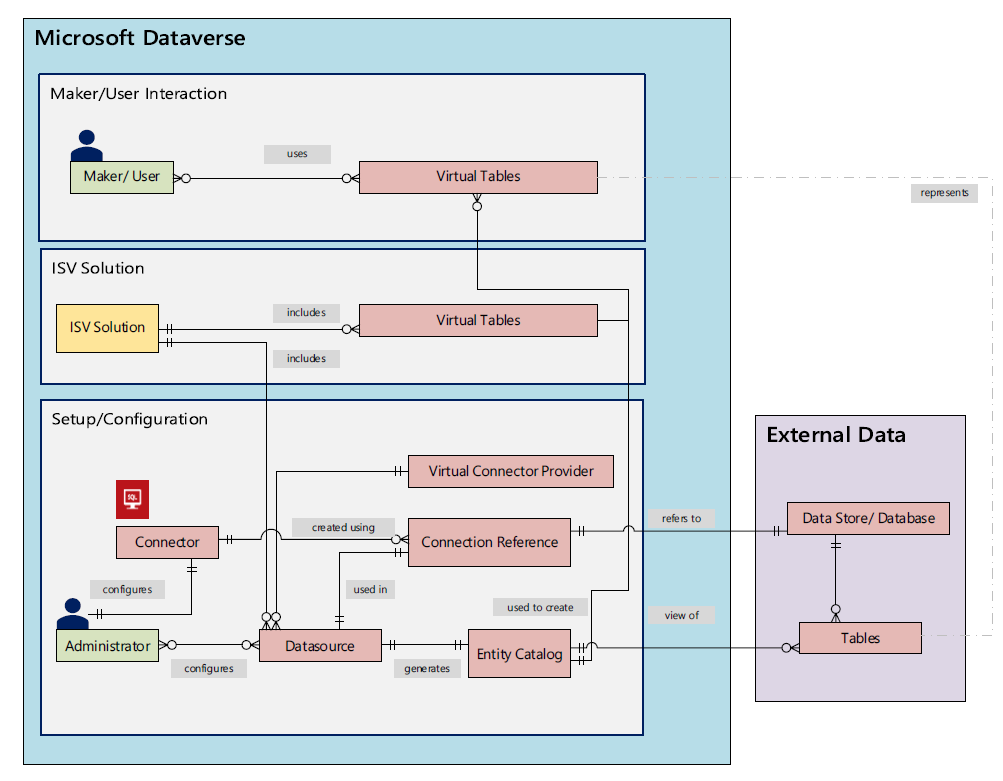
    There’s a Power CAT Live video on YouTube that introduces the solution. If you’re like me and you prefer consuming written information instead of video walkthroughs, this PDF document will be the place to go for understanding the feature. Inside it you will find this diagram that explains the architecture of how concepts like connectors, data sources, connection references etc. relate to this new Virtual Connector Provider.

    Setting up SQL Server tables to expand your Dataverse

    I have a demo AdventureWorksLT database deployed in SQL Azure, just like the one used in Microsoft’s feature documentation for virtual connectors. I had already earlier used this demo SQL database as a data source for Power Apps Canvas apps, which meant I had an existing connection available in Power Apps Maker portal. Authentication is done with SQL username/password combo in my connection, but Azure AD authentication would also be an option if you’d rather not have stored credentials within the connection.

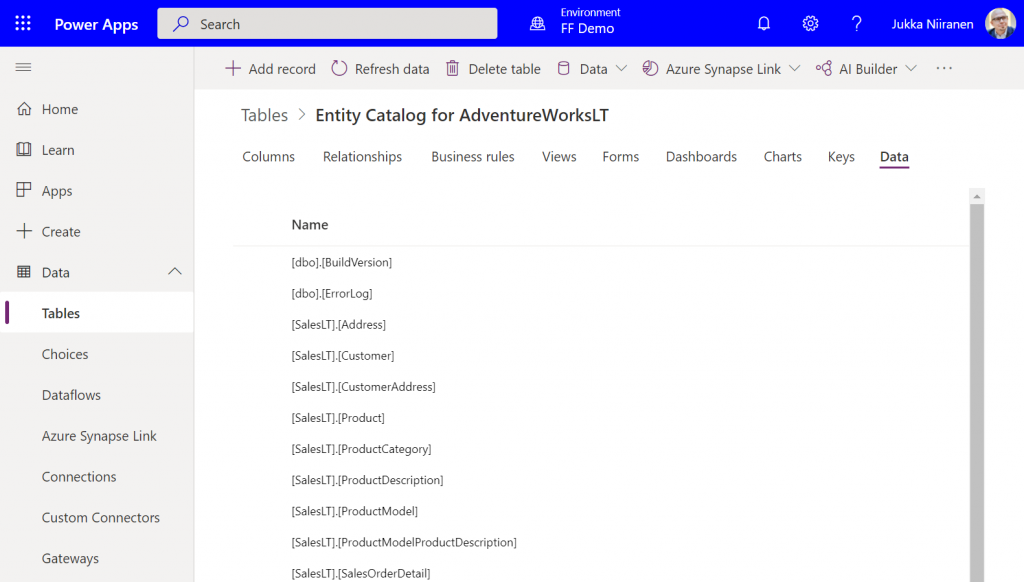
    After following the step-by-step instructions, including setting up an application user / service principal for the virtual connector provider, I had a brand new table visible in my Dataverse environment: “Entity Catalog for AdventureWorksLT”.

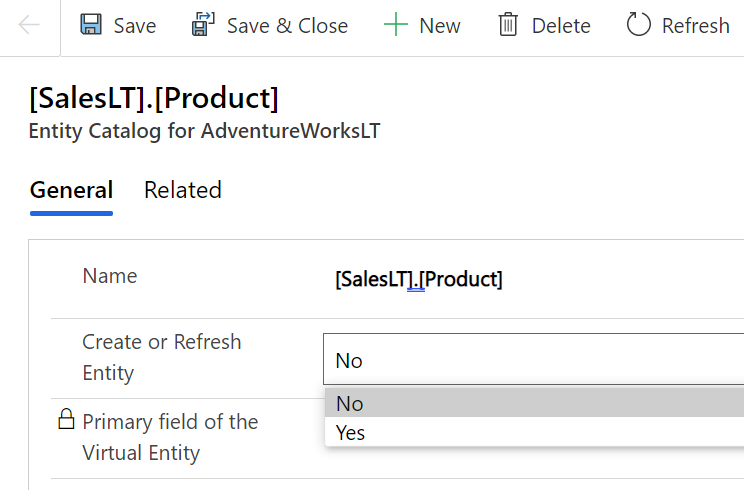
    Cool, we have a “table of tables”! I can see all the SQL Server database tables available via this connection. By opening up one of these records, I can specify that I want to create the corresponding SQL table as a Dataverse virtual table.

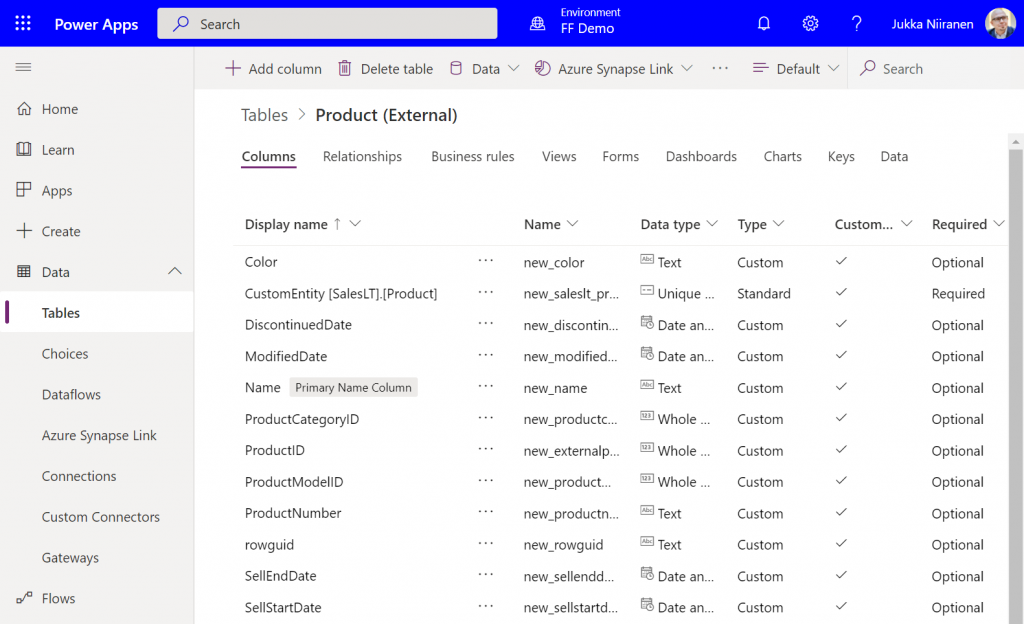
    I picked the Product and Product Category tables from there. (Note: modifying the table properties in the Power Apps UI doesn’t seem to work, so use the legacy web client and Solution Explorer to change things like table name.) After this, the virtual connection provider nicely maps all of the available columns in SQL into a matching Dataverse column, with the correct data type.

    I can then do the standard configuration tasks I’d perform for a native Dataverse table, such as adding views and modifying form layouts. Of course there are a number of considerations for virtual tables when it comes to the Power Apps features they support. Still, whatever works here is exactly the same experience from an app maker perspective, whether the table is “real” or virtual.

    Building a Model-driven app with virtual tables

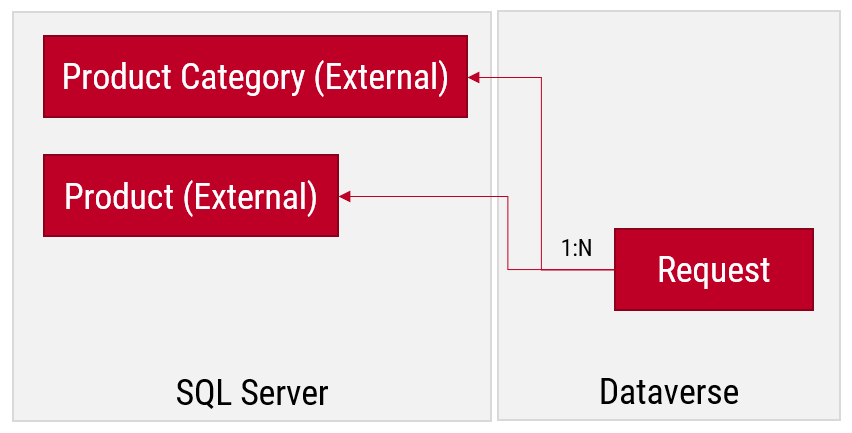
    I created a small demo app module for testing how the different table types can co-exist and work together. I added a custom table called “Requests” and added it as the child table for both Product and Product Category virtual tables coming from SQL.

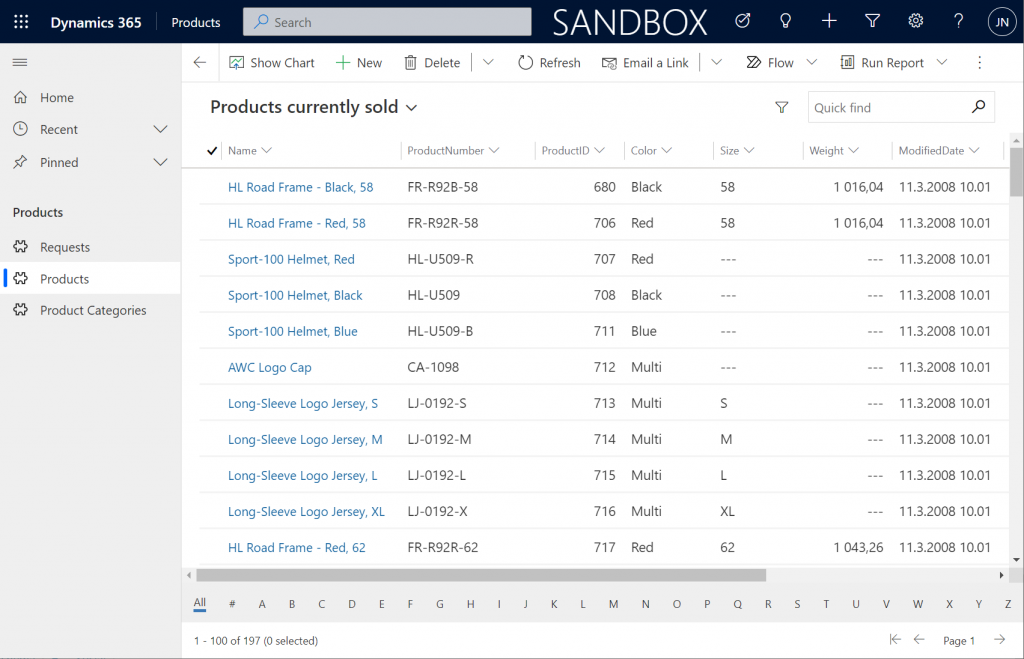
    Let’s first go and browser the external data from a view. Opening up the Products table, the experience is in practice the same as if I was browsing native Dataverse records. I can create a personal view “products currently sold” that filters out all products with a value in SellEndDate field. I can sort based on the SellStartDate. I can filter to see only products with Color value Black.

    This is already pretty darn impressive for someone coming from a Model-driven background. Sure, in the Canvas world I’ve been able to easily point a gallery to a SQL table and view the data, but having all of it available within the pre-generated Model-driven UI is a major step beyond that.

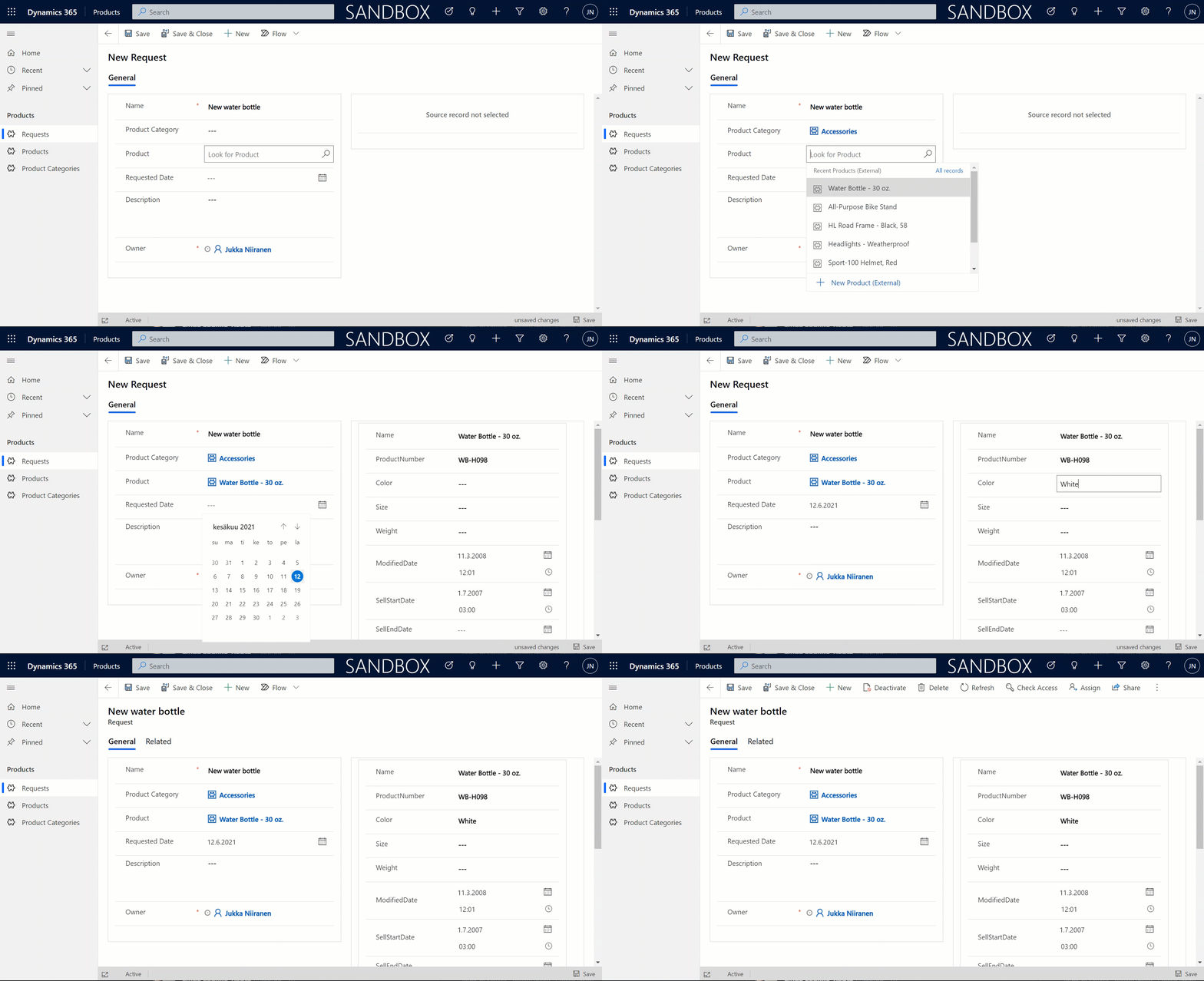
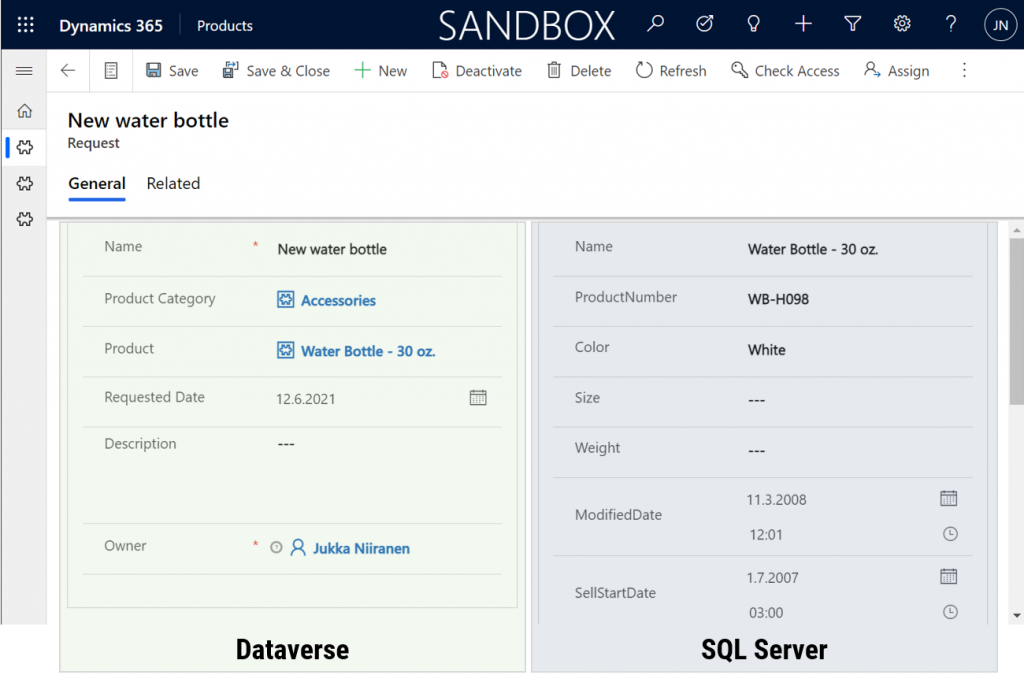
    Let’s try out how the native Dataverse table + external SQL Server tables work together on a form. Upon adding a new Request, I’m able to reference the related Product Category and Product tables via the standard lookup, just like everything would be stored in a single system. Behind the scenes, the native Request record will get references stored to the external Product Category and Product tables from SQL.

    But wait, there’s more! Did you notice that my Request form actually used the Form Component Control to show an embedded form of the Product table on the right side? Immediately upon populating the lookup field on the left side I see all the details of the selected product, just as if they were regular fields of the current record.

    In the above example I’m actually editing the Color field of the chose product with the value “White” before creating my request record. What this means is that within the same save event not only am I creating a new row in the Request table in my Dataverse, I’m also directly updating the data in my SQL Server’s Product table.

    That is powerful! No custom code was needed in creating an app UI that talks with multiple different line of business systems in real-time, on the very same form.

    From databases to Dataverses

    This simple example of simultaneously performing CRUD operations on data stored in different systems via a Power Apps form illustrates the reason why Dataverse needs to be seen as much more than just a database. It’s purpose is to be a value-add layer on top of different data storage systems, making them easy to leverage in your business apps. We already see today with the Dataverse file & image data getting stored in Azure Blob Storage and audit log entries in CosmosDB, alongside the core relational data in Azure SQL.

    The Virtual Connector Provider and virtual tables take things one step further. Especially in scenarios where you’d need to reference master data from an external system, there may not be a need to physically replicate it into Dataverse (perhaps you also want to reduce the storage costs). Specifying the virtual presence of such data will however make it appear as if it was part of the platform, thus brining it into both Model-driven apps and Canvas apps in a unified way. Even adding support for Dataverse business events to cover Power Automate is technically possible for virtual tables, although these understandably will require pro-developer involvement to get the external systems in sync with the API.

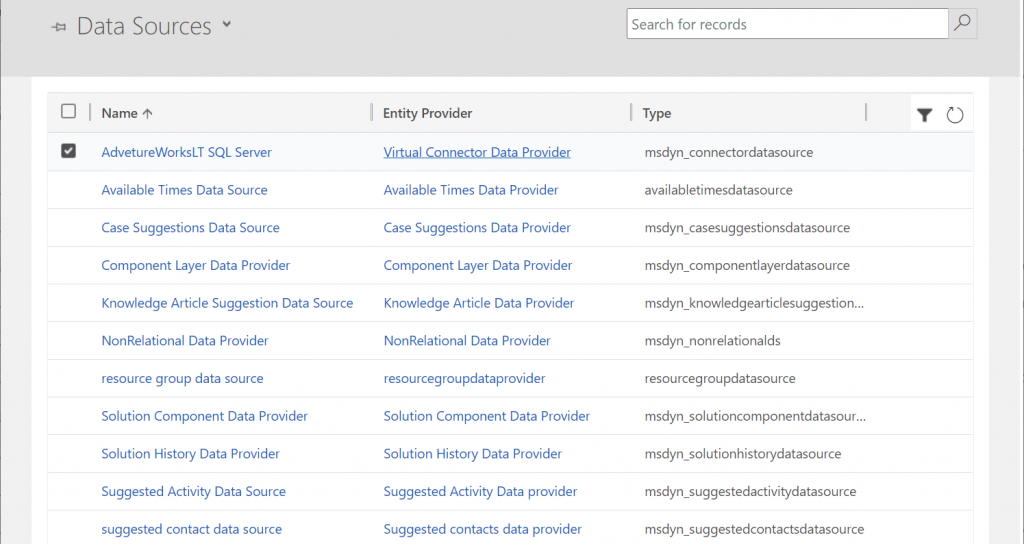
    Behind the scenes, these same concepts for virtual entities / tables are already being used by Microsoft in their first-party app features. By browsing the Data Sources within an environment we can see features like case/contact/activity suggestions listed here, as well as platform capabilities like component layers or non-relational data provider.

    Two years ago I wrote a blog post called “The Real Common Data Service Emerges” where I explored the direction where Dataverse (then CDS) was going. Since then we have seen Microsoft make the export of relational business data to a data lake a straightforward process with the built-in Azure Synapse Link for Dataverse. Similarly the import capabilities into Dataverse have expanded as the Dataflows / Power Query support keeps improving. Combine these physical data import/export pipelines with the virtual layers that the connector technology may soon offer for several tabular data sources and we’ve got a highly capable low-code toolkit for business data management needs in the Power Platform.

    You need to keep in mind that there are many considerations (read: limitations) for using virtual tables to review before deciding if they are a good fit for your business requirements. Even in building the above demo app there were things that don’t quite work the same way as with real Dataverse tables. For instance, I can’t specify a 1:N relationship between the two virtual tables for Product Categories and Products. Quick Find on the SQL data doesn’t seem to produce any meaningful results. Referencing virtual tables via lookups in a Canvas app seems to not retrieve related data at all times. Not to mention the fact that in two different environments the whole Virtual Connector Provider configuration process got stuck before any SQL tables ever materialized in the Entity Catalog.

    So, keep in mind that this is a preview of things to come, rather than production ready functionality to use today.

    Update 2021-08-20: the feature has now been officially released in public preview format, with new documentation available. Check out the Docs page “Create virtual tables using the virtual connector provider (preview)” that contains the information previously only available in the aforementioned PDF.

  • CDS FAQ for the Power Apps Makers

    CDS FAQ for the Power Apps Makers

    Microsoft is commited to making Common Data Service the flagship data source for Power Apps scenarios, as well as delivering advanced enterprise application lifecycle management (ALM) features via CDS. What can make the role of CDS somewhat difficult to approach for app makers is the fact that it hasn’t originally been built for Power Apps, like CDS “v1.0” was. The current CDS “v2.0” is based on XRM, the business appliciation platform that was born alongside the Microsoft Dynamics CRM product.

    I’ve been working with this plaform technology for close to 15 years now, whereas the world of Power Apps Canvas apps (and Power Automate) is a much more recent acquaintance of mine. To put my experience into good use and to also learn to see things from outside the XRM walls, I decided to share answers to a few questions that I’ve heard from #PowerAddicts that are exploring the CDS world.

    Q1: Why should I use CDS as my data source instead of SharePoint or SQL Server?

    Because it is not just a data source. Yes, in Power Apps Canvas apps you do connect to it just like any other data source in the app Studio, but this is misleading. CDS is the complete platform that can orchestrate how your app works when it comes to business logic, security model, integration, administration, governance and many more areas. Compared to raw SQL Azure, the SQL relational data is actually just one of the storage types that CDS leverages behind the scenes. Ultimately it’s a bundle of the latest Microsoft cloud technology for compute, storage and eventing/extensibility – offered as a single service that you don’t have to configure nor manage. You consume it either via built-in integrations to Power Platform, Dynamics 365 and Office 365, or alternatively via an API that is automatically generated to match your customized schema.

    The topic of “why CDS” would easily warrant a whole series of extensive blog posts on its own, which I may well do later on, but not inside an FAQ like this. For now, I recommend that you watch this Ignite 2019 session from Ryan Jones to understand the big picture of Common Data Service:

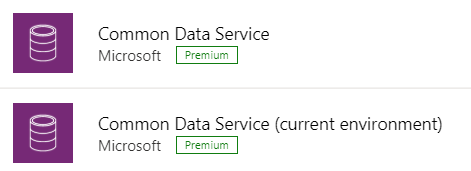
    Q2: What’s the difference between the 2 connectors for Common Data Service?

    The current environment connector is a native connection. This is the misleading part. It’s not a real Connector at all, rather every Power App knows how to talk with the environment that hosts it, which essentially is the current CDS environment. This leads to numerous benefits in performance and available features, as the technical implementation behind the scenes is quite different. I haven’t come across a Power Apps specific comparison yet, but MVP Sara Lagerquist has done a thorough analysis of the two CDS Connectors in the Power Automate context.

    Q3: Is there any reason to use the non-current environment CDS connector then?

    Yes, if you want to connect to a CDS environment that’s not the one which is hosting your app configuration. Meaning, if there is busness data out there in another CDS database and you need to reference it in addition to the “native” data in your app’s environment, the old CDS Connector might well do the trick. However, this is an area to keep a close eye on for the detailed functionality over time, as MS is very much wanting everyone to “go current” and some issues might arise from remaining on the old Connector.

    Q4: Why should I use solutions for building my app functionality in CDS?

    Even if you’re working in just a single environment, building a simple app directly in production (which is what a citizen developer often might do), solutions offer you the logical grouping of elements that are part of your project. In fact, at some point MS experimented with changing the Maker UI to read “projects” instead of “solutions”, but luckily that change was reverted back. It can stil be a helpful concept to illustrate the purpose of solutions for those who aren’t familiar with CDS. The act of building an app needs to manifest itself somehow within the environment, so always start by creating at least one solution for your project. (Real life projects may well have more than one solution, thouh.)

    What solutions really are designed for is shipping the elements of applications into other environments, in a process that is easy to manage and possible to automate. Microsoft is aiming to make solutions the packaging story across all of Power Platform, which means it’s not an optional concept. It’s how things are built within this business application platform.

    Q5: I’ve read about this thing called “managed solutions”. When should I use them?

    There’s the saying “if you have to ask how much it costs, you can’t afford it”. In my opinion, this fits perfectly with managed solutions, too. Unless you are really, really well educated with how the solution system in CDS works (meaning you’ll probably have an XRM developer background), don’t touch managed solutions – yet.

    When delivering complex enterprise CRM systems with multiple full time developers writing custom code and leveraging Azure DevOps for automated CI/CD pipelines, managed solutions are the way to go. Similarly if you’re building an ISV app for many different customer organizations and hope to publish it on AppSource, you simply have to go managed. We’ll most likely see Microsoft making the managed solution concept more approachable for other audiences in the future, too, so please do educate yourself on their possibilities and get ready for building more complex apps at scale.

    Q6: Couldn’t I use managed solutions to lock down my app components from other makers?

    Yes, but not in the environment you’re probably working in right now. When building apps, you’re always working in unmanaged mode. It’s only when you export your solution from the current environment that you get a choice to make the solution package either managed or unmanaged. Shipping configurations from dev to test & prod is what this mechanism is for. If you only have a single environment for the app makers where the small departmental or personal productivity apps are built by citizen developers, none of this stuff applies to you.

    No. Don’t ever re-import the managed solution back to the environment where it came from. That’s locking yourself in and throwing away the key. It’s not what you want.

    Q7: Is there any other way to restrict specific entities to be only customizable by certain app makers if we’re working in a shared CDS environment?

    No. The metadata of CDS doesn’t have such security mechanism that would allow you to say that “Group A owns the account and contact entities, Group B is responsible for the project, task and resource allocation custom entities”. Within a single environment, there can be only one god, and that is the System Administrator. System Customizer also comes close, as both have the rights to create and delete new entities on a whim.

    Records stored within an entity always have an owner. An account is owned by User X, which can be used for determining what other users can do with it. The actual account entity i.e. the table that holds the records doesn’t have this type of ownership construct, as it applies only to data and not metadata. If you need more granluar control over metadata, then the answer is to set up different environments for the different groups.

    Q8: How can I see what privleges a particular user has been given in CDS?

    Security roles are a central construct in CDS, as everything you attempt to do in the database is verified against two key parameters before execution:

    1. Do you have rights for the specific action against the entity where the data is stored?
    2. Who is the owner of specific the record that you are trying to perform the action on and what’s the relationship to the calling user?

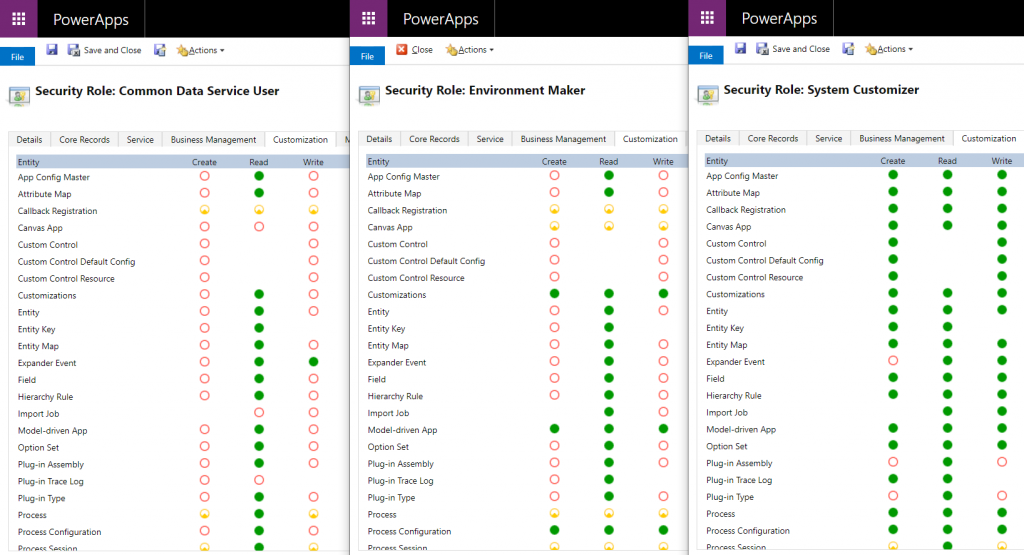
    The UI for security roles dates back to MS CRM v.X days and is scary both due to the legacy experience as well as the variety of options found in even a blank CDS org. Nevertheless, it is logical and will tell you what you need if you know what you’re searching for. Let’s compare 3 standard roles of Common Data Service User, Environment Maker and System Customizer and their privileges on the Customization tab:

    The CDS User has mostly just read access to the metdata, like Entity, Field, Option Set and so on. An Environment Maker is allowed to create new items like Canvas Apps & Model-driven Apps – like a Maker should. To actually create new Entities and Fields, you’ll need to be a System Customizer or Administrator.

    This is where the platform aspect of CDS (and its predecessor XRM) comes into play, though. You can create your own security roles, preferably via copying an existing system role that’s close enough. So, you could create a new “Environment Super Maker” that would have the right to create new fields, but not new entities, nor delete any fields. So, security roles are not only the gatekeeper to business data but also metadata.

    Q9: Looks like these security roles are environment specific. Do the IT admins really to go and manage the security settings via this MS CRM Power Apps UI?

    Not anymore! Last year Microsoft finally brought Azure AD integration into the system administration features of Dynamics 365 and thus CDS. You can now leverage the Group Teams to assign CDS security roles to an Azure Active Directory group (security or Office group) and the users will inherit the privileges of that role when added to the group.

    While Azure AD groups definitely streamline the administration process, please keep in mind that there’s more to CDS security model than just the security role assignment. Business Unit structures, Field Level Security, Hierarchical Security are some aspects that may require admin actions directly within the environment to get them set up properly.

    Q10: Why do all these user accounts from across the organization appear in the CDS environment meant for department X only? Can they all access it?

    You probably didn’t assign a security group to the CDS environment right at the start when it was created. Therefore every licensed user account in your tenant was copied over to the environment. If you assigned a security group to the environment after its creation, then those user accounts will be automatically disabled. They will forever remain in the database tables as inactive users, though, since user record deletion is not something XRM nor CDS has ever supported.

    Just because a user exists inside the CDS environment’t systemuser table doesn’t mean they can do anything in that environment. Not even if they haven’t yet been disabled. Everyone needs a security role to have a chance to read both the metadata and the business data from CDS, so the user record is just a prerequisite to opening the door to the environment but it doesn’t provide the key to the lock.

  • The Real Common Data Service Emerges

    The Real Common Data Service Emerges

    When Microsoft announced one year ago that XRM would become CDS v2.0 (officially Common Data Service for Apps), there wasn’t yet any big system redesign implemented to make this a physical reality. Today we are much further down that road where CDS truly becomes a Service that has less and less to do with the familiar XRM databases that we’ve previously been working with. In this blog post I’ll explore the three data related dimensions that give us an indication of where CDS is heading as a part of the Microsoft Power Platform.

    CDS is now Dataverse!

    While reading this article, you can translate the term “Common Data Service” to now refer to its new name, Microsoft Dataverse. See this post for comparison between CDS vs. Dataverse.

    Dynamics 365 Storage Model Changes

    As a part of the April 2019 release train, MS is changing the way how data storage is managed for both Dynamics 365 and PowerApps customers. It hasn’t been an official feature bullet on the release notes document, but that doesn’t mean its significance would be any less than what the shiny apps demonstrated in the April 2nd Virtual Launch event have.

    A new version of licensing guides for Dynamics 365 and also for PowerApps and Flow (for the first time ever!) was released in April. This outlines the commercial impact of the new model to customers, which is probably what most of us will have first paid attention to. Yeah, whenever the pricing mechanism of a widely used MS cloud service changes, it will be a big deal. What makes it even trickier is that MS considers storage as a “subscription add-on” for which they don’t publicly disclose any per GB list prices. I’m not entirely sure this model is beneficial for their ambitions of turning Power Platform into an actual foundation for building third party and customer specific apps, but I guess the shadow of the old CRM and ERP world still looms above this world when it comes to licensing and pricing practices.

    Let’s forget licensing for a moment and focus on the technical changes for Dynamics 365 online environments. All of the existing data that used to be stored in the Azure SQL relational database will in the future be divided into three specific storage types: database, file, log. This should have no immediate impact to customers, as the migration will be taken care of by MS. Their promise is that nothing should change in the way how users and developers work with data, since the APIs that govern access to this data will remain unaffected.

    File data will be in Azure blob storage, as this is the most efficient way to handle miscellaneous documents, images and other “stuff” that may end up inside a typical Dynamics 365 system via features like email tracking that carries over the attachments. Why would you ever store this in a relational SQL database to begin with? Well, the simple reason is that the original on-prem architecture of XRM had no other secure place to put these items, so it was all lumped up there. Now when CDS is a native cloud service, there are much more options available.

    Log data will be in Cosmos DB. This will probably offer a more suitable architecture for managing things like plugin trace logs, audit data and other items of similar nature. What should be noted is that Microsoft’s plans don’t just stop at this IT admin activities level. In a recent podcast by MVP Mark Smith, we heard the General Manager of Power Platform, Charles Lamanna, describe this storage type to be designed as the future place for other types of observational data, too. Charles referred to things like IoT device sensor data, which should give you an idea of how this again is data that is A) relevant to many CRM use cases and B) in no way optimal to be stored inside that relational XRM database.

    One significant and very welcome change that is introduced as a part of this new model is that there will no longer be any license cost tied to the number of instances you have in the cloud. Previously you had to buy add-on licenses for acquiring production and non-production (sandbox) instances for developing, testing, training and in general managing your complex Dynamics 365 online environment. Once the new subscription terms kick in, you’ll have the ability to create as many instances as you like, provided that you have sufficient database capacity available. A major driver behind this change is surely the PowerApps side, in which the licensing terms already granted any user with PowerApps P2 license to create 2 CDS environments for their applications. (For more details, see my presentation on Demystifying Dynamics 365 & Power Platform licensing.)

    In the short term, this storage model change should not result in much functional changes for the Dynamics 365 customers. Depending on when your current subscription renewal date is, the new terms will be applied either at that point in time or the renewal after that (if you choose to hold on to the old model for one more subscription period). Any new customer will likely be leveraging the new pricing model starting from April 2019.

    It’s important to understand that the actual data storage technology change and the commercial terms that are applied are not tied to one another. Migration of your Dynamics 365 data to the new database/file/log model will probably take place much sooner than what you’ll see in your subscription fees. Refer to the admin documentation on Common Data Service storage capacity for details on how you’ll be able to analyze and manage your storage consumption in this new model.

    Diving Into The Data Lake

    When looked at purely from the storage license model changes for Dynamics 365 customers, the story would end here, with the three storage types. However, the bigger picture of how data is used as a part of the Customer Engagement systems that cover various digital touchpoints is much broader. Or should I say “bigger” as in Big Data? As much as I dislike the casual use of tech marketing hype terms like Big Data and Artificial Intelligence, there’s no escaping the fact that the familiar world of CRM systems founded on SQL databases is being disrupted by what machine learning models and big data systems can offer today.

    (more…)
  • Working with Price List Items in Dynamics CRM

    Working with Price List Items in Dynamics CRM

    Despite of the recently refreshed user interface of Dynamics CRM 2013 that offers a much more fluid user experience than previous versions, there are still areas in the application that are not very user friendly. Many of these revolve around product and price information, regarding how it is presented and what actions are allowed on it. In this blog post I will drill into a common scenario that organizations who use CRM for managing price list data may run into and present a few options on how to make their lives easier.

    Price List and Price List Item Views

    A pet peeve of mine in Dynamics CRM has always been the UI that the Price List entity offers to the end user. As many of the readers of this blog will surely know, price list items are the way how products, units, price lists and the all important price figures come together in the CRM data model. If you want to leverage the product catalog and any price calculation features in the sales module, you’ll need to work with price list items and create at least one of them per each product you plan to include as line items on your opportunities, quotes, orders and invoices.

    Unless you’ve built a custom integration to a back-end system that will automatically provide the latest pricing information for CRM, there’s quite a bit of work involved in maintaining individual price list item records when prices change or new products or lists are introduced as a normal part of the day to day business. When a CRM user opens a price list record, a reasonable assumption to make would be that he or she is interested in reviewing the pricing information given to the included products. Unfortunately the Dynamics CRM UI does not make such an assumption, rather it thinks the user is interested in only viewing a list of products and their units but not the actual price information in the amount field. Here’s what the default associated view of the price list items gives us:

    Price_List_Item_CRM_2

    Well, that sure looks like a good candidate for some entity customization work. Yes, it does, but there’s a “but”. When you open the customization UI and navigate to the price list item entity, you discover that the views are actually not customizable. Nor can you add any of your own views for that matter, which means you’re stuck with the default UI. If you think that the price list item entity should allow view customization, then there’s a suggestion on Microsoft Connect that you definitely should go and vote for (if you need help in registering to Connect itself, see this post).

    Exporting the Price List Item Data to Excel

    With this limitation in mind, what are our options of producing a true price list view with product and price information shown side by side? For any Dynamics CRM power user the first thing to come to mind will surely be to export the data into Excel. Unfortunately the uncustomizability of the Price List Item entity also means it has been blocked from showing up in Advanced Find, which would normally be our tool of choice for preparing a CRM data export.

    Luckily there’s still an Export to Excel button visible in the ribbon of the price list form when we are viewing the associated price list items view. Clicking this will present us with an option to either export the data in static format (which would just give us the same columns as the current view) or to create a dynamic Excel sheet in two possible formats. Both of the latter options, pivot table and worksheet, present a follow-up dialog where choosing the required columns from the price list item entity and even any parental entity like product is possible.

    Price_List_Item_CRM_3

    When you export the view into a dynamic Excel sheet in an on-premises CRM environment, you can actually go and look at the SQL query that the view is using for pulling the data from CRM to Excel. Just click “Change Data Source – Connection Properties – Definition” and copy the query from the Command Text window into Notepad. With a little tweak that removes the reference to the currently viewed price list record we can use the same dynamic Excel sheet to retrieve price list item data for all the price lists in the system.

    Price_List_Item_CRM_1_small

    In the SQL query you’ve copied to Notepad you’ll find a reference to the price list from under which we exported the related price list items. It will look something like this: where  (“productpricelevel0”.pricelevelid = N’CEA84006-AD7B-E311-9405-00155D6214FA’) . Just remove this whole where clause, thus expanding the query to retrieve all records from the price list items table in CRM, regardless of the associated price list. Then with the Excel pivot table tools you can group and filter the data any way you please, effectively creating a price list report that views the latest information from CRM in a layout that best suits our purposes. (more…)

  • Spring Cleaning for Your Dynamics CRM System

    CRM systems have a tendency to suffer from an increasing amount of entropy as time goes by. Not only does the rate of accurate information available from them decrease as data quality decays over time (especially if no one’s in charge of actively maintaining it), they’re also susceptible to a phenomenon I’d describe as “the illusion of having data”. This is the assumption that simply defining a data model that holds a place for specific attributes or entities would actually result in data being collected into them.

    “Build it & they will come” could be translated to “customize it & they’ll use it” when it comes to CRM systems and it is as good a strategy in designing business information systems as it is in any other walks of life – meaning not very. Sure, during the initial requirements specification phase for a CRM system it may feel like there has to be a field added to the customer’s profile for every possible variable that the business may need in the future. After having used the system for a while you’re very likely to be confronted with the reality that very few if any of the records have any data entered into these fields. Or even worse: you just continue to assume to have customer information that doesn’t really exist, potentially building further process automation and reporting on a very shaky foundation.

    CRM_spring_cleaning_4Since it’s quite a common phase in the lifecycle of a Dynamics CRM organization to sooner or later face a situation where you want to clean up the system from legacy data structures that no longer serve their purpose, I want to highlight a couple of tools that will help you on this journey towards a better organized CRM system.

    Finding Fields Not on Forms

    Persons who may get assigned the role of being the CRM system administrator alongside their “actual work” often approach the application as if it would consist of a set of forms that contain fields and… well, nothing much else. What this means in practice is that whenever a new business requirement comes up where additional information should be captured to serve a new process, product, organization structure or what have you, they’ll typically open either the account or contact entity and start adding new fields onto the forms.

    As this process is repeated over and over again, the number of fields will grow and at some point some of the older ones will probably get removed from the form in an effort to make the system less cluttered. They’ll most likely be left in the system with their Searchable property still set to “Yes”, meaning using Advanced Find can become a nightmare with all the legacy fields listed. Also system views may still be using these fields that can no longer be edited. With the number of fields growing every day, it can simply become overwhelming to identify what’s in use and what’s not.

    A good first step for finding the legacy data structures is to list the fields that are no longer used on any forms of the entity. Since Dynamics CRM by default does not offer tools for such analysis, the next place you should look for a solution is the community tools on CodePlex, starting from the nr. 1 toolkit for a CRM customizer, which is of course XrmToolBox. As it so happens, there’s yet again a tool in there that will help us in achieving our goal. The Metadata Document Generator offers a setting that allows us to export a list of attributes for the selected entities that are NOT contained in any of the forms (remember that there can be more than one per entity).

    CRM_spring_cleaning_2

    By choosing this setting and complementing it with the “include Valid for Advanced Find information” checkbox we can generate Excel sheets per each entity that list the unused fields, at least when it comes to the UI side of things.

    Finding Fields With Little or No Data

    Once we’ve spotted the fields that have potentially become redundant and we’d like to get rid off, the next question in our minds is likely to be how to verify whether there is any actual data stored in them that should be preserved. Similarly, just because a field is present on a form, that hardly proves that it would be populated for the records in the CRM database. These are the kind of questions that we can’t answer via metadata alone, instead we’ll have to dive into the actual data itself.

    A quick way to examine the usage of specific fields without any custom tools or solutions is to use the built-in charts feature of Dynamics CRM. Let’s say we want to see if our users have actually entered data into the “No. of Exployees” field on the account form. By moving to a suitable view like “Active Accounts” (with a suitable filter to remain under the Aggregate Query Limit in terms of number of records), expanding the chart pane on the right side and clicking on the plus icon, we can start to define a new chart to help us in our ad-hoc data analysis needs. For the series we should choose a field that is populated for all of the records (I always use the record GUID field, meaning for the account entity I’d choose the “Account” field). In the category section we’ll then select the field on which we want to analyze the distribution of the data. While we can’t show exact percentages in the Dynamics CRM charts, the good ol’ pie chart visualization will quickly tell us the rough share of records with a “(blank)” value.

    CRM_spring_cleaning_1

    We don’t even need to save our charts to perform the analysis, since in many cases the live preview in the chart editor mode will already tell us how big a piece of the pie goes to blank values. By leaving our mouse cursor in the Category picklist and pressing the up/down arrows we can quickly scroll through different fields and view the distribution of values.

    While this works for a reasonable amount of fields, it doesn’t necessarily produce a very good overview of the level of entropy in the CRM organization unless you write down these statistics manually onto an Excel sheet. To increase our performance in this task we can again look for a community provided tool to help us out.

    Scanning Your Entities for Unused Fields

    Paul Way has created a solution that fits the bill perfectly: CRM Data Detective. By uploading this solution into our CRM organization and simply navigating to [YourCRMorg]/WebResources/way_/detective/detective.htm we can choose any entity in the system and have its database contents analyzed by the Detective. The end result will be a list you can quickly scroll through and view the bar chart for the population rate per each attribute:

    CRM_spring_cleaning_3_small

    This will be a great tool for you in the discussions with business decision makers who’ve originally demanded the fields to be added into the CRM data model. If you’ve got fields on an entity that have a 2% utilization rate, chances are your system would become more valuable by removing such fields. The overall usability of your CRM environment would increase and you also wouldn’t need to suffer from the illusion of having certain data available, just because someone had once created a place for it in the CRM data model.

  • How to Import Primary Contacts

    The Import Wizard in Dynamics CRM can do a lot more than what may initially seem possible. I’ve covered some of these features in a previous article called CRM 2011 Data Import Wizard in Practice. Among these capabilities is the possibility of importing records to different entities that have multiple relationships connecting them in both directions, not just the simple parent-child relationship pointing from one entity to the other.

    A typical example of such a relationship would be the Primary Contact of an account. The account is a parental record to all the child contacts, but one of these contacts may however have a 1:N relationship back to the account and be presented in the Primary Contact lookup field on an account form. If you are importing both the account and contact columns in a single file (such as an Outlook contacts export) then mapping these relationships should only be a matter of mapping the right fields. If you have two separate files, then simply zipping them up into a single file will allow you to map both entities in the same import process.

    Primary_contacts_account_formOne of the problems that you may encounter during such an import process is that there are multiple matching records for the mapping fields. If you have more than one account record called “Litware, Inc”, to for example represent different regional offices of the company, mapping the primary contact by account name won’t work. Similar problems will arise if several people have the same first and last names. Therefore it’s a good practice to always generate a unique ID for each record before importing it. You can construct the identifier field in Excel with the Concatenate function and combine several fields into a single Import ID string (account name + address 1 city, for example) which you then map into a temporary field in CRM. You can use this field as the lookup reference to the related entity instead of the standard primary field when importing data.

    Appending Existing Records

    In a recent import task I was once again faced with the Primary Contact issue. Only this time the account data that I needed to map the contacts into was already in the CRM database. As these were new contact records being imported, my first thought was to create a workflow rule to be triggered from the create event of a contact record. Using some temporary contact field to store the primary contact flag into, like “governmentid = PrimaryContact”, and then searching for this value in the workflow rule would have allowed me to start a record update step for the parent account of the newly imported contact. In the update step I could just state that the account’s primary contact would be the contact that the workflow process instance has been initiated on.

    Fortunately I looked through the source data once again before proceeding any further, as that revealed a flaw in the assumptions behind the above workflow rule logic. A single contact was sometimes the primary contact for more than one account. Also, there were occurrences where the contact wasn’t the primary contact of its own parent account. The relationships were therefore more complex than what a single workflow rule could cover.

    This doesn’t mean that leveraging workflows was out of the question, though. To enable the creation of multiple relationships from a single imported contact record I just needed to have an intermediate stage in my process, to store the data in CRM. What this requires in practice is that you first import the data into a different entity, then trigger the update step from that record into the actual record you want to append with new information.

    One option would have been to create a new temporary entity just for the sake of getting the data imported correctly. However, since these were account and contact records for which we wanted to link the imported data, there was already a logical place available in the default data model of Dynamics CRM: connections. It’s in fact the perfect entity for importing any relationship data into, as the two parties of the connection can be references to any entity type that has connections enabled for it, meaning several default entities and any custom entity you’ve created. Therefore we could cover several different import scenarios with connections and not have to go into system customizations to add relationships to other entities.

    The Import Process

    First I had to add a new connection role for “Primary Contact” (step 1) to identify the connection records that I want to run my workflow process on. As this role will be used exclusively between account and contact records, I specified them as the available record types for the role (step 2). Also, I always tend to put the same role value on the “other side” of the relationship to keep the data consistent and simple to view/search for, so I set this new role to be its own matching connection role (step 3).

    Primary_contacts_connection_role

    Then I proceeded to creating a new workflow process that would be triggered on the create event of a new connection record. In the workflow rule I specified it to run only on connections that have the Primary Contact connection role. I also wanted to validate that the Connected From and Connected To entities are mapped the right way around in the connection record, so I simply check that the account and contact records behind each relationship contain data. Without these conditions being met, the update step wouldn’t produce any meaningful results anyway.

    Primary_contacts_workflow_rule

    In the update step I mapped the Connected To contact record into the Primary Contact field of the Connected From account record.

    Primary_contacts_workflow_update

    Now we were ready to start the actual import work. Since the primary contact relationship data was handled with a separate entity, I first imported the contact records through the normal process. (more…)

  • Country lists and multi-language lookup fields

    Country lists and multi-language lookup fields

    One of the most common customizations almost any organization working with customers from multiple countries will want to have in their Microsoft Dynamics CRM data model is the addition of a structured list of country names, to ensure they are stored in a consistent format. Yes, by default the Country/Region fields on the account, contact and lead entities are free text fields that a user must manually fill every time. This can result in some serious issues with data quality that make it difficult to perform a common task such as searching for accounts from specific countries. The field may contain values like “United States of America”, “United States”, “USA”, “Estados Unidos de América”, not to mention different conventions for upper/lowercase letters, hyphens etc.

    Why doesn’t Dynamics CRM come with a pre-configured list of countries? There are probably several reasons for the choice of this design, some of them which date back to the early days when CRM wasn’t a multi-language platform (before version 4.0 came along). Anyway, there’s absolutely nothing stopping us from fixing this gap by using the basic customization tools, so let’s get right to it!

    Picking the right Country field option

    There are two alternative approaches to implementing a controlled list of values for country names. You can either create a new option set (preferably a global one) or a new entity to hold the country name values. There are pros and cons to each method, which means the right choice depends on the use cases of the organization in question. In a simple scenario the option set may well be sufficient, if there are no other requirements for country data in CRM. For implementation guidance, look no further than this excellent post by Pedro Innecco: Dynamics CRM: Adding a Country/Region option set using ISO 3166-1.

    Sometimes the country data management requirements may be somewhat more complex, which may lead you into choosing to create a custom Country entity. This approach has the benefit of allowing you to store other variables than just the name of the country on the same record. For example, there may be parameters related to reporting that are country specific and would therefore be logically placed on the same record as the official name of the country. Other regional variables such as states or languages spoken are also a natural fit to be stored on the country entity.

    One interesting scenario to explore is the possibility of using the Country records as a central location for posting updates specific to a particular region, by using Activity Feeds on the Country record’s wall. Let’s say you have a multi-region Dynamics CRM implementation and you want to target auto-posts to users working with customers from specific countries. By generating posts like “New campaign Big Fair 2012 launched in @Finland” or “Major opportunity closed in @Sweden for account Contoso” that mention the country record you can easily push updates to any user who’s following that particular country. For a more detailed explanation please see my earlier post on how to make CRM Activity Feeds easier to follow by creating custom groups.

    There’s a catch with the custom entity approach, though, and that is the lack of native support for multiple languages. While the option set labels are a part of Dynamics CRM solution files and support translations just like your regular form fields, a custom entity is just data stored into the CRM database, no matter if you use it in a metadata like manner. As a result, if your CRM organization has different languages enabled and the user switches from English to Spanish, the value on the Country field on the account form won’t change from “United States of America” to “Estados Unidos de América”. If you had used an option set, all you’d need to do is export the labels for translation, enter values for the Spanish language column for the option set values, import it back and publish the results. However, with the custom Country entity we’ve ended up choosing, the value stored in the name field of the Country record will display the same way, regardless of the UI language of the logged in user.

    Nothing a little Jscript can’t fix

    Lucky for us, Pedro has come up with a solution that can also handle the multi-language support requirement when using a custom entity to hold the country labels. In the image below, you can see an account record viewed first in English, then in Finnish. Even though we’re using a lookup field to the Country entity on the account form, the label of the selected Country record has magically been translated from one language to another. As if that wasn’t enough, also the Look Up Record dialog window shows a list of values that has been tailored to the language of the user. Well, that looks like the best of both worlds, doesn’t it?

    How can you switch the label in the lookup field then? All you need to do is to download the Country/Region for Dynamics CRM solution created by Pedro Innecco and configure your CRM organization to take advantage of the scripts included. The solution also provides the ability to add more languages, so I’ll list out the steps I followed to add the Finnish language support for this Country lookup field.

    (more…)

  • Did you just disable duplicate detection in CRM by accident?

    Duplicate detection rules in Dynamics CRM are an example of a configuration item that may often be active only in production environments. Since you don’t actively enter data into development or test environments, why bother thinking too much about them? Well, the one place where you need to be thinking about them is when you are importing new solutions and publishing changes to customizations.

    Life would be easy if you could just set up and publish your duplicate detection rules once during the initial configuration of your Dynamics CRM production environment, thus stopping the unintentional entry of duplicate records into the customer database. However, you may run into a situation where a rule that you’ve once published has later on returned to an unpublished state. “What? Who touched my duplicate detection settings?”

    The likely answer to the question is “You did, but unintentionally”. You see, the duplicate detection rules are sensitive to changes in your entity customizations. As noted in the Madrona Solutions Group blog article, whenever any entity metadata is changed, all duplicate detection rules associated with that entity are unpublished.

    If you look at this from the system’s perspective, the process does make sense. After all, you might have set up a duplicate detection rule that is comparing records based on a criteria that that references fields you’ve changed or removed as a part of your CRM customization actions. Still, the fact that a publish event on a CRM 2011 solution triggers an unpublish event somewhere else is not very intuitive and most system administrators are likely to be unaware of the impact. As a result, there are certainly several production CRM environments out there where the once carefully planned duplicate detection rules have been deactivated because of this dependency between solutions and duplicate detection. In fact, you might want to check your own Dynamics CRM environment right now and check if you see duplicate detection rules with the status reason “unpublished” which should in fact be published.

    What this means in practice is that anyone who’s deploying solution updates to an environment that is using duplicate detection rules needs to instructed to always re-enable the rules after they’ve updated customizations that reference an entity which is being monitored for duplicates. In my opinion, it would be very practical to have the system notify you about this task, for example by asking “would you like to re-publish the affected duplicate detection rules?” when publishing a solution. If you would like to see this functionality changed in a future version of Dynamics CRM, please sign in to Microsoft Connect with your Windows Live ID and vote for the item “Automatically re-publish duplicate detection rules after deploying a solution”. Thanks for your contribution.


    Edit 2013-05-02: There’s a post on Magnetism blog that shows you how to write a plugin that will automatically publish unpublished duplication detection rules after the “publish all customizations” event, in case you want to automate this procedure in your production environment.

  • Connections don’t merge, so be careful with duplicate records

    Update 22.3.2012: this has now been fixed in Update Rollup 7 for Microsoft Dynamics CRM 2011 (KB 2600643). Go and get the file here, unless you’re using CRM Online.

    Connections are a nice new feature in Dynamics CRM 2011 that allow you to create ad-hoc relationships between two records of almost any entity type. Additionally, you can specify roles for both the Connected To and Connected From parties, to describe the connection in more detail, as well as provide start and end dates for the connection. These are very handy for recording non-hierarchical relationships between contacts and accounts that tend to exist in the real world. As an example, a person working as the CEO of Company A might be a member of the board in Company B, which means they should be visible under both accounts. Company A would then be the parent account of the contact, whereas there would be a connection between the contact and Company B.

    Another common real life phenomena is that duplicate records find their way into the CRM database. This can be due to data imports from external databases, web forms feeding in new contacts, or simply two users being unaware of each other’s records and entering data with slightly different spelling or email address variations. Luckily Dynamics CRM has a built-in functionality that allows you to merge duplicates from the database. This process will move all the child records from the subordinate record to the master record, thus ensuring that everything remains linked to the active record and not the deactivated duplicate.

    Except that for connections this doesn’t happen! Once the merge is done, all the connections will still be referencing the inactive record, not the master record. In the aforementioned example, you would have effectively lost the information about the contact’s relationship with Company B. Even though you could still see it by opening up Company B’s record and seeing the connection there, how would you ever have known where to look?

    There is an existing feedback item 683301 on Microsoft Connect regarding this functionality:

    Here’s a quote of the comment I’ve posted on the item:

    I think this is a serious flaw that undermines the perceived reliability of the Merge Duplicates feature in the eyes of the end users. The merge screen indicates that all child records related to the subordinate record to be deactivated would be transferred to the master record, but it doesn’t warn that connections would need to be manually checked.

    The merge process works just fine for custom entities, activities and pretty much everything except connections. Why would the user ever want to leave behind some non-duplicate information to the deactivated record? By merging two accounts or contacts the user is effectively declaring that these represent the same object in the real world. If something in the database has a relationship with either of these records, it should be carried over to the active record, as the inactive record no longer serves any other purpose than indicating the prior existence of a duplicate entry and the possible differences in attribute values compared to the current active record.

    If you think connections should be transferred over to the master record when merging duplicates, be sure to log in to Microsoft Connect with your Windows Live ID and cast your vote on this item. In the meantime, if you’re planning to use the connections entity for recording any data related to accounts, contacts, or leads, my suggested options are:

    • Don’t do it. Create a new custom entity for recording this data, as they will merge over to the master record just fine.
    • Develop you own plugin for capturing any merge events and updating the related connection records accordingly.
    While we’re on the topic, I also tested what happens to the old Relationship records that were used for connecting account, contact and opportunity records in versions prior to CRM 2011 (and are still visible in an upgraded organization). The result? When merging two contacts, any relationships referencing the subordinate record are deleted! Yeah, crazy, I know. If you’ve got any insight on what is the reason behind this perplexing system behavior for either connections or relationships when dealing with duplicate records merging, please leave a comment in the box below.