Tag: data model

  • Virtual Dataverse tables with no code, via Connectors

    Virtual Dataverse tables with no code, via Connectors

    The concept of a virtual table (previously: virtual entity) has existed in the Dataverse platform for quite some time already. The feature was originally introduced before XRM and Power Apps merged. This in turn means that the Connector feature used by Canvas apps and Power Automate flows is an alternative approach for the same core need: how to work with data that’s not physically stored within Dataverse?

    Since there are still three different flavours of Power Apps , let’s quickly recap what each of them think about data location:

    • Model-driven apps: “I’ll let you work with any business data, as long as it’s stored within Dataverse.”
    • Power Apps portals: “I’m essentially an external facing version of Model-driven apps, so I follow the same principle.”
    • Canvas apps: “Your data may be in whatever system you want! Just point me to the right API and wrap a Connector around it & we’re sorted.”

    The term “Model-driven” refers to the existence of a clearly defined data model, on top of which the visible app UI and background features (security, search etc.) are then generated by the Dataverse platform. You get all those features because a specific set of rules exists on how different types of data are related to one another.

    Canvas apps enjoy the freedom of taking some data from source A, another piece of data from source B, mashing them together in a common gallery, stitched together with a few lines of Power Fx code. The downside is that the app maker needs to build many of the generic features that in the Model-driven world would just magically appear within the app module.

    The best possible outcome would of course be if Power Apps were able to offer both the freedom of a Connector based Canvas app and the strong relational data management capabilities of Model-driven apps. While we are not quite there yet, some elements of the unified app / platform story are starting to emerge.

    Connectors in Model-driven apps

    Ultimately Microsoft wants to bring the Canvas and Model-driven app types as close together as possible. This means expanding the capabilities for working with external data sources in Dataverse to cover also the Connector technology. At Build 2021 the session “Dataverse for Developers” introduced the latest updates on what the sources for virtual tables can be:
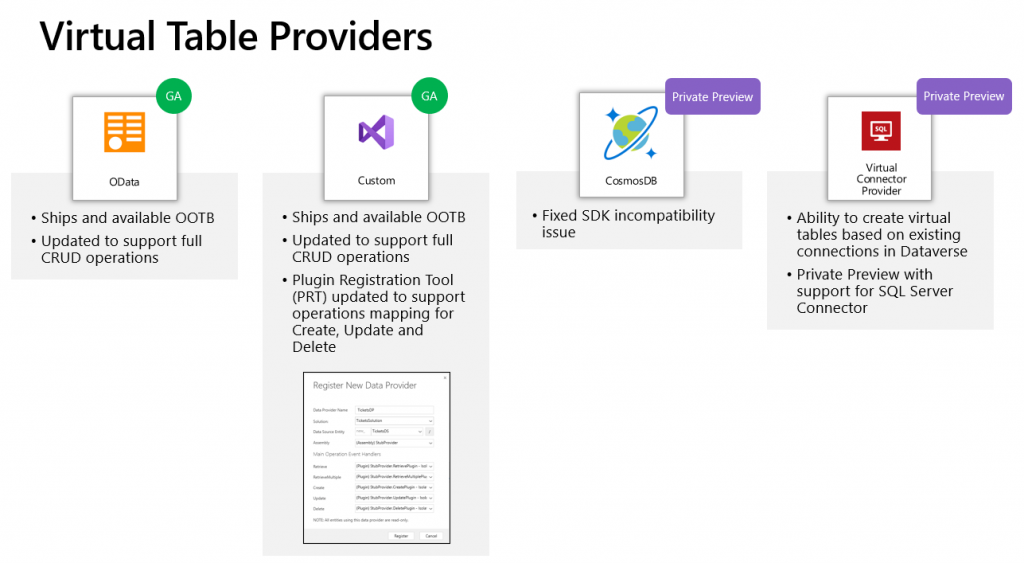
    Previously the options for adding virtual tables to Dataverse was pretty much a pro-dev targeted story. The requirements for OData feeds were such that I don’t think I ever managed to find a sample feed to try out the feature. Same for the custom connectors, which are created via writing your own plugins. Technically they can be built, but if the requirements are similar to that of a traditional data integration approach, then it doesn’t exactly revolutionize the low-code data story of Dataverse.

    The new preview for Virtual Connector Provider looks more interesting, though. Supporting out-of-the-box connectivity to SQL Server databases is definitely a scenario that’s closer to the no-code level where I personally prefer to operate on. So, I decided to go and see how far this track can take me in building a Model-driven app that actually works with data not physically stored inside Dataverse.

    Even though the documents still say “private preview”, anyone can install the Virtual connectors in Dataverse solution from AppSource today:
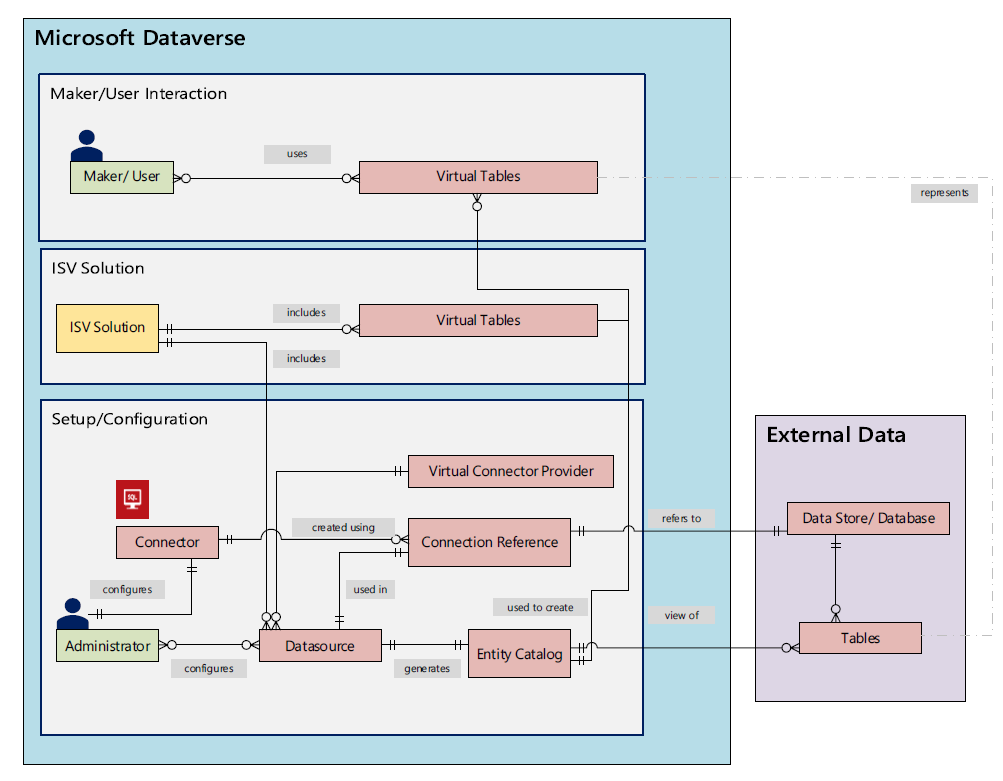
    There’s a Power CAT Live video on YouTube that introduces the solution. If you’re like me and you prefer consuming written information instead of video walkthroughs, this PDF document will be the place to go for understanding the feature. Inside it you will find this diagram that explains the architecture of how concepts like connectors, data sources, connection references etc. relate to this new Virtual Connector Provider.
    Setting up SQL Server tables to expand your Dataverse

    I have a demo AdventureWorksLT database deployed in SQL Azure, just like the one used in Microsoft’s feature documentation for virtual connectors. I had already earlier used this demo SQL database as a data source for Power Apps Canvas apps, which meant I had an existing connection available in Power Apps Maker portal. Authentication is done with SQL username/password combo in my connection, but Azure AD authentication would also be an option if you’d rather not have stored credentials within the connection.

    After following the step-by-step instructions, including setting up an application user / service principal for the virtual connector provider, I had a brand new table visible in my Dataverse environment: “Entity Catalog for AdventureWorksLT”.
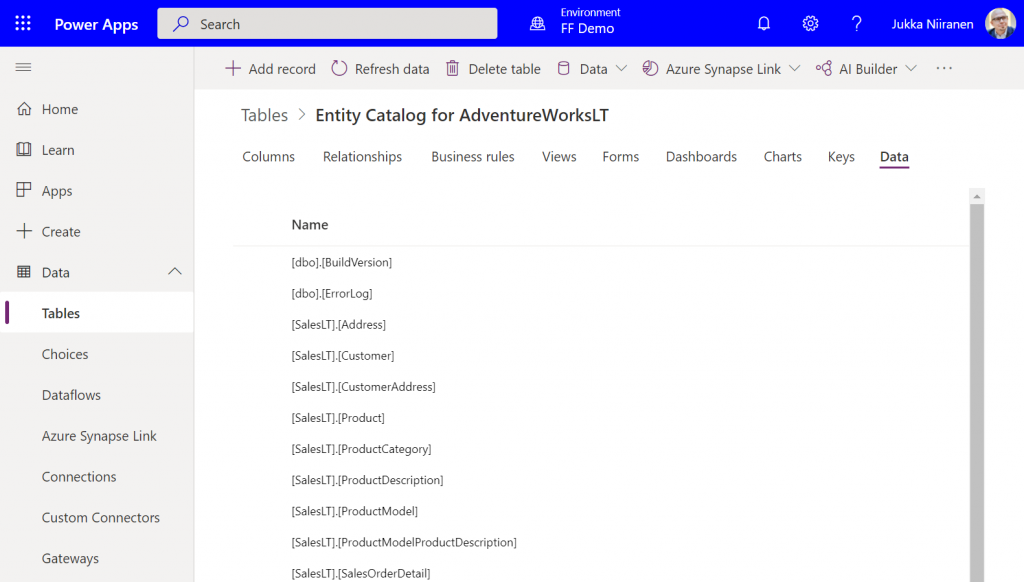
    Cool, we have a “table of tables”! I can see all the SQL Server database tables available via this connection. By opening up one of these records, I can specify that I want to create the corresponding SQL table as a Dataverse virtual table.
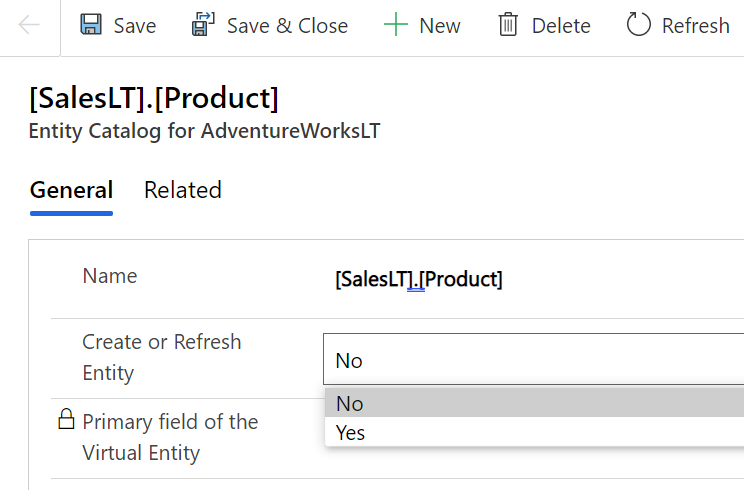
    I picked the Product and Product Category tables from there. (Note: modifying the table properties in the Power Apps UI doesn’t seem to work, so use the legacy web client and Solution Explorer to change things like table name.) After this, the virtual connection provider nicely maps all of the available columns in SQL into a matching Dataverse column, with the correct data type.
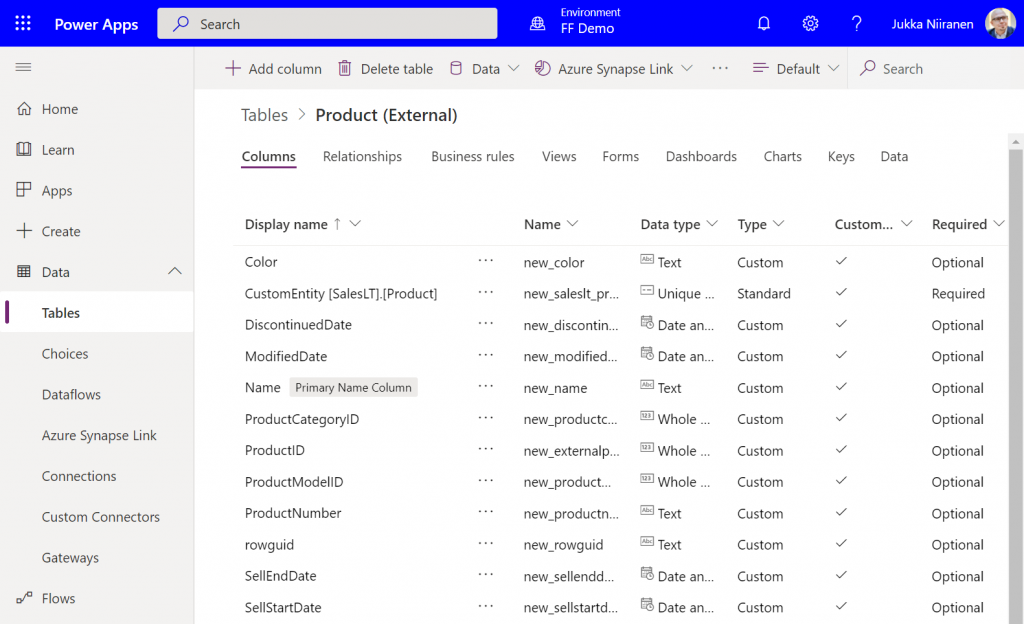
    I can then do the standard configuration tasks I’d perform for a native Dataverse table, such as adding views and modifying form layouts. Of course there are a number of considerations for virtual tables when it comes to the Power Apps features they support. Still, whatever works here is exactly the same experience from an app maker perspective, whether the table is “real” or virtual.

    Building a Model-driven app with virtual tables

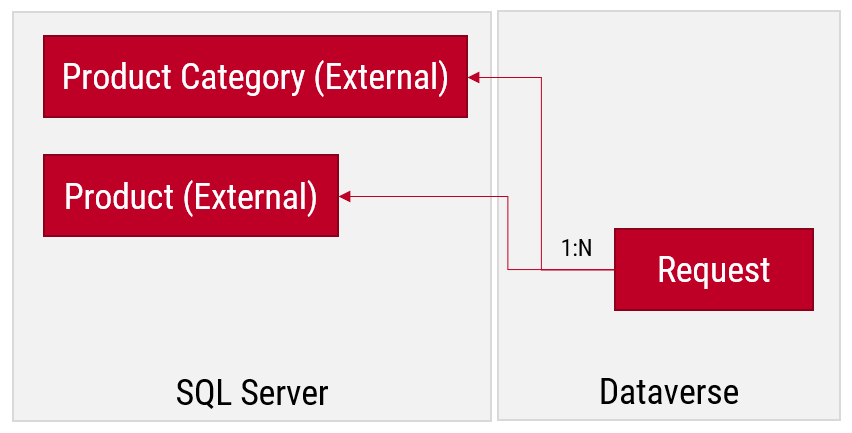
    I created a small demo app module for testing how the different table types can co-exist and work together. I added a custom table called “Requests” and added it as the child table for both Product and Product Category virtual tables coming from SQL.
    Let’s first go and browser the external data from a view. Opening up the Products table, the experience is in practice the same as if I was browsing native Dataverse records. I can create a personal view “products currently sold” that filters out all products with a value in SellEndDate field. I can sort based on the SellStartDate. I can filter to see only products with Color value Black.
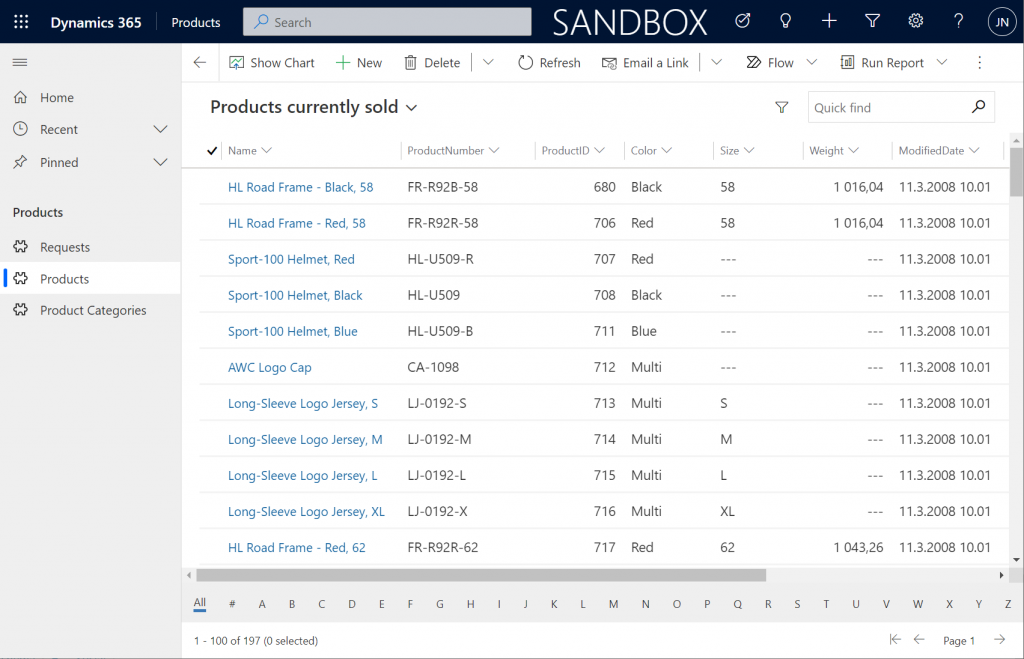
    This is already pretty darn impressive for someone coming from a Model-driven background. Sure, in the Canvas world I’ve been able to easily point a gallery to a SQL table and view the data, but having all of it available within the pre-generated Model-driven UI is a major step beyond that.

    Let’s try out how the native Dataverse table + external SQL Server tables work together on a form. Upon adding a new Request, I’m able to reference the related Product Category and Product tables via the standard lookup, just like everything would be stored in a single system. Behind the scenes, the native Request record will get references stored to the external Product Category and Product tables from SQL.
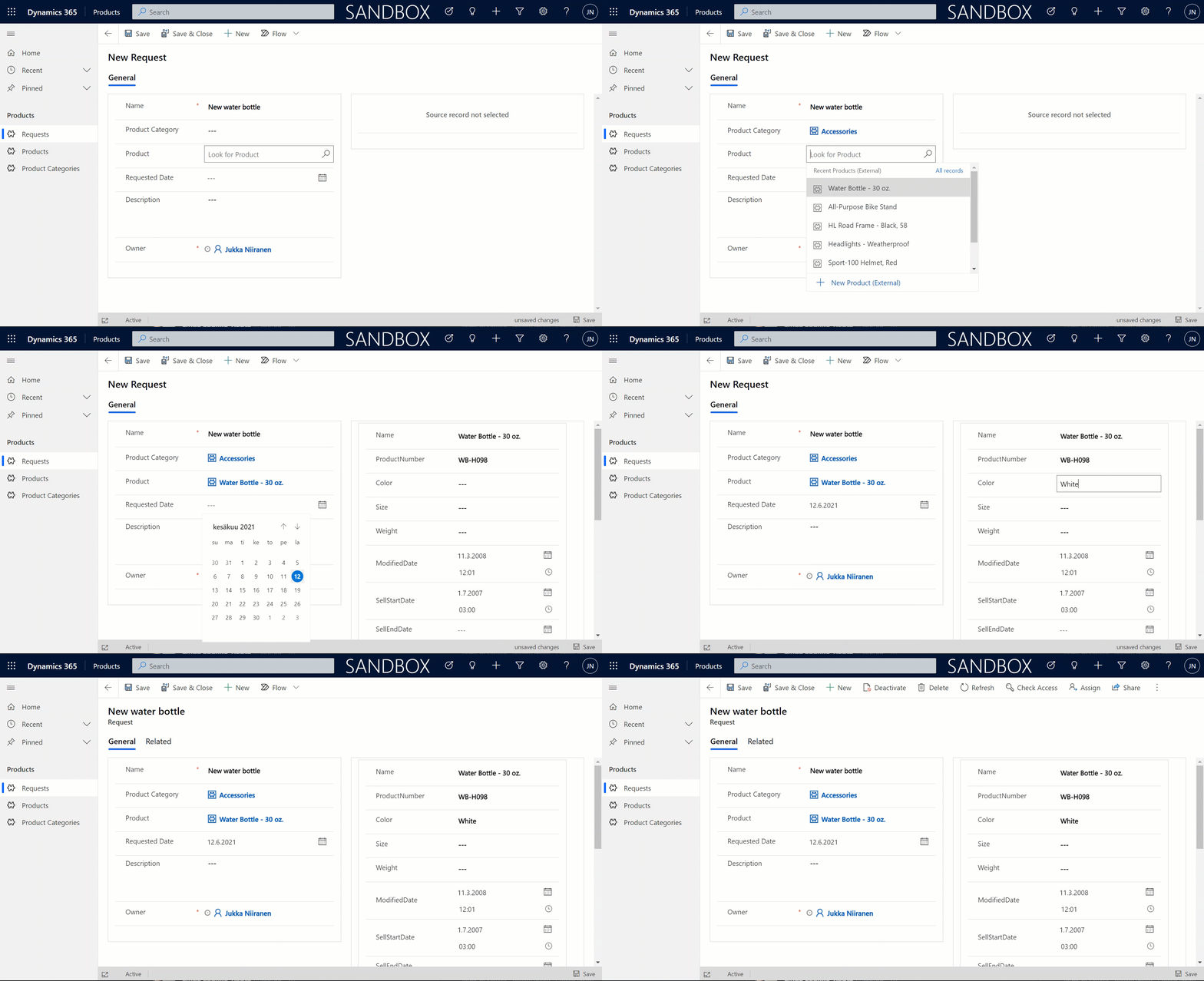
    But wait, there’s more! Did you notice that my Request form actually used the Form Component Control to show an embedded form of the Product table on the right side? Immediately upon populating the lookup field on the left side I see all the details of the selected product, just as if they were regular fields of the current record.

    In the above example I’m actually editing the Color field of the chose product with the value “White” before creating my request record. What this means is that within the same save event not only am I creating a new row in the Request table in my Dataverse, I’m also directly updating the data in my SQL Server’s Product table.
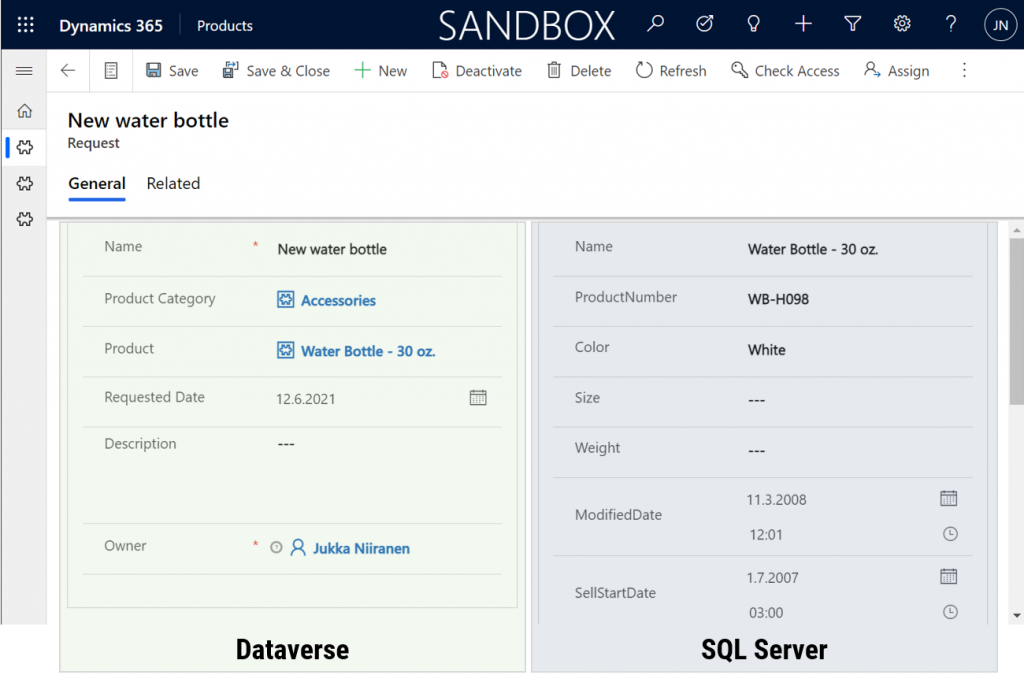
    That is powerful! No custom code was needed in creating an app UI that talks with multiple different line of business systems in real-time, on the very same form.

    From databases to Dataverses

    This simple example of simultaneously performing CRUD operations on data stored in different systems via a Power Apps form illustrates the reason why Dataverse needs to be seen as much more than just a database. It’s purpose is to be a value-add layer on top of different data storage systems, making them easy to leverage in your business apps. We already see today with the Dataverse file & image data getting stored in Azure Blob Storage and audit log entries in CosmosDB, alongside the core relational data in Azure SQL.

    The Virtual Connector Provider and virtual tables take things one step further. Especially in scenarios where you’d need to reference master data from an external system, there may not be a need to physically replicate it into Dataverse (perhaps you also want to reduce the storage costs). Specifying the virtual presence of such data will however make it appear as if it was part of the platform, thus brining it into both Model-driven apps and Canvas apps in a unified way. Even adding support for Dataverse business events to cover Power Automate is technically possible for virtual tables, although these understandably will require pro-developer involvement to get the external systems in sync with the API.

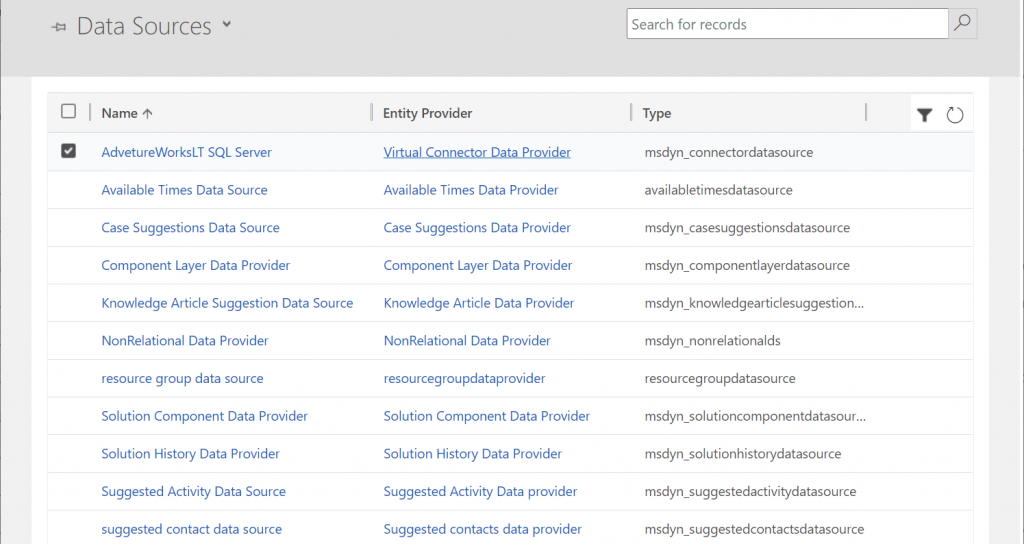
    Behind the scenes, these same concepts for virtual entities / tables are already being used by Microsoft in their first-party app features. By browsing the Data Sources within an environment we can see features like case/contact/activity suggestions listed here, as well as platform capabilities like component layers or non-relational data provider.
    Two years ago I wrote a blog post called “The Real Common Data Service Emerges” where I explored the direction where Dataverse (then CDS) was going. Since then we have seen Microsoft make the export of relational business data to a data lake a straightforward process with the built-in Azure Synapse Link for Dataverse. Similarly the import capabilities into Dataverse have expanded as the Dataflows / Power Query support keeps improving. Combine these physical data import/export pipelines with the virtual layers that the connector technology may soon offer for several tabular data sources and we’ve got a highly capable low-code toolkit for business data management needs in the Power Platform.

    You need to keep in mind that there are many considerations (read: limitations) for using virtual tables to review before deciding if they are a good fit for your business requirements. Even in building the above demo app there were things that don’t quite work the same way as with real Dataverse tables. For instance, I can’t specify a 1:N relationship between the two virtual tables for Product Categories and Products. Quick Find on the SQL data doesn’t seem to produce any meaningful results. Referencing virtual tables via lookups in a Canvas app seems to not retrieve related data at all times. Not to mention the fact that in two different environments the whole Virtual Connector Provider configuration process got stuck before any SQL tables ever materialized in the Entity Catalog.

    So, keep in mind that this is a preview of things to come, rather than production ready functionality to use today.

    Update 2021-08-20: the feature has now been officially released in public preview format, with new documentation available. Check out the Docs page “Create virtual tables using the virtual connector provider (preview)” that contains the information previously only available in the aforementioned PDF.

  • One-to-one relationships and forms within forms

    One-to-one relationships and forms within forms

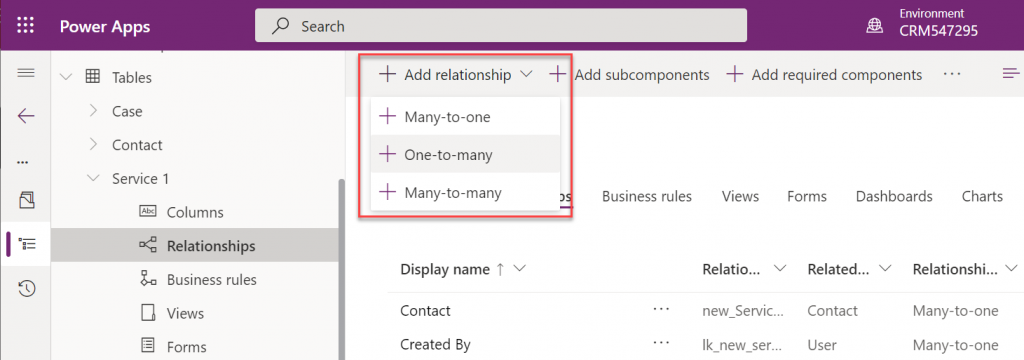
    There’s no such thing as 1:1 relationship in Dataverse, and hence your Power Apps Model-driven apps or Dynamics 365 Customer Engagement apps can’t directly have such a data model. Only 1:N (one-to-many), N:1 (many-to-one) and N:N (many-to-many) relationships are available between tables, be it standard or custom ones.

    In practice, even the N:N relationship doesn’t actually exist in the database. While the Dataverse table configuration UI allows you to create this relationship type, it actually consists of a hidden intersect table and two 1:N / N:1 relationships that connect the actual tables together (see Dataverse table relationships documentation). Seasoned XRM professionals may even discourage the use of native N:N relationships, as you lose some control and visibility to the relationship due to its hidden nature.

    Just because it’s not available in the platform, doesn’t mean there aren’t many real life business scenarios where a requirement to have exactly one record per a record in another table. (OK, “rows” in the latest Dataverse terminology, but I prefer the business process lingo where “record” still is more appropriate.) Also, like with N:N relationships, just because it’s not directly possible to create one, doesn’t mean we couldn’t build the required functionality by using the no-code tools in Power Platform.

    In this blog post I’ll demonstrate not only how to create a 1:1 relationship but also how you can offer a pretty nice user experience for working with related records – thanks to the new Form Component Control feature. I’ve covered the feature details in an earlier blog post (“Relational data on Model-driven forms, part 2: Form Component Control”) so please refer to that for more info.

    Why would we need 1:1 relationships?

    From a theoretical data modelling perspective, you probably shouldn’t be splitting data into multiple tables if there is only a single match expected from either side. On a practical level there can be reasons why it makes sense to not cram everything into a single table, though.

    A common source of such requirements are the restrictions of access rights to data. Let’s say that the contact information of a person needs to be widely available to users of the application for various purposes (billing, marketing etc.). However, this contact also happens to be a patient, with details about his or her medical profile being recorded into the same system. Only the doctors should have access to this data. A single contact will match a single patient record (or none, if it has been created for other purposes). If these are in two separate tables, granting access rights can be easily achieved via standard Dataverse security roles: everyone sees the contact table data, but only doctors see the patient details.

    “Couldn’t we just use field level security to hide the confidential stuff?” We could, but you have to evaluate whether the approach will really scale to how the system will be used. You see, in addition to security we’ll also need to consider if we’re overloading a single table with too much data. There are hard limits of the maximum number of columns that SQL Server supports for a single table. Thanks to the value-add provided by Dataverse, adding one column into the data model can create many columns in SQL. This means you don’t have anywhere near the 1024 columns per table at your disposal. Also, if you’re working with a standard CDM entity like contact, there will already be close to 300 attributes taking up space before you extend the data model for your specific needs.

    I was recently working with a customer that is planning to use Dynamics 365 Customer Service for managing all their service requests in every department they have. This will mean that tens of different types of services will be creating case records into the system. The amount of service specific information that must be available to be captured on case records is easily hundreds, if not thousands of fields. Adding all of these to the case (incident) table wouldn’t be feasible, so instead the solution architecture was designed to incorporate “service detail” tables specific to each service. Each case will have one (or zero) of these records, so it’s a 1:1 relationship between the standard case table and these custom service detail tables.

    Establishing 1:1 in the data model

    In the scope of our example, the data model will consist of these main tables:

    • Service 1, Service 2, …, Service N: parental record under which the cases will be created. Think of these as service contracts that a contact person can have for one or more services.
    • Case: the standard Dataverse / Dynamics 365 table, with lookups to all of the aforementioned Service tables. No other service specific data is stored here.
    • Service 1 Detail, Service 2 Detail, …, Service N Detail: service specific information that should be found from under each Case, depending on which service it applies to.

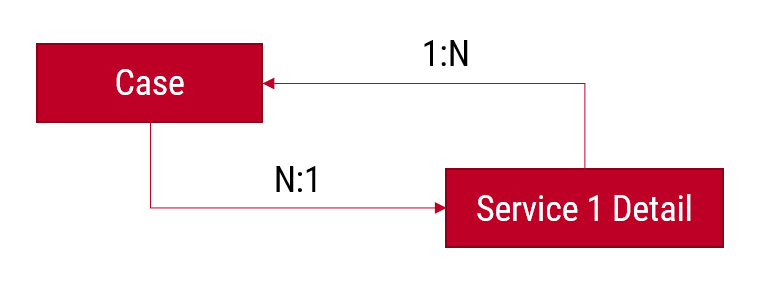
    Just like the N:N relationships in Dataverse consist of two 1:N’s, the same applies to our manually created 1:1 relationship. Only this time we’re not going to need an intersect table, rather we’ll just link the two records together via the relationships like this:

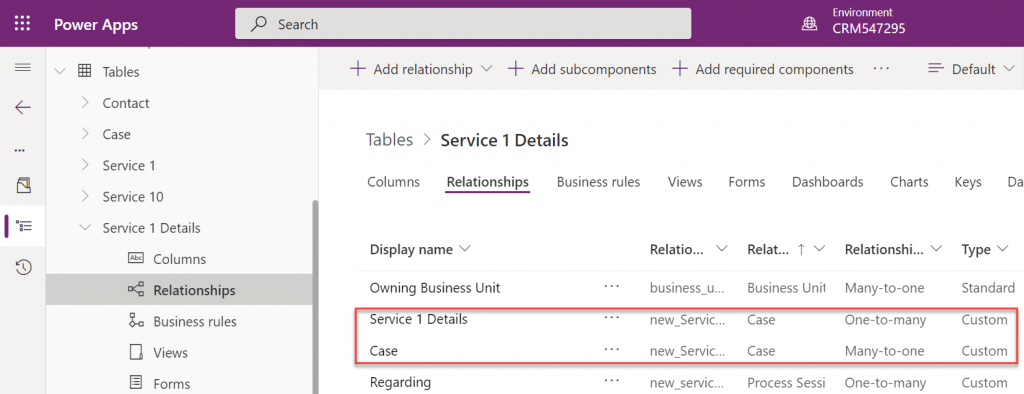
    The Case record will be parental to the Service Detail record, but at the same time the Service Detail will be the Case’s parent. These will appear just as two custom relationships under our table:

    Next, we’ll want to ensure that there is always one and only one Service Detail record for a case – IF the case is related to the delivery of the specific Service. Furthermore, we’ll want to get the Service Detail created automatically immediately after case creation, so that users can start entering data on it.

    The real-time requirement rules out Power Automate that is asynchronous by nature, so we’ll use the classic XRM workflow engine instead. There will be two levels in the automation:

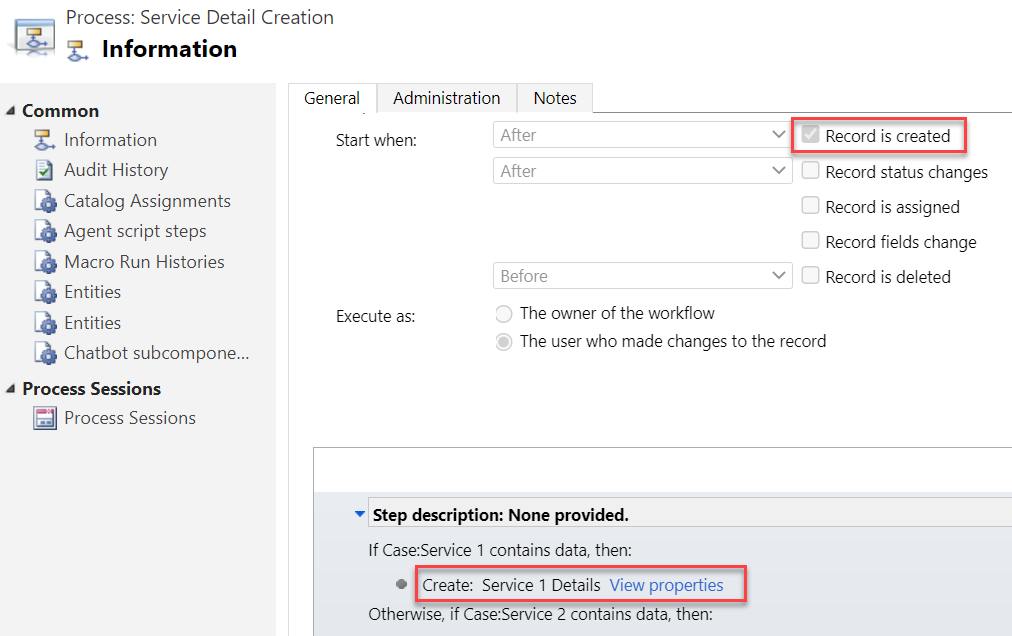
    1. When a Case record is created, check which of the many Services it is linked to and create a record in the corresponding Service Detail table (establish 1:N relationship).
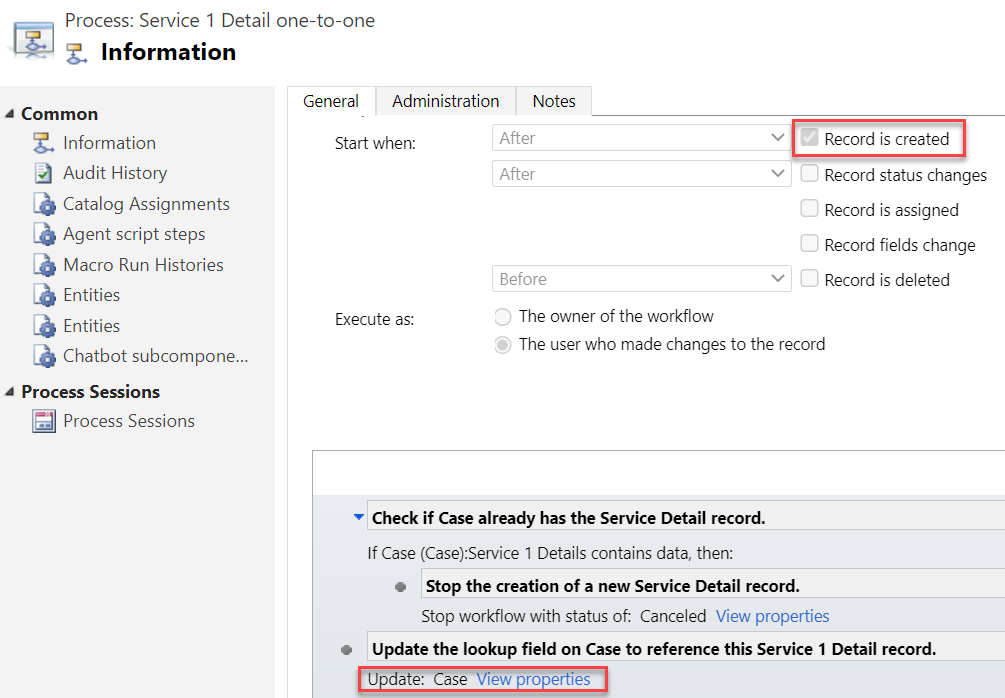
    2. When a Service Detail record is created, update its parent Case with a reference that sets the Service Detail to also be the parent of that Case (establish N:1 relationship).

    Workflow 1 looks like this:

    It will then in turn trigger workflow 2:

    Notice that we have a check in place that stops the creation of a Service 1 Detail record if one already exists for the Case. If the lookup to Service 1 Detail is empty, we put the reference to our newly created record there and establish the 1:1 relationship.

    Working with 1:1 data in the user interface level

    This is where the Form Component Control comes in handy. In short, the control is meant to allow both the display and inline editing of a parental record’s form, embedded inside another form. An example of the standard data model use cases would be to show the fields of a the customer contact on a Case form and allow the service representatives to update them without having to open the actual Contact form.

    It works in our 1:1 scenario, whereby we can edit the Service Details fields directly on Case form. The reason is that not only is the Service Detail a child record of the Case, it is also the parent – thanks to what we’ve just built above.

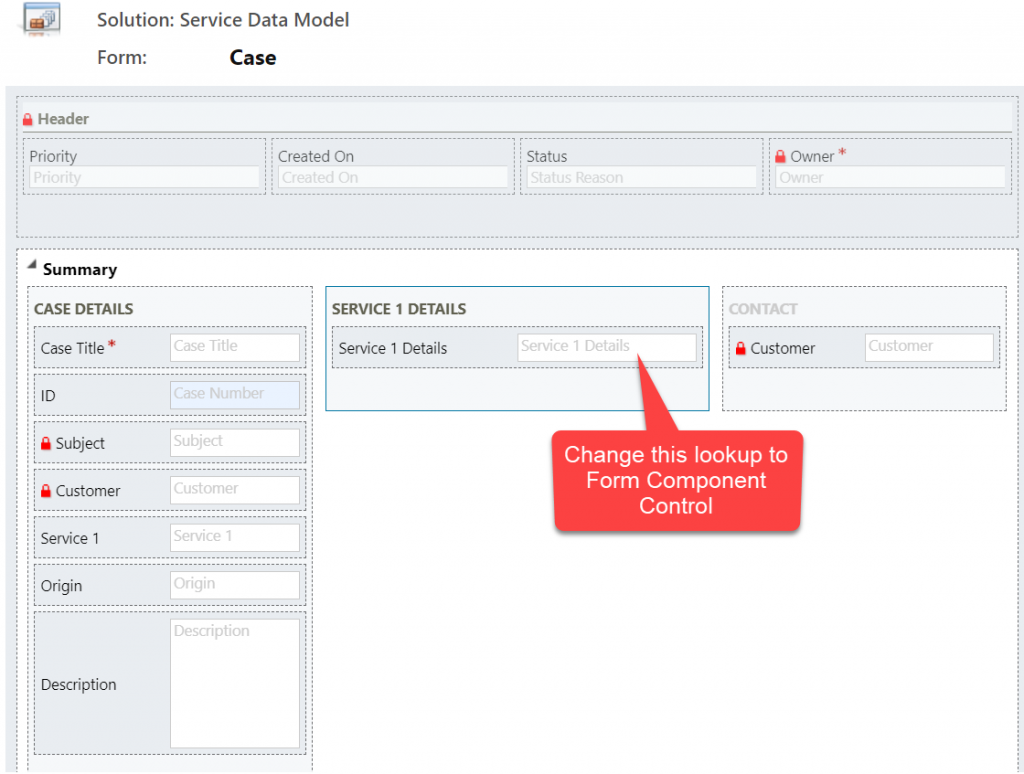
    You’ll find the explanation of how to use Form Component Controls in my earlier blog post. For now you need to do the configuration in the legacy Solution Explorer side, by editing the form and setting one of the lookup fields to be rendered as Form Component Control:

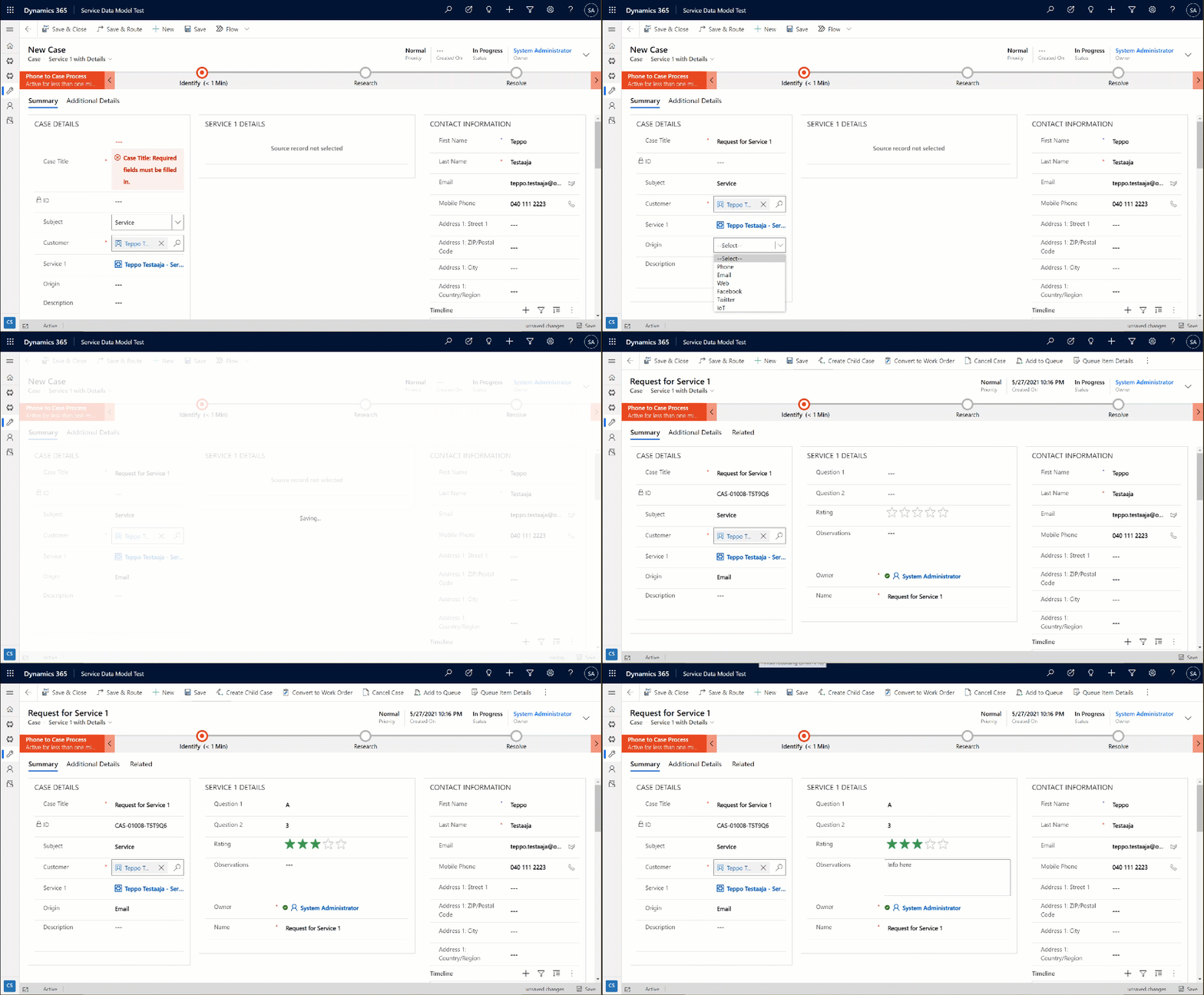
    Now when we create a new Case record and have the Service 1 lookup value populated, after the first save the user can immediately continue to fill the Service 1 Detail values right within the same Case form:

    The beauty here is that for the user who’s working with a Case record, they won’t need to know there are two different Dataverse tables used for storing the data. Both the Case record details, Service 1 Details and even the Contact record details are all editable on the single screen. The world looks flat, regardless of our data model with several relationships configured behind the scenes.

    Conclusions

    Dataverse offers you plenty of configuration tools to get creative with both the data model and the UI in Model-driven Power Apps. While the standard hierarchical structure of parent-child records and table (entity) specific forms is the most common pattern, there are alternatives that may be useful when faced with more complex business requirements.

    Dividing the business data into multiple tables with 1:1 relationship may sometimes be perfectly justified, to accomodate the security and data storage requirements. The user interace of Model-driven apps today offers great tools like the Main Form Dialog and Form Component Control to simplify working with proecsses that span across different tables in the underlying database.

    If you’d like to see Microsoft implement a native one-to-one feature for Dataverse, please vote on this idea.

  • Relational data on Model-driven forms, part 2: Form Component Control

    Relational data on Model-driven forms, part 2: Form Component Control

    Our quest for improving the user experience of Power Apps Model-driven app forms and multi-table data models continues with this part 2 blog post. We will explore how the brand new Form Component Control enables us to essentially blend the forms from two different tables (entities) onto a single form for the user to easily interact with.

    In part 1 I laid out the example scenario of a Rental Car app where a single rental event record will always have a single related car record associated with it. Please go and have a look at the details in the earlier post if you want to understand the details.

    Our approach was to leverage the Quick View Form to bring in fields from the related parental table (Car) onto the child table (Rental) form. To make the data entry and editing easier we enabled the Main Form Dialog feature for the Car lookup field, which then opens the form in a modal window.

    While this UX is a lot nicer than navigating between full screen forms and page loads, it’s still not all that seamless. The user will be very much aware of the fact that he/she is working on two different tables, while ultimately we’d want to show just a single page that abstracts away all this complexity of the underlying relational data model.

    What is the Form Component Control?

    First of all, it doesn’t have a very sexy name, that’s for sure. During the past few days of exploring the feature, I’ve had to repeatedly go back to the documentation to see what the name was. Even the product team’s announcement “editing related records on a main form in a model driven app” doesn’t sound very exciting. There’s a lot easier way to describe it:

    Forms within forms.

    It’s simple, and it’s very powerful. Unlike the CRM 2013 era feature of Quick View Forms, there’s no requirement to keep the forms as “view only” , nor particularly “quick” in terms of their contents. It’s just regular forms, and they can be used within other regular forms – full edit capabilities included.

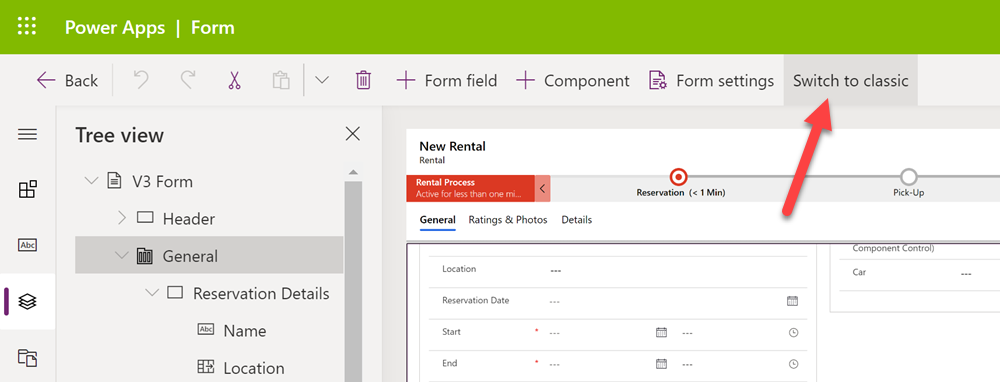
    Let’s add a Form Component Control onto our form and see how it works. Unlike with the Main Form Dialog feature discussed in part 1, this Form Component Control feature is unfortunately not yet available in the modern Power Apps form editor. So, we start with what we still need to do very often in the world of Model-driven apps, meaning hit the “Switch to classic” button to launch the classic Solution Explorer that dates back to CRM 2011.

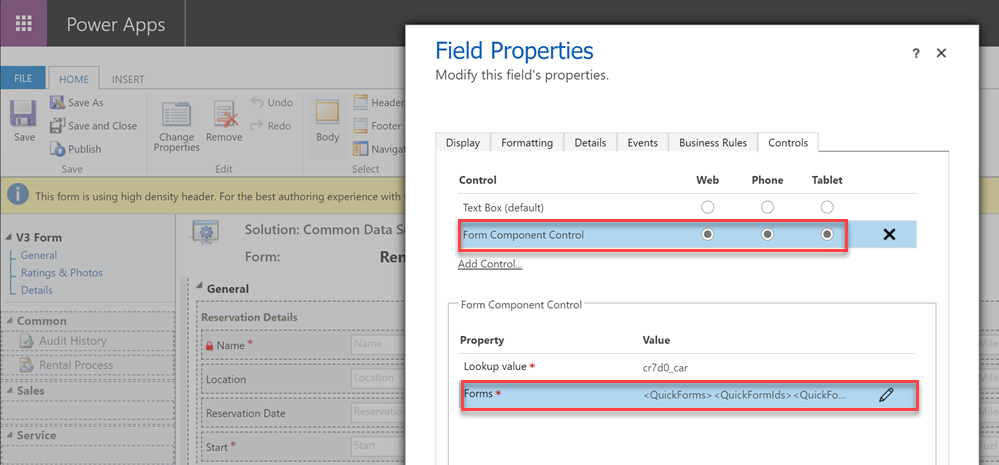
    On the form where we have a lookup field (in our case the Car lookup on the Rental form), let’s open its properties dialog, go to the Controls tab and click “Add control”. We can see the MS provided PCF control “Form Component Control” in there. Adding it and setting it to be the default control for our web client is easy, but the configuration requires some additional information that doesn’t have a graphical UI (maybe in the modern form editor then once this feature is supported there).

    See the MS documentation page for the detailed steps to take. In short, you’ll need an XML entry that contains the table name (entityname) and the form ID of the main form you want to show for the related table. My configuration looks like this:

    <QuickForms><QuickFormIds><QuickFormId entityname="cr7d0_car">2F3B241A-4E3F-4AE3-A26F-1AB7BF804636</QuickFormId></QuickFormIds></QuickForms>

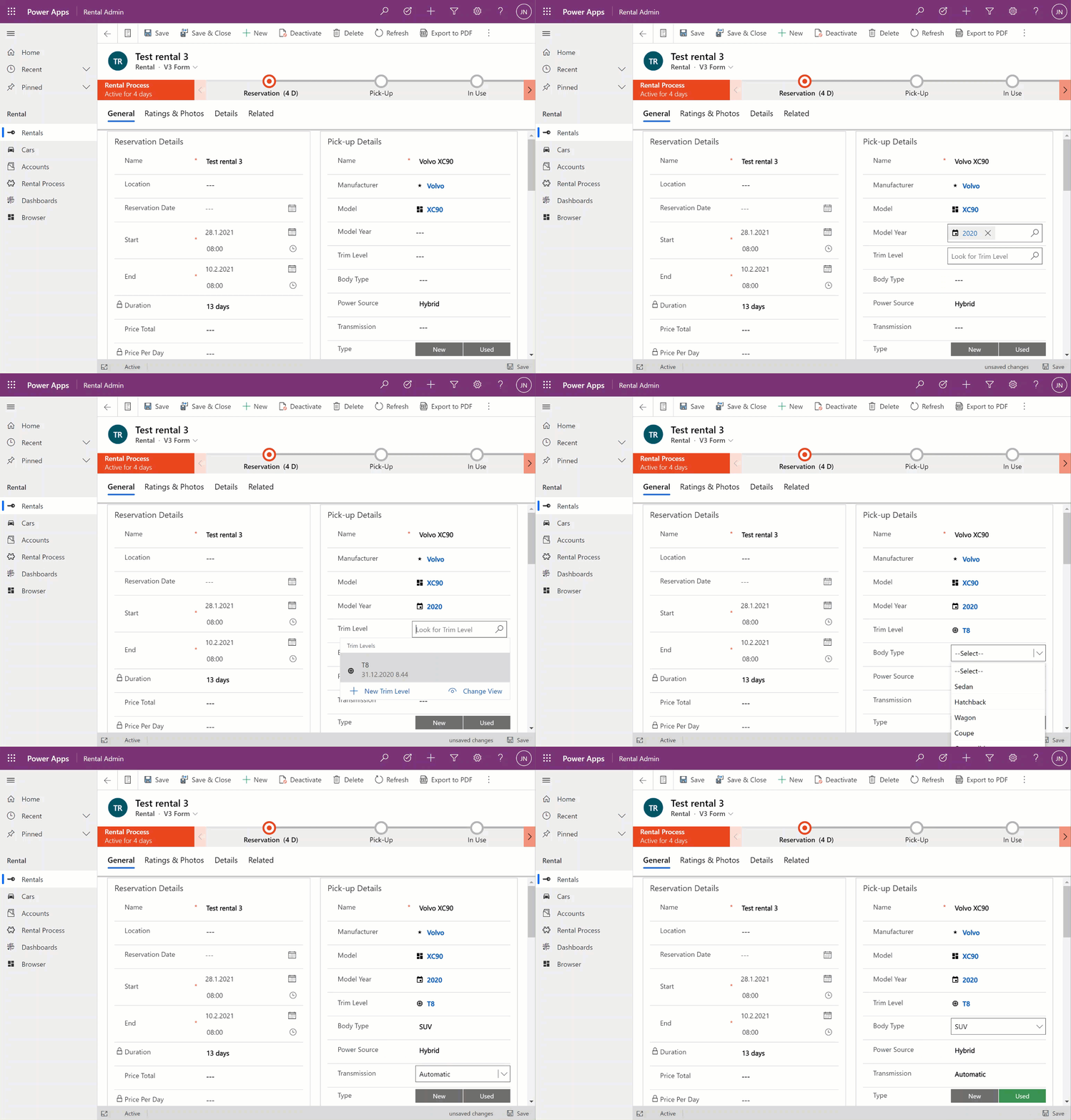
    Let’s publish the changes and go test out the experience of editing an existing Rental record where the Car record’s fields have been partially populated. On the place where I previously had the Quick View Form with its locked fields, there are now fields coming from the Car table form. Text fields, lookups, choice fields – they all work exactly the way they would if I was editing data that’s natively stored on the Rental record, rather than the related Car record.

    The save event happens as part of the hosting form, no additional tricks required. Field validation, notifications and error handling is also integrated, regardless of whether the business logic comes from the main form or the embedded form (details in the Docs).

    All in all, this works incredibly well from a user experience perspective in my initial tests. Even if you’re a Dynamics 365 or Power Apps professional you might not realize that the form actually blends two different tables into a single form.

    Main form rendering options via Form Component Control

    With the old Quick View Form feature, there was a separate form type you had to create for the table for this specific purpose. It was far more limited in contents and layout than the full table forms, which kind of made sense for the purposes of bringing a few key fields in read-only mode onto a the actual main form of a different table. QVF allowed single column only + no other useful controls than the subgrid:

    The Form Component Control knows no such boundaries. What you can use there are the existing or new main forms for any table. If you place them within a single narrow column on a multi-column form tab, then all of the form contents will be rendered within that column. Since the Unified Interface forms are inherently responsive by default (which is a big benefit compared to Canvas app screens), everything will just reflow into a layout that would resemble a phone screen – even if you’re viewing the form on a widescreen PC monitor.

    What about if we give the Form Component Control a bit more space than a 1/3 of a typical Model-driven table form? The reflow also works the other way around, meaning all of the available screen space will be used. If the area given to FCC can accommodate more columns and the source form has them, they’ll be rendered just like on the “native” viewing experience of that form.

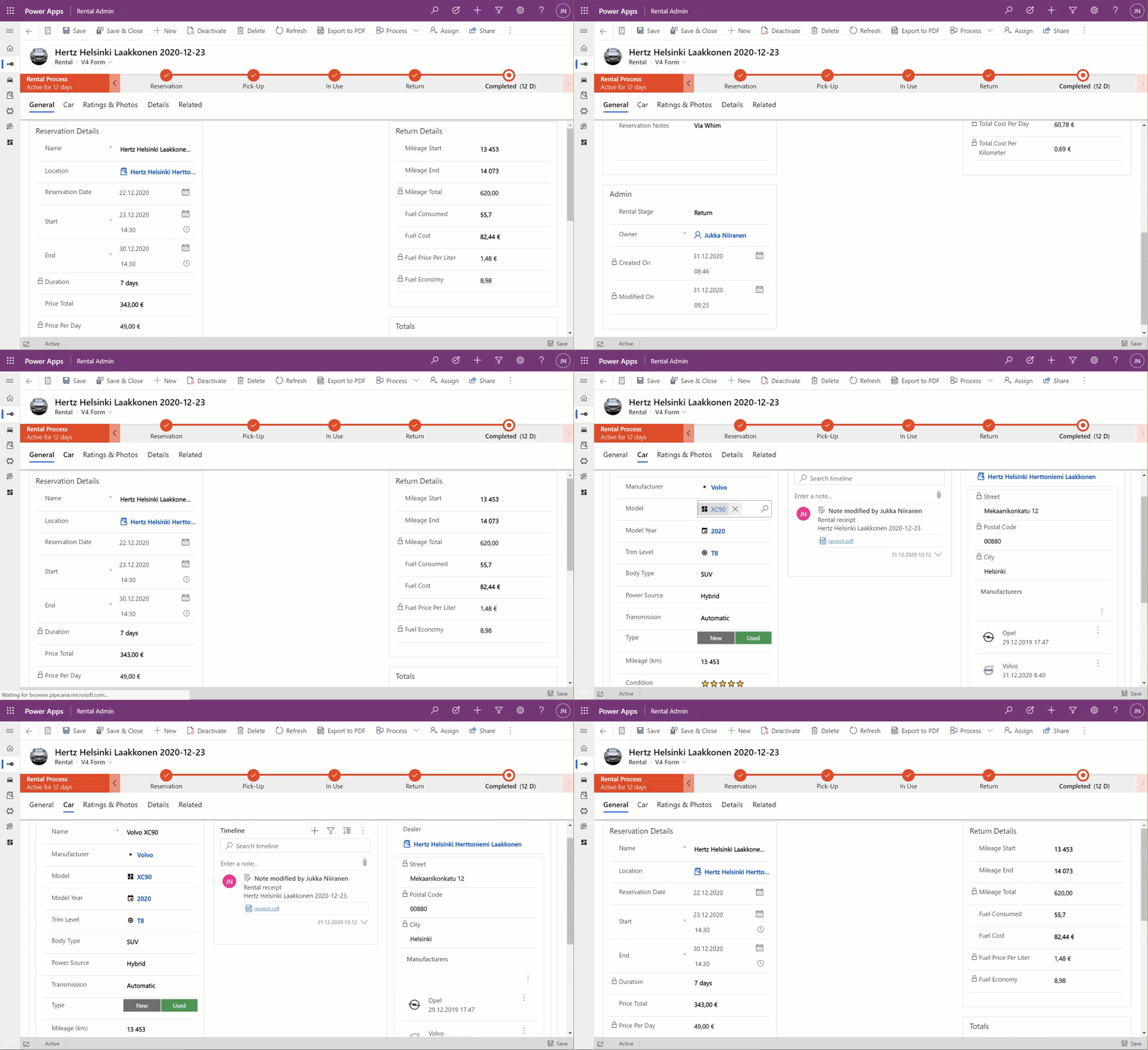
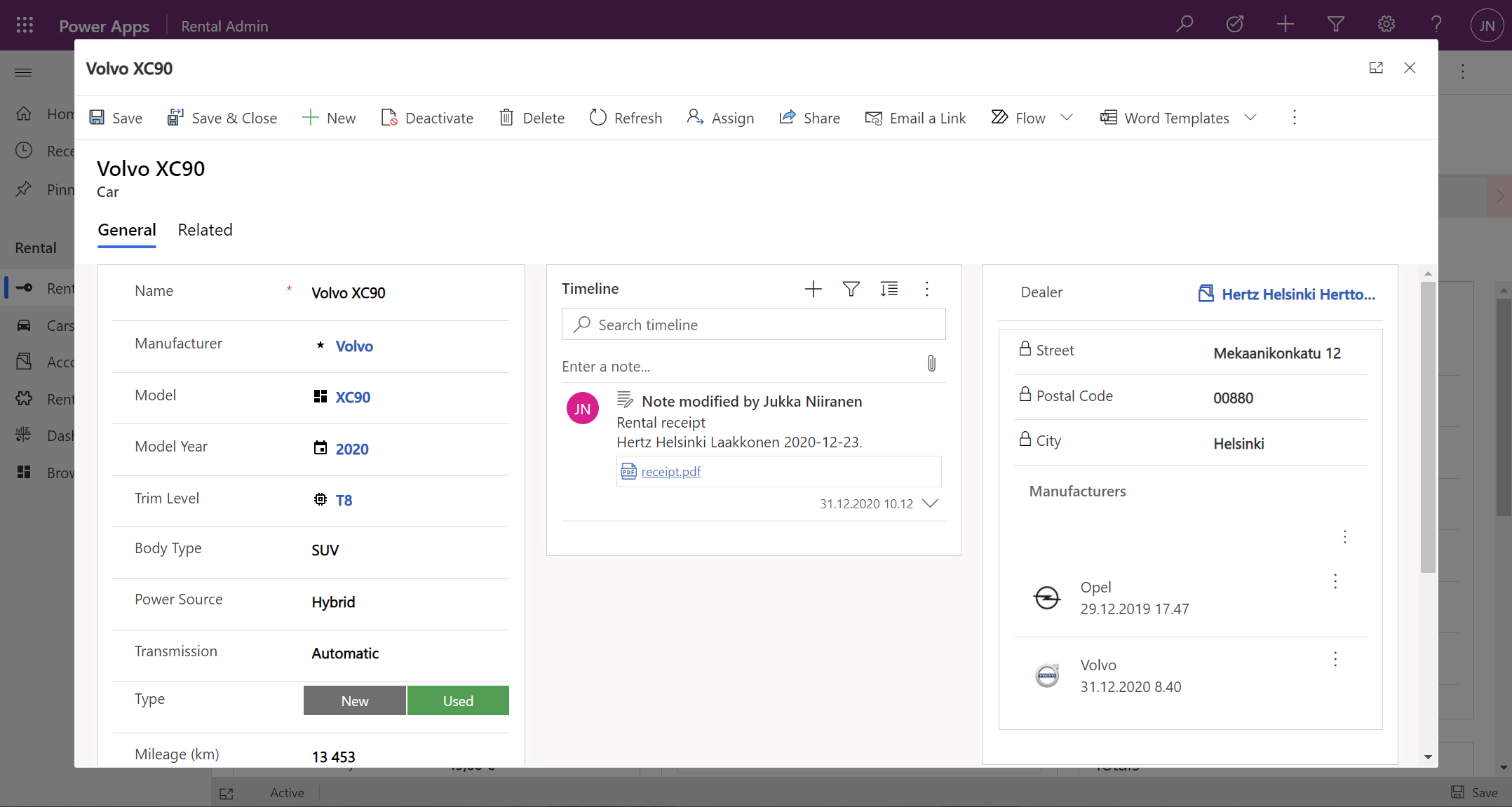
    Below is an example of an alternative form design for the Rental table. Instead of having the related Car shown in the middle of the first form tab, I’ve added a second form tab “Car” and dedicated all the space available in it to a single lookup field that has the FCC control enabled. You’ll see from the static Business Process Flow and the form header that we’re firmly on the Rental form all the time, but the second Car tab shows things like the Timeline for that car record (with a note), further tabs for the car’s Dealer, even a Quick View Form referencing the dealer account related to the Car record – all within on FCC control.

    This to me is just mind-blowing! We are reaching Inception level UX here, with the main forms embedded AND rendered as a full form tab within another form. I could be on the Rental record form, adding an activity via the Timeline control that’s actually linked to the parental Car record. Not the Rental record where the app navigation, form header, Command Bar and everything else visible on the screen is telling me I’m on. I’ve effectively built a form UI that defies the laws of nature I’ve come to expect from Model-driven apps.

    Sure, embedded Canvas apps could do some magic like this already earlier. The big difference is that the user interface of those screens could never match exactly that of a Model-driven app. With FCC there are no visual clues distracting the UX, as everything looks and feels like it’s part of the native experience where Microsoft owns and manages the visual side.

    What about record creation instead of edit?

    The one gap that exists in the inline editing story for Microsoft’s controls like the Editable Grid or this new Form Component Control is that there’s no possibility to use them for adding new rows into a table. They offer the edit experience, but no create experience. Sure, we have the Quick Create Forms feature available for contextual data entry, but it’s not really optimal. The user shouldn’t have to think about if they are editing existing entries or creating new ones. Yes, the difference between these concepts matters to the platform on a technical level. Still, unless there’s a valid business process requirement for making the data entry experience different for create and update scenarios, it’s something I’d prefer to eliminate from the UI.

    When there’s a scenario where we essentially have a one-to-one relationship between tables (no “real” 1:1 relationship exists in Dataverse, but there are ways to fake it), one option would be to automatically create the related parental record behind the scenes. With this approach, at the moment when the user will proceed to entering data via the Form Component Control, the lookup field will already be populated and the experience will look pretty seamless:

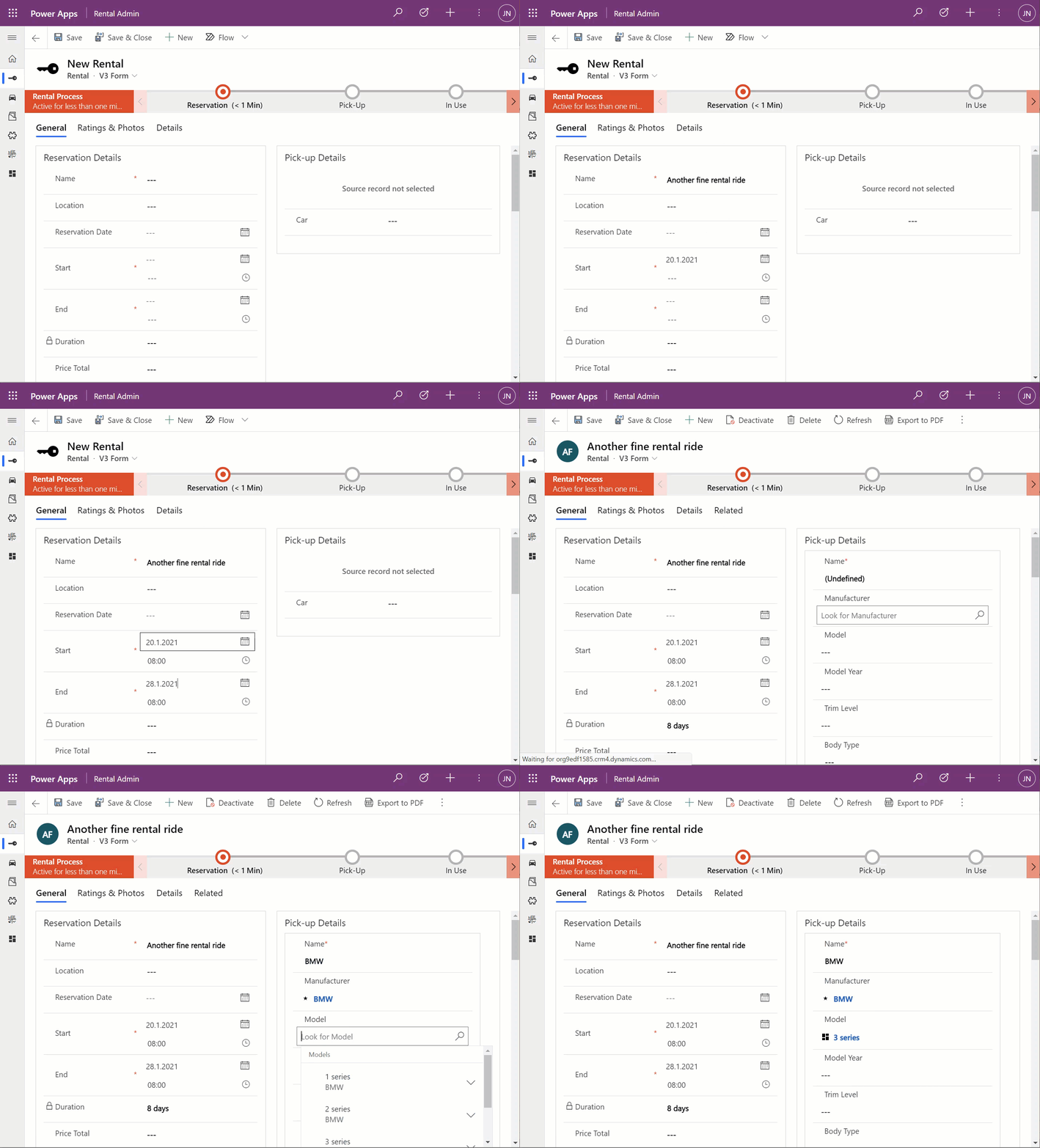
    What I’ve done here is to create a classic XRM workflow that runs in real-time, triggered by the create event of the Rental record. (Power Automate can’t do real-time yet, so it’s a no go for flow in this case.) The workflow will create a Car record with a placeholder name “(Undefined)” and link it to the Rental record. By the time the first save event for the new Rental record takes place, the FCC can then render the fields from this placeholder Car record on the Rental form.

    In the above example GIF animation you may also spot that the Car name changes transparently from “(Undefined)” to “BMW”, due to what has been selected in the Manufacturer field. This again is another real-time workflow that’s triggered by the update event of the Car record. The end user will not need to take any actions, it’s all just the native autosave feature of Model-driven apps that populates this name field while the user is still entering data into other fields further down the Car form.

    Considerations

    If the new Form Component Control gives us not just the read capabilities from Quick View Forms but also data edit support, then should we just stop using Quick View Forms altogether? Well, it certainly is a good question. Given that QVF dates back to the CRM 2013 era user interface technologies, FCC is much more in touch with how the modern Unified Interface client has been designed to work. It’s built using the Power Apps component framework (PCF) and should in theory be the most future proof choice for Model-driven app form design.

    One downside is that the use of FCC for the pure view scenario is a bit more laborious. If we indeed would want to prevent the user from updating values from the parental record while on the child form, then these fields would need to be set as read-only on the main form itself. Which brings us to the challenge that you’ll need to keep more forms visible in the Model-driven app, whereas classic QVF’s are hidden behind the scenes and only applied as the definition when rendering the main form on which they are used.

    The create scenario I talked about earlier is also a bit of challenge when analyzed deeper. If indeed the lookup from which the Form Component Control gets the related parental table record to show isn’t populated immediately, you’ll see a message saying “source record not selected”. In most cases that’s going to be quite a confusing message for the end user to encounter, given they are unlikely to have any idea about the forms magic and relational tables being used in to construct the app’s UI.

    “Couldn’t we just hide that control until it the lookup has data?” Well, I can’t think of a no-code way to achieve this. You see, the problem is that the FCC essentially is the same field as the lookup field. Sure, you can have multiple instances of it on the same Model-driven app form. But you can’t use Business Rules to say “hide this field if this other field is empty”, because they are the one and the same. Quick View Forms handle this scenario much better, so let’s hope Microsoft will improve the functionality in FCC to accommodate this create/hide scenario better in future releases.

    WE NEED TO GO DEEPER Inception

    This first public preview release of the Form Component Control has a few limitations that you should be aware of. For instance, you can’t show more than a single tab from the form being rendered via FCC, which isn’t really a big issue unless you really are building an Inception app to confuse the hell out of the classic CRM users at least. Similarly, you can’t have FCC’s within FCC’s, which blocks some crazy recursion scenarios.

  • Relational data on Model-driven forms, part 1: Main Form Dialog

    Relational data on Model-driven forms, part 1: Main Form Dialog

    Model-driven Power Apps are built on top of the relational data model of Microsoft Dataverse (formerly CDS). Planning how you split your business data into different tables is a crucial step in ensuring that your app’s user experience (UX) is optimal for the data entry, consumption and update tasks that the users will need to live with. This is because unlike with Canvas Power Apps, the data model defines much of the user interface behaviour as well.

    The key thing to keep in mind is that you’re not supposed to build the most normalized data model possible, where every concept in your business process is spun into its own little table. Yes, you do want to leverage the power of relationships (one-to-many, many-to-one, and on some rare occasions also many-to-many) to make the data more manageable than a single flat list structure would offer. No, you don’t want to make your users have to think about the Entity Relationship Diagram (ERD) of the system to know how to navigate within your app.

    Despite of the tight coupling of the data model and the UI, there are plenty of things you can configure on Model-driven forms to improve usability. I’ll be drilling into a few recent features that can make it easier to work with related tables from within a single form.

    The scenario: Rental Car app

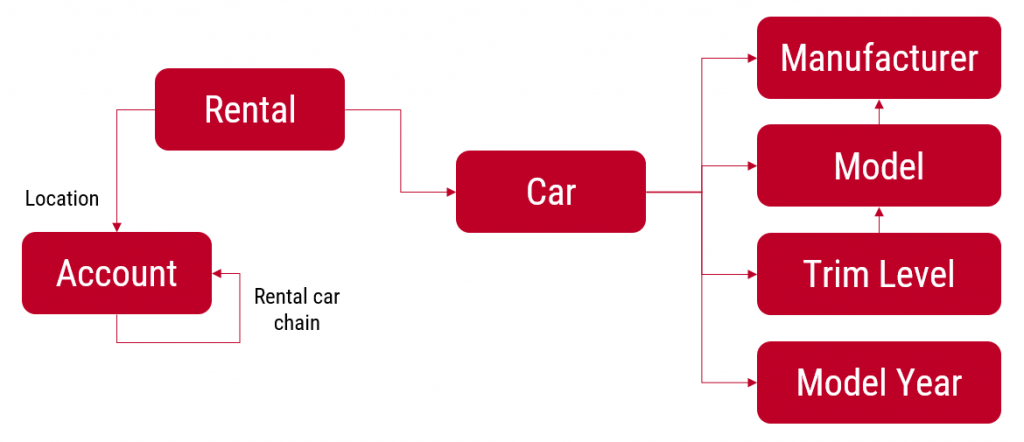
    I’ll be using an example app that I’ve built for my own purposes: Rental Car App. It contains functionality that allows me to track and analyze information about the rental cars that I use, by adding new Rental records for each reservation I make and then tracking the process all the way until the final invoice and related costs. At the heart of the app there’s the Rental table, which has relationships to both the rental car company information (Account table) as well as the Car table, which again links to a few supporting tables like Manufacturer and Model.

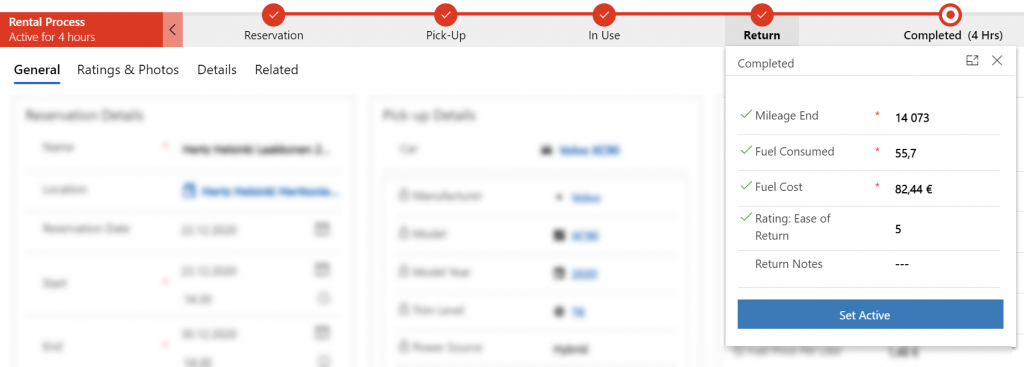
    The rental process stages are modelled via the Business Process Flow feature of Power Apps Model-driven apps. We start with 1) the reservation, then proceed to 2) pick-up at the chosen location, 3) use the car we’ve been given, 4) return it and 5) finalize the process upon ensuring we’ve captured all the required data and that the invoice was what we expected to pay.

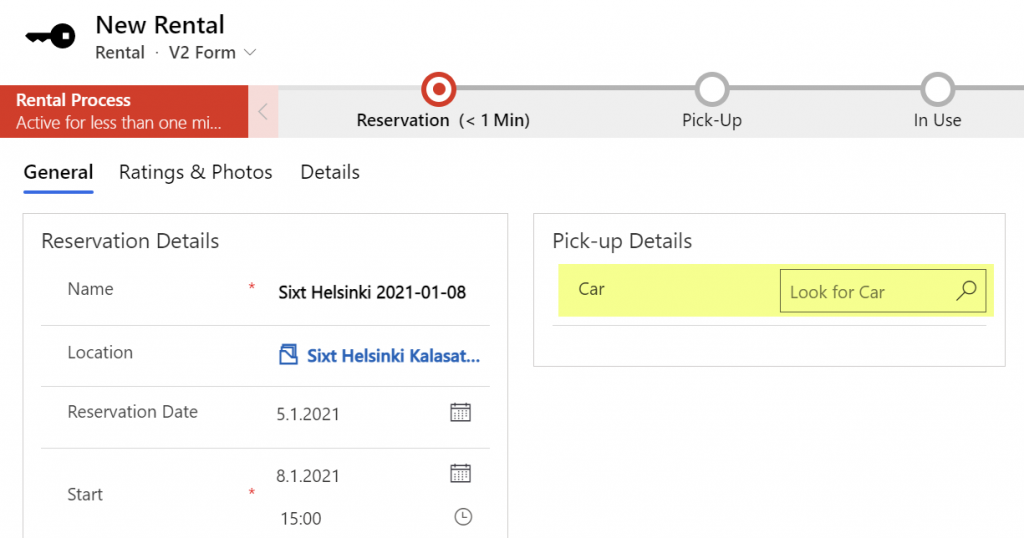
    Each rental event will have one car associated with it. However, at the first step of the process, meaning reservation time, we won’t yet have any idea what specific vehicle that will be. (You’ll only know the ACRISS code that describes the level of the vehicle features, like “IWAR” for Intermediate, Wagon, Automatic, Air Conditioning.) Once we get to stage 2 of the process, the pick-up, we’ll be given a specific car that we can describe with properties like Manufacturer, Model, Model Year, Trim Level and so on.

    Car is the parent table of Rental, since there can only ever be a single vehicle for one rental event (for now, let’s ignore the possibility of the car breaking down and getting exchanged during the rental period). A single car will of course be used in many, many rental events. However, since the app user is the customer who’s consuming the rental service from different car rental companies, we won’t have the fleet of vehicles defined in advance for our database. The data entry of the car’s details is therefore always a step within the context of the rental process.

    So, we know that logically the car is a different type of object than the rental event, which is why it should have its own table. From a user experience perspective, though, filling in the details of the car should be just a similar task as describing the duration or price of the rental car reservation. Just a set of fields on the single form. Yet by default what the Model-driven app form will give us is a single lookup field to the related table’s car record, with the expectation that we’d go and work with the Car data on a different form than the Rental form where the rest of the details are.

    Despite of the underlying 1-to-N relationship in the data model, we can improve the user experience by leveraging a couple of neat features in Model-driven apps.

    Quick View Forms

    Model-driven Power Apps have evolved from the XRM platform that Microsoft first used for builing a CRM product of their own in 2003. Around seven years ago when Dynamics CRM 2013 was launched, it introduced this new and exciting “flat UI”. Before that, the experience of using CRM was often a maze of popup windows since opening a new record always gave you a new browser window you now had to juggle on your desktop.

    The boundaries of different entities (which is what tables were called for the first 17 years of the platform we now know as Dataverse) were therefore very tangible indeed. While form subgrids were launched in 2011 to offer some relief, it wasn’t until 2013 when we could start to make the users worry less about the data model and focus more on the business process and actual business data involved in it. A key element in this was the Quick View Form.

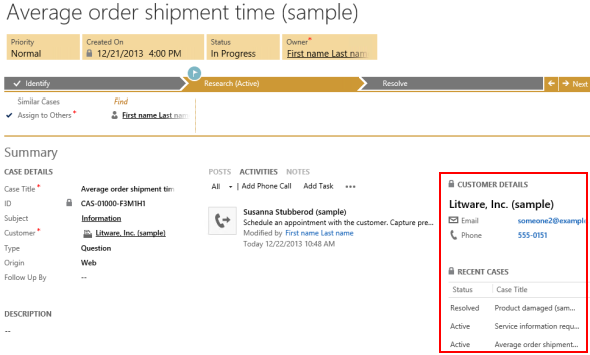
    Above is a screenshot from seven years ago of a case entity form that included data from not just the child entities like activities, but also from the parental record of the customer, via a Quick View Form. We can see the email and phone number of the customer, event though they are physically stored on the account entity. It’s not limited to just that N:1 data from “case:account” either, as we can reach down to N:1:N of “case:account:case” by showing all the related cases that this customer has recently opened with our support department.

    Quick View Forms were a seriously powerful feature back when they were released. I did some blogging to demonstrate the possibilities, like building a similar opportunity analytics feature that resembled (well, remotely at least) the concept of an ecommerce recommendation engine that shows “customers who bought this item also bought these other items”.

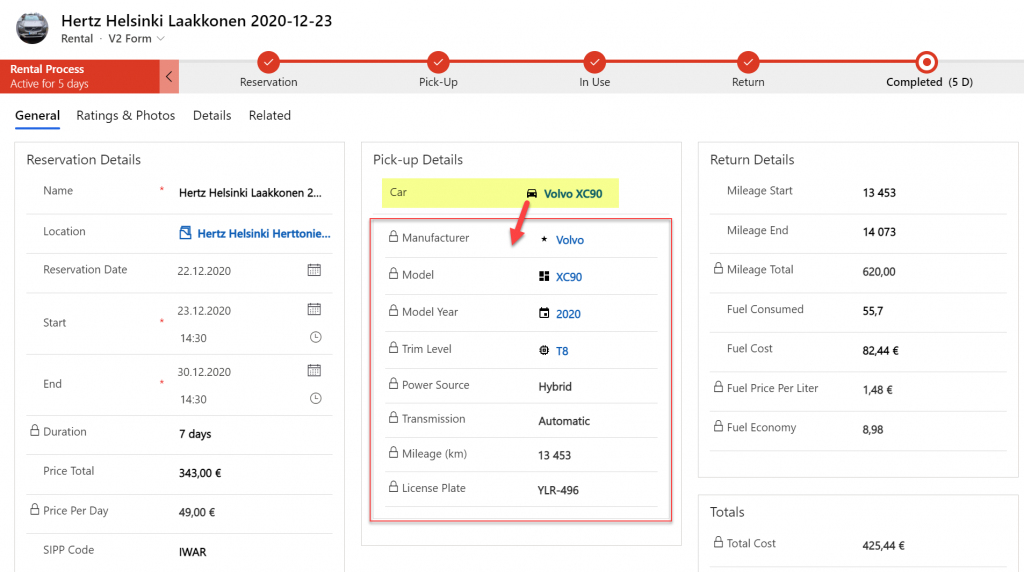
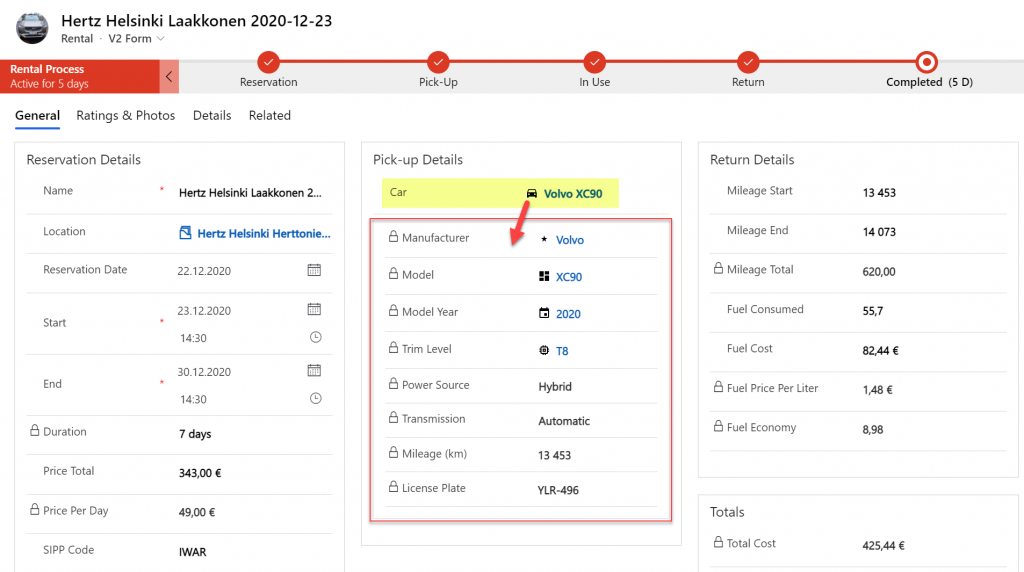
    The scenario in our Rental Car app is a lot more straightforward. We want to display the key properties of the Car record associated with the Rental record within the form that drives the rental process. By having a lookup field for Car on the form, this allows us to add a Quick View Form control to show the Car table fields embedded on the Rental table form:

    From this static screenshot it would seem like everything is in its right place and the user couldn’t be happier. Right? Well, the challenge here is that the Quick View Form really is just a view. It doesn’t allow editing any of the field values on the related parental table record, let alone creating new records. In short, it’s not as actionable as the data living natively in the Rental table.

    Main Form Dialog (MFD)

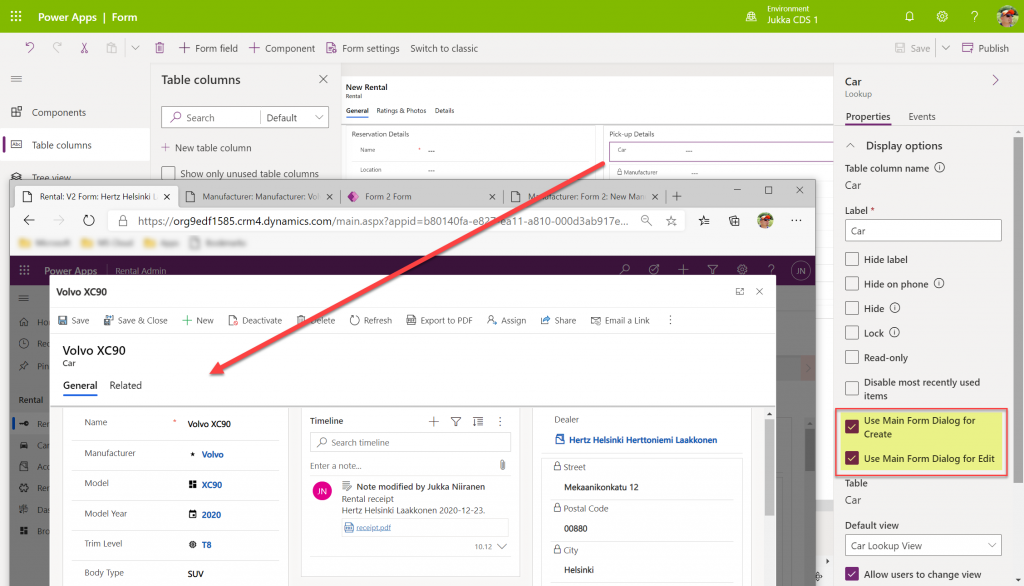
    A much more recent entrant into our Power Platform low-code toolkit for designing Model-driven application UI’s is the Main Form Dialog feature. What this allows you to do is to launch a modal window from the lookup field on a Model-driven app form. The user interface doesn’t actually move you fully away from the original record, rather it just renders the (Main) Form of the chosen record from a different table in a Dialog window. It’s not like the CRM 2011 era popup windows, since you remain within the same browser window/tab. Once you’re done with looking at the related record, clicking “X” will return you to exactly same state where you were before clicking in the lookup field. It’s not as jarring an experience as if you’d have fully navigated away from the original form.

    Originally launched as part of 2020 Release Wave 1, the MFD feature was initially available only via the API. At this moment that is still what the documentation says, but I recently discovered that the modern Power Apps form designer now has graphical tools to configure this feature:

    When selecting a lookup field in the form editor, the properties dialog on the right now contains new options to check:

    • Use Main Form Dialog for Create
    • Use Main Form Dialog for Edit

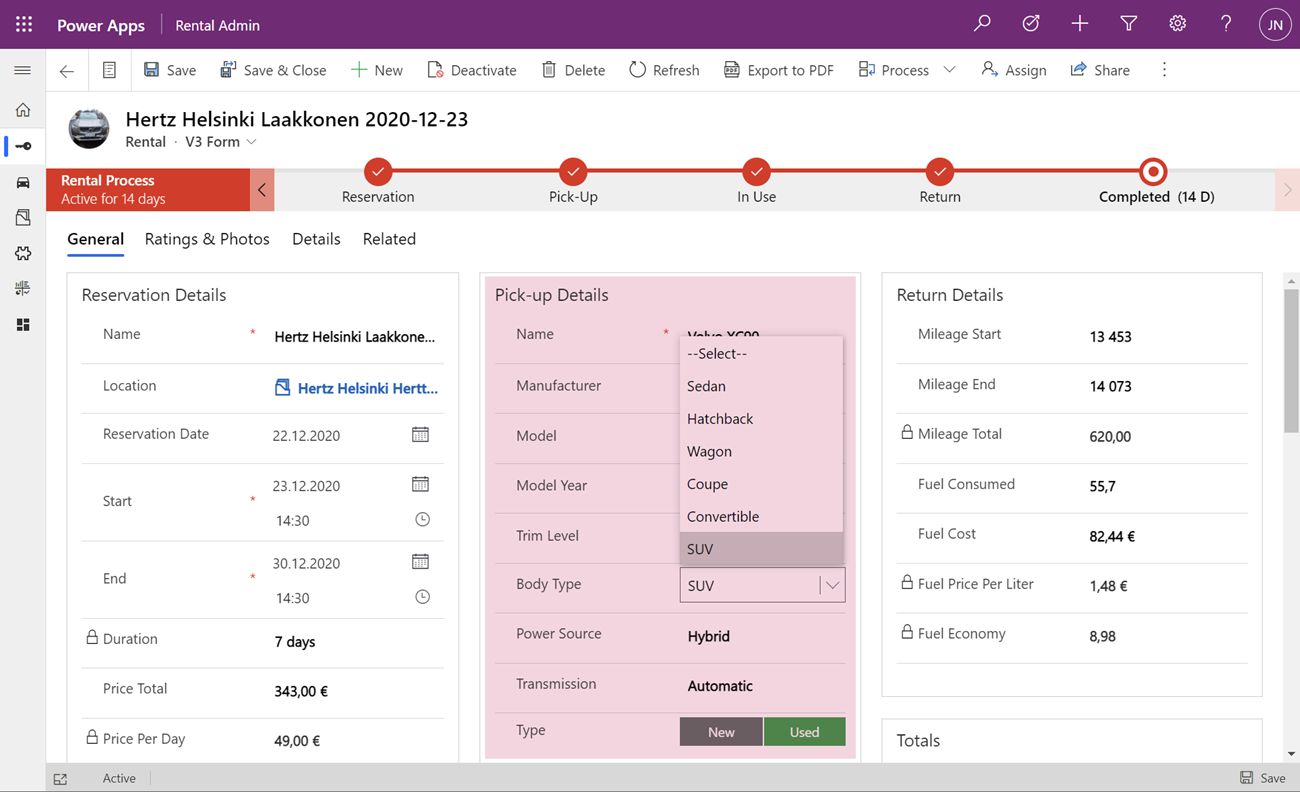
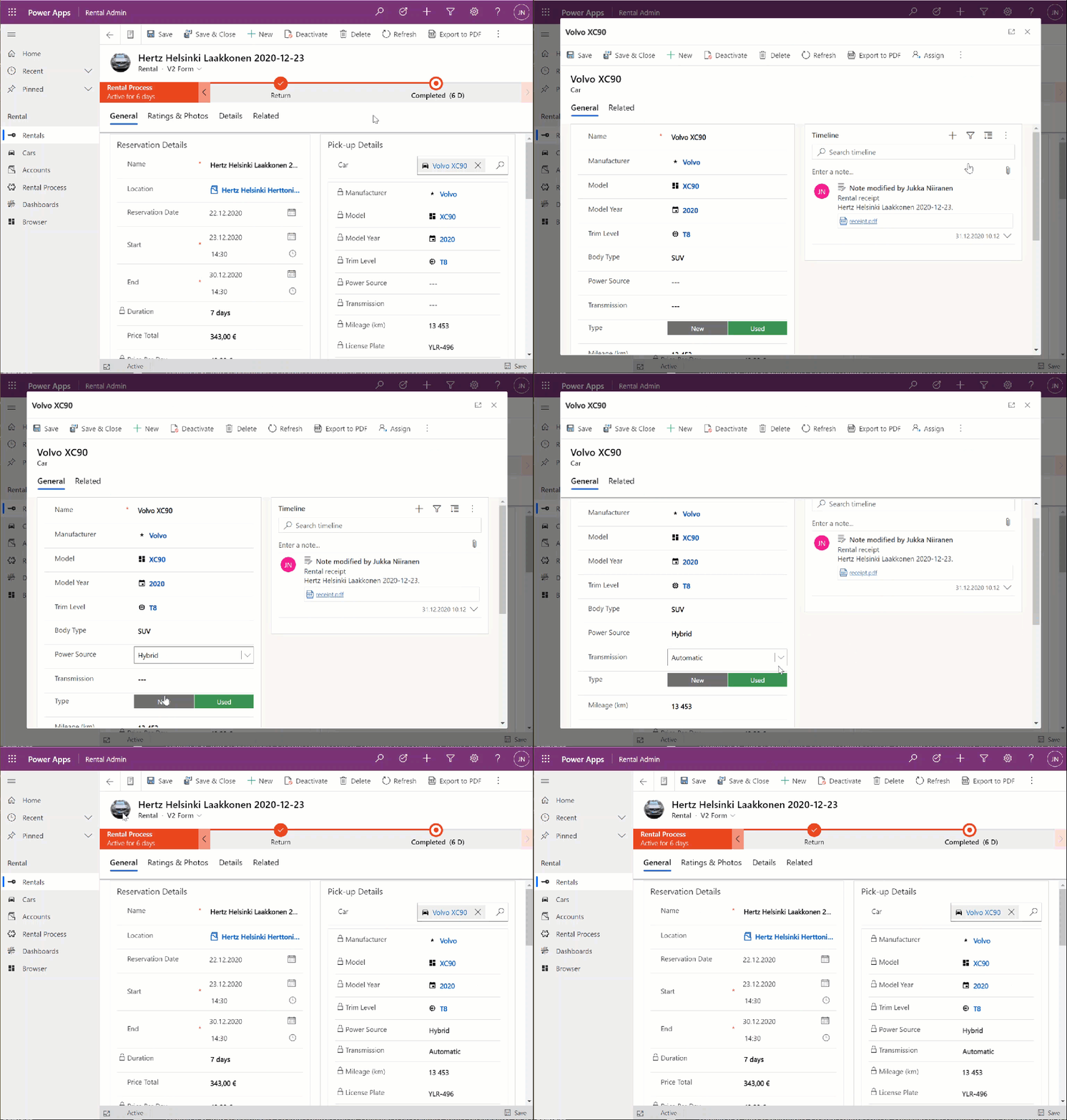
    Oh yeah! We now have the power to keep the users from unintentionally navigating away from the “home” form that acts as the anchor for all relevant details concerning the business process. In the rental car example, the user can now safely click on the Car lookup, examine the available options for properties of the car, change the values, click “Save & Close”, then end up right back to where he or she started from:

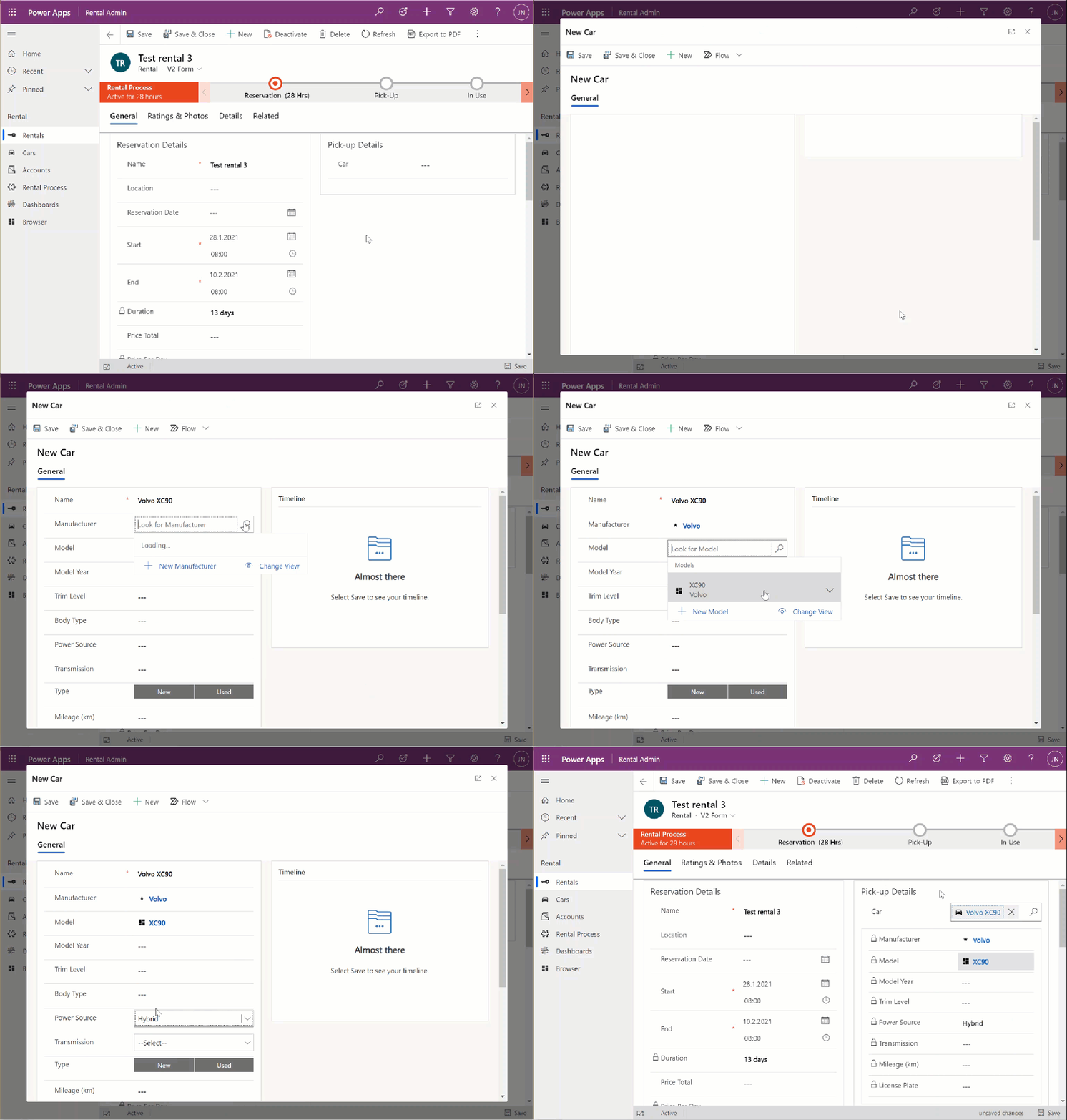
    This also works for the experience of adding a new car record. Instead of having to offer a separate Quick Create Form experience for this step that would behave differently from any other occasion where the user interacts with car data, we can launch the full record form in the Main Form Dialog:

    The key benefit with this modal window approach is that there’s almost zero chance of the user wondering into the wrong menu or page of the application after they’re done with creating, editing or just viewing the related record. There is no visible page load that would change the mental context away from the primary record, in this case the Rental event.

    Considerations

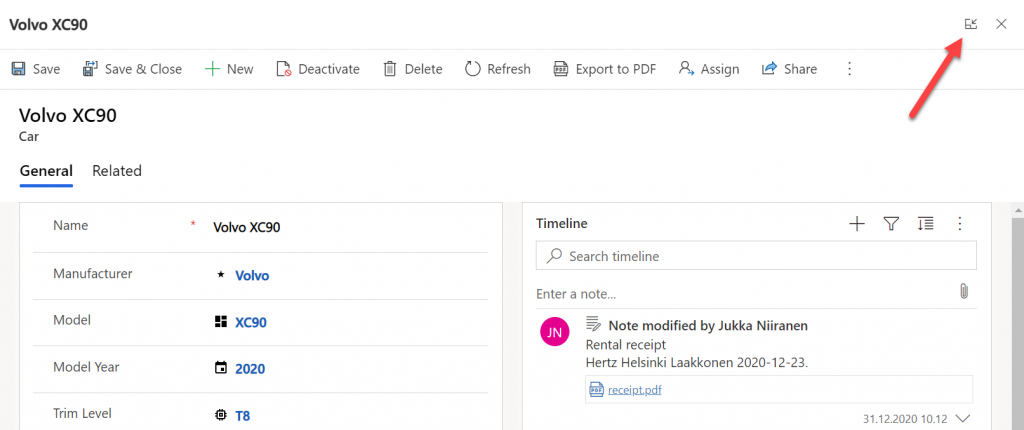
    Should you enable the Main Form Dialog feature now on all your lookup fields? Probably not. There will be times when the user may prefer to actually move along in the process and change the context to the parental record. There is no navigation path available in MFD that would support this context change. The user has the option to launch the dialog in full screen mode, but that just expands it to cover the whole screen, rather than doing a page load that would change the navigation position in the sitemap.

    There is currently no way to select which form specifically should be opened in MFD. Presumably the form will be determined by the table’s main form order, as well as the specific form the particular user has last viewed. Depending on the number of scenarios where the same table is leveraged, the forms shown by MFD can therefore be unnecessarily complex for the task at hand.

    In part 2 I will explore the possibilities of how we can streamline this process even further and make the experience of working with related parental table data almost transparent to the user. We’ll be leveraging the brand new Form Component Control to essentially combine the features from the earlier Quick View Forms and Main Form Dialogs.

  • United at last: Dynamics 365 Dual-write goes GA

    United at last: Dynamics 365 Dual-write goes GA

    On March 27 2020, Microsoft announced that the Dual-write feature is generally available. After being in preview for over a year, the functionality itself isn’t necessarily a surprise to anyone who’s actively following what’s taking place in the Dynamics 365 product portfolio. The GA does however mark a milestone where it makes sense to reflect on what the broader impact of Dual-write is to business applications built on top of Microsoft Power Platform.

    The very short answer to “what is Dual-write” would be that it’s a built-in feature for making business data available across Dynamics CRM & ERP products without any additional integration tools. It may come as a surprise to people outside the MS ecosystem that even though the Dynamics 365 brand was announced already in the summer of 2016, the practical work of bringing the different apps from this product suite together has not yet changed that much from the early days of custom integration projects. Putting things into context, the effort to unify the 1 CRM & N ERP products in Microsoft’s portfolio originally targeted its first deliverables in 2004 (as “Project Green”). This proved to be impossible (or rather not feasible from a business perspective) in the on-premises era, but now when the Dynamics products are services hosted in the global MS cloud, the unification has actually been doable.

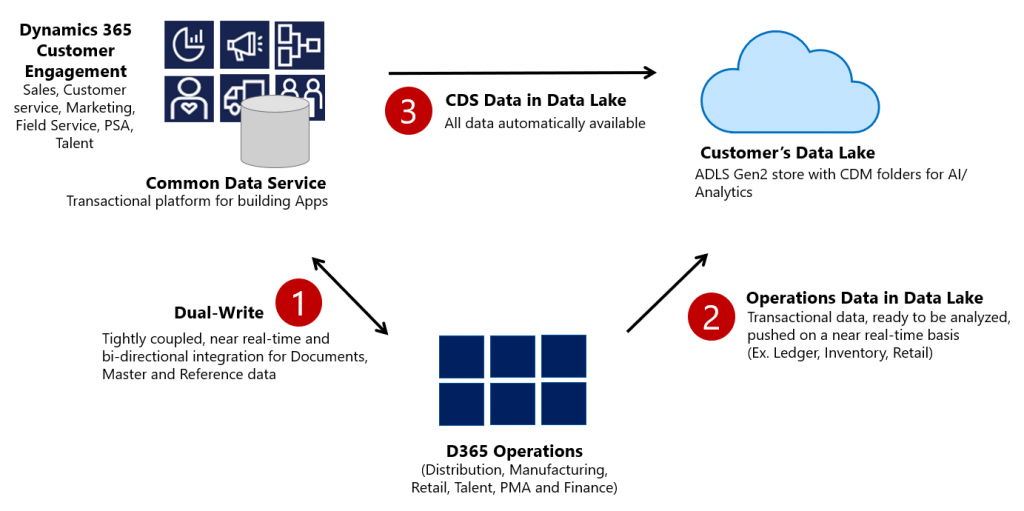
    Dual-write isn’t your everyday CRM-ERP integration, though. It is a near real-time synchronization of data between the Finance and Operations database and the Common Data Service that powers the low-code application and automation development story of Power Platform. Looking at the even broader data story that Microsoft is building around it’s business apps, BI and AI capabilities, we can also see that Dual-write is just one of the mechanisms that will move business data around:

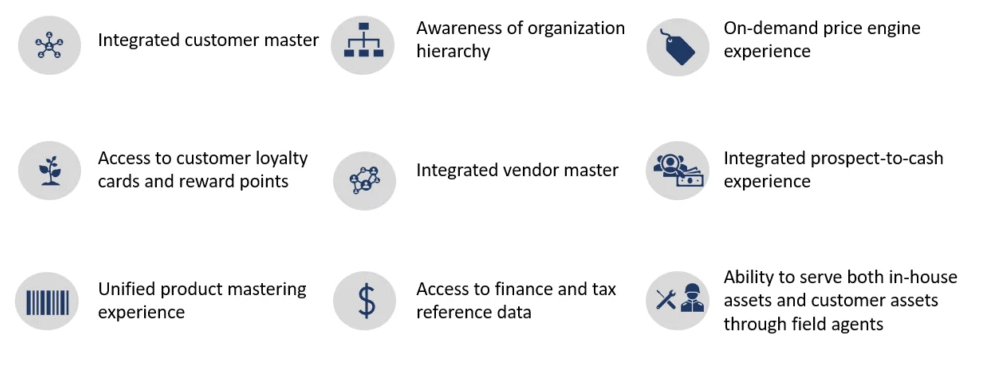
    Taken from the Ignite 2019 session “Common Data Service with Dynamics 365 Finance and Operations”, this slide highlights the role of Azure Data Lake Gen2 in the analytical features that will be offered both as preconfigured features from Microsoft as well as customer specific implementations, to derive new insights from the business data. When it comes to the more operational side of doing business in the digital world, having the SCM and Finance app data available in CDS is what opens up plenty of new interesting scenarios. What if anyone could easily build Power Apps that work directly with the enterprise master data from ERP like customers, products and pricing information? If CDS indeed could lower this data integration barrier and bring task based experiences with pixel-perfect Canvas apps into the hands of frontline workers, that could surely be a transformative service worthy of its name. Not just a single database like XRM was but a connecting layer across many Microsoft cloud technologies.

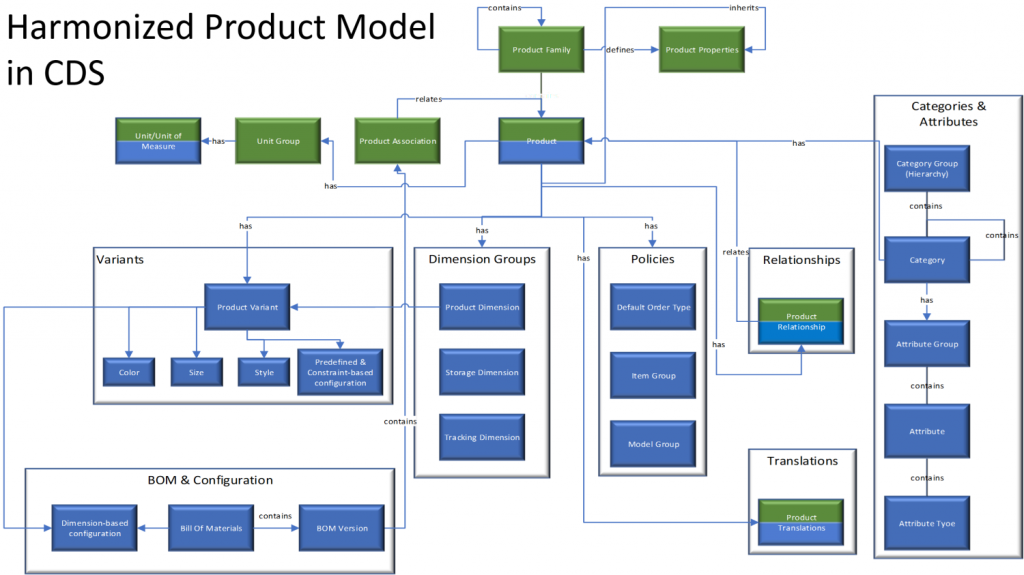
    In order to bring the ERP data into CDS, Microsoft needed to design harmonized data models that align with what used to be the independent products of Dynamics CRM and Dynamics AX originally and define how the schema of each system maps to the other. As an example, the CRM product data model has understandably been considerably more limited than that of an actual ERP application. Now with Dual-write, these two must come together in a unified product experience:

    No two businesses operate exactly alike when it comes to data and processes, so the logic of Dual-write has been built to allow no-code configuration to adjust the details of specific implementations. However, this new depth of application integration within the Dynamics 365 portfolio now means that you should have very good reasons if you decide to deviate from the standard model. Let’s look at Microsoft’s guidance for the above mentioned product data model as an example:

    The dual-write entity maps for products have been designed to flow data one-way only, in near-real time from Finance and Operations apps to Common Data Service. However, the product infrastructure has been made open to make it bi-directional if required. Although you can customize it, it’s at your own risk, as Microsoft does not recommend this approach.

    Anyone who’s worked with Dynamics CRM / Dynamics 365 Customer Engagement implementations in the past has surely come across the need to extend or modify the overly simplistic product and pricing data model that hasn’t been flexible enough to accomodate many real life sales scenarios. Jumping from such a customized environment in production use into Dual-write may not be all that easy, nor will the new data model defined by Microsoft just magically solve everyone’s problems. Dynamics 365 consultants working on data integration between systems aren’t likely going to be out of jobs just yet.

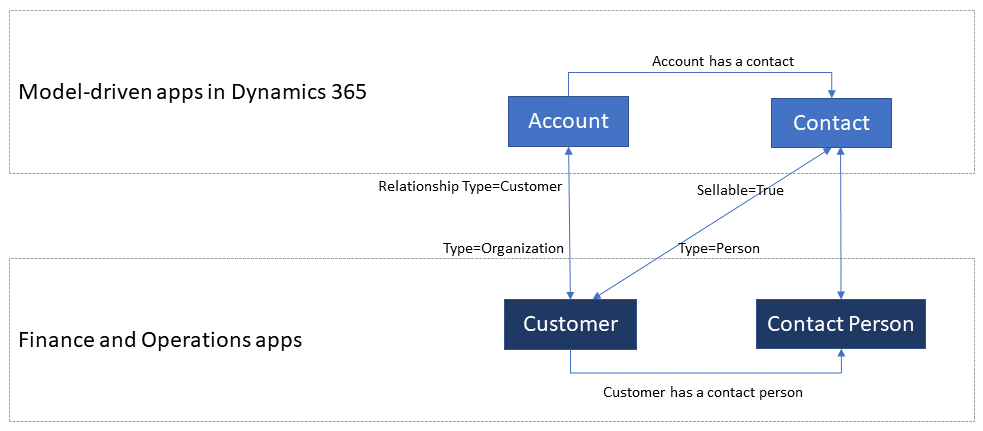
    Whether you’ll be jumping into deploying Dual-write or not, everyone needs to educate themselves on the implications of this new piece in the Dynamics 365 puzzle. From the DW documentation, have a look at the chapter “What does dual-write mean for users and architects of CRM products?” to understand why. There will be several new concepts introduced over on the CDS side like “company” and “party” that will affect all apps built on top of it – such as Dynamics 365 Sales, Marketing or Customer Service. Foundational elements like how customers of the organization or the internal units within that organization are defined have different data models in CDS vs. FinOps, so it’s important that everyone working on either side will use the new common documentation for Dual-write as the starting point to try and understand eachother’s perspectives on the world.

    There are also other dimensions affecting future solution architecture listed out in the documentation. According to MS, initially Dual-write will be shipped as separate solutions (notice that DW is solution-aware right from GA, highlighting the role of CDS as the cross-product ALM foundation in Power Platform). “In future releases, those solutions will become part of Common Data Service”, which I presume translates to every Dynamics 365 customer getting the core components, regardless of whether they already have Finance and Operations apps deployed in their tenant or not. Data types in CDS are also about to get extended to accomodate the enterprise ERP needs arising from this out-of-the-box FinOps integration.

    Of course not everyone is using the ERP solution based on AX, Finance & Operations, Unified Operations, Finance/SCM or whatever name Microsoft comes up next for it. A large share of the customer base will be a better fit for Dynamics 365 Business Central, which isn’t at least publicly yet targeted with Dual-write. Is there going to be an impact to SMB implementations where CDS is part of the solution architecture in some way and is this going to be positive or negative? According to the documentation, “in future releases, concepts in model-driven apps in Dynamics 365 (for example, customer, contact, quotation, and order) will be scaled to mid-market and upper-mid-market customers.” If Microsoft is really aiming to have a Common Data Model that should serve not just all Dynamics 365 products but also software providers from outside the immediate MS ecosystem, there are bound to be trade-offs between the complexity of the required schema for enterprise ERP and the ease of use for how citizen developers can tap into the Common Data Service for building simple business apps.

    Finally, there’s the ever interesting licensing aspect, of course. From the Ignite 2019 presentation, we can find the following statement on Dual-write licensing implications:

    When Microsoft customers (ISV, Partners, End Users, etc.) possess a valid Dynamics 365 for Finance and Operations license, they are entitled to replicate data between the Common Data Service and Dynamics 365 for Finance and Operations.  This entitlement does not include capacity consumed by the replicated data; if necessary, this is purchased separately.  This entitlement does not include use rights for the Dynamics 365 for Customer Engagement applications, including Sales, Service, Marketing, etc; if necessary, this is purchased separately.

    I’m expecting that the upcoming versions of the Dynamics 365 Licensing Guide would include documentation about the licensing scenarios for Dual-write, as at the time of writing there isn’t any public guidance available yet to address the concerns of multiplexing that inherently arise from the real-time synchronization of ERP data into CDS.

    As we know, having Power Apps licenses allows you to read all of CDS data. If you read through the GA announcement of Dual-write and its documentation, you’ll notice that MS is following its own guidance and not mentioning Customer Engagement even once, since CE now refers to on-premises software only. The new term, “Model-driven apps in Dynamics 365”, is a representation of Microsoft app teams themselves ship as the Sales app, Customer Service app and so on. When it comes to the customer specific business apps tailored to their needs, meaning Power Apps, these can be Model-driven or Canvas, ranging from simple “one click” mobile experiences to advanced information worker UI’s for desktop environments. They are all backed by the Common Data Service and running on the Microsoft Power Platform. How will these custom apps be treated in the licensing documentation that traditionally assumes customers would just be using the Dynamics 365 Apps as-is rather than adapting them to their unique needs and real life processes? This remains to be seen.

    Now that we are gradually getting over the age old divide between CRM and ERP, I hope the next area of unification would be a common licensing story that doesn’t draw artificial lines between Dynamics 365 and Power Apps. Splitting these into different licensing guides and different pricing publication formats isn’t all that helpful for the customers nor the partner ecosystem. A Common Data Service based on a Common Data Model should preferably be backed by a Common Licensing Model, don’t you think?

  • CDM: New Data Model For The Common Good?

    CDM: New Data Model For The Common Good?

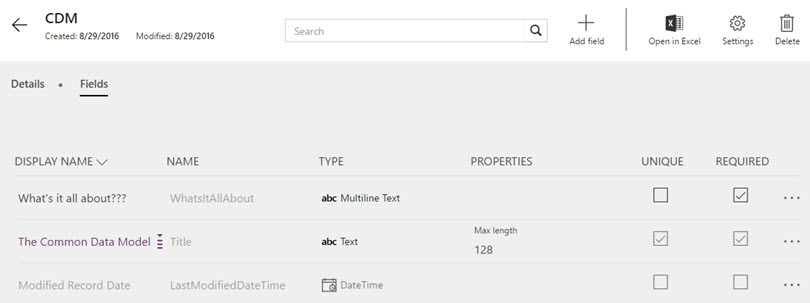
    The first new component of the upcoming Dynamics 365 platform that has reached a stage of public preview is the Microsoft Common Data Model (CDM). Available via PowerApps, CDM can be provisioned in your Office 365 tenant with only a few clicks, so there’s little reason for not having a look an early look at it. In fact, you only need to sit back and relax while watching CRM MVP Scott Durow walk you through a first look at the Common Data Model:

    So, there you have it! That’s what CDM looks like when accessed via the PowerApps web management UI. Any questions?

    Yeah, I actually do have a couple.

    How will this work with CRM and AX?

    What we have available in the preview is pretty much the most straightforward part of the very big puzzle to put together, meaning a database on Azure with some preconfigured tables and data model management tools. We do not yet know much about how the Dynamics CRM and Dynamics AX functionality will be linked to CDM as part of the Dynamics 365 cloud platform, so there’s plenty room for speculation, which honestly is mostly what I’m about to do here. In a way I’m just continuing on the theme of my previous post about Dynamics 365 and its potential implications for XRM, to pass the time as we wait for Microsoft’s plans to be revealed in more detail.

    Right now the only way to push data into CDM is a Flow. If you’ve ever played with automation tools like IFTTT or Zapier, then you’ll quickly grasp the idea of Microsoft Flow. The application itself shouldn’t be underestimated just because of its current simplistic demo scenarios that usually are along the lines of “when a new row is added to a SharePoint list, send an email to this address”. Built on top of Azure Logic Apps, there’s actually a next generation BizTalk type of cloud integration platform under the hood, which should provide plenty of future potential for advanced messaging solutions to orchestrate business processes across a number of different systems.

    Flow_copy_CRM_account_to_CDM

    Once Dynamics 365 Enterprise arrives and gives us the features of CRM and AX in one seamless cloud environment, there’s naturally going to be a need for something a lot more than a “build your own” type of Flow integration. Keeping the Sales and Operations apps of D365 in sync with the customer and transaction data managed in the process of making an delivering a sale involves a fair amount of business logic. If you’ve ever designed and developed a custom integration for this type of a scenario, you’ll know the requirements can quickly grow a bit hairy. Assuming Microsoft can come along and say “we’ll take care of that hairy part, don’t you worry about it” then who could resist it?

    The reason CDM exists is that there will be more than one physical database in the Dynamics 365 suite. It’s not all XRM, which means you can’t find the Operations app entities inside your CRM solution files. For the business processes to work seamlessly, someone needs to keep those database closely in sync with one another. From reading through the Common Data Model tutorials, we can see that at least as of now, Flow is not the system that can handle it:

    “Today, when you use Microsoft Flow to import data or export data, it is not a full synchronization service. Whenever an object is added to one service, it will be imported into the other system. However, that means if an object is deleted from one system it will not be deleted in the other system.”

    So, the sync part is still in the “To Be Implemented” bucket. So is security, since the passing of a record from CRM to CDM via Flow will not carry over any details about who should have the rights to do some CRUD work on it. Again, it may not sound like such a mission impossible to build. However, if you’ve ever faced the requirement in a Dynamics CRM project to implement SharePoint document library integration with account records that includes not just linking the folders but also enforcing the account access rights on the documents, you’ll know the struggle is real. Sure, a collaboration solution like SharePoint has very different security concepts than a system designed for structured business records management like CRM or ERP. But if Microsoft hasn’t been able to offer OoB synchronization of access rights across Dynamics CRM and SharePoint despite of the clear business demand for it, maybe we’d be foolish to expect that it will all be seamless inside the Dynamics 365 world either.

    The thing here is that unless the solution provided by Microsoft is going to be fairly advanced, it might not be an actual solution. It’s like the old saying from the dawn of the internet:

    Some people, when confronted with a problem, think “I know, I’ll use regular expressions.” Now they have two problems.

    When confronted with the need to integrate processes across two different cloud business applications, there’s always the danger of someone rushing into thinking “I know, I’ll build a database in the middle to unify the process data”. So we end up with three cloud business applications… Now, I’m not saying that Microsoft wouldn’t have the type of application architecture masterminds working on the Dynamics 365 platform that can solve these complex problems when developing a new product. I’m just afraid that things may still turn out a bit more complex in reality than the marketing pitch for the new product launch might lead people to believe.

    What limitations will this impose on customization?

    The one reason why many of us love the capabilities of the Dynamics XRM platform is the awesome flexibility it offers us to customize the application to meet the specific needs of customers. And by “customize” I actually mean “configure”, since these days you can build such amazing features for business users without writing a single line of Javascript or C#. With Dynamics 365 now promising to deliver so many preconfigured apps for different departments’ needs, as well as making them all work together, I bet some of us are thinking about whether there’s a potential threat to the platform’s flexibility buried in the new approach Microsoft is taking. (more…)

  • Who Is The Customer in Your CRM? (Podcast)

    Recently I was invited to make my second appearance on the CRM Rocks podcast series, hosted by Markus Erlandsson. The first episode we did back in fall last year was focused on “what’s new in Microsoft Dynamics CRM 2013”, which was certainly a timely topic back then. This time we decided to discuss on a theme that was less focused on the CRM application functionality or a specific version of it. On our agenda was the question “who is the customer”?

    It might seem like not such a complex question to answer at first. After all, if we are deploying or developing solutions for customer relationship management then surely there must be a clear understanding of what exactly we need to be managing with the system, right? Well, as with most things related to designing a CRM solution, there isn’t a single right answer, but there are many good questions instead! To help anyone who’s starting their journey towards implementing a CRM system for their company and wondering what questions should be asked from the business and process owners, I’ve listed some of these topics into the following presentation available on SlideShare:

    Our discussion in the podcast covers five major aspects of the CRM solution design fundamentals:

    • Who is your customer?
    • B2B customer modelling
    • Segmenting your customers
    • The role of non-customers in CRM
    • Why Social CRM is the new CRM

    While some of the podcast content is of course specific to the application platform that I have the most experience of working with (can you guess which one?), I hope and believe that much of the guidance would also apply to any modern CRM system you might be deploying. So, please have a look at the slides above, and if you feel like the contents is relevant to the business problems that you hope to solve with customer relationship management technology, proceed to listening to the full CRM Rocks podcast.