Tag: customization

  • No-code Customizations with North52 Formula Manager, Part 3: Case Resolutions

    In the previous articles (part 1 and part 2) we’ve explored how the North52 Formula Manager can be utilized in automating steps related to the sales process. This time we’ll be looking at a scenario related to service management, in an effort to make it easier to share knowledge and report on the resolutions of cases recorded in the Microsoft Dynamics CRM database.

    Cases vs. Case Resolutions

    Case_resolve_cancelIn theory it should be pretty straightforward how you work with a case record: they are support tickets that are initially open (active) when you create them and eventually they end up getting closed as either resolved (service was provided) or cancelled (duplicate ticket, customer never replied etc.).

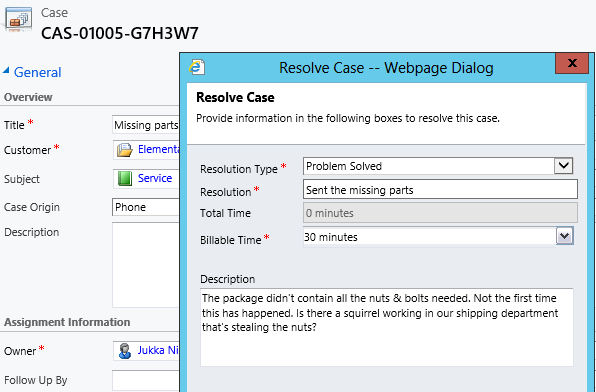
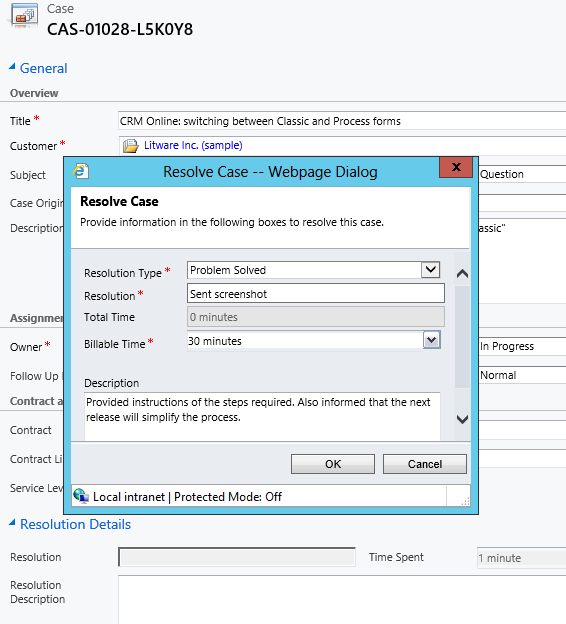
    The point where complexity raises its ugly head is how the resolution process works: instead of entering the case resolution details onto the case record itself, the user is presented with a window that creates a Case Resolution activity underneath the parent case. While this is a perfectly valid design in terms of the nature of the interactions, as there could be situations where the case gets re-opened and resolved again (thus being a 1:N relationship with the case), it does make it more complicated to work with the resolution data later on.

    Resolve_case_dialog

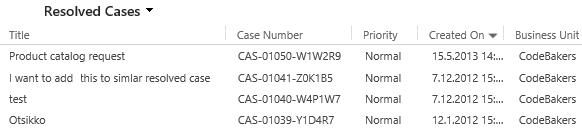
    For example, say you’d want to study the resolved cases by using a view of the case records. In that view you can see the case subject, owner, status and other standard fields, but there’s no information visible on what the actual resolution to the case was. “Ok, so I’ll need to customize the view and show columns from a related record. That’s not too difficult, now is it?” Unfortunately that’s not going to work, because the information we’re interested in resides on the N side of the relationship. Since there can be several case resolutions for a single case, no columns from this entity can be displayed in a case view. So, we can’t construct a nice Q&A list that the service reps could leverage in scanning for similar cases on a new question from a customer. We can only see the problem, not the resolution.

    Resolved_cases_view

    You could build a view of case resolutions, the child entity in this relationship, but that’s not very convenient either. Although case resolution is an entity of its own, it’s not actually available in Advanced Find to directly build queries on. It is possible to access a list of case resolutions by crafting a view of activities with that specific type, but you’ll still be limited to only the generic activity fields. As an example, the field Billable Time (Time Spent) cannot be accessed in a view, which makes it rather difficult to report on this data entered as a part of the service process.

    Activities_Advanced_Find_case_resolution

    Using a Formula to Replicate the Case Resolution Fields on the Case Form

    Luckily Dynamics CRM is a flexible platform that allows you to develop new business logic to fulfill the requirements for your service process. In this situation, if we could simply have the Resolve Case dialog fields copied over to the parent case, this would solve the aforementioned problems. So, how to proceed then?

    If we want to alter the default behavior or the service entities, we should first have a look at the workflow process capabilities of Dynamics CRM to see if can  configure a workflow rule that is triggered when the case resolution is created. This time we won’t get very far with that idea, though, as neither the case resolution nor the activity entity can be used as a workflow trigger. Fair enough, we’ll then need to come up with a lower level solution to meet this requirement. Assuming we have access to a .NET developer who knows the Dynamics CRM SDK, creating a custom plug-in to copy the fields to the case record would be a worthy option to consider. Since the title of this post promised “no-code customizations”, let’s instead look at how we could achieve the same functionality with the Formula Manager.

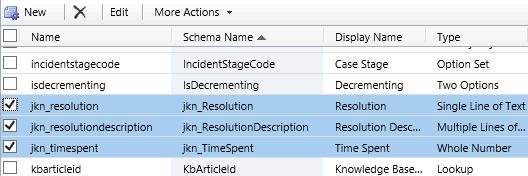
    First we need a place to host the case resolution data of course, so let’s add three custom fields on the case entity: Resolution (text field), Resolution Description (multiple lines) and Time Spent (whole number with duration format). On the case form they can be put into a section of their own and set as disabled, since the user shouldn’t directly update them.  Then we’ll create the three formulas that will populate these fields with corresponding values from the case resolution entity.

    Case_custom_fields

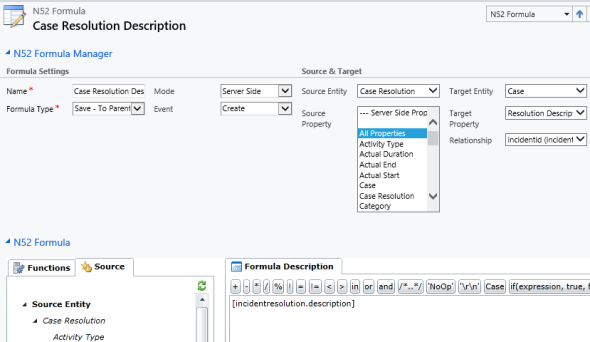
    We’ll be using a formula of the type “Save – To Parent” and attach it to the create event of the case resolution entity. As our target (parent) entity we can select case, but notice that you’ll actually need to specify the relationship field value first before you’re able switch the value in the target entity field. Let’s take the Resolution Description field we just created as the target property. The formula itself in this case will be very simple, since all we need is a value directly from the source entity. We can use the source entity tree visible in the bottom left corner of the screen to browse through the available fields or just type in directly the value [incidentresolution.description].

    Formula_case_description

    The other two fields will get an identical treatment, which means we can click on the Clone Formula button on the ribbon and create two copies of the original formula. Just update the target property field and select a new source field value into the formula description window accordingly. After we’re done, we can publish the formulas and try them out by resolving an existing case.

    Resolve_case_formula_1

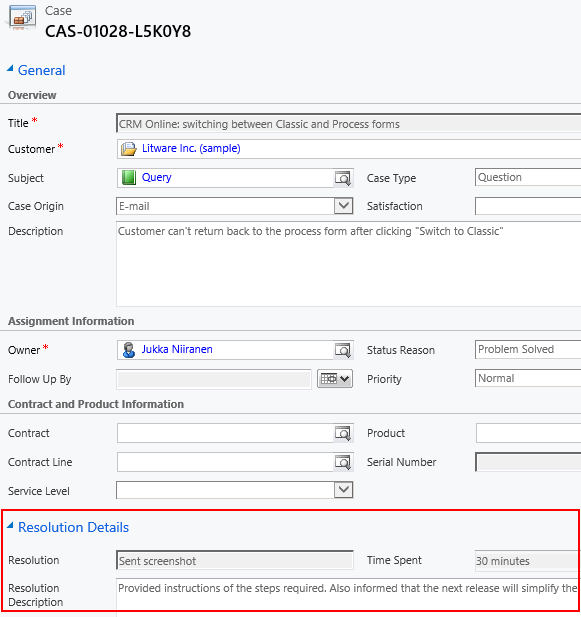
    After we’ve entered the details into the Resolve Case dialog fields and clicked OK, our formula will update the underlying case form in real time to reflect the same values presented directly on the resolved case record. Unlike asynchronous workflow processes, the formulas can perform their tasks right in front of the user, which makes the user experience more consistent.

    Resolve_case_formula_2

    Making Use of the Resolution Data

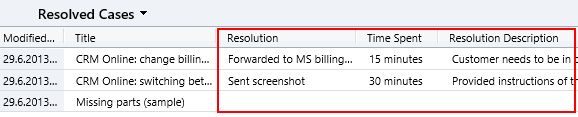
    Now that the fields are available on the case entity, we still need to ensure that the user actually has access to them through all the necessary routes. First we should of course include them into the Resolved Cases view we talked about earlier.

    Resolved_cases_view_updated

    Seeing the resolution field contents directly in the view is a great improvement, but an even more important feature is to enable the users to search for this information. You see, one of the peculiar default settings of Dynamics CRM is that the Quick Find view for case entities only covers active (open) cases. (more…)

  • No-code Customizations with North52 Formula Manager, Part 2: Line Items

    In a previous post I wrote about how the North52 Formula Manager solution can help you build some common customizations that would otherwise require writing Javascript for Dynamics CRM entity forms. The scenarios included:

    • Setting default values for lookup fields
    • Dynamically changing the field requirement level
    • Displaying popup warnings
    • Launching dialog process windows

    This time I will show a few examples of the Formula Manager capabilities that would typically fall into the domain of writing C# plugin code to enhance the business logic of Dynamics CRM. Being a functional CRM consultant that doesn’t normally deliver a single line of code (at least for production environments), these scenarios would traditionally require me to hand over the task to a CRM developer. What we’re about to see is an alternative method of creating just formulas with the graphical tools available in the solution package to get the same job done.

    Updating Opportunity, Quote, Order or Invoice Products

    In Microsoft Dynamics CRM 2011 you can trigger workflow processes on the line items of Opportunities, Quotes, Orders or Invoices. This allows you to execute custom logic when, for example, new Quote Product rows are added for a Quote record. Unfortunately what you cannot do with standard workflows is to actually update the line item record itself.

    Workflow_update_quote_product

    Well, this surely looks like a dead-end for most of the use cases you could think of for triggering the workflow process in the first place. If I wanted to, for example, pull information from the selected Product record and save it on the Quote Product’s fields, such as product description, vendor details or a line item number to sort the quote rows, this apparently cannot be achieved with CRM’s workflow functionality.

    Let’s look at how we can solve the problem with Formula Manager instead. In our scenario we would like the description field of the Quote Product record to be updated with the description field contents of the selected Product record. What we therefore need is a “Save – To Current Record” type of formula that is triggered on the Create & Update events of the Quote Product entity. We can limit the update events only to the Existing Product field by setting the Source Property value. The Target Property of our formula should be the Description field.

    Finally, we need the actual formula that will feed the values from the related Product record into the Quote Product’s description field. To retrieve the description field contents we’ll use the FindValue function and tell it to search for a Product record that has the same productid as the existing product selected on the Quote Product record. While we’re at it, let’s also ensure that the Quote Product actually has an existing product instead of a write-in product by verifying the productid field contents with the ContainsData function. The end result will look like this:

    if(ContainsData([quotedetail.productid]), FindValue(‘product’, ‘productid’, [quotedetail.productid], ‘description’),’NoOp’)

    FormulaManager_update_quote_product_description

    Now when we navigate onto a Quote and add a new Quote Product record underneath it, the description field will inherit the value from the related Product and display it directly on the Quote Product form (assuming you’ve made this default field visible on the form in the first place).

    Quote_product_description

    Not that much more complicated than building a workflow rule, just as long as you familiarize yourself with how the formulas work and how to format the parameters required by the functions.

    Creating Line Items

    Let’s proceed with exploring the world of line item records in the sales process. Updating existing records automatically is a nice capability to have for sure, but what about automating the complete process of creating the line items for an Opportunity, Quote, Order or Invoice? For example, if we wanted to ensure that there is always a standard Delivery Fee or other persistent item included whenever we’re creating an Order of a specific type (or for a specific customer group), then this is another area where the out-of-the-box functionality of Dynamics CRM workflows can’t be used, since new Order Product records cannot be created through a workflow rule.

    With Formula Manager we have no such limitations in place, rather we are free to create any type of records we want with the CreateRecord function. The example formula below was actually provided to me by North52’s John Grace to demonstrate the solution’s functionality. The Save – Perform Action formula is attached to the Create event of an Order record, which in turn triggers the creation of a new Order Product record. The contents of this auto-created line item can be defined either directly in the formula or alternatively queried with the FindValue function familiar to us from the previous example.

    CreateRecord(‘salesorderdetail’,
    1,
    ‘salesorderid.salesorder.’ + [salesorder.salesorderid],
    ‘productid.product.’ + FindValue(‘product’, ‘name’, ‘Bike’, ‘productid’),
    ‘uomid.uom.’ + FindValue(‘uom’, ‘name’, ‘Primary Unit’, ‘uomid’),
    ‘quantity.10’
    )

    FormulaManager_create_order_product

    Now, as a limited time special offer, any new Order that we create (or a Quote that we convert) will get 10 Bike products added onto it with their unit price dynamically retrieved from the Price List selected on the Order. What a sweet deal!

    Order_Products

    Cloning Records

    For a Dynamics CRM administrator these type of automated steps can be really handy in enforcing business rules and ensuring correct entry of data onto sales records. If we’d show them to your typical salesman, though, he might not be so impressed with this type of detailed process automation functionality.

    “Sure, it looks like we could save a few clicks with these formulas. But here’s the deal: many of the quotations I make are practically identical. They contain the same line items every time, with only some variations in quantity and discounts given. What I’d really want to do is simply select a quote I’ve created for another customer and create a copy of it. You know, the “Save As” button that’s found in all the other Office applications. Why couldn’t CRM also have that? It would be a huge time saver for me.”

    Ever had this kind of a discussion with your CRM users? If you have, then you’ll surely appreciate the fact that Formula Manager provides a Clone function that allows you to create a new copy of any existing record. Not only that, but the function also clones all the related 1:N & N:N records, which means you can create a copy of both the Quote and Quote Product line items with a single function!

    To get an understanding of how the function could be leveraged in delivering the “Save As” functionality your sales users have been asking for so long, watch this video that demonstrates not only the formula in action but also how you can use the Ribbon Workbench to build a custom Clone button for the required entities.

    Clone_Quote

    Think these type of features would be useful to have in your Dynamics CRM organization? Then go ahead and grab the fully functional Standard Edition of Formula Manager that allows you to have 10 active formulas at a time, for test or production use.

  • No-code Customizations with North52 Formula Manager

    North52North52 Formula Manager is a very interesting solution that promises to simplify the process of customizing and extending Dynamics CRM by offering a graphical toolkit to implement custom business logic that would otherwise require developing plug-ins in C# or adding Javascripts on the forms. Instead of writing custom code, the business logic can be configured through the N52 entities inside CRM, with the help of a Silverlight based editor to write formulas that check conditions, perform validations, update fields etc.

    In this article I’ll show you a few simple examples of how a person with no coding skills can perform some customizations that go beyond the GUI tools that Dynamics CRM offers. I’ll use the opportunity entity to add some client side actions to make the sales process a more guided experience for the end user. You can grab the free Standard edition of Formula Manager and use it’s 10 available formulas to try out these examples in your own CRM environment, or watch some of the training videos from North52 that cover several other scenarios.

    Default values

    The sales records in Dynamics CRM contain a few fields that sometimes don’t deliver any added value to the user, but they still need to be filled for each record. One common example is the usage of the price list. If your organization only has a single valid price list at any given time, the CRM users would surely appreciate it if the system could automatically populate the lookup field with the default price list when creating a new opportunity.

    Opportunity_default_price_list

    This is a very simple formula where all we basically need to do is populate a lookup field with a static value. To get the GUID of the price list, open it’s form in a new IE window by pressing Ctrl+N and find the string like “3F2504E0-4F89-11D3-9A0C-0305E82C3301” from it. Then create a new N52 Formula record and define the formula type as Save – To Current Record. We’ll set the mode as Client Side Classic and set it to run on the Create event, as we want the price list field to be populated with the default value only once – when the user creates a new opportunity record. The source and target entities should both be set to opportunity, as we’re updating the current record. The source property in this case is the event that triggers the formula, so let’s select OnLoad to fill the field immediately when the form is opened. Finally, the target property should be the field that will be updated with the results of the formula, in this case Price List.

    Different field types on the CRM form require different kinds of update procedures. Since we’re dealing with a lookup field and populating it as a client side event, let’s pick the SetClientSideLookup function from the N52 Formula menu and give it the required parameters of the entity name, record GUID and record display name:

    SetClientSideLookup(‘pricelevel’, ‘5EF541AA-67B6-E211-93F7-08002719F2F4’, ‘Default List’)

    FormulaManager_opportunity_default_pricelist

    Now we’ll just need to publish the formula and go test it out by creating a new opportunity record and verifying that the price list gets set to the record we wanted. In case you get an error prompt from N52 Formula Manager while opening the form, please revisit the formula record and verify that you’ve selected the correct options.

    Required fields

    Changing the requirement level of a field based on another field on the form is another common requirement. Let’s assume we have a simple sales process with three stages (picked up from the default CRM sample opportunity data): 1) Prospect, 2) Qualify, 3) Closing. We’ll use the Status Reason field’s (customized) values to drive the process and we want to enforce the following business rules:

    • If stage = 2) Qualify then make Estimated Close Date field required
    • If stage = 3) Closing then make Estimated Close Date and Estimated Revenue fields required

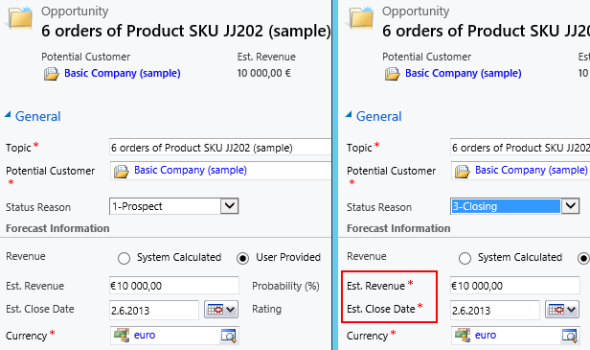
    In the UI the user would see the requirement level change dynamically when he or she changes the Status Reason field value and clicks elsewhere or tabs out of it.

    Opportunity_required_fields

    To achieve this feature with Formula Manager, we would build a formula that references the statuscode ID values and the schema names of the fields we want to set as required. Something like the following if-statements:

    if(([opportunity.statuscode]=’2′), SetRequiredFields(‘estimatedvalue’), if(([opportunity.statuscode]=’3′), SetRequiredFields(‘estimatedvalue’, ‘estimatedclosedate’), SetNotRequiredFields(‘estimatedvalue’, ‘estimatedclosedate’)))

    Basically what we do in the formula is first check for the stage 2, then stage 3 and finally use a default action for stage 1 to return the fields into not required status (so we also support moving backward in the stages). We’ll set the formula to run on the opportunity entity as a Client Side – Perform Action formula, tied to the source property of the Status Reason field, which effectively means it’s triggered with the OnChange event of that field as the user manipulates the form values. (more…)

  • Side effects of the Polaris UI

    Side effects of the Polaris UI

    Here are some of the gotchas you can expect after switching to the new UI that is introduced in December 2012 Service Update, known by the friendly name “Polaris” release. I previously compiled a summary of the changes in the new UI and publish it as the “What’s New in Polaris” slides, but I thought I should highlight a few situations that may come as a surprise when trying to adapt your existing CRM processes onto the updated user experience of Polaris.

    Relationship attribute inheritance

    As I’ve written earlier, the new forms don’t work all too well with the concept of adding child records from the parent record’s form. Previously in CRM 2011 the ribbon provided a rich, extensible set of actions you could perform on a view of related records or a form subgrid, say contacts related to the parent account or quotes related to the opportunity. While the new Command Bar is about to take the ribbon’s place as the menu of available actions for the main entity form, there’s nothing yet in place to provide similar functionality for related records. Given that CRM by nature is all about managing relationships between different objects, this currently presents quite a severe limitation on the application’s ability to fulfill its purpose.

    “Hey, don’t we have those new plus signs on the subgrids that we can use for adding related records?” Unfortunately the answer is not quite as simple, because the actions the button offers are unconfigurable and in most cases suboptimal. Here’s a take from the CRM Online Resource Center article on customizing the forms in the new sales process:

    You may add sub-grids to the new process forms as you would with existing entity forms. Note that the behavior of the “+” sign in the new sub-grid will vary, depending upon which controls you have in place on the form. Note that sub-grids cannot be customized to display charts.

    • Add Existing and Add New, both. If both are present, the “+” sign control will function as Add Existing.
    • Add New only. The “+” sign will open a new record form.
    • Add Existing only. The “+” sign will open the classic lookup dialog box.

    In most cases we have both options available, which means that instead of the new record form we’re given the Add Existing dialog. Imagine the most basic CRM scenario of them all: adding new contacts for an existing account. Here’s what you get from the form subgrid when clicking the plus sign:

    Polaris_add_related_contact

    Ok, so it’s not exactly as nice and clean as getting a new contact form right away (the classic experience), but guess we could live with that, since there’s a “New” button available there anyway. However, this reveals one of the hidden but nasty side effects of Polaris: the relationship mappings that you’ve defined in your 1:N Parent Customer relationship between the account and contact entity are not respected when using the New button in the Add Existing dialog. This means that your new contact record will not inherit any values from the account you currently have open, including common fields like address and telephone information. Even the Parent Customer field will be empty, as the system no longer understands the context in which you are adding the new record into the database.

    This shortcoming of Polaris renders many common use cases unnecessarily cumbersome. For example, try sending an email from the web UI to a contact record using the new process forms. Although a user who’s completely new to Dynamics CRM might accept the fact that he or she needs to always navigate back to the main window and choose the type of record to create, then fill out all the lookup fields and other non-inherited values, selling this to an existing user of the system would be very tough.

    Opportunity products

    The new process form for the opportunity entity does not show the opportunity products or quotes subgrids/sections by default, you’ll need to enable the visibility in form customization to menu to show them. Once you do, the layout is not very attractive, so you may want to do some clean-up on the form sections. After this exercise you can start to leverage the familiar functionality of adding line items on the opportunity record. No, inline editing of the opportunity products still isn’t possible, but maybe it will one day be in a future release.

    As we add more product lines on the opportunity we start to notice that the total amounts are no longer up to date with the latest additions. In the previous UI we would have reached out to the ribbon to click the Recalculate button to force the system to update the record. The new Command Bar doesn’t offer such an option, however. We can’t click the save button either, as there’s nothing to be saved on the actual parent opportunity itself. Our only options to get the totals updated are to A) close and reopen the opportunity form, or B) update any arbitrary field on the opportunity form. In fact, we might as well create a new checkbox field on the form called “switch to update”, to be changed each time we want to perform the calculation. The new auto save feature will then (in no more than 30 seconds) retrieve the updated value, without even flashing the form.

    Polaris_opportunity_products_small

    Recalculation is not the only issue here, however. Referring to the relationship attribute inheritance problem that the Polaris UI suffers from, this manifests itself also in the further steps of the sales process. Suppose you’ve added a subgrid for quotes on the opportunity form (or rather made it visible), to allow you to proceed with preparing an offer document to the customer. Clicking on the plus sign works nicely here for a change, since there’s no Add Existing option available for opportunity quotes, so we’re presented with the quote record containing the right header level sums and discounts we entered on the quote. We then click save and… WHAT?!? Where did all my monetary values disappear?!  Why is the quote empty now?

    Polaris_quote_products_missing

    The reason this happens is that the quote products were never created. The lack of inheritance doesn’t only limit itself to actions the user performs on the UI, but apparently some of the platform functionality also gets broken when using the Polaris forms. The Add New relationship does carry over the total values from the opportunity form onto the quote form, but none of the line items on the opportunity get added onto the quote. This means that the moment you click save and an update form is opened, the recalculation of the quote level fields takes place, thus deleting the values that existed while we were still on the create form. Sure, you could retrieve the products from the parent opportunity by using the Get Products button on the quote ribbon (as this entity still has the classic experience), but you probably wouldn’t be very happy with this workaround, knowing how it used to work before.

    As a part of the Polaris update, the default value of the Revenue field has been changed from “System calculated” to “User provided” in Polaris, as outlined in article KB2806842. I think that sends a clear signal: if you’re working with line items in your sales process, you’d be better off not enabling the new process forms. In which case, don’t forget to go and set the default back to “System calculated” after the update if that’s how you build your opportunities. (more…)

  • Creating recurring goals with some workflow magic

    Goal management is one of those features in Microsoft Dynamics CRM 2011 that has a relatively high barrier for utilization. The initial thought of measuring the business results of your organization through a built-in mechanism in your CRM system resonates with almost any customer that you tell about goal management, yet the excitement tends to wear out quickly once they discover the effort required in configuring and maintaining the goals. Sure, if you’ve only got a small organization and set goals on annual or quarterly level, it’s not such a big burden to key in the goal records with metrics and targets. But what if you’d like to measure something on a more real-time basis, like monthly or weekly? Even daily? Not such a fun thought anymore, now is it?

    There are creative workarounds available for generating goals for a larger number of data points. The most practical tip I’ve come across has involved copying goal records by creating a dialog process to streamline the steps required for reproducing existing goals. I originally read about it from a presentation by Richard Knudson on Scalable Goal Management in Dynamics CRM 2011. You can view the slides from eXtreme CRM 2011 Las Vegas in PowerPoint Online or alternatively read this blog post by PowerObjects that walks you through the dialog creation process.

    A different way to define goal time periods

    Sometimes what you need in terms of process measurement isn’t down to the detailed level of setting individual target values for each week or each user. Maybe you have a steady weekly target of X records in a particular state and you’d just want to easily see how you’re currently performing against this target. Here’s were a more recent article by Richard comes in handy: Goal Criteria and Dynamic Goals. The big message here is that you’re not actually forced to use the From and To dates of a goal record to determine the measurement period. You can basically set a goal to be running for 20 years and instead limit the number of records evaluated by the goals Rollup Query through a dynamic date criteria like “last 7 days”.

    Whit this little trick, setting up a dashboard that shows the current performance is super easy, no matter how short your goal time period is. The charts will update once per day based on the default roll-up recurrence  frequency, so displaying the difference between the target and the actual value for metrics like leads qualified or calls made requires you to only set up the goal once per each variant (owner, status, type…) but not the different dates. Just stretch the goal period to be as long as you like and control the dates in the Rollup Query definition.

    The downside of this approach is that the goal measurement is completely dynamic, meaning past values will leave no trace. Sure, you could enable audit on the goal entity to keep some form of results history, but since the audit data is not available for views, charts or even custom SQL reports (without some hacking), it’s not quite as easy as with the traditional method of creating goals for each time period separately.

    Tracking historical results without manually creating goals

    Another recent Dynamics CRM blog post favorite of mine comes from Yaniv Arditi. In his three part series (part 1, part 2 and part 3) Yaniv presents a model of how to implement an asynchronous batch process in Microsoft Dynamics CRM. Best of all, in his final post he provides a solution file that you can download and apply in your CRM organization.

    What does the solution do then? Basically it is a way to implement a much needed but currently missing feature of Dynamics CRM: easily scheduling recurring workflows on a group of records. With this solution you can specify a batch process that runs every X days, performs a query of the required CRM records and then initiates a workflow process for each of those records found. You schedule it once, leave it running and the related process will always create a new waiting instance of itself once it stars at the defined intervals.

    What’s the Fetch XML in there? It’s the Target Records Definition that determines for which records the workflow process selected in the Action Workflow lookup field will be executed. Where do you get the Fetch XML then? That’s easy: from any Advanced Find view, just by clicking the “Download Fetch XML” button on the ribbon.

    To put this solution into work together with the concept of dynamic goals, I’ve got the following sample use case: track the number of active cases on a daily basis and compare it with a target value. This is an example of a status metric that’s not so simple to directly calculate from the records in CRM. To produce a figure like helpdesk queue length you would need to not only retrieve the number of cases created on any given day but also compare it with the closure dates of cases. It would be much easier if we could just take a snapshot of the currently open records on a set interval and store the information into CRM. So, why don’t we do just that?

    First, let’s set up a custom entity called “Snapshot” to hold the data for us. We’ll establish relationships to both Goal and Goal Metric, then add the necessary fields for holding the types of data we want to track, in this case integer values for target and actual.

    Next we need an on-demand workflow process that will create these Snapshot records for us from the goal data.

    The batch process record shown previously has already been configured to perform the task we want: based on a daily schedule, retrieve all the goal records for which we want to be tracking the snapshots. All we need to do is set its Status Reason field to Scheduled, save the record and the process kicks off. The Asynchronous Batch Process Pattern solution will run every day (unless residing on a shut down virtual machine, like in my example image below), triggering the Take Goal Snapshot workflow, which in turn will create a daily snapshot of the actual and target number of active cases in the system. You can naturally visualize the history data with a chart, too. If you have different goal owners or several different goals to take snapshots of, just create the necessary views to filter the data shown.

    To summarize, in this solution we use the Goal record as merely a “calculation machine” that produces the Actual Integer value we need. It also holds the data for the Target Integer, with the ability to update this figure if the targets should ever change. The scheduling is managed by the Batch Process record. It takes care of initiating the Take Goal Snapshot process for the selected Goal on a daily basis, which results in the creation of the Snapshot records you see above. All we had to do was to create each record once and we can leave this solution running for as long as we need.

    I think this is quite a wonderful example of how you can mix’n match the different functionality of the Dynamics CRM platform to come up with a new feature that doesn’t exist in the product right out of the box, yet it can be implemented by using the platform components and supported extensions developed on top of it. Thanks again to both Richard and Yaniv in providing me with the building blocks for implementing the recurring goal solution.

  • Country lists and multi-language lookup fields

    Country lists and multi-language lookup fields

    One of the most common customizations almost any organization working with customers from multiple countries will want to have in their Microsoft Dynamics CRM data model is the addition of a structured list of country names, to ensure they are stored in a consistent format. Yes, by default the Country/Region fields on the account, contact and lead entities are free text fields that a user must manually fill every time. This can result in some serious issues with data quality that make it difficult to perform a common task such as searching for accounts from specific countries. The field may contain values like “United States of America”, “United States”, “USA”, “Estados Unidos de América”, not to mention different conventions for upper/lowercase letters, hyphens etc.

    Why doesn’t Dynamics CRM come with a pre-configured list of countries? There are probably several reasons for the choice of this design, some of them which date back to the early days when CRM wasn’t a multi-language platform (before version 4.0 came along). Anyway, there’s absolutely nothing stopping us from fixing this gap by using the basic customization tools, so let’s get right to it!

    Picking the right Country field option

    There are two alternative approaches to implementing a controlled list of values for country names. You can either create a new option set (preferably a global one) or a new entity to hold the country name values. There are pros and cons to each method, which means the right choice depends on the use cases of the organization in question. In a simple scenario the option set may well be sufficient, if there are no other requirements for country data in CRM. For implementation guidance, look no further than this excellent post by Pedro Innecco: Dynamics CRM: Adding a Country/Region option set using ISO 3166-1.

    Sometimes the country data management requirements may be somewhat more complex, which may lead you into choosing to create a custom Country entity. This approach has the benefit of allowing you to store other variables than just the name of the country on the same record. For example, there may be parameters related to reporting that are country specific and would therefore be logically placed on the same record as the official name of the country. Other regional variables such as states or languages spoken are also a natural fit to be stored on the country entity.

    One interesting scenario to explore is the possibility of using the Country records as a central location for posting updates specific to a particular region, by using Activity Feeds on the Country record’s wall. Let’s say you have a multi-region Dynamics CRM implementation and you want to target auto-posts to users working with customers from specific countries. By generating posts like “New campaign Big Fair 2012 launched in @Finland” or “Major opportunity closed in @Sweden for account Contoso” that mention the country record you can easily push updates to any user who’s following that particular country. For a more detailed explanation please see my earlier post on how to make CRM Activity Feeds easier to follow by creating custom groups.

    There’s a catch with the custom entity approach, though, and that is the lack of native support for multiple languages. While the option set labels are a part of Dynamics CRM solution files and support translations just like your regular form fields, a custom entity is just data stored into the CRM database, no matter if you use it in a metadata like manner. As a result, if your CRM organization has different languages enabled and the user switches from English to Spanish, the value on the Country field on the account form won’t change from “United States of America” to “Estados Unidos de América”. If you had used an option set, all you’d need to do is export the labels for translation, enter values for the Spanish language column for the option set values, import it back and publish the results. However, with the custom Country entity we’ve ended up choosing, the value stored in the name field of the Country record will display the same way, regardless of the UI language of the logged in user.

    Nothing a little Jscript can’t fix

    Lucky for us, Pedro has come up with a solution that can also handle the multi-language support requirement when using a custom entity to hold the country labels. In the image below, you can see an account record viewed first in English, then in Finnish. Even though we’re using a lookup field to the Country entity on the account form, the label of the selected Country record has magically been translated from one language to another. As if that wasn’t enough, also the Look Up Record dialog window shows a list of values that has been tailored to the language of the user. Well, that looks like the best of both worlds, doesn’t it?

    How can you switch the label in the lookup field then? All you need to do is to download the Country/Region for Dynamics CRM solution created by Pedro Innecco and configure your CRM organization to take advantage of the scripts included. The solution also provides the ability to add more languages, so I’ll list out the steps I followed to add the Finnish language support for this Country lookup field.

    (more…)

  • Making use of Dynamics CRM process automation capabilities

    You shouldn’t use Dynamics CRM only for storing and presenting data entered by users, otherwise you’re really missing out on much of the capabilities that a CRM system has to offer. Sure, the immediate need for a CRM system will often be establishing a single location for customer data, rather than having it spread out to hundreds of Excel sheets on everyone’s C-drives. Effectively managing information about who is doing what with which customers is a key benefit you should try to achieve with your CRM implementation project, but it’s just the start. You shouldn’t be happy with it and just stop there.

    Another reason why processes are crucial especially when going for the Microsoft Dynamics flavor of CRM is that there isn’t much business logic configured into the system right out of the box. It’s in many ways a blank slate that is waiting to be filled with the business rules of your operational customer facing processes. For example, there isn’t a default sales process built into the system, but it provides you the tools to configure one. The beauty of this approach is that no one is forcing you to adapt your business to the way how the software works, but the price of it is that you’ll need to invest adequate time and resources into the configuration work.

    Process automation doesn’t have to be something very complex or expensive, though. An example of an expensive route to take would be first arranging workshops with cross-functional business teams to discuss and define the business processes to be followed in high detail, then transforming those into functional specifications for the CRM system that the .NET developers will in turn use for designing, building and testing their custom code based solutions. While there’s nothing wrong with this traditional approach, it pretty much bypasses many of the strengths that Dynamics CRM has for a more rapid business application deployment.

    If you have a CRM power user or a trusted CRM advisor that knows how to make the most out of Dynamics CRM workflows and dialogs, not only can you cut down the costs involved in implementing process automation. You also gain a new level of agility in being able to respond to new or changing business needs as they arise from your operational customer relationship management work. You can have the solution up and running within hours, plus you’re able to see the results in action the next day instead of next month, allowing you to quickly adjust the system to better match the reality as you discover new facts about it through experimentation.

    Speed of iteration is something that can have a profound effect on success in business. Note that I’m not saying you should skip the requirements gathering and business process analysis steps completely, because that’s guaranteed to lead to failure. What you should however aim for is taking a step away from the traditional waterfall project flow and experiment with CRM’s capabilities already while in the analysis phase. Instead of an “all or nothing” attitude, meaning jumping from 0% system to a 100% system that meets each and every requirement, what if you could instead get 70% of the functionality into use in a fraction of time of what the delivery of 100% would take? Could it be that you’d actually find yourself in a better position to build that remaining 30% because of what the first 70% has already taught you?

    People don’t often know what they want before they see it. Remember that “faster horses” quote from Henry Ford? You’ll likely receive much more concise and practical requirements from the users if they can see a prototype of the system in action, before you ask them to define what exactly it is that they need. Using the configurable workflow and dialog processes together with Dynamics CRM’s flexible data model customization tools allows you quickly build the first draft of the proposed process automation functionality. You’ll also identify at a very early stage what features can be implemented with the built-in tools and which would require custom code.

    If you want to reduce the Time-to-Value of your CRM implementation, you really should look into the process automation tools that come with Microsoft Dynamics CRM and learn about their capabilities.

    Where should I start?

    The only right way to get familiar with Dynamics CRM workflow and dialog processes is to get your hands dirty by trying to build them in a real, functioning CRM system. If you don’t have a test environment available right now, just sign up for a 30 day trial account in CRM Online. (You can read more about how the new Office 365 integration affects the CRM Online provisioning process here.) You can bring in your own system’s customizations by exporting the solution files and importing them to the trial environment, which will allow you to test with scenarios related to your specific CRM data model. If you also need to have your actual CRM data available for testing instead of test records keyed in manually, read this article for one possible approach.

    Building workflow and dialog processes in Dynamics CRM doesn’t require any developer skills, but it does take a bit of courage from the CRM system administrator or power user to dig into the platform functionality and business logic that the process editor surfaces. The web is full of nice blog posts on how to perform a specific action with CRM workflows, but it’s perhaps not the most convenient method to learn about the process automation concepts on a higher level. If you ask me, a better way to ensure you’re using your time efficiently while getting to know CRM workflows and dialogs is to do it the oldskool way and buy a book. No, I don’t mean you have to get a physical book made of paper to sit on a table somewhere, an eBook will do just fine, too.

    Which book should you then get? I recommend this one: Building Business with CRM – Using Processes in Microsoft Dynamics CRM 2011. It really is the missing manual for workflow and dialog processes in Dynamics CRM. If you’ve ever searched the web for practical tips on “how to do X with Y in Dynamics CRM”, you may well have come across the website Richard Knudson’s Dynamics CRM Trick Bag.  Richard, happens to be the author of this book, has been publishing an incredible amount of in-depth articles on topics like CRM customization, dashboards and workflows during the past few years on his website, making his blog feed required reading for anyone working with Dynamics CRM. You can also find several excerpts of the Building Business with CRM book from the website, which give a good indication of the type of content you can expect to find in the full publication.

    While Microsoft does also have their own training materials for the course 80444A: “Workflow and Dialog Processes in Microsoft Dynamics CRM 2011”, I’d personally recommend you to get familiar with the process automation features of CRM through reading Richard’s book instead. The reason is that there is a wealth of gotchas when it comes to putting your newly acquired knowledge of available workflow and dialog functionality into practice. I personally found the Building Business with CRM book to be much more oriented towards helping the reader to navigate around the pitfalls, by highlighting not only what you can do with workflows & dialogs but also what you can’t. Understandably the courseware from Microsoft will need to have a more neutral tone of voice, whereas the CRMbizbook is able to talk about the real, everyday scenarios and explain how to work around some of the limitations that users will encounter sooner or later. What’s also great about the book (and Richard’s blog posts, too) is that you can really sense the level of enthusiasm the author has in explaining how to unlock the potential of the Dynamics CRM platform, which makes you want to go and build those example processes in your own CRM environment.

    Back when I first got to know the new workflow engine introduced in CRM 4.0, after having spent some time with the very limited CRM 3.0 workflow rules, I initially had difficulties in understanding how to build some of the common workflows that business users expected the system to deliver, such as notifications for expiring contracts & opportunities. Richard’s previous book, Building Workflows in Microsoft Dynamics CRM 4.0 (Second Edition), helped me a great deal in learning the practical applications of workflow rules and understanding why things worked (or didn’t work) the way they do. Sure, blogs, forums & Google are great for finding answers to detailed questions you will have later on, but for learning the basic skills it may be better to just concentrate on a well written book on the topic.

    Why the importance of CRM processes is on the rise

    Looking further into the distance, we’ve already been given a sneak peek of what the future holds for the Dynamics CRM application. In the WPC 2012 session Microsoft Dynamics CRM – Now and in the Future (you can watch the session recording on YouTube), we saw that one central investment area in the next three releases is going to be the new Process Driven UI.

    Previously the workflow and dialog processes have been accessible in the CRM user interface, but not really actively promoted to the user. Unless you have trained the CRM users to follow a certain business process that required them to click on a workflow or dialog, they probably have absolutely no idea what those menu items for “Workflows” or “Dialog Sessions” are doing in all the menus and ribbons found on pretty much any CRM entity form. That’s of course not such a big deal if you don’t currently (yet) utilize the process automation functionality, but it does make it somewhat complicated to introduce the concept to your users once you actually want to take them into use.

    The Process Driven UI is going to bring these processes into the forefront, by showing stage information right at the top of the entity form. In addition to the visual presentation, the new UI will also allow users to interact with the process related fields directly from the stage indicator, to enter values that would have previously required launching a separate dialog popup window. For a more in-depth look at the UI changes, please see my post on Dynamics CRM Fall 2012 “Refresh” UI first impressions.

    We don’t yet have details on all the planned functionality to be introduced in the Fall 2012, Winter 2013 and Spring 2013 releases, but one thing is for sure: the importance of process automation in Dynamics CRM is not going to decrease. On the contrary, there’s a good chance that these upcoming changes to the CRM UI will bring the process engine capabilities into the attention of a much wider audience. Instead of an optional feature, leveraging processes in common tasks like lead qualification or sales funnel management may even become “compulsory”, if the Dynamics CRM team decide to include some out-of-the-box workflows and dialogs into the future releases.

    Combine these changes in the presentation layer with the upcoming enhancement of supporting custom workflow activities also in CRM Online (originally scheduled for Q2 2012 but now delayed to the Q4 2012 / Fall 2012 release) and we’re about to have a powerful process automation machine at our hands. For those not familiar with the custom workflow activities concept, you could describe these as pieces of reusable code that you can reference in the graphical CRM process designer UI. What this means is that if a CRM developer has built a custom workflow activity like “add business days to date” (example below taken from CRM Manipulation Library available on CodePlex), this functionality will be available to be used in any workflow or dialog process rules in that CRM environment, without the need for touching any code if the business logic needs to be changed later on.

    Let’s say you’ve built a workflow process that sends out an order confirmation email to the customer. If you want to print out an estimated delivery date on the message, using a rule “order creation date + 5 business days”, you can’t do that with the standard workflows, but the custom workflow library mentioned above will help you to achieve the required output. “That’s nice, but we could have just as well written a plugin to store that date on the order form, right?” True, but then what happens when the business users discover that actually 5 days was optimistic and the printed value should now be “order creation date + 7 business days”? Well, someone will need to modify the plugin code and deploy a new version of the solution file where the plugin was delivered. How about then if the business discovers that actually orders from customers in region A should get a 5 day estimate and region B should see 7 days? Another round of changes to the code. With a custom workflow activity, all these changes could have been made by a CRM user with access to the workflow processes, by just modifying the business logic and parameters in the graphical user interface.

    If you’re the CRM superuser in an organization, which route would you rather take: 15 minutes of configuration changes in the workflow process editor vs. 15 days spent in scheduling developer resources and planning solution deployment schedules, to achieve a trivial change like this? The time required for the latter option is of course completely dependent on the kind of environment and organization you happen to be operating in, but my point is that workflow and dialog processes can sometimes allow you to take the power into your own hands and reduce the friction involved in applying changes to your business information system to better comply with the changes that occur in real life business processes. That’s the reason why you should always analyze new functionality or change request by first asking this question: “can this be done with a workflow or dialog process?”
  • Cross-browser support implications for CRM developers and users

    Soon the R8 update of Microsoft Dynamics CRM will be upon us and the application will officially open up to browsers other than Internet Explorer. What this means is CRM will also be accessible through different devices than just Windows PC’s: Macs, Linux machines, iPads and other tablets. Exciting times for all CRM geeks around the world, myself included, which is why I already wrote some of my thoughts on the topic after the Q2 2012 Service Update contents was revealed (see the post “To the eXtreme, part 2: The future of the web caught up with IE and Dynamics CRM”).

    More supported browsers & devices will inevitably mean more work for CRM developers, as testing your application on IE alone will no longer be enough. As we get closer to R8 go-live before the end of Q2, the need for more detailed information on the practical implications is surely growing. Luckily XRM Virtual had managed to get Karun Krishna from Microsoft to give a webinar on the topic of cross-browser development on May 1st. The Live Meeting recording is now available for viewing at the XRM Virtual site. Apparently also Karun’s slides were shared during the live session, but since the recording didn’t contain them, I decided to write down a few notes of mine from the contents of the presentation.

    First up is the detailed browser support matrix seen below, which expands the list previously provided in the R8 release preview guide. Included are new yellow boxes for Internet Explorer 10 on Windows 7 and Windows 8, which indicate a “supported but not full fidelity” user experience for Dynamics CRM. Also the Firefox support on Mac OS X appears to have fallen onto this level where some display/functionality bugs will exist.

    Microsoft Dynamics CRM 2011 cross-browser support matrix

    In his presentation, Karun explained that while the CRM team tried to use HTML5 compliant techniques wherever possible, there were still some areas where an alternative approach had to be used in order to replicate the existing Dynamics CRM functionality across non-IE browsers. Any IE specific APIs have been removed, but as the w3C standards are still evolving, there isn’t necessarily always one single right way to implement a specific functionality in the cross-browser world. Therefore a feature detection approach for checking for browser capability differences is recommended over developing for any specific browser version. The webinar included examples and best practices on API’s and XML processing, so be sure to view the recording for details.

    It was announced already earlier that using browsers other than Internet Explorer for the administration and customization menus of Dynamics CRM would not be supported. Sorry guys, you’ll still need to boot into Windows on your MacBook if you intend to do any customization work. Some additional information was now provided on features that will not be supported on other browsers than IE. These include:

    • Workplace calendar
    • Services (scheduling) and service calendar
    • Editors for workflows and dialogs
    • Lync based presence information

    One thing to note is that the old crmForm object API from CRM 4.0 days will continue to work only for Internet Explorer. Therefore if you have any scripts in place that have not been updated to use the Xrm.Page methods, these won’t work for users on Chrome, Safari or Firefox.

    Finally, while iPad 2 support with iOS 5 is provided, it’s important to note that this is simply the support for usage through Safari browser, not a dedicated application optimized for the tablet environment. For the premium UX you’ll need to acquire/subscribe to an add-on app like the Microsoft Dynamics CRM Mobile for iPad, of which you can view screenshots in this post. The browser experience on an iPad 2 will have the following known limitations/issues:

    • No popus. Since Dynamics CRM by default opens a wealth of windows and dialogs, this doesn’t match well with the “flat” UI’s of tablet apps.
    • Touch events compared to mouse events will cause some lack of functionality (no right click, double click)
    • iFrame scroll bars may be missing.
    • Window closing has issues due to a focus related bug in the .close API
    • No Silverlight. Well, no surprise there…

    Edit 9.5.2012: The long awaited R8 release for Microsoft Dynamics CRM 2011 is now available as a beta version! PartnerSource login is required for the beta program sign-up and download (CustomerSource might also work) at http://bit.ly/crmr8beta. If you want to test your Dynamics CRM solutions in a cross-browser environment (Safari, Chrome, Firefox) before the official release of Update Rollup 9, then this is the program for you. Please note that the beta version of R8 will not support an upgrade to the final version of R8, so you should apply it to a dedicated test environment only.

  • Top Dynamics CRM links in Q1 2012

    In addition to Surviving CRM, I also maintain a blog called Microsoft Dynamics CRM Links. However, it’s not an actual blog but rather my public bookmarking service for collecting interesting tools, solutions, add-ons, services and other sites that are related to Dynamics CRM. If I discover a useful new tool on, say, CodePlex, I simply create a new blog post using the tool’s name as the title, the URL as the body text and add a few tags for link categorization. I keep the list on WordPress.com because it provides a great cloud based app for managing any content, not just blog posts.

    Even though the primary purpose of the site is for me to personally keep track of interesting links that I may need to come back to later on, there are also other people who have discovered the site, most likely through a search engine. One day I was looking at the statistics that WordPress.com collects and thought that this actually provides an interesting view to what the Dynamics CRM online community is currently searching for. In the spirit of open data, I decided to publish a snapshot of the website visit stats to show what’s hot in CRM right now and also promote some of the most useful tools and apps out there, to help more people discover them. So, without further ado, here’s the list of…

    Most popular Microsoft Dynamics CRM links, Q1 2012

    1. Auto Number for Microsoft Dynamics CRM 2011
    2. Hierarchical Treeview for Dynamics CRM 2011
    3. CRM 2011 User Settings Utility
    4. Ribbon Workbench for Dynamics CRM 2011
    5. MS CRM 2011 Twitter Integration by Pragmasys
    6. MS CRM 2011 Pragma Toolkit: Ribbon, Sitemap Editor
    7. CRM 2011 TreeView for Dependent Picklist
    8. Silverlight CRM Attachment Image
    9. KingswaySoft SSIS Integration Toolkit for Microsoft Dynamics CRM
    10. CRM 2011 Visio add-in: Business Unit Org Chart
    11. Ribbon Editor for Microsoft Dynamics CRM 2011
    12. Dynamics CRM Dashboard for Microsoft Lync by Orbit One
    13. Powertrak In-line Editable Grids for Microsoft Dynamics CRM 2011
    14. Metadata Document Generator for Microsoft Dynamics CRM 2011
    15. CRM 2011 Attribute Mapping
    16. CozyRoc SSIS+ with Dynamics CRM Connection Manager
    17. CRM 2011 Attachment Image Browser HTML Web Resource
    18. Skype Connector Tool for Microsoft Dynamics CRM 2011
    19. Bing Maps Browser for Microsoft Dynamics CRM 2011
    20. Dynamics CRM 2011 Script# Xrm.Page library
    21. Web Resources Manager for Microsoft Dynamics CRM 2011

    There we have it, the most in-demand apps or tools for Dynamics CRM! Just don’t take the list ranking too seriously, as this isn’t a very scientific way to analyze the true popularity of the links. Some of them have been published earlier, some during Q1. Some have better keywords for search engine optimization. The page view volumes are quite limited, as the top page received 145 hits during three months. Nevertheless, I think the data still gives a fairly realistic view of the functionality people working with Microsoft Dynamics CRM are typically searching for, such as:

    • Auto-numbering
    • Hierarchical data visualization
    • Ribbon & sitemap editing tools
    • Displaying images on forms
    • VoIP integration (Lync & Skype)
    • Customization documentation generator

    One way to look at it would be that these are all features/areas where Microsoft could improve the out-of-the-box functionality that Dynamics CRM 2011 delivers. Luckily there’s an active ecosystem around the platform that is creating either commercial or free solutions to address these areas. Especially the open source tools on CodePlex or free code samples published on various CRM expert blogs are highly valuable resources that I’m thankful for, which is why I attempt to do my own little part by sharing the best links with others. I encourage you all to do the same.

  • Did you just disable duplicate detection in CRM by accident?

    Duplicate detection rules in Dynamics CRM are an example of a configuration item that may often be active only in production environments. Since you don’t actively enter data into development or test environments, why bother thinking too much about them? Well, the one place where you need to be thinking about them is when you are importing new solutions and publishing changes to customizations.

    Life would be easy if you could just set up and publish your duplicate detection rules once during the initial configuration of your Dynamics CRM production environment, thus stopping the unintentional entry of duplicate records into the customer database. However, you may run into a situation where a rule that you’ve once published has later on returned to an unpublished state. “What? Who touched my duplicate detection settings?”

    The likely answer to the question is “You did, but unintentionally”. You see, the duplicate detection rules are sensitive to changes in your entity customizations. As noted in the Madrona Solutions Group blog article, whenever any entity metadata is changed, all duplicate detection rules associated with that entity are unpublished.

    If you look at this from the system’s perspective, the process does make sense. After all, you might have set up a duplicate detection rule that is comparing records based on a criteria that that references fields you’ve changed or removed as a part of your CRM customization actions. Still, the fact that a publish event on a CRM 2011 solution triggers an unpublish event somewhere else is not very intuitive and most system administrators are likely to be unaware of the impact. As a result, there are certainly several production CRM environments out there where the once carefully planned duplicate detection rules have been deactivated because of this dependency between solutions and duplicate detection. In fact, you might want to check your own Dynamics CRM environment right now and check if you see duplicate detection rules with the status reason “unpublished” which should in fact be published.

    What this means in practice is that anyone who’s deploying solution updates to an environment that is using duplicate detection rules needs to instructed to always re-enable the rules after they’ve updated customizations that reference an entity which is being monitored for duplicates. In my opinion, it would be very practical to have the system notify you about this task, for example by asking “would you like to re-publish the affected duplicate detection rules?” when publishing a solution. If you would like to see this functionality changed in a future version of Dynamics CRM, please sign in to Microsoft Connect with your Windows Live ID and vote for the item “Automatically re-publish duplicate detection rules after deploying a solution”. Thanks for your contribution.


    Edit 2013-05-02: There’s a post on Magnetism blog that shows you how to write a plugin that will automatically publish unpublished duplication detection rules after the “publish all customizations” event, in case you want to automate this procedure in your production environment.