
The concept of a virtual table (previously: virtual entity) has existed in the Dataverse platform for quite some time already. The feature was originally introduced before XRM and Power Apps merged. This in turn means that the Connector feature used by Canvas apps and Power Automate flows is an alternative approach for the same core need: how to work with data that’s not physically stored within Dataverse?
Since there are still three different flavours of Power Apps , let’s quickly recap what each of them think about data location:
- Model-driven apps: “I’ll let you work with any business data, as long as it’s stored within Dataverse.”
- Power Apps portals: “I’m essentially an external facing version of Model-driven apps, so I follow the same principle.”
- Canvas apps: “Your data may be in whatever system you want! Just point me to the right API and wrap a Connector around it & we’re sorted.”
The term “Model-driven” refers to the existence of a clearly defined data model, on top of which the visible app UI and background features (security, search etc.) are then generated by the Dataverse platform. You get all those features because a specific set of rules exists on how different types of data are related to one another.
Canvas apps enjoy the freedom of taking some data from source A, another piece of data from source B, mashing them together in a common gallery, stitched together with a few lines of Power Fx code. The downside is that the app maker needs to build many of the generic features that in the Model-driven world would just magically appear within the app module.
The best possible outcome would of course be if Power Apps were able to offer both the freedom of a Connector based Canvas app and the strong relational data management capabilities of Model-driven apps. While we are not quite there yet, some elements of the unified app / platform story are starting to emerge.
Connectors in Model-driven apps
Ultimately Microsoft wants to bring the Canvas and Model-driven app types as close together as possible. This means expanding the capabilities for working with external data sources in Dataverse to cover also the Connector technology. At Build 2021 the session “Dataverse for Developers” introduced the latest updates on what the sources for virtual tables can be:
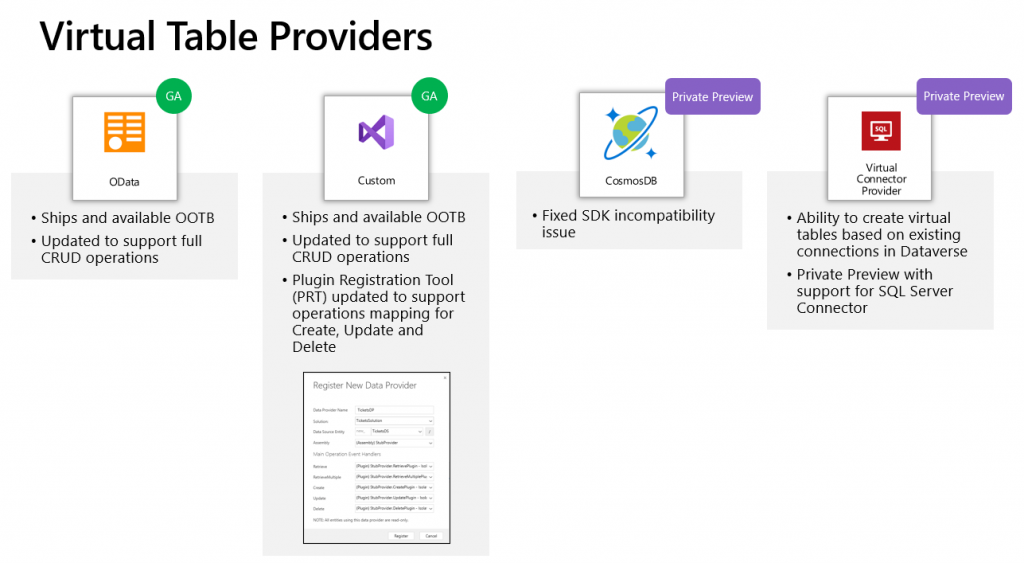
Previously the options for adding virtual tables to Dataverse was pretty much a pro-dev targeted story. The requirements for OData feeds were such that I don’t think I ever managed to find a sample feed to try out the feature. Same for the custom connectors, which are created via writing your own plugins. Technically they can be built, but if the requirements are similar to that of a traditional data integration approach, then it doesn’t exactly revolutionize the low-code data story of Dataverse.
The new preview for Virtual Connector Provider looks more interesting, though. Supporting out-of-the-box connectivity to SQL Server databases is definitely a scenario that’s closer to the no-code level where I personally prefer to operate on. So, I decided to go and see how far this track can take me in building a Model-driven app that actually works with data not physically stored inside Dataverse.
Even though the documents still say “private preview”, anyone can install the Virtual connectors in Dataverse solution from AppSource today:
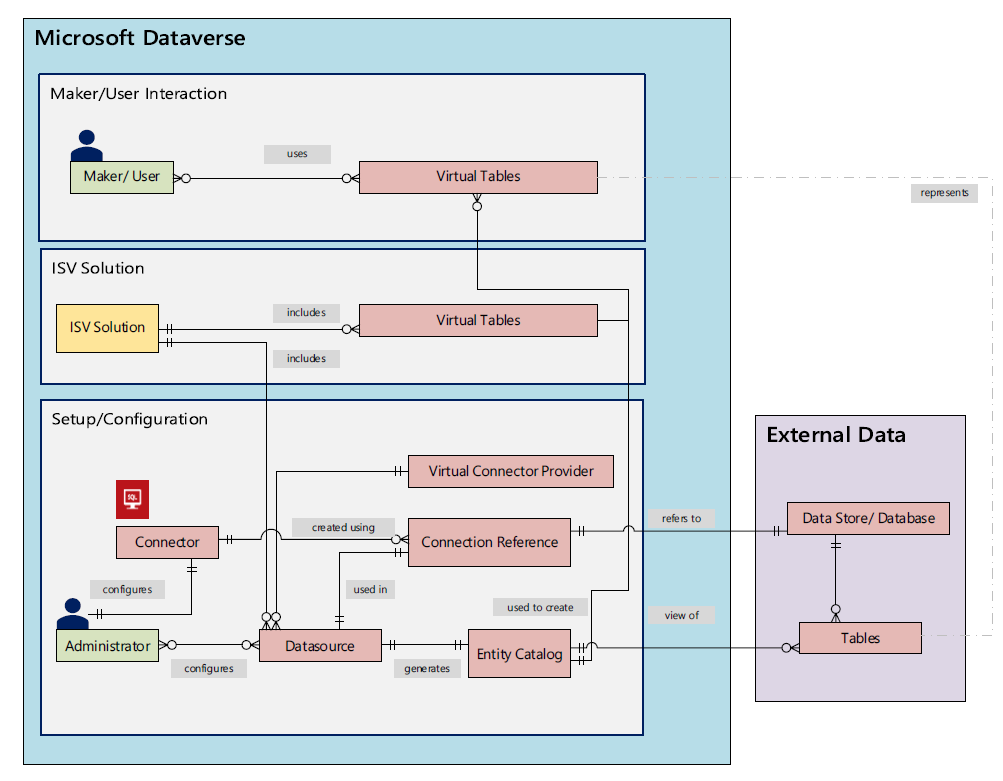
There’s a Power CAT Live video on YouTube that introduces the solution. If you’re like me and you prefer consuming written information instead of video walkthroughs, this PDF document will be the place to go for understanding the feature. Inside it you will find this diagram that explains the architecture of how concepts like connectors, data sources, connection references etc. relate to this new Virtual Connector Provider.
Setting up SQL Server tables to expand your Dataverse
I have a demo AdventureWorksLT database deployed in SQL Azure, just like the one used in Microsoft’s feature documentation for virtual connectors. I had already earlier used this demo SQL database as a data source for Power Apps Canvas apps, which meant I had an existing connection available in Power Apps Maker portal. Authentication is done with SQL username/password combo in my connection, but Azure AD authentication would also be an option if you’d rather not have stored credentials within the connection.
After following the step-by-step instructions, including setting up an application user / service principal for the virtual connector provider, I had a brand new table visible in my Dataverse environment: “Entity Catalog for AdventureWorksLT”.
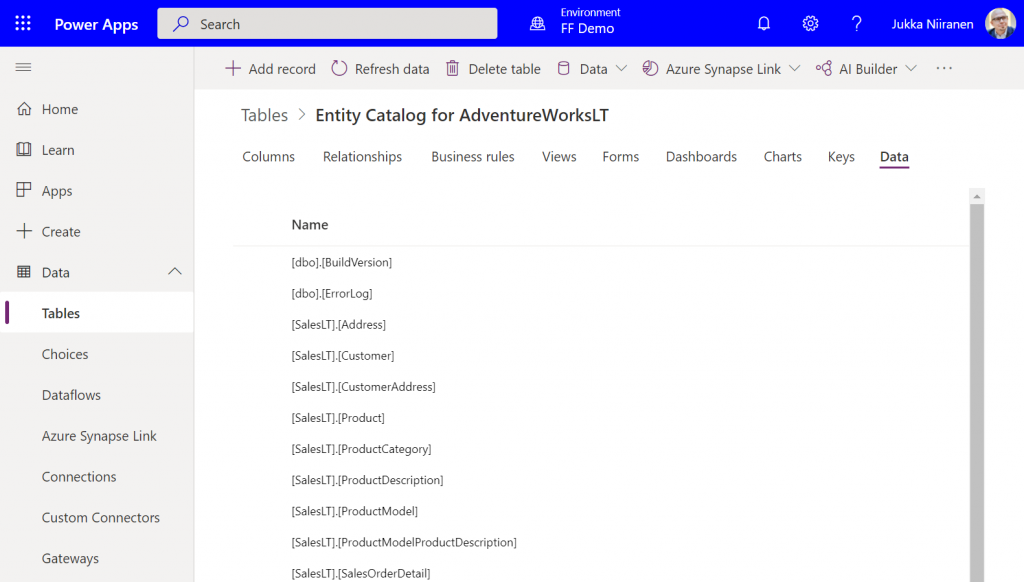
Cool, we have a “table of tables”! I can see all the SQL Server database tables available via this connection. By opening up one of these records, I can specify that I want to create the corresponding SQL table as a Dataverse virtual table.
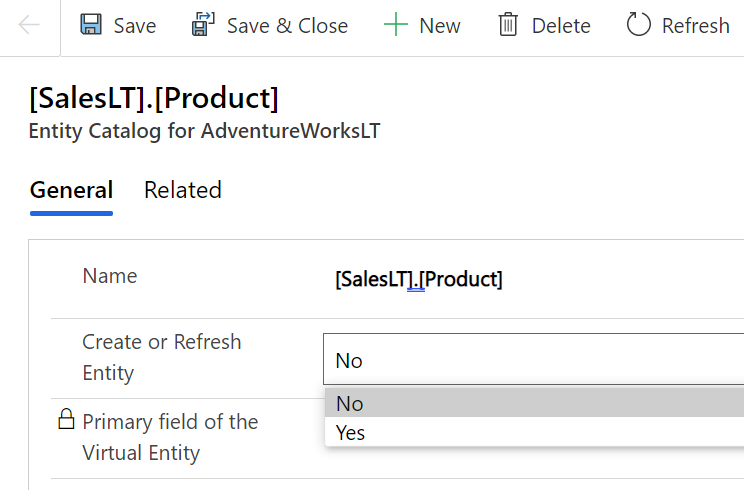
I picked the Product and Product Category tables from there. (Note: modifying the table properties in the Power Apps UI doesn’t seem to work, so use the legacy web client and Solution Explorer to change things like table name.) After this, the virtual connection provider nicely maps all of the available columns in SQL into a matching Dataverse column, with the correct data type.
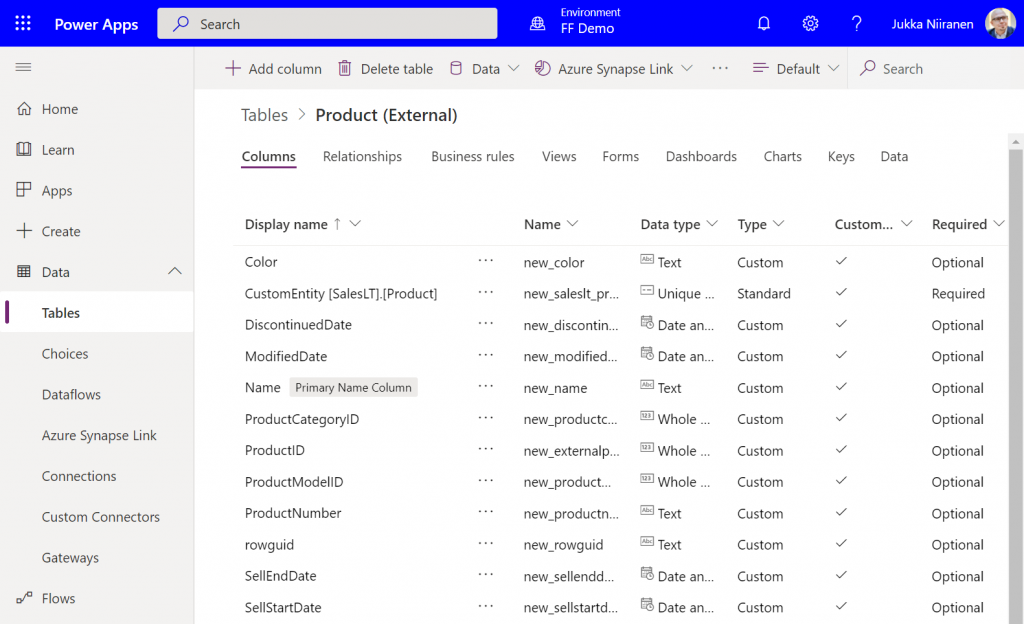
I can then do the standard configuration tasks I’d perform for a native Dataverse table, such as adding views and modifying form layouts. Of course there are a number of considerations for virtual tables when it comes to the Power Apps features they support. Still, whatever works here is exactly the same experience from an app maker perspective, whether the table is “real” or virtual.
Building a Model-driven app with virtual tables
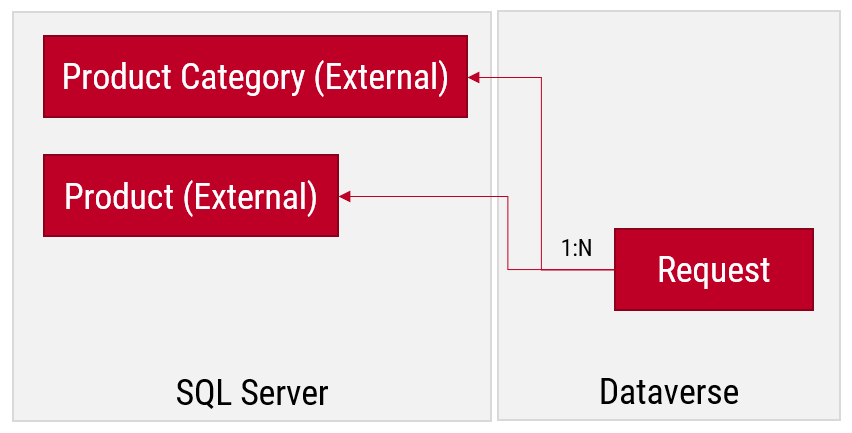
I created a small demo app module for testing how the different table types can co-exist and work together. I added a custom table called “Requests” and added it as the child table for both Product and Product Category virtual tables coming from SQL.
Let’s first go and browser the external data from a view. Opening up the Products table, the experience is in practice the same as if I was browsing native Dataverse records. I can create a personal view “products currently sold” that filters out all products with a value in SellEndDate field. I can sort based on the SellStartDate. I can filter to see only products with Color value Black.
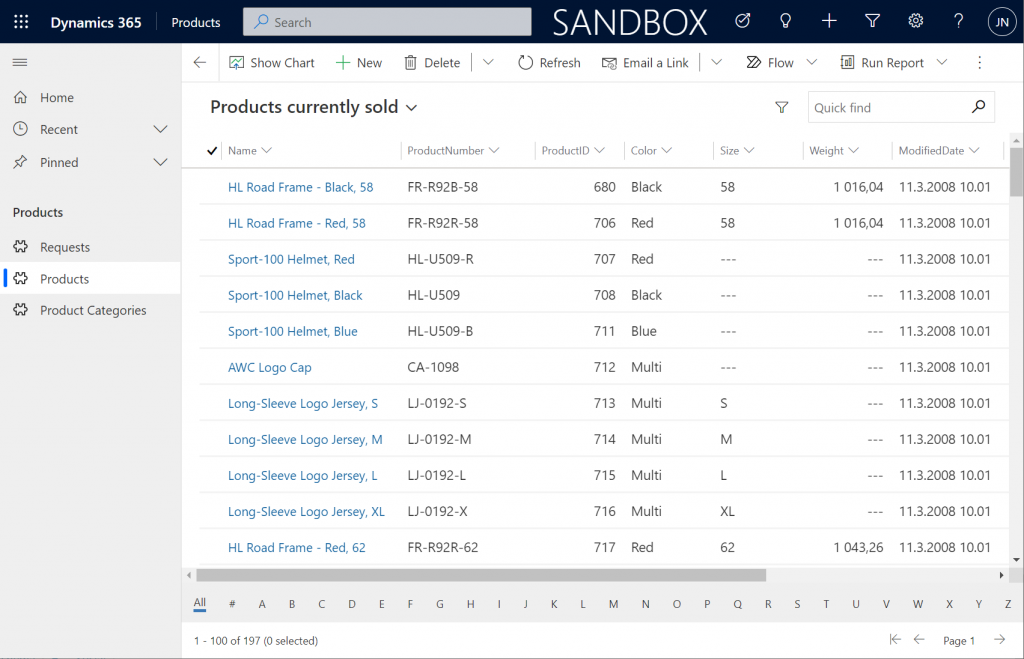
This is already pretty darn impressive for someone coming from a Model-driven background. Sure, in the Canvas world I’ve been able to easily point a gallery to a SQL table and view the data, but having all of it available within the pre-generated Model-driven UI is a major step beyond that.
Let’s try out how the native Dataverse table + external SQL Server tables work together on a form. Upon adding a new Request, I’m able to reference the related Product Category and Product tables via the standard lookup, just like everything would be stored in a single system. Behind the scenes, the native Request record will get references stored to the external Product Category and Product tables from SQL.
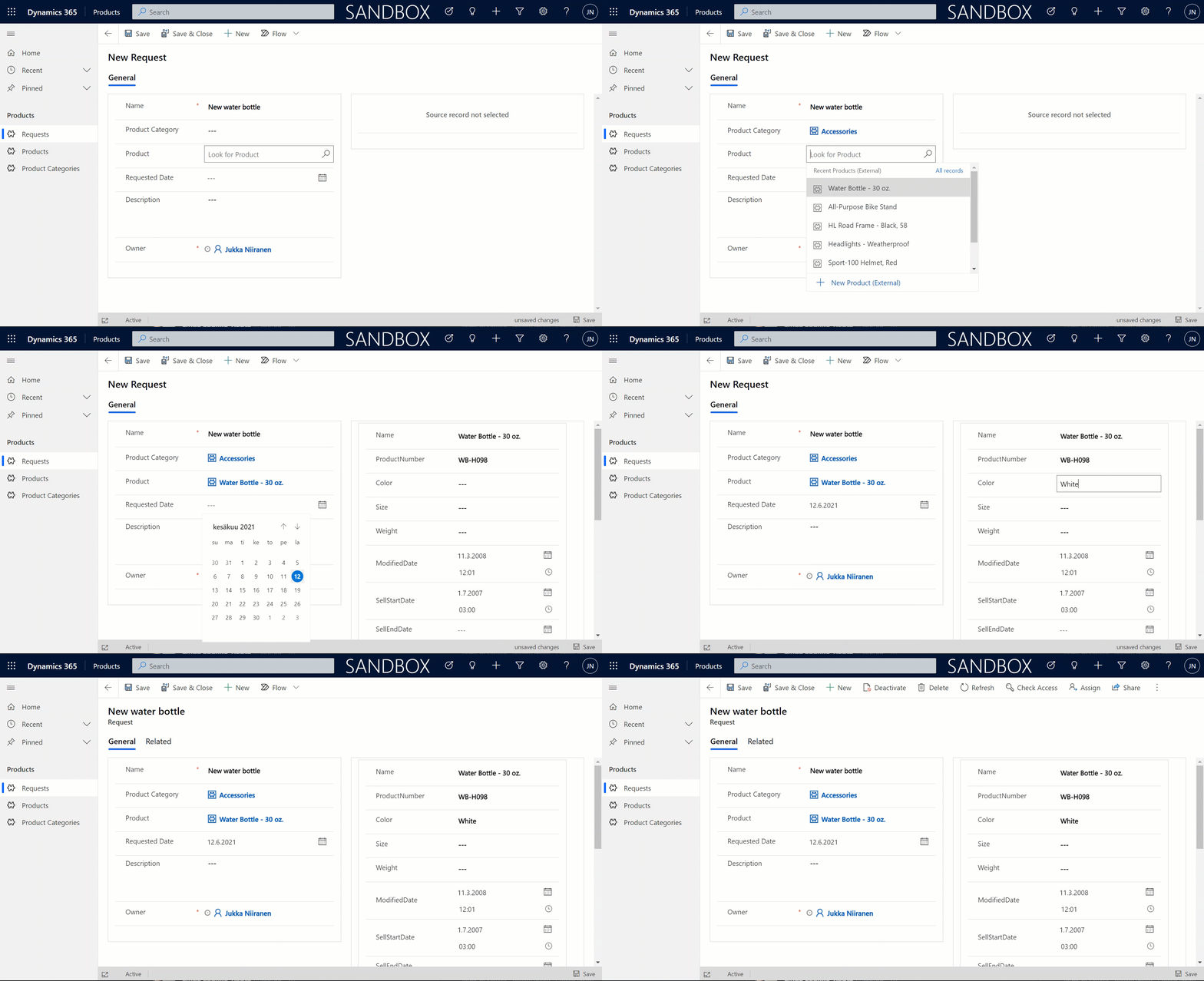
But wait, there’s more! Did you notice that my Request form actually used the Form Component Control to show an embedded form of the Product table on the right side? Immediately upon populating the lookup field on the left side I see all the details of the selected product, just as if they were regular fields of the current record.
In the above example I’m actually editing the Color field of the chose product with the value “White” before creating my request record. What this means is that within the same save event not only am I creating a new row in the Request table in my Dataverse, I’m also directly updating the data in my SQL Server’s Product table.
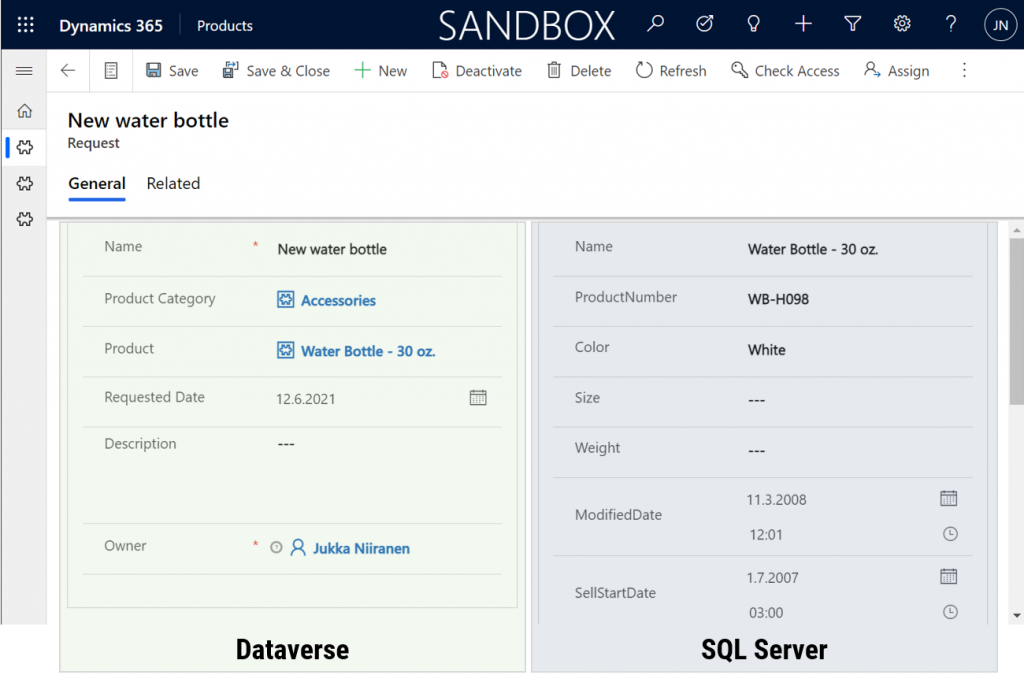
That is powerful! No custom code was needed in creating an app UI that talks with multiple different line of business systems in real-time, on the very same form.
From databases to Dataverses
This simple example of simultaneously performing CRUD operations on data stored in different systems via a Power Apps form illustrates the reason why Dataverse needs to be seen as much more than just a database. It’s purpose is to be a value-add layer on top of different data storage systems, making them easy to leverage in your business apps. We already see today with the Dataverse file & image data getting stored in Azure Blob Storage and audit log entries in CosmosDB, alongside the core relational data in Azure SQL.
The Virtual Connector Provider and virtual tables take things one step further. Especially in scenarios where you’d need to reference master data from an external system, there may not be a need to physically replicate it into Dataverse (perhaps you also want to reduce the storage costs). Specifying the virtual presence of such data will however make it appear as if it was part of the platform, thus brining it into both Model-driven apps and Canvas apps in a unified way. Even adding support for Dataverse business events to cover Power Automate is technically possible for virtual tables, although these understandably will require pro-developer involvement to get the external systems in sync with the API.
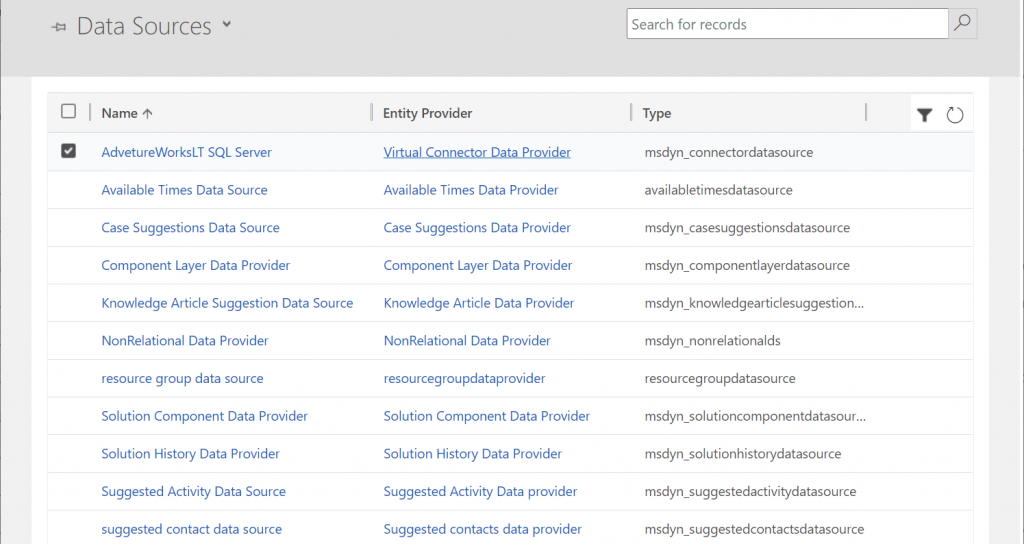
Behind the scenes, these same concepts for virtual entities / tables are already being used by Microsoft in their first-party app features. By browsing the Data Sources within an environment we can see features like case/contact/activity suggestions listed here, as well as platform capabilities like component layers or non-relational data provider.
Two years ago I wrote a blog post called “The Real Common Data Service Emerges” where I explored the direction where Dataverse (then CDS) was going. Since then we have seen Microsoft make the export of relational business data to a data lake a straightforward process with the built-in Azure Synapse Link for Dataverse. Similarly the import capabilities into Dataverse have expanded as the Dataflows / Power Query support keeps improving. Combine these physical data import/export pipelines with the virtual layers that the connector technology may soon offer for several tabular data sources and we’ve got a highly capable low-code toolkit for business data management needs in the Power Platform.
You need to keep in mind that there are many considerations (read: limitations) for using virtual tables to review before deciding if they are a good fit for your business requirements. Even in building the above demo app there were things that don’t quite work the same way as with real Dataverse tables. For instance, I can’t specify a 1:N relationship between the two virtual tables for Product Categories and Products. Quick Find on the SQL data doesn’t seem to produce any meaningful results. Referencing virtual tables via lookups in a Canvas app seems to not retrieve related data at all times. Not to mention the fact that in two different environments the whole Virtual Connector Provider configuration process got stuck before any SQL tables ever materialized in the Entity Catalog.
So, keep in mind that this is a preview of things to come, rather than production ready functionality to use today.
Update 2021-08-20: the feature has now been officially released in public preview format, with new documentation available. Check out the Docs page “Create virtual tables using the virtual connector provider (preview)” that contains the information previously only available in the aforementioned PDF.