Tag: configuration

  • Playbooks for Dynamics 365 Activity Templates

    Playbooks for Dynamics 365 Activity Templates

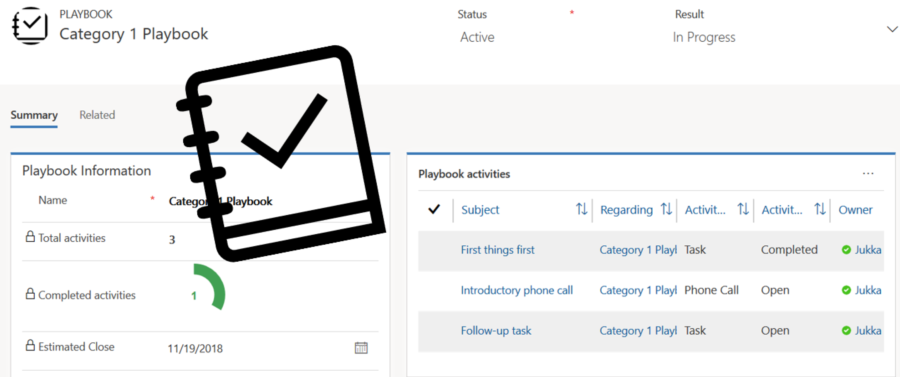
    In my previous post I explored the current Dynamics 365 Customer Engagement solution update practices and used the Playbooks feature as an example. Here’s a quick overview of what the actual Playbooks offer.

    The official MS documentation, “enforce best practices with playbooks”, gives you a list of what the initial October ’18 release of Playbooks contains. The feature is essentially a way for a sales manager to determine a set of activities that sales users should perform when a real life event takes place that the playbook contents has been designed for. A checklist, if you will.

    To get started, you’ll need to have the Sales app upgraded to a recent enough version, so that the Sales Hub UCI app displays Playbook Templates under the App Settings:

    Notice that you won’t find these anywhere in the legacy web client (“classic UI”). One thing you might want to do first via that legacy client, though, is to ensure that the associated roles for Playbook Manager and Playbook User are assigned to the required user accounts.

    To kick things off, you could create examples of Playbook Categories for grouping your playbooks, since that’s a compulsory lookup on the Playbook Template form. The actual configuration work will all take place on the template, where you’ll first of all specify the record types that the playbook applies for. Right now it’s only lead, opportunity, quote, order, invoice, so don’t plan on using playbooks for any custom entities or other Dynamics 365 Apps than Sales.

    The template shows a subgrid of Playbook Activities, which look pretty much like your regular activities on the surface. They are a separate entity, however, as this is how you define the parameters for an activity (task, phone call or appointment). You have the usual subject, description, duration etc. fields you’d find on a normal activity, but instead of fixed dates you give them relative due dates, calculated from when the playbook is launched.

    (more…)
  • In Praise Of Code and No-Code

    In Praise Of Code and No-Code

    Two weeks ago Neil Benson wrote an excellent article on LinkedIn, as a response to a claim that everyone working as a functional consultant in a Dynamics 365 project team should also know how to write code. This really resonated with me and I shared the article, along with a bit of commentary of my own. My post, in turn, started to gain quite a lot of traction on the LinkedIn feed. It looks like we had touched upon a topic of great interest within the network of CRM professionals.

    If you read my post above, it pretty much summarizes the main points I wish to bring out in this discussion:

    1. There is much more to ensuring Dynamics 365 project success than being able to do hands-on software development.
    2. A big chunk of the value delivered by Microsoft’s cloud platform is not relying on custom code development.
    3. The remaining chunk that is custom code driven work should be left to professional developers and not copy-paste heroes.

    There have been some very good arguments written in the comments section of the LinkedIn post, so I urge you to also view them for gaining greater perspective on the topic. I see a lot of resemblance with the “should designers code” meme in the original assumption that functional consultants would be able to do their jobs better if they also were familiar with developing custom code. Much of what has been said in the heat of that debate between coders and non-coders probably applies here, too:

    Alan Cooper’s four part article covers the dilemmas in general software development teams with such great insights and depth that I won’t even attempt to dive in the same direction here. In practical terms of a CRM project, when it comes to the availability of skills and experience needed in carrying out the wide range of tasks during the project’s lifecycle, the manager in charge of resources is always going to need to do some juggling. The less you ask the team members to juggle between completely different kinds tasks, the more likely they’ll able to focus on actual customer value generating activities rather than keeping all the balls in the air simultaneously. Here’s how Neil Benson put it:

    “Asking a functional consultant, with no formal computer science education or experience as a professional coder, to find and copy someone else’s JScript from Stackoverflow and paste it into your Dynamics solution is asking for trouble.”

    I don’t touch code myself but I do try to get my hands dirty on a wide variety of technologies. For example, today I spent a few hours getting familiar with Azure Service Bus, testing how without writing a single line of code I was able to push plugin execution context data into a cloud based message queue and work with it via a GUI in Azure Logic Apps. Now, I would never recommend myself as a person you should hire to set up your production ESB, but I do feel like I need to have a deeper understanding of these technologies than I could gain just by watching through the flashy demos in Microsoft keynotes. Seeing the different sides and reading/hearing what those with deep expertise on a particular technology have to say about it, that is essential. Going and actually trying to step into the shoes of an expert for that technology – probably an unnecessary detour.

    Skimming the bits from the top without diving deep into the dirty details of writing real code might sound like being afraid of all the complexity that awaits beneath the surface. However, the lack of code in a solution doesn’t mean that the complexity of the solution couldn’t be high. The CRM Tip Of The Day post “The story of the small change” perfectly illustrates the way in which individual configuration items built entirely via the graphical tools provided by MS can have dependencies that require you to have a rigorous testing process in place. It’s not just the changes of a system either, since you can easily use workflows and business rules to build a level of complexity into your business logic that doesn’t reveal itself in the test scenarios the consultant behind the design might have thought of. Whether you’re delivering the end product via code or configuration, bugs will sneak in there and eat away a part of your life – be it before or after production deployment.

    The argument for doing things via point’n’click configuration “because it’s so much faster to build” shouldn’t be the one and only argument. Yes, it is often much, much faster to put together the first iteration of a solution via graphical tools. This in itself can be a huge value for the business because you can validate the proposed solution quickly with the relevant stakeholders. Often you’ll only get to the actual requirements when demonstrating live parts of what the initial requirements said. Now, the main reason why Real Developers are often afraid of what “citizen developers” might come up with when given quick tools for building no-code apps is that they may lack the experience of seeing the full lifecycle of a business application. They’ll mistake the first PoC as being equivalent to the final production solution, with little thought given to the work that still remains ahead. This experience isn’t something you must necessarily gain via writing code yourself – a no-code functional consultant just needs to gain sufficient exposure to the various stages of the process via working as a part of the CRM project delivery team.

    I think we all need to be able to see “beyond code” when building solutions on top of platforms like Dynamics 365 Customer Engagement. Going full-on no-code in your design approach is probably going to unnecessarily limit the value that could be gained from an extensible application platform, forcing you to unsustainable workarounds and resulting in poor UX for the system end users. At the other end of the spectrum, always resorting to your custom built components before having a thorough analysis of the configuration capabilities and complementary cloud services found within your ecosystem of choice will likely increase the solution’s TCO and put the long term reliability of your complex business application at risk as changes in related processes, personnel and technologies occur over time.

    Please feel free to leave comments on how you see the role of code & no-code work evolving in Dynamics 365 projects.

  • Troubleshooting CRM for Tablets Login Issues with ADFS

    All CRM 2013 and CRM Online customers have access to the CRM for Tablets app that’s available for Windows 8, iOS and Android devices. Since it’s an app from the new age of mobile computing, the users can simply download it from the respective app store of the platform provider and install it. Configuring the app to connect with your CRM organization can however prove to be a bit trickier task than this.

    If you’re using CRM Online hosted by Microsoft in their data centers, connecting the tablet app to the CRM server in the cloud is usually a straightforward process. Just enter the URL for your organization, then punch in the credentials and off you go. Well, to be more precise, upon your first connection the organization you’ll be taken to a screen that asks you to hold on tight while the app is being set up. This is because all of the metadata related to your CRM organization’s customizations first needs to be loaded, so that you’ll see your own CRM instead of some generic, hard coded menus and fields. This step can take quite a while to finish, but just hold on tight, it’s worth it.

    If you’ve got your own on-premises CRM server or you’re logging to CRM Online via your on-premises Active Directory credentials, you may need to work a bit harder to achieve connectivity between the CRM for Tablets app and the CRM server. This is because in both of these scenarios you will have ADFS (Active Directory Federation Services) sitting there in the middle, processing your login request and validating your user credentials. Of course the same technology is also used behind the pure cloud CRM Online service, but MS has done the configuration work for you, whereas with on-premises components you’ll be in charge of performing this.

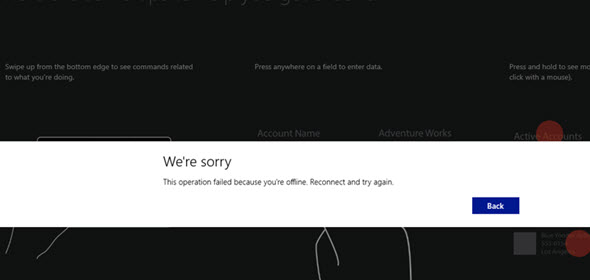
    CRM_for_Tablets_Were_Sorry

    Recently I was faced with a situation where a customer had deployed Dynamics CRM 2013 SP1 on-premises and done the Internet Facing Deployment via Windows Server 2008 R2 ADFS 2.0, published via Forefront TMG (Threat Management Gateway) 2010. Accessing CRM via the web client through the IFD address was working as expected, so was the CRM Outlook client. CRM for Phones was connecting without issues and I could even connect to the server via tools like XrmToolBox with no issues. There was just one problem: the CRM for Tablets wouldn’t connect to the server, no matter what. In the process of troubleshooting this particular scenario I learned a thing or two about the tablet app connectivity as well as server configuration tasks, so I thought I’d share my findings here on my blog. I’m by no means an expert on anything surrounding ADFS , but I’m stubborn enough to keep searching for answers until I find some from the great wide web.

    RTFM – Read The Friendly Manual(s)

    First of all, you’ll need to know your ADFS version, since there’s a few new hoops you’ll need to jump through when working with Windows Server 2012 R2 and the latest ADFS 2.2 (sometimes referred to as ADFS 3.0, since official version numbers seem to have been dropped by MS, in favor of just shipping ADFS together with Windows Server releases). The architecture of ADFS has changed considerably from earlier 2.0 and 2.1 versions, with no more IIS in the background, so the configuration process for CRM IFD also differs from the previous experience.

    You’ll find the extra steps listed on this article: Configure Windows Server 2012 R2 for CRM mobile clients. On the ADFS 2.2 server you’ll need to enable forms authentication manually, since it’s not enabled by default, like in previous versions. Then you need to run a Powershell script on the CRM server to configure the OAuth provider. Finally, you should register the CRM for Tablets app ID’s with the ADFS server via another Powershell script.

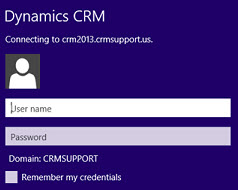
    Tablet_AD_login_promptYou may run into an issue with the login process where the user is prompted for their AD credentials via the standard Windows domain dialog window repeatedly. This is because of some incorrect authentication settings that apparently are caused by the CRM IFD configuration process itself. To avoid these issues, you should run a repair installation on the CRM 2013 server with the Web Application Server role deployed, after you’ve done the IFD configuration and before you attempt to log in with the CRM for Tablets app.

    Another aspect is the requirements imposed by the new Windows 8.1 version of the tablet app. Because of the changes on the OS layer, it’s no longer possible for Win8 apps to connect to any random server at will, but rather the developer has to specify the URL’s of these servers before publishing the app to the Windows Store. For CRM Online the domains for the service are known in advance, but for an on-premises deployment they could be absolutely anything. To overcome this, you’ll need to add a registry entry onto your device before attempting to connect to your server, otherwise the tablet app will just sit there and do nothing. Go to the page Set up CRM for Tablets, expand the section “what the admin needs to do” and grab the Powershell script from there. Running it on your device will prompt you for the CRM organization URL and create the necessary registry key for you. (more…)

  • Our New Book: CRM 2013 QuickStart

    A few people have asked me for recommendations on what books they should get if they want to learn about the ins & outs of the current Microsoft Dynamics CRM 2013 version. Even though there’s a wealth of blog articles out there that study specific features and an ever growing library of content produced by Microsoft themselves, there’s not been a whole lot of material in traditional book format that would have covered the latest CRM 2013 functionality. Well, now there is a great title available that I can recommend: the CRM 2013 QuickStart.

    CRM_2013_QuickStart_cover_smallHow do I know the book is any good? Because I wrote a part of it! Aside from shameless self promotion, I can honestly say that the writing team behind this book is quite an extraordinary league of CRM experts:

    If that’s not a group of CRM MVP’s you’d trust for advice on how to work with the platform then I don’t know who you would!

    What exactly does the book cover then? As the title suggests, it’s not a complete A-Z of each individual feature included in the Dynamics CRM 2013 platform. Neither is it meant to be “my first Dynamics CRM manual” for people who are unfamiliar with any version of the product. Let me borrow some of the official intro text for the book here to explain the reason for its existence:

    The CRM 2013 Quick Start is a first look at Microsoft Dynamics CRM 2013 and all the new features that have been included.

    In the CRM 2013 Quick Start you will find details that can help administrators, customizers (functional consultants) and developers; not to mention power business users wanting to know all the details the admin never tells them. If you run CRM in the cloud or sitting in a server room at your office the information is useful.

    This book is targeted to someone who has some CRM prior experience. By that we simply don’t spend any time explaining the basics of Microsoft Dynamics CRM from a beginner’s point of view. That said, the information in this book would still be useful on your journey to become proficient.

    Imagine that you’re someone who’s started their Dynamics CRM journey with an earlier version like 4.0 or 2011 and you’re now faced with the upgrade project for moving the solutions onto the latest CRM 2013 version. Is this the right book for you to gain an understanding of what’s new & what has changed in the platform? Absolutely! How about if you’re a system administrator or a customizer that has some exposure to the new version (via CRM Online perhaps) but are looking to ramp up your knowledge about the platform for future projects, enhancements or admin tasks. Will the CRM 2013 QuickStart help you get up to speed faster than searching for random articles online? You bet!

    Now, this is actually the first book that I have ever written content for and it makes me immensely proud to have managed to make my debut in such a prestigious crowd of co-authors. My personal contribution to this title focused on describing the founding principles of how to design a great user experience for the CRM solution that you wish to deliver to your end users. While some of the topics I covered in the book are specific to the latest CRM 2013 version, many of the solution design guidelines are actually universally applicable to any Dynamics CRM version, representing best practices that I’ve personally learned over the past decade of working with the product. I’m really glad to have been given the opportunity to present them in a format that allows for a different type of discussion than your typical blog post.

    Being a newbie in authoring content for books, it was also a valuable learning experience for me. Although I’ve been writing down my thoughts  on all things Dynamics CRM on this blog for six years now, the project of producing close to 50 pages of content on a given topic to create a coherent book chapter that can stand on its own was still a very different kind of assignment. Let’s just say that I have new found respect for authors that have managed to create entire books for new software products on their own.

    The great thing about my writing project was that it provided me a really concrete reason to dig into the details of the various new customization options that Dynamics CRM 2013 offers and experiment with different scenarios that I’m likely to encounter in real life customer projects. As they say, the best way to learn a new topic is to teach it to someone else. If this content that I’ve put together as a part of my own learning process then ends up helping also other members of the Dynamics CRM community to discover better ways to solve customers’ problems with the application, then I consider that a win-win result.

  • Configure Outlook Contact Synchronization Settings on Behalf of Your Users

    The ability to get your CRM contacts automatically synchronized to your Outlook address book and mobile phone is a very handy feature in Microsoft Dynamics CRM. Why would you ever manually dial the phone numbers of your customers when you can just set them to appear in your smartphone’s list of contacts? Wouldn’t it also be nice to see the customer’s name instead of just an unfamiliar phone number when he or she calls you after your first meeting? These are examples of everyday benefits that not only save time but can also help drive CRM user adoption by showing tangible benefits of having the customer information managed centrally in a database shared by all employees that are in contact with the customers.

    The new server-side synchronization in CRM 2013 has made the synchronization process independent of the Outlook client, so that updated information flows between your phone and CRM even when your PC is not online. What has not changed, though, is the lack of an administrative control panel for configuring the synchronization settings for the users. Since CRM by default only offers API calls to manipulate the synchronization filters, most users are likely using the default synchronization settings that come with CRM out of the box (unless they’ve received thorough training on how to configure the filters in the personal options menu). These are not always the optimal way to get the most benefit out of the synchronization functionality.

    Once again, XrmToolBox comes to the rescue with its recent Sync Filter Manager addition. This tool gives system administrators the power to create and change the Outlook and offline filters on behalf of the end users. Now you can easily plan the proper synchronization strategy and deploy the correct settings to all users in a controlled manner, instead of needing to visit their PCs or try to get everyone to click the right options.

    Since the concept of synchronization filters and templates may not be so easy to grasp for the CRM admin, I decided to make a tutorial that walks you through a few common scenarios for contact management. These cover enabling more than just the single owner of a contact to have the record synchronized to their address books, as well as how to avoid users in administrative roles from getting thousands and thousands of miscellaneous contacts suddenly appearing in their Outlook and mobile phone. You can view the presentation below or go to SlideShare my Slides archive and download it from there if the embedded slides are not showing up.

    As a great follow up reading, I recommend you to also have a look at the article on contact management best practices that was recently published in the new CRM Virtuosity blog. This will show you how to take the Outlook contact synchronization even further via modifications to the contact form’s Command Bar in CRM 2013, among other things.

  • Your Essential Toolkit for Microsoft Dynamics CRM

    You can do a lot with the configuration and customization toolkit that Microsoft Dynamics CRM offers. With the SDK and some lines of custom code, you can do almost anything. There in between lies the territory where the Dynamics CRM community is helping its members manage some of the commonly required tasks without the need for .NET developer resources. This is done through a wealth of wonderful, free tools that make it easier for anyone working with Dynamics CRM to access the power of the platform without getting their hands dirty in tweaking XML files or learning the right SDK calls.

    Many of the tools listed here are a permanent fixture I take along with me to any consulting gig, while some are new entrants to the list. If you’ve been actively reading up the posts on various popular CRM blogs, you may well recognize most of them. However, while I personally spend far too much time on social media channels, I realize that not everyone in the industry has the luxury for such a lifestyle and may have therefore missed out on some tools that could have saved them hours worth of work. Therefore, I decided to compile a “Best Of” post to highlight the 10 tools no CRM consultant should be without. (For anyone wanting to stay on top of the latest tools and solutions I come across, you can either subscribe to my Dynamics CRM Links RSS feed or follow the Surviving CRM page on Google+.)

    CRM 2011 User Settings Utility

    Download from CodePlex.

    When setting up new user accounts in your Dynamics CRM organization, wouldn’t it be nice if the system administrator could set their personal settings to match the policies of the organization as well as the likely preferences of the user in question? Things like Time Zone, Records per Page, Advanced Find mode, default home page etc. can be easily configured for users in bulk with the CRM 2011 User Settings Utility by Amreek Singh.
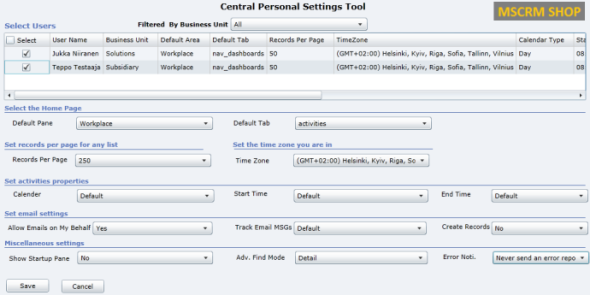
    CRM2011_User_Settings_Utility

    One particular pet peeve of mine related to the default configuration of Dynamics CRM is that new contact records are automatically created from tracked email sender or recipient addresses not found in the database. Well, with this tool you can stop the users from unintentionally populating your database with partially filled contact records not associated to their proper parent accounts by simply configuring the setting to “No” for all users. Beats having to send everyone instructions by email on how to check their CRM profile settings, doesn’t it?

    Universal Settings

    Download from Sonoma Partners website.

    It’s not only the user settings that may require you to pop the hood open on your CRM instance. There is a number of Organization Settings as well as Deployment Settings that can be used to either overcome limitations or alter the default behavior of Dynamics CRM. For example, if you’d like to be able to export all of your contacts records from CRM to Excel and not just the first 10,000 then you’ll be happy to know that changing the MaxRecordsForExportToExcel parameter is a breeze with Universal Settings, no matter if you have an on-premises or CRM Online environment.

    UniversalSettings

    Another handy limit you can adjust with the tool is AggregateQueryRecordLimit, which will allow your charts to summarize more than 50,000 records at a time, instead of seeing “the maximum record limit is exceeded” errors. Also very handy if you wish to work with more than 50,000 marketing list members in your campaign target group. Unfortunately this tweak is not available for CRM Online, though, as the setting resides in the deployment table rather than the organization table, which is the only one you can update in the cloud.

    XrmToolbox

    Download from CodePlex.

    We’re now stepping into the world of “Mr. CRM Tools” himself, a.k.a. Tanguy Touzard. His awesome Toolbox for Dynamics CRM 2011 is a collection of the various tools developed over the years to help make Dynamics CRM administration and customization more efficient and enjoyable. By downloading the Toolbox you’ll get a number of great tools, but just to ensure you understand why you need them, let me give a quick intro to my favorite ones.

    Sitemap editor

    Adjusting the CRM main page navigation (a.k.a. sitemap) is something that you should always perform after you’ve determined what are the entities your different user groups (sales, marketing, etc.) will need to access and what is the logical arrangement of them in the navigation. Trust me, the right answer is not “the order in which the entities were created” nor “alphabetical”. There’s a number of free sitemap editor tools out there, but since XrmToolbox is such a powerhouse, it makes a lot of sense to use the the same tool that you’ll be using for other tasks in the same organization, as you’ll only need to configure the connection parameters once.

    Sitemap_editor

    Re-arrange, add, hide, group, rename, do basically whatever you want with the CRM menus with this editor without ever seeing a trace of the solution XML file contents.

    Easy Translator

    Easy_translatorThe latest addition to XrmToolbox is something every CRM admin from a non-English speaking country can surely appreciate. Since most of us still prefer to use the English base language setting in Dynamics CRM due to the awkward terminology of our native language translations in the customization UI (and any potential technical compatibility quirks that come with it), working with the “export/import labels for translation” process is all too familiar to us. Hunting down those strings in the unstructured output file isn’t very pleasant, which is where Easy Translator comes in handy. You’ll get a nicely arranged Excel with just the types of labels you’ve selected for export, which reduces the amount of trial & error in translating fields, values and form labels to the language of your choice. (more…)