Tag: case

  • CRM 2013 SP1: Case Creation and Routing – The Details

    In my previous post about the new functionality included in CRM 2013 SP1 / Spring ’14 release I laid out the big picture of how case creation and routing rules relate to cases and queues in Dynamics CRM. Now it’s time to take a more detailed look at how you would actually configure these rules to automate your case creation process. There are a few limitations that it’s good to be aware of before you jump into applying these new tools in your service management scenarios.

    Case Creation Rules

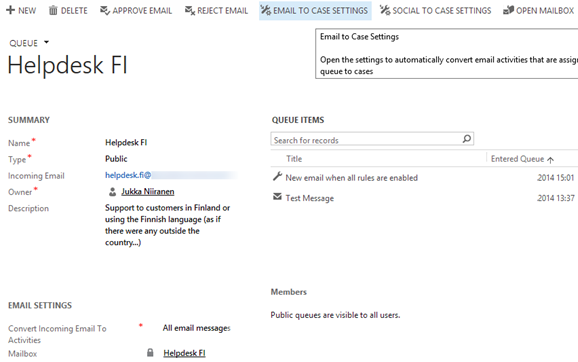
    As illustrated in the big picture of queue and case management in my previous article, Case Creation Rules are specific to a single queue. Also, you can only have one Case Creation Rule per queue – per channel. It is nevertheless a 1:N relationship between queues and rules, since a queue can have a Case Creation Rule both for email and social activities (the latter of which are not yet leveraged in this release). The Command Bar buttons on the updated queue form, labelled “Email To Case Settings” and “Social To Case Settings”, take you to the respective rule record.

    CRM2013SP1_queue_settings

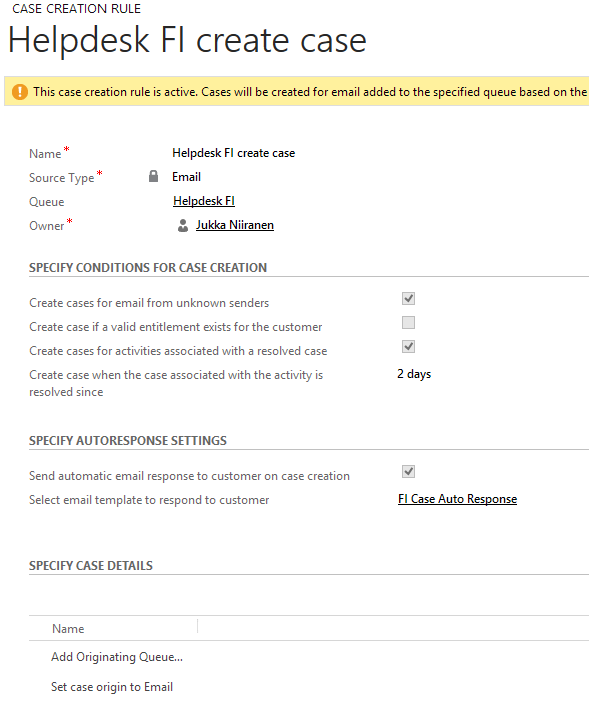
    The Case Creation Rule form allows you to configure predefined conditions for case creation. Emails from unknown senders can be filtered away from case creation. Also the existence of a valid entitlement for the sender (contact) or the senders company (parent account) can be used as a filter. Finally, email related to an already resolved case can be set to generate a new case record, with a configurable “quarantine” time period. So, if you resolve a case today and the customer replies “thanks for your help”, this probably shouldn’t generate a new case, but a reply sent after 3 days to the same email thread might warrant opening up a whole new case record.

    CRM2013SP1_case_creation_rule

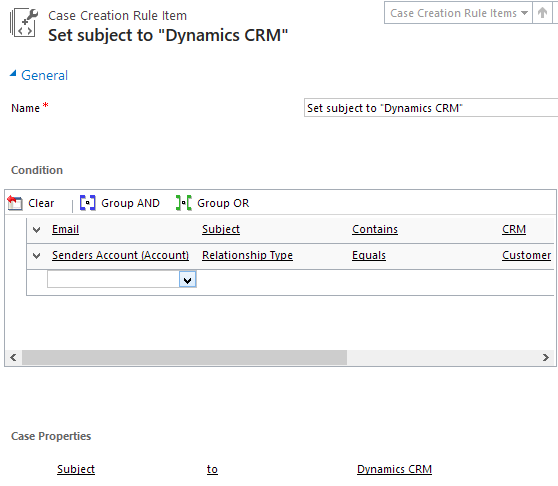
    That’s all the conditions you can apply for the automatic case creation. There’s an additional entity called Case Creation Rule Item that’s found in the “Specify Case Details” subgrid. What this feature allows you to do is specify a condition on the activity record (email or social activity) and set values for the newly created case’s fields. As an example, if the email subject contains word X, you could populate the case subject lookup field with value Y. So, you can’t use these Rule Items to determine whether a case will be created or not, but you can pass along some variables from the originating activity.

    CRM2013SP1_case_creation_rule_item

    The entity fields you can access in the Conditions box are limited to those directly related to the email (or social) activity. There is however one welcome exception and that is the Senders Account. This means that when the email is coming from a known contact, there’s a way to reach into the fields of the account related to the contact (related to the activity), to check variables like relationship status, customer category or other important pieces of information in a B2B service scenario. (more…)

  • CRM 2013 SP1: Case Creation and Routing – The Big Picture

    The latest Dynamics CRM Online Spring ’14 release is now rolling out to existing and new customers (starting from the US data centers) and the on-premises equivalent of CRM 2013 Service Pack 1 will soon follow is now available from MS Download Center (here’s the KB article for more details about SP1). The quickest way to check if your CRM Online organization is already updated to the latest release is on the About screen, accessible via the gear icon in the top right corner. If your version reads 6.1.0.575 (or 6.1.anything) then you’ve got the Spring ’14 release available and you can proceed to the Install Product Updates menu to enable the new features.

    CRM2013SP1_version

    This release, previously known by the codename “Leo”, focuses on enhancing the service management capabilities of Dynamics CRM. There’s a great “What’s New” page on CRM Customer Center that provides a detailed listing of the new features launched now, including an eBook of the changes in service management. Instead of repeating all of this information, I’ll try and provide an overview of how the features align with one another and specifically how they could be applied in real world scenarios for managing incoming service cases from customers.

    Enhancements in Case Creation and Queues

    I guess we’ll still need to first list the new options we need to be aware of when configuring the service module in CRM 2013 SP1 to handle emails and cases  via queues. First off, there is now support for server side synchronization of emails (and other activities) between CRM Online and Exchange Online, without having to use the old Email Router technology (no support for hybrid deployments, though). Then there’s a new feature called Case Creation Rule that allows you to automatically convert an email message or a social activity record placed in a queue into a new case record. Finally, we have Routing Rules that can be leveraged for moving items into queues.

    The following is my own interpretation of how these three areas are aligned in CRM 2013 Spring ´14 Update / Service Pack 1. The picture illustrates how an email message from the customer would flow through the system automatically based on the configuration of the aforementioned features. It also includes a few bullet points about the supported actions for each component. (Feel free to click on the image to view a bigger version that won’t stress your eyes so much.)

    CRM2013SP1_Queue_Case_Configuration_small

    When going through the Leo release features I found it a bit challenging to get a clear view of the logical order in which the different functional areas found under the new Service Management settings menu should be applied. Also the relationships between them and the restrictions imposed on the number of records was something I only learned through trial and error. Hopefully this illustration makes it easier to identify the roles of case creation rules and case routing rules in the new release.

    Rules vs. Workflows & Plugins

    Looking at the picture, someone who has previously configured Dynamics CRM to be used in an email, queue and case based support process will surely find many familiar actions from the list. At the end of the day, pretty much everything here has already been possible with previous CRM versions. With those you just needed to leverage the workflow engine in the CRM platform to configure the case creation and routing activities. So, what’s really new here and why has Microsoft built this into the latest product release?

    Behind the scenes, what the case creation and routing rules do is they create the workflow processes for you. This can be seen from the release documentation where the administrator of those rules is reminded about the requirement to have sufficient security roles for performing the corresponding actions via workflows. So, taking a very simplistic view, you could think of these new features available in the Service Management as a dedicated UI for configuring common process automation actions for customer service scenarios.

    There’s definitely value in having these new features available right inside the core product. In previous versions, it has been far from trivial to build the necessary functionality for frequently encountered requirements, such as “email to case”. Several ISV add-ons have been developed to deliver such functionality and system customizers have surely spent a ton of time pushing the CRM workflow editor to its limits in an effort to automate the common tasks that a service organization would need to perform when managing cases in Dynamics CRM. Now there’s a new standard way to implement these processes via a method that is fully supported by Microsoft, which in turn will lead to far more customers taking a serious look at these case management capabilities in their business application platform.

    CRM2013SP1_Service_Management_Settings

    It’s important to keep in mind that these new features don’t replace any of the existing CRM platform functionality. They offer a default method to configure common features, but they will not cover every possible scenario that you’ll come across in real life implementation scenarios. That means you can still use workflows and plugins to extend the process automation for service case management. For example, while a case creation rule provides the possibility to set an auto response email to be sent to the customer upon case creation, there’s nothing stopping you from doing this via familiar workflow process if more complex business logic is needed than what the new Service Management UI in CRM makes available.

    In the next blog post I will take a more detailed look at how the case creation and routing features can be leveraged in practice, so stay tuned!

  • No-code Customizations with North52 Formula Manager, Part 3: Case Resolutions

    In the previous articles (part 1 and part 2) we’ve explored how the North52 Formula Manager can be utilized in automating steps related to the sales process. This time we’ll be looking at a scenario related to service management, in an effort to make it easier to share knowledge and report on the resolutions of cases recorded in the Microsoft Dynamics CRM database.

    Cases vs. Case Resolutions
    Case_resolve_cancelIn theory it should be pretty straightforward how you work with a case record: they are support tickets that are initially open (active) when you create them and eventually they end up getting closed as either resolved (service was provided) or cancelled (duplicate ticket, customer never replied etc.).

    The point where complexity raises its ugly head is how the resolution process works: instead of entering the case resolution details onto the case record itself, the user is presented with a window that creates a Case Resolution activity underneath the parent case. While this is a perfectly valid design in terms of the nature of the interactions, as there could be situations where the case gets re-opened and resolved again (thus being a 1:N relationship with the case), it does make it more complicated to work with the resolution data later on.
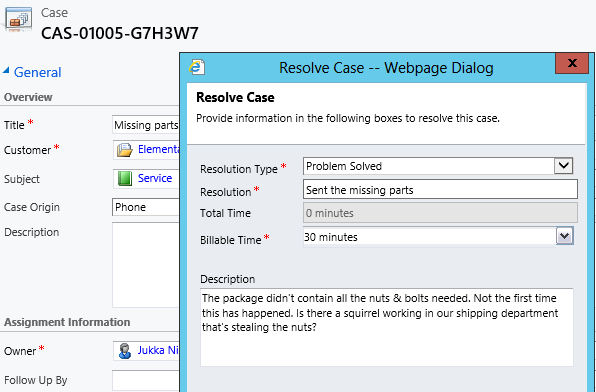
    Resolve_case_dialog

    For example, say you’d want to study the resolved cases by using a view of the case records. In that view you can see the case subject, owner, status and other standard fields, but there’s no information visible on what the actual resolution to the case was. “Ok, so I’ll need to customize the view and show columns from a related record. That’s not too difficult, now is it?” Unfortunately that’s not going to work, because the information we’re interested in resides on the N side of the relationship. Since there can be several case resolutions for a single case, no columns from this entity can be displayed in a case view. So, we can’t construct a nice Q&A list that the service reps could leverage in scanning for similar cases on a new question from a customer. We can only see the problem, not the resolution.
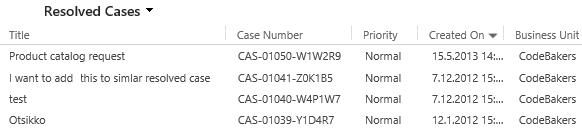
    Resolved_cases_view

    You could build a view of case resolutions, the child entity in this relationship, but that’s not very convenient either. Although case resolution is an entity of its own, it’s not actually available in Advanced Find to directly build queries on. It is possible to access a list of case resolutions by crafting a view of activities with that specific type, but you’ll still be limited to only the generic activity fields. As an example, the field Billable Time (Time Spent) cannot be accessed in a view, which makes it rather difficult to report on this data entered as a part of the service process.

    Activities_Advanced_Find_case_resolution

    Using a Formula to Replicate the Case Resolution Fields on the Case Form

    Luckily Dynamics CRM is a flexible platform that allows you to develop new business logic to fulfill the requirements for your service process. In this situation, if we could simply have the Resolve Case dialog fields copied over to the parent case, this would solve the aforementioned problems. So, how to proceed then?

    If we want to alter the default behavior or the service entities, we should first have a look at the workflow process capabilities of Dynamics CRM to see if can  configure a workflow rule that is triggered when the case resolution is created. This time we won’t get very far with that idea, though, as neither the case resolution nor the activity entity can be used as a workflow trigger. Fair enough, we’ll then need to come up with a lower level solution to meet this requirement. Assuming we have access to a .NET developer who knows the Dynamics CRM SDK, creating a custom plug-in to copy the fields to the case record would be a worthy option to consider. Since the title of this post promised “no-code customizations”, let’s instead look at how we could achieve the same functionality with the Formula Manager.

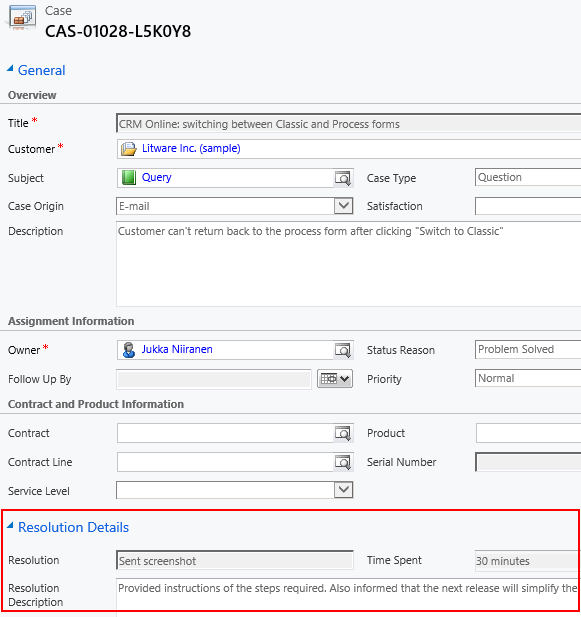
    First we need a place to host the case resolution data of course, so let’s add three custom fields on the case entity: Resolution (text field), Resolution Description (multiple lines) and Time Spent (whole number with duration format). On the case form they can be put into a section of their own and set as disabled, since the user shouldn’t directly update them.  Then we’ll create the three formulas that will populate these fields with corresponding values from the case resolution entity.
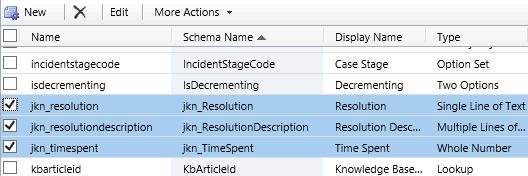
    Case_custom_fields

    We’ll be using a formula of the type “Save – To Parent” and attach it to the create event of the case resolution entity. As our target (parent) entity we can select case, but notice that you’ll actually need to specify the relationship field value first before you’re able switch the value in the target entity field. Let’s take the Resolution Description field we just created as the target property. The formula itself in this case will be very simple, since all we need is a value directly from the source entity. We can use the source entity tree visible in the bottom left corner of the screen to browse through the available fields or just type in directly the value [incidentresolution.description].
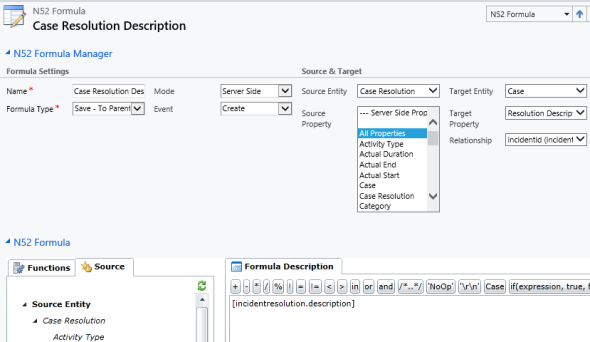
    Formula_case_description

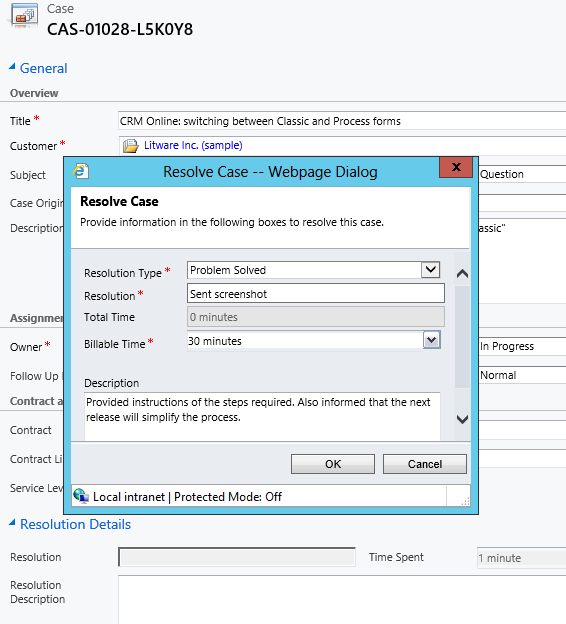
    The other two fields will get an identical treatment, which means we can click on the Clone Formula button on the ribbon and create two copies of the original formula. Just update the target property field and select a new source field value into the formula description window accordingly. After we’re done, we can publish the formulas and try them out by resolving an existing case.
    Resolve_case_formula_1

    After we’ve entered the details into the Resolve Case dialog fields and clicked OK, our formula will update the underlying case form in real time to reflect the same values presented directly on the resolved case record. Unlike asynchronous workflow processes, the formulas can perform their tasks right in front of the user, which makes the user experience more consistent.
    Resolve_case_formula_2

    Making Use of the Resolution Data

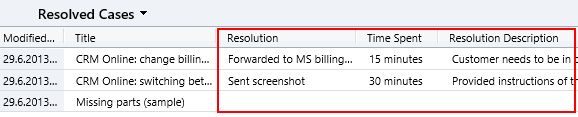
    Now that the fields are available on the case entity, we still need to ensure that the user actually has access to them through all the necessary routes. First we should of course include them into the Resolved Cases view we talked about earlier.
    Resolved_cases_view_updated

    Seeing the resolution field contents directly in the view is a great improvement, but an even more important feature is to enable the users to search for this information. You see, one of the peculiar default settings of Dynamics CRM is that the Quick Find view for case entities only covers active (open) cases. (more…)