Tag: business rules

  • My CRM User Experience Presentation at eXtremeCRM 2016 Warsaw

    My CRM User Experience Presentation at eXtremeCRM 2016 Warsaw

    If you’re a Microsoft Dynamics CRM partner in EMEA then eXtremeCRM is definitely an event you don’t want to miss. This spring the event was arranged in Warsaw, Poland, and I had the pleasure of not only attending but also contributing to some of the content at the conference. Together with 8 other CRM MVPs, we all presented in our own sessions, did a joint “ask the MVPs” showcase and also got the chance to talk with many of the awesome Dynamics CRM community members at our Team eXtreme Pitcrew booth. Thanks to everyone who came around to compete in a lap of Forza 6 with the MVPs!

    eXtremeCRM2016Warsaw_Team_eXtreme_Pitcrew

    It was the first eXtremeCRM event where I was not only attending the breakout sessions but also speaking at one session of my own. The topic that I ended up covering was something that has been touched upon also in this blog a few times: user experience of CRM systems. In addition, the focus of my presentation was specifically on the no-code configuration possibilities and how they can impact the solution UX, in good and bad. (It seems to be a common misconception among the MVP’s that I would know something about writing custom code, when in fact I’m almost illiterate when it comes to the CRM SDK. But anyway…). You can find my presentation slides below, or access them via this direct link to Docs.com.

    In my session I covered quite a wide variety of topics. To start with, I wanted to address the business impact of CRM system UX and provide some tools for demonstrating why user experience not just about application usability but really about the organization’s ability to deliver great customer experiences. Then I reviewed some of the basic CRM customization best practices that we all should keep in mind when configuring our solutions (but which are all too easy to forget when dealing with schedule constraints in CRM deployment projects). I then explored the concept of how Dynamics CRM could be made to feel more responsive to the end user’s actions via tools like Business Rules, Quick View Forms and Real-time Workflows. Finally I highlighted the importance of continuously maintaining the UX of a CRM environment when both the platform, the usage patterns as well as the ecosystem around it keep on evolving at an ever increasing pace in the cloud.

    At eXtremeCRM there’s never a shortage of interesting sessions to attend, nor the amount of great new CRM roadmap insights that Jujhar Singh and the other members of Microsoft’s organization are there to share with the community. In an attempt to capture some of the highlights from the event, I compiled them into the following Sway presentation that includes content shared on Twitter via the #eXtremeCRM hashtag.

    That’s all for today, but do check back for the next blog post where I’ll be sharing some of the results from the Voice of the Customer survey that we did for the MVP session at eXtremeCRM.

  • Customizing Lead Qualification Process in CRM 2015

    Customizing Lead Qualification Process in CRM 2015

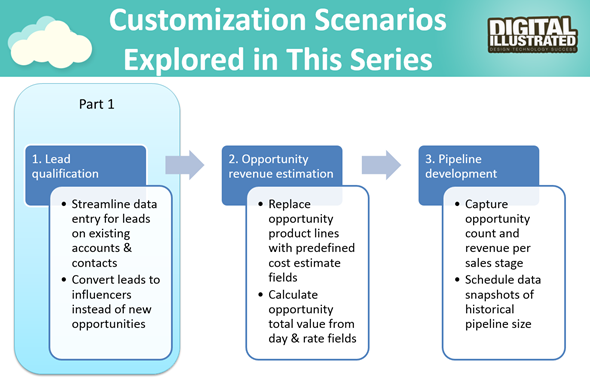
    This is the first part in an article series where I’ll be presenting a few customization tips & tricks that you can use in Microsoft Dynamics CRM 2015 to enhance the functionality used in a typical sales process. The content was first shown in my live webcast on MSDynamicsWorld.com on May 6th: “A Non-Developer’s Guide to Smarter Sales Processes in Microsoft Dynamics CRM 2015.” As promised during the webcast, I’ll be releasing all the slides here on my blog, but since there was a lot of details to go through in the 1h session, it will be split into three separate articles, to improve the accessibility to this information for those who didn’t attend the live webcast.

    The overarching theme of this series is to show you how the creative combination of the various customization tools available in Dynamics CRM 2015 can be used for building whole new functionality into the application – without having to write any custom code. The emphasis is on the word combination, since very often you’ll need to use several different pieces of the platform’s customization tools to achieve the end result. This isn’t something that you can easily learn just by reading the official product documentation that typically focuses on the introduction of a single feature at a time. With the examples in this article series I hope to demonstrate what these combinations could look like, in the context of customizing the standard application behavior in the sales process.

    MSDynamicsWorld_Smarter_Sales_Process_scenarios

    The techniques are by no means exclusive to the sales area of Dynamics CRM. Any process that you manage with our CRM/XRM application can surely benefit from the type of custom functionality that you can build via Business Process Flows, Real-time Workflows, Business Rules, Calculated Fields and Rollup Fields. The absolutely best way to gain an understanding of what you can achieve with the point & click customization tools in Dynamics CRM is to experiment with the tools in a sandbox environment, so I encourage you to go and try out these scenarios in an actual working CRM system. (Why not spin up a new CRM Online trial org and also get access to all the new CRM Online 2015 Update 1 goodies while at it?)

    What’s Wrong with CRM 2015 Lead Qualification?

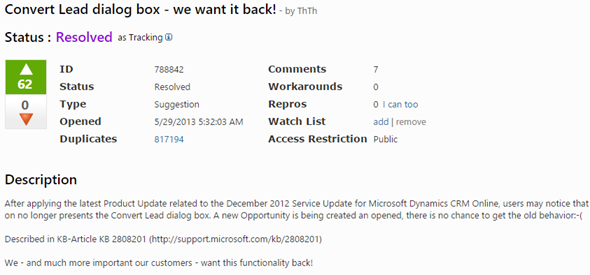
    Those of you that have been working with Dynamics CRM for more than just a couple of years will probably remember how the things used to work before CRM 2013. When clicking on the Qualify button on a lead record, the user was presented with a dialog that allowed them to choose whether a new account, contact and opportunity record should be created from this lead. In the new world of Business Process Flows and no-popup UI of CRM 2013 (and CRM 2015), such options are no longer presented to the user. While this makes for a smooth user experience in general, it creates severe conflicts with many real life business processes of companies who either A) don’t use opportunities or B) don’t want to directly convert each lead into an opportunity. There are lots of suggestions on MS Connect (registration required, see here) to restore the ability for users to select not to create an opportunity from a qualified lead, but so far we haven’t seen any changes in the product to accommodate this.

    CRM_Lead_Qualification_Dialog

    So, if CRM wants to create opportunities but the user doesn’t, what could a mere system customizer do, without any knowledge of how to write plugins or scripts to develop new functionality by using the CRM SDK? Well, I’ve come up with a reasonably good workaround that uses the following solution components to establish a true user driven lead qualification process:

    • Branching Business Process Flow (BPF) to show stages that don’t take the user to the opportunity entity
    • Real-time Workflow to hand the lead status change and record creation instead of the built-in, non-configurable business logic of Dynamics CRM
    • Business Rules to conditionally show/hide fields for account/contact details on the form
    • Quick View Forms to present the records created from lead qualification process on the lead form after it’s closed

    You can find the detailed description of how I’ve configured each components from the below presentation:

    (For those of you who are not reading this article directly on survivingcrm.com and can’t see the embedded SlideShare presentation, click this link to access it.)

    I hope that this example has given you some ideas on how the lead management process and related Dynamics CRM functionality could be further developed in your own CRM organization. Stay tuned for part two of this Smarter Sales Process series, where we’ll be moving to the opportunity record and exploring how the estimated revenue information can more easily be managed by using the Calculated Fields feature introduced in Microsoft Dynamics CRM 2015 release. If you simply can’t wait for it or want to see the lead qualification process in action, then the webcast recording is available on YouTube already today.

  • Address Copy Button with CRM 2013 Business Rules and Workflows

    Address Copy Button with CRM 2013 Business Rules and Workflows

    The default forms in Dynamics CRM only contain one set of address fields, but most organizations will need to surface at least the Address 2 fields for accounts and contacts to manage the different information for visiting address, mailing address, delivery address, invoicing address or whatever the business scenario.

    Sometimes it may be justified to have a bit of redundant information in your CRM database for practical purposes. For example, if you use the Address 2 fields for managing the mailing addresses for accounts where this is separate from the visiting address, it may be easier to have the mailing address fields populated also in scenarios where the values are identical to the visiting address. Otherwise the marketing assistant who is building target groups for mailing campaigns will need to perform some Excel sorcery to pick different address fields for different customers when extracting the data from CRM.

    If you’ve bought anything from online stores during the past 10 years, you’ve probably ran into a nice little feature on the checkout or registration forms where the system asks if you’d like to use the address information you entered into your customer profile also as the shipping address for the order. Often times this is presented as a checkbox field that you simply need to tick once, to save you the trouble of re-entering the same data the system already knows.

    Wouldn’t this be a nice feature to have also on the CRM account form? Let’s take a look at a form where both Address 1 and Address 2 fields are presented side-by-side. If we would have a “Copy to Address 2?” checkbox that the user could tick after having tabbed through the Address 1 fields and entering data into them, that would be quite an intuitive feature that the users would surely feel right at home with. On the account form it could look like this:

    CRM_2013_address_copy_account_1

    Now that we have our new custom field below the Address 1 fields, next we need to build the functionality for duplicating the field values from Address 1 to Address 2. So, please open you “Javascript for Dummies” textbook from page 47 and… Hey, wait a minute! We’re working with CRM 2013 now that has the great new Business Rules feature for situations like these! Forget what I said about scripts, instead go ahead to the account entity customization menus and add a new Business Rule for this form.

    On the “Copy Address 1 to Address 2” Business Rule we’ll set a single condition to monitor the value of our custom chechbox field. If the box is ticked, meaning the field value equals “Yes”, we’ll set the values of each visible Address 2 field on the form to be the same as what’s been entered into the corresponding Address 1 field.

    CRM_2013_address_copy_business_rule

    Once we publish our customizations and activate the Business Rule, we can try out the feature in practice. Let’s create a brand new account record to simulate the typical data entry process (although an existing account would work just as well). After we’ve entered the Address 1 information on the left column, the moment we tick on the “Copy to Address 2?” box we’ll see the address fields on the right side get populated with the same values in real time.

    CRM_2013_address_copy_account_2

    Great, we’re all set to move this into production now! Or are we actually? What happens when the user wants to go and edit the field values for Address 2? If we leave the “Copy to Address 2” box ticked, then our Business Rule will keep copying the values over to the Address 2 fields the next time the rule is evaluated. As we’d like to allow the user to leverage this copy feature to initially replicate the fields to Address 2 but perform the necessary changes to those values that are in fact different, such as editing the Street 2 field, we should somehow restrict when our field copy operation is triggered. (more…)

  • Using Real-Time Workflows to Show Error Messages

    Using Real-Time Workflows to Show Error Messages

    In CRM 2013 we now have the option of setting a workflow to be run synchronously, also known as a real-time workflow. This opens up great new possibilities to leverage workflows in designing automated processes and providing immediate feedback to the end user when CRM data is created or updated. Having the workflow process executed in real-time also provides one additional capability that traditional, asynchronous workflows can’t handle: stopping the transaction from taking place.

    Configuring Custom Error Messages

    Similar to synchronous plug-ins, real-time workflows can present a Business Process Error dialog to the user when the operation being performed is breaking the rules of the configured business logic. As the real-time workflows execute in the current transaction, they have the power to roll back the changes that the user is trying to perform, whereas an asynchronous workflow could only observe what had already taken place.

    How does this work in practice? Let’s explore the feature by setting up a very simple workflow rule to verify the owner of a record, in this case the Project Manager (owner) of a custom Project entity. When creating the workflow we’ve unchecked the “run this workflow in the background (recommended)” checkbox and thus defined it to run in real time. (If you forgot to do this, just reach for the “Convert to a real-time workflow” button on the toolbar, as the form checkbox can’t be edited directly). We’ll attach the workflow to the assign event of the entity.

    Real-Time_Workflow_rule

    In the workflow rule criteria we’ll perform a check that the Project Manager has the necessary qualifications for the job. If not, we will  stop the workflow and set its status to be Canceled. What’s new compared to CRM 2011 workflows is that we can set a Status Message for the workflow cancellation. Rather than just being a behind the scenes log entry, this text field’s contents will actually be presented to the user if the real-time workflow process is cancelled. This is therefore the place where you should provide instructions on why the cancellation took place and how the user can avoid it.

    Let’s activate our workflow, go to an existing project record and attempt to assign it to a less competent CRM project manager, like Teppo:

    Real-Time_Workflow_error_1

    After we click OK on the assign dialog, a Business Process Error dialog is presented, along with our status message text that explains why the operation cannot be allowed.

    Real-Time_Workflow_error_2

    The transaction is rolled back, which means the assignment never takes place and our project remains in the hands of a certified professional. CRM workflows save the day!

    Here’s a couple of considerations to keep in mind with the above example:

    • If I had set the workflow to run Before the assign event, I wouldn’t have received an error. That’s because we would have had a pre-image of the record to work with, in which the change of ownership would not yet have taken place. Having these options available in the workflow editor UI gives more flexibility for defining the business logic, but you should know at least a bit about the underlying Dynamics CRM event execution pipeline to make the most of them.
    • If I had simply clicked on the Project Manager (owner) lookup and changed the value, I wouldn’t have received an error in either case. That’s because from the platform’s perspective the assign event is different from the event of updating the owner lookup field. Also note that creating a new record for another user is not an assign event either, so you’ll want to expand the criteria of when the workflow rule is triggered to catch these.

    Stopping Unwanted Data Updates

    What kind of real life scenarios would then require the system to throw a Business Process Error at the user? Let’s think about a typical CRM implementation where the customer data is integrated with an ERP system. As long as you’re working with prospects that haven’t placed an order yet, there shouldn’t be too many limitations in place in CRM on how you can update the data. Once the account information is transferred to the ERP system for the purpose of order and invoice processing, the need for restricting certain operations on the account records will likely arise.

    Let’s assume that we’re identifying the ERP integrated accounts through the Account Number field on the CRM account entity. If the field contains data, then this is a record where updates need to be restricted. By leveraging the new CRM 2013 Business Rules we can configure the fields on the form to be disabled if an account number exist. But what about updates that are not performed as changes of form field values? This is an area the Business Rules can’t touch, but with real-time workflows we may be able to add custom business logic into CRM that would have traditionally required a .NET developer to write plug-ins for us.

    As an example, we’d like to ensure that no account records can be deactivated in CRM if they exist in the ERP system. The deactivation might take place through a data management operation like merging duplicate records, in which the master record is left in active status and the child record gets deactivated. We can’t directly trigger the workflow process from the clicking of the Merge button on the account view Command Bar, but we can set our business logic to be run on the status change event. Let us therefore build a new “Stop account merge” real-time workflow rule with the following criteria:

    CRM_2013_workflow_stop_account_merge

    We’re actually performing this after the deactivation has already taken place, but that doesn’t matter, because we’ll still be able to cancel the whole operation. We’ll look for any accounts that have gone through a status change event and are now in an Inactive state. If the account record has an account number, we’ll stop the workflow with status of Canceled and provide a message to the user explaining what are the proper steps to take in getting everything updated correctly both in the CRM and ERP systems.

    Let’s try this first on a single account record. When we click on the Deactivate button on the account form’s Command Bar, the Business Process Error dialog is presented to us, along with the message we defined in the workflow. No deactivation can take place, so the account is returned back to active status. More precisely, the account record status never changes, as can be verified from the audit history log (if enabled).

    CRM_2013_account_deactivate

    Great, now let’s move on to the Merge scenario and try to combine two active accounts with account numbers into a single account. We’ll select the accounts, click Merge, go through the Merge Records dialog, defy all the instructions given to us by the CRM key user of our organization and attempt to merge two separate ERP accounts in CRM. Once we hit the OK button for the merge to be performed, the Business Process Error dialog jumps to the rescue and stops the operation.

    CRM_2013_account_merge

    Hey, wait a second, why’s the text in the Business Process Error window different now? “ISV code aborted the operation”, what does that mean? Well, it seems that because we’re not actually performing the status change action directly on the record but rather leverage the built-in Merge Records dialog and its associated business logic for record deactivation, our status message text doesn’t  reach that screen. The event itself does “bubble up”, though, so stopping the status change also rolls back the entire transaction and none of the fields on the records being the targets of the merge operation change. That’s the important part, after all.

    Complementing Business Rules

    Let’s have a look at one more use case for the real-time workflow error messages before I let you get on with your browsing. The previous example covered an event that Business Rules weren’t able to control, due to the fact that they execute only on the entity form. In a CRM & ERP integration scenario you may however need to have the account record fields locked on more places than just the form. Remember that any updates the user would perform through other means, such as Excel export/re-import or a custom client app would not trigger the Business Rules that are essentially just client side scripts on the form. If you build this logic onto the server side as plug-ins or workflows, though, no one can perform an operation that would violate the rules (just ensure there’s always some supported way for performing the necessary updates & don’t block you integrations while creating these gatekeeper workflows).

    One built-in form where the Business Rules don’t run is the mobile form. Utilized in both the Mobile Express browser version as well as the mobile apps for Windows Phone, iPhone and Android, these forms offer a limited set of capabilities for reading, creating and updating records. While you can set a field on the mobile forms to be read-only, you can’t build any conditional logic to determine when the field should be locked.

    CRM_2013_account_name_edit

    CRM_2013_Mobile_Express_acount_editLet’s assume you want to allow people to quickly create and edit accounts through their mobile device, but you also want to lock down the account names on records that have been synchronized to the ERP system. To meet the first requirement you’ll need to leave the field on the form in an editable mode. To stop someone from accidentally overwriting the name of your biggest customer account with “Aasd,abhoignldfiiiiii” or other gibberish when fumbling around with CRM on their tiny little iPhone screens, you could create a real-time workflow to guard these fields from unwanted input. Have it run on the field change events, check whether it’s an ERP account with an account number and then cancel the event if necessary.

    Opening up the Mobile Express UI (just append the CRM organization URL with /m/ to access this version) and trying to edit the account name field now gives the same kind of notification as the full browser client. The Business Process Error dialog window doesn’t seem to have any mobile optimized version, but again it gets the basic job done by stopping the update. I didn’t test this on the Dynamics CRM mobile apps, but seeing how at least on Android the app is almost identical to the Mobile Express browser version I’d imagine the experience is similar there as well.

    OK, that’s the end of my experiments with real-time workflow process error messages for now. I’m sure that there will continue to be a need for more advanced solutions for controlling user data input that will involve hiding UI components through scripts or enforcing business logic through plug-ins, especially if the transaction volumes are expected to be high. The new workflow capabilities do however provide a quick way to configure custom error prompts and stop unwanted events when experimenting with the design options of your solutions and iterating your way towards the final production system.

  • Getting Your Head Around Dynamics CRM 2013 Processes – Part 2

    In the first part of this series we looked at the two new process categories introduced in Dynamics CRM 2013: Business Process Flows and Actions. Now it’s time to dig deeper into new CRM 2013 functionality that will allow you to achieve process automation results in areas where custom code was previously required.

    Business Rules: Processes In Disguise

    You may have already heard about the new feature in CRM 2013 that promises to free us from writing Javascript to manipulate form fields, called Business Rules. If you’re looking to find them from under the Process Center, though, you’re in the wrong place. Business Rules are a property of the entity and you’ll see them alongside other such components like Charts and Views in the Solution explorer. From this we can already gather that it won’t be possible to move Business Rules across different CRM organizations as individual components like you can do with processes, instead they always travel with their parent entity in the solution files.

    CRM_2013_Business_Rule

    Business Rules have the nickname of Portable Business Logic (PBL), so there must be something else that makes them particularly easy to carry around then? The portability actually refers to the way in which the rules can be applied to all the different forms of the entity and also to how they will be carried over to the mobile client application (MoCA) on Windows 8 and iOS tablets. They are however form specific in the sense that you must define what the scope of the Business Rule is: either tied to a particular form of the entity or simply set to run on “all forms”.

    What can you use Business Rules for from a process automation perspective? Similar to the Business Process Flow (BPF) process type, Business Rules can be used for guiding the data entry and update tasks by dynamically changing the UI presented to the user, based on the values of other fields on the form. Typically CRM entities end up having far more fields available than what a user is really expected to fill or even view in a particular stage of a business process. Whereas the Business Process Flow can only touch the Process Control shown on the top of the entity form, Business Rules can manipulate any field on the form, setting it either as visible/not visible, required/not required and disabled/enabled. They also have the ability of presenting field specific error messages if a user tries to deviate from the intended process.

    Business Rules have a similar type of conditional statement setting as workflow processes do (if/then), but it is quite a lot more limited currently than the workflow editor options. For instance, you can only reference fields from the same entity you’re working on, so setting the requirement level of a contact form field based on the parent account record’s values won’t work. You are also limited to only specifying a single set of conditions that must all be true for the action to run. In order to build an “or” rule to cover multiple alternative conditions you’ll need to save your first Business Rule, then create a copy of it with Save As and have as many concurrent rules as there are options in your “or” statement.

    Unlike the Business Process Flow processes that are only able to present fields from the entity, Business Rules can actually update the record as well. The “Set field value” action allows you to input either a static value, copy the value of another field (on the same record) or perform a simple +/-/* calculation with two fields. For an in-depth list of Business Rule capabilities and considerations, look no further than this excellent article by Jesper Osgaard on Understanding Portable Business Logic.

    This first release of Business Rules for Dynamics CRM 2013 addresses many of the common scenarios where Javascript has previously been applied on entity forms to make them dynamically adapt to the business logic of an organization. However, there remain some frequently requested features that will still require form scripts to be developed, such as:

    • Create dependent optionset fields (filtering available values based on another field)
    • Set dynamic default values (“task deadline today+3 days”)
    • Show/hide form components other than fields (tabs, sections, subgrids, iFrames, Quick View Forms etc.)

    Based on the fact that Business Process Flows are categorized as a process record in CRM 2o13 whereas Business Rules are “only” a component of an entity, should you spend more time designing the Business Process Flow and resort to Business Rules only when you need to tweak some details on the forms? I personally don’t think that the BPF Process Control is necessarily the only right way for implementing guided processes in CRM 2013. For a transactional record with a linear process consisting of several stages with clear boundaries (the sales opportunity scenario) it is surely a natural fit, but in many situations the flexibility provided by the field level configuration of Business Rules can prove to be a more practical approach. At least ask yourself these question before committing to a BPF based design: 1) does it offer some required functionality that Business Rules could not replicate, and 2) can the process data naturally fit into the stages that the Process Control will display?

    Real-Time Workflows: Plug-ins For The Analysts

    For the past 10 years the Dynamics CRM workflows have been tirelessly performed their tasks behind the scenes, driven by the time slots that the asynchronous service on the CRM server has kindly allocated for them. Originally designed for executing workloads that didn’t have a need to present the results immediately to the same end user who triggered the event, they’ve since been frequently leveraged also in process automation tasks that would have performed much more smoothly with a synchronous execution (also known as “poor man’s plug-ins”). The powerful process automation capabilities presented in the workflow editor would have often been enough to meet the business logic customization requirements, had it not been for that delay in the logic’s execution that demanded the same logic to be replicated in custom code instead.

    In CRM 2013 workflows have now been promoted to a 1st class citizen status by adding one tiny switch: “Run this workflow in the background [yes/no]”.

    CRM_2013_Real-Time_Workflow

    Why is this option of running workflows synchronously so important then? Well, if you’re just using your workflow to send an email notification to someone, there’s precious little difference in whether the action takes place immediately or after one minute. However, if you are updating the current record that the user is currently viewing through the entity form, the fact that you can present the changes right away opens up a whole new world of opportunities for leveraging workflows to guide the business process.

    Nowadays when the new CRM 2013 entity form design leans towards a dashboard style of summary views presenting a number of subgrids of child entities, activities or activity feed posts, the need for immediate feedback on the UI applies also to the creation of related records through workflows. If your business process relies on the assignment of tasks to users rather than the “mark completed” checkbox driven style introduced by the new Business Process Flows, the fact that the user will see the process automation in action as he updates the records in CRM will surely help to build confidence in the system’s ability to manage the business process and distribute information to all relevant parties, without the need for manual emails or phone calls to coordinate the work.

    From a development perspective, Real-Time Workflows have a similar but likely far more significant impact on the division of labor between the business analyst and the .NET developer than the new CRM 2013 Action processes that we covered in part 1. Synchronous workflow processes can cover many of the common CRM customization scenarios that would have previously required developing a plug-in. While a custom plug-in will naturally still remain far more flexible in terms of its ability to query and manipulate data, the Real-Time Workflows will drive more and more custom code to be developed as Custom Workflow Activities rather than plug-ins.

    This is because of the fact that if you can isolate your code into a component that the business analyst can call from a standard workflow process, the configurability of the business process automation functionality will be greatly enhanced as future adjustments to the process can be performed through the CRM UI without touching any code. The development of re-usable components that extend the default capabilities of workflows also lowers the barrier of applying the same custom logic into new processes as the needs of the customer organization evolve.

    The less people it takes to solve a business problem through CRM and the shorter the lead time from identifying the problem to deploying the solution is, the more likely it is for the problem to get solved. This is the main reason why increasing the share of configuration tasks over development tasks is so critical for any business information system that needs to adapt to changing business processes and not just fulfill a static set of requirements. If you’ve worked with CRM systems beyond their initial implementation projects, you’ll surely know into which category these systems fall into.

    The Growing Business Process Automation Toolkit

    If we compare the old and the new world of process automation in Dynamics CRM, we can see that the tools available for no-code configuration of business process management functionality have grown considerably over the past few years:

    • CRM 4.0: workflows
    • CRM 2011: workflows, dialogs
    • CRM 2013: asynchronous workflows, real-time workflows, dialogs, business process flows, business rules, actions

    What this means from a system administrator, customizer or business analyst perspective is that if you haven’t yet started to take advantage of the process automation capabilities of Dynamics CRM, you’re really missing out on a significant share of the platform’s potential value to your business. At the same time the growing number of options in CRM can make it seem like an increasingly difficult topic to approach. How do you know which one of the six tools to pick for building a solution to a business problem you’ve identified?

    As discussed in part 1 of this article, Business Process Flows are essentially just a map of the process that you present to the end user, but they don’t perform any actions on the data on their own. Since the Action processes are currently only valid for scenarios that involve a developer resource, we can also leave those our when exploring the right tools of how to get started with CRM process automation. That leaves us with four tools to evaluate for their fit to get the job done. I’ve compiled some of the main characteristics of each of them into the following table to help you in the selection process:

    CRM_2013_Process_Automation_small

    You should pay attention to the following constraints of each tool when analyzing their fit for the task at hand:

    • Business Rules are the only way to perform actions right after the user updates a field. Workflows will not fire until the save event (which can be 30 seconds away in the new auto-save CRM 2013 organizations).
    • Workflows will run even when the records are created or updated through other means than the form (data import, integrated systems). Business Rules are only executed on the form.
    • Due to the aforementioned limitation, Business Rules also only ever apply to a single record at a time.
    • Workflows can reference data from related entities for read/update. Business Rules can only work with data available directly on the form.
    • The special capability of Business Rules includes manipulating the UI (hide/show fields, set requirement level, show alerts). Workflows only deal with the data.
    • Dialogs are a manually initiated subset of workflow functionality with a specific Wizard style UI. They also have one special skill: querying data from any entity, not just the directly related ones.

    I hope that this article has managed to highlight the new features in Microsoft Dynamics CRM 2013 that can help you build solutions for guiding the user through a business process and automate the related tasks. There is a lot to explore in the latest CRM release in this area and I’m sure we’ll discover many creative ways for applying these new tools in practice as more and more customers move onto the CRM 2013 / Fall ’13 platform.