Tag: Azure

  • Creating a copy of your production CRM database

    If you have an on-premises CRM server and you’re running Dynamics CRM 2011, then you’re eligible to having more than one database in your CRM environment. Back when the multi-tenancy concept was introduced in CRM 4.0, there was a distinction between Workgroup, Professional and Enterprise editions. Only the Enterprise version granted you the right to run several CRM databases on a single server. With CRM 2011 the Professional and Enterprise editions were merged, which means that almost all Dynamics CRM customers can now enjoy the benefits of multi-tenancy. (The Workgroup edition still has a limitation of max 5 users, which in this age of cloud computing means hardly anyone would choose that version and put up a server for it, so let’s ignore that one.)

    Why would you need more than one CRM database? One possible reason could be the XRM approach: for no additional license or hardware costs you could be using your Dynamics CRM environment for also managing other processes than sales, marketing and service that traditionally are the focus area of CRM systems, while keeping it separate from your main customer database (HR, IT service desk, project management etc.). In case you’re happy with focusing on customer relationship management for now, then a typical reason for needing another database is that you want to test some customizations in an environment that won’t mess with your live system settings.

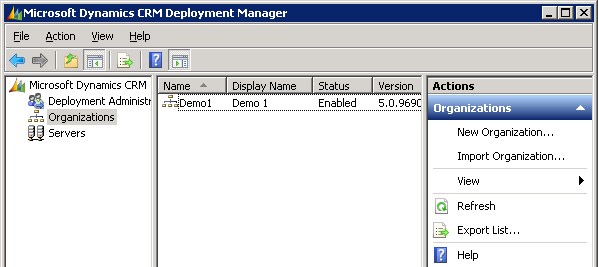
    How would you go about managing multiple databases then? In Dynamics CRM terminology, each database represents a distinct organization in CRM. Adding new organizations into your CRM server can be easily achieved through the CRM Deployment Manager. If all you need is a blank new test organization, then just start the New Organization wizard and click through the process, which will create a new database, configure language and currency settings etc. Click Finish and you’re all set!
    Oh, you wanted your production system entities, fields and other customizations in there, too? No problem, just go into your production CRM settings area, pick a solution that contains the elements you need and export it. If you don’t have such a solution, then simply create a new one, as it’s not going to affect how your live environment operates in any way. After all, solutions are just pointers to the components like entities, processes or plugins, until you export them, at which time they become physical containers to all those bits that make your CRM environment different from the plain vanilla Dynamics CRM organization. Don’t export your transport solution as managed, unless you have a good reason for it (you’ll know once you do). Just take the unmanaged solution zip file from your current CRM organization, open the new one, import it there and publish all customizations. Now we’re done!

    Huh? What’s that you say about data? Would you prefer to have not just the schema of the database but also the contents of your CRM database in that new test organization of yours? In that case, let’s forget the previous steps and use another approach, shall we? Instead of the New Organization wizard you’ll want to use the Import Organization option. Before you click on it, though, we’re going to need to create a copy of your database, because the CRM Deployment Manager does not have a “Copy Organization” feature.

    Typically the Import Organization functionality is used when taking a database from some other environment, like when establishing a whole separate development box or test server. Also the actual upgrade process for turning a CRM 4.0 database into a CRM 2011 database is handled through the same import wizard. When you’re in the process of planning your Dynamics CRM upgrade, this is a handy way to update the old CRM 4.0 customizations into new CRM 2011 solutions. In these scenarios you’d first take a backup of the original database on your old SQL Server, then copy it over to the new environment, import it into SQL and finally into CRM. However, as we’re simply creating a replica of the database inside the same environment, we don’t need to necessarily go through the backup stage.

    On your SQL Server machine, open up SQL Server Management Studio, right click on the database which has the name ending with “_MSCRM”, then select Tasks – Copy Database. This helpful Copy Database Wizard will step you through the process of creating an exact copy of your CRM organization database. Just give it a different name than the original database and point it to the same server. You don’t even necessarily need to schedule a maintenance break for your production CRM environment, since the wizard can create the copy without the need to detach and attach the original database. This wizard actually builds an SSIS (SQL Server Integration Services) package that takes care of the copy operation.

    Before returning to the CRM Deployment Manager we’ll need to pause for a while and think about how the Dynamics CRM server operates. Just like records in CRM, also the actual organization itself has a unique ID in addition to the name and display name visible in Deployment Manager. Although the Import Organization wizard does attempt to handle this, it doesn’t perform it in the most graceful way. The two known side effects from from having overlapping organization ID’s prior to the import are that: A) the import will fail if you’ve customized the business unit entity and B) email router will not work for the new organizations. There might even be other nasty surprises hiding deep inside the database, so ultimately we’d like to have a situation where the organization ID’s are 100% unique.

    There are no official tools for this operation, but luckily the Microsoft Dynamics community has come up with a solution. In the CRM Forum thread “CRM 2011 Import Organization on the same server (or how do you create a development sandboxes)” you can find a script that you can execute on your new database copy. This script will generate a new ID and update it to all the relevant tables, including the PrincipalObjectAccess table where the OrganizationID goes by the name PrincipalID. If you’re not familiar with working on SQL Server then it may look scary, but the process itself is quite simple. Select your new database (not the old one!), right click, New Query. Copy the script created by Frenkie Smart found in the CRM Forum post and paste it into the query window. Pause for a minute amd check that you have fresh backup copies of anything that’s valuable to you on that SQL Server. Got it? Good, then just click the Execute button to run the script. You’ll see in the message window below the query how many records the script has changed in each table it processes.


    Now we’ve got the new database in such a condition that we can proceed to the Import Organization wizard in the CRM Deployment Manager. Select the new database as the one you want to import, give the organization a unique display name and database name, accept the user mappings, and off you go (see detailed process instructions in this Technet article). The Deployment Manager will build a new organization for you from the copy of the existing database, which you can then access by replacing the organization name in your existing CRM URL (in my case from http://server/demo1 to http://server/demo2). If you want to use friendly URL’s or IFD for accessing CRM then you’ll need to know which DNS entries and settings to modify for the new organization to be available.

    That’s it, for real. Here’s a quick recap of the process steps:

    1. Copy your production database
    2. Take backups!
    3. Run the script on the new database
    4. Import the database as a new CRM Organization with a unique name

    The typical scenario for performing this process would be the need to generate several development organizations that contain identical data and customizations as a starting point. If you just want to maintain your own test organization alongside your production CRM environment then there’s a few things you should take into consideration. First of all, the chance for human error. If you have two identical CRM organizations that are separated only by a few characters in the URL, the chances of mixing them up can be high. Second, you won’t be able to test anything related to Update Rollups and other components that are shared by all the organizations on the server. Third, if you’re unsure about what you’re doing, then don’t do it on your live CRM server!

    With all this in mind, it might be a good idea to investigate the possibility of having a separate test server after all, don’t you think? If you don’t have any suitable hardware lying around, then signing up for a virtual machine straight from the cloud is a valid option these days. With its latest improvements, Windows Azure offers a convenient service for provisioning persistent virtual machines as needed. Building a VHD image with CRM 2011 is not a very difficult process if you follow the instructions (and know the few gotchas about SQL or VM size settings). Also, if you don’t need to keep the server up & running on a continuous basis, you can always delete the Azure virtual machine and still keep a copy of the VHD image, available for booting it back up again when the time comes.

  • CRM adventures in Azure: changing the virtual machine size

    CRM adventures in Azure: changing the virtual machine size

    After having managed to overcome my previous challenges of deploying SQL Server 2012 Reporting Services on a virtual machine running in Windows Azure, I was well underway in configuring my Dynamics CRM environment to contain the tools and data needed for developing, testing and even demonstrating custom solutions right in the Microsoft cloud.

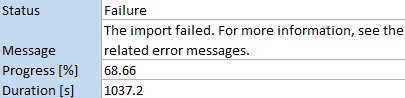
    I had started off with a medium size virtual machine that had 2 CPU cores and 3.5 GB memory. While I’ve been able to successfully use CRM 2011 + SQL 2012 on such a setup as a personal development box, I have to say it’s not exactly the fastest thing around. With me being the only person working with the environment currently, it wouldn’t have been such a big issue, but upon trying to import one 5 MB solution file into a CRM organization I started running into timeout issues, leading to the following message:

    It’s not very uncommon to experience timeouts with CRM when working with large solution files. There are various settings that you can modify to overcome this issue, including the OLEDBTimeout, Web.Config parameters etc. However, I wasn’t having success with the solution import regardless of having applied the registry and settings changes, so I thought why not crank it up a bit and give my virtual machine some more resources. After all, isn’t that one of the selling points of on-demand cloud computing? If you need more power, just adjust the lever and consume the resources as you see fit.

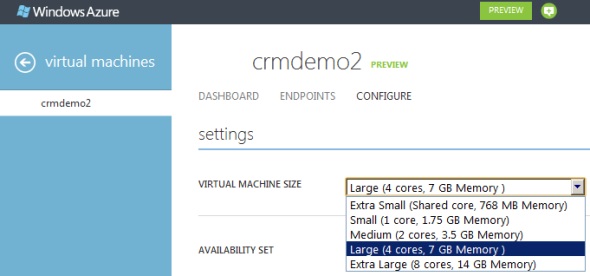
    I proceeded with shutting down my virtual machine from Windows and going to the Azure management portal. After finally getting the portal to confirm that the machine was in a stopped state, I changed the virtual machine size from medium to large (4 cores, 7 GB). Great, now let’s fire it up once again by clicking on Restart and… it doesn’t start. Trying it again and still the only result I get is the following notification in hte Azure portal:

    The virtual machine cannot restart. The current virtual machine state is RoleStateUnknown.

    Ok, I’ll wait a while, I thought to myself. After a few minutes and some more clicks on the Restart button I was starting to get a bit anxious on why my server wasn’t booting up. I started googling for the error message and discovered a discussion thread that indicated I wasn’t the only person in the world suffering from this problem. The RoleStateUnknown message appears to be a known issue that the Windows Azure team will be fixing by the time the Preview phase is over, but for the time being, this is something you can expect to happen if you power off a virtual machine in Azure on a bad day. If the error message does not go away, the only workaround you have is to create a new copy of your virtual machine.

    While there are ways to do the process through PowerShell to export & import the virtual machine, I decided to take the GUI route and just click on the Delete button on my virtual machine. I must admit that particular action doesn’t feel quite right, deleting the very server you’re trying to get back up, but in this context it’s actually not as catastrophic or irreversible as it sounds at first. You see, the server really is just a VHD disk that has been assigned the hardware, IP and other pieces that make it operational. It’s also worth noting that this is the way how you can stop incurring costs from your virtual machine. If you just shut down your VM, you will still be charged for it, but if you delete the server, you’ll have an image available that you can later on use for creating a new server.

    After deleting the server, I created a new one with the same configuration. OK, not exactly the same, as both the [servername].cloudapp.net DNS entry and the IP address will change in the process. Also do note that the remote desktop port will be different, so only updating the server name in your RDP settings won’t allow you to connect, as I quickly discovered after clicking on Restart.

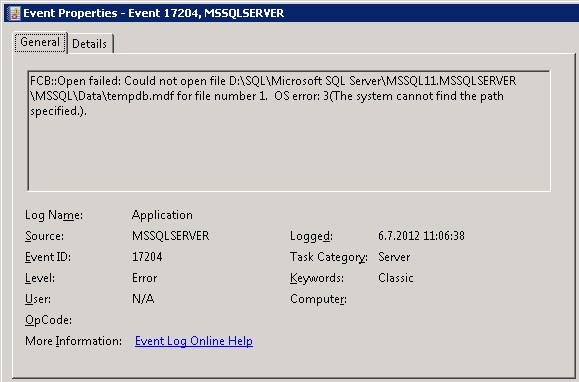
    Oh yeah, I had that extra F-drive on my machine, too! Better remember to attach that disk as well, since that’s where my CRM databases are located. I hit a restart on the SQL Server service, but noticed that the databases still weren’t available. Then I remembered what Shan McArthur had accidentally demonstrated in his Windows Azure 2012 Spring Wave webinar session on XRMvirtual earlier this week. Although the D-drive on an Azure virtual machine is great for storing temporary data that doesn’t need to be consuming that precious C-drive, the fact that the D-drive is only a temporary storage means also that any directory which you create on that disk will not be available once you spin up a new virtual machine from the same VHD. A quick peek into the Windows application log confirmed that this was what was keeping my SQL Server from starting up, as it wasn’t able to locate or create Temp DB and log it needed.

    “FCB::Open failed: Could not open file D:\SQL\Microsoft SQL Server\MSSQL11.MSSQLSERVER\MSSQL\Data\tempdb.mdf for file number 1.  OS error: 3(The system cannot find the path specified.).” There we go, that was the path that was missing from my D-drive. In a default configuration the temporary database would have been under C:\Program Files, but I had put it on D:\SQL instead, so I needed to manually go and create the folder. After this my virtual machine was again able to run CRM the way that is was meant to be. I’m sure there’s a PowerShell script sample out there somewhere for those who wish to automate the directory existence verification and creation upon restart of their servers, but this shouldn’t be a too frequent problem unless you go deleting your Azure virtual machines on a regular basis, so I didn’t bother looking up one right now. The main thing for me was I had my CRM test server running now on double the capacity.

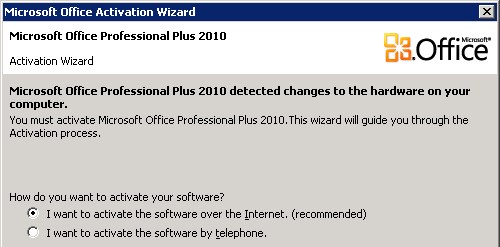
    As a side note, once I opened up Excel, I was greeted by this Microsoft Office Activation Wizard. I guess that proves that it’s now really a whole different machine I’m working on, even though I booted up from the same VHD that I had already activated on the previous day. Hardware based license management feels a bit funny when operating in such an intangible environment as Azure, but that’s how it is…

    Finally, let’s get back to the topic mentioned in the title of this blog post: What is the right way to change the size of your Windows Azure virtual machine? It turns out that you can actually do this right from the Azure management portal without shutting down your server. That’s what it says on the Azure community pages:

    NOTE: If you are attempting to just change the size of your Virtual Machine, you can do this without stopping the Virtual Machine. You can go into the “Configure” tab on the virtual machine in the management portal and select the Virtual Machine size. This will change the size without first stopping, which will allow you to avoid this issue in this scenario.

    Will be interesting to see how the Windows server will cope with disappearing CPU cores and memory if I decide to go back from Large to Medium, but I’ll leave that experiment to the next time. Now let’s see if I could get that solution file imported first…

  • CRM adventures in Azure: SQL Server 2012 updates

    CRM adventures in Azure: SQL Server 2012 updates

    Windows Azure Pricing Calculator for Virtual MachinesAfter Microsoft announced their latest enhancements to the Windows Azure service catalog in the beginning of June (although still in a preview phase), I wanted to test the Azure Virtual Machines for running a Microsoft Dynamics CRM 2011 server instance in the Microsoft hosted cloud. Since we now have an excellent step-by-step tutorial available from Shan McArthur / AdxStudio, it was a breeze to get going with the installation process. You should also check out the Gold Coast blog by @devkeydet for some really helpful articles, such as Building a CRM 2011 dev box using a Windows Azure Virtual Machine. With high quality community content like this available, who wouldn’t want to build a CRM server in Azure?

    Hopefully I’ll get a chance to write some of my own experiences on working with Windows Azure in the future, but the first issue I ran into is actually more related to SQL Server in general.

    Side-by-side was not on my side

    In addition to Azure, I also wanted to utilize the latest SQL Server 2012 version to investigate what new reporting capaibilities it might offer compared to the trusted old SQL 2008 R2. The SQL 2012 installation went through without any errors but after I tried to launch the CRM installation I discovered that Reporting Services was not running. In the application log I had the following errors:

    Service cannot be started. System.IO.FileLoadException: Could not load file or assembly ‘ReportingServicesNativeServer, Version=11.0.0.0, Culture=neutral, PublicKeyToken=89845dcd8080cc91’ or one of its dependencies. The application has failed to start because its side-by-side configuration is incorrect. Please see the application event log or use the command-line sxstrace.exe tool for more detail. (Exception from HRESULT: 0x800736B1)
    File name: ‘ReportingServicesNativeServer, Version=11.0.0.0, Culture=neutral, PublicKeyToken=89845dcd8080cc91’ —> System.Runtime.InteropServices.COMException (0x800736B1): The application has failed to start because its side-by-side configuration is incorrect. Please see the application event log or use the command-line sxstrace.exe tool for more detail. (Exception from HRESULT: 0x800736B1)
    at Microsoft.ReportingServices.Library.ServiceAppDomainController..ctor()
    at Microsoft.ReportingServices.Library.ReportService.OnStart(String[] args)
    at System.ServiceProcess.ServiceBase.ServiceQueuedM…

    Activation context generation failed for “F:\SQL\Microsoft SQL Server\MSRS11.MSSQLSERVER\Reporting Services\ReportServer\bin\ReportingServicesNativeServer.dll”.Error in manifest or policy file “C:\Windows\WinSxS\manifests\amd64_microsoft.vc80.atl_1fc8b3b9a1e18e3b_8.0.50727.4053_none_8a1a02152edb659b.manifest” on line 0. Invalid Xml syntax.

    After a bit of googling I landed on a blog post on SQL Server VC++ Installation voes, which seemed to describe the exact same issue I was facing. I tested the sxstrace tool and the System File Checker (SFC) referenced in the post, reproducing the same results as the author was getting. It turned out that this side-by-side (SXS) error was caused by a manifest file that was empty. A similar discussion was also found in the Windows Azure Virtual Machines for SQL Server MSDN forum, so figured I must be on to something.

    Just before I was about to start modifying the manifest file properties and copy pasting the content there, I noticed that there was one detail which stopped me from proceeding: both of the posts were referencing an x86 processor architecture file (x86_microsoft.vc80.atl_1fc8b3b9a1e18e3b_8.0.50727.4053_none_d1c738ec43578ea1.manifest), whereas my error was related to the amd64 version (amd64_microsoft.vc80.atl_1fc8b3b9a1e18e3b_8.0.50727.4053_none_8a1a02152edb659b.manifest). So, I needed to hunt down the correct manifest file content for the 64-bit version with the proper hash value, but unfortunately this was where my googling came up short.

    After being a bit more creative with my search terms, I discovered the Microsoft knowledge base article 2688946: FIX: Error message when you install SQL Server 2012: “The identities of the manifests are identical but their contents are different”. The article also said that the fix for this issue was released in Cumulative Update 1 for SQL Server 2012. So, off to KB 2679368 then to request a download link for the CU1 file. Looks like MS doesn’t want just anyone installing these, so they make you fill in a form with your email address + captcha in order to get the file, but luckily that’s all there was to the process.

    I was a bit puzzled by the fact that the CU1 installer said “This installation provides updates for the Community Technology Preview (August CTP)“, but apparently it’s fully valid for the RTM version, too. I guess the components in SQL tend to be less strict about versions, since the SQL Server 2012 Reporting Services Configuration Tool still has “SQL Server 2008” in the process description… Anyway, after applying CU1 I was able to start the Reporting Services service and proceed with the CRM installation. Success!

    The lesson: there’s always an update hiding somewhere

    When building your development or demo environment, it’s important to be aware of the fact that what you get from the MSDN subscriber downloads site is mostly RTM bits. Especially when going for SQL Sever 2012 as the database for Dynamics CRM 2011, you should not use these files at all, because the installation won’t work. Just grab the product key from MSDN, but go to Microsoft Download Center here (direct download link to CRM 2011 Server) to get the new version that includes Update Rollup 6. Otherwise you won’t be able to configure the Reporting Extensions and will get the error “Unable to validate SQL Server Reporting Services Report Server installation. Please check that it is correctly installed on the local machine.” See this thread on the CRM Forum for some more info.

    Shortly after completing the CRM installation I discovered that there is in fact already a Cumulative Update 2 for SQL Server 2012, too. Wow, things move fast nowadays! Didn’t SQL 2012 get released just recently? Well, it turns out that actually the first cumulative update to SQL Server 2012 was released only 9 days after the general availability (GA) of SQL 2012. Let’s have a look at the Incremental Servicing Model of SQL Server in a bit more detail to understand what’s going on.

    It looks like also the SQL Server team have adopted a fairly agile release policy that mirrors the Dynamics CRM release roadmap concepts to some extent. What they call a Cumulative Update (CU) seems to correspond to the Update Rollup (UR) in the Dynamics CRM lingo, meaning they are both collections of hotfixes, released on a bi-monthly target schedule. However, unlike CRM Update Rollups that are nowadays delivered through Windows Update / Microsoft Update, the SQL CU’s won’t be delivered through this mechanism, because those updates need to fall into the General Distribution Release (GDR) category as defined by Microsoft (you didn’t think it was going to be that simple, now did you?). So, that’s why after installing SQL 2012 + CRM 2011 on a new Windows server you’ll automatically get Update Rollup 8 for CRM, but no updates for SQL. If you need the latest hotfixes, you should acquired the Cumulative Update package through the KB pages.

    Finally, yes, there will also be a Service Pack 1 for SQL Server 2012 released eventually, as many people will refrain from deploying a production database on a new version until this traditional MS software milestone has been reached. Whether the SP1 for SQL 2012 will be a similar release as the Q2 2012 Service Update for Dynamics CRM (to be released sometime in Q3) I’m not so sure, since in the world of CRM these Service Updates contain significant new functionality in addition to the previously released hotfixes. The latest information on SQL updates can be found from the SQL Release Serivces Blog. Note that there are no Service Packs available for Dynamics CRM, so the terminology used in describing the release policies will likely remain different from other Microsoft products like SQL or Windows. For a more detailed description of the CRM update terminology and delivery mechanisms, please see my previous post on the topic.

  • Cloud XRM presentation from PDC 2010

    Andrew Bybee and Girish Raja had a pre-recorded session released on the PDC10 site, called Building Business Applications in the Cloud with Dynamics CRM Online. Not surprisingly, this presentation was revolving heavily around Microsoft Dynamics CRM 2011 and how it’s new features can help developers build XRM applications on top of Microsoft’s cloud architecture: Windows Azure, SQL Azure, AppFabric and, last but not least, CRM Online. You can view the full session here, below are a few takeaways from that session for the CRM crowd.

    The concept of XRM is probably pretty clear to most of us by know, but since PDC is not a Microsoft Dynamics event, an introduction was of course presented. The example used by Andrew here was the familiar HR scenario for processing job applications.

    In the next slide the MS pieces of the puzzle are laid over the solution components.

    With the native support for SharePoint integration in CRM 2011 (limited but extendable through SDK), drawing the document management box inside the XRM platform is already perfectly valid. ERP in the cloud is not a scenario actively promoted yet, but that’s where AppFabric and CRM 2011’s Azure aware plug-ins come into play, allowing the cloud apps to exchange data with on-premises apps. The whole Azure side of things is of course presented in less detail, as these are more of generic services rather than the XRM framework which Dynamics CRM 2011 tries to deliver us. Anyway, compared to the first application development platform talks around Dynamics CRM, it’s safe to assume that Microsoft’s cloud message will become inseparable from the XRM story and form a single Cloud XRM concept. In order to challenge SFDC and Force.com, the hybrid model and power of choice will of course remain in the marketing materials, but I’m sure no one wants to build a non-cloud demo for these kind of conferences anymore.

    (more…)

  • Dynamics CRM 2011 and the world of (cloud) apps

    On July 12th it was announced in the Microsoft Worldwide Partner Conference (WPC 2010) that there will be no CRM 5.0, instead we will have a product called Microsoft Dynamics CRM 2011. Not a huge surprise, considering the other Dynamics products like AX and NAV had already moved to this naming convetion followed by the Office family for quite some time now (actually 15 years, if we exclude the odd Office XP release in the middle).

    So much for the branding. Underneath it all we will have the “CRM5” engine evolving from CRM 4.0, with quite a few important improvements on how the application can be utilized as a platform for developing your own custom applications, a.k.a. the XRM mantra that Microsoft has been heavily promoting and showcasing between the product version releases. While this side of the coin will surely play an important part in gradually turning Dynamics CRM into part of the core enterprise infrastructure like SharePoint has become, the first thing most new users will see from the application will still be the Outlook client and traditional customer data management functionality. Which is why there have been some big investments from the Redmond boys on developing that side of the CRM product, as you can see from the picture below.

    Instead of merely wrapping the web client page into an Outlook frame, the new rich client interface introduces whole new components that attempt to follow the faimilar Outlook UI experience. Tabs will help in keeping the number of pop-up windows under control while the preview pane we’ve learned to take for granted in processing our email inboxes is now also available in the scope of CRM entity forms. Since Dynamics CRM 2011 now comes with the ribbon interface like most other MS products, the CRM functionality now blends into the Outlook toolbar and gets presented in all its context sensitive glory. (more…)