Tag: apps

  • Excel cannot be beaten

    Excel cannot be beaten

    Happy 40th birthday, Microsoft Excel!🎉

    I wish I could start this post by “the first time I used Excel…” But that’s impossible since it feels like Excel has always been there. Not on my very first 386sx PC in the early 90s, no. Back then I was mostly doing games, music, and the occasional pre-internet discussions in different forums (my previous post is all about that). When I started my business studies and when I got my first job roles, though, Excel was just how things got done. A lot of things.

    When I got the chance to visit Redmond for the first time as part of the Microsoft MVP Summit, of course I bought a souvenir from the Microsoft company store that was about Excel. Today, I’m still extremely happy to wear this beautiful shirt:

    The significance of Microsoft Excel and spreadsheet software in general can hardly be overstated. It is truly the nr. 1 business app. Many people could easily do without the other MS Office products, replacing them with Google’s apps or whatever modern tools have emerged in the past couple of decades. But Excel? So many folks would simply hate having to use anything else.

    Why is Excel so unbeatable? Why do so many companies try to fight it nevertheless? Let’s reflect on that.

    Trying to fight Excel

    I started working with customer data analytics and direct marketing at the turn of the millennium. Back in 2000, there was no SaaS. Instead, companies invested in server software and hardware to do things that today’s Excel workbooks with 1 million row limit could easily handle. This scarcity of apps also meant that everything which did not have a dedicated server + client combo in place was done with Excel.

    The Holy Grail of “Customer 360” required a central database for customer information, which meant years/decades of trying to migrate the Excel-based business processes into CRM systems. At the start of such a journey, everyone was quick to agree that “yeah, this thing shouldn’t really be in Excel workbooks”. Once a system was in place, however, the question turned to “can I export this info into Excel?”

    “In the analytics industry there is a standing joke that “Export to Excel” is the most used feature of any analytics software.”

    Hjalmar Gislason: Export to Excel — business software’s most common feature?

    Why do people want to go back to the world of spreadsheet after they have deployed a purpose built business application for the data in question? Because FREEDOM!!!

    Sure, the apps that are designed for specific business processes can give readymade views into the data that you can open with a click. They usually also offer automation that could perform actions like data updates, notifications, summaries, integration, and all sorts of tasks that would be much more laborious when working with spreadsheets.

    It all sounds incredibly useful, especially before you have any such apps in place. The idea of being able to rely on a tool from developers that have already figured out what you’d want the computer to do is just beautiful. Everybody wants to spend less time thinking about “how do I do this” and would rather have “an app for that”. This has given birth to countless SaaS solutions that are simply unbundling Excel spreadsheets into dedicated apps:
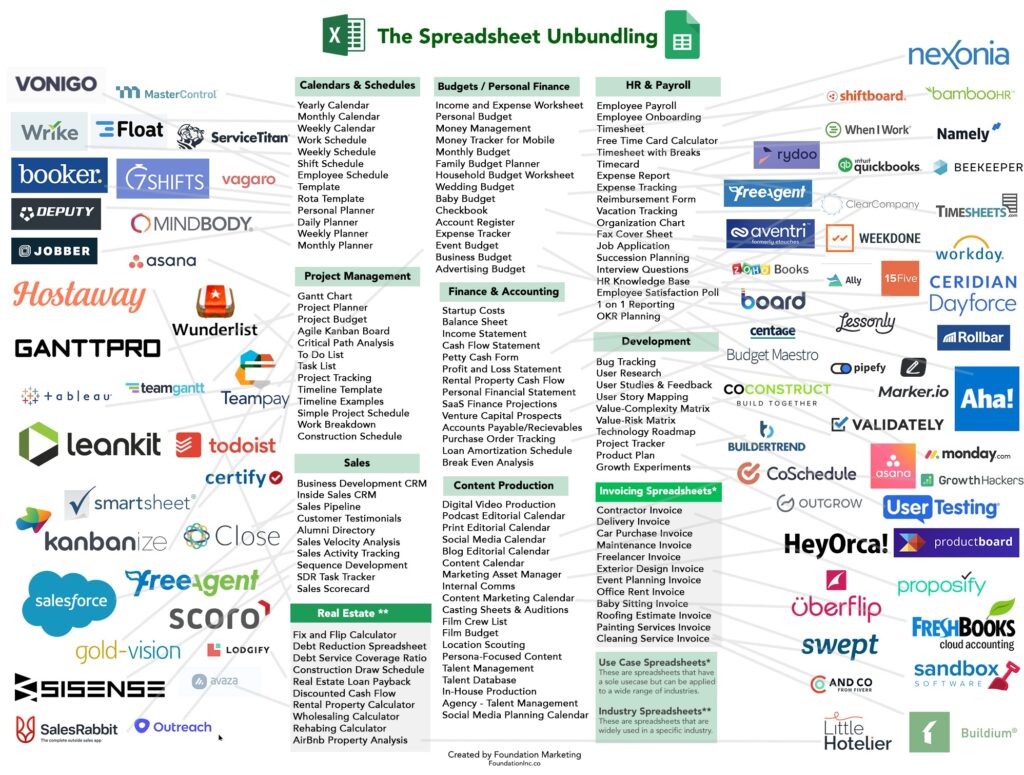
    And yet none of the apps can escape the “I wish this worked like Excel” request from the users. Inevitably there will come a time when either the features of the app feel like a constraint that gets in the way – or the users just can’t figure out the intended process of how to do things in this specific, unique application that they’ve not used for this purpose before.

    Why Excel rocks

    For a business applications guy like me, it’s natural to see a process managed with Excel and immediately jump into thinking what data models, interfaces, automations and integrations could be put in place to make everything more efficient. Starting from CRM, the assignments I have been given usually always include the “M” – managing things. Not just for a single PC user but for a group of users, sometimes spanning to thousands of individuals.

    Business apps with a clear separation of the server-side database and logic from the client-side UI are indeed a better way to managing things involving many users. Yet we often forget that it’s not enough to cover 80% of the tasks with built-in features of our slick, modern web apps. The employees who are in charge of end-to-end processes must complete 100% of what their role requires. If our minimum viable product doesn’t have complete coverage, the users need to figure out a way to get the remaining work done.

    That’s where Excel is the hero. It adapts to the needs of the user unlike anything else available to typical information workers. Whereas Word documents are often just digital versions of paper docs, Excel introduces dimensions not found from the physical office tools. Its UI invites the users to model their problem domain in a 2D digital canvas – much like a box of Legos will invite kids (and grown ups) to build abstract plastic versions of real-world things.

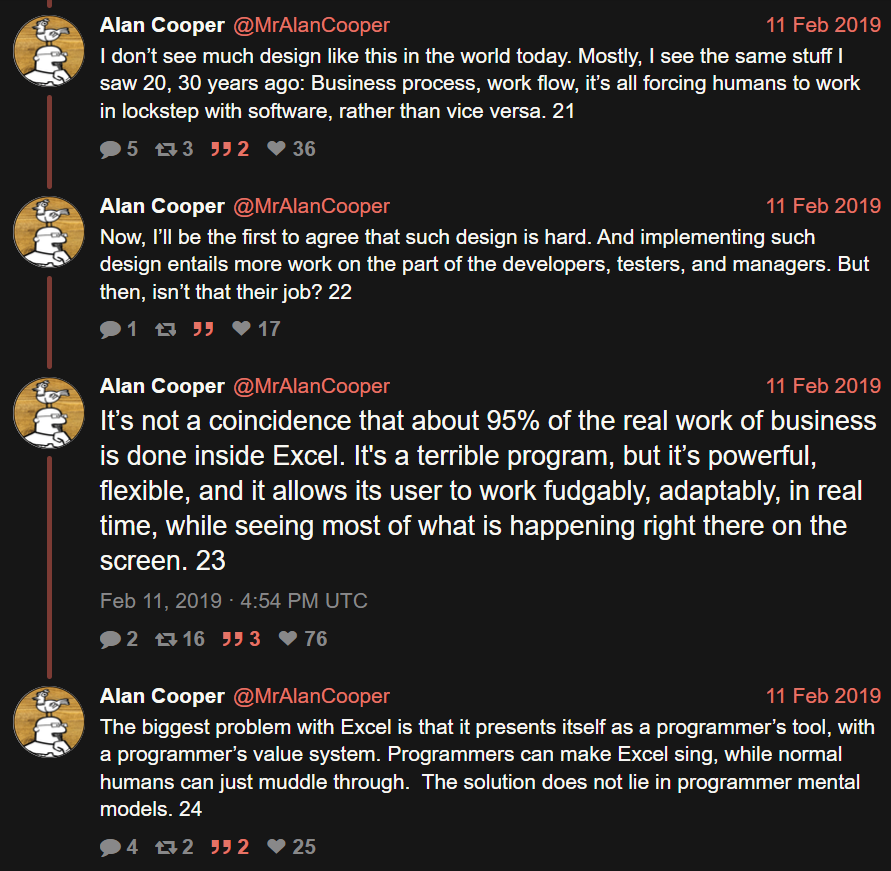
    Mr. Alan Cooper, the father of Visual Basic, calls this the fudgability of software. “[Excel is] a terrible program, but it’s powerful, flexible, and it allows its users to work fudgably, adaptably, in real time, while seeing most of what is happening right there on the screen.”
    Sometimes we need rigidity in business processes. We want to have repeatable outcomes that aren’t different based on who is operating the tools, or where & when. Business apps are excellent for facilitating a common way of working. At the same time, we must remember that a significant portion of information work consists of ad-hoc requirements and fuzzy processes adapting to incomplete data.

    That’s when we rely on the humans to understand what should be done. They, in turn, will rely on available tools that allow them to tackle data processing needs without unnecessary limitations. Meaning spreadsheets in most cases. Yeah, I wish more people were able to turn those repeatedly used Excel sheets into low-code solutions with Power Platform tools, yet that’s a bit too much to ask from individual workers most of the time. Most often, Excel is just a better fit.

    LLMs only wish they could be like Excel

    AI is supposedly eating the software world. It certainly is eating all of the available capital (and more) in trying to turn computers that used to be reliable into something that’s… not. The advantages of having the computer understand natural language and being able to respond to any question are of course huge. If only there wasn’t that minor inconvenience that we can’t know if the response is correct or not.

    Microsoft, a.k.a. The Copilot Company, has of course been fearlessly approaching the idea of combining creative large language models with software that is normally used for precise calculations. The result is news headlines like this: Microsoft launches Copilot AI function in Excel, but warns not to use it in ‘any task requiring accuracy or reproducibility’. Okay, cool, I only ever used Excel for fun and games anyway, so no worries about those accuracy gaps…

    The area where creativity and conceptual problem solving could be very useful is in designing how to get from an Excel into an app. I’m optimistic about the LLM-based Maker features accelerating and expanding the possible Power Platform solutions that can be built for varying types of business problems. If we don’t expect AI to work the same way every time, but rather use it as a force multiplier for fudgability, the risks of hallucinations breaking the business processes should be much lower.

    Let’s look at one case where I’d like to see AI replace Excel in my personal life. For 4 years now, I’ve been tracking the expenses related to my car using an Excel workbook. Fuel amount, cost, mileage are an example of what I’ve entered there after every visit to the gas station:
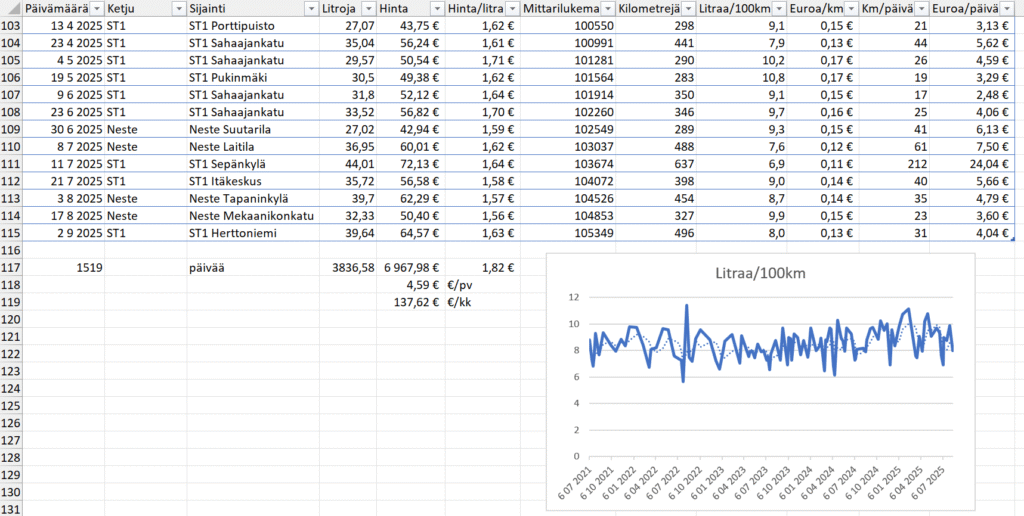
    Many, many times, I’ve thought to myself “I should turn this into an app”. After all, what kind of a Power Platform evangelist would just keep working on an Excel file for years without modernizing the process? Yet whenever I started to think about the details of what should be there to replicate everything my workbook provides (there are other sheets there, too), I realized it’s a heck of a lot of work to achieve parity with what Excel gives me. No rational reason ever existed for me to put in all the work to achieve something that I’d be happier using. It could have been a community demo, sure, but I always had other stuff to work on.

    Now, when we are living in the age of agentic AI, surely it’s about time to replace the Excel? Well, if I could just give that file to an AI tool and make the machine modernize it for me, why not. Last week, when Lovable announced their file uploads feature and claimed “you can now drop files directly into Lovable and turn them into apps and websites”, I decided to try it out. Sure enough, the vibe-coding tool was able to generate a web app from the .xlsx file:
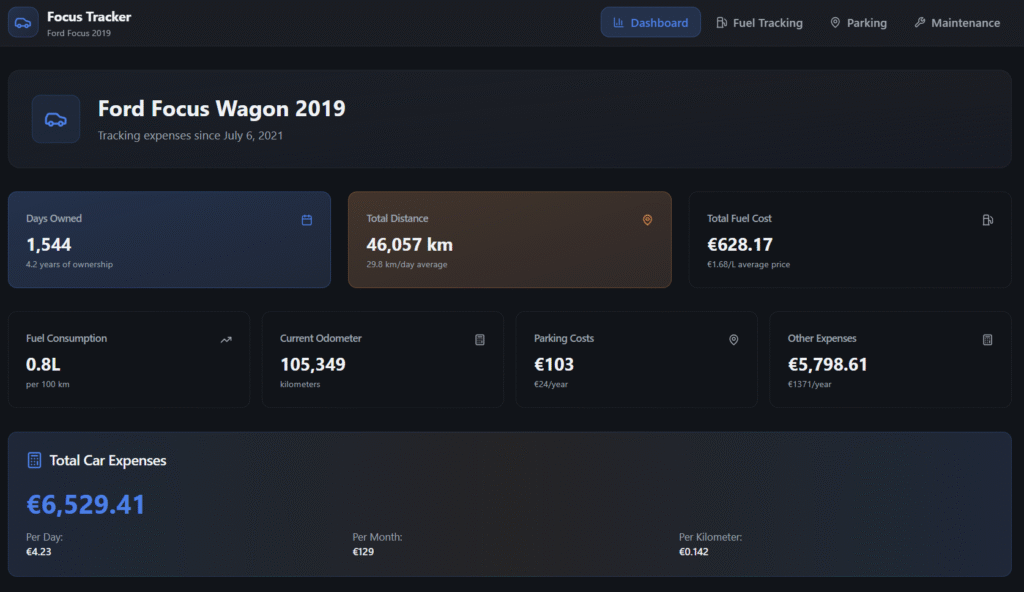
    The only problem? The data is not correct. Like, I only wish my 2019 Ford Focus 1.5 EcoBoost was able to run 100 km on 0.8L… In reality, the React app generated by Lovable was not able to handle the “big data” of around 200+ lines of data in the Excel workbook and instead chose to read only parts of it. The AI chatbot of course will claim this app has “real calculations from your Excel”, but we all should know at this point how LLMs are just manipulation machines that you shouldn’t spend time arguing with.

    I never have to worry if Excel is trying to manipulate me. It may not always understand what I’m trying to do, yet the machine never pretends that it did the work it promised to do while giving out a bogus number instead. The math is not based on vibes. Today, we have LLM-based AI features inside our spreadsheets that are sometimes able to call deterministic tools like Python to do real calculations. But we have no certainty that AI would always resort to such tools when needed, instead of just making shit up.

    That doesn’t stop companies from trying to make AI in Excel work. OpenAI has funded startups like Endex that develop Excel add-ins for injecting LLM magic into spreadsheets. Microsoft is also aiming beyond Excel Copilot with their recent preview launch of Agent Mode in Excel. Could these tools already replace a financial analyst creating Excel workbooks with formulas and business metrics? I decided to give Agent Mode a try on the day it came out:

    You can check out the experience and end results from the video. In short: Excel Agent Mode ain’t necessarily a tool you should yet rely on…

    If you can’t beat them, join them

    Instead of seeing Excel as something that should be replaced, perhaps a better strategy is trying to accept the fact that Excel files will always exist. Because people want to experience the control that Excel gives them, instead of limiting themselves to the GUI prison of your business app. Similarly, they’d prefer if the numbers that get shown to them would be based on verifiable math rather than on-demand hallucinations of “vibe working” tools.

    I’m somewhat biased here because this is the route we have taken when building FinModeler. A SaaS application that helps business founders or financial advisors to create detailed financial models with its simple web-based wizard UI. And then, producing an Excel workbook for you, complete with dynamic formulas that allow you to adjust the model with the tool you know and love.
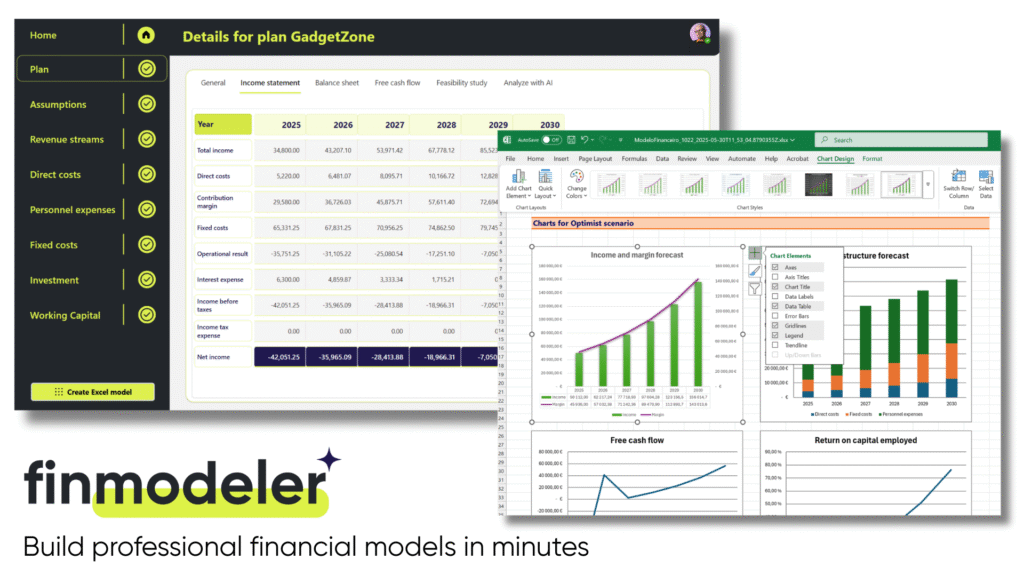
    It’s not your typical product built on Power Platform. Not simply because of the full-fidelity Excel workbook generator feature. But rather the whole SaaS delivery model of offering a canvas app that requires zero installation differs from the expected way of partners shipping products on Microsoft’s low-code platform. In many ways, this is not how business apps are supposed to work – but we’ve done it anyway!

    Today, anyone can check out how this combination of Power Platform + Excel works in practice by signing up for a free 14d trial of the FinModeler app. There’s a lot more that we can do in future versions of the product, besides just creating extensive Excel workbooks. The fact that the financial model data is stored in a structured Dataverse database is a much better position to build new features than if we’d need to rely on Excel files alone. Still, it’s essential that the users have the possibility to interact with the model that offers them the ultimate level of control and confidence.

    Spreadsheets are forever

    The moral of the story is: it’s not either/or. We are all better off when there are different types of tools available for working with business data and processes. Both structured apps and fudgable spreadsheets serve a clear purpose. Similarly, we have room for both deterministic, reliable software as well as creative and unpredictable AI. Trying to force people into choosing just one tool never works.

    Recent estimates say Excel is used by over a billion human users. In the near future, there will be countless AI agents built that will also try their best to learn how to work with Excel spreadsheets. What I’ve learned is that while you can (and often should) go beyond spreadsheets to evolve and improve your processes, it’s foolish to think that you could replace Excel entirely. Turn it around instead and think of all the data manipulation and calculation features you don’t have to build into your own software, thanks to Excel being there to handle it with ease.

    After 25 years of working professionally in the field of customer data and business applications, I’m proud to once again add a sticker onto my laptop that celebrates the magical powers of Excel:

  • New Team Member apps for Dynamics 365

    New Team Member apps for Dynamics 365

    In the 2020 Release Wave 1 release plan documentation we saw that Microsoft is finally going to bring technical licensing enforcement for Dynamics 365 Team Members into the platform. By launching specific App Modules designed to be used with the cheap Team Member license as well as building the mechanism for controlling which Service Plan entitles the users to access which App Modules, there will now be a clear line for what is and isn’t possible right within the system.

    That’s how it is in theory. What about in practice? Let’s explore the Early Access features launched for 2020 Release Wave 1 on February 3rd and see how these App Modules are implemented.

    Sales Team Member app

    Since Sales is by far the most common business process that CRM systems built on Dynamics 365 Online are managing, let’s start from the dedicated Team Member App Module for this scenario. The pre-release documentation isn’t very extensive yet, but from there we can get the basic intention of this new app:

    “At a high level, users with the Team Member license can perform the following tasks in the Sales Team Member app: 1) Customer management: work with accounts and contacts. 2) Lead and opportunity management: see leads or opportunities linked with accounts or contacts, or see other sales-related data. 3) Add activities, such as notes.”

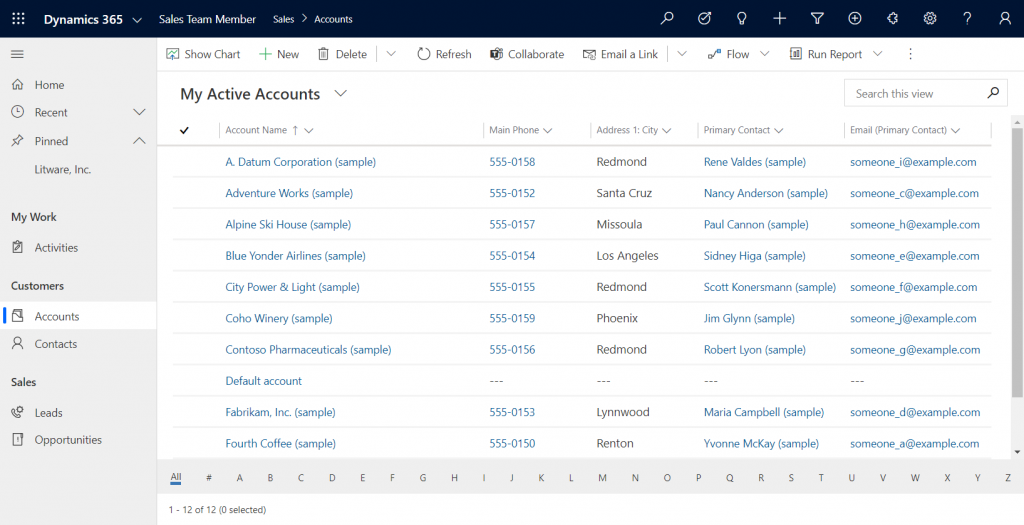
    Upon launching the app, we’re greeted with a familiar experience that looks like Dynamics 365 Sales, only it’s simplified to contain just 5 menu items in the sitemap: Activities, Accounts, Contacts, Leads, Opportunities. If the dashboards menu was also included here, the app would resemble the kind of CRM system that most small organizations or teams actually need in real life.

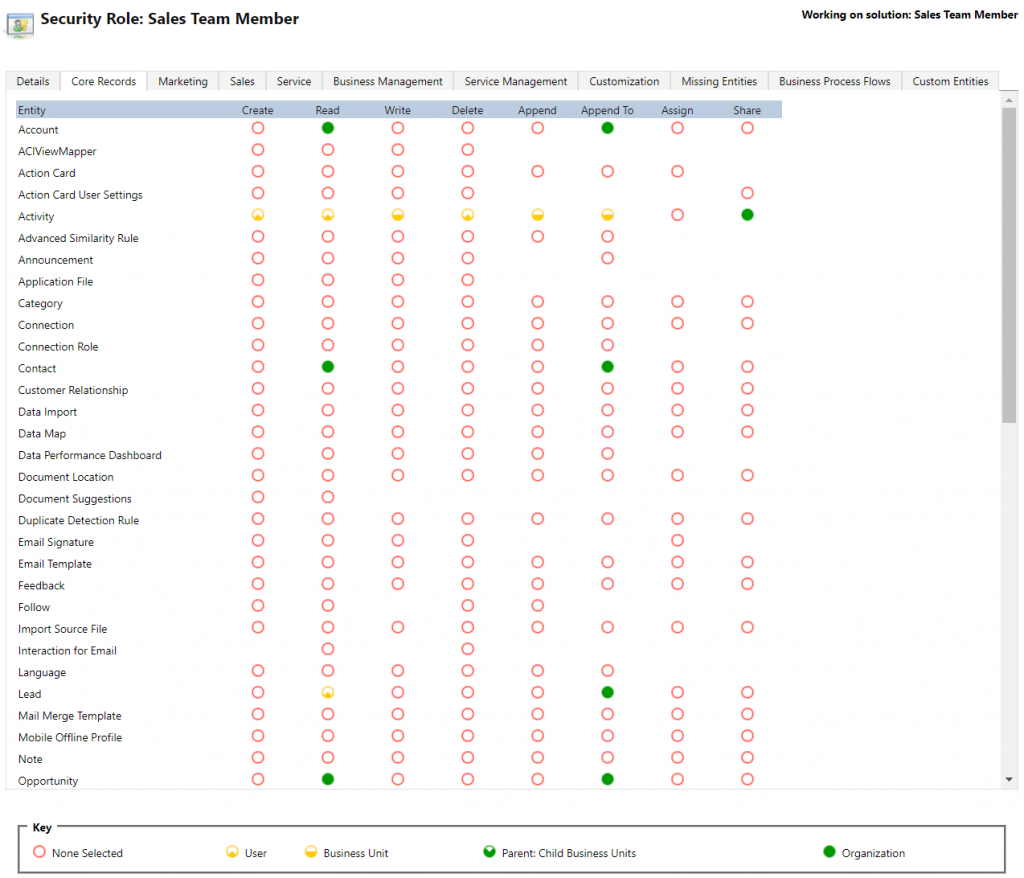
    If we’re using the app with the full access rights granted by a powerful security role like system administrator then there isn’t much that the Sales Team Member app stops us from doing. For example, creating or editing accounts is one of the rights that has been stripped away from the Team Member license, yet the app would happily show us a “New” button for adding accounts via this App Module. The secret lies in the Sales Team Member security role that comes with the solution. A view of the privileges for core entities looks like this:

    Wow, that’s quite restricted indeed! Assigning only this role the users wouldn’t even permit viewing activities from anyone else, nor leads, or adding contacts. Let’s get back to the customization options later, but this is indeed in line with the description of what Microsoft intended the offer with the standard Sales Team Member app.

    Customer Service Team Member app

    The second experience is for Customer Service – but not in the way that you’d traditionally see the Customer Service App of Dynamics 365 being leveraged for assisting external customers. This Team Member app is intended for scenarios where the app users is actually the customer being served:

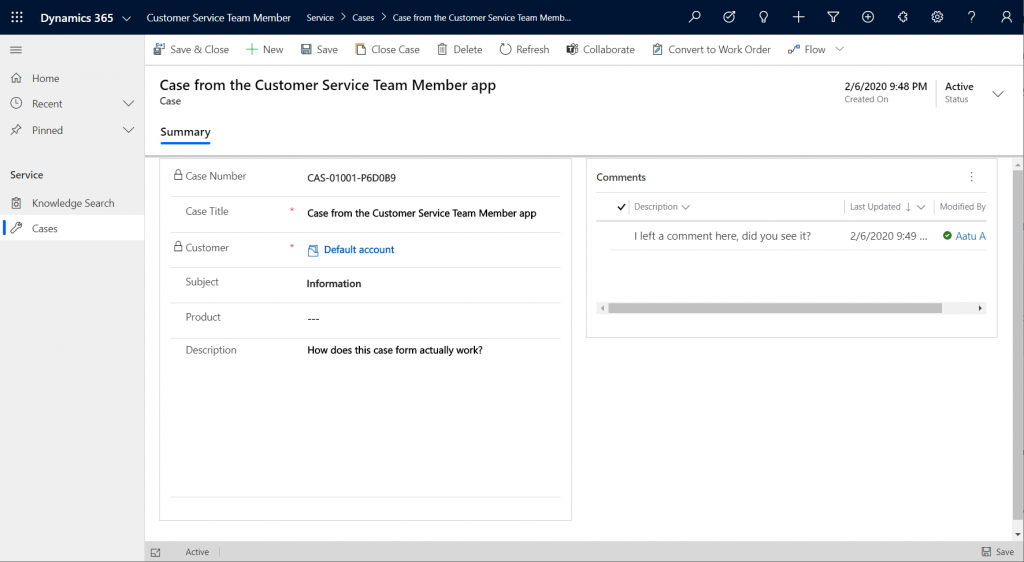
    “With the entry-level Team Member license, you can now address self-service support scenarios for your employees using the new Customer Service Team Member app module. Employees can create cases for their problems, such as laptop issues, HR queries, and administrative needs, and interact with agents through the commenting feature. They can also search the knowledge base for solutions pertaining to their problems.”

    Unlike the Sales Team Member App, this App Module isn’t installed by default. That’s probably a good thing, since I’d imagine the majority of Dynamics 365 customers are not using it as an internal helpdesk – although it definitely is a perfectly sensible scenario. If that’s what you’re doing, then the CS Team Member solution installation will need to be started from the Dynamics 365 Admin Center.

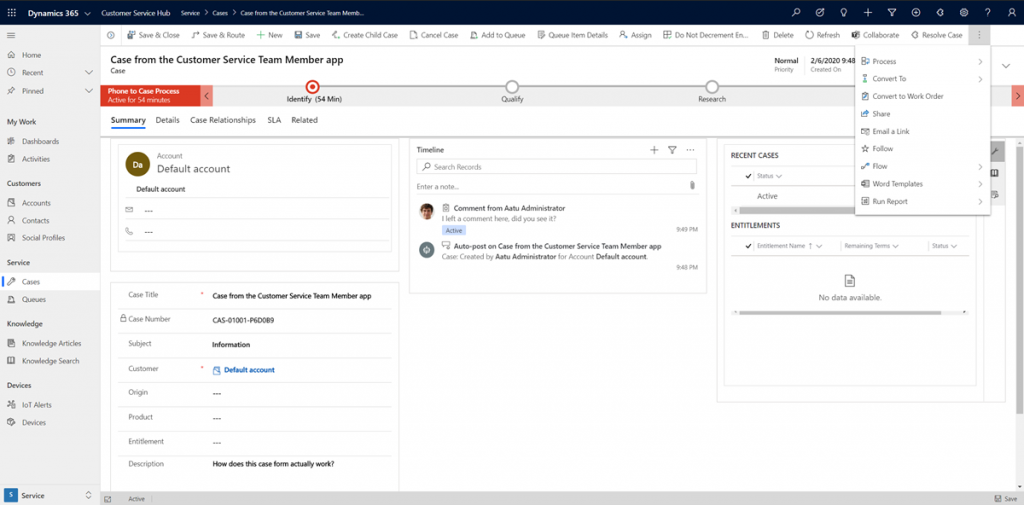
    If we look at the same case record via the full form in the Customer Service Hub App Module, we’ll see quite a stark difference. The solution package for the Team Member app appears to contain a web resource called Incident_teammember_library.js that modifies the behavior of the case form in many ways, such as hiding the Business Process Flow, replacing the standard Resolve Case dialog with a much more streamlined version and who knows what else. The Command Bar also contains far less functionality than it normally would.

    An interesting feature of the Customer Service Team Member app is the use of a default account that you can configure for the organization. The cases created via the Team Member app will automatically be linked to this account as the customer. The requirement for having either an account or contact as the customer has been a part of the MS CRM data model since day one, which has traditionally made the internal helpdesk scenarios quite tricky to implement – if the customers actually are users of Dynamics 365. Without any further documentation, I’m not quite sure what Microsoft’s vision has been for this new feature in the Customer Service Team Member app, since it looks like there isn’t any linkage to the internal customer (user) now in the case data model. If a person who provides helpdesk services would now assign the case to himself to work on, where’s the reference to the actual person who was in need of assistance?

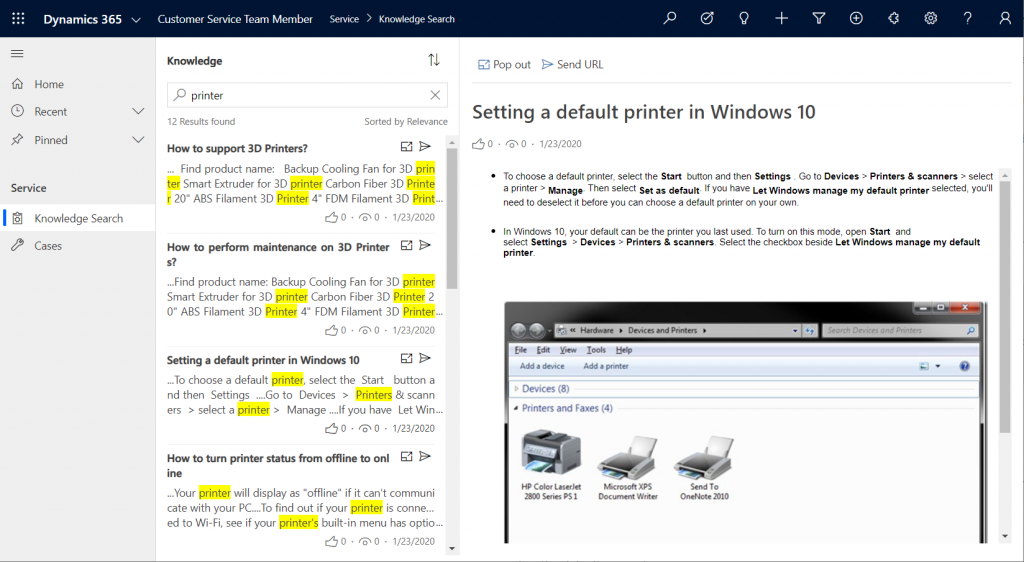
    The other available menu in the Team Member app sitemap, Knowledge Search, isn’t a reference to any entity but rather presents a dedicated UI for browsing published Knowledge Articles. Well, browsing isn’t maybe the right term, since the only option here is free text search for keywords, which will then return a list of articles if matches are found.

    It’s good to keep in mind that certain features of Model-driven Apps in Dynamics 365 aren’t yet App Module aware – meaning they’ll be presented in the UI the same way regardless of which specific app the user has launched. Recent and Pinned items will contain data not included in the App Module, Advanced Find will show all entities that are visible to the user’s security role, the Assistant and (deprecated) Task Flow buttons will always be there in the top Nav Bar. Still, the core experience of App Modules can be restricted down to a limited subset of features, as demonstrated by these Team Member apps. When moving from legacy web client to Unified Interface, these type of targeted experiences definitely are something worth pursuing, rather than the oldskool CRM monoliths that contain a hundred and one items in the navigation.

    Customizing the App Modules

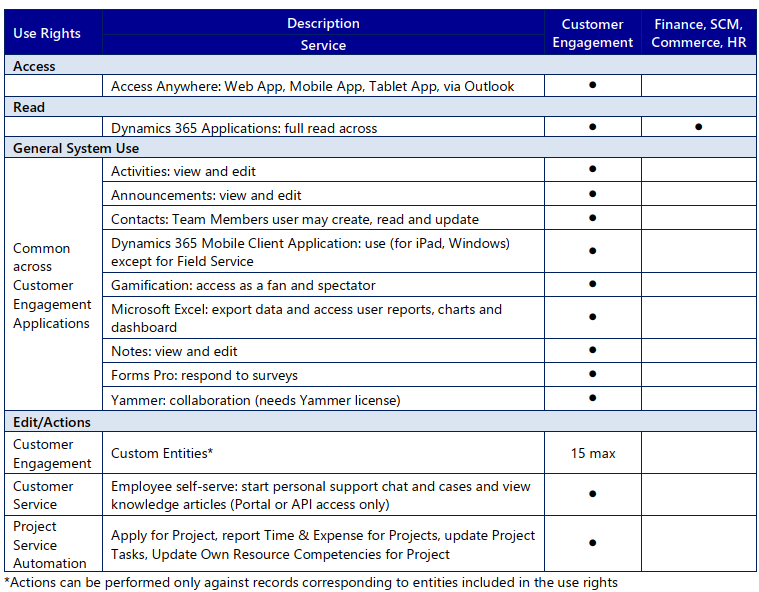
    Now that we know what comes out of the box for Team Member users, many customers will surely be asking what to do with the functionality in their CRM systems that isn’t represented in these standard App Modules. To understand the commercial boundaries better, let’s have a look at what the latest February 2020 licensing guide has to say about the rights of Team Members. We’ll start from Appendix A and the table that describes use rights for Team Members in Customer Engagement apps. (Yes, even though Microsoft product documentation says the term “Customer Engagement” is no longer used for online products, the licensing team hasn’t yet come up with a new term to replace CE in the licensing guide.)

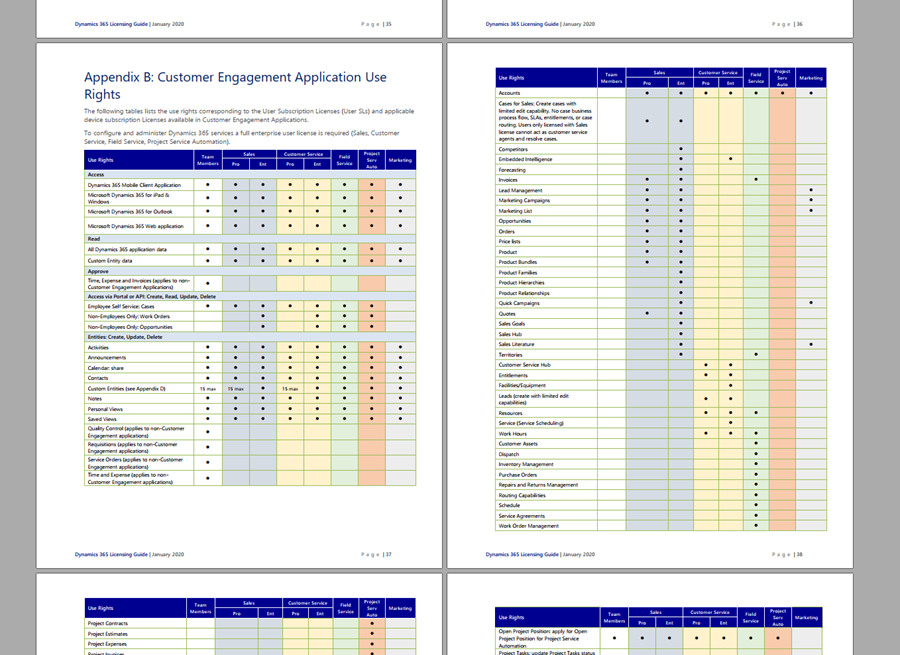
    To start off, Team Members still have the right to read all Dynamics 365 application data. Therefore every single entity you could possibly include within the Sitemap of an App Module could in theory be brought in there. Of course you would have to ensure via the security roles that no creation or modification of those records would be allowed. Also the reporting and dashboards features are explicitly stated as being available for Team Members, on page 11 of the licensing guide.

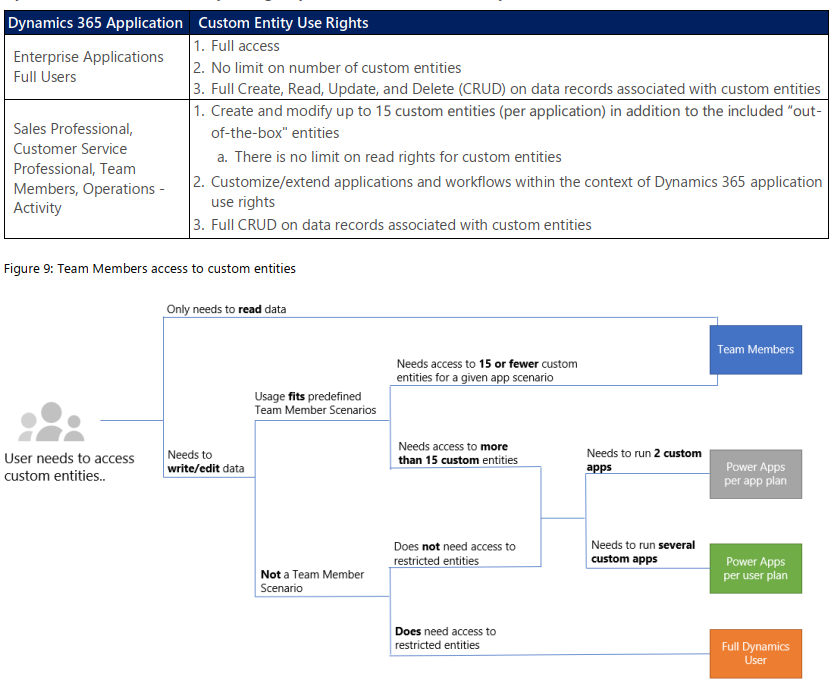
    As for custom entities, we see that there are also edit/actions rights, but we have a “15 max” restriction in the table. What does that mean? The answers are given in Appendix D: Custom Entities.

    We see that for a given app scenario, Team Members can create and modify records for up to 15 custom entities – per app. Where the lines are a bit blurry is the statement that this usage should “fit predefined Team Member scenarios”. As long as these custom entities are related to sales or customer service processes, I guess you’re on the safe side to add them to the standard Team Member App Modules that soon will be the only way for users with Team Member licenses to access Dynamics 365 – once the enforcement for first-party vs. custom apps is enabled in April 2020. Again, keep in mind that read rights are included for any entity, so the 15 custom entity limit couldn’t ever be technically enforced on the App Module level, based on how I interpret the licensing terms.

    What if you really need to do more than what the Team Member license would allow? What if you’re building apps for your unique business processes that aren’t covered by any first party app in the Dynamics 365 suite of products? Then you should explore the possibilities of Power Platform and its licensing model. Power Apps Per User Plan is the platform SKU that Team Member never was intended to be. If you’d map all the current and future workloads that Power Apps could take over in your organization’s business applications portfolio, the value is likely to be much higher than what the customization of these Team Member apps could ever deliver.

    Read more

    Microsoft has published new documentation on Dynamics 365 Team Members license that outlines the user experience for accessing the App Modules, as well as the customization restrictions.

  • Get ready for licensing enforcement in Dynamics 365

    Get ready for licensing enforcement in Dynamics 365

    Understanding what customers can do with specific licensing options available for Microsoft Business Applications has become a key component of the solution design process. There can be many different ways to reach the same business goal when either customizing and extending first party apps that Microsoft has built for Dynamics 365, or leveraging the Power Platform for building your own custom apps. Even within Dynamics 365, when planning which specific features are taken into use for managing a specific business process, it’s important to keep in mind whether it requires some “premium” features available only in more expensive plans like Sales AI. Then there are of course the consumption based components used in Microsoft’s more recent additions to Power Platform licensing model, like API calls and Portals logins.

    Some partners and customers complain that the licensing documents from Microsoft are far too long, but the reality is that at the same time they’re also not extensive enough. It is quite common to run into a scenario when planning the implementation of a specific solution for a customer and then not finding a definite answer on what licenses it requires exactly. This is particularly true nowadays when the licensing model is a merger of the Dynamics 365 style business application products and the new citizen developer focused offering of Power Apps and Power Automate. These different products share more technology underneath the covers than many people realize, yet the way they are sold and positioned is quite different. When there is overlap, that’s when confusion arises.

    What would make it easier to validate the solution design against the licensing model is if there was a way to do test cases with a live system. Unfortunately much of this model still remains an honor system, meaning that many rules only exist on paper but have not been actually technically implemented within the online service run by Microsoft. However, we’ve been hearing about the plans for further technical enforcement of the licensing for some time now. In fact, there are pieces related to this that you can already see with your own eyes when exploring your environments.

    Enforcement mechanism inside CDS

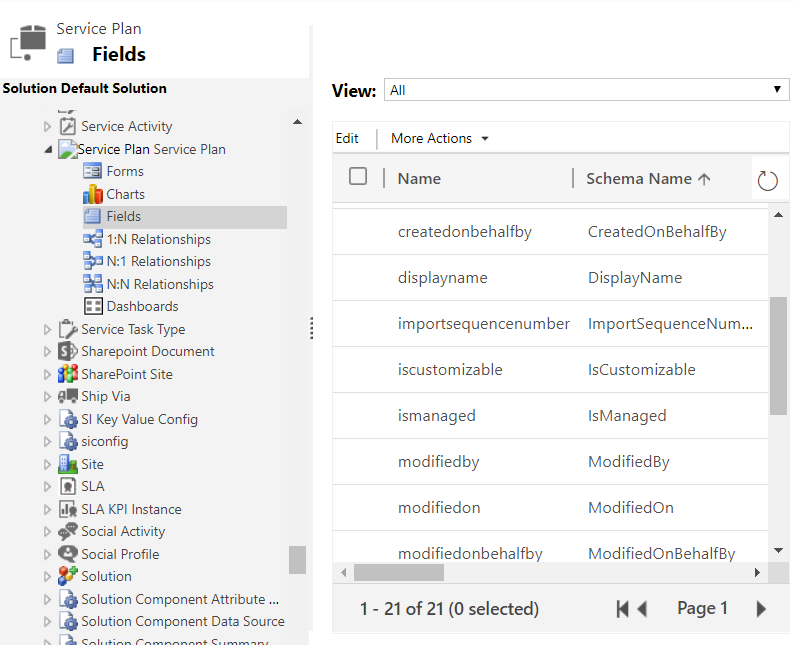
    If you are keeping track of the weekly updates that Microsoft pushes into every Online environment (via tools like Solution History for XrmToolBox), then there’s a chance you’ve noticed a hidden solution called “License Enforcement” deployed in December 2019. This introduced a new “Service Plan” entity into the schema, as can be viewed via the Default Solution:

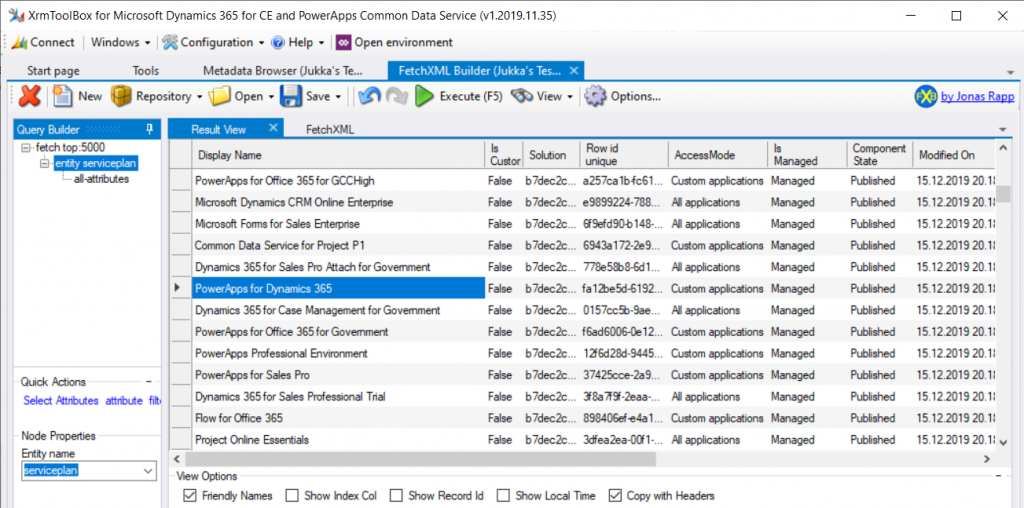
    You won’t be able to do an Advanced Find search to browse through the data for this entity. There is, however, a very convenient way for us to do a query of the Service Plan records, again via XrmToolBox, by leveraging FetchXML Builder:

    Wow, that looks interesting! While installing the solution, Microsoft also deployed a bunch of Service Plan records that presumably cover all the different types of licenses that have at some point in time granted access to a Dynamics 365 Customer Engagement Online environment, or CDS. Let’s copy this data into Excel for further analysis, and let’s make sure we tap the “friendly names” view option before doing so.

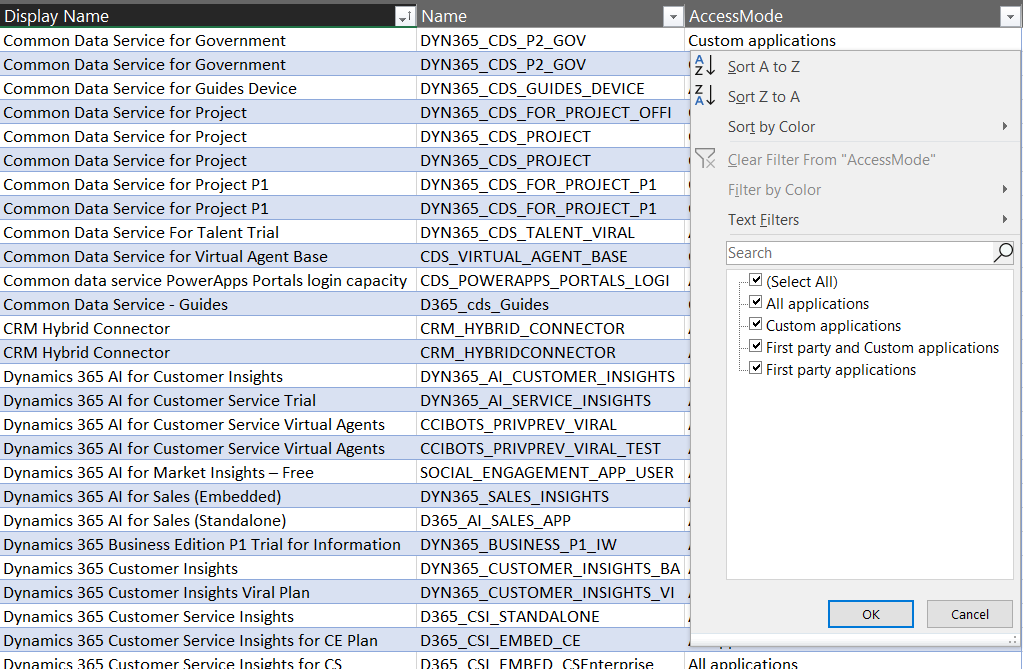
    It looks like there’s important data in the columns “Display Name” & “Name”, but the really interesting column from licensing enforcement perspective is “Access Mode”:

    Looking at the 4 options, it’s a bit difficult to understand what the difference between “all applications” and “first party and custom applications”would be. Even legacy products that are long gone like “Parature Enterprise” have the “all applications” access mode enabled. Without further information on this, let’s focus on the more straightforward options, like “first party applications”:

    Not too many entries for this option. Also it’s not surprising at all that it is the Team Member licenses that show up here. If there is one type of license that Microsoft probably would want to undo in the history of the Dynamics product line, it must be this. Introduced back in the days of Dynamics 365 CRM + ERP story debut, its design neglected the power of the platform in the sense that it granted practically unlimited rights for custom entities for a very low cost. The rights included in Team Member have since then been restricted considerably, to make room for the actual platform SKU that is Power Apps.

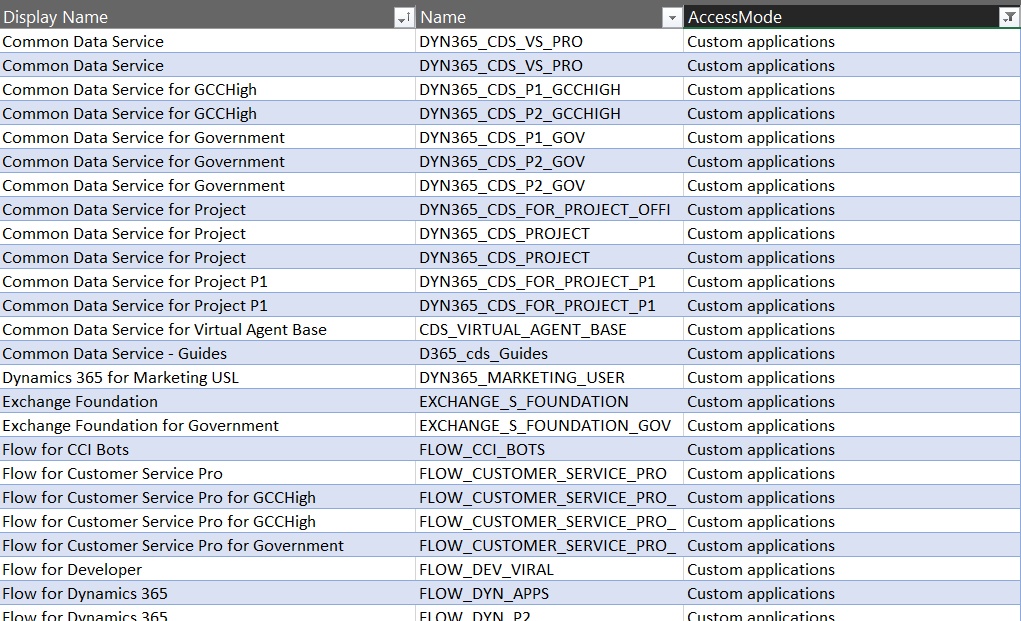
    Speaking of Power Apps, let’s look at the service plans that have the access mode set as “custom applications”.

    A lot longer list, with again some surprising entries like “Exchange Foundation”. The vast majority of this list is however very logical, as it mainly covers PowerApps and Flow (which on the branding side have been changed to “Power Apps” and “Power Automate”, of course, but this is licensing). The twist here is that similar to how Team Member granted too wide access for custom app scenarios, the rights included in Power Apps for accessing Dynamics 365 CE data stored in CDS are also a bit problematic from a commercial perspective for Microsoft. What clearly is off limits is the use of the standard app modules that ship with the Dynamics 365 App licenses.

    App Modules as a licensing construct

    The whole point in bringing data like service plans inside the CDS database is in being able to link that into app modules. If you browse through the metadata of any Online environment you’ll discover an entity with schema name “ServicePlanAppModules”. The relationship between a service plan and the app module is both the way how Microsoft has crafted the licensing terms for different products and also the mechanism through which access rights for different license holders will be restricted in the future.

    Looking at the fresh new Release Plan for Dynamics 365 2020 Release Wave 1, one of the new features is in fact called “License enforcement: users with new Team Member licenses”.

    For Team Member licenses purchased during or after October 2018, license-based access will restrict users to a set of designated app modules. These users will no longer be able to access Customer Service Hub, Sales Hub, or custom app modules.

    In April 2020 and already earlier in preview we’ll finally see the new Sales Team Member and Customer Service Team Member app modules that have been hinted at in earlier communication from Microsoft. Although these will be preconfigured modules, there will be room for customizing them to contain custom entities and (presumably) also hide unwanted entities – just like with traditional app modules. What will be different though, based the Release Notes as well as the Service Plan data model, is the lack of ability to build your own specific app modules from scratch. Any organization that has used Team Member licenses for covering a functionality not included within the first party Dynamics 365 Apps built by Microsoft will therefore have some work to do for redesigning the end user facing experience to accommodate these technical restrictions being put into place.

    “Oh, but we don’t use Unified Interface, so I guess we can skip those app modules in the oldskool web experience, right?” Wrong, you have even more work to do! There will be no support for accessing the legacy web client after October 2020. You better hurry with both planning your transitioning to Unified Interface as well as addressing the gaps that may be left for your Team Members users that will not have access to Sales Hub or any custom app module. Both of these changes have been a long time coming, but as many surely have experienced, it can be challenging to get the necessary planning and development work prioritized within organizations without a hard deadline. Now we have one (well, two dates interlinked), so that part is solved already!

    Restrictions like these enforcement rules are bound to generate some emotional responses. In the long run, having the rules specified in software rather than just paper should serve to bring more clarity into what services are available with which licenses. Any such clarity is most certainly welcome for making it easier to navigate an ever growing product stack like Microsoft Business Applications.’

    Read more

    Check out my blog post New Team Member apps for Dynamics 365 where I explore the 2020 Release Wave 1 early access versions of the new App Modules for Sales Team Member and Customer Service Team Member.

  • Trial & Error: Understanding Dynamics 365 CE Trials

    Trial & Error: Understanding Dynamics 365 CE Trials

    With SaaS products like Dynamics 365, getting the process of running a free trial right is crucial for the commercial success of products. This is why you may have seen Microsoft also perform a lot of changes into the process how you’ve been able to spin up trials of CRM Online instances, nowadays known as Dynamics 365 Customer Engagement. Or “Dynamics 365 for X”, with the “X” being an App like Sales, Customer Service, Field Service or Project Service.

    This App model is one of the reasons why the seemingly simple process of provisioning a new cloud database to host your CRM trial data has turned into a bit of a beast recently. It’s no longer a one-size-fits-all offering, rather Microsoft is trying to tailor the trial experience based on the business process that is most relevant for the potential customer. The intentions are good, but the results can lead to a lot of confusion when dealing with an inherently complex platform like XRM where users never follow just a single track through a few predetermined use cases. Here’s a few notes on what I recently learned about how the trials currently work.

    Classic Trials

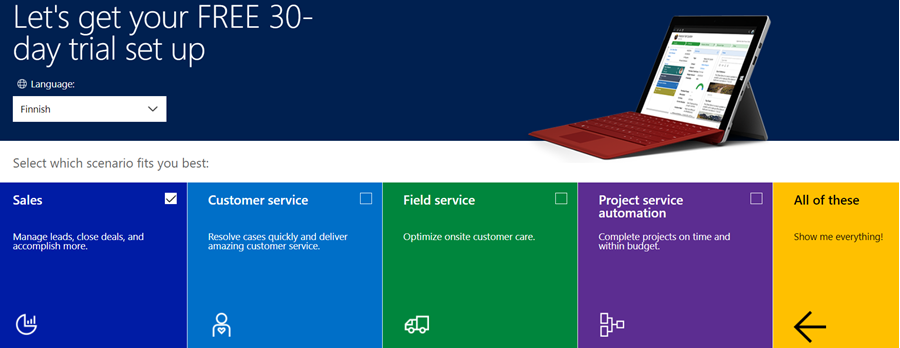
    If you’ve been working with Dynamics 365 recently, either by deploying it for customers, managing your internal instances or studying to become a certified Dynamics 365 professional, you’ve probably encountered this selection:

    Here you get an option to select either one of the Apps, go for the full suite of “all of these”, or if you’re really paying close attention, skipping the App selection by ticking the box “none of these, don’t customize my organization”. Today when I was in need of setting up a new trial to test the Sales related features specifically, I opted to install the Sales App via this provisioning screen.

    After a short while, I was able to access this new trial instance. That in itself can of course be a challenge, since there’s no guarantee that the Office 365 App launcher or the home.dynamics.com screen will refresh to show you the link to the Dynamics 365 instance. Knowing the direct URL of the instance picker (https://port.crm4.dynamics.com/G/Instances/InstancePicker.aspx in EMEA) speeds up this process, and soon I was faced with the Sales specific clean app list. My Finnish language “Myynti” app for the legacy web UI was there, as was the less elegantly named “Sales-keskus” hybrid of English/Finnish, which of course points to the Sales Hub based on Unified Interface.

    Since I needed to do some solution installation here, the first thing I had to do was to promote myself to the Admin role. That’s something you’d never need to do outside of the trial experience, as being the user who provisioned the Dynamics 365 instance you’d most likely have sufficient roles in the Office 365 administration side to see the admin menus directly here. But these are trials we’re talking about and the whole point of the tailored experience is that you DON’T see things that are not relevant to you, because that’s a scary UX for people not familiar with the platform.

    Now that I had the power to configure the instance to my liking, I proceeded to first checking out the default UI on the account form. Here I noticed that actually my nice’n clean Sales UX was cluttered with stuff that I didn’t ask for. Taken from the English UI here, you’ll notice that the account form tab actually has sections for Project Price Lists, Field Service and Scheduling. Not to mention the related records navigation that was at least 20 items long. Where did my sleek Unified Interface “Sales Hub” go?

    When going to the Solutions menu, it’s obvious where these items are coming from. The “Sales trial” in fact contains in total 16 solutions, which is equivalent to choosing the “all of them” option on the trial setup screen. It’s all here, even though you didn’t ask for it: Customer Service, Field Service, Project Service and their accompanying trial customizations. No, none of these will actually show up as installed solutions for the instance if you view them via the Dynamics 365 Admin Center. The same laws of physics obviously don’t apply for trial instances as they would for actual production or sandbox instances. (more…)

  • From AppSource to Solutions to Dynamics 365 Apps

    From AppSource to Solutions to Dynamics 365 Apps

    In my previous blog post I presented the various different meanings that an App can have in Dynamics 365 Customer Engagement. Now that we’re aware of this jungle, let’s grab a machete and start making our way deeper into the heart of it, to understand how a system customizer can survive in there.

    Before there was Microsoft AppSource for Dynamics 365, the methods available for distributing apps in a generic sense were pretty basic: you downloaded a zip file (or several) from a location provided by some party, then navigated to the solutions menu in your XRM environment and started importing them. When there were updates to those apps, you needed to repeat the procedure. If there were some other configuration steps needed in getting the application properly set up, you had to read the friendly manual and complete those. In a more tech savvy environment the Package Deployer might have been used here, but that was hardly a task for the accidental CRM administrator.

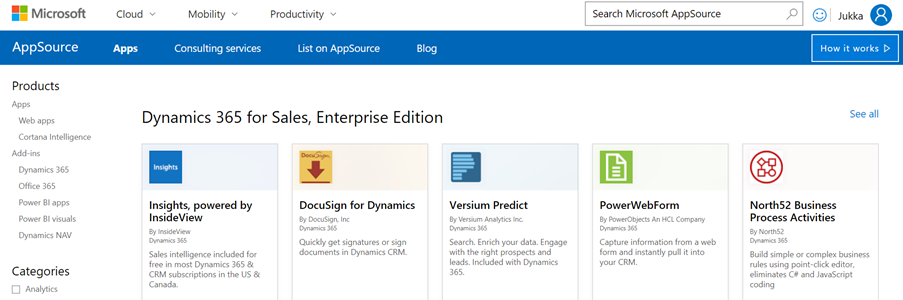
    What AppSource aims to change in the Dynamics 365 app distribution process is similar to what the smartphone app stores did a decade ago, i.e. simplify the steps for the customer and also provide a better channel for app developers to deliver their updates. When you go to AppSource and choose to either install a free App or start a trial on a paid one, the next screen will provide an instance selector to determine where in your Office 365 tenant you want to put this App in. Also presented are the checkboxes for agreeing on both Microsoft’s as well as the ISV’s legal terms.

    From here you’ll be taken into Dynamics 365 Administration Center. This part of the process nor the UI of the admin center isn’t very intuitive, so let’s pause here for a moment. While you’ll land on the Solutions view of an Instance after clicking on “Agree”, on the logical level we should be paying attention to the Applications tab instead. The chosen ISV (or MS) App will have been added as a row in the applications list, which applies to the whole tenant. In this example we see that North52 Business Process Activities is now available in our tenant. It doesn’t have any configuration options in this UI, but the Microsoft apps like Portal Add-on or Voice of the Customer both have an additional “Configure” button that is accessed via this Manage Applications screen.

    If we click back to the Instances tab in the admin center, select one of our instances and click the Solutions icon on the right side, we’re now presented with the list of solutions available to this instance via the AppSource delivery channel. It is not the same as going to your XRM instance and clicking Settings – Solutions, as there can be more solutions within that instance. For example, the organization specific solutions that you’ve created as a container for your own customizations. Not even the managed/unmanaged status of those solution has anything to do with what’s shown in the admin center, because whatever zip files you imported directly into your XRM instance as a solution is only visible from within the XRM UI.

    The solutions list in the admin center is also different in the way that it shows also the solutions you haven’t installed in the instance. These are applications that someone, either MS or your D365 admin, has made available in your tenant and possibly installed them into some other instance (a test sandbox, for example). To get them installed you don’t have to go to AppSource, rather you can start the process from here.

    What makes this view so relevant for the Dynamics 365 instance administrator is that here’s where you’ll see what solutions have upgrades available. In the above example, Microsoft has released a new version of the Relationship Insights solution. Since they don’t want to accidentally break your dev/test/production orgs by changing the solutions on their own, they are rather giving you the controls to click on the “Update” icon for the particular instance when you’re ready for it. This same process is applied also for third party ISV solutions to deliver updated versions of their apps.

    Now when we have deployed the app from AppSource and the Solutions view in the Dynamics 365 Administration Center for our chosen instance shows the status as “installed”, let’s use the Office 365 app launched to navigate to our Dynamics 365 start page, meaning home.dynamics.com. And… there’s nothing new here. Even if we click the “Sync” button to refresh the My Apps view, our AppSource app doesn’t appear. What gives?

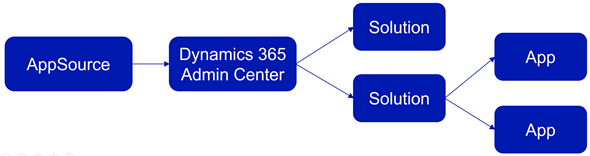
    At this point we need to take a step back from the UI and think about how these different components relate with one another. On the highest level we have AppSource, which is more of a marketing UI for products. From there we get Applications into our Dynamics 365 Administration Center. These manifest themselves as single solution rows for an instance when viewed via the admin center, but they can actually contain N separate solution files (look at Dynamics 365 Portals, for example). Finally, these solutions may or may not contain Apps – from 0 to N. This diagram illustrates these four conceptual levels and their relationships:

    In our example we’ve installed North52, which is an administrator/customizer tool designed for “building simple or complex business rules using point-click editor, eliminating C# and JavaScript coding”. In short, it’s an app for configuring apps, but it’s not a business app in itself. That doesn’t mean it wouldn’t need a UI, of course, but the Command Bar shortcuts and the dedicated home page web resource with navigation options quite frankly is much better suited for this type of a power user tool than the new Unified Interface apps that are supposed to work even on 4″ mobile phone screens.

    This brings us back to the App Module concept that was briefly mentioned in my earlier blog post. Before V9 and the Unified Interface there wasn’t so much benefit in building separate Apps for different functional areas of the XRM platform, as we had the one master UI for the instance available anyway. When the features are migrated over to the new Unified Interface, basically everything must be an App. In v9.0 we’ve yet to see how the more complex admin features will be implemented as Unified Interface versions, so currently it’s a somewhat jarring experience of 2011 meets 2018 for the system customizers.

    Even when all the actual business application functionality has moved over to Unified Interface, there will still be many scenarios in which presenting an AppSource app as a Dynamics 365 App Module App doesn’t necessarily make any sense. UI extensions like Checklists will not have much use outside the actual business entity in which they are used. Any app that connects to an external web service to enrich the contents of Dynamics 365 records mainly needs a configuration admin UI somewhere. Sure, there’s nothing stopping developers from using the App Designer to define an App for their solutions, since all you technically need is a single HTML web resource to publish an App with a single menu item. However, separating the tool from the XRM instance in which it lives isn’t going to make the UX of configuring features any easier, so I’m not really hoping for the app clutter to increase this way.

    Both the AppSource marketplace and the App Module in Dynamics 365 Customer Engagement provide significant improvement on how the business application features can be presented to business users and decision makers. What they don’t do is completely remove the need for Dynamics 365 system administrators to understand how the various layers and parts of the application platform are wired. XRM will likely remain an environment that’s just inherently more complex than an iPhone screen with its pretty app icons lined up just the way the single device user likes to see them.

  • What’s An “App” in Dynamics 365 Anyway?

    What’s An “App” in Dynamics 365 Anyway?

    Everywhere you look you see apps these days. Or more truthfully, you’ve been seeing them for ages already. Even in this blog I used the term “applification” over 2 years ago already, so it’s fair to say we’ve been living on the planet of apps for a long time by now. As catchy as those three letters are, the overuse of the term has some side effects that may lead to confusion when people refer to something as an “app”. With Dynamics 365 Customer Engagement (a.k.a. XRM), this danger is very real, since the term has been used in quite a carefree way when naming the different components found in the platform.

    In this blog post I’ll try to provide some clarity for those that are less familiar with the various dimensions that a Dynamics 365 app can have. I will go through the places in which apps can be found and explain their intended usage scenarios. Then in a follow-up post I’ll dig deeper into the architecture of how apps relate to solutions and the XRM customization capabilities in the latest V9 version.

    Mobile Apps

    Since smartphones are to blame for the app craze, we might as well begin by doing a search in the iOS App Store. With the term “Dynamics 365” on my iPad I get a list of various different apps I could install on the device. The top there results present a row of apps from Microsoft, but they are all built on completely different architecture.

    The first result named “Microsoft Dynamics 365” is the actual “CRM” app, meaning the one that’ll give you roughly the same features as you’ll find on Dynamics 365 Customer Engagement when accessed via a browser. Once the Unified Interface is fully developed, the mobile & the web will be almost identical, but currently it’s likely that you’ll see a somewhat different experience on mobile than what the browser UI looks like. You’ll find the app’s setup guide here.

    The seconds result is “Dynamics 365 Unified Ops”. Yes, it’s also by Microsoft, even though the name doesn’t include the corporate brand this time. Now, if you’re looking for the CRM capabilities then don’t get mislead by the app’s description talking about mobilizing your business processes. This is the mobile ERP application and you’ll need the “cloud AX” environment to use it for anything. No, Dynamics 365 isn’t “unified” on the level yet that you’d have just one client for CRM & ERP, but most people probably wouldn’t need a phone app that huge anyway. If you’re into ERP, read more about the Unified Ops mobile app here.

    The third result is “Field Service- Dynamics 365”. Although the app developer info on iOS says “Microsoft Corporation” this is actually the mobile app developed by Resco & licensed by Microsoft to be offered as a part of the Dynamics 365 for Field Service app license. It operates by connecting to the “CRM” instance and using its customer data, but the configuration is separate from the customizations you might have done to your Dynamics 365 Customer Engagement environment. The user guide for this app can be found here, while the customizers will find information about installing the Woodford solution for changing the app configuration here.

    App for Outlook

    For as long as Dynamics CRM has been around, the integration to Outlook has been one of its main selling points against alternative CRM products. The CRM Client for Outlook has served us well over the years but the time has come to lay it to rest and replace the Client with the App. The change is far more significant than what Microsoft’s product naming here would suggest, with “Dynamics 365 for Outlook” being the legacy client for your PC and “Dynamics 365 App for Outlook” referring to the lightweight app that will work on pretty much any device.

    Unlike the mobile apps, the App for Outlook isn’t something that a normal end user can (typically) download and configure for themselves. A system administrator or system customizer must take care of the deployment steps, which may include switching over to server-side synchronization, approving user mailboxes (with O365 Global Admin rights) and finally pushing the app to either selected or all eligible users under the menu Settings – Dynamics 365 App for Outlook.

    As of the first week of 2018, the Dynamics 365 App for Outlook in V9 is still in Preview mode, so a sysadmin needs to enable it from the System Settings – Previews tab. This is because the earlier app has been replaced with a completely new app in this release, built on UCI (Unified Client Infrastructure) that is used in the new Unified Interface. This will actually turn the previously feature limited Outlook sidebar app into a full Dynamic 365 Customer Engagement app that has similar capabilities as the mobile app mentioned above.

    Dynamics 365 App Modules

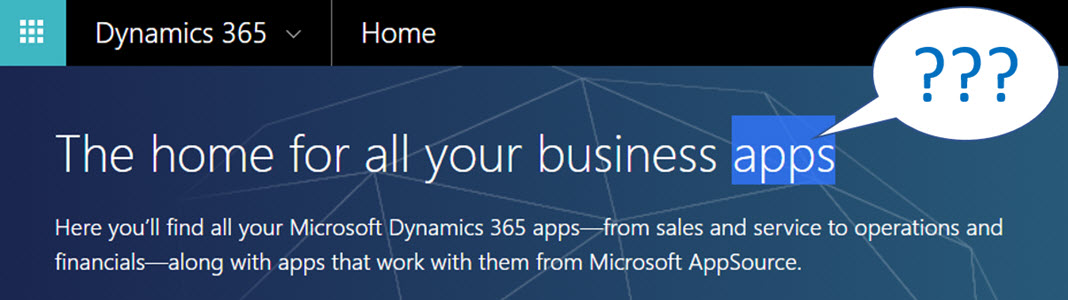
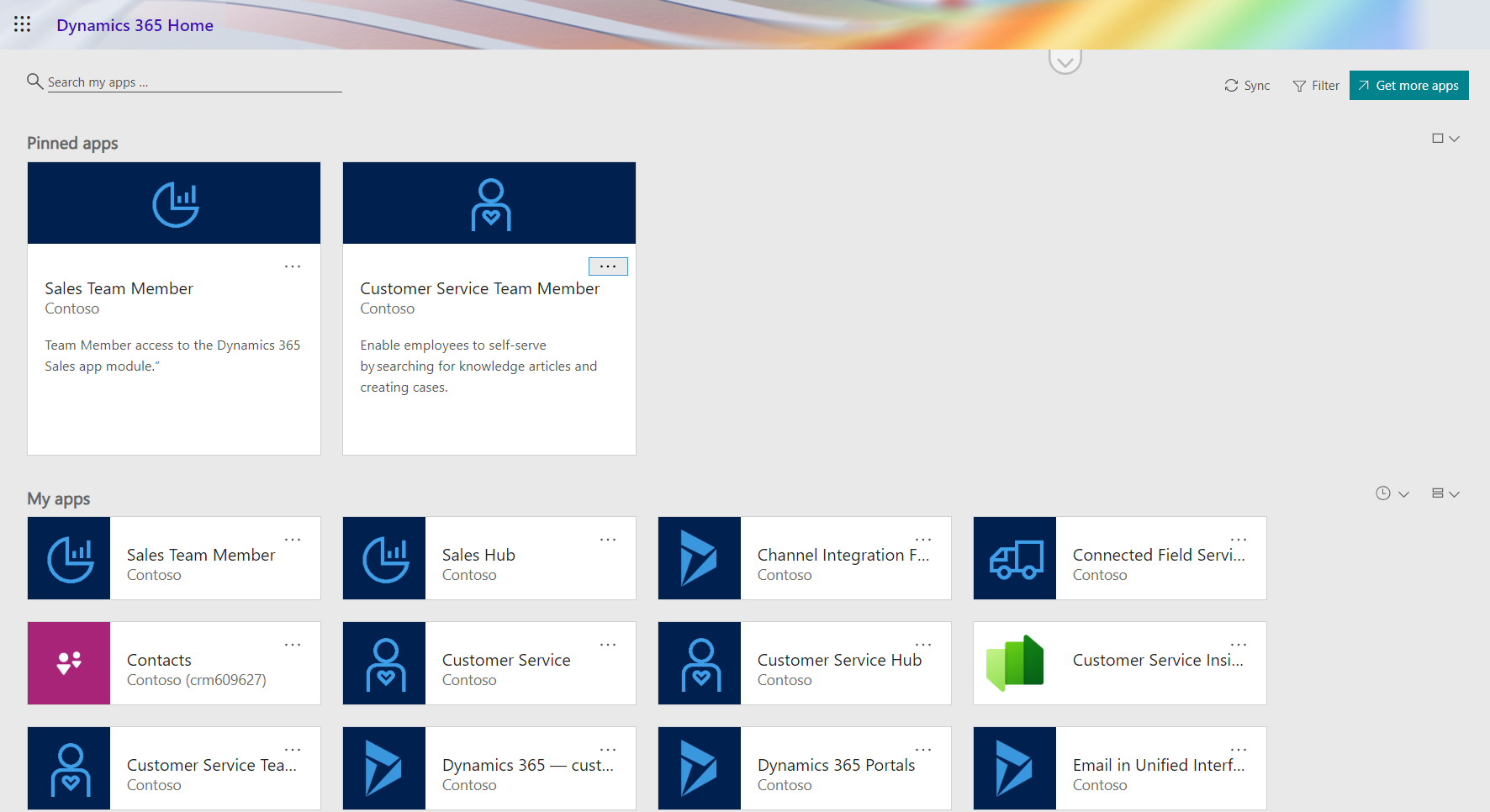
    When you’re logged in to Office 365 and you click on the Dynamics logo in the app launcher, you’ll be taken to the Dynamics 365 home page at home.dynamics.com. Depending on your environment’s configuration, you’ll see a few or a whole number of rectangular icons on this page. Those are all “apps”, but not like the previously described mobile or Outlook apps. More importantly, not all of them are necessarily Dynamics 365 Apps either. Huh?

    The explanation is that the Dynamics 365 home page lists also your Office 365 tenant’s PowerApps apps (which probably should be just called “PowerApps” to make my head hurt less while reading that). Aside from those, the list will include apps from all across your Dynamics 365 Customer Engagement instances, so if you have sandboxes for development and testing purposes, the very same app name & description may appear here multiple times. Furthermore, if you’re also using the ERP side of Dynamics 365, the home pages covers them as well.

    In the Customer Engagement world an app module is basically a subset of the components you can find within a single instance. It can include navigation, dashboards processes, entity views, forms and charts. Aside from a few app specific configuration items, it doesn’t really add anything that you wouldn’t have in the “full” XRM instance already. They are a way of controlling what contents of that particular instance is visible to the end user.

    Each XRM instance has by default at least one app, which will be called “Dynamics 365 – custom” unless you rename it in the System Settings menu. In addition to this, there can be N apps built and configured via the App Designer, or provided as readymade apps from Microsoft, like Field Service in the screenshot. Both the old web apps and the new Unified Interface apps will be present here if your instance is V9+. With so much going on here, I personally try to avoid ever navigating to the Dynamics 365 Home page and just store the direct URLs in my browser’s bookmarks bar where I’m in total control of how the apps are named and organized neatly into folders.

    Microsoft AppSource

    If you feel like you don’t have enough apps on your Dynamics 365 Home page, you can click the “+” icon that says “Find more apps that work with Dynamics 365”. This will open a modal window of AppSource, filtered down to the apps that are designed for, integrated with and some even built on top of the Dynamics 365 platform. Many of these will be built by partners (ISVs) but some of the content is authored by Microsoft themselves, either as officially supported solutions like the Social Selling Assistant, or as “accelerator” style solutions from Microsoft Labs with no warranty or promise of future support like Attachment Management.

    The AppSource apps are closest to the concept that the word “app” was associated with when the iPhone’s App Store was launched ten years ago. These may be small extensions to the common CRM feature set, like a Marketing Calendar component for visualizing campaign records, or integrations between Dynamics 365 and a standalone service like Adobe Sign. Just like in a smartphone app store, some items are completely free of charge while others will cost you dearly. Since we’re dealing with enterprise systems here instead of individual mobile devices, some services allow you to do a test drive in a sandbox completely isolated from your organization’s Dynamics 365 instances, like the CPQ solutions from Experlogix and PROS.

    What can be confusing about AppSource in the Dynamics 365 context is that probably the majority of the apps available in AppSource will not actually result in a new app icon being added to your Dynamics 365 home page. This is because up until V9 and the Unified Interface there wasn’t really a proper presence for the App Module in the XRM platform, so the world is only slowly adjusting to this new reality. I’ll delve into this very topic in my next blog post.

    Dynamics 365 App Licenses

    The concept of an app exists not only in the visible UI and logical platform component containers but also in the contractual world of software licensing. If you go to the Dynamics 365 Pricing page and download the Licensing Guide PDF, you’ll see the detailed way in which the rights of a licensed App user are defined in relation to the features provided by the XRM platform. There are in total 176 occurrences of the word “application” in this document, so don’t expect a quick answer. However, since XRM still largely follows an “honor system” where it’s up to the system administrator to limit the security roles of a user to match those to the rights given to him or her via the assigned Dynamics 365 license type, you’re going to have to understand the concepts.

    Even though you can purchase and assign a user a license for Dynamics 365 for Sales, i.e. an app license, this doesn’t mean that the only thing this user would see or would be legally allowed to access would be the Sales app icon on the Dynamics 365 home page. They can be allowed to view the entire contents of any XRM instance in that particular Office 365 tenant, thanks to the first row in the above table (“all Dynamics 365 Enterprise Edition data”). They could access the “Dynamics 365 – custom” app to look around the whole suite of features in Customer Engagement. They could leverage the Dynamics 365 App for Outlook to track emails to records. But if you misconfigure their security roles and allow them to track emails against case records (a Customer Service app feature), you are in breach of the licensing contract.

    Alright, that’s about as many “app” mentions as I can reasonably fit within one blog post. Next time I will take a look at Apps from a system customizer perspective.