Tag: App Modules

  • Making Model-driven Power Apps visible (and hidden)

    Making Model-driven Power Apps visible (and hidden)

    I’ve got a confession to make: even though I’ve been building Model-driven apps long before they even were Power Apps (back in the XRM era), I’ve struggled to understand how I can make them visible to the end users in the modern experiences Microsoft offers.

    In this post I’ll address two different challenges. First, how to enable end users to have access to your Model-driven app. Second, how to protect them from seeing irrelevant apps.

    “Why isn’t the app sharing menu working?”

    Once you’ve built your Model-driven app are ready to release it, you need to make it visible not just to the app makers and system admins but also regular users. This involves using the Share menu from the list of apps available in the environment.

    Working in the Power Apps Maker portal, it’s pretty obvious the things we see here have been built with Canvas apps in mind. When it comes to sharing a Canvas app, the steps are fairly logical. You click the 3 dots next to the app, select “Share” and are shown this dialog:
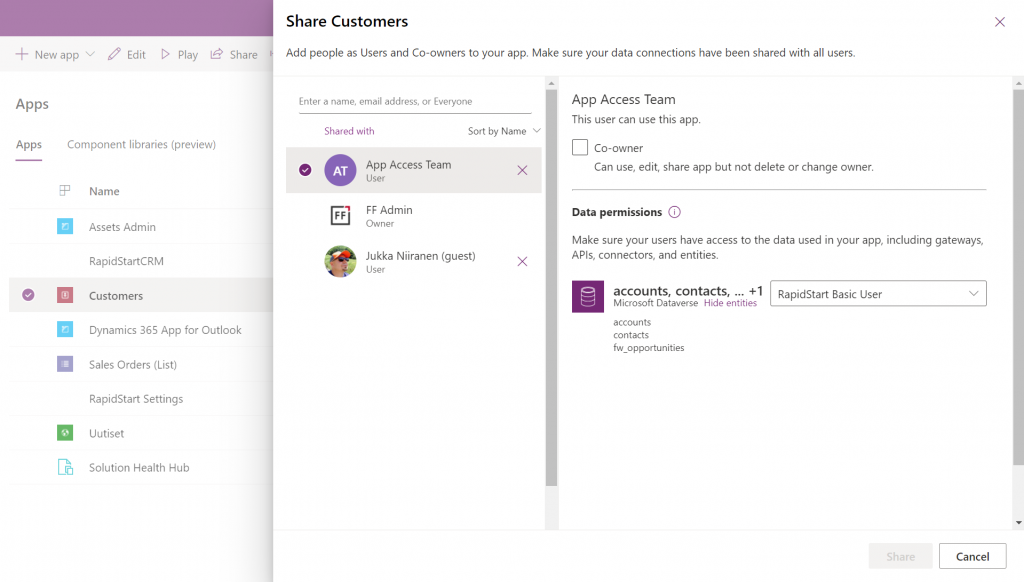
    You add users or groups, set their data permissions via the many available security roles within Dataverse, click Share, after which the users get an (optional) email message. All good!

    Try the same steps with a Model-driven app and your users will see… nothing. It’s not just that there isn’t an email message with the app URL sent to them. They actually don’t have access to the app at all, even if you provide them the URL directly. Why isn’t the share action working from here?

    If you’ve worked with the Dynamics 365 App Modules before, you might remember that you needed to specify which security roles have access to which app. Just like with role-based forms, too. Now, that particular role assignment UI existed in the legacy web client that has been deprecated and there doesn’t seem to be an equivalent in the Maker portal anymore. Does this mean we don’t have to perform this step, rather the sharing of the app to the users takes care of this automatically?

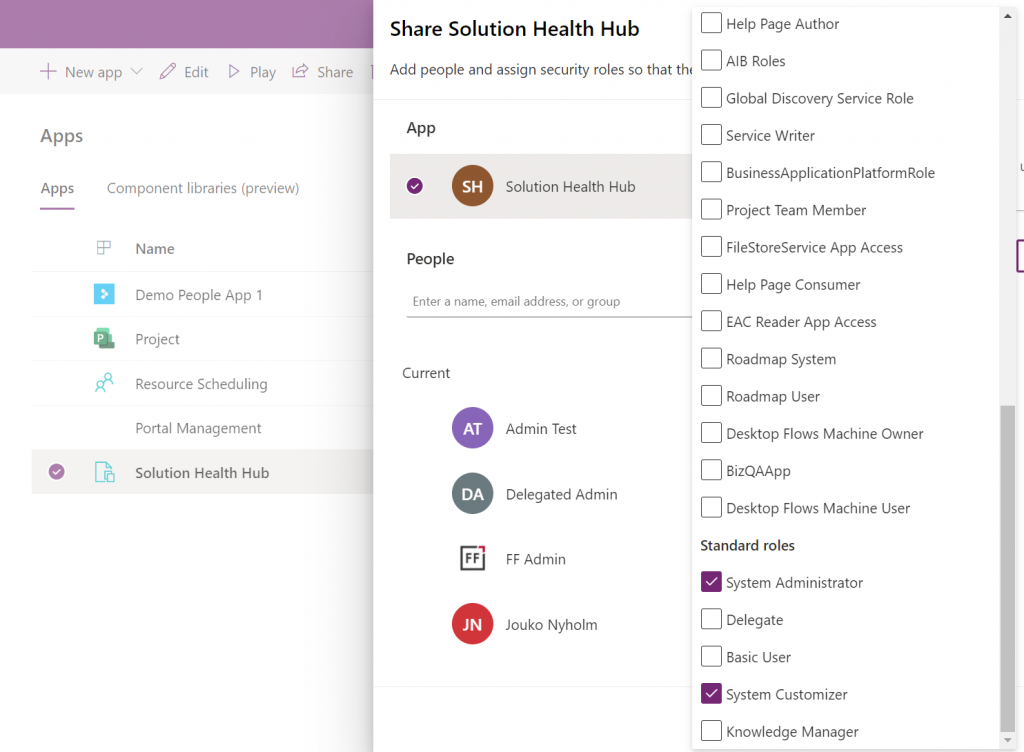
    At some point I assumed so, but this isn’t actually the case. After a long hard look at the documentation, I finally realized that the MS product team had squeezed this functionality into the Canvas sharing dialog in quite an unintuitive way. You see, you’re not only using it to share the app to the users, but also for “sharing” the app to a security role:
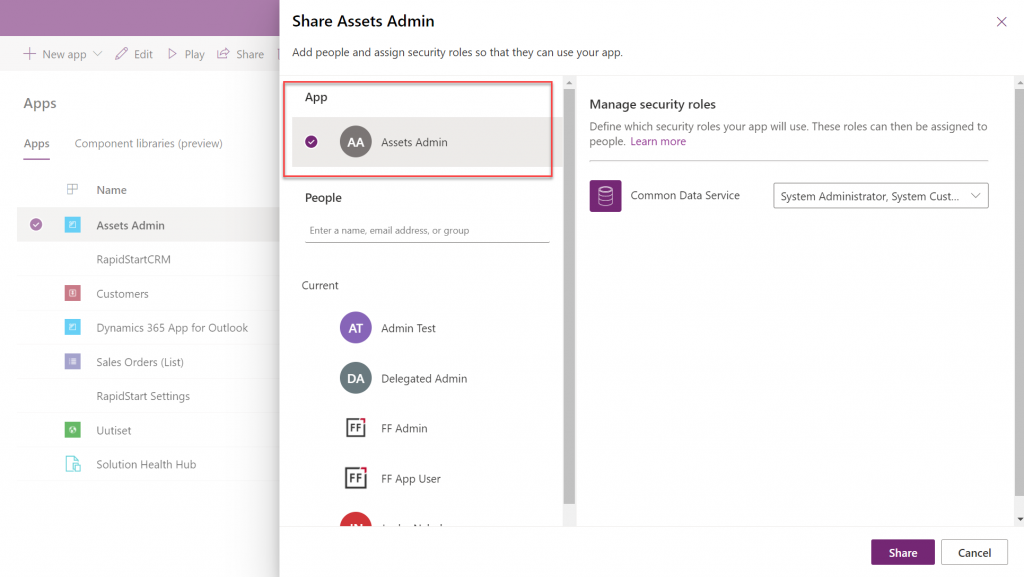
    So, rather than sharing the app to the users, stay on the higlighted App section that’s at the top of the list. Pick the correct security role from the list and then click “Share”:
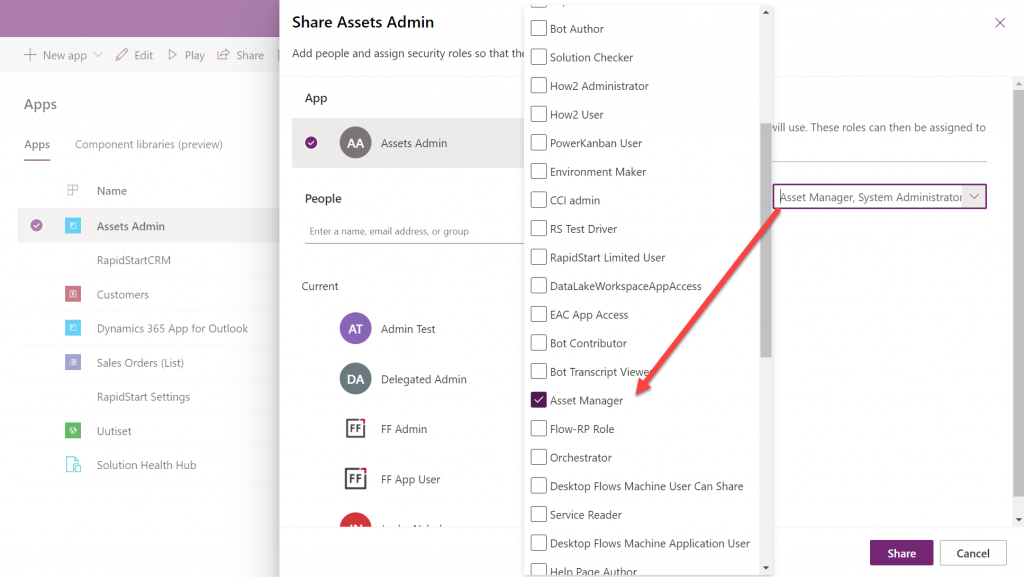
    Now all users with the specified security role will have access to the app when trying the URL shared with them. Yes, you didn’t actually need to explicitly share the app to them via this menu at all! Sure, you can use it for adding the required security roles for these users, if they haven’t already acquired through other means, like group membership. But the whole concept of “app sharing” is still completely irrelevant to Model-driven apps, from what I can see. It’s only this misleading UI that may give you the impression that you can achieve visibility to Model-driven apps via a sharing action when in fact it’s still security role based like it was back in XRM.

    This leads us to the next question around Model-driven app visibility that has been puzzling me:

    “Where can I find the apps I have access to?”

    If the app user is not a maker in the particular environment, they logically won’t have access to the Power Apps Maker portal to view the list of apps in it. So, from where exactly should they be viewing the list of all the apps shared to them?

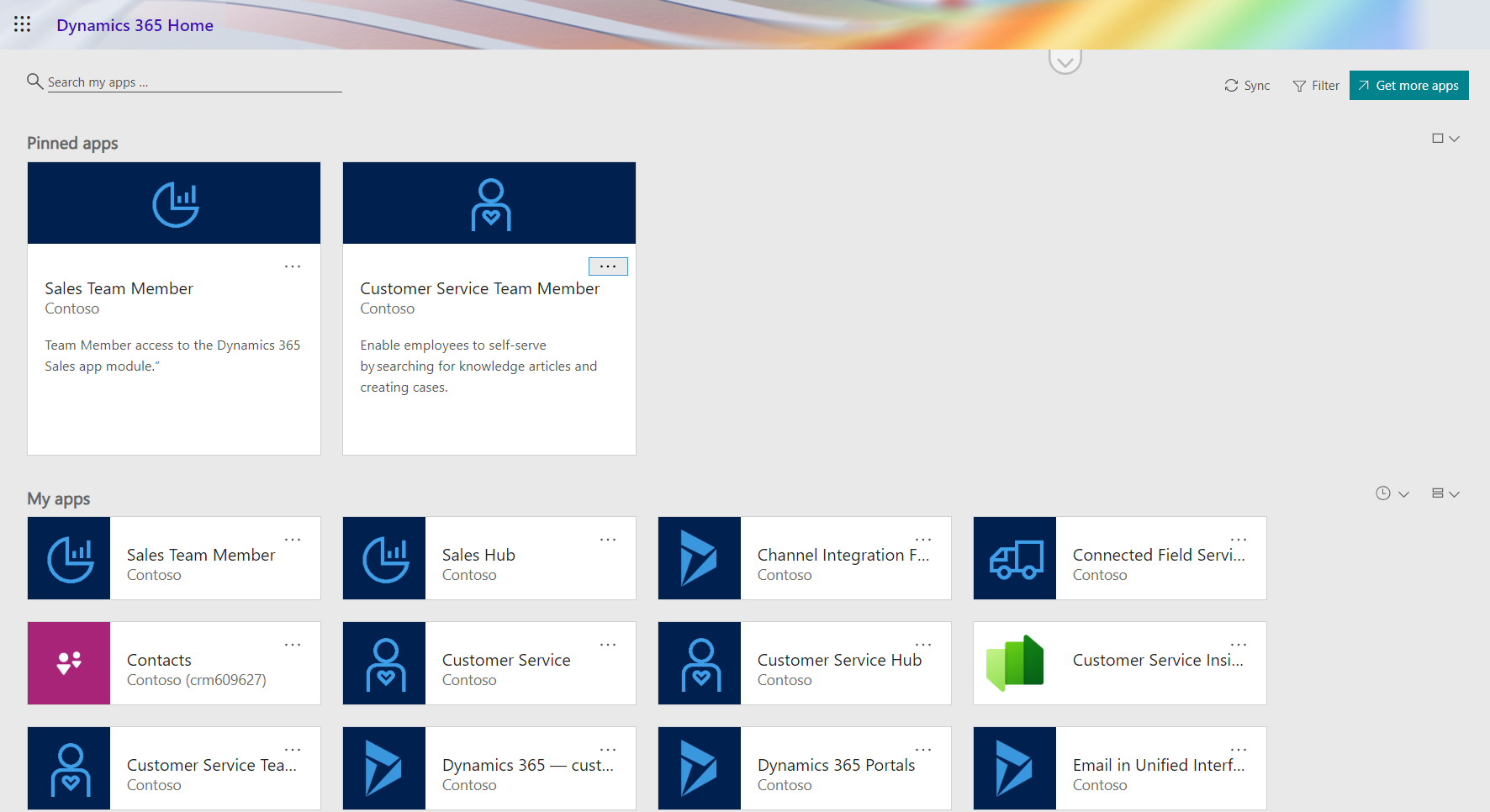
    If we have past experience from the world of XRM then we’d probably navigate to the Dynamics 365 Home page at home.dynamics.com. This page should be showing all the apps that the user has access to, which it currently does. We can pin our newly shared Model-driven app to the top of the list for easy access:
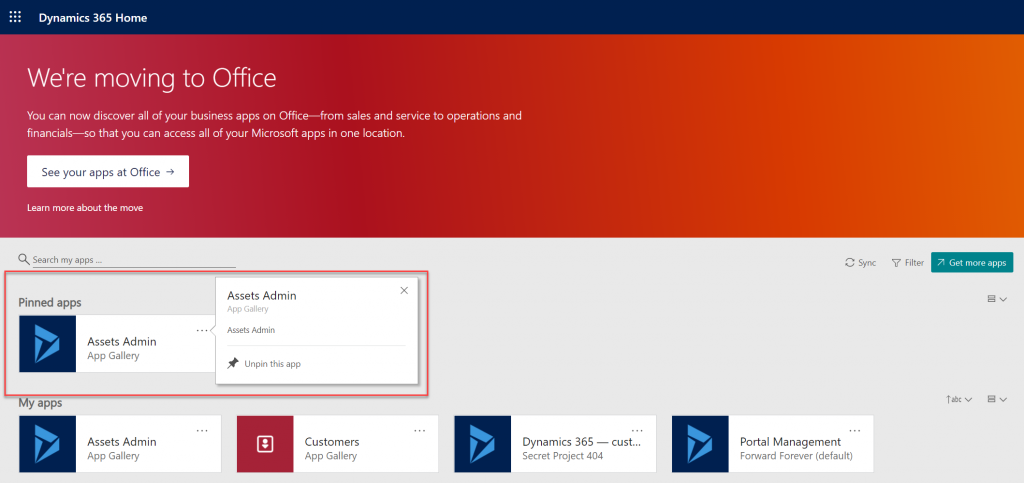
    Oh, right. “We’re moving to Office” says the banner, since this Dynamics 365 Home page has been deprecated a while ago. In fact, based on the original deprecation message this page should have started to automatically redirect you to office.com/apps already. Today we still have the option to visit the legacy page, but let’s move over to the modern Office experience. We’re greeted with the “launch your business apps” onboarding dialog that points us to the Business Apps tab at the Office 365 home page:
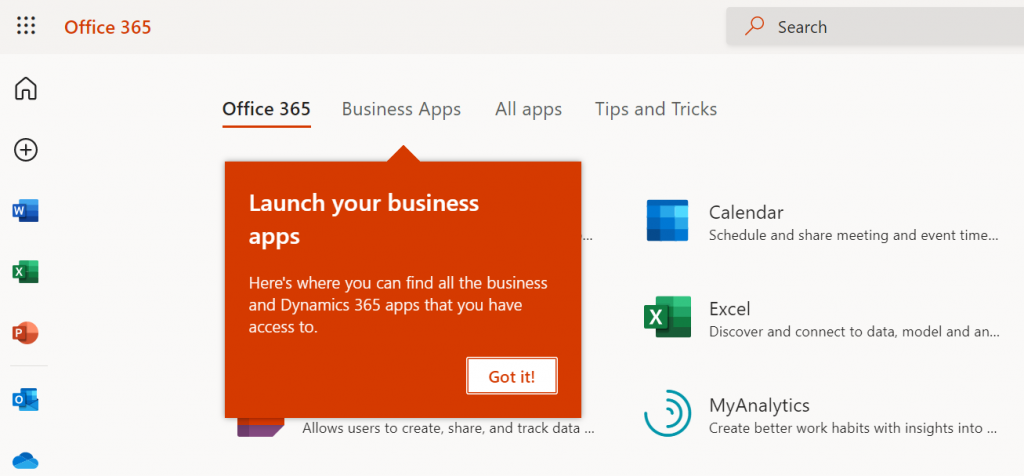
    Looking at the list of apps, though, we probably won’t see our brand new app here right away. There’s a pretty significant delay in the list of business apps getting updated here. Unlike the old Dynamics 365 Home, which suffered from a similar delay, we don’t have a “Sync” button to make this process any quicker.
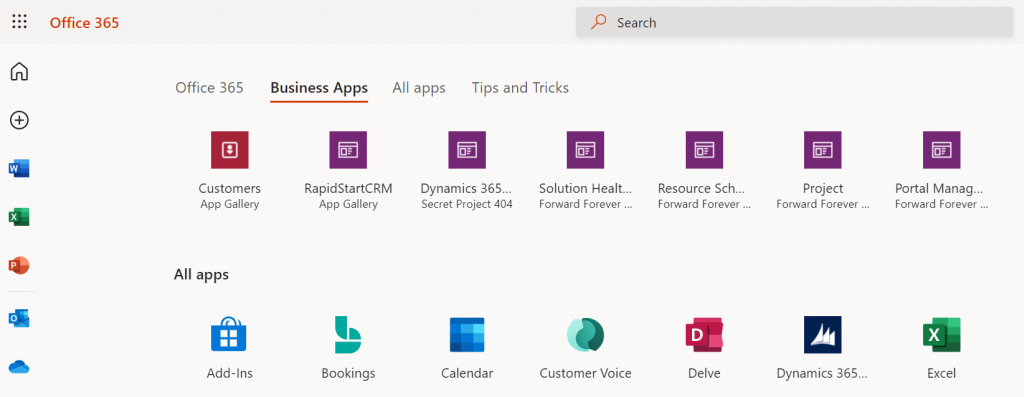
    While we’re waiting for our new Model-driven app to show up on the Office 365 home page, we may start to wonder what apsp actually are listed here. For instance, why is Solution Health Hub showing up there for a normal user with no admin nor maker roles?
    Perhaps the Model-driven apps visibility isn’t entirely security role based after all. Whatever the reason why these Microsoft built apps like Solution Health Hub or Resource Scheduling from the default environment show up for a non-admin user, it’s not exactly a pleasant user experience. The Office 365 home page doesn’t offer us any pinning or filtering features like the old Dynamics 365 home page did, so there’s not much an end user could do to clean up the mess.

    As a system administrator, though, we actually do have a way to trim the list of apps – even when they are first-party MS apps. Thanks to fellow MVP Alex Shlega, I recently learned that Model-driven apps can now be deactivated and activated. So, let’s go to the Maker portal in the default environment, pick the apps we want to hide from office.com/apps and select “Deactivate”:
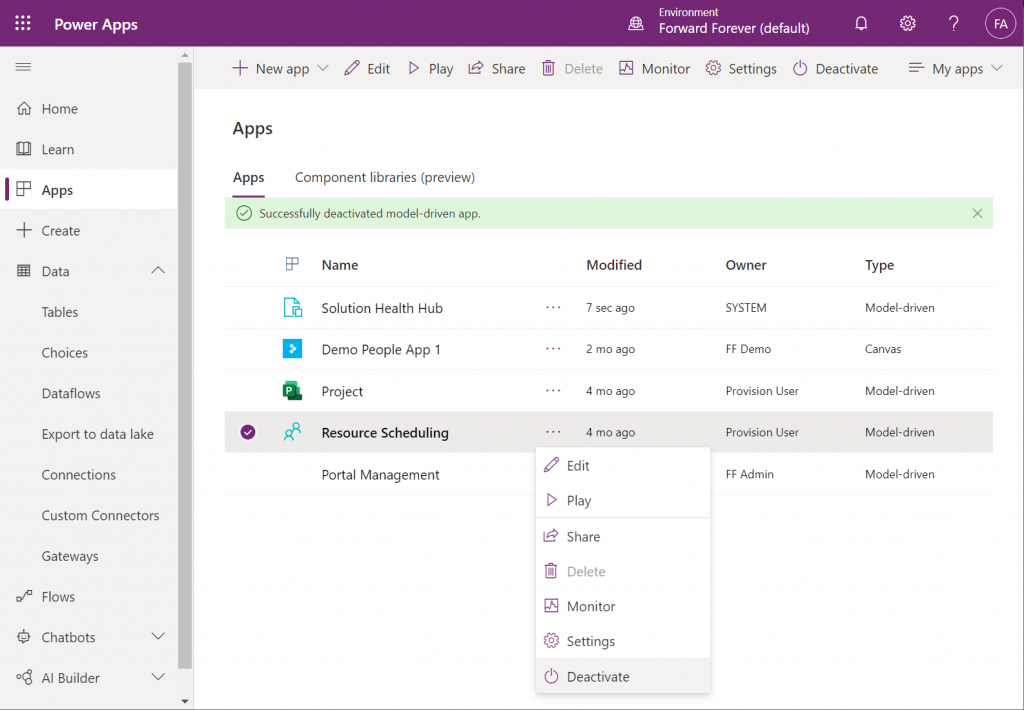
    Much better! Not only have the unwanted apps disappeared from the Business Apps list, but also our newly configured Model-driven app has appeared there during our small exercise.
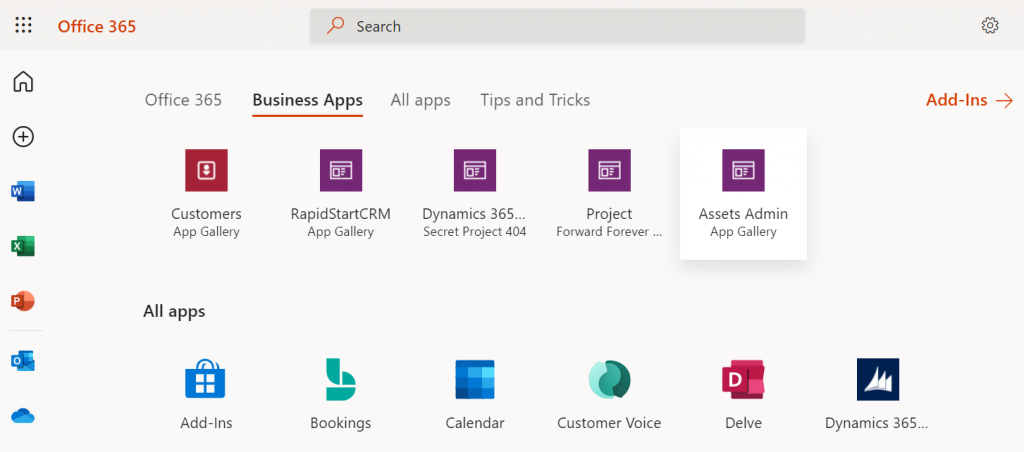
    There still remains one item on that app list that I can’t figure out a way to remove from the user. That “Dynamics 365 – custom” app from the Secret Project 404 environment is actually the result of a Dataverse for Teams environment provisioned by this end user. Now, since we have no way to directly navigate to the full Maker portal of such an environment and they shouldn’t support any Model-driven apps to begin with, these apps are something only MS can clear away in a future update hopefully

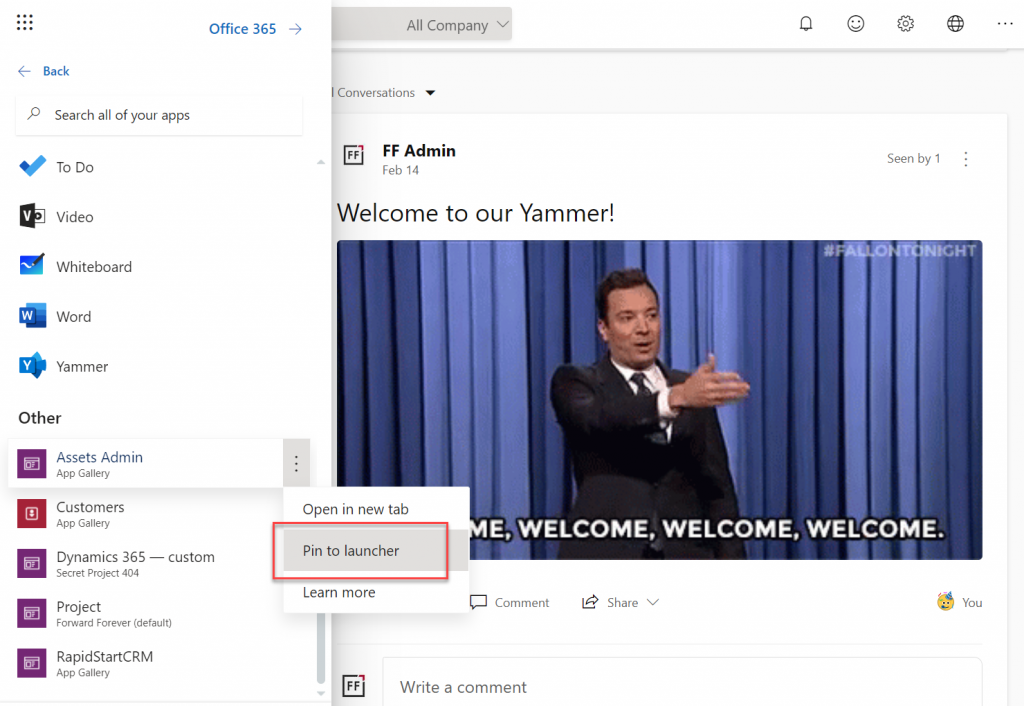
    Thankfully there’s another place where the end user has more control over the app list than the Office 365 home page. Whenever you’re using some other Microsoft 365 service and need to open up a Power App, it’s a lot more convenient to use the waffle menu from the top left corner rather than the full home page.

    Thanks to Thomas Sandsør for reminding me about the customizability of this app launcher. This is of course the place where a user should be instructed to pin their new Model-driven app for easy access:
    One final point to make about Model-driven apps visibility is around Microsoft Teams. You should definitely consider pinning the apps into relevant Teams channels as tabs, to maximize the likelihood of the end users remembering to use them. As for a complete list of Power Apps available to the user, currently no such place exists within Teams, so you should pay attention to the Office menus as the portal to display your Power Apps app catalog for desktop users.

    Update 2021-12-07: Office App Launcher new visibility criteria defined

    Microsoft has recently changed the behavior of their app lists, with an update communicated via Microsoft 365 Message center message MC290818. Since many people will not have access to MC content and it will probably disappear at some point, I’ll post the contents here in full:

    To help improve the app exploration and discovery experience for users, beginning mid-November 2021, the Office App Launcher, All Apps (https://office.com/apps), and app search experiences will be updated to only list relevant Dynamics 365 apps, Power Apps apps, and Azure Active Directory integrated apps.

    Following this update, the Office App Launcher, All Apps, and app search experiences will only list Dynamics 365 apps, Power Apps apps, and Azure AD integrated apps that meet one of the following criteria:

    Dynamics 365 apps and Power Apps apps:

    • Apps a user has launched in the last 7 days
    • Apps created by a user
    • Apps an admin has marked as ‘featured’ in the tenant
    • User accessible Microsoft published Dynamics 365 apps

    Dynamics 365 apps or Power Apps apps that meet the above criteria will be shown in the App Launcher, the Business Apps section of the All Apps experience, and in app search results. Note that the time between when an app is shared with a user and when it appears in an Office experience is expected to be 24 hours.

    Azure AD Integrated Apps:

    • Apps an admin or user has added to an Azure AD collection

    Azure AD integrated apps meeting the criteria above will be shown grouped by collection name in the All Apps experiences, as well as individually listed in the App Launcher and in app search results. A link to the My Apps portal where users can create Azure AD collections will be added to the All Apps experiences as part of this update.

    How does this affect me?
    Dynamics 365 apps, Power Apps apps, and Azure AD integrated apps that don’t meet the above criteria will no longer be listed in the Office App Launcher, All Apps, and app search experience. Users can take the following steps to access these apps and have them listed again in their experiences.

    For Dynamics 365 apps and Power Apps apps, if a user cannot find an app they are looking for will need to first launch it in the browser via its Uniform Resource Identifier (URI). Note that admins and makers can get an app’s URI by selecting an app in the Power Platform admin center or via https://make.powerapps.com by selecting details, then selecting web link. Once the app is launched, it will be listed in the Office App Launcher, All Apps, and app search experiences.

    For Azure AD integrated apps, a user can locate the full list in the “Apps” collection of the My Apps portal. Users can create collections for quick access to their favorite or most often used Azure AD integrated apps. Once the Azure AD integrated app is added to a collection, it will be listed in the Office App Launcher, All Apps, and app search experiences.

    What action do I need to take?
    This message is to inform you of an upcoming change, no action is required. However, if you want to guarantee specific Dynamics 365 apps, Power Apps apps, and Azure AD integrated apps are available to users following this update, please perform either of the following:

  • Dynamics 365 & Power Platform licensing FAQ, February 2020

    Dynamics 365 & Power Platform licensing FAQ, February 2020

    Here’s a collection of recent questions from the Dynamics 365 and Power Apps use community on licensing topics. The answers are my own interpretations, based on what I’ve seen from MS or other community members. It’s a point-in-time blog post that may well be outdated tomorrow already. Please do also leave a comment if you see errors in the answers I’ve written.

    As always with enterprise software licensing, ultimately the answers need to come from materials published by the software vendor, i.e. Microsoft. At the end of the day the customer is always responsible for being compliant with their own legal agreements that may have specific terms included.

    Team Members

    Q1: What’s changing in the 2020 Release Wave 1 for users equipped with Dynamics 365 Team Member license?

    The release plan contains several items that talk about licensing enforcement. So, the actual rights for Team Member licenses are not changing, but there will be technical limitations on what the users are actually allowed to do. I’ve blogged about the underlying mechanism for linking service plans to application types, which will first be used for Team Members and down the line probably also for other licensing types.

    2020 Release Wave 1 will introduce three new App Modules with pre-configured experiences for Team Members: Sales Team Member, Customer Service Team Member and Project Resource Hub. See my review of the early access version of these New Team Member Apps for Dynamics 365 for more details.

    Q2: When will the technical enforcement be enabled in our Dynamics 365 environment?

    For new customers, Microsoft intends to switch on the restrictions in April 2020. For existing customers with Team Member users, the change won’t happen overnight. Expect to see further communication from MS on this if your organization is affected by the changes.

    Update: On Feb 24th Microsoft published the following “Dynamics 365 – Team Member License Enforcement Notification” in the Microsoft 365 Message Center (MC204622) visible to administrators:

    To facilitate a smooth transition to the new Team Member app experiences, all existing customer organization instances, which will be impacted by this change, will be granted an additional grace period until June 30, 2020.

    Update 2: due to COVID-19, Microsoft has postponed several deadlines for updates and deprecations. The latest guidance for Team Member licensing enforcement is now:

    To facilitate a smooth transition, all customer organization instances that are created before April 1, 2020 have been granted an additional grace period until January 31, 2021.

    Q3: The entities we use with Team Member license in our environment are not included in the standard apps, can we add them?

    Yes. Customizing the aforementioned App Modules is allowed, as long as you follow the instructions given by Microsoft:

    “Team Member apps can be tailored to more closely fit your organization’s industry, nomenclature, and unique business processes, just like other model-driven apps built on Common Data Service. However, these customizations will need to conform to the Dynamics 365 Team Members use rights detailed in the licensing guide. While customizing the app, you can add 15 additional entities. These additional entities can be any Common Data Service core entities, or you can create custom entities.”

    Q4: The new Team Member apps ship with dedicated security roles. Does it mean we’re only able to assign these to the TM users and nothing else?

    There is currently no restriction on what roles you can assign to users with a Team Member license. The way I see it, the OoB security roles are primarily used for granting access to the App Modules and stripping down features within the app that are not within the original design scope.

    Q5: If we need users to access more than 15 entities, what are our options?

    The App Modules for Team Members will technically enforce a limit on how many entities can be added. Now, keep in mind that the App Module itself doesn’t restrict what’s actually visible in the UI when looking at an entity form. For example, an account form can have many related entities shown that are not part of the App Module specification. If you don’t directly need to navigate to the entity but rather use them to describe properties of the main entity (say, account plans related to an account), then there might not even be a problem here.

    If you need to browse through lists of tens of different entities, then you’re really pushing the boundaries of what Team Member licenses are intended for. Anyway, you could consider alternative access mechanisms alongside the Unified Interface App Module to cover these scenarios. Reporting tools could be a better way to present large quantities of data that are going to be read-only for the users. By purchasing a Power BI license for users that are equipped with Team Member licenses already, you would have full access to read the business data in CDS via reports and dashboards – as well as use Power BI for any other analytics needs within the organization.

    Q6: Our users are accessing data mainly via the Dynamics 365 App for Outlook, is this going to be available to Team Members?

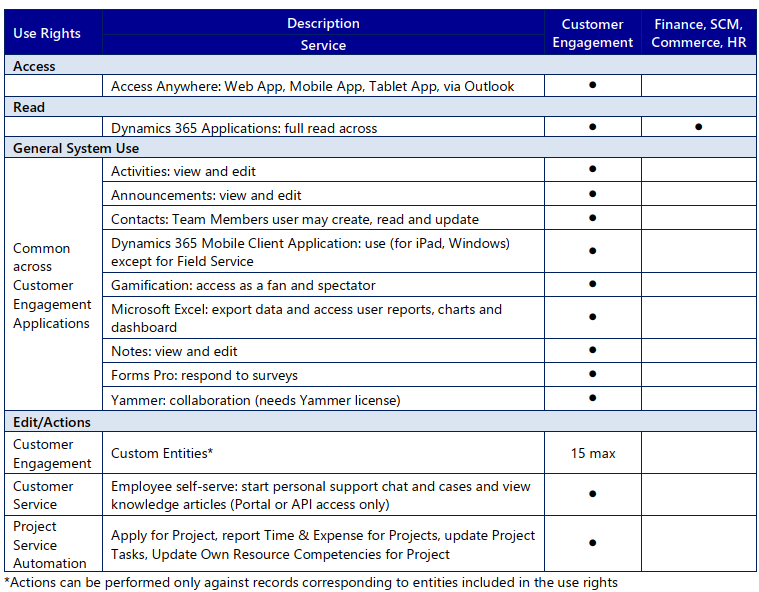
    Yes. The Licensing Guide specifically lists this as the first use right for Team Members in Appendix A: “Access Anywhere: Web App, Mobile App, Tablet App, via Outlook.”

    Q7: Can we also leverage Canvas apps with the Team Member license?

    Yes and no. You can use embedded Canvas apps within a Model-driven app entity form, since these are just customizations within the app itself. However, you can’t access standalone Canvas apps with just a Team Member license.

    Q8: What about if we have Office 365 license that gives access to Power Apps AND a Team Member license, could we then build a Canvas app that reads Dynamics 365 data?

    Probably not, as this would require access to Premium Connectors. The CDS Current Environment Connector is the only non-deprecated way to access Dynamics 365 data (in the “product formerly known as Customer Engagement”, not talking about Operations or Business Central here), so this will likely be the technical blocker that stops you from building the custom app.

    Power Apps

    Q9: If we were to move our licenses from Team Members to Power Apps per App plan, what will the main differences be in the user experience?

    Power Apps licenses are meant for custom apps, meaning there will not be a preconfigured App Module from Microsoft. That’s no big deal, since creating new Model-driven App Modules is very simple. You can choose the entities you need in the app, design a sitemap to provide the navigation experience for accessing these, give your app a name, hit “publish” and have a custom App Module available to the users. There aren’t any fundamental differences between what a Sales Team Member app and “Our Customer Management app” look like to the users, as they’ll all be Model-driven apps presented via Unified Interface.

    Q10: Are there still restricted entities in Dynamics 365 that you can’t access with Power Apps licenses?

    Yes, there are, but no one knows exactly which entities. We are still waiting for Microsoft to update the list of Restricted entities requiring Dynamics 365 licenses, to align with what was supposed to be the October 2019 licensing model update. Eventually there will be new information published, but the current situation is quite challenging for both customers and ISVs to navigate past the Power Apps potholes.

    Compared to Team Member rights, a Power Apps premium license grants you access to create-read-update-delete (CRUD) entities like accounts, leads and opportunities that are read-only for Team Members. Also there are no 15 entity max limits in the Power Apps world, so your custom app can have a CDS data model that’s very complex. When you’re working with entities you create yourself, there are no restrictions at all. When you touch something built by MS for their first party apps, there’s a chance that limitations will apply at some point.

    Q11: If we would like to allow also external users to access Power Apps in our tenant, can we do that without buying a Power Apps Per App Plan or Per User Plan for everyone?

    With Canvas apps, there is the option for “bring your own license” (BYOL) available, which I’ve covered in this blog post. For Model-driven apps, this isn’t possible today. Power Apps Portals is always an option if you’re willing to re-build your app as a portal UI. (See also the Capacity topics below.)

    Q12: We’ve bought Power Apps per App Plan licenses for our users, now how do we assign these to the custom Model-driven app we’ve built?

    This is currently a tricky process, since Microsoft is still working on the proper mechanism to associate app passes with Model-driven apps. Follow these steps published on Magnetism Solutions blog and you should be able to pull it off. The Canvas app side is much easier and better documented by Microsoft.

    Q13: It seems that we can’t assign the app passes to both our production and test environments. Is this a bug or a feature?

    It’s a feature. While Dynamics 365 licenses like Team Member grant access to any number of environments in your tenant, the Per App Plan is actually a “Per App Within an Environment Plan”.

    Q14: From a licensing perspective, what are the differences between a Dynamics 365 environment and a pure CDS environment without Dynamics 365 Apps?

    Power Apps users can access any environment, if they have the Per User Plan or a Per App Plan app passes assigned in that environment. Dynamics 365 users are only allowed to use environments that have one or more Dynamics 365 Apps installed. So, if you build a small expense tracking app in a pure CDS environment, a user with $10 or $40 Power Apps licenses can use it, but a user with a $95 Dynamics 365 Enterprise App license can’t.

    Q15: If we start with a pure CDS environment to build a custom data model for our custom apps and later want to add a Dynamics 365 first party App from Microsoft, how does that work?

    Today you can’t deploy Dynamics 365 Apps into a pure CDS environment, so the only way would be a data migration project from your CDS environment to a new Dynamics 365 environment. It’s a technical limitation that MS surely wants to remove at some point, but right now you can’t step up from custom app to first party app via a license purchase alone.

    Capacity

    Q16: We want to build solutions that go beyond the personal productivity apps that the Default Environment is really only good for. What do we need for adding more environments, to leverage CDS and do proper ALM?

    Creating a new environment requires database storage capacity, since every blank environment consumes 1 GB before you even store any data there. This is the only cost associated with environment creation, you don’t need any instance licenses for sandboxes anymore like Dynamics 365 used to require earlier.

    If you purchase even a single Dynamics 365 license or a Power Apps Per User Plan license, you’ll get the 10 GB default capacity for database storage. If you only purchase Power Apps Per App Plans, it’s 1 GB. Each additional user accrues 250 MB more, if you buy Dynamics 365 Enterprise Apps or Power Apps Per User Plans. With Power Apps Per App Plan or Power Automate Per User Plan the users only accrue 50 MB. With Dynamics 365 Team Member or Professional App licenses, there’s no accrual per user.

    The default environment already burns 1 GB of your database capacity, so creating new environments may not possible without buying a capacity add-on license – unless you’ve bought one license that increases your default capacity to 1o GB (hint: always buy one).

    Q17: We have integrated other systems with Dynamics 365 / CDS and are now worried about the cost of API calls. How much will we have to pay for these?

    If the integration is accessing CDS as a non-licensed application user, the number of API calls that you have available for free is determined based on the types of licenses in your tenant. With at least one Dynamics 365 Enterprise App user, you get in total 100k requests per 24h, every day of the month. With Professional licenses this falls to 50k and with Power Apps / Automate it’s 25k. Anything beyond that requires buying dedicated capacity add-on licenses.

    Now, even though you can buy the license already, you can’t assign it yet. Since there also isn’t any API usage telemetry available to customers yet, we’re not in a situation right now where the system usage would be technically limited based on overage.

    Q18: Power Apps Portals, is the login capacity license starter level of 100 logins / $200 per day or per month?

    That’s 100 logins per month. A login session lasts 24 hours, after which a new login is consumed from the licensed capacity. If a user logs in every first day of the month, that’s a $2 per month cost. If they log in every working day of the month, the cost would be around $20 per month for Portal access, which is twice the price of a Power Apps Per App Plan. For higher volumes of Portal usage, there are discount tiers available to bring down the costs. Note that you need to purchase a sufficient amount of capacity in advance, based on how many logins you expect to have in any given month, because unused capacity does not roll over to the next month.

    There’s more!

    I’ve written several blog posts about the licensing topic, which you can browse through right here. If you want to keep up with the latest news around Power Platform, please feel free to subscribe to the Thinking Forward blog updates.

  • New Team Member apps for Dynamics 365

    New Team Member apps for Dynamics 365

    In the 2020 Release Wave 1 release plan documentation we saw that Microsoft is finally going to bring technical licensing enforcement for Dynamics 365 Team Members into the platform. By launching specific App Modules designed to be used with the cheap Team Member license as well as building the mechanism for controlling which Service Plan entitles the users to access which App Modules, there will now be a clear line for what is and isn’t possible right within the system.

    That’s how it is in theory. What about in practice? Let’s explore the Early Access features launched for 2020 Release Wave 1 on February 3rd and see how these App Modules are implemented.

    Sales Team Member app

    Since Sales is by far the most common business process that CRM systems built on Dynamics 365 Online are managing, let’s start from the dedicated Team Member App Module for this scenario. The pre-release documentation isn’t very extensive yet, but from there we can get the basic intention of this new app:

    “At a high level, users with the Team Member license can perform the following tasks in the Sales Team Member app: 1) Customer management: work with accounts and contacts. 2) Lead and opportunity management: see leads or opportunities linked with accounts or contacts, or see other sales-related data. 3) Add activities, such as notes.”

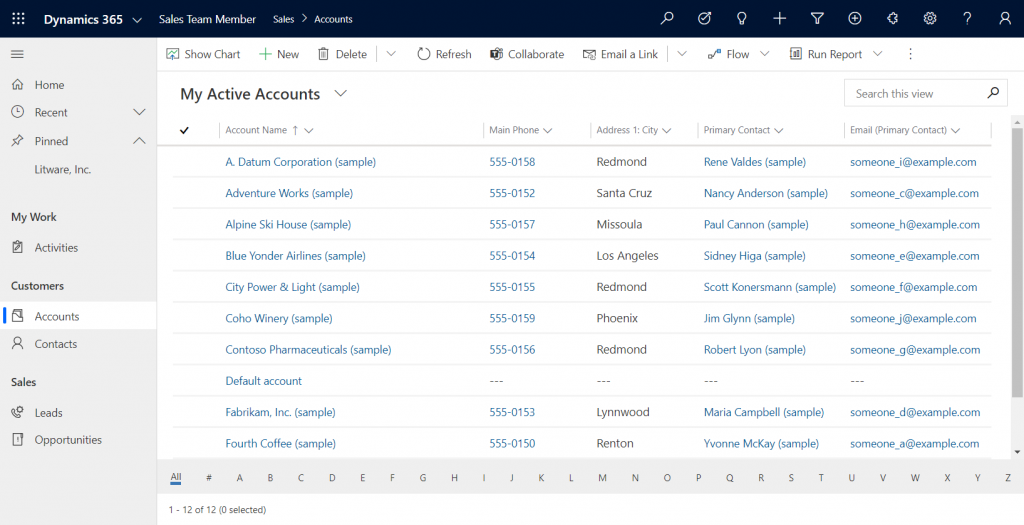
    Upon launching the app, we’re greeted with a familiar experience that looks like Dynamics 365 Sales, only it’s simplified to contain just 5 menu items in the sitemap: Activities, Accounts, Contacts, Leads, Opportunities. If the dashboards menu was also included here, the app would resemble the kind of CRM system that most small organizations or teams actually need in real life.

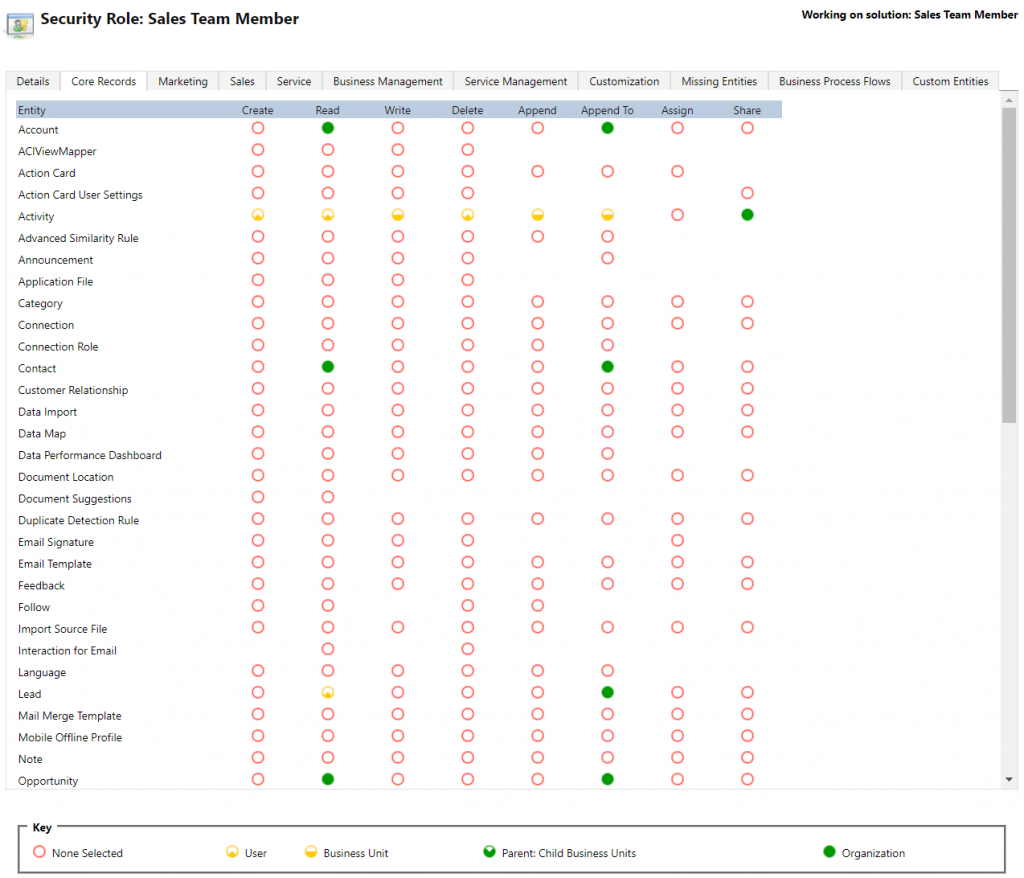
    If we’re using the app with the full access rights granted by a powerful security role like system administrator then there isn’t much that the Sales Team Member app stops us from doing. For example, creating or editing accounts is one of the rights that has been stripped away from the Team Member license, yet the app would happily show us a “New” button for adding accounts via this App Module. The secret lies in the Sales Team Member security role that comes with the solution. A view of the privileges for core entities looks like this:

    Wow, that’s quite restricted indeed! Assigning only this role the users wouldn’t even permit viewing activities from anyone else, nor leads, or adding contacts. Let’s get back to the customization options later, but this is indeed in line with the description of what Microsoft intended the offer with the standard Sales Team Member app.

    Customer Service Team Member app

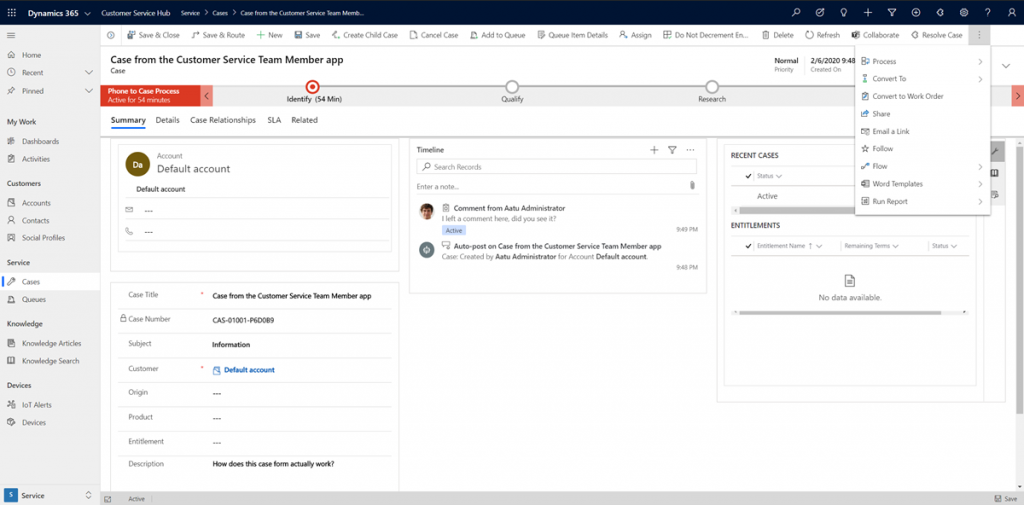
    The second experience is for Customer Service – but not in the way that you’d traditionally see the Customer Service App of Dynamics 365 being leveraged for assisting external customers. This Team Member app is intended for scenarios where the app users is actually the customer being served:

    “With the entry-level Team Member license, you can now address self-service support scenarios for your employees using the new Customer Service Team Member app module. Employees can create cases for their problems, such as laptop issues, HR queries, and administrative needs, and interact with agents through the commenting feature. They can also search the knowledge base for solutions pertaining to their problems.”

    Unlike the Sales Team Member App, this App Module isn’t installed by default. That’s probably a good thing, since I’d imagine the majority of Dynamics 365 customers are not using it as an internal helpdesk – although it definitely is a perfectly sensible scenario. If that’s what you’re doing, then the CS Team Member solution installation will need to be started from the Dynamics 365 Admin Center.

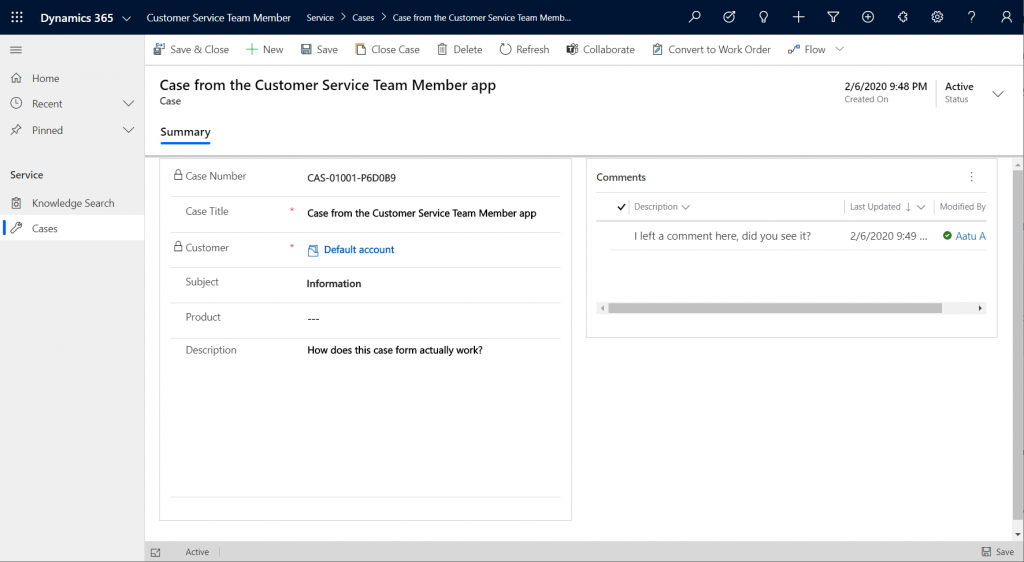
    If we look at the same case record via the full form in the Customer Service Hub App Module, we’ll see quite a stark difference. The solution package for the Team Member app appears to contain a web resource called Incident_teammember_library.js that modifies the behavior of the case form in many ways, such as hiding the Business Process Flow, replacing the standard Resolve Case dialog with a much more streamlined version and who knows what else. The Command Bar also contains far less functionality than it normally would.

    An interesting feature of the Customer Service Team Member app is the use of a default account that you can configure for the organization. The cases created via the Team Member app will automatically be linked to this account as the customer. The requirement for having either an account or contact as the customer has been a part of the MS CRM data model since day one, which has traditionally made the internal helpdesk scenarios quite tricky to implement – if the customers actually are users of Dynamics 365. Without any further documentation, I’m not quite sure what Microsoft’s vision has been for this new feature in the Customer Service Team Member app, since it looks like there isn’t any linkage to the internal customer (user) now in the case data model. If a person who provides helpdesk services would now assign the case to himself to work on, where’s the reference to the actual person who was in need of assistance?

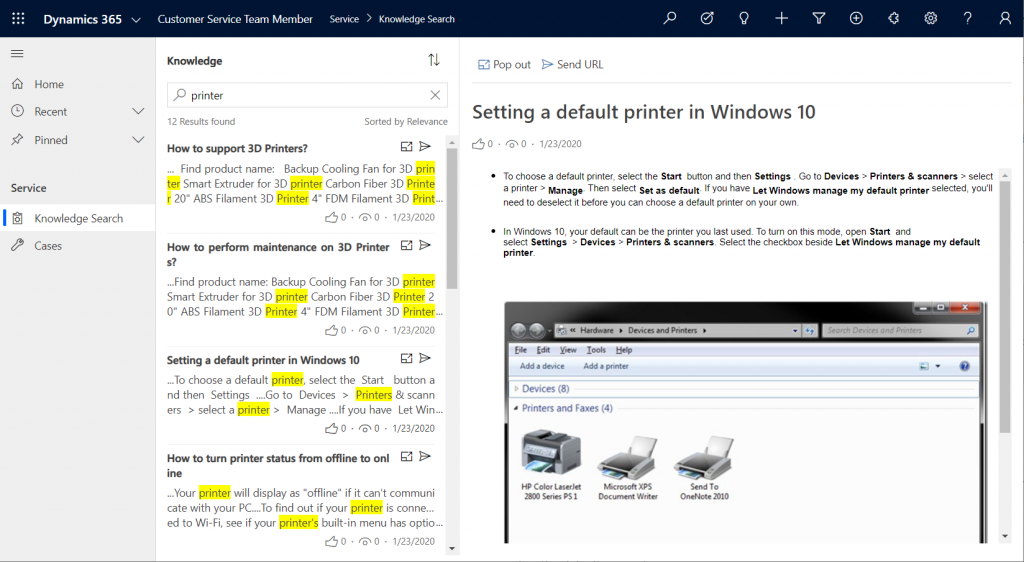
    The other available menu in the Team Member app sitemap, Knowledge Search, isn’t a reference to any entity but rather presents a dedicated UI for browsing published Knowledge Articles. Well, browsing isn’t maybe the right term, since the only option here is free text search for keywords, which will then return a list of articles if matches are found.

    It’s good to keep in mind that certain features of Model-driven Apps in Dynamics 365 aren’t yet App Module aware – meaning they’ll be presented in the UI the same way regardless of which specific app the user has launched. Recent and Pinned items will contain data not included in the App Module, Advanced Find will show all entities that are visible to the user’s security role, the Assistant and (deprecated) Task Flow buttons will always be there in the top Nav Bar. Still, the core experience of App Modules can be restricted down to a limited subset of features, as demonstrated by these Team Member apps. When moving from legacy web client to Unified Interface, these type of targeted experiences definitely are something worth pursuing, rather than the oldskool CRM monoliths that contain a hundred and one items in the navigation.

    Customizing the App Modules

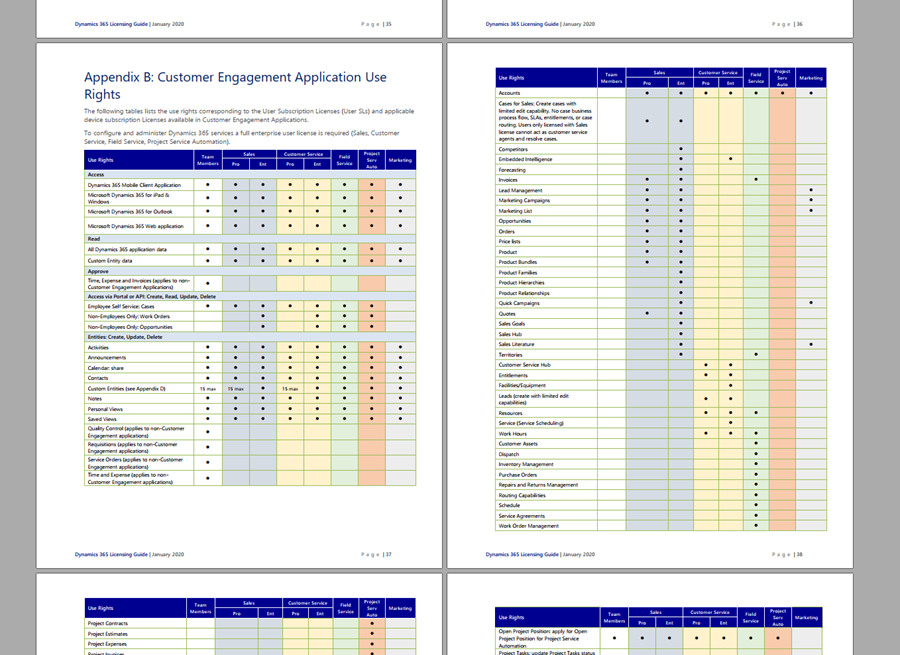
    Now that we know what comes out of the box for Team Member users, many customers will surely be asking what to do with the functionality in their CRM systems that isn’t represented in these standard App Modules. To understand the commercial boundaries better, let’s have a look at what the latest February 2020 licensing guide has to say about the rights of Team Members. We’ll start from Appendix A and the table that describes use rights for Team Members in Customer Engagement apps. (Yes, even though Microsoft product documentation says the term “Customer Engagement” is no longer used for online products, the licensing team hasn’t yet come up with a new term to replace CE in the licensing guide.)

    To start off, Team Members still have the right to read all Dynamics 365 application data. Therefore every single entity you could possibly include within the Sitemap of an App Module could in theory be brought in there. Of course you would have to ensure via the security roles that no creation or modification of those records would be allowed. Also the reporting and dashboards features are explicitly stated as being available for Team Members, on page 11 of the licensing guide.

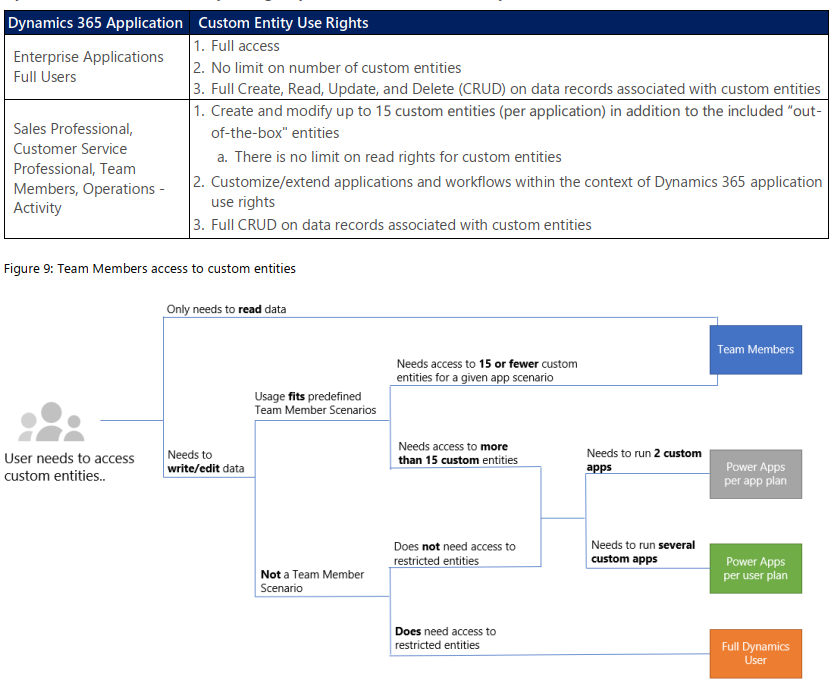
    As for custom entities, we see that there are also edit/actions rights, but we have a “15 max” restriction in the table. What does that mean? The answers are given in Appendix D: Custom Entities.

    We see that for a given app scenario, Team Members can create and modify records for up to 15 custom entities – per app. Where the lines are a bit blurry is the statement that this usage should “fit predefined Team Member scenarios”. As long as these custom entities are related to sales or customer service processes, I guess you’re on the safe side to add them to the standard Team Member App Modules that soon will be the only way for users with Team Member licenses to access Dynamics 365 – once the enforcement for first-party vs. custom apps is enabled in April 2020. Again, keep in mind that read rights are included for any entity, so the 15 custom entity limit couldn’t ever be technically enforced on the App Module level, based on how I interpret the licensing terms.

    What if you really need to do more than what the Team Member license would allow? What if you’re building apps for your unique business processes that aren’t covered by any first party app in the Dynamics 365 suite of products? Then you should explore the possibilities of Power Platform and its licensing model. Power Apps Per User Plan is the platform SKU that Team Member never was intended to be. If you’d map all the current and future workloads that Power Apps could take over in your organization’s business applications portfolio, the value is likely to be much higher than what the customization of these Team Member apps could ever deliver.

    Read more

    Microsoft has published new documentation on Dynamics 365 Team Members license that outlines the user experience for accessing the App Modules, as well as the customization restrictions.

  • Get ready for licensing enforcement in Dynamics 365

    Get ready for licensing enforcement in Dynamics 365

    Understanding what customers can do with specific licensing options available for Microsoft Business Applications has become a key component of the solution design process. There can be many different ways to reach the same business goal when either customizing and extending first party apps that Microsoft has built for Dynamics 365, or leveraging the Power Platform for building your own custom apps. Even within Dynamics 365, when planning which specific features are taken into use for managing a specific business process, it’s important to keep in mind whether it requires some “premium” features available only in more expensive plans like Sales AI. Then there are of course the consumption based components used in Microsoft’s more recent additions to Power Platform licensing model, like API calls and Portals logins.

    Some partners and customers complain that the licensing documents from Microsoft are far too long, but the reality is that at the same time they’re also not extensive enough. It is quite common to run into a scenario when planning the implementation of a specific solution for a customer and then not finding a definite answer on what licenses it requires exactly. This is particularly true nowadays when the licensing model is a merger of the Dynamics 365 style business application products and the new citizen developer focused offering of Power Apps and Power Automate. These different products share more technology underneath the covers than many people realize, yet the way they are sold and positioned is quite different. When there is overlap, that’s when confusion arises.

    What would make it easier to validate the solution design against the licensing model is if there was a way to do test cases with a live system. Unfortunately much of this model still remains an honor system, meaning that many rules only exist on paper but have not been actually technically implemented within the online service run by Microsoft. However, we’ve been hearing about the plans for further technical enforcement of the licensing for some time now. In fact, there are pieces related to this that you can already see with your own eyes when exploring your environments.

    Enforcement mechanism inside CDS

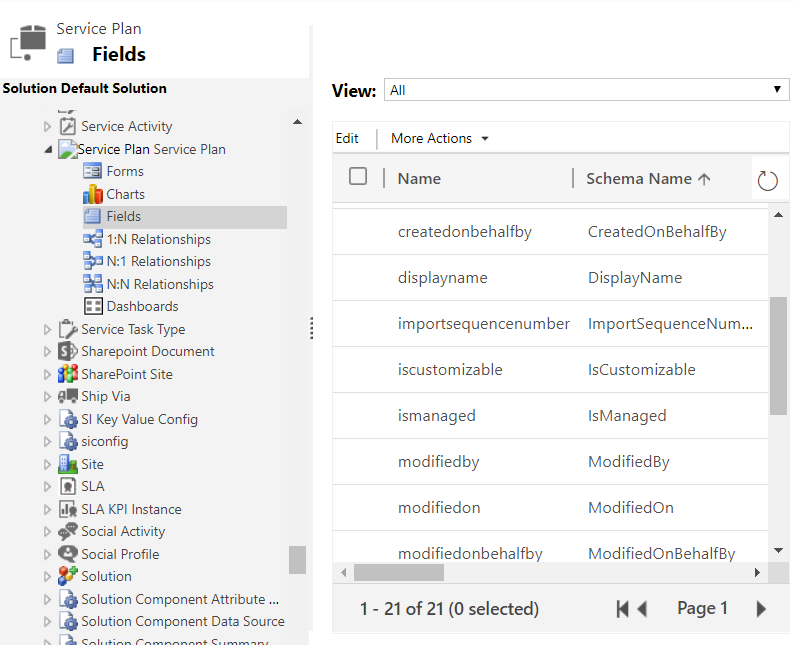
    If you are keeping track of the weekly updates that Microsoft pushes into every Online environment (via tools like Solution History for XrmToolBox), then there’s a chance you’ve noticed a hidden solution called “License Enforcement” deployed in December 2019. This introduced a new “Service Plan” entity into the schema, as can be viewed via the Default Solution:

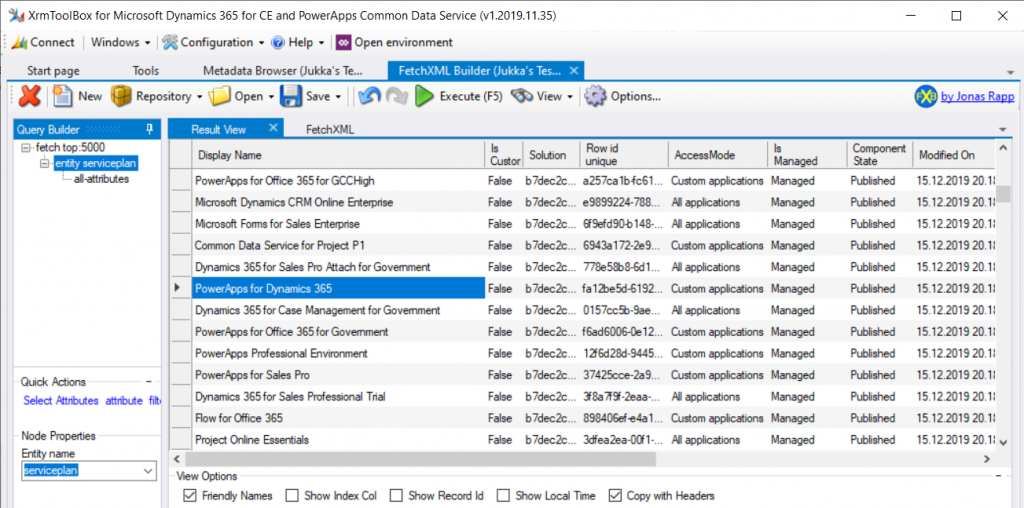
    You won’t be able to do an Advanced Find search to browse through the data for this entity. There is, however, a very convenient way for us to do a query of the Service Plan records, again via XrmToolBox, by leveraging FetchXML Builder:

    Wow, that looks interesting! While installing the solution, Microsoft also deployed a bunch of Service Plan records that presumably cover all the different types of licenses that have at some point in time granted access to a Dynamics 365 Customer Engagement Online environment, or CDS. Let’s copy this data into Excel for further analysis, and let’s make sure we tap the “friendly names” view option before doing so.

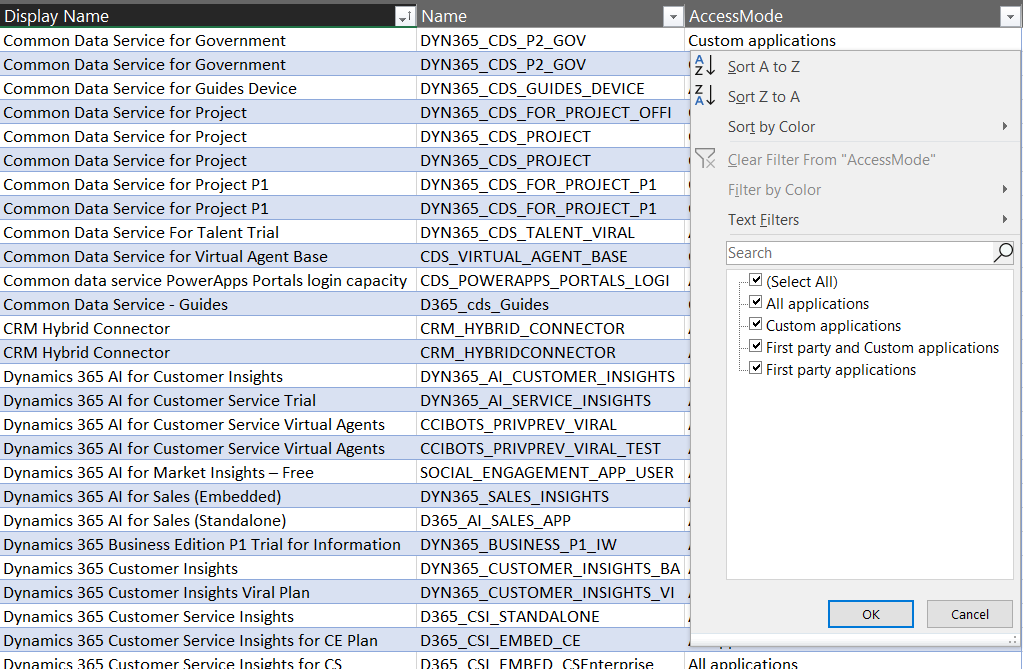
    It looks like there’s important data in the columns “Display Name” & “Name”, but the really interesting column from licensing enforcement perspective is “Access Mode”:

    Looking at the 4 options, it’s a bit difficult to understand what the difference between “all applications” and “first party and custom applications”would be. Even legacy products that are long gone like “Parature Enterprise” have the “all applications” access mode enabled. Without further information on this, let’s focus on the more straightforward options, like “first party applications”:

    Not too many entries for this option. Also it’s not surprising at all that it is the Team Member licenses that show up here. If there is one type of license that Microsoft probably would want to undo in the history of the Dynamics product line, it must be this. Introduced back in the days of Dynamics 365 CRM + ERP story debut, its design neglected the power of the platform in the sense that it granted practically unlimited rights for custom entities for a very low cost. The rights included in Team Member have since then been restricted considerably, to make room for the actual platform SKU that is Power Apps.

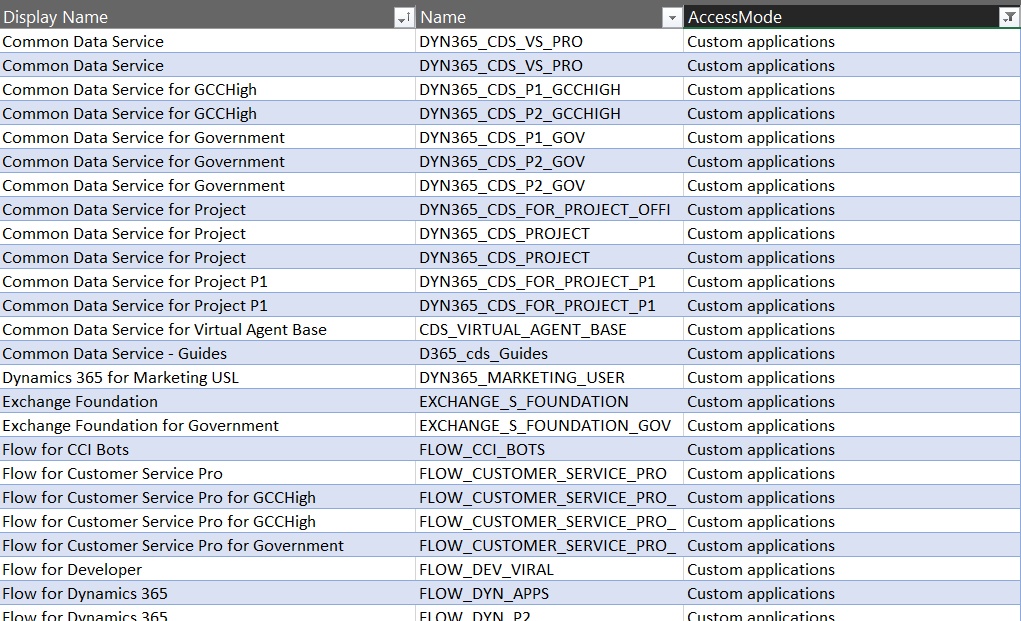
    Speaking of Power Apps, let’s look at the service plans that have the access mode set as “custom applications”.

    A lot longer list, with again some surprising entries like “Exchange Foundation”. The vast majority of this list is however very logical, as it mainly covers PowerApps and Flow (which on the branding side have been changed to “Power Apps” and “Power Automate”, of course, but this is licensing). The twist here is that similar to how Team Member granted too wide access for custom app scenarios, the rights included in Power Apps for accessing Dynamics 365 CE data stored in CDS are also a bit problematic from a commercial perspective for Microsoft. What clearly is off limits is the use of the standard app modules that ship with the Dynamics 365 App licenses.

    App Modules as a licensing construct

    The whole point in bringing data like service plans inside the CDS database is in being able to link that into app modules. If you browse through the metadata of any Online environment you’ll discover an entity with schema name “ServicePlanAppModules”. The relationship between a service plan and the app module is both the way how Microsoft has crafted the licensing terms for different products and also the mechanism through which access rights for different license holders will be restricted in the future.

    Looking at the fresh new Release Plan for Dynamics 365 2020 Release Wave 1, one of the new features is in fact called “License enforcement: users with new Team Member licenses”.

    For Team Member licenses purchased during or after October 2018, license-based access will restrict users to a set of designated app modules. These users will no longer be able to access Customer Service Hub, Sales Hub, or custom app modules.

    In April 2020 and already earlier in preview we’ll finally see the new Sales Team Member and Customer Service Team Member app modules that have been hinted at in earlier communication from Microsoft. Although these will be preconfigured modules, there will be room for customizing them to contain custom entities and (presumably) also hide unwanted entities – just like with traditional app modules. What will be different though, based the Release Notes as well as the Service Plan data model, is the lack of ability to build your own specific app modules from scratch. Any organization that has used Team Member licenses for covering a functionality not included within the first party Dynamics 365 Apps built by Microsoft will therefore have some work to do for redesigning the end user facing experience to accommodate these technical restrictions being put into place.

    “Oh, but we don’t use Unified Interface, so I guess we can skip those app modules in the oldskool web experience, right?” Wrong, you have even more work to do! There will be no support for accessing the legacy web client after October 2020. You better hurry with both planning your transitioning to Unified Interface as well as addressing the gaps that may be left for your Team Members users that will not have access to Sales Hub or any custom app module. Both of these changes have been a long time coming, but as many surely have experienced, it can be challenging to get the necessary planning and development work prioritized within organizations without a hard deadline. Now we have one (well, two dates interlinked), so that part is solved already!

    Restrictions like these enforcement rules are bound to generate some emotional responses. In the long run, having the rules specified in software rather than just paper should serve to bring more clarity into what services are available with which licenses. Any such clarity is most certainly welcome for making it easier to navigate an ever growing product stack like Microsoft Business Applications.’

    Read more

    Check out my blog post New Team Member apps for Dynamics 365 where I explore the 2020 Release Wave 1 early access versions of the new App Modules for Sales Team Member and Customer Service Team Member.