Tag: analytics

  • Top 3 Themes for Dynamics 365 in 2018

    Top 3 Themes for Dynamics 365 in 2018

    This time last year I wrote my Top 3 themes of 2017 article on what were the major events and directions from the year for the Dynamics 365 ecosystem. The start of a brand new year always feels like the logical moment to reflect back on the past 365 days, so this sounds like a worthy tradition to keep going. Here are my Top 3 picks from 2018 and some thoughts on how they might influence the direction of the year 2019 ahead.

    Power Platform

    The biggest single announcement of 2018 came in March when the Dynamics 365 Customer Engagement and PowerApps platforms were merged into one. It wasn’t until July that we began to see the Power Platform term used in describing this new suite of tools that now is the way to extend both Dynamics 365 and Office 365 apps, as well as building brand new apps for customer specific scenarios.All of a sudden the technology that had been bubbling under in the Dynamics CRM corner room is now brought onto the main stage of MS business software show.

    The immediate impact was that XRM became CDS 2.0 (Common Data Service for Apps),which probably hasn’t been all that easy for non-Dynamics professionals to understand if they only paid attention to official MS information sources covering the topic. For the Dynamics partners a nice upside in this merger was PowerApps P2 becoming the “naked XRM” platform license they had been asking for many years (compared to the earlier Dynamics 365 Plan license for bundling CRM + ERP, which I don’t think was in as high demand).

    A more subtle but equally important change was the birth of model-driven app and canvas app concepts. No, not the marketing terms nor the division into two app types, rather the fact that these different client technologies now had a clear need to start approaching one another in terms of how they behave, what data sources they support and how they are administered. Examples of these have become visible through recent announcements like:

    It would be perfectly justified to call 2018 “the year of the platform”, considering how significantly the investments from MS side seem to have shifted from Dynamics 365 to the Power Platform. During 2019 we’ll see if the partner channel can follow along, to transform their offering into something more in line with the PowerApps story than the traditional CRM business models that have mostly been just revised for the cloud based environments during recent years.

    A similar challenge awaits the professionals who’ve been working in this business and now need to figure out how to put their existing skills into use in projects that may not even mention the Dynamics product name anywhere. Plenty of new skills will also need to be acquired for leveraging the broader toolkit. The recent announcement of Dynamics 365 exams certifications to be retired gives an indication of the looming new requirements that await the MCP’s wanting to remain current with their certification record.

    One Version

    My Nr. 2 theme from 2017 was the App/Plat separation that largely took place as part of version 9 release. Now that Dynamics 365 CE is running purely on Azure after all orgs get to v9, the next logical step is to start delivering new releases on it the same way a modern cloud native product would. PowerApps, Flow and Power BI have already been operating as a service with a single version for all customers and now the platform underneath Dynamics 365 as well as the Apps on top of it are set to transition into this model. The July announcement of how Microsoft plans to deliver predictable updates with continuous deployment for both Customer Engagement and Finance & Operations is another major event of 2018 that will shape the future of these product lines and introduce a new reality for customers who build their digital business processes on top of them. The old CDU process for version update scheduling is no more and everyone will get the April 2019 update bases on the public release schedule.

    (more…)
  • Reflecting on Dynamics 365

    Reflecting on Dynamics 365

    The past couple of months leading to the Microsoft Dynamics 365 commercial launch have been interesting, to say the least. A lot of things happening, but in a way that hasn’t been all too easy to grasp. I’ve started a lot of draft blog articles around the topic yet I haven’t written that much about Dynamics 365 – because I haven’t really known what to say about it. After visiting Redmond last week for the annual MVP Summit and talking to all the awesome Dynamics C… sorry, Business Solutions MVPs, I’ve decided that it’s time to just start putting my thoughts out there. I believe this is the best way to gain more clarity on the topic, rather than trying to come up with the ultimate, complete definition on what Dynamics 365 is and how it will impact different parties.

    In Loving Memory of CRM

    Dynamics_sails_fade_away_sFirst, let’s get this thing out of the way: CRM is dead. Yes, believe it or not, but from a Microsoft product marketing perspective this is absolute the truth. There isn’t a single SKU available now after November 1st that would carry the three letter acronym we’ve come to know from the Microsoft business software offering during the past 13 years. I wrote an article on this change in branding and why I think it makes sense, so go and have a look at it if you’re interested in the details: “Why is Microsoft dropping ‘CRM’ from its Dynamics branding?”

    Second, Dynamics CRM as a technology is totally alive and kicking. It’s bigger than it’s ever been and about to get even more massive with the road ahead that is Dynamics 365. XRM remains the backbone on top of which most of the new Apps in Dynamics 365 will be built. In fact, it’s the non-XRM products in the portfolio that are being axed, with Dynamics Marketing being replaced by a new XRM based Marketing app for Dynamics 365 Business Edition, and Parature being discontinued as the features mostly already exist in the XRM service. So, the real reason why Dynamics CRM isn’t called “CRM” anymore is because it’s grown so far beyond what the humble beginnings of the product were back in 2003.

    Third(ly), all of this means we’ve ended up deep in the enterprise territory. The number of different applications included in the Dynamics “customer engagement” portfolio (which appears to be the unofficial new term for the CRM platform) is now so big that no single individual in the world can claim to be fluent in all those areas. As a result, fully deploying these applications into real life business processes is a task that will require significant investments from the customer organization – even if they are configurable cloud apps rather than custom software. The current offering + the new features are now sold under the Dynamics 365 Enterprise Plan for a good reason and the pricing of the whole package has been increased to reflect the potential value that can be derived from it. The SMB story around Dynamics 365 remains unclear as of now and we’ll need to wait a while before the dust settles. To get an understanding of what’s going on there, I recommend you to subscribe to the writings of one Dynamics 365 Fighter Pilot to keep up with the latest news.

    A Bigger Picture

    The whole story of Dynamics 365 isn’t just about taking two products, formerly known as Dynamics CRM and Dynamics AX, then offering them as a single subscription service. Yes, that ease of acquiring a full business application platform from Microsoft cloud is already a major step forward and a big competitive advantage. However, CRM + ERP <> 365. Don’t settle for that explanation if a Microsoft partner gives it to you, because there’s a lot more to it than meets the eye.

    The timing of Dynamics 365 commercial launch coincided with the general availability of two new Microsoft products, PowerApps and Flow. These two cloud services are so intertwined that I don’t actually think they are separate entities, but rather components of a single “thing”. What that thing is exactly is not so easy for even Microsoft to articulate, but I’m expecting the story to evolve quite rapidly on this front. Just recently, the Common Data Model that I covered in a past blog post during its first preview was renamed to Common Data Service, to better reflect the true nature of this piece of the cloud business apps puzzle that Microsoft is putting together.

    Customer_insights_360_view

    Since both PowerApps and Flow have been advertised not only as parts of the Dynamics story but also the broader productivity offering of Office, they’ve received far more attention in the blogs than a more recent entrant to the scene: Dynamics 365 for Customer Insights. Also known as “Azure Customer Insights”, or “Cortana Intelligence Customer Insights”, it is something that sits outside of the CRM platform, but when viewed from the perspective of business strategy, is definitely very much about CRM. You see, the purpose of Customer Insights is to deliver on the mythical “customer 360” promise that countless customer relationship management initiatives throughout the past two decades have aimed for – and often missed. It is the analytical CRM, where the traditional systems that some of us have spent their whole professional lives developing and deploying are firmly in the operational CRM territory.

    Rise of the Machines

    This leads us to the bigger vision that Microsoft has around more intelligent computing. While the existing business applications both in the Office and Dynamics product lines are being developed at a more rapid pace than ever before, they alone don’t reflect what the future of business software will be like. The term “transactional platform” has been used by Microsoft in reference to what XRM as we know it represents. This platform is not going away, rather it is becoming increasingly integrated into the direct interactions with customers via different channels, rather than the oldskool salesforce automation scenarios where a sales rep recorded information manually into the CRM system about these interactions. Alongside this platform, a new pillar is being built: the analytical platform.

    “What’s so special about that? We’ve had data warehouses and BI tools integrated into our CRM systems for years and years already.” A fair question to ask, my dear fictional reader voice. Data analysis systems are of course nothing new in the realm of CRM, but they have often focused on reporting on the old world of business data coming from CRM and ERP databases. What’s different this time around is that both the sources of data and the quantity of the actual data, which are growing faster than the traditional BI solutions can cope with. You don’t need a new platform to build an even fancier opportunity pipeline chart from the data your sales reps are entering. You do, however need a whole different approach once you start automating your business processes based on the IoT device data that millions of sensors will be sending in a million times a day.

    My_square_brain_on_machine_learningAlthough it may not seem like an everyday scenario just yet for most Dynamics customers out there, this is the future that Microsoft is very seriously preparing for. As one data point, the newly established Microsoft AI and Research Group has (or will shortly have) 5000+ computer scientists and engineers working on “democratizing AI”. What this means is that machine learning algorithms will be embedded into each and every service that Microsoft offers, to crunch the data inputs from various sources inside and outside your company, in an attempt to make the applications more intelligent. In Dynamics 365, Relationship Insights are the first taste of what added value Microsoft’s data cloud can provide when the algorithms get to work on the communication network data from both XRM as well as  your Exchange Online.

    This new form of intelligence will become both a built-in feature of the common business applications as well as a capability that the business application platform allows you to build on top of your customer data, business process data and, increasingly, sensor data. The first examples we’ll see might not be so glorious in practice yet (I’m totally expecting to see some less intelligent recommendations from Dynamics 365 Relationship Assistant), but the machines may well learn faster than many of us would predict. Also, even if your business wouldn’t be manufacturing any smart IoT devices to generate endless streams of data, there’s bound to be other valuable data sources out there that can be connected with your business processes. Microsoft didn’t spend $26B on LinkedIn just to get an excuse to spam you with email every day, so I bet we’re going to see some pretty compelling B2B insights being offered from this treasure trove of professional network data.

    Welcome All Species

    Back in the days of oldskool CRM things used to be simple: on one specific date a new package of bits would become available, people would find a server to install it on by following the deployment guide steps and… TA-DAA! Here was your business application! People would start entering letters and numbers into the system via their keyboards, to be later viewed by different people sitting in front of their own keyboards. Now we’ve got cloud software we can’t really touch, rolling out into our virtual subscription containers at an unspecified date, containing new functionality that we’ve barely seen for a few seconds in video stream broadcast online. New cloud apps keep popping up like mushrooms and they form a fungus-like network beneath the surface, communicating with one another in ways we can’t easily observe. They gradually find their way into new business processes and, thanks to the evolving AI capabilities, pretty soon start actively altering the behavior of us mere mortals who interact with these apps via any screen, keyboard not required.

    The future isn’t scary, but it’s different. There isn’t anything specifically forcing you to work differently than you did a decade ago with your CRM software, thanks to the backward compatibility of core features and the underlying stack of MS technology. If you’re paying attention, though, you’ll see everything around you being gradually replaced with something else, expanded beyond the borders that used to be there just a moment ago. Close your eyes for too long in this environment and when you open the curtains you might be shocked to see that your cozy lil’ cabin has been surrounded by an urban metropolis that grew around you while you were sleeping. That hectic new lifestyle out there is going to take some getting used to.

    It’s not a single thing like the Dynamics 365 commercial launch or the deprecation of CRM as a product name that’s responsible for the change. They are simply logical steps on the way towards a much broader set of tools for a universe of use cases that keeps expanding a lot like our physical one – at an increasing rate. Which means that unless you want to remain stuck on Planet CRM, there’s a lot of space exploration ahead for all of us.

  • Previewing the New Power BI Experience with Dynamics CRM

    Previewing the New Power BI Experience with Dynamics CRM

    Around one year ago Microsoft introduced the capability to access CRM Online data via Power Query, one of the client side components of the Power BI suite. More precisely, the capability to authenticate with the already existing CRM OData feeds via Office 365 credentials was introduced into PQ, which then allowed us to use CRM Online as one data source in our Power Pivot data models driving Power View visualizations. No Dynamics CRM specific feature had really been developed, but it was the first step on the road of unlocking the cloud data from the analysis limitations that the previous tools (CRM charts & dashboards, SQL Server Reporting Services reports with Fetch XML queries) had imposed on CRM Online customers.

    There was a lot left to be desired still. Building reports from the raw OData feeds can be a cumbersome process, since no built-in tools existed for filtering the amount of data pulled from the entity tables. Also, not all the components needed in basic reports, such as optionset labels, were available to be retrieved dynamically from the OData feed. The biggest gap, however, has been the inability to automatically refresh the reports published onto Power BI portal, which means that each report end users would have needed to perform this refresh manually. As a result, Power BI has so far not been a something that I would have suggested to CRM Online customers as a company wide reporting solution, since it’s mainly been suitable for fairly advanced CRM power users building their own reports via Excel 2013.

    The Next Generation of Power BI

    Just before Christmas Microsoft announced the new Power BI Public Preview, which has a number of impressive looking enhancements to the service offering:

    Include in this announcement was also the statement: “In addition to the existing seamless connection with Microsoft Dynamics CRM Online, with today’s release customers can also connect to their data in Salesforce, Zendesk, Marketo, SendGrid, and GitHub with many more to come in the months ahead.” Upon first read, it was easy to interpret it as “nothing new for you Dynamics CRM folks out there right now, better luck in the next update!” This, however, isn’t the case.

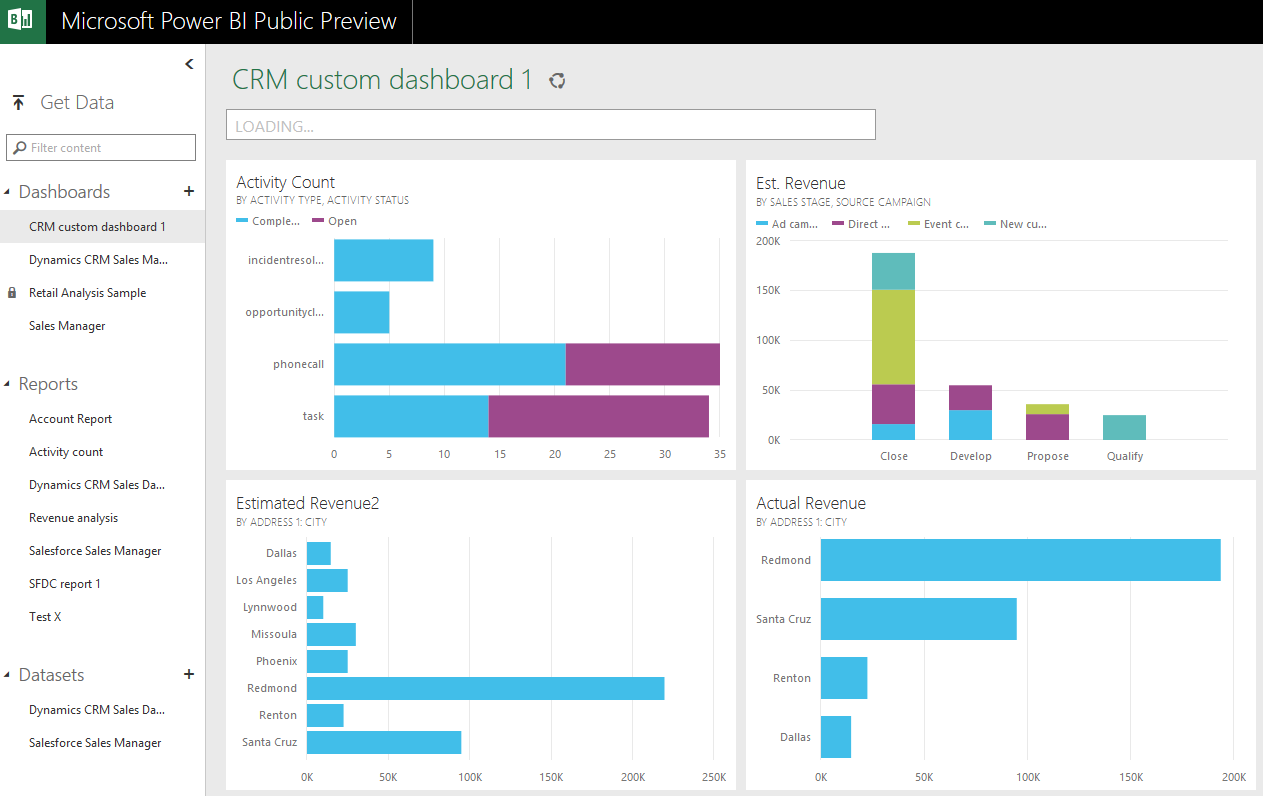
    PowerBI_Preview_CRM_app

    When browsing through the new support site for Power BI I came across a posted idea on supporting Dynamics CRM as a data source, and a very recent comment from a Power BI product manager that the new Public Preview actually included native support for Dynamics CRM. Here’s the article where you can find the exact steps needed for connecting your Power BI Preview instance to Dynamics CRM. As this Preview is only available in the US for now, I decided to spin up a new CRM Online trial org from across the pond and try it out.

    What’s in Store for Dynamics CRM Cloud BI?

    After going through the process of enrolling for the Power BI Public Preview program with my Office 365 US trial tenant, I completed the steps for connecting to CRM Online. This really is quite a simple process with not too many options. You only have to dig up the OData feed URL from your CRM Online instance. After you’ve added this Microsoft Dynamics CRM app into your Power BI environment, the data retrieval process will start uploading your CRM Online records from one cloud to another. (more…)

  • Analyzing Customer Behavior Data with CRM 2015 Rollup Fields

    CRM_2015_field_type_rollupFrom a system customizer perspective, one of the most intriguing new features in Dynamics CRM 2015 is the addition of two new  field types. Alongside the traditional “simple” fields we can now define our custom attributes to be somewhat more “complex”, by choosing to create them as either calculated fields or rollup fields. These new field type options allow us to create point & click solutions to cover scenarios that would have previously required custom code.

    Microsoft haven’t been advertising this feature much in their “what’s new” materials for the CRM 2015 version release, but great blog articles have already been written on the topic, like this one by Peter Majer on the Sonoma Partners blog. There are also articles on Technet for both rollup fields and calculated fields, which provide all the details you need for getting the new feature implemented in you CRM Online or CRM 2015 on-premises organization.

    Rather than repeating this documentation, I’ll be exploring the different scenarios where the new complex field types can be leveraged, as well as the considerations and limitations to be aware of. In this first blog post I’ll demonstrate how the rollup fields can give us better insights on how our customers are reacting to email marketing campaigns sent to them.

    Summarize Marketing Automation Data for Contacts

    When our own CRM Online production organization received the 2015 update, the first use case I had on my mind for the shiny new features was to apply the rollup field functionality to the online marketing data that our ClickDimensions solution has been storing into the CRM database. If you’re not familiar with ClickDimensions, it’s a marketing automation service that allows you to send and track email campaigns, collect website visitor data, publish web forms integrated with CRM fields, configure automatic nurture programs for new leads, among other things (see this page for a detailed feature listing).

    What makes ClickDimensions particularly interesting in this case is that all of the behavior data is available inside the CRM application, in the dedicated custom entities contained in the managed CD solution package. For example, a page view transaction from a website with the CD tracking script deployed will be stored as a record for the Page View entity and then linked to either an anonymous visitor or an existing lead or contact record in CRM. Since it’s an “XRM” solution that you install as an add-in to Dynamics CRM, rather than an external marketing database that would be just synchronized with CRM, we can leverage all of the CRM platform functionality for showing and analyzing the data, automating related business processes with workflows and so on.

    Now with CRM 2015, the rollup and calculated fields have been added to our marketing automation toolkit. So, what do they allow us to do that would have previously been difficult/expensive to implement? As mentioned, all of the events tracked by ClickDimensions are linked to a CRM contact or lead record when the person performing the actions can be identified from browser cookies, unique id’s in links or submitted form data. If we would now like to view this data from the perspective of an individual contact, the rollup fields provide a way to summarize the data from related entities into fields available directly on the contact form.

    Creating Rollup Fields for Contact’s Email Link Clicks

    Let’s go ahead and add a new field for the contact entity. Yes, it must be a completely new field as you cannot convert existing standard or custom fields into calculated or rollup fields. Not a problem in our scenario, as we’re building a brand new feature into our CRM organization. The first field will be called Total Clicks and we’ll use it to count the number of related records found, so whole number is a suitable data type for us. By setting the field type as “Rollup” we’re given the option to edit the rollup formula.

    CRM_2015_rollup_field_Clicks_1

    In the rollup field definition editor we must now choose the related entity from which we wish to roll the data up to the contact entity. As we’re dealing with email link clicks, these are stored in the Email Event entity in the ClickDimensions solution, so that will be our choice. However, since the entity also contains data about events other than link clicks, we’ll need to add a filter into the related entity section and define that only email events where the field “type” equals “click” should be included in our rollup. As a final step, in the aggregation section we select “count” as the function that will provide the actual value for this new field on the contact record.

    CRM_2015_rollup_field_Clicks_2

    Let’s repeat the process for another new field: Latest Click. Instead of counting records, we’ll be looking at the date values on the related records, retrieving the highest date available and storing it into our rollup field. This means the data type should now be “date and time”. The rollup field definition is otherwise the same as with the first field, but in the aggregation section we’ll now have a different list of functions available for this data type. Let’s pick the Max function and apply it on the creation date of the email event records associated with the contact.

    CRM_2015_rollup_field_Clicks_3

    Alright, let’s save these fields and get them published! Oh, by the way, did you notice the yellow notification bar down in the rollup field definition editor window? That’s actually very useful information to be aware of once we move on to the next stage of our customization process.

    Displaying the Rollup Field Data for Contacts

    There are two main places where fields are presented in Dynamics CRM: forms and views. Let’s start from the contact form and include our new rollup fields there. In my scenario, we already have a suitable custom form available for the contact entity, which has been used for summarizing all the ClickDimensions data related to an individual contact record. Notice those fancy embedded charts and subgrids showing the email events for this test contact record of mine? That’s actually something you’ve been able to do already since the CRM 2011 version, so not exactly related to our agenda of the day, but a good reminder about how you can leverage the XRM capabilities of the Dynamics CRM platform to present data in a format that’s easier for end users to consume. (Check out my 10 tips for better CRM user experience for more discussion on that topic.)

    CRM_2015_rollup_field_Clicks_4

    I’ve added the Latest Clicks and Total Clicks on the contact form, below the existing chart and subgrid. But wait a minute: why are they empty? Did we do a mistake in the rollup field definitions? Don’t worry, this is exactly the expected result after creating a rollup field. If you took a moment to read that yellow notification bar I mentioned earlier, you’ll know that a mass calculation job was created by the CRM system after you added the rollup fields for the contact entity. Also, since it was by default scheduled to be run 12 hours after the field creation, we’re not going to see the whole magic until the next day in many cases.

    If you’d rather validate that the new customizations you’ve created are working as planned, instead of just taking my word for it, open up a contact record form and hover over the rollup field. You’ll see a “recycle” icon that you can click on, after which CRM will perform the rollup calculation for that field, for only the currently selected record. (more…)

  • Access Option Set Labels in Dynamics CRM OData Feeds via Power Query

    Access Option Set Labels in Dynamics CRM OData Feeds via Power Query

    If you’re using Dynamics CRM Online without direct access to the underlying SQL Server database, there may have been a few occasions when you’ve wished for more flexible options for reporting and customer data analytics than what is possible via configuring CRM charts or developing Fetch XML based reports in Visual Studio. Late last year Microsoft enabled support for accessing the secured OData feeds from CRM Online via the Excel Power Query tool, which opened up some interesting options for building modern BI solutions on top of the CRM data up in the Microsoft cloud.

    CRM_OData_Excel

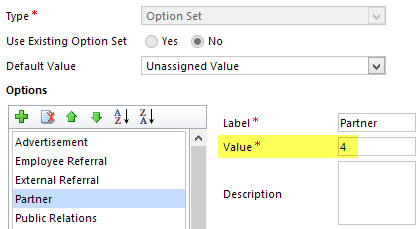
    For a non-developer who hasn’t leveraged OData before it might come as a bit of a surprise that not all of the business data is necessarily readily available via the feeds when examining a particular CRM entity. One crucial thing that’s missing is the option set values. More specifically, it’s the label values that are not accessible via the entity tables retrieved via the OData feed, as all we have access to are the numerical values representing the labels (1, 2, 3, 4… 10001), but not the human readable versions.

    CRM_OptionSet_Value_Label

    From a reporting perspective, it’s very likely that any chart or table that you wish to build is going to leverage one or more option set fields. Formerly known as picklists, these are basically the dropdown fields on CRM entity forms that allow the user to select one value from a list of predefined values. Much more convenient for reporting purposes than free text fields, as I’m sure you’d agree.

    So, what are our options then? We could of course manually create new tables into the Excel workbook that store the mapping of ID values and labels, but that just doesn’t sound like a fun exercise at all. More importantly, that would only give us a static list of option set values that couldn’t adapt to the changes in CRM customizations. Nope, not a good approach from report maintenance perspective, so let’s not go there.

    As a bit more efficient workaround we could be adventurous and import a copy of the CRM solution file containing the entity customizations as an XML data source into Power Query and then pick out the necessary mappings from there. Due to the power of Power Query, this would actually technically work, and we could even set it to reference a file location from where the latest customizations would dynamically be imported upon workbook refresh. Still, that would leave us the burden of setting up an automated export system that would produce the customizations.xml file to reflect the latest changes.

    After a bit of poking around in the OData feed data source, it turns out the optionset labels are actually included there. The tricky part is that they’re not simply a [Record] link that you can drill into and expose the values from your existing entity data set. Nope, they reside in a specific table of their own, called PicklistMappingSet. In this tutorial I’ll show you how to retrieve the data for a “Leads by Source” chart created with Power View, taken from an OData feed data source pointing to Dynamics CRM Online, using Power Query to pull the data into a data model built with Power Pivot.

    1. The Data Source: Power Query

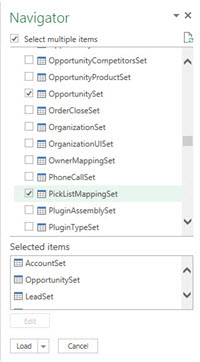
    PowerBI_CRM_Odata_1To follow the steps you should have the latest Power Query version installed in your Excel client. I’ve already covered how to access CRM OData feeds from Power Query in a previous article, so please refer to that one if you haven’t done the exercise before. After connecting to the OData feed URL we should select the tables that we want to work with from the data source navigator pane. By minimum you should grab the LeadSet and PicklistMappingSet to build the chart.

    The problem with CRM and OData is that by default the feed will pull down each and every record in the table. The query performance is less than stellar with CRM Online and if you have a high number of leads (status doesn’t matter, also the closed ones will get downloaded), you might be waiting for a while before the query is completed. If you want to move on a bit faster then check out this great tip by Andre Margono on how to set up a query filter for the Dynamics CRM OData query (for example, only active leads).

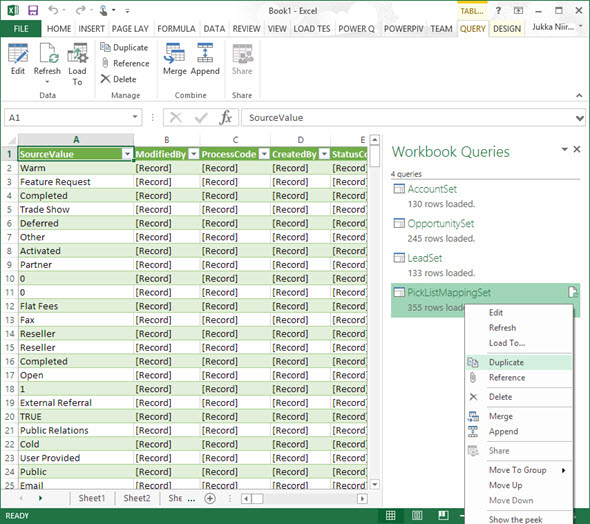
    The real beauty of Power Query is in the query steps you can use for manipulating the workbook queries. Before we go there, though, let’s create a duplicate of the PicklistMappingSet query. This will make it easier for us to map the values into our actual leads table later on, as well as preserve the original option set value table available for further queries.

    PowerBI_CRM_Odata_2

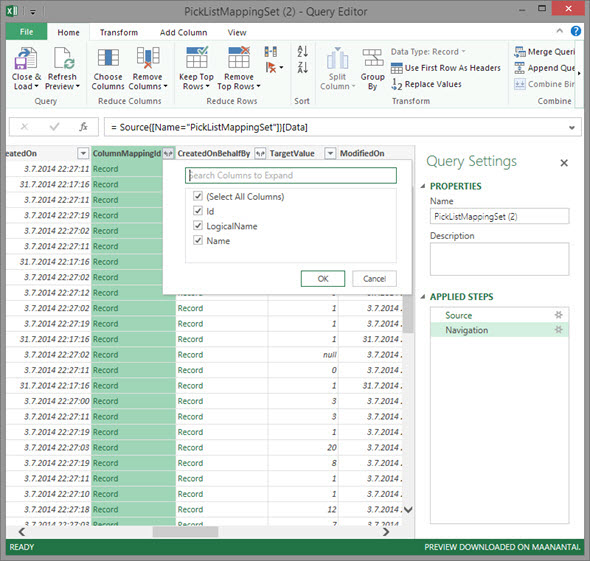
    Open up the new duplicate query you’ve added into the edit mode by double clicking on it, which launches the Power Query query editor (yes, query is the word of the day). The first step we’re going to add for the query involves expanding a column that only shows a green “Record” value by drilling into it from the small icon next to the column label. Do this to the ColumnMappingId column and just load up all the columns found from behind it.

    PowerBI_CRM_Odata_3

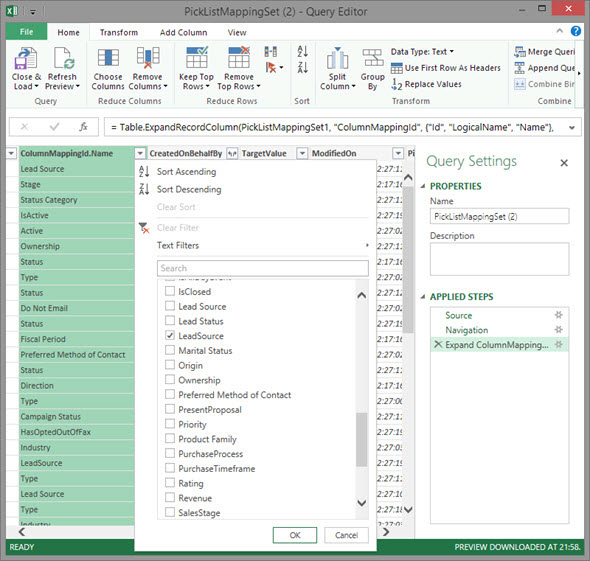
    You’ll see the Record column transformed into three new columns as a result of drilling down into the data. The column we’re interested in is ColumnMappingId.Name, which has the names for all option set fields in our source CRM system. For this example we want to see the LeadSource field, so add a new filter for this value, just as you would in a normal Excel data table.

    PowerBI_CRM_Odata_4

    By now you might have noticed that the Applied Steps box in the Query Settings pane is collecting all of the actions that we’re performing on the query and storing them as steps. If you make an error in your selection, just click the delete symbol next to the steps to get rid of it. (more…)

  • Dynamics CRM OData Feeds and Power Query: What’s the [Record]?

    Dynamics CRM OData Feeds and Power Query: What’s the [Record]?

    Now that Power BI has hit the GA milestone (general availability), I decided to spin up a trial subscription for it and get familiar with the tools that it offers. My previous experiment with connecting to CRM Online OData feed with Excel 2013 Power Query seemed to be one of the very few blog posts that come up when you search for information on the topic. In that article I never bothered to go deeper into actually working with the CRM data as the big news really was that the latest version of Power Query was finally able to access data from CRM Online, thanks to the added support for Office 365 authentication on the OData feed.

    I repeated the steps for connecting my Excel 2013 Power Query to a CRM 2013 organization hosted on CRM Online and started to think about a simple report I could build. Opportunities tend to be a nice entity for demonstrating your typical reporting needs on summing money values based on sales process stage, owner etc. so I selected the OpportunitySet to be included in my workbook query. Scanning through the columns showed that I had every field I needed, but there was one problem: I couldn’t see the actual data in them. Instead of the Estimated Revenue figures or Owner names all I had was a link that read “Record”.

    Dynamics_CRM_Odata_Reporting_1_small

    “Hmm, well, a link’s a link so let’s click on it then. (Click) Okay, so now I’ve drilled down into an individual value. I no longer have a grid of opportunity records and columns, which kinda sucks. Oh, and also I can’t see any Undo button to take me back.”

    Life would be so much easier if you just read the manual before starting to use new tools, but ain’t nobody got time for that in the fast paced IT consulting world, right? After a bit of trial and error I figured out what the procedure for turning that [Record] link into actual data values is. Since it’s not immediately obvious, I decided to write it down onto this blog post, so that anyone else experimenting with using Power Query and Dynamics CRM Odata feeds can move on faster than I did.

    In all the columns that display the record link you can see a small icon with two parting arrows on the right side of the column header. This is where you can drill down to the column contents and choose which attributes for that field you would like to include in your query data. For example, when I click on the CustomerId column on the OpportunitySet query, the following menu opens up:

    Dynamics_CRM_Odata_Reporting_2_small

    Once you click OK, the values for the chosen columns to expand will be shown on the query editor grid. Repeat this for each column you plan to leverage on your report. As you expand more columns, you’ll notice that the Applied Steps dialog in the query settings pane will list each of them as a step. You can also see that these fields will be included on the formula bar, which will read something like Table.ExpandRecordColumn and then a list of our chosen attributes.

    Dynamics_CRM_Odata_Reporting_4_small

    After we’ve expanded all the necessary columns, we can then proceed with using this data in our report. While Power Query is the component in Excel 2013 that pulls the data into our Data Model, it doesn’t necessarily offer all the tools that we’d want to use for working with the data set. Move over to Power Pivot instead to define relationships between different tables, rename the columns, create calculated columns and do any other manipulation with the data before presenting it on a report layout. Then finalize your work on the Power View canvas and design the report that you wanted.

    Dynamics_CRM_Odata_Reporting_5_small

    There’s an excellent tutorial available on the U2U Blog that covers all of the steps in more detail: Dynamics CRM 2013 and Power BI for Office 365 – Part 1 and Part 2. Wish I had also found that earlier on, but better late than never…

    There should also be a Part 3 coming up that will talk about how to upload the report onto Office 365 Power BI for publishing it to the end users. I’m quite interested in seeing what will be the procedure here, because I’ve not seen much information about how to consume OData feeds in the Power BI portal. In fact, this tweet by Jamie Thomson implies that some OData features would have been dropped from the product:

    PowerBI_OData_suppor

    When I click around in the Power BI Admin Center, I don’t see any options for adding a new data source that would be an OData feed. If I’d like my report contents to get updated after I’ve uploaded it, I’d need to set up the Scheduled Data Refresh feature. However, the list of supported data sources doesn’t mention anything about Dynamics CRM. This leads me to believe that the current version of Power BI doesn’t yet support using CRM OData feeds as data sources in reports published on the Power BI portal.

    With an on-premises Dynamics CRM instance you could of course set up a direct SQL Server data source and publish it to Power BI via the Data Management Gateway component. However, the much more interesting cloud scenario of building Power View reports that leverage data from CRM Online directly seems to be beyond the current feature set offered by Power BI, unless I’m mistaken. Let’s hope that we get more information about the possibilities of Power BI for CRM Online customers when Microsoft presents their latest Dynamics product roadmaps at Convergence 2014 in a few weeks time.

  • Similar Opportunity Analytics with CRM 2013 Quick View Forms

    A while ago when performing a requirements gathering session for the sales process functionality in a CRM implementation project, my client asked me whether Dynamics CRM was able to show information on the opportunity form about how similar opportunities had performed in the past. Thinking of an analogy from the world of consumer web apps, this would be a bit like Amazon’s feature where they show you similar items that other people had purchased after ordering the product you are currently thinking of buying.

    Similar_items

    My initial reaction to the request was “I wish we could do that, but you’re looking at either a significant chunk of custom development or a considerably more expensive piece of software to get that functionality”. After a moment of thinking about it, though, I realized that the new CRM 2013 version already had some platform functionality that could be leveraged for delivering such a feature under the right circumstances.

    Quick View Forms across multiple relationships

    Traditionally Dynamics CRM has been an application where you can show information from either the current record the user is working on or the child records directly related to it. It wasn’t until CRM 2011 that showing the related child records right on the entity form became a supported scenario. With CRM 2013 we’ve gained another important feature that we can use to expand the scope of information being shown to the user on a single form. The new Quick View Forms allow us to show several fields from the parent entity on the current entity’s form. Even better, the Quick View forms support the CRM 2011 subgrid feature, which also makes it possible to show information about the child records of the parent record on one of its other child records.

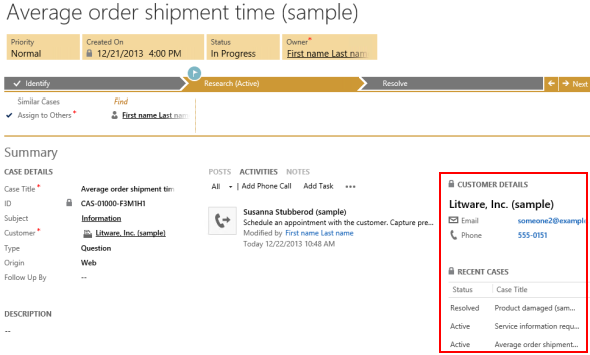
    “Whoa, that’s way more relationships that I can visualize in my head! What does all this actually mean?” No worries, these are not the type of features that would be immediately obvious to even the more seasoned CRM consultants. Let’s approach this via an example from the out-of-the-box configuration of the CRM 2013 case form. This new form contains a Quick View Form called Customer Details:

    Recent_Cases_CRM_2013

    The Quick View Form not only shows details about the customer account but also a subgrid of all the recent cases where this account has been the parent record. So, starting from the case record, we go one level up in the hierarchy to query the account record and then we come back down again to retrieve a list of child records for this account. The Recent Cases subgrid returns back to the same entity as where we start from, but this is not a requirement, as is demonstrated by another subgrid included in the same Customer Details Quick View Form that lists the recent activities regarding this account. Effectively we can show any entity information that is maximum two hops away from the current record and that share the common parent record.

    Applying Quick View Forms in customer segment analysis

    How could we leverage this feature in providing the CRM user some insights on how similar opportunities have worked out in the past? The key here is finding an entity that we can use for binding the different opportunities together and showing relevant information about them that will be helpful for the CRM user in deciding on the actions to take in pursuing the new sales opportunity. If it’s an existing customer that has done purchases in the past we could of course benefit from seeing this history, but assuming that we’re dealing with a scenario where repeat purchases are not that frequent, we should look for a different variable that could help us in surfacing the past sales analytics that can help us in winning the new deal in question.

    Let’s assume that we’ve got a customer segmentation model in place where we assign each new and existing account a segment value. The actual rules behind the segmentation process are beyond the scope of this article, but the one thing that’s critical here is that the segment information is stored in a dedicated “Segment” entity. This custom entity has a parental relationship to the account entity, which basically means that we can open a segment record and see all the accounts belonging to that segment. Now, because of the fact that each account has a value in the segment lookup field, we can also configure it so that every opportunity created for the account also inherits the segment value of that account. Effectively we’ll then have a similar 1:N relationship between the Segment and Opportunity entities as we have with Segment and Account. The end results and our target configuration will therefore look something like this:

    Account_segment_opportunity

    We need to have a bit of redundancy in our data model in order to be able to leverage the Quick View Form feature for our desired purposes. Technically we could determine the segment of the opportunity record just by examining the value on the parent account of that record, but we wouldn’t be able to reference it on the opportunity form customization UI. Therefore it is crucial that the segment value is carried over from the potential customer account onto the opportunity record, either through a relationship attribute inheritance or a real-time workflow that retrieves the value right after the opportunity record is created (preferably both, to cover all scenarios for opportunity creation). (more…)

  • Connecting to CRM Online OData feed with Excel 2013 Power Query

    The latest version of Excel contains a Get External Data menu option for linking the workbook to an OData data feed. Knowing that Dynamics CRM 2011 and 2013 both provide an OData endpoint, this would seem like a great option for retrieving data from a CRM Online based system for reporting purposes, since direct database connections aren’t available in the cloud. Unfortunately, if you try to enter the CRM Online OData URL as a feed link, you’ll get this error message:

    CRM_OData_feed_Excel_error

    “We can’t use the data from this feed.” Bummer. The reason behind the error messages is that Excel and PowerPivot have not been able to support the authentication mechanism required for accessing the CRM Online OData feed. There is a workaround that you could apply if you’ve got the CRM Outlook client installed on the same machine, as described in this video by Ed Martinez, but in general using PowerPivot for CRM Online reporting has been quite restricted.

    Power BI December 2013 Update

    Last summer Microsoft announced the preview program for Power BI, their cloud based business intelligence suite, containing tools for publishing reports in Office 365. The Power BI umbrella also covers client side components, including Power Pivot (now spelled as two separate words apparently) and Power Query, that bring new capabilities to Excel. To get an understanding of the features included or under development, I encourage you to watch this Power BI demo from WPC 2013, which definitely deserves the Coolest Tech Demo of 2013 trophy if you ask me.

    PowerBI

    The latest December 2013 Update for Power BI announcement mentions the following enhancements:

    “Power Query can now connect to more data sources:

    • Sybase IQ
    • Exchange
    • Dynamics CRM Online

    Hey, that last part sounds great! So, what does it mean in practice for us CRM people? Well, the Power BI Preview subscription still doesn’t provide the option to provision a CRM Online instance for the same Office 365 instance, so there’s not that much new things visible on the cloud side yet if you spin up a preview org. On the client side, however, there is now an updated version of Power Query Preview for Excel 2013 that gives us the possibility to finally connect to a CRM Online OData feed directly. Let’s explore that in more detail. (more…)