Tag: Advanced Find

  • Dataverse results inside Microsoft Search in Office, SharePoint, Bing

    Dataverse results inside Microsoft Search in Office, SharePoint, Bing

    Whether you are configuring Dynamics 365 Customer Engagement apps from Microsoft or building custom applications with Power Apps, often the solution design and implementation focuses too much on the data entry experience and not enough on data discovery. Yet it’s the process of searching for information rather than entering new records that consumes far more time in the lives of information workers.

    Throughout the history of my blog (originally “Surviving CRM”), topics such as the Advanced Find feature or configuration of views in XRM/CDS/Dataverse have been the most popular ones. To put it another way: a lot of people search for information on how to make search better in Microsoft business apps.

    While they are nothing like Google, Microsoft still has a wealth of R&D budget spent on search related services. Just because Bing isn’t what you’re likely using in your private life, that doesn’t mean you couldn’t benefit from the Microsoft Search infrastructure. Today we’ll explore how data from Dataverse environments can now be exposed in Microsoft Search.

    Enabling Dynamics 365 results in Microsoft Search

    The feature for showing Dataverse results in Microsoft Search was originally promised at Ignite 2021 in November, but on the release plans it has been postponed a few times. Now the ability for enabling search federation has appeared and the roadmap item for it says “GA in June 2022”. The feature appeared in a couple of tenants, so it’s time for a test drive.

    First you should ensure that these prerequisites for configuration are met. The modern Dataverse search needs to be enabled for the environment you want to target. Second, the search admin user account that you’re using to run the configuration must have both admin access and a valid Dynamics 365 license for the environment.

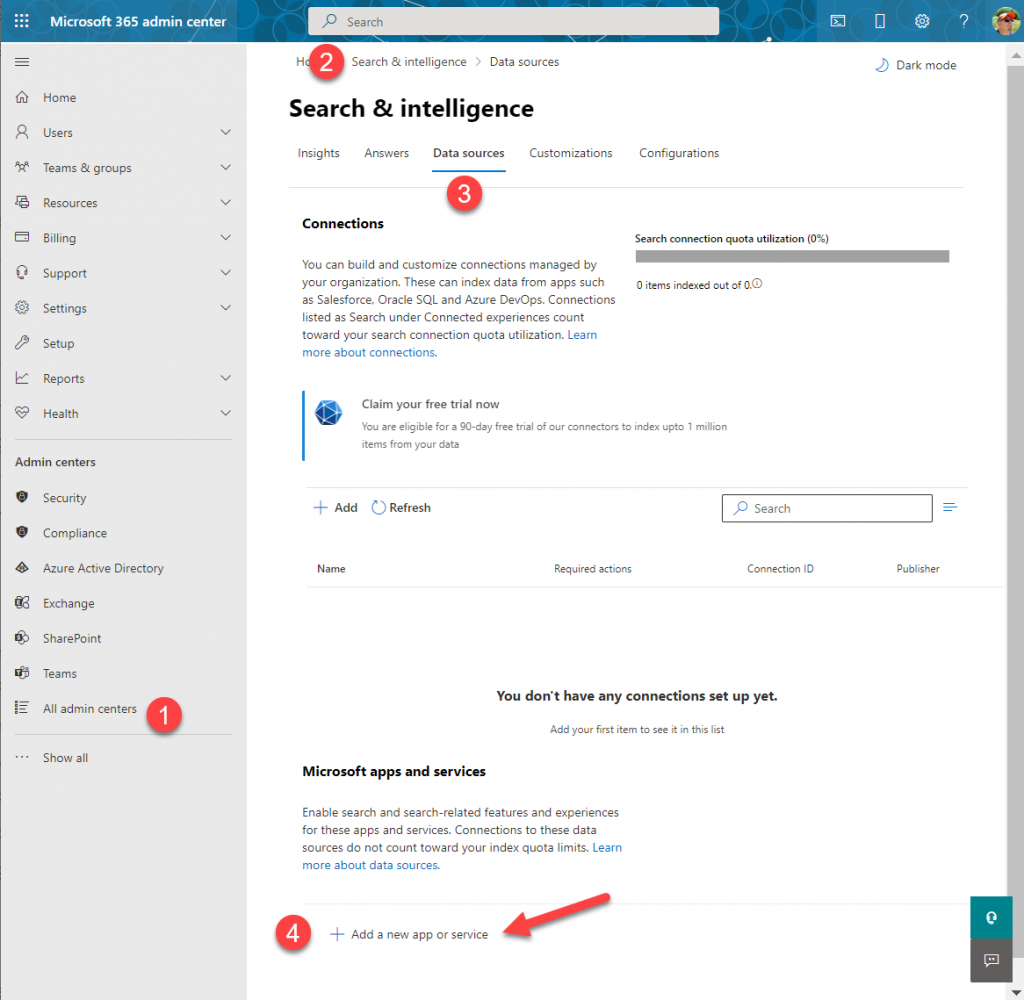
    Next you can proceed to Microsoft 365 Admin center. Go to “All admin centers”, choose “Search & Intelligence” and select the “Data sources” tab. You should see the section “Microsoft apps and services” that allows you to add a new app for search federation.
    What if that section does not appear? It may be that you don’t have a paid Dynamics 365 subscription in the tenant. The detailed requirements haven’t been documented by Microsoft yet, but based on my experiments, having just Dataverse with Power Apps premium licensing is not enough. Neither is a trial subscription for Dynamics 365.

    In the configuration section for Microsoft apps and services, it says that “connections to these data sources do not count toward your index quota limits.” If you’re not familiar with Microsoft Search, then the data sources accessible via Microsoft Graph connectors are indeed a paid service. With Dynamics 365 we’re seeing the search capability bundled into the product, but for things like Azure Data Lake, Azure DevOps or third party services like Salesforce or ServiceNow, you’ll need a Microsoft Search paid license.

    If we were to use the paid features, how much would it cost? The required product can be found under “purchase services” in the M365 admin center – although not with any generic term like “search”, of course. You’ll need to know that SKU name is “Extra Graph Connector Capacity”. The minimum purchase is 1 million items and that would be around $1.000 per month, or in euro prices these sums below:
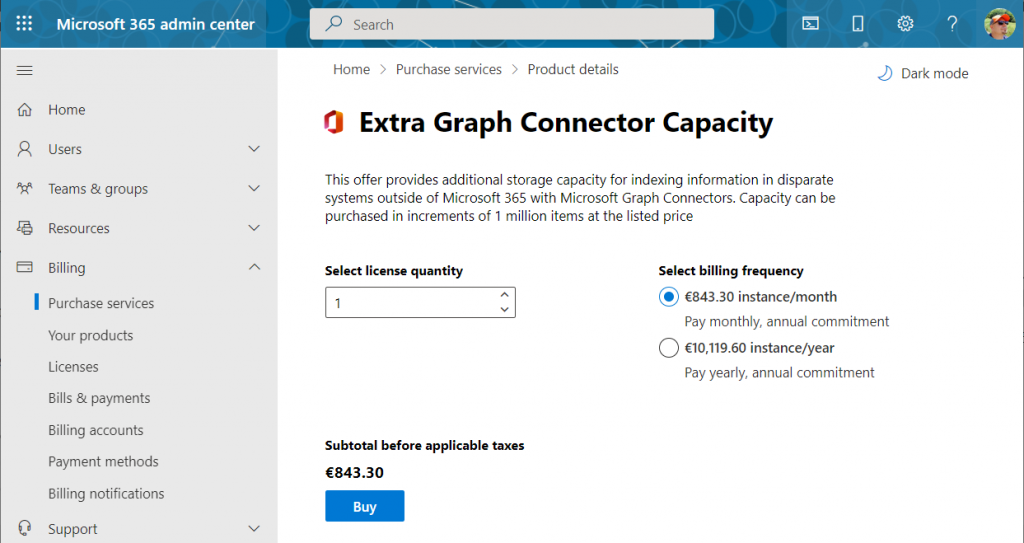
    If you had Microsoft 365 E5 or Office 365 E5 licenses, those would also accrue some index quota per each licensed seat, as shown here.

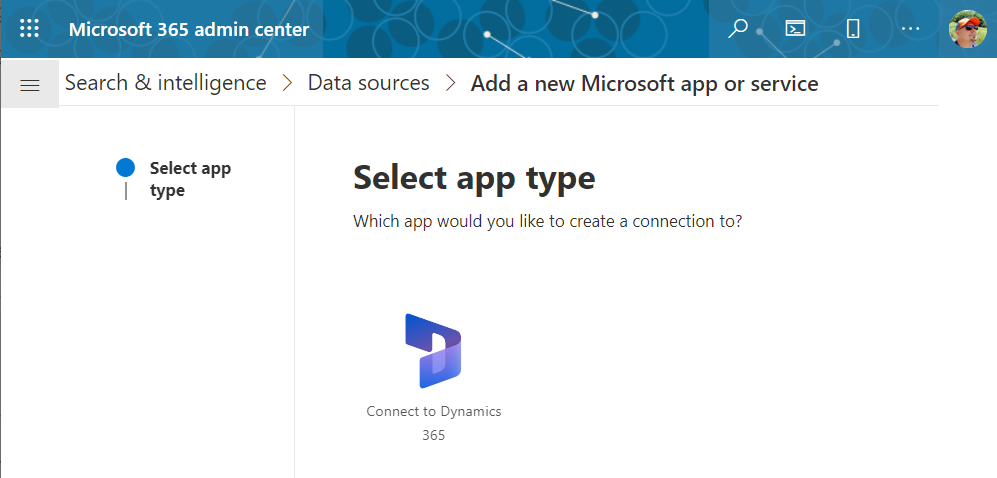
    Luckily we don’t need to make purchases since our tenant has Dynamics 365 Customer Engagement licenses in place. We can proceed to adding a new app under the Search & Intelligence data sources, by selecting the only supported MS app at this time: Dynamics 365.
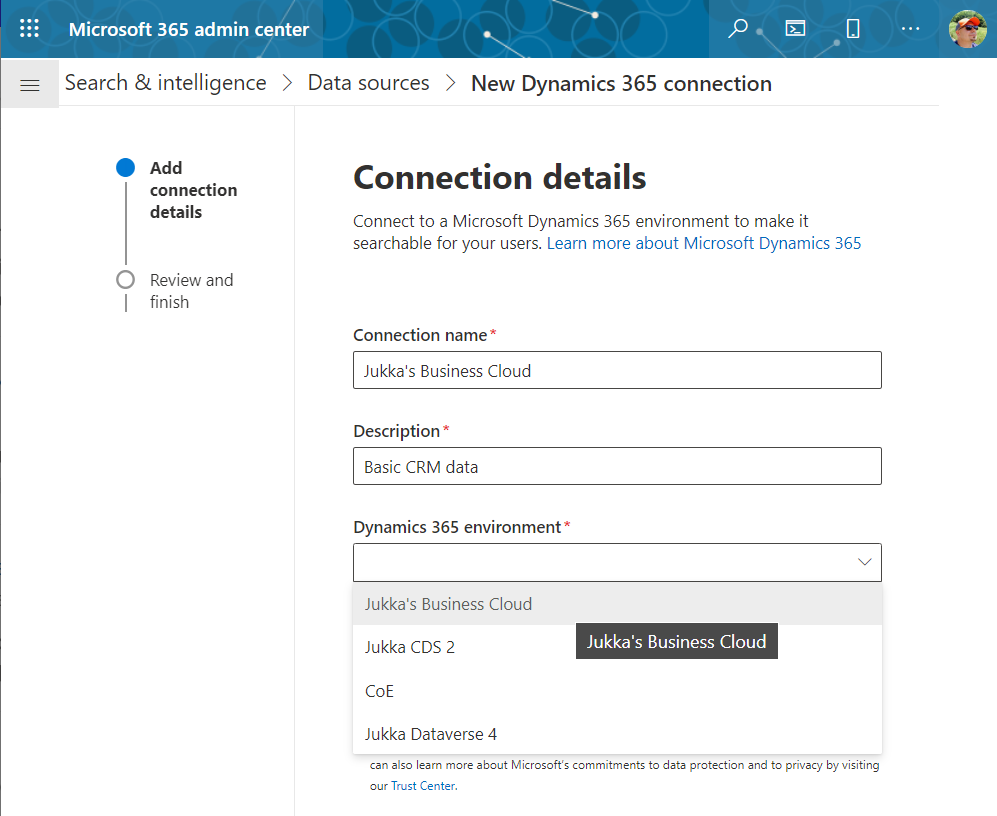
    Next we get to choose the Dataverse environment. Except not all your environments may be listed here. Why? I did not discover a valid explanation for it in my initial tests. Neither the environment type (sandbox/production) nor existence of Dynamics 365 apps was the reason why environments didn’t always show up. Oh well, let’s proceed with what we’ve got and pick “Jukka’s Business Cloud” that contains the core CRM data in this tenant.
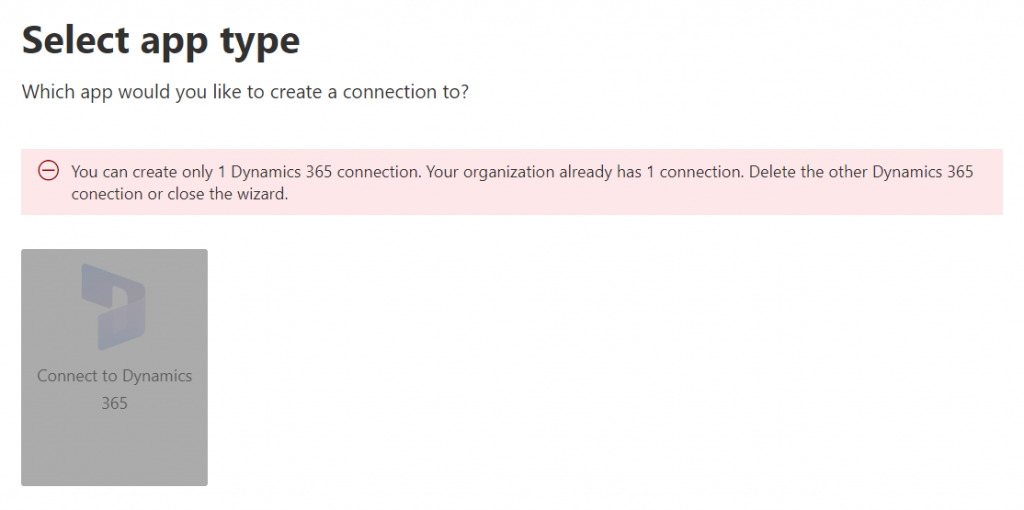
    If you’re wondering whether you could configure data from multiple Dataverse environments from your tenant to show up in the Microsoft Search results, the answer currently is: no.
    Once you’ve added the data source, it can take a while before the results will appear in the search experience. In our production tenant this took less than 30 minutes, in my personal tenant it’s been ~2h and nothing yet. MS says it can take 24 hours before the indexing is complete. Patience is a virtue – if you’ve got some to spare. I’ll just hop over to the production tenant now and explore the end user experience.

    How Dataverse records show up in Microsoft Search

    The users will discover the results from the previously configured Dynamics 365 connection when they access search either in Office.com, SharePoint Online or Bing. The UI to get to those results varies slightly, but the listed results from the Microsoft Graph connector seem to be identical.

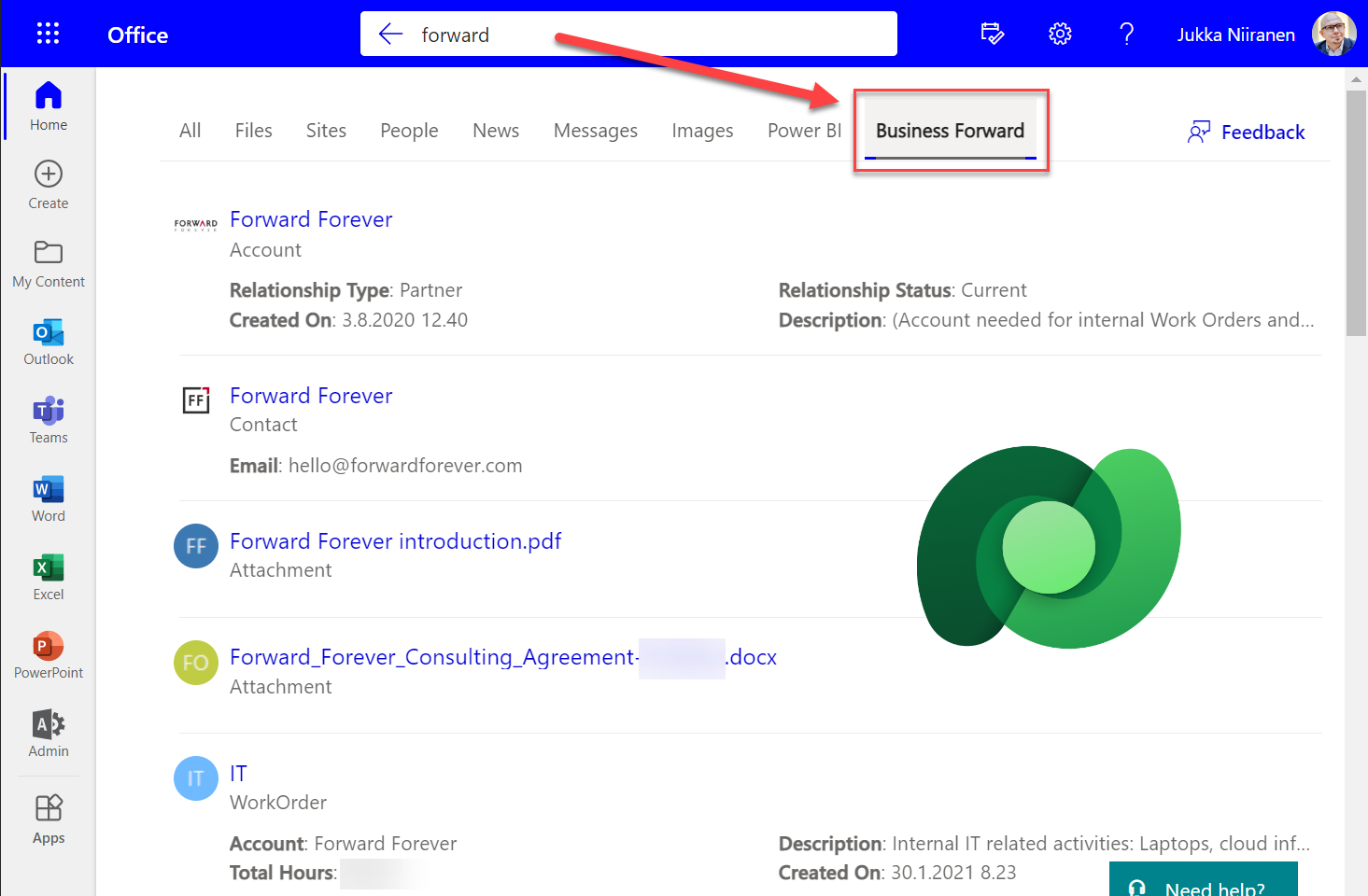
    Obviously in Bing you need to be signed in and access the Work tab that switches you from the public web search to the internal results from your work tenant. In addition to all the regular results, plus custom search bookmarks like the one you see below, there will be a new tab to represent the “search vertical”. In the case of our production tenant, I named it “Business Forward” as it is the primary app used in our production Dataverse environment.
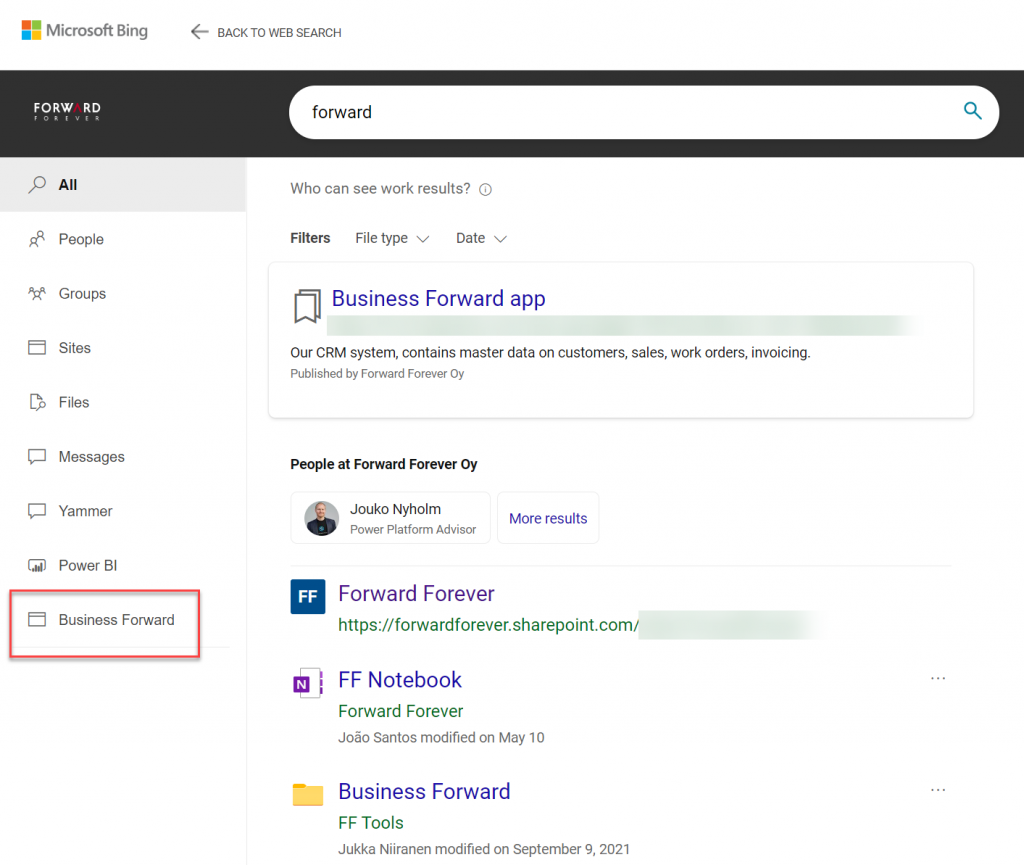
    I personally am more likely to leverage these search results from under Office.com. Here’s an example of what data is pulled from the Dataverse environment for a basic query term “forward”:
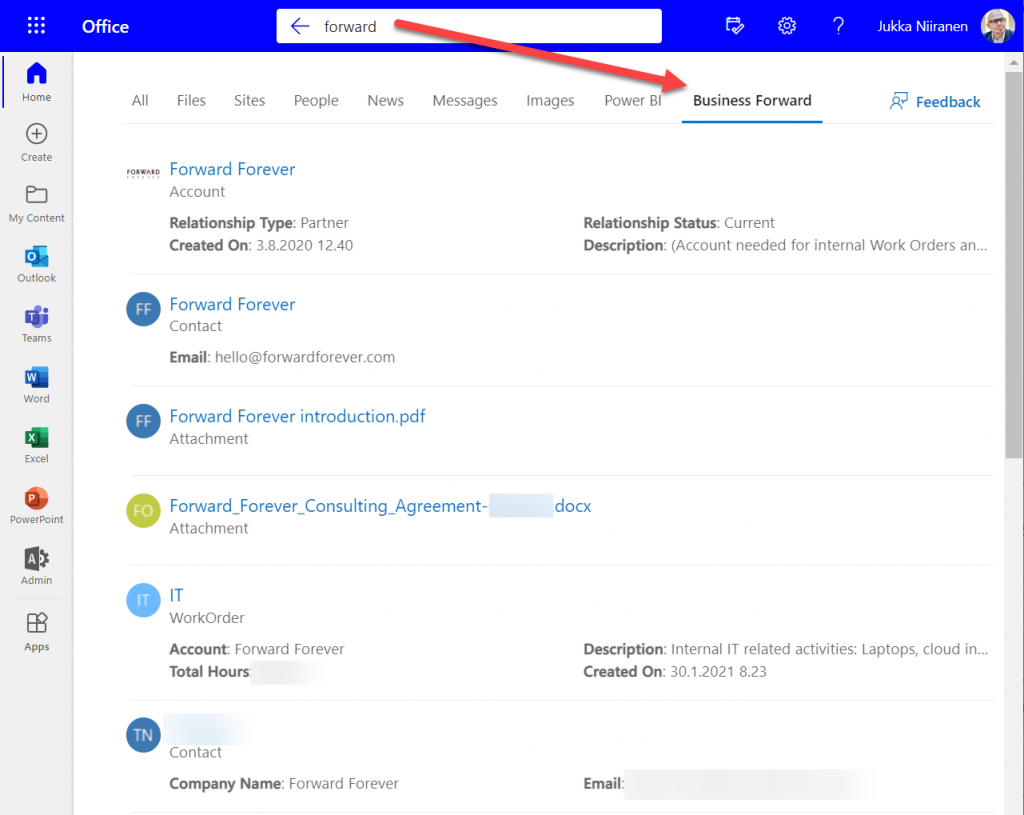
    We immediately see that the results cover both standard tables from CDM like accounts and contacts, but also custom tables like our work orders that are managed in Dataverse. We see a preview of fields from the matching records, which varies based on what columns are non-empty for each row in the corresponding Quick Find View.

    Configuration of the searchable fields is done in the Dataverse search settings, which the Microsoft Graph connector for Dynamics 365 then respects for each table. This means there’s very little to be configured on the Microsoft Search experience specifically. You really only decide A) which 1 environment to point it at, and B) what name do you want to show in the search vertical in Office.com, SharePoint, Bing.

    Dataverse in-app search vs. Microsoft Search experience

    Now that we have enabled the discovery of Dataverse data from within Microsoft Search, should that become the recommended entry point for all your business data searching needs? The answer to this is: through Microsoft Search you’ll only get a subset of search features that are available in a full model-driven Power App. Whereas with Microsoft Search you may well get close enough results, the detailed search capabilities are better within Power Apps native Dataverse search.

    If I enter a search term like “governance” into Office.com search bar, I’ll get a long list of results that I can not filter nor sort in any way. When I do the same search inside our Business Forward app (a model-driven Power App on Dataverse), I get the results tabbed per specific tables that allow me to narrow the query by record type. Also the filter pane gives access to owner and date filters, which get even more detailed as I select one specific table from the results.
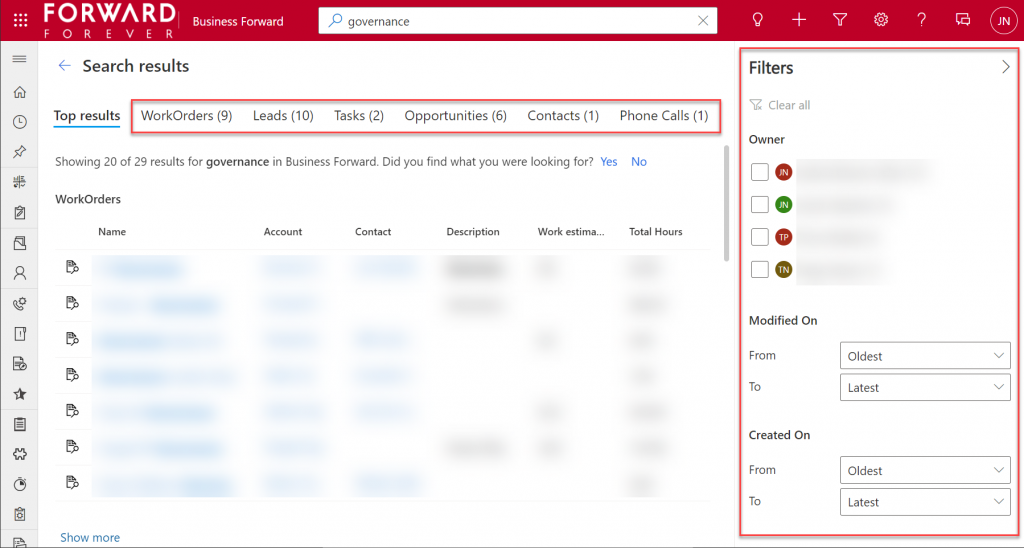
    Another feature that can be a welcome addition is that the Dataverse search within the app UI covers only the tables included in that app. This can lead to search challenges in a larger Dynamics 365 environment that covers multiple different processes.

    For example, our production environment covers not only our CRM info on customers, sales etc. but it also hosts our internal IT Asset Management solution and its data. Now, if I search for “Nokia”, the results could include both the account management data related to Nokia Corporation as well as Nokia smartphones (from HMD Global) that our team members have registered as their IT assets. Sure, all results are filtered based on security roles and won’t reveal any data to unauthorized users, but anyone with broader access to Dataverse will also get broader, nonfilterable results with Microsoft Search.

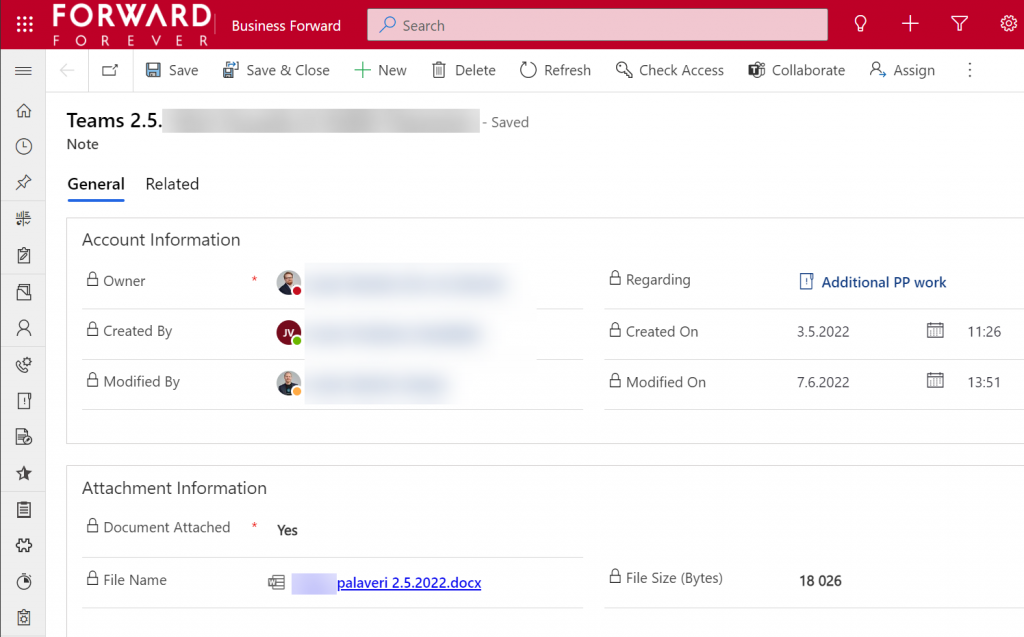
    Sometimes you may get more results from Microsoft Search than from within Power Apps, because of the way documents stored in notes and attachments get indexed. I even discovered that the note record (annotation) which traditionally hasn’t had any user accessible table form in the native UI can actually be opened independent of the parent record. The form of a note is very nice and readable, providing a link to the related document:
    Things aren’t quite as awesome when it comes to attachments of email records. While these also open a form within a model-driven app, the attachment table form doesn’t offer any link to either the document or the related email message from where the file could be opened.
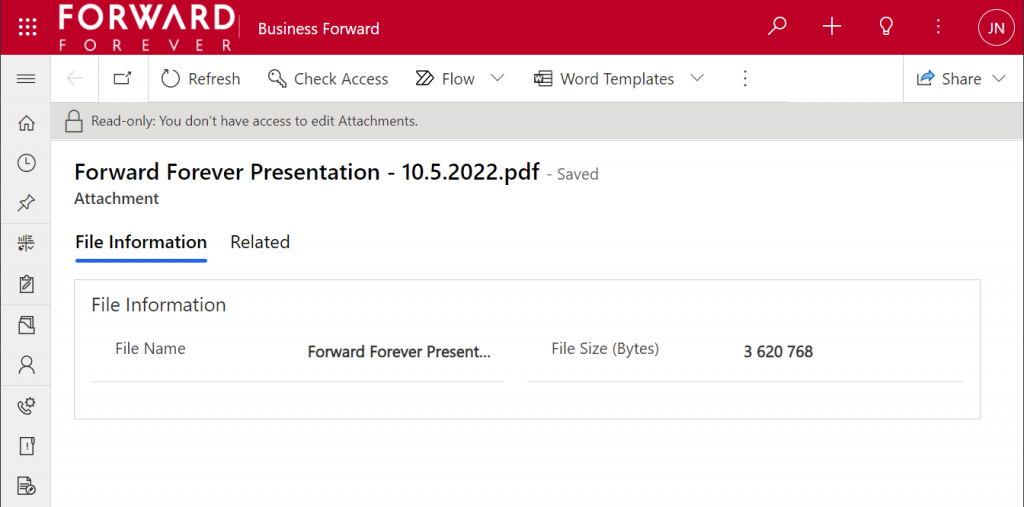
    The many faces of Dataverse search experiences

    It’s really awesome that we’re now seeing the mainstream search capabilities in Microsoft cloud services reaching into the domain of business applications with these out-of-the-box capabilities. The investments that Microsoft has made into Dataverse Search as a service that isn’t just for doing freetext search inside your CRM system is starting to pay off. Just like makers can tap into Dataverse Search from within Power Automate actions, now information workers can do simple queries into enterprise systems from within Office experiences.

    In its current state, with support only for Dynamics 365 customers and only a single environment per tenant, the Microsoft Search experience isn’t yet as powerful as it could become. Covering the Power Platform use cases where business data is managed in various environments and via specific custom apps would be a logical direction to broaden Microsoft Search with a true low-code platform story.

    The way I see it, the search experiences for business data managed within Dataverse are being developed in three separate areas:

    1. Free text search: building search indexes that cover several sources/tables, with multiple entry points (in-app, Office, flow, APIs), evolving into support for natural language queries and supporting conversational UIs (Teams chatbots etc.). This is the area where Dataverse Search and Microsoft Search are operating.
    2. Structured queries: building complex query criteria to filter the rows in a specific Dataverse table. “Show accounts with orders in last X months and no activities from members of sales team Y”. The Advanced Find feature and the FetchXML query language have traditionally covered this front. The modern advanced find experience is making these filters easier for casual app users to approach, while FetchXML is still alive (now available for download in the UI) and can help flow makers design complex queries more efficiently, for example.
    3. References: the next generation of “set regarding” features are aiming to broaden the traditional scenario of associating emails in Outlook with records from CRM. If the MS vision for Context IQ comes to life, we should be able to at-mention basically any record from a Dataverse environment and collaborate interactively on it via Loop components. Similar to the Microsoft Search initial limitations, it will be interesting to see how the lookup field experience can be optimized with machine learning algorithms when all records in a large tenant are behind a single @ symbol…

    Returning back to what I mentioned at the start of this blog post, as a solution designer it’s very important to understand all these different means through which users can search for your business application’s data. There’s a lot you can do by configuring the settings in Dataverse views to make the experience enjoyable for the user.

    Studying the Dataverse search documentation is a good start. However, it’s all just theory until you have some actual data and real user interfaces to test the usability of your search configuration with. What this means is that you’re unlikely to ever get all the settings right in the V1 release of your app. In practice the user experience for business data search requires attention throughout the lifecycle of your app. Microsoft will continue to change and expand the ways in which search queries and results are handled, so you better keep up with these new features and explore what configuration options are being introduced in the future, too.

  • Modern advanced find test drive

    Modern advanced find test drive

    The single most powerful end user feature of Dynamics CRM, XRM, CDS and Dataverse was always Advanced Find. Period.

    There, now that we’ve settled that argument, it’s time to move forward and see what life is going to look like when Dataverse no longer includes Advanced Find. Yes, there will still be the broad capabilities of advanced find, but I will refer to it without capitalization. This is in line with the fresh new documentation on a very important feature that aims to take the place of Advanced Find: modern advanced find.

    So modern you can barely see it

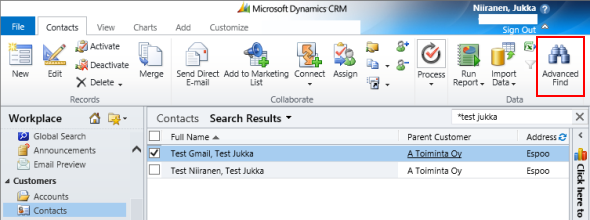
    Advanced Find was always its own UI in a separate popup window. This was perfectly in line with the Dynamics CRM 2011 UI – which was the last time there were any material changes to the visible features. Let’s have one last look at Advanced Find’s glorious Ribbon icon before we move on:

    OK, so this wasn’t actually the last time Microsoft touched the user experience for this feature. The CRM 2013 release did a complete overhaul of the application UI (I’d say a more visible change than Unified Interface even), which lead to the Advanced Find buttons getting either hidden or missing from parts of the app navigation. I had to write a blog post called “Finding Advanced Find in CRM 2013” to help out users who were worried that the feature had been removed from the product entirely.

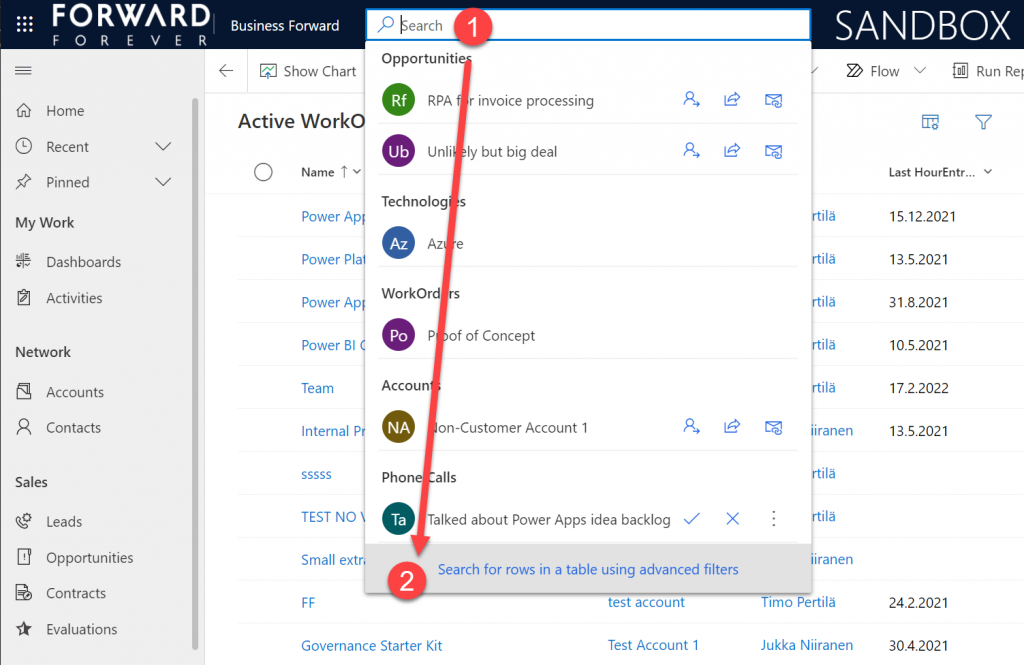
    The modern advanced find that has been introduced as a preview feature in February 2022 takes the hiding game to a whole new level. You see, the entry point to modern advanced find is hidden within the global search bar. You have to 1) click the bar and then 2) click “search for rows in a table using advanced filters”.

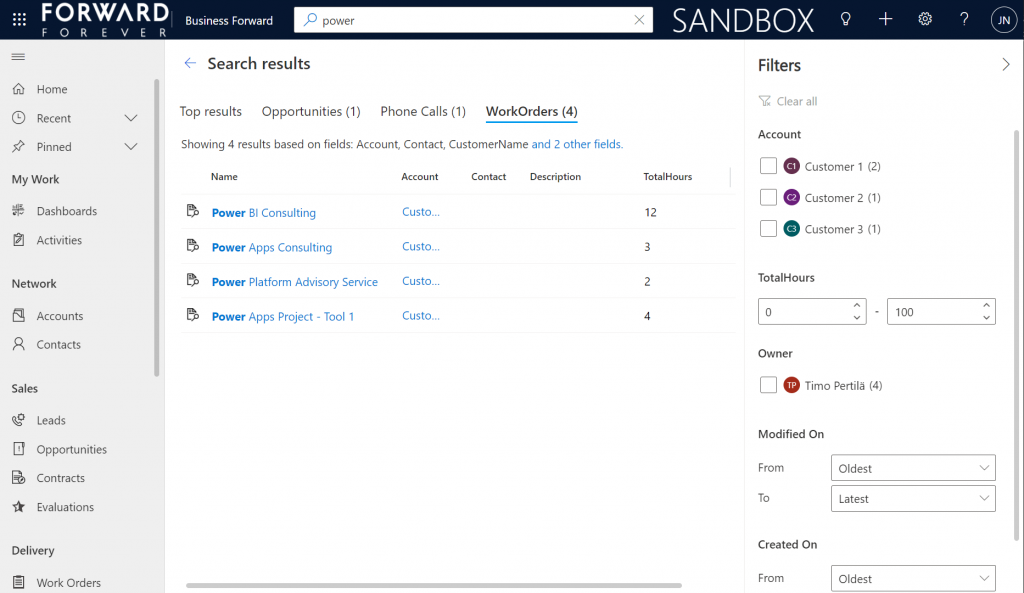
    Be sure to not enter any search text into the bar, because that will hide this new option. Also, whatever you do, do not press enter after this text – otherwise you’ll be taken to the global search results page. There’s no way to “go advanced” from here, it’s a completely different search experience.

    Search “any” table

    A big new feature in the modern advanced find is what happens after you click on the new button within the search bar. (I already forgot the name of that button since it wasn’t anything as nearly catchy as “advanced find”, so I’ll refrain from scrolling up this post to see what it was and just move on instead.)

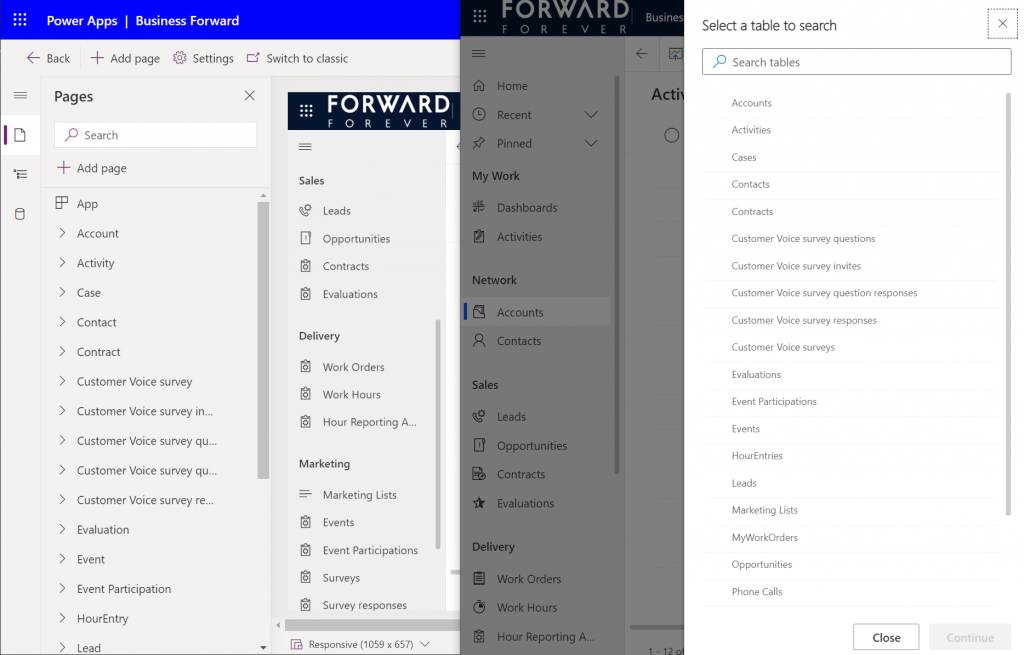
    You will see a sidebar saying “select a table to search”. Cool, just like in good ol’ Advanced Find! The difference you need to understand, though, is that it’s not a list of all the tables in the environment. Yes, it will likely be a longer list that what your Model-driven app’s sitemap navigation contains. This is because modern advanced find covers all the table’s that your app’s maker has chosen to include in the app module when working with the Model-driven app designer.

    There are pros and cons to this approach. The obvious upside is the ease of use for the casual data finder. He/she doesn’t need to confront the ever growing list of both standard and custom tables in a Dataverse environment (especially those with many Dynamics 365 apps installed in them). Things are quite different now compared to back when Advanced Find was originally designed for a simple CRM systems. Showing hundreds of cryptic tables isn’t a great UX to most users, so cutting down the noise of the underlying data model is understandable.

    How about those users who DO understand the data model, or even work in configuring and extending it? The advanced app makers, consultants and developers will most likely be frustrated by this limitation whenever they need to examine the detailed contents of an environment. Quite often I myself need to build new views and filters just to understand what data has been entered into the system (that has been designed by someone else).

    Sounds to me like there will be a growing demand for a “Super Advanced Find” type of a tool to be introduced in XrmToolBox. If you’ve already got a favorite tool for ad-hoc data exploration needs, be sure to leave a comment below.

    Query criteria remains the key criteria

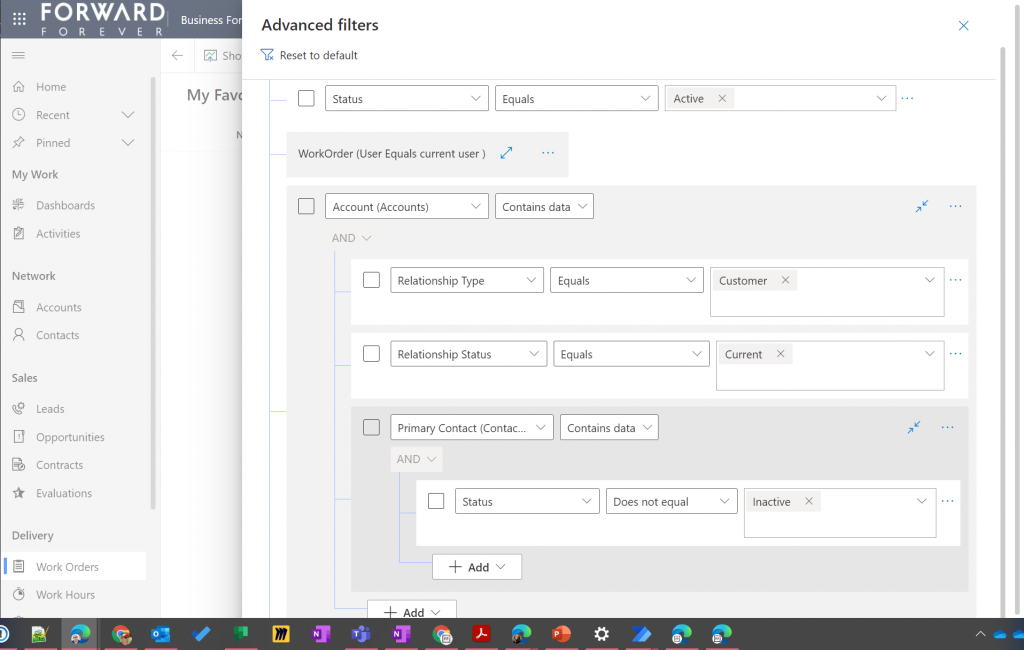
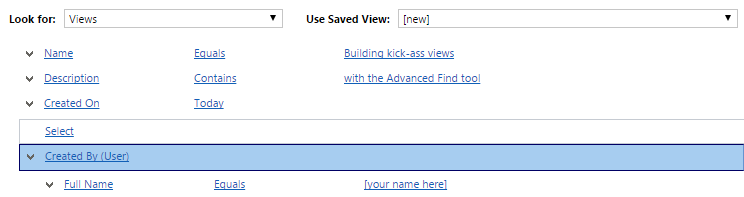
    The one area where an advanced search feature in Dataverse simply has to perform well is the creation of complex query criteria across the relational data model of the environment. One of the most read articles on my blog has been Advanced Queries with Advanced Find, which illustrates both the possibilities of the tool as well as the demand for such advanced query criteria in real-life business scenarios.

    Luckily this is already included in the non-preview feature set of Model-driven Power Apps. The filter editor that you can find in any table view today is a very worthy replacement for what Advanced Find used to offer. Although I haven’t done a detailed comparison, I couldn’t easily spot any missing capability from the tools available for defining the view filters in modern advanced find vs. the classic pop-up query editor for Advanced Find.

    Just imagine if it was this easy to define the filter criteria for Dataverse tables on the modern automation side, too – not just views? Perhaps one day something similar will be made available for Power Automate cloud flows, based on what is being planned for SharePoint data sources in 2022 wave 1 (because priorities). Until then, luckily we have great articles and reference guides created by the community to copy-paste our “flow code” from while we wait for a GUI to arrive.

    Actually viewing the data

    Far too often I’ve seen people put all their effort in defining the correct query criteria and then being lazy when it comes to actually showing the results of that query. You could say I wrote the book on the importance of Dynamics CRM view design back in the 2013 era, so you can image how such user experience oversights have irritated me over the years.

    Smart choice of view columns and sort order are what defines the user experience outcome. Query filters are merely table stakes.

    Jukka Niiranen, in this blog post right here.

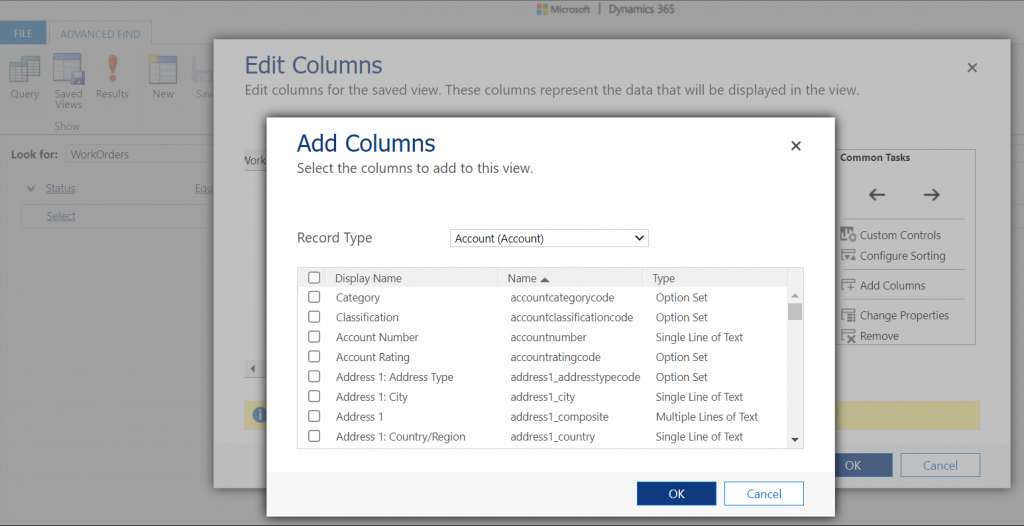
    As a data exploration tool, Advanced Find wasn’t always perfect, but us consultants learned to make the most of it. When needing to dig up data from columns that weren’t readily available in the system views, it was easy to just go and add all columns into an exploration view. Whereas when building more targeted we had two useful features in the “add columns” screen of Advanced Find: sort by name, sort by data type.

    Unfortunately this is where the modern advanced find is a little behind on the classic Advanced Find. Let’s look at what the column editor experience is like.

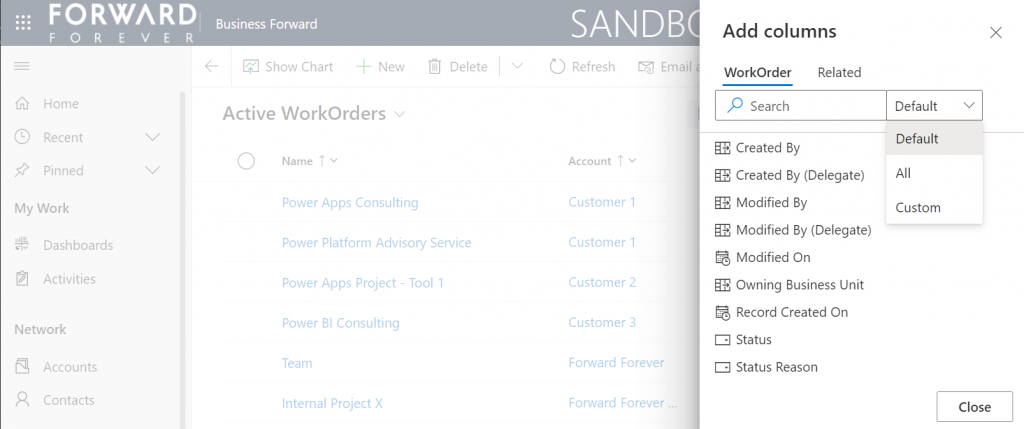
    First of all, the editor includes the very same modern stumbling block that you might have noticed when working in the Power Apps Maker portal and searching for table columns. When you open the “add columns” side pane, the list of available columns doesn’t cover everything that the table contains. Instead you are defaulted to a “Default” filter that’s easy to miss. Switch to “All” and you’ll finally see that field you wanted to include in your view.

    What exactly does “Default” mean in this context and how is it defined? No one can tell, not even Microsoft. It appears to be one of those good intentions in tidying up the menus of what should be a citizen developer friendly platform yet also serves huge enterprise CRM systems. A tough balance to get right, that’s for sure.

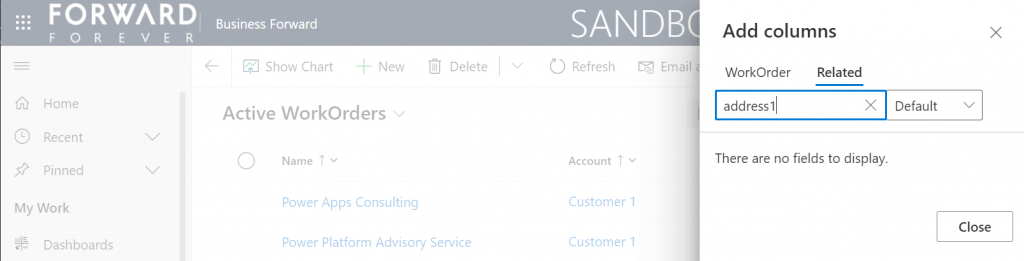
    One very nice improvement in the modern advanced find (as well as the Maker portal) is the ability to search for things while you are configuring those very things. Narrowing down the long list of available columns with a free text search term could be especially handy when you’re looking for information stored on a related parental ent… table.

    What could make such a feature even better? I’ve got one idea: extend the search index to include also the schema names. Believe it or not, the display names of f… columns can become quite misleading when you eventually need to adjust them for the places in the app UI where they can’t be customized (which just happens to mainly be: VIEWS!).

    Anyway, often the schema name may have a pattern that makes it easier to logically group columns, which in turn makes the app maker more productive as he/she finds them more easily when defining the views. Right now that’s something the modern advanced find doesn’t yet support. If you think it should, then go and vote for it.

    So, you’ve created a hundred and one views…

    If there was something that the classic Advanced Find feature really didn’t handle well at all, it was the process of managing the views created with it. The way how the Ribbon UI managed to both hide the feature and yet make it highly misleading at the same time was something… special.

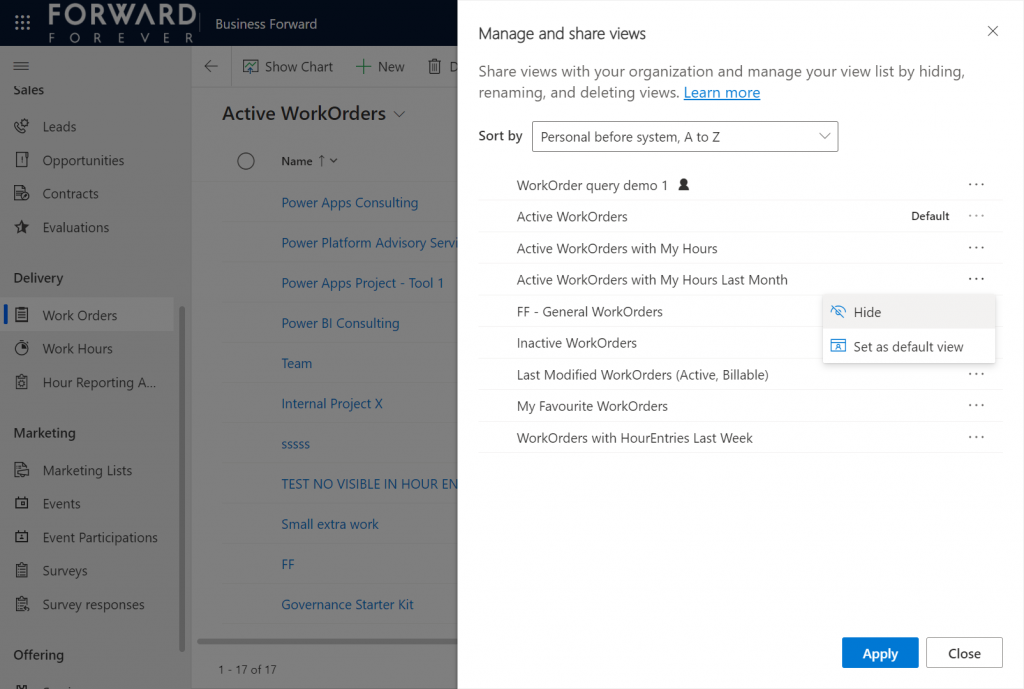
    Compared to what we used to have in Advanced Find, the enanced personal view management now launched in preview is a thing of beauty. Changing the sort order and hiding unnecessary views are very welcome additions to how the power users will be able to take control of their business app UI details.

    The new view hiding feature is something to pay attention to:

    “Hiding a view is a way to personalize the view list and reduce clutter by making views not be visible in the view selector. A view may be needed for a specific purpose periodically or a view could be shared with you that you may not need it anymore. In such instances, hiding enables you to manage your view list by seeing only the views that are most important for you.”

    This probably won’t solve all the pain associated with view management as their number grows in “busy” tables used for different kinds of analysis, both via system and personal views. Yet it’s a simple, user-driven concept to offer personalization within Model-driven apps.

    Closing the Advanced Find popup

    We’ve known for quite some time that eventually the legacy web client popup with Advanced Find will not be supported anymore. This modern advanced find feature in 2022 release wave 1 aims to include the necessary features to allow deprecating a very central part of the product. It does a pretty good job and the general principles in modern advanced find are quite justified.

    Will I miss the good ol’ Advanced Find once the new feature is enabled and the icon to the classic experience is gone? Of course I will. Like with many of the modernization efforts around Power Apps as a business app platform, the new experiences always take away something that used to allow XRM veterans like myself to be productive. Often we get less information density in the screens, blocking the use of multiple tabs, slower loading times due to new API dependencies, more options hidden/missing due to simplification efforts…

    Enough with the complaining already! Things weren’t better before, they were just different. What used to be a single app in a single service is now a cloud where traditional boundaries are vanishing at an astonishing rate. Now everyone really can make apps, and there can be a thousand “XRMs” in an organization. Both the audience and the purpose of these tools is forever evolving – and so must their features.

    Update 2022-06-08: Microsoft has started to roll out an enhancement to the view filter editing screen. There will be a button to download the FetchXML definition of the view filters. Also, export to Excel will now honor the filter modifications done, without requiring the view to be saved. Just like in the good ol’ Advanced Find days then.😊

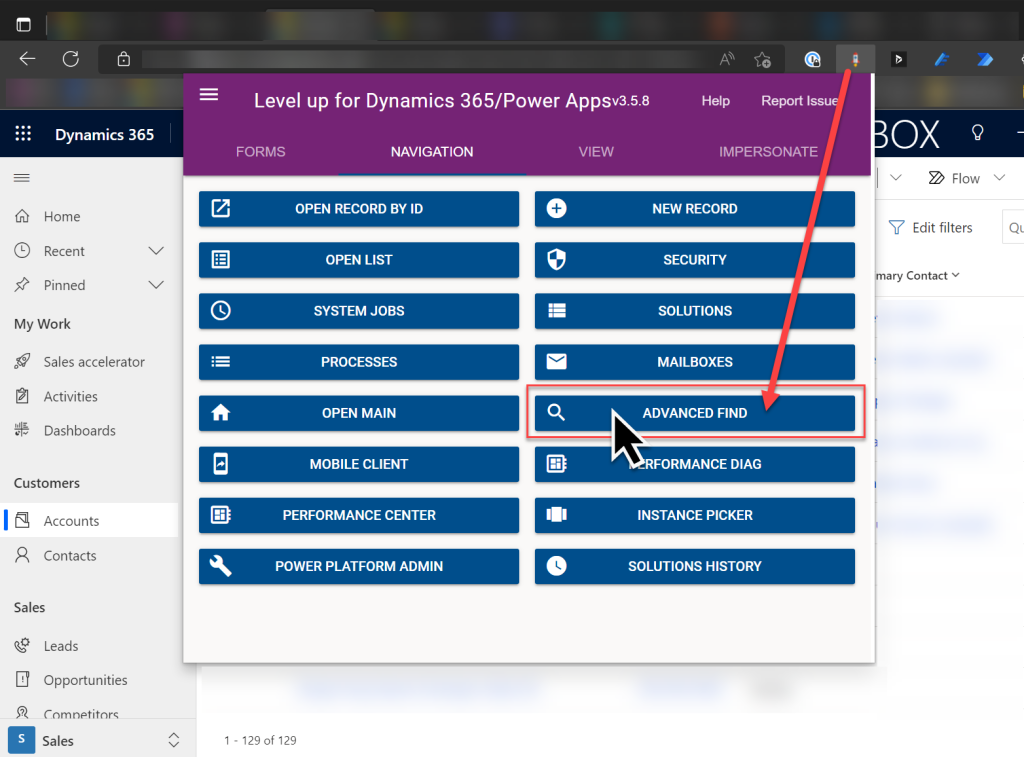
    Update 2022-08-02: As we get closer to 2022 Release Wave 2 when the classic Advanced Find button will be hidden from the UI for everyone (see Modern advanced find turned on by default), you should keep in mind that there is still a way to open the Advance Find page with the direct URL. You can (and should) install the LevelUp extension for Chrome/Edge/Firefox to have access to this dynamic URL. This will hopefully work for as long as Microsoft keeps the legacy web client page infrastructure alive.

  • Your Interaction Network in Dynamics CRM

    Your Interaction Network in Dynamics CRM

    One of my posts that seems to remain in high demand, based on the site visitor analytics, is Advanced Queries with Advanced Find. Written over two years ago, people still tend to read it far more often than the newer posts dealing with the latest trends around Dynamics CRM or instructions on how to leverage other platform features like workflows and Business Process Flows. Thinking about the potential audience size, it’s of course understandable that a feature accessible to all CRM users will be much more popular than process configuration tools or the Dynamics product roadmap.

    AFAlthough very few updates have been done on the Advanced Find functionality during the 10 years I’ve been using Dynamics CRM, it’s arguably still a real killer feature of the platform, at least when comparing it to the query capabilities of many similar business applications. The fact that you’re able to reference pretty much any related record in your query criteria (and in the CRM data model, absolutely everything is related) means that the tool can be used for building the most complex target group definitions for your marketing campaigns, for example, based on behavioral data stored many relationships away. You only have to use another Microsoft application to understand how powerful such a tool can be in the right hands.

    It never hurts to have a good understanding of the CRM data model of your organization when launching Advanced Find to build some queries, since AF is a world of abundance when it comes to the available options to select from. Usually the relationships between records are something you can figure out from the end user UI if you spend a moment thinking about it – although with the “flat” design of CRM 2013+ menus and navigation structures, the front end ain’t as hierarchical in nature as the old popup-heavy UI used to be, thus sometimes leading you astray with the underlying data model. In some cases, though, Advanced Find will allow you to perform queries on entities that are completely invisible to the CRM end user. In this post we’ll take a look at one such entity, the activity party, and explore ways in which we can use it for providing the CRM users information on who they are interacting with.

    Ain’t No Party Like The Activity Party…

    ActivityParty_Appointment…’Cause in the Activity Party everybody’s connected! OK, so what exactly is this “party” thing then? In the CRM user interface we have activities, which are divided into a number of different types, like email, appointment, phone call, letter, fax (everyone’s favorite default entity, right?) and potentially a selection of custom activity entities for non-standard communication channels like SMS or business specific record types for handling assignments, approvals and these types of work items. Each activity type shares a number of common fields that can be found from the entity called “activity”, which is what allows CRM to show this mixed bag of apples, oranges and pineapples in a single list of fruit activities related to a business record like the customer account.

    When we add people into an activity like a meeting invitation (remember: appointments are always invitations now in the server-side sync world, so be careful when including customer contacts there), CRM is not just populating a lookup field on the activity entity with the GUIDs of all the related users, contacts and other resources. What happens behind the scenes is that each of these related records will result in a new activity party record being created. This is an entity that you will not see in the CRM customization UI if you open the default solution. You can read about it in the SDK, or install a tool like the Metadata Browser (found inside the downloadable SDK package) and have a look at its contents from the live system, as we see below.

    ActivityParty_Metadata

    People who have been tasked to build SSRS reports that deal with activity records will have surely run into the ActivityParty table/view. If you’re interested in learning more about how the data is created and stored into the SQL database, go and read this great investigation by CRM MVP Aileen Gusni. If, on the other hand, you’d rather not spend too much time in Visual Studio / SQL Server Data Tools building reports but rather want to see how to leverage activity parties in Advanced Find, then this is the right article you’re reading right here.

    View of “Activities Involving Me”

    While activity parties are not accessible as a configurable entity in CRM (because ultimately they’re not), luckily they do exist in the Advanced Find UI. The first scenario in which we can take advantage of this capability is in building a view of activities that uses some criteria that’s not directly available on the activity record itself. Out of the box, CRM provides views like “My Activities” that show the records in which the current user is the owner (and which are open, even though the name of that default view is a bit misleading). Sure, it’s important to understand what’s on your To Do list right now, but sometimes it is beneficial to be able to reflect back a bit and see also what has happened in the past, to understand what you’ve spent your time on and who have you interacted with. For this, we’ll create a brand new view called “Activities Involving Me”.

    (more…)

  • Finding Advanced Find in CRM 2013

    The user interface of Dynamics CRM has been cleaned up quite a bit in the latest 2013 version. The number of buttons visible to the user has been greatly reduced in the browser client. Another significant change from a usability perspective is that Dynamics CRM now operates like any other web application or website: within a single browser window, allowing you to navigate back & forth with the browser’s native buttons. The combination of these two factors has however lead to one side affect that may cause the users familiar with previous Dynamics CRM versions to ask the question: “Dude, where’s my Advanced Find?”

    In CRM 2011 the Advanced Find was always available in the main window of CRM. Unless you resized the window to a small enough size and made the Data tab of the CRM 2011 Ribbon collapse into a single flyout button, it was pretty easy to spot the familiar binoculars icon that represented Advanced Find. Being one of the most powerful features of the Dynamics CRM application, this button will have surely become familiar to all power users of CRM over the years.

    CRM_2011_Advanced_Find

    In CRM 2013 the Advanced Find feature is not always so easy to locate. I have observed quite many experienced users to struggle with locating the menu after the system has been upgraded. Also, when I was recently studying the Google search terms that had lead people to visit my blog, “CRM 2013 Advanced Find” and its variations appeared three times in the Top 20 searches. Since the Advanced Find feature itself has not really changed at all in the 2013 version compared to previous releases, I presume many of the questions people have in their mind while reaching out to a search engine may be related simply to “how to find Advanced Find” (as “meta” as that may sound).

    If that’s the question you have, then let me first explain a bit about the logic behind the standard behavior of the new Dynamics CRM 2013 UI in different areas of the application. Then I’ll show you an alternative method that will make it much easier to launch Advanced Find from any place inside CRM.

    Standard Navigation Experience

    When you open up the Dynamics CRM 2013 browser client with the default settings of a fresh new CRM organization, you’ll be taken onto the dashboard page. Here the button for opening Advanced Find is displayed prominently as one of the actions on the Command Bar, just like it would have in CRM 2011.

    CRM_2013_Advanced_Find_1

    If we move forward to a list view of any entity, the Advanced Find button no longer appears directly on the page. Instead the user needs to click the ellipsis (three dots) to reveal the “more actions” menu, where one of the actions launches Advanced Find into a new popup window. Another alternative would be to expand the view selector menu and choose the last option of “Create Personal View”, which will also lead the user to the Advanced Find window.

    CRM_2013_Advanced_Find_2

    How about if we’ve navigated onto a record of an entity, such as a contact, and then realize we want to perform a search on other similar records? If we now repeat the same action of expanding the Command Bar menu via the ellipsis, there is no longer an option launch Advanced Find from here. Instead we’d need to go back in our steps to the Contact list view by clicking the label in the Navigation Bar. This would then land us on a window where the option is again available.

    CRM_2013_Advanced_Find_3

    In a way this behavior makes sense, since the Command Bar actions visible on the record detail page are all related to the single record in question. Advanced Find also isn’t considered a “global” action in CRM that would be always present in the Navigation Bar (like the gear icon for opening the personal options menu), but rather it only makes its appearance when looking at a view of records (with the dashboard page being an exception to this rule). As Advanced Find really is a tool for building views, it is shown within this context of existing views for any record type.

    Creating a Shortcut Button for Advanced Find

    If you need to frequently work with views in Dynamics CRM, to perform searches on records, study different data columns than the system views offer or perform data analysis of any kind, you might find yourself reaching out for Advanced Find quite often. Instead of having to first perform a check on what is the current page’s context and then determining the steps needed for launching Advanced Find, wouldn’t it be more convenient to just have a persistent button available that would always take you to that window?

    Although Dynamics CRM itself doesn’t offer a direct way to bookmark the Advanced Find page, you can still easily grab its URL. In Internet Explorer, once you’ve opened up Advanced Find, press Ctrl+N to open it in a new window that contains the full browser controls. Now you can add it as a bookmark and place it on the Favorites bar (right-click on the top of the IE window to enable the bar if it’s not visible). The URL will be in the form of http://[servername]/[organizationname]/main.aspx?pagetype=advancedfind in an on-premises Dynamics CRM environment.

    CRM_2013_Advanced_Find_4

    Wait, don’t leave just yet! There’s more to it! The URL will be a static link that points to your current CRM organization. If you ever need to work with more than one CRM environment (such as development, test, production instances), then that bookmark will not be of any help in the other organizations. Wouldn’t it be cool to have a context sensitive button that would always take you to the Advanced Find window of the CRM environment you’re currently accessing? (more…)

  • Making Better Use of Business Process Flow Data

    CRM 2013 Business Process Flows (BPF) have been designed to support a scenario where the same transactional records (opportunities, cases, custom entities like projects) can follow alternative process steps depending on the business logic required. For example, you can use the same opportunity entity to support the sales processes of two departments that are operating in very different markets and thus have different process stages as well as information content gathered within those stages.

    You can either limit the availability of BPF’s by CRM security role, so that a salesman in department A will always get the sales process A for the opportunity records he creates, or you can enable the users to see a number of different processes and let them choose the correct one via the Switch Process button on the Command Bar. In the latter scenario the Select Business Process Flow dialog window will present the available processes, like this:

    BPF_CRM2013_multiple_processes_1

    More processes will naturally mean more variety in the type of data your opportunity records will hold. Instead of a fixed number of stages in a specific order you’ll have opportunities that are following different sales processes with unique stages, which could easily lead to a situation where the CRM user may be comparing apples and oranges in the same entity view. How can we avoid such confusion in a multi-process environment? Hopefully this post will give you some ideas on the best strategy to manage your Business Process Flow data.

    Working with the Stage Category

    The officially recommended tool for making Business Process Flow stages visible in views and charts is the Stage Category option set. This is a field available on the Process Stage entity and you can select a value for it while editing the Business Process Flow process record.

    BPF_CRM2013_multiple_processes_2

    Basically what this field allows you to do is to standardize the stage values across different BPF processes. You can enter a different name for the actual stage in the BPF editor but still link it to a Stage Category value that is used in some of your other processes, too. Depending on your business, there may be different sales processes that would each contain a conceptual Propose stage but apply different terminology for it. That’s one problem that the Stage Category can solve.

    If you want to customize the list of values available for the Stage Category, just find the global option set under the Default Solution (Settings – Customizations – Customize the System) and update it like any other field. The new values will appear in he Business Process Flow editor after publishing the changes.

    BPF_CRM2013_multiple_processes_7

    When building a view to display the opportunities by stage, you’ll need to add a column from the related Process Stage entity to leverage this information. In the Add Columns dialog of Advanced Find, choose the aforementioned entity and select the Stage Category field from the list that appears.

    BPF_CRM2013_multiple_processes_3

    One limitation related to the view columns is that we can’t apply any sorting to the Process Stage field. That’s because it’s from a related entity and as a result it doesn’t appear as a possible field in the Configure Sort Order dialog. This means that our opportunity view can’t have the records nicely aligned per stage value, to simulate a pipeline, but instead we’ll need to rank them based on some field that’s directly available on the opportunity record itself.

    BPF_CRM2013_multiple_processes_6

    Grouping or Filtering by Business Process Flow

    So, we have the capability to merge stage values across different BPF’s into a single view. Pretty cool. Now, since different sales processes are often related to different types of product categories or business lines, what are the steps needed for creating an opportunity view that also displays the name of the BPF process chosen for the record? For example, if we want to group the revenue per process instead of process stage, which field do we need to add into the view?

    Sorry, there is no such field. Thank you, have a nice day.

    Excuse me, what?! Didn’t you just show how to harmonize the stage values across different processes? Surely there’s a way to un-harmonize things and break it down based on individual processes and stages?

    Well, stages yes, but processes, no. You see, there isn’t a direct relationship to the actual Business Process Flow process entity from the opportunity entity (or any other BPF enabled entity). While the system does store a GUID reference to the process and process stage records in the StageId and ProcessId fields, these are “unique identifier” type of fields that you can’t reference in Advanced Find query criteria. We could add them as a view column, but they’d just be gibberish like “3e8ebee6-a2bc-4451-9c5f-b146b085413a”.

    BPF_CRM2013_multiple_processes_4

    The Process Stage entity that we examined earlier is a parent entity of the opportunity and it can be accessed in Advanced Find, but it doesn’t contain any field that would specify the name of the process to which the stage belongs to. When selecting view columns in Advanced Find we can only go one level up, but luckily when building a filter criteria for the view we can query entities further away. This means we can reach the Process entity related to the Process Stage entity and find our Alternative Sales Process from there, as illustrated below. (Note that you’ll need to change the default lookup view to display the BPF processes, as otherwise you’ll only see workflow processes to choose from.)

    BPF_CRM2013_multiple_processes_5

    By adding this criteria we are able to build a view containing only opportunities from a specific Business Process Flow. To see the total pipeline revenue per each process we’d just need to switch between the views, or build a dashboard that contains one list/chart per process. Not quite as elegant as having a single chart grouping the revenue per process, but it’s still better than a mixed bucket of opportunities from all over the place.

    What if I told you there was a better way to do this than the out-of-the-box data model provides? Would you be interested in seeing its possibilities? Then you’re in luck, because that’s what I was going to write about next. (more…)

  • Advanced Queries with Advanced Find

    Advanced Queries with Advanced Find

    Dynamics_CRM_Advanced_FindOne of the more powerful features of Microsoft Dynamics CRM has to be the Advanced Find tool. What may initially seem like an intimidating maze of menus to a new Dynamics CRM user unfamiliar with the underlying data model, Advanced Find may quickly turn into an invaluable tool for anyone who needs to be able to retrieve specific sets of data from CRM, be it for marketing campaign target groups, ad-hoc data analysis or simply streamlining the usage of the system with saved views for surfacing frequently needed information from the database.

    Here are a couple of examples that show you how Advanced Find can go beyond the typical queries and deliver results that you might have not initially thought of being possible with the tool.

    Referencing the Current User

    Suppose you have a Business Unit structure set up in Dynamics CRM to reflect organizational units where the users generally work together on the same accounts. However, you’ve not restricted their visibility to records from other BU’s, so their view of all active accounts displays the complete contents of the database in a long list. While the users can easily filter their own records by using the My Accounts view, you’d like to offer them an option to see just the accounts owned by any user from their own Business Unit.

    Sure, you could create a long list of system views that are dedicated to a particular business unit (“Accounts from Finland”, “Accounts from Sweden”, “Accounts from Cayman Islands” etc.). The problem with this approach, apart from the number of view variations you need to create and present in the view list, is that it’s not dynamic by nature. Since you can’t centrally set different default views for different user groups in Dynamics CRM, all the users would have to know how to navigate to the “View” tab and click on the “Set As Default View” button to select the view specific to their business unit.

    Instead of all that manual labor, why don’t we build a query criteria with Advanced Find that says “show all accounts where the related owner is in a business unit that has a user that is me. Yes, it’s not exactly the way you would formulate the sentence when communicating with human beings, but this is the language that works with Advanced Find. If you don’t believe me, just try the query below for yourself:

    Advanced_Find_Acocunts_from_My_Business_Unit

    How about if you’re using Teams and would like to create a “my team’s records” type of a view? No problem, you can use the exact same method as with Business Units. Just reference the Team record under the Owning User entity and then add the same “user equals current user” criteria under the related user entity.

    In fact, since starting from CRM 2011 all business units also have a default team where the BU’s users are automatically added to as members, the team approach actually covers both the “my business unit” and “my team” scenarios. If, on the other hand, you’d like to only reference custom teams and not BU teams, include a criteria for the team records that says “Is Default equals No” to exclude the default business unit teams from your view results.

    Ok, so we get the results we were after, but what is the underlying logic that makes this query work? What we are doing in the Advanced Find query criteria definition in the above examples is referencing the relationships through this type of a pattern:

    Advanced_Find_Current_User_Relationships

    The key takeaway here is that there’s no need to limit your queries to only traditional one-to-many (1:N) type of hierarchies. In this example you start from the N side, then go through a “1” and spread out back into the N. Due to the flexible nature of the Advanced Find query designer in presenting all the available relationships, we are free to explore multiple different types of connections between the same entity in a single query. We pass through the user entity more than once but approach it from different relationships in order to define the final filter for the query.

    Multiple Conditions for Related Child Record

    Taking the exploration further, here’s a query method that may seem even less intuitive but is actually a more common requirement than the team/BU membership example. Sometimes you need to search for parent records that have two or more specific child records underneath them, meaning that the single query will have to find several different matches from the child records in order to qualify the parent record into the query results. Examples of such a scenario could be:

    • Accounts that have child contacts with the roles Decision Maker and Influencer
    • Customers who have bought both product A and B
    • Contacts that have attended events in the years 2011, 2012 and 2013
    • Orders that included line items for both Sales Inventory and Services

    When building such queries the problem you may face is that the results include parent record that meet any single criteria, when what you’re interested in is only the records that meet all the different conditions. Taking the last example of searching for line items of several different product types and using the Opportunity and Opportunity Product entities, if we’re including the Sales Inventory and Services values into a single condition for the Product Type field, any opportunity that has either Sales Inventory or Service products will be retrieved. (more…)