Tag: activities

  • A few notes on the Timeline: model-driven Power Apps form tweaks

    A few notes on the Timeline: model-driven Power Apps form tweaks

    In the default form components arrangement for tables in model-driven Power Apps or Dynamics 365 CE apps, the Timeline is usually front and center. This makes perfecet sense. Scenarios that revolve around accounts and contacts typically include the need to show activities and notes related to these records.
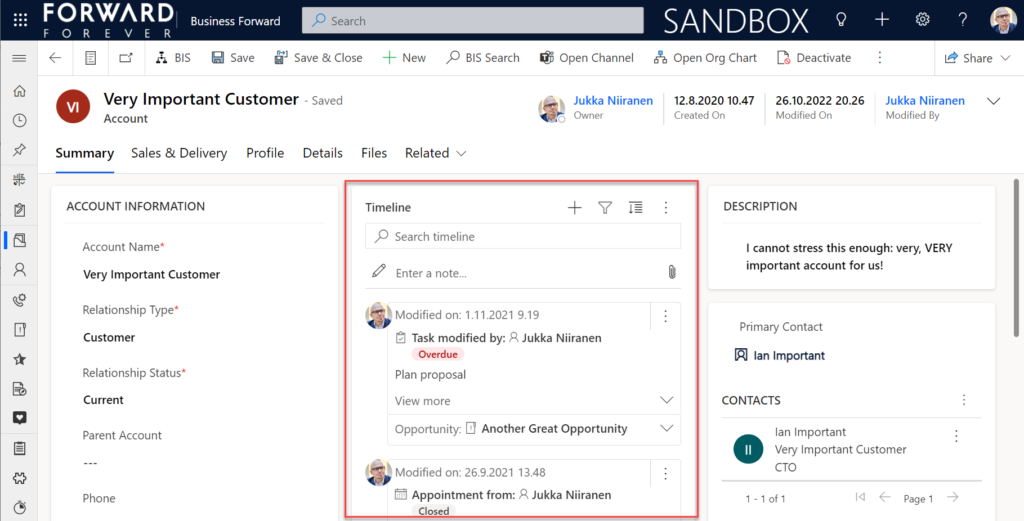
    Compared to how things used to be just a few years ago, meaning mostly hard coded, we now have an amazing amount of configuration options for the Timeline control. This is reflected in the MS Learn article “set up the Timeline control” which has an estimated reading time of 32 minutes! And that’s just the “how” part of official documentation, not the “why” that you’ll learn as the settings are applied in real world business application context.

    This blog post is my attempt to highlight the recent, most useful features that the modern Timeline form component enables for improving the user experience of your model-driven apps.

    Rolling up the notes

    The one huge feature that 2022 Release Wave 2 has delivered for model-driven Power Apps has been buried deep into the release plan. It seems almost like an intentional “let’s hope no one notices this” move since the feature is listed under Dynamics 365 Customer Service and called “Improve agent productivity with timeline enhancements”:

    Notes that work like other activities and roll up on contact, account, and opportunity form timelines.

    Woohoo! We’ve been waiting for this feature close to 2 decades already! If you haven’t experienced the Dynamics CRM era, then the significance of the rollup capability in the platform may not be immediately obvious. I won’t go deep into it now, instead I’ll dig up an illustration that I created 11 years ago for a blog post I wrote about the native activities associated views vs. form subgrids:
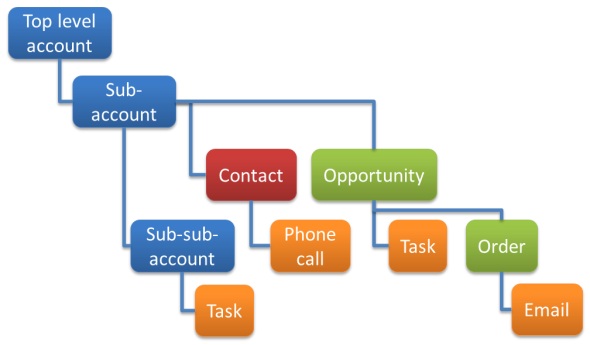
    Unlike other standard or custom tables in Dataverse, activities have one superpower: they can be shown not just from the directly related child records but also rolled up from deeper in the hierarchy across many different record types (tables, entities, you pick the terminology). This means that in the account Timeline you’re able to see tasks, phone calls, emails, appointments that are set regarding a child record, like an opportunity where that account is the potential customer.

    While the same form component has been used to display both activities and notes (and activity feed posts, in case someone’s still using them), the rollup functionality has been exclusive to activity data. This has lead to a classic CRM functional gap where a note record added onto a lead will not be carried over once the lead is qualified and becomes an account/contact/opportunity. Notes have been “sticky” in the sense that you slap them on a specific record and that’s where they’ll forever stay.

    Well not anymore! While the official docs on Learn are still pending to be updated to describe the feature in more detail, the “Notes rollup type” setting already appears on the Timeline component properties:
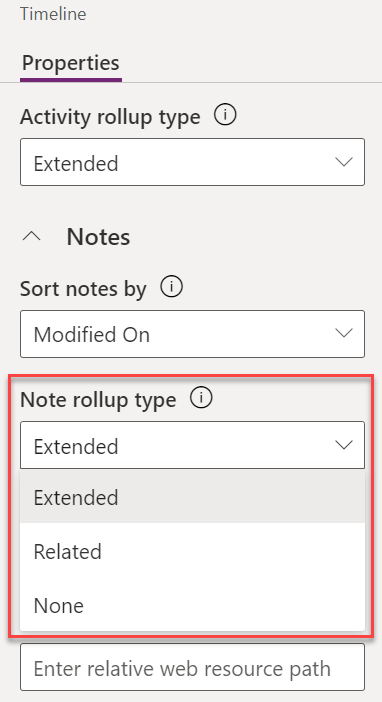
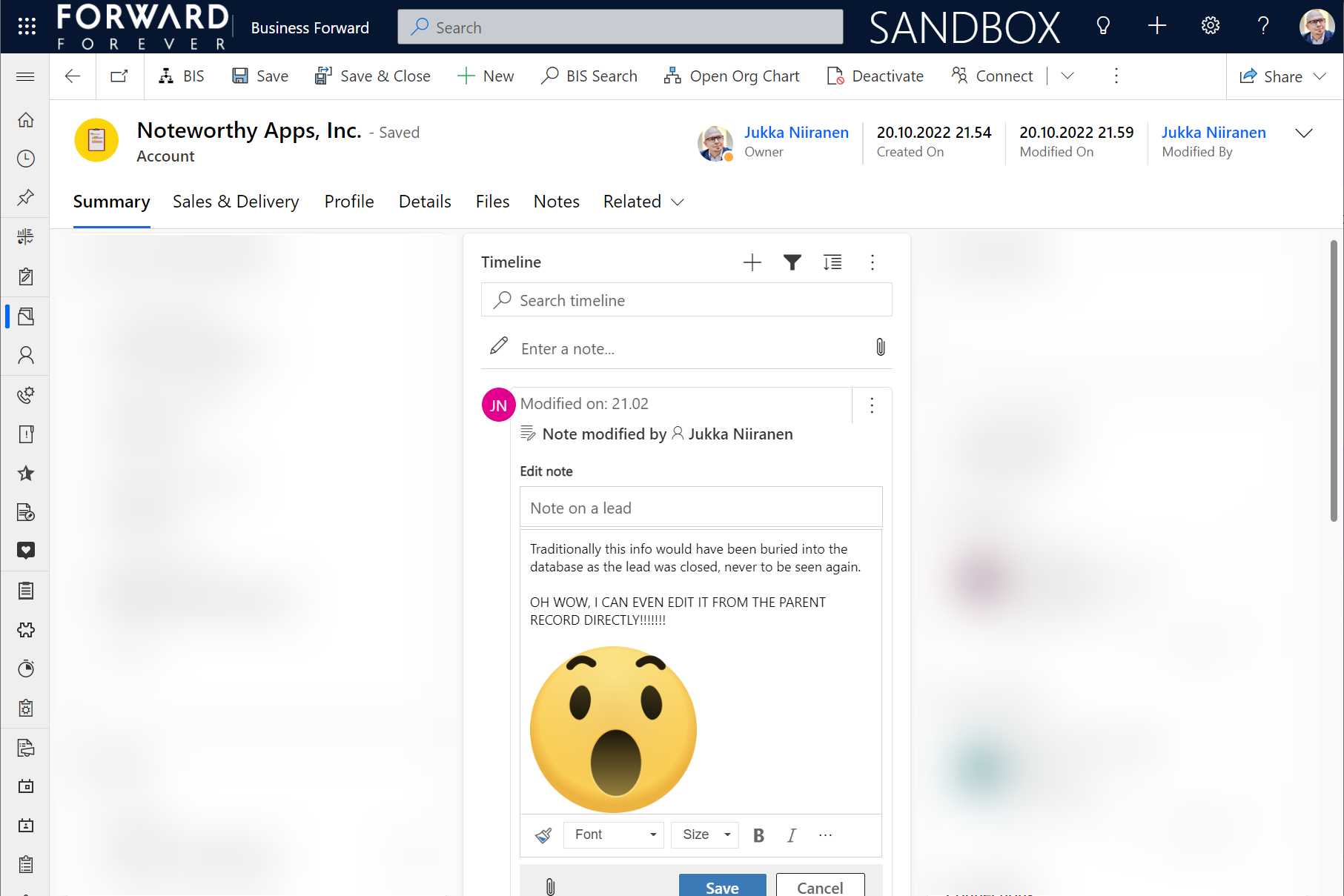
    Setting this to “Extended” for the Timeline control on the account means that we’ll now see notes that have been added to the originating lead, any of the account’s contacts or opportunities. Here’s an example where there are zero notes on the account itself, yet we can see 3 notes on the Timeline:
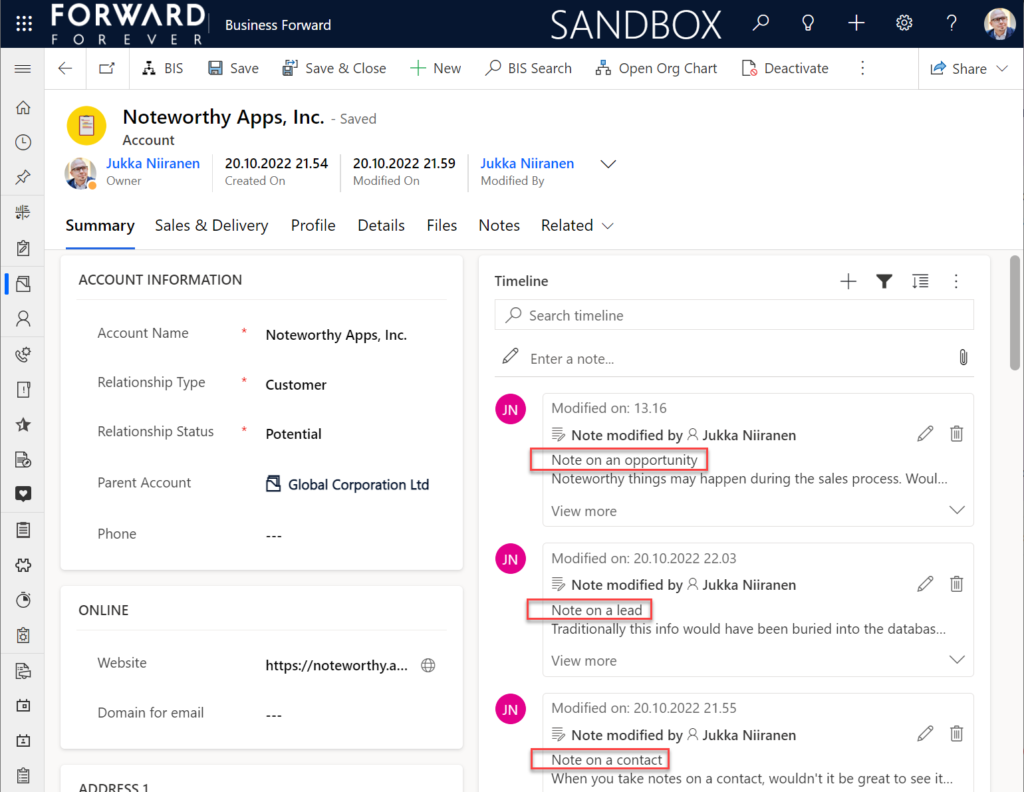
    All the notes from these child records appear just as like they were the traditional notes on the account record itself. In fact, you can simply click the pen icon to start editing a note on the account form Timeline, even if it has originally been added via a different record:
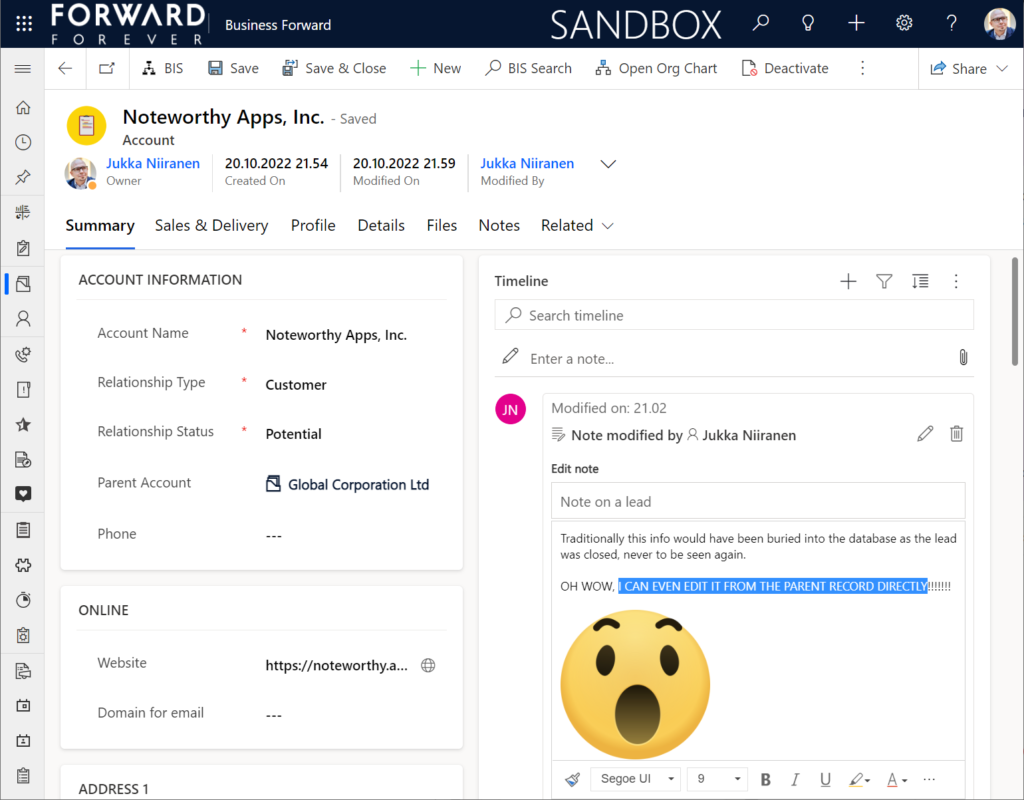
    This can be a bit confusing for the user, since there’s no visual indication on the Timeline card on which exactly is the original hosting record of that note. Which probably is due to the Dataverse data model that doesn’t treat the notes (annotation) table as something where the users could freely set the Regarding record information. With such a non-standard implementation it might be tricky even for the team developing the Timeline to surface this information in the UI.

    You need to keep in mind that this notes rollup isn’t applicable to custom tables, nor across all system tables either. Just like the activity rollup, this is feature of showing relational data from beyond a single relationship “hop” is not a generic platform capability in Dataverse. It works in these basic CRM style scenarios using predefined record types. And when it does, it can be hugely beneficial to end users.

    Alternative Timelines

    There are more goodies in 2022 Release Wave 2 under the release item “Try enhancements to timeline maker experience”. One of them is the support for having multiple Timelines on a single form. This means you could add a dedicated “Notes” tab on the account form and configure it to include only notes data, not activities or posts. The benefit from this would be to tailor the display settings in the main Timeline differently than in the Timeline dedicated for notes only.
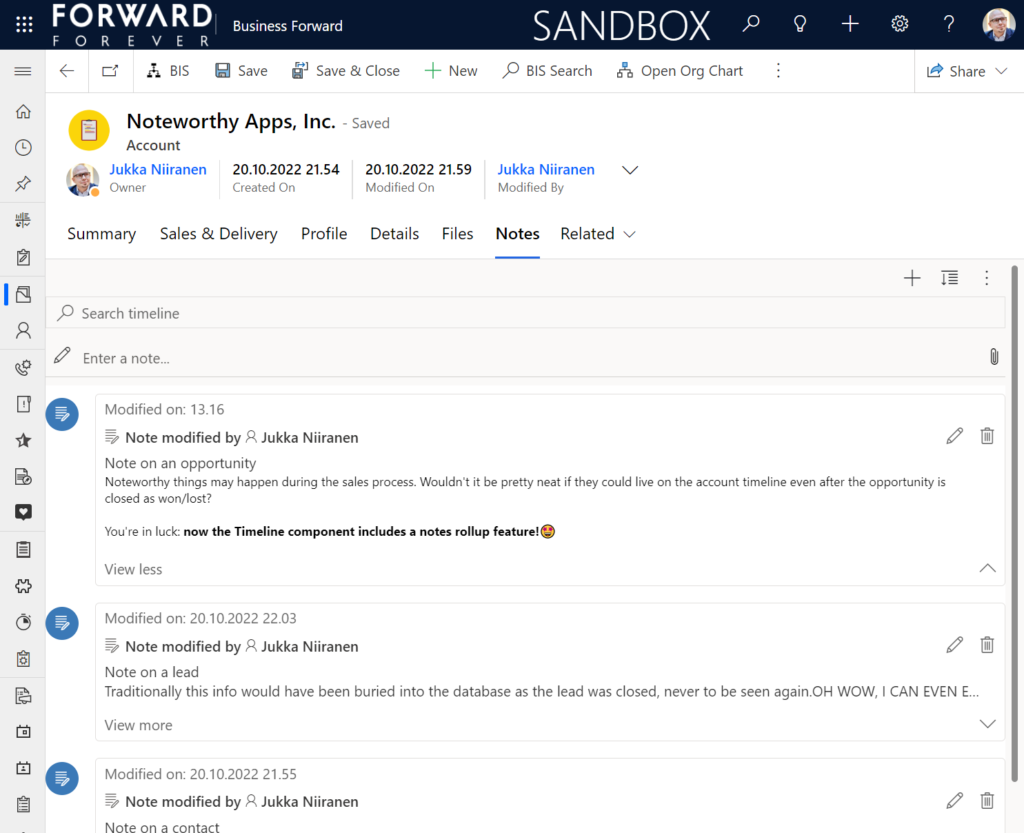
    In the example above I’ve ticked the box “expand first component to full tab” in the tab settings. This removes all the whitespace and labels around the Timeline, giving it maximum space. Yeah, it’s not the prettiest tab in the world when applying this technique to the Timeline. Yet from a purely functional perspective it’s an option worth trying out.

    One common question from customers who want to customize their CRM system’s terminology has been “can we rename the Timeline to something else”? The answer is still: no. However, now that you can have multiple Timelines on a form, the workaround you can apply is this: 1) under Timeline – Properties – Advanced – Additional Settings, check the box “Hide Timeline label”, 2) set your form column label to show the string you want.

    Now the custom text will appear and the place where it used to read “Timeline” is blank:
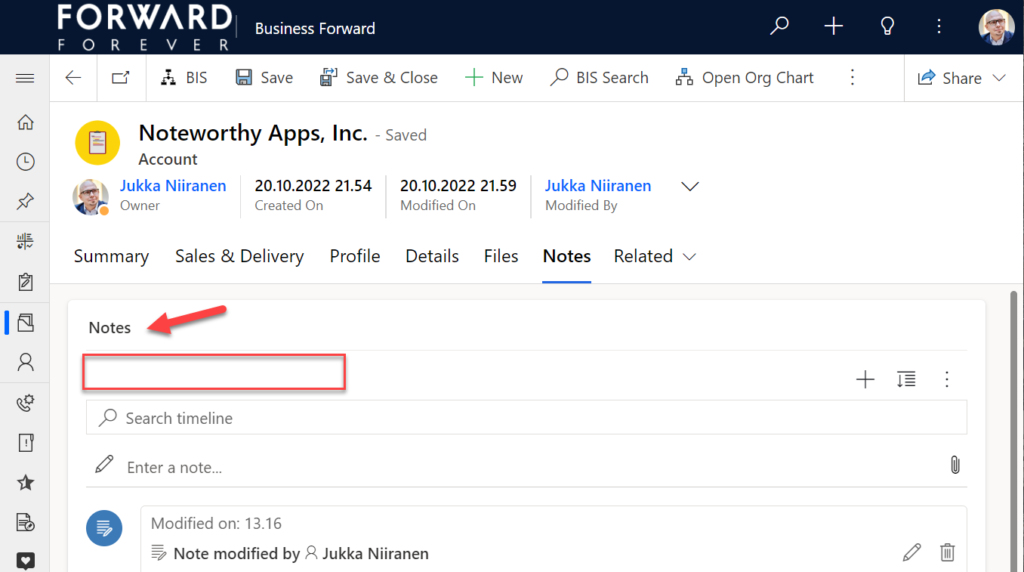
    Native controls like search or options menu will still use the timeline terminology, though. It’s always worth asking a few times whether it’s absolutely necessary to try and change such native features of a SaaS product like Dynamics 365. (The argument “because we had it like that in our previous system” is always the wrong answer.)

    Timeline forms and actions

    An area of the Timeline that has really exploded in terms of configuration options is the forms used for interacting with records shown on or created from the Timeline. Let’s look at one example of how the default functionality for tasks could be optimized on the opportunity form Timeline. Without any customizations, it looks like this:
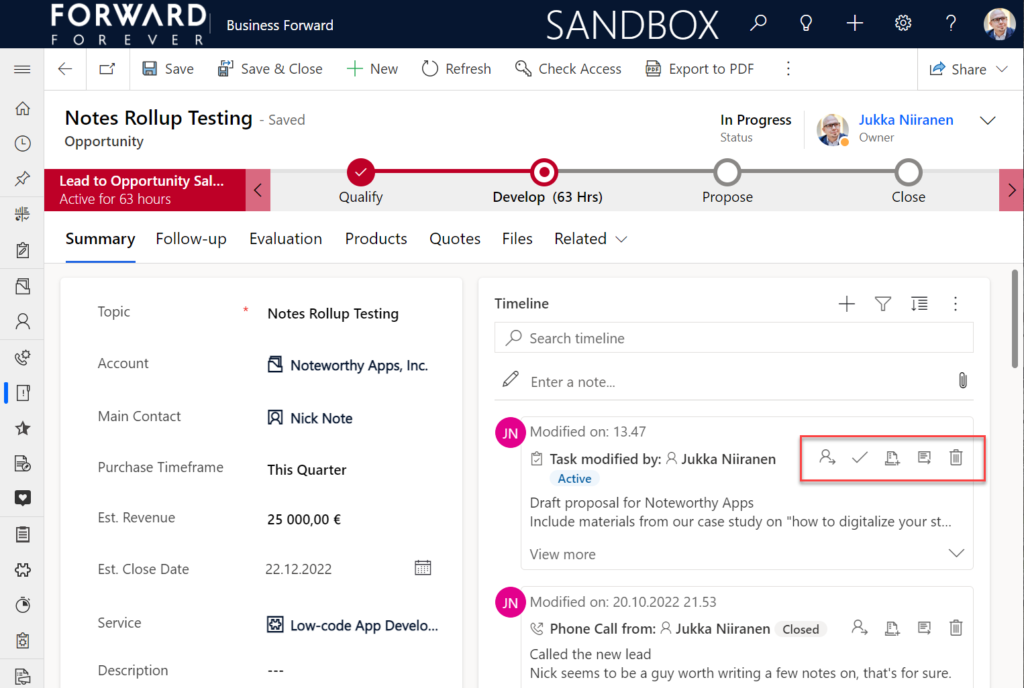
    Looking at the standard Timeline, there’s a bunch of command buttons available for every activity. Problem 1 is: it’s not easy to spot which icon opens the task’s detail form (at least I’ve never learned to immediately pick the right one). Problem 2: when we open the task, it takes us to a whole different web page, thus we lose the context of the original business record (opportunity).

    The Timeline allows us to fix both these problems by changing the settings just a bit. By going to Record settings – Activities and clicking on Task, we get a flyout pane with options specific to that activity type in this specific Timeline instance. Problem 1 can be fixed by disabling rarely needed actions like “Assign”, “Add to queue” (who uses queues anyway?) and “Delete” (deletion of data in CRM does not need to be easy!).
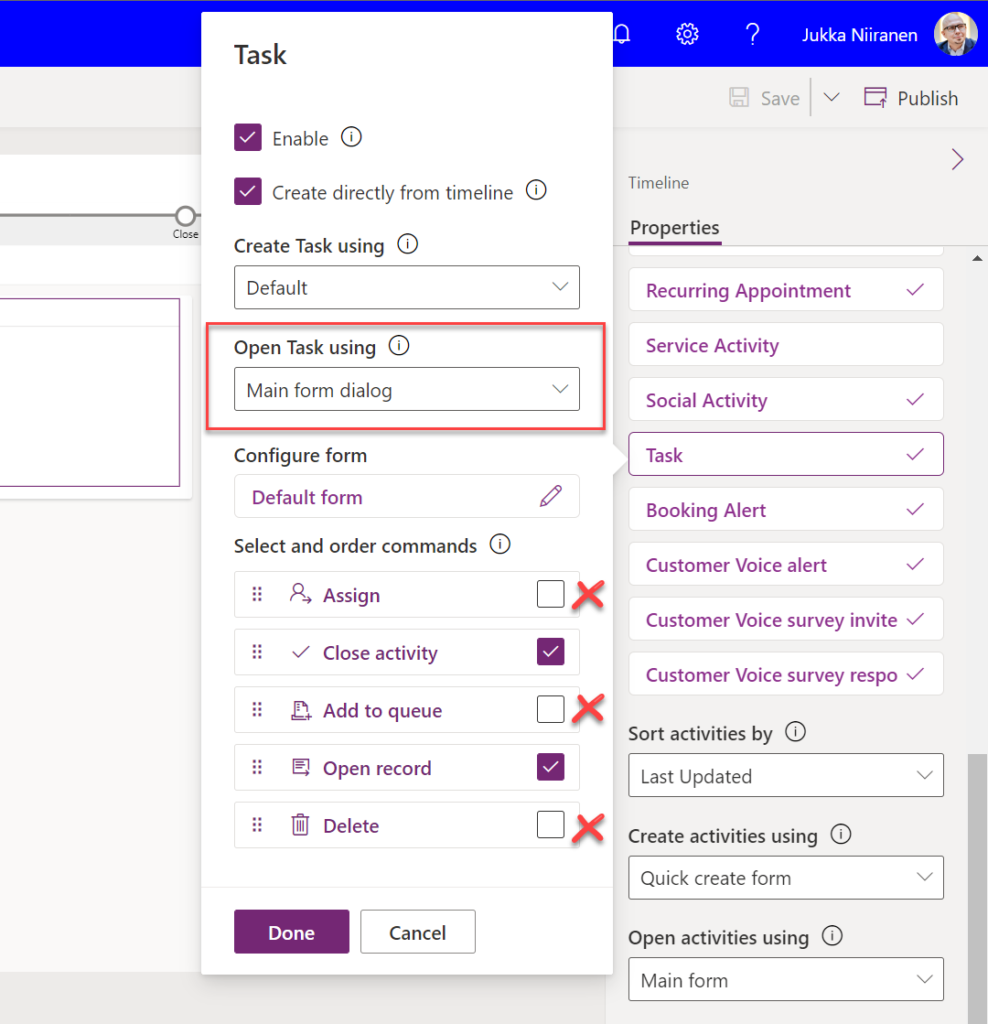
    Problem 2 is resolved by changing the “Open Task using” setting to “Main form dialog”. What does that do exactly? It gives you a modal window on top of the current record, which is a much less jarring experience than bouncing between full forms. Closing it from the X icon will allow you to keep working on the opportunity without forcing any page refresh.
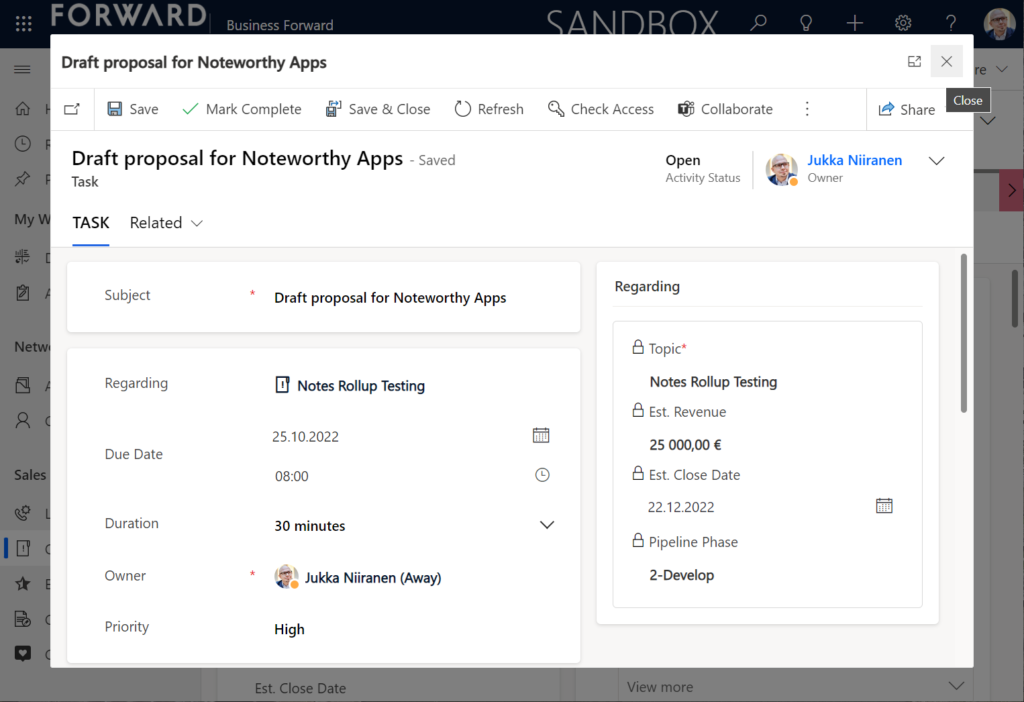
    Want to learn about the Power Apps main form dialog? Read my earlier blog post on how to leverage MFDs for making it easier to work with relational data.

    Timeline configuration sprawl

    The one caveat of all this configurability that we’ve received via the modern Timeline control is that we now have a huge number of different settings we must remember to change. Performing any of the above mentioned changes is relatively easy as an isolated task, but we need to do it for all the tables and their forms where the Timeline control is used. There is no global system setting or “apply to all” option to help us. With any larger business application you’ll quickly need your own Excel sheet just to keep track of all the N settings and N forms that you must manually harmonize.

    Where things can potentially get really laborious is modifications to the card forms used for displaying activity and note data on the Timeline. If the standard date fields aren’t what we want to show, for example (created on vs. modified on vs. due date etc.), there’s a way to change most of them. However, as you can quickly see after browsing through the documentation, the card form editor from the CRM 2011 era and the modern Timeline control have nothing in common when it comes to rendering the visible UI:
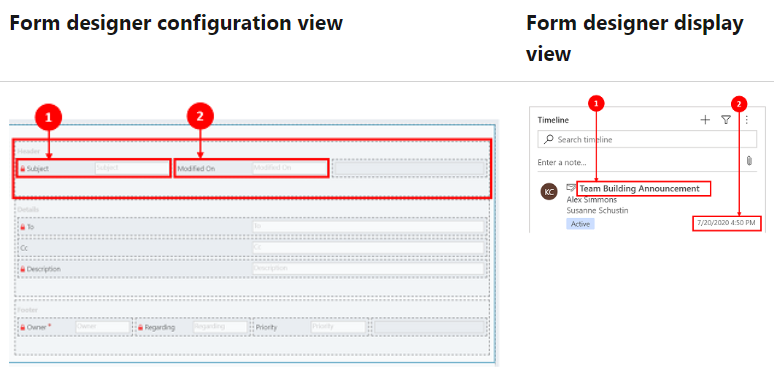
    If you want to include some custom columns from your activity tables into the Timeline cards, the good news is that it’s supported. The bad news is, you’ll likely need to keep the documentation on one screen as a reference, the form editor one the second screen, and the card form legacy editor on the third one. Good luck doing these tweaks from only your laptop screen while working away from the office!
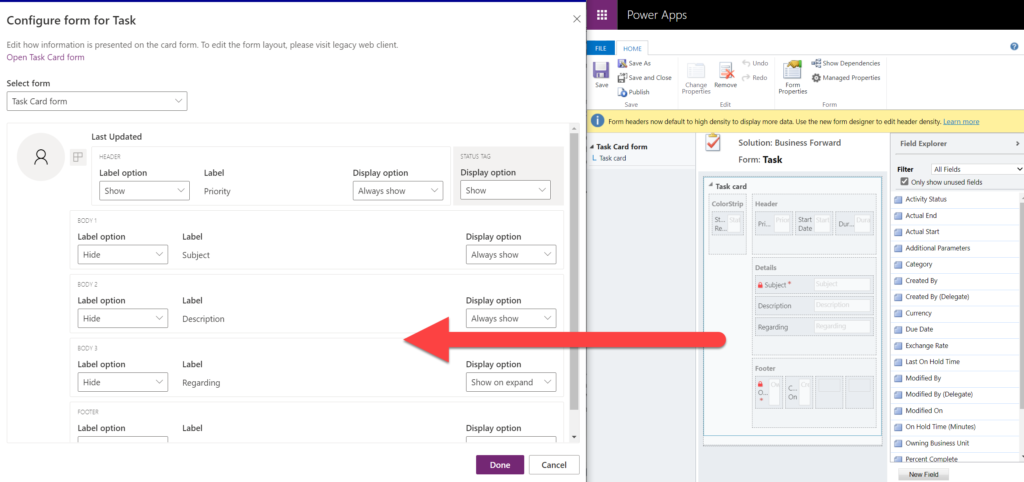
    These configuration tasks start to quickly add up. Let’s say we need to change one date field on the task card and configure its display options and label options. Perhaps our application has 20 tables where the Timeline is used for showing this activity type. Maybe we’ve also created role based forms and targeted them via different model-driven app modules, like “Sales” and “Admin”. That single requirement could mean updating the settings on maybe 30 different forms. With all the loading, saving and navigating in the Maker portal – it could easily take more than an hour to complete.

    Now, let’s say that in a Dynamics 365 project you’ve been assigned the responsibility to take care of all the details for activity and notes management features on every Timeline in the system. Sorting, filtering, control display options, supported activity types, form types per activity, actions per activity… Planning, configuring and validating all these changes will quickly consume many days, even in an SMB level CRM system. And because it’s so easy to miss a few clicks in performing this repetitive work over & over again, you’ll also need to reserve time for fixing the things that were missed.

    Achieving a consistent user experience requires plenty of work – this simple truth has not changed from the early days of Dynamics CRM projects. As Microsoft invests money in modernizing their client controls and introducing more no-code configuration options, the customers must also do their part in ensuring the changes and new possibilities in the evergreen cloud platform are taken into use in a controlled manner. Striking a balance between what can be customized and what should be customized – this remains the eternal question.
  • Reopen tasks with Power Fx & custom command bar button

    Reopen tasks with Power Fx & custom command bar button

    The preview feature for customizing command bars in Model-driven Power Apps is one of the most exciting examples of how the converging app types allow doing more with less code. Instead of having to learn how to write JavaScript, the low-code app maker can now leverage the Power Fx language familiar from Canvas apps development (and of course Excel formulas) to add custom business logic for command bar buttons.

    This preview was launched late July, but up until now I hadn’t come across a need to use it in an actual Power App. Today I encountered a familiar platform limitation that I though would be a great opportunity to try the new Power Fx based commanding in practice.

    The missing feature in Power Apps activity management

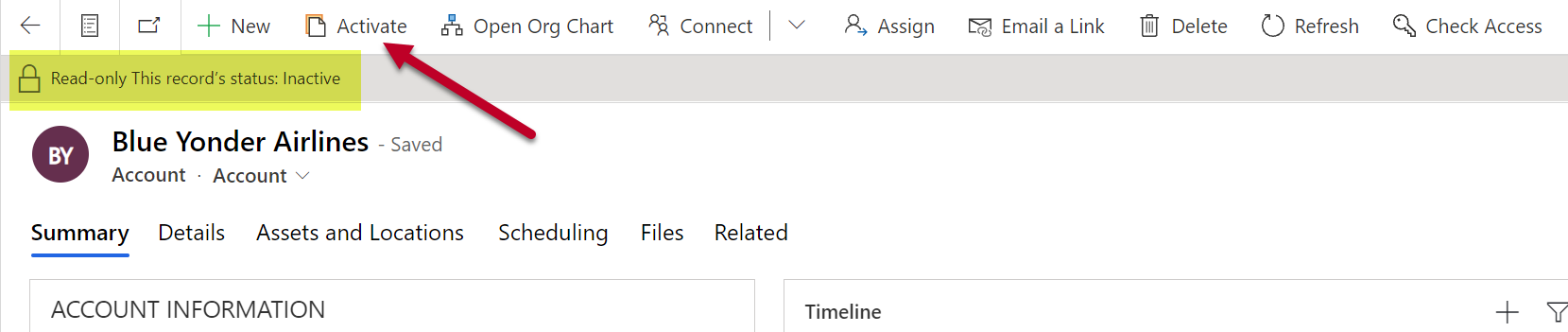
    The scenario is this: for any “normal” table in Dataverse, there’s usually the possibility for the user to change the status not just from active to inactive but also from inactive back to active. For example, re-activating an inactive account is a feature available natively in the command bar:

    The story is different when working with activity tables. Let’s say we have a task record that we’ve closed as completed but would want to append with further information. Hmm, where’s the “activate” button on this form’s command bar…?

    It’s not there. Activities like tasks, phone calls, appointments aren’t something you can easily reopen. This has been the situation for as long as we’ve had Dataverse / Common Data Service / XRM / Dynamics 365 / Dynamics CRM. It’s not that the user wouldn’t technically be allowed to perform the reactivation. There just isn’t a feature that would allow you to click on a button and start editing an activity that has already been closed.

    The traditional no-code way for making this available to the user would have been to create an on-demand XRM workflow for them to run. A more advanced option would have been to create a JavaScript web resource and use the Ribbon Workbench to add a custom button for the user to click on.

    Yeah, the Ribbon was cool in 2011, but let’s see if we would have a better way to achieve this with Power Apps functionality now in the year 2021.

    Adding a command

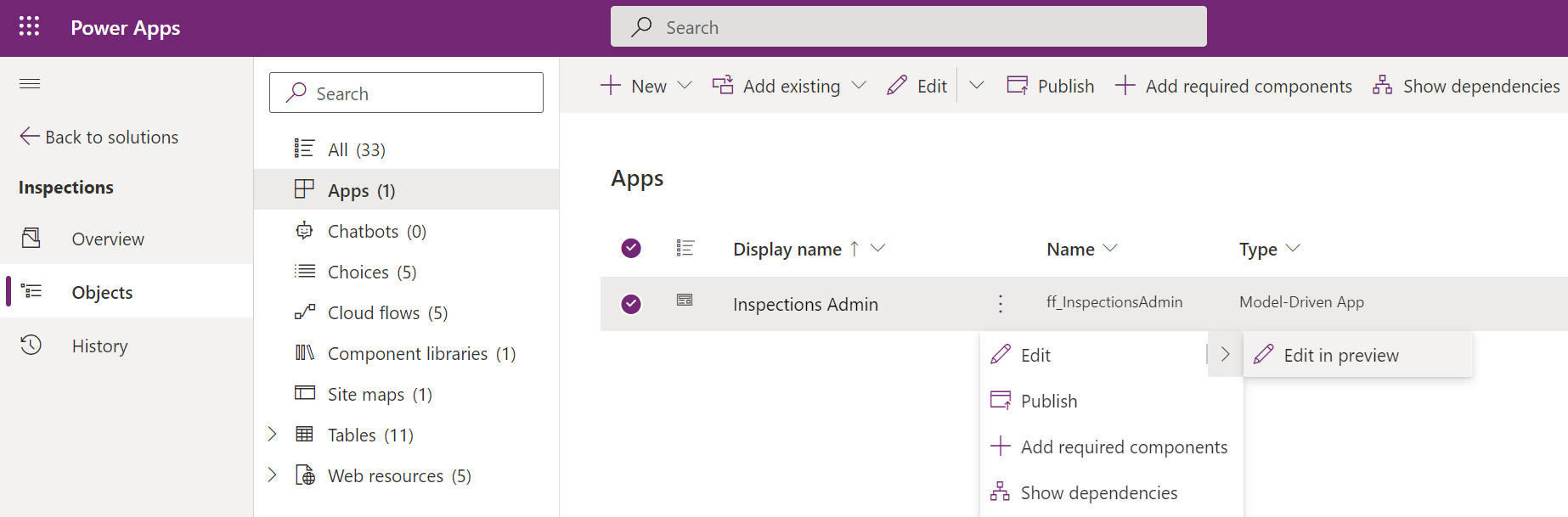
    The first thing we need to do is to locate the new command designer. Currently this lives inside another preview feature, the modern app designer. We can launch this designer when looking at the options for editing a Model-driven app module inside a solution:

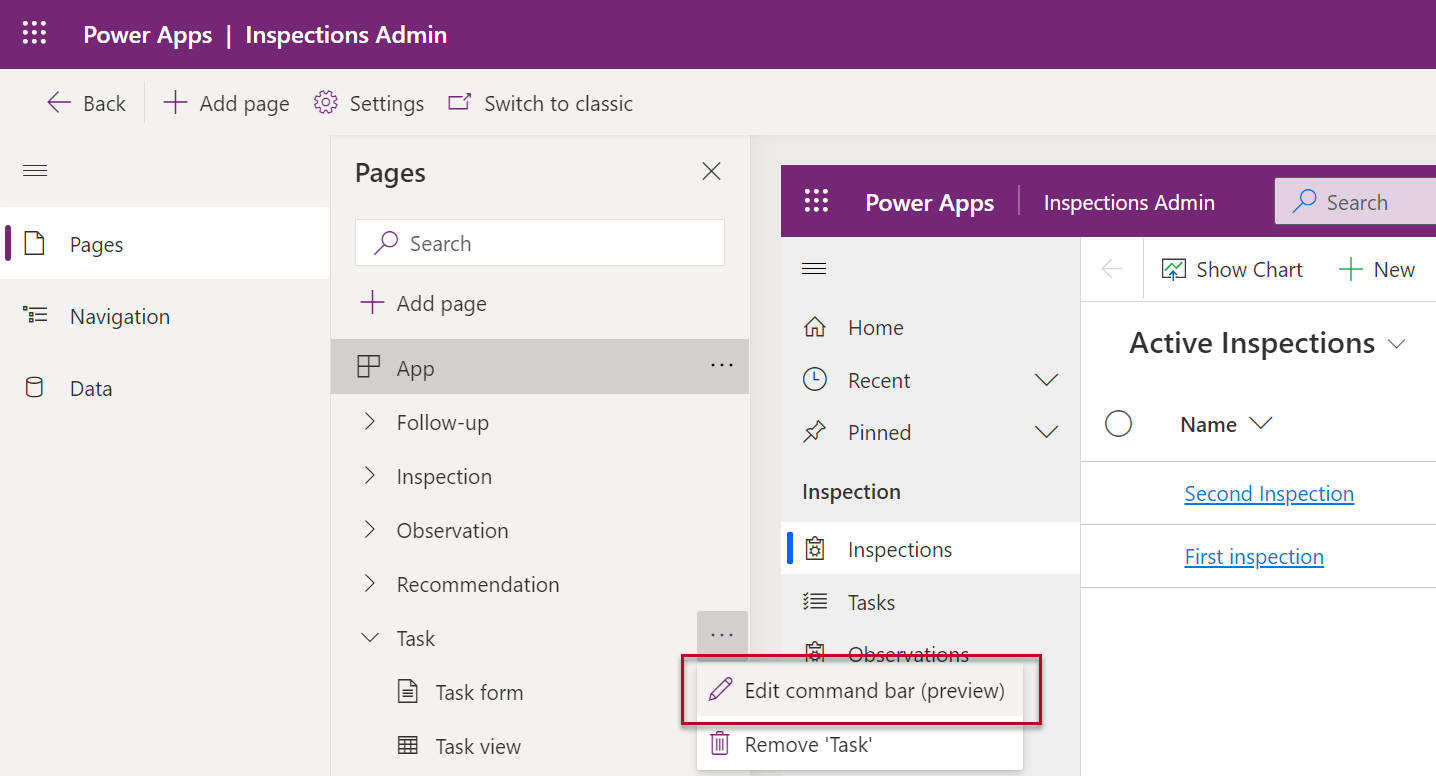
    In this new world the command bar is a component found from under a page in the app module. So, let’s look at the page for the task table and choose “edit command bar”:

    We need to keep in mind that we’ve got 4 different command bar locations to choose from. All of them are potentially relevant for such a generic feature, but to keep things simple we’ll focus on the main form command bar. This means that when we open a task record into a full window (or Main Form Dialog modal window), we want to see our new custom button there. It’s better to start from a command specific to a single record rather than any of the views where a command might need to apply to a number of different records from the same table at once.

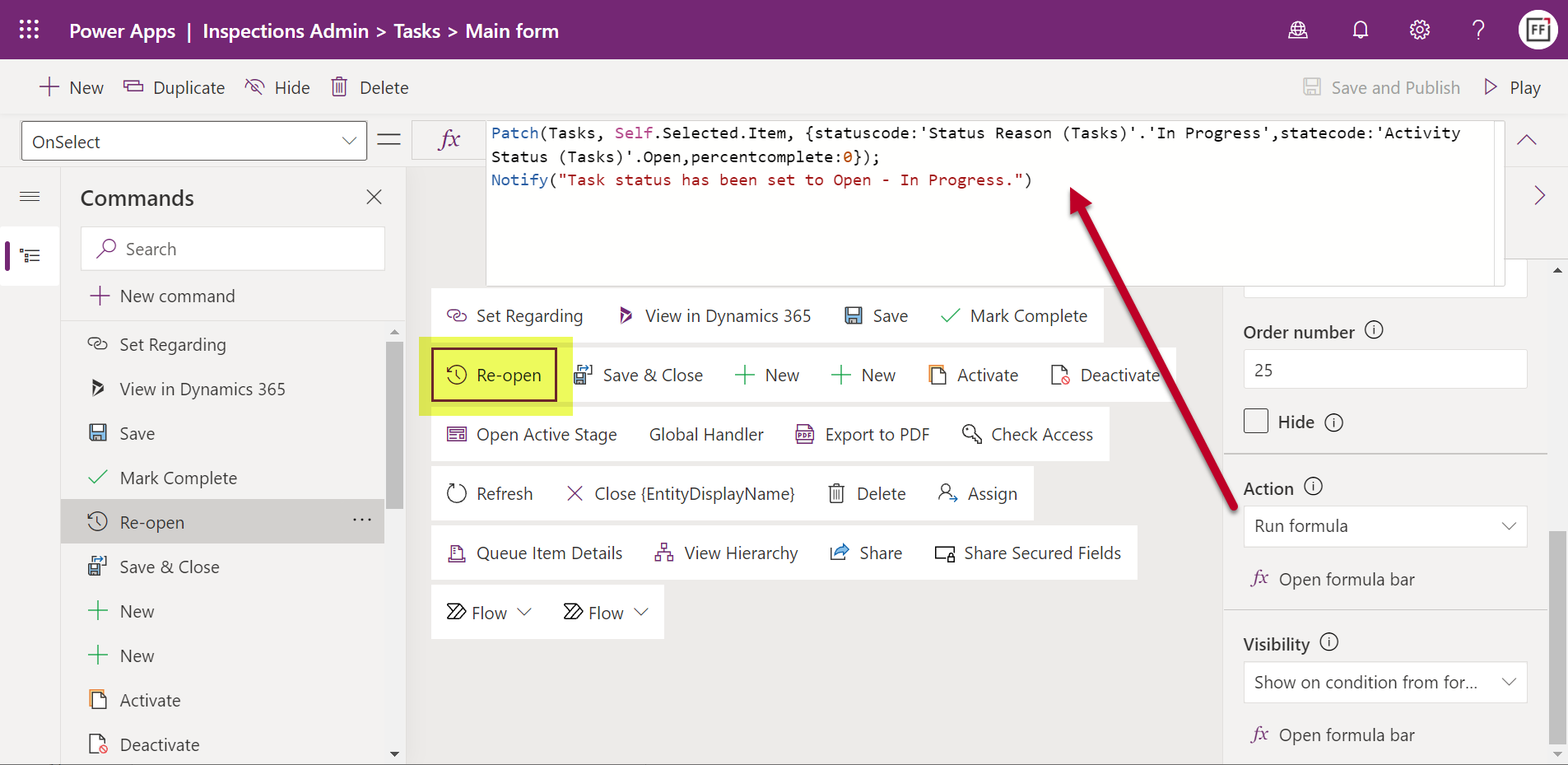
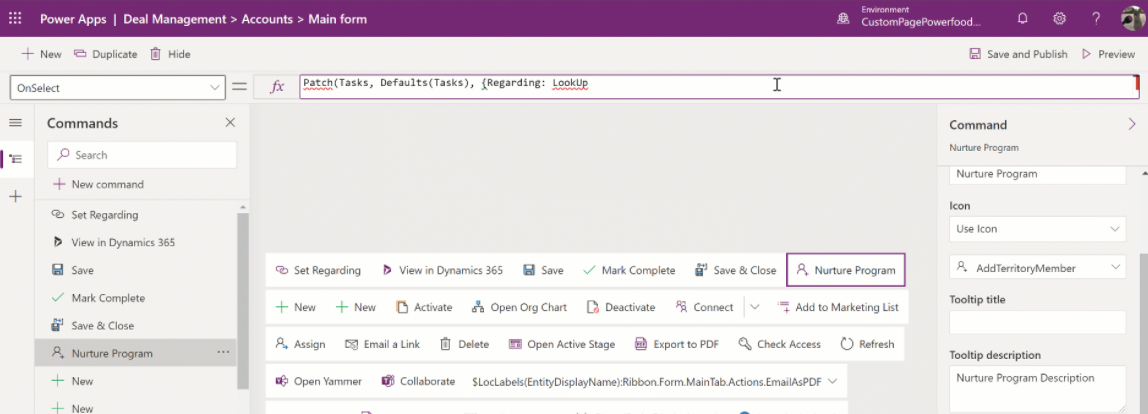
    In the command designer window we can add a new custom button. The simple no-code parts are the visual editing experience of giving the button a label, icon, tooltip and dragging it into the suitable relative position in the existing command bar for the task table. Once we get to the low-code part of writing the Power Fx formula to perform an action for this button, it’s a good idea to pause for a moment and think about what elements we need to work with.

    First of all, what we want to do is to update the current record (rather than creating a new one). We need to use the Power Fx Patch function to accomplish this. The documentation gives us an idea of how to set the target object (Self.Selected.Items), but when it comes to the actual fields to be updated, we’re going to need to do some research on how activity tables in Dataverse behave.

    An important detail to understand is that the record status isn’t something that you just set with a single field value. It’s a combination of the Activity Status (statecode) and Status Reason (statuscode) that need to be aligned in order for the status change to go through succesfully on Dataverse side. A combination of Power Apps Community posts and the Dynamics 365 Customer Engagement developer docs for the task EntityType is needed here to figure out what values your Power Fx formula should use. The end result is:

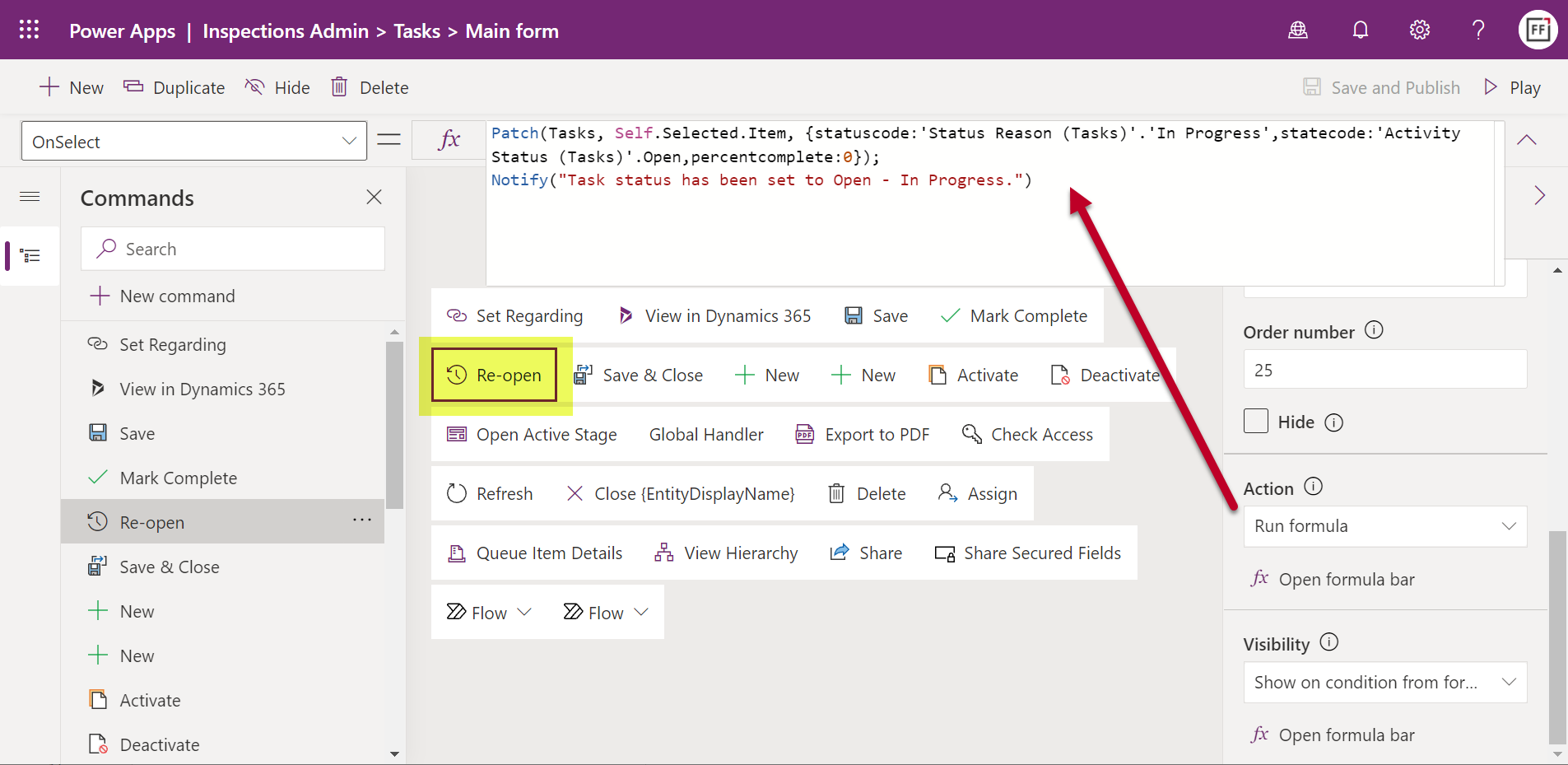
    Patch(Tasks, Self.Selected.Item, {statuscode:'Status Reason (Tasks)'.'In Progress',statecode:'Activity Status (Tasks)'.Open,percentcomplete:0})

    Due to the funny data types for choice columns in Dataverse (formerly option sets in CDS / XRM), we need to reference the available values for a specific choice, as seen above. Now, this gets us to the question of “how do I make sure my command bar formula is correct?”

    Unlike with the traditional Canvas app Maker studio, you can’t easily run the formula on a test record and see whether you get an error or success. Which is why I very quickly proceeded to creating a dummy Canvas app to validate my Power Fx formula against a real record in Dataverse to see the results in action. I’d recommend you do the same for any custom command formula that you’re not 100% sure to work when added as an action onto a button.

    OK, looks like we’ve got the status change part nailed down. But what’s with that “percentcomplete” value in the formula? It has to do with how we control the button visibility later on.

    Setting command visibility

    While we can get the job done by just adding a button that will perform the action missing from default Power Apps / Dynamics 365 activity forms, we should also pay a little more attention to the user experience. In this scenario, the action for reopening a task isn’t going to be relevant for any task record that has not yet been closed. To make sure we don’t create unnecessary clutter in the UI, let’s hide our custom command from records that are not valid targets for its action.

    In theory we should be able to accomplish this by adding a visibility formula for our custom command that reads:

    Self.Selected.Item.'Activity Status' = 'Activity Status (Tasks)'.Completed

    This should be true only when the task record we’re looking at has been closed as completed. Yet it doesn’t work. Even though Mr. Ribbon Workbench himself, Scott Durow, uses this structure in his example of a “set visibility” expression, it didn’t produce the desired results in my app.

    How about the Microsoft docs then? Well, they claim that the formula to control visibility based on record data should be something like this:

    //Button will be visible for accounts with Account Rating > 20
    Self.ThisContext.SelectedItem.'Account Rating'>20

    Unfortunately “Self.ThisContext” isn’t something that the intellisense feature in the command designer editor recognizes at all, so we’re kinda stuck here. Unless we can figure out a way to identify the closed status of an activity record without referencing those pesky choice fields.

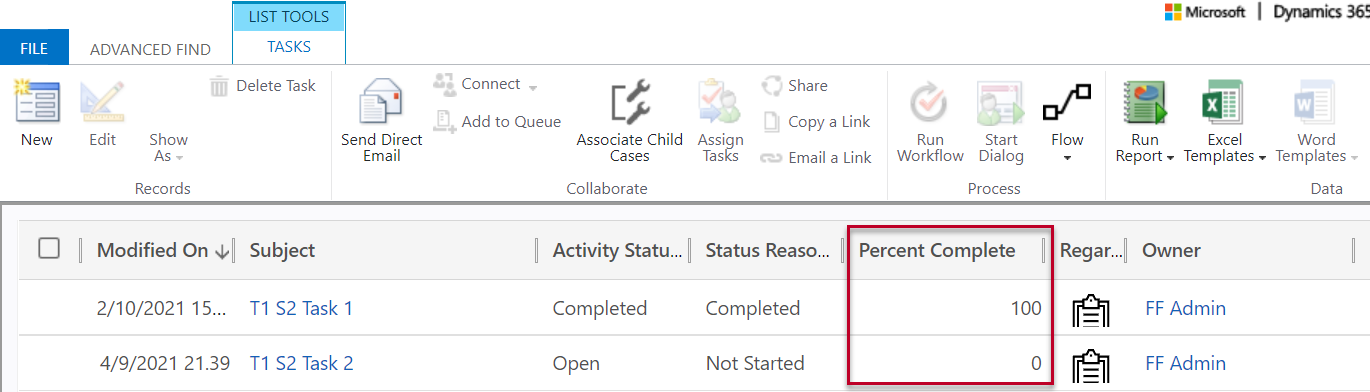
    Let’s do what an experienced XRM customizer would try and launch Advanced Find to explore all the column values in our task table rows to look for clues. A-ha! There we have it! The system apparently populates the Percent Complete (percentcomplete) integer field with the value 100 whenever the task status is changed to completed:

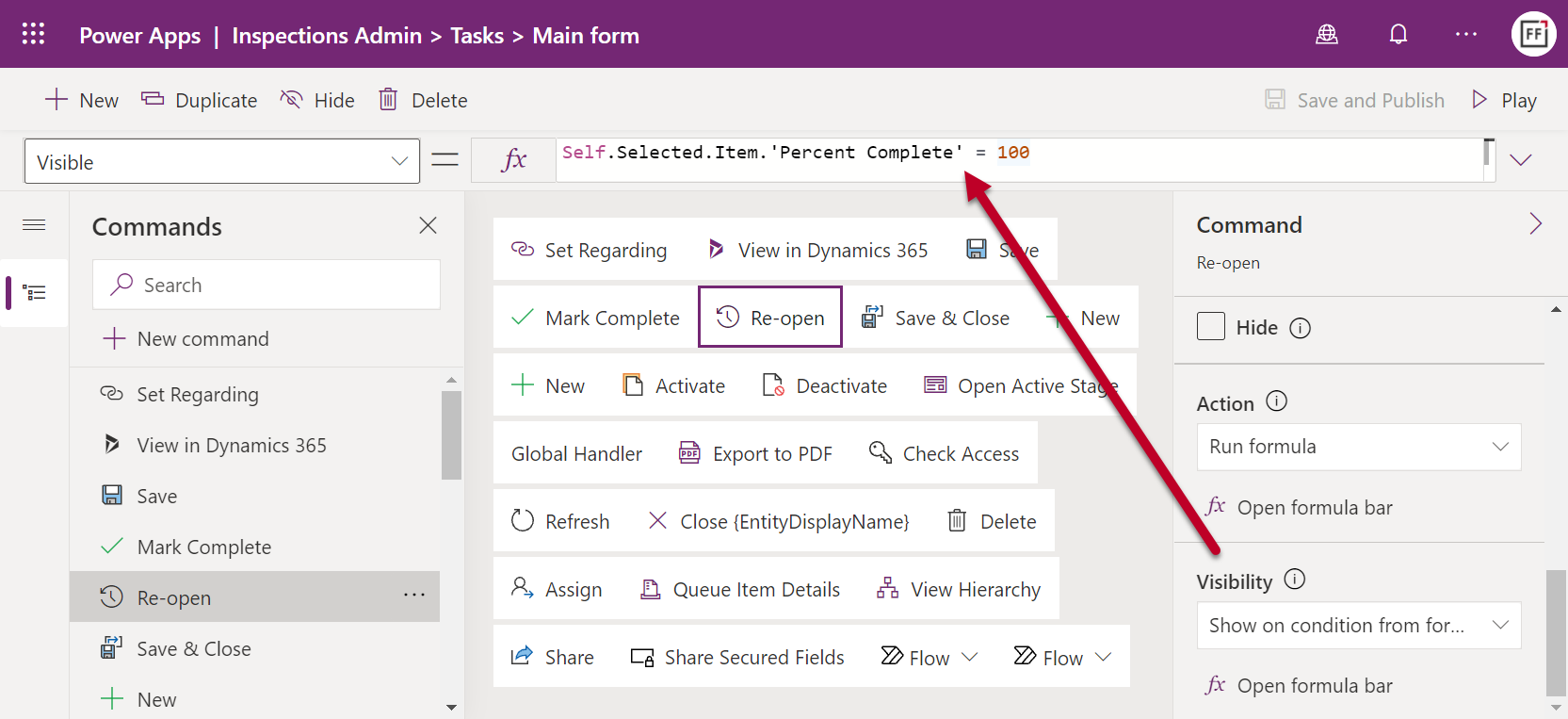
    Let’s use this information to design an alternative formula for our custom command’s visible property:

    Self.Selected.Item.'Percent Complete' = 100

    Now we only see the “Re-open” button on task forms where the record is in completed status. We should make sure that upon reopening the task we also set his value back to less than 100, which is what we’ve already got in our action formula.

    Notification to end user

    We now have functionality in place for both the action we want to perform and when we want it to be visible in the command bar. To add more polish into the user experience, we could take advantage of the confirm function and show the user an “OK / Cancel” confirmation dialog box before the action to reopen the task is performed.

    The only problem is: it doesn’t work. Once again, the intellisense feature for the Power Fx formula refuses to acknowledge that “Confirm” would be a valid function. Saving it into our action formula will not produce any visible results. OK, we need to keep in mind that modern commanding is still in preview, so let’s give Microsoft some time to fix these issues before using them in our production apps.

    Thankfully the notify function does work with custom commands already today. We can add this line into the action property of our button:

    Notify("Task status has been set to Open - In Progress.")

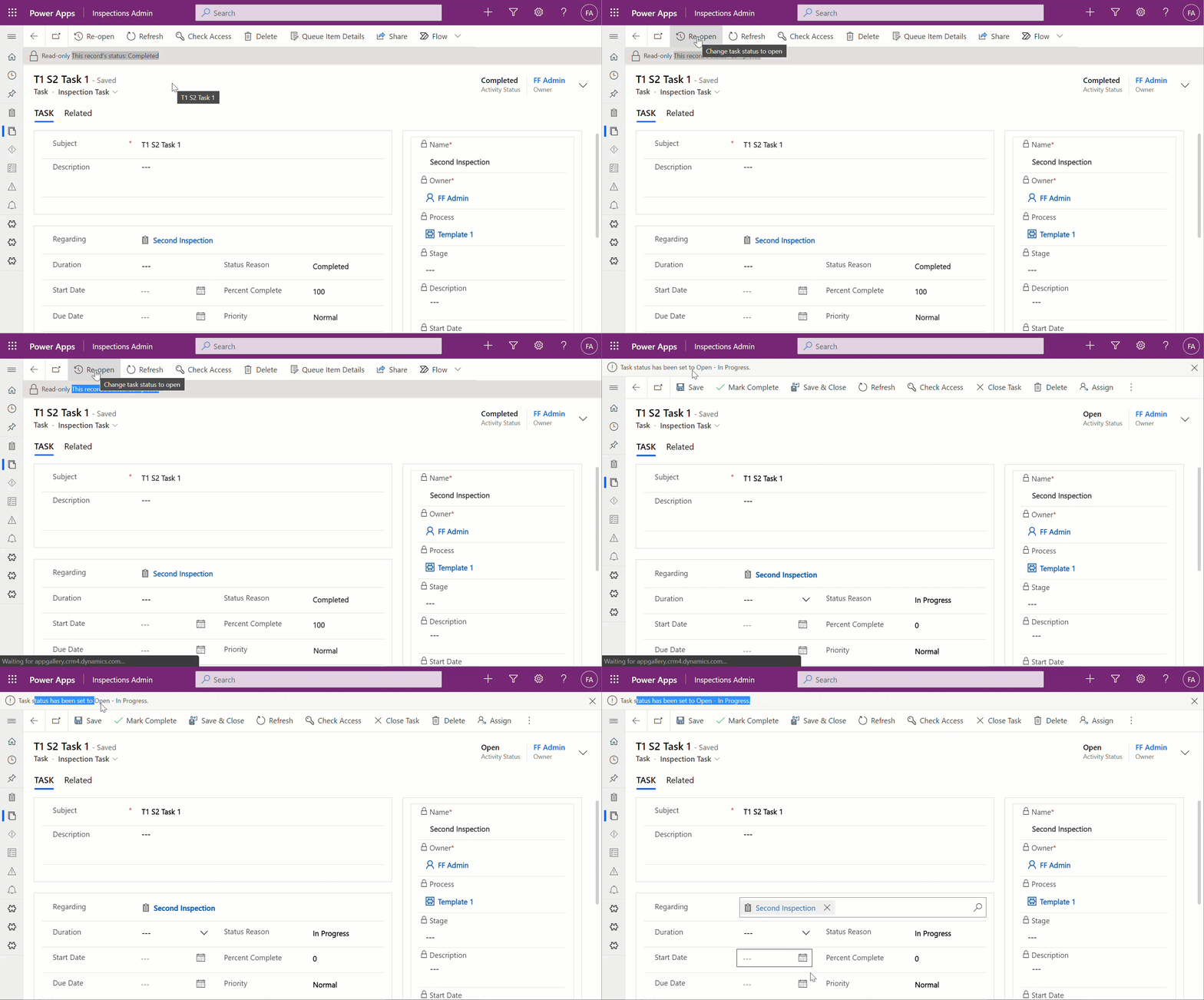
    When the user then goes and clicks on the button for a completed task, the experience will be the following:

    Showing the custom notification bar in the same location as where the default system message “Read-only – This record’s status: Completed” would normally be is actually a pretty nice experience. The user probably can’t distinguish this from a native command behaviour.

    Custom commands in grids

    With similar steps we are able to also make commands available outside the single record form. Now, the big difference here will be that instead of always being sure we have exactly one record to work with when on a form, grids provide users the opportunity for multi-select. Which can be a bit of a problem, since at least based on the current preview documentation for modern commanding in Model-driven Power Apps, I don’t know how the Power Fx formulas should be structured to loop through a record set.

    Let’s therefore build something that we know will work, based on the above example. On our custom table “inspection” we have a subgrid of tasks related to that parent record. To streamline the process of marking the tasks completed, we can add a button on the subgrid command bar that allows us to change the status without leaving the main inspection form. Here’s what it will look like:

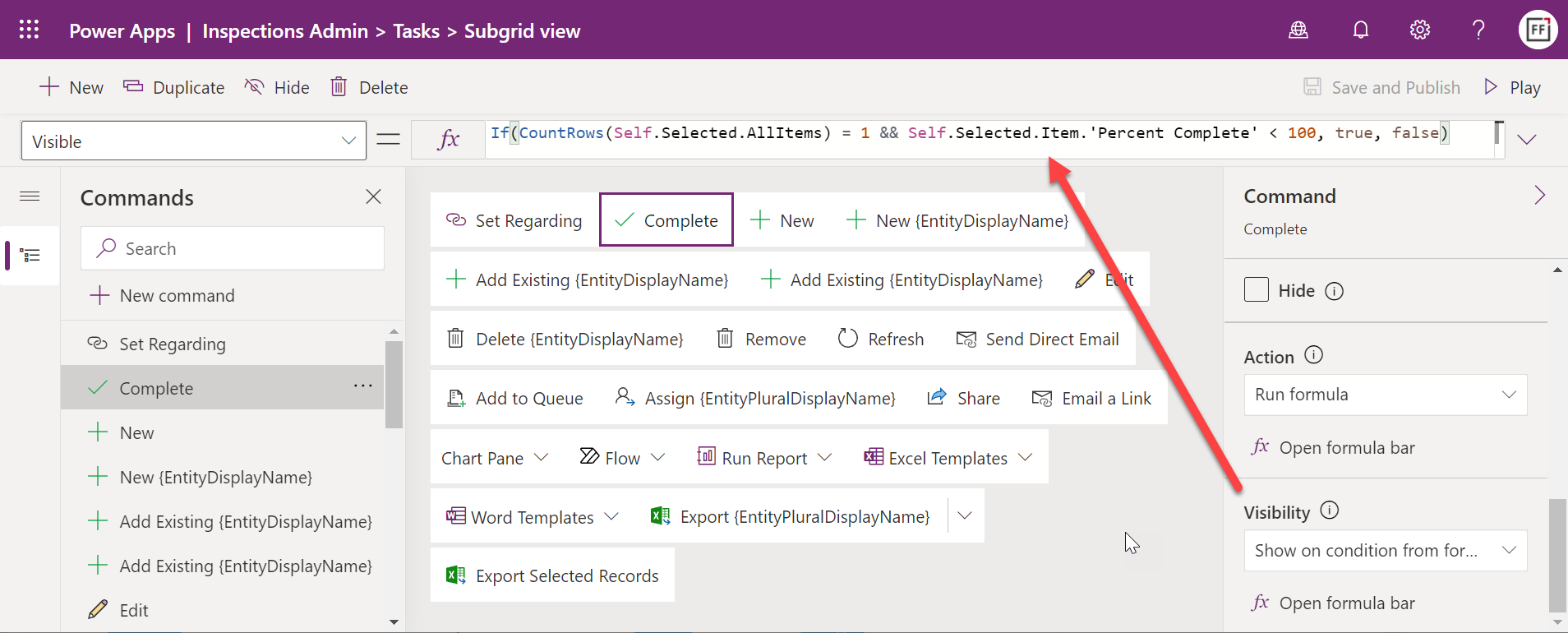
    I’ve added a “Complete” button to the subgrid view commands for the task table. The action part is pretty much the same as before, only we’re setting the status & status reason to “Completed” this time:

    Patch(Tasks,Self.Selected.Item, {statuscode:'Status Reason (Tasks)'.Completed,statecode:'Activity Status (Tasks)'.Completed})

    As for the command visibility, I want to check that A) there is only a single record selected and B) the status is not “Completed”. We’ll use the same workaround with “Percent Complete” field as before and include a CountRows function:

    If(CountRows(Self.Selected.AllItems) = 1 && Self.Selected.Item.'Percent Complete' < 100, true, false)

    Now the command is ready for use in the subgrid. The visibility rule does work, although there seems to be a bit of a caching delay in determining the status of the chosen task. If immediately after closing a task as completed we go and select the same row again, the “Complete” button will still show there.

    Although the clicking on a command will perform AutoSave, it is run before the command itself is initiated. After we perform a manual refresh of the form, the button is correctly hidden for the recently completed task. Just a minor detail you should be aware of when testing your custom commands.

    Conclusion

    The modern commanding feature looks very promising. If you have been using Power Fx in Canvas apps, building the action and visibility rules in the command designer isn’t that big of a leap. Sure, it is low-code rather than no-code, meaning we’ll need a larger number of documentation samples to understand how the properties and functions can be used in the context of an app command bar specifically. However, it’s a much safer sandbox for app makers to work in than full blown JavaScript, which one of the reasons it makes sense for Microsoft to invest in developing their programming language for low-code.

    Ever since The Ribbon was introduced in 2011 (and later evolved into a Command Bar), I’ve always felt like it has been a missed opportunity for optimizing the user experience of business applications built on Power Platform / XRM. The barrier for modifying and extending it, even with awesome community tools like the Ribbon Workbench, has simply been too high for getting many of these nice-to-have features implemented in real life customer projects. The native command designer tool and common Power Fx logic can definitely help in lowering this barrier.

    At the same time, we need to keep in mind that the modern commands don’t yet replace the classic commands from the RibbonXML era. Common requirements for usability improvement like hiding irrelevant default buttons isn’t yet supported. Check out Scott’s article on Ribbon Workbench vs. Power Fx Command Buttons to understand what is & isn’t available in Power Apps modern commanding.

  • Playbooks for Dynamics 365 Activity Templates

    Playbooks for Dynamics 365 Activity Templates

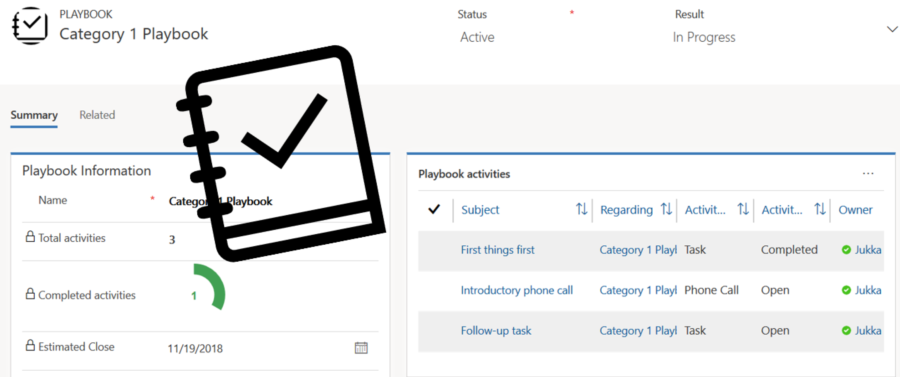
    In my previous post I explored the current Dynamics 365 Customer Engagement solution update practices and used the Playbooks feature as an example. Here’s a quick overview of what the actual Playbooks offer.

    The official MS documentation, “enforce best practices with playbooks”, gives you a list of what the initial October ’18 release of Playbooks contains. The feature is essentially a way for a sales manager to determine a set of activities that sales users should perform when a real life event takes place that the playbook contents has been designed for. A checklist, if you will.

    To get started, you’ll need to have the Sales app upgraded to a recent enough version, so that the Sales Hub UCI app displays Playbook Templates under the App Settings:

    Notice that you won’t find these anywhere in the legacy web client (“classic UI”). One thing you might want to do first via that legacy client, though, is to ensure that the associated roles for Playbook Manager and Playbook User are assigned to the required user accounts.

    To kick things off, you could create examples of Playbook Categories for grouping your playbooks, since that’s a compulsory lookup on the Playbook Template form. The actual configuration work will all take place on the template, where you’ll first of all specify the record types that the playbook applies for. Right now it’s only lead, opportunity, quote, order, invoice, so don’t plan on using playbooks for any custom entities or other Dynamics 365 Apps than Sales.

    The template shows a subgrid of Playbook Activities, which look pretty much like your regular activities on the surface. They are a separate entity, however, as this is how you define the parameters for an activity (task, phone call or appointment). You have the usual subject, description, duration etc. fields you’d find on a normal activity, but instead of fixed dates you give them relative due dates, calculated from when the playbook is launched.

    (more…)
  • Activity Management Enhancements in Dynamics 365 (v8.2)

    Activity Management Enhancements in Dynamics 365 (v8.2)

    Whenever a new version of Dynamics CRM and now Dynamics 365 (the XRM part) are released, the first thing you should review is the “what’s new” documentation that Microsoft produces for three different audiences: users, admins/customizers and developers. For the “December 2016 update for Dynamics 365” a.k.a version 8.2 of what used to be called CRM, these articles can be found from the following links:

    As always, there’s way more goodies in there that a single blog article could ever hope to cover in meaningful level of detail. One area that deserves a mention in terms of the core XRM platform enhancements is the way activities can now be presented in the UI, so let’s focus on those in this here post.

    Display the associated activities of the related entities

    If you’ve happened to read my ancient CRM 2011 era blog post about how subgrids ain’t what associated views used to be, then the concept of activity rollup may be familiar to you. The way Dynamics CRM has worked up to this point is that for out-of-the-box core entities like Account and Opportunity the activities from under the child entity were presented also under the parent entity’s Associated Activities View. If you created a custom entity under the Account, though, then none of the activities linked to it would show up in the rollup view. A major inconvenience for any XRM scenarios where you then had to instruct the users not to track their activities against any of the child entity records but rather put them all to the Account level.

    In v8.2 this limitation has now been addressed by the product team:

    “We added a new flag called Rollup View in the customization user interface, on the Relationship Behavior form. It lets customizers indicate that associated activities of the related entity should be included in the Activity Associated View for the primary entity.”

    Woo-hoo! Let’s go and try this one out in an example scenario with a custom entity called “Account Plan” that we’ve linked to the standard Account entity via N:1 relationship. Meaning: there can be several Account Plans (per year, for example) for a single Account. Being the “plan” and all, you’d find it pretty natural to track tasks and other upcoming activities against this record, but also would probably prefer to have access to them from under the parent Account of this plan.

    When we open up the relationship configuration screen and have a look at the Relationship Behavior section, we find our usual list of actions where cascading behavior can be configured. Down at the bottom there’s a new option: Rollup View. This is where the magic will happen for activity rollup between the two entities. (Note: if the field is disabled, make sure your entity is enabled for activities before trying to enable the Rollup View.)

    CRMv82_Associated_Actitivies_01

    With the Rollup View behavior set to “Cascade All”, we can now go and do some activity entry on the Account Plan form. Let’s use the Social Pane to add some tasks that are set regarding this particular plan. Normally this would be the only place where we’d see them (aside from the owner’s My Activities view and their task list synced to Outlook, of course), but thanks to our cascading relationship behavior this will no longer be the case. Let’s navigate up in the hierarchy towards the Account record.

    CRMv82_Associated_Actitivies_02

    Now, in addition to the activities that have been either directly set regarding the Account or one of the built-in roll-u enabled child entities, we also see those activities created from the Account Plan form listed in the Social Pane of the Account record. A tiny step towards the mythical “Customer 360”, but a major improvement nonetheless for ensuring the complete communication history for a particular customer account is easily accessible for the Dynamics 365 end user. In case you were wondering: yes, these child entity activities also roll up the account hierarchy, so a global group’s top account may end up having a BIG list of emails in its Social Pane.

    crmv82_associated_actitivies_03

    As for another follow-up question related to the article from five years ago: no, the activity subgrid still won’t show any of these “special” relationships. The feature is specific to the Activity Associated View, which is also a “special” thing in the XRM platform, supported by another “special” component called the Social Pane. The implications from this are laid out bare in the feature documentation:

    “The primary entity for the relationship must be Account, Contact, or Opportunity. This is because these are the only entity forms in the system where the Activity Associated View appears. You can’t specify any other primary entity for activity rollups.”

    So, this is not a generic Holy Grail to presenting activity data in XRM just the way we’d want to, but one big rock rolled in the ditch from that long road at least.

    Control how activities are sorted by date

    Another new feature in v8.2 that touches upon the same functional area is related to the Social Pane configuration options. Traditionally, these words would not have existed anywhere near each other – aside from the countless feature requests on MS Connect CRM Ideas forum. Everybody liked the CRM 2013 feature in terms of rich presentation and inline editing capabilities, and simultaneously loathed it for being a completely uncustomizable component placed smack in the middle of most XRM entity forms.

    (more…)

  • Your Interaction Network in Dynamics CRM

    Your Interaction Network in Dynamics CRM

    One of my posts that seems to remain in high demand, based on the site visitor analytics, is Advanced Queries with Advanced Find. Written over two years ago, people still tend to read it far more often than the newer posts dealing with the latest trends around Dynamics CRM or instructions on how to leverage other platform features like workflows and Business Process Flows. Thinking about the potential audience size, it’s of course understandable that a feature accessible to all CRM users will be much more popular than process configuration tools or the Dynamics product roadmap.

    AFAlthough very few updates have been done on the Advanced Find functionality during the 10 years I’ve been using Dynamics CRM, it’s arguably still a real killer feature of the platform, at least when comparing it to the query capabilities of many similar business applications. The fact that you’re able to reference pretty much any related record in your query criteria (and in the CRM data model, absolutely everything is related) means that the tool can be used for building the most complex target group definitions for your marketing campaigns, for example, based on behavioral data stored many relationships away. You only have to use another Microsoft application to understand how powerful such a tool can be in the right hands.

    It never hurts to have a good understanding of the CRM data model of your organization when launching Advanced Find to build some queries, since AF is a world of abundance when it comes to the available options to select from. Usually the relationships between records are something you can figure out from the end user UI if you spend a moment thinking about it – although with the “flat” design of CRM 2013+ menus and navigation structures, the front end ain’t as hierarchical in nature as the old popup-heavy UI used to be, thus sometimes leading you astray with the underlying data model. In some cases, though, Advanced Find will allow you to perform queries on entities that are completely invisible to the CRM end user. In this post we’ll take a look at one such entity, the activity party, and explore ways in which we can use it for providing the CRM users information on who they are interacting with.

    Ain’t No Party Like The Activity Party…

    ActivityParty_Appointment…’Cause in the Activity Party everybody’s connected! OK, so what exactly is this “party” thing then? In the CRM user interface we have activities, which are divided into a number of different types, like email, appointment, phone call, letter, fax (everyone’s favorite default entity, right?) and potentially a selection of custom activity entities for non-standard communication channels like SMS or business specific record types for handling assignments, approvals and these types of work items. Each activity type shares a number of common fields that can be found from the entity called “activity”, which is what allows CRM to show this mixed bag of apples, oranges and pineapples in a single list of fruit activities related to a business record like the customer account.

    When we add people into an activity like a meeting invitation (remember: appointments are always invitations now in the server-side sync world, so be careful when including customer contacts there), CRM is not just populating a lookup field on the activity entity with the GUIDs of all the related users, contacts and other resources. What happens behind the scenes is that each of these related records will result in a new activity party record being created. This is an entity that you will not see in the CRM customization UI if you open the default solution. You can read about it in the SDK, or install a tool like the Metadata Browser (found inside the downloadable SDK package) and have a look at its contents from the live system, as we see below.

    ActivityParty_Metadata

    People who have been tasked to build SSRS reports that deal with activity records will have surely run into the ActivityParty table/view. If you’re interested in learning more about how the data is created and stored into the SQL database, go and read this great investigation by CRM MVP Aileen Gusni. If, on the other hand, you’d rather not spend too much time in Visual Studio / SQL Server Data Tools building reports but rather want to see how to leverage activity parties in Advanced Find, then this is the right article you’re reading right here.

    View of “Activities Involving Me”

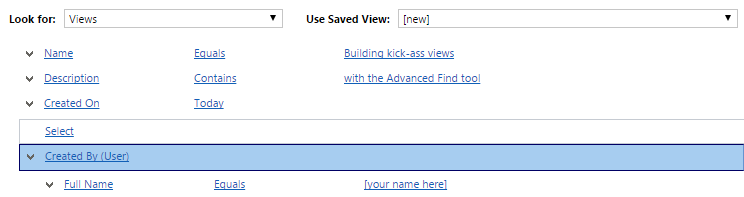
    While activity parties are not accessible as a configurable entity in CRM (because ultimately they’re not), luckily they do exist in the Advanced Find UI. The first scenario in which we can take advantage of this capability is in building a view of activities that uses some criteria that’s not directly available on the activity record itself. Out of the box, CRM provides views like “My Activities” that show the records in which the current user is the owner (and which are open, even though the name of that default view is a bit misleading). Sure, it’s important to understand what’s on your To Do list right now, but sometimes it is beneficial to be able to reflect back a bit and see also what has happened in the past, to understand what you’ve spent your time on and who have you interacted with. For this, we’ll create a brand new view called “Activities Involving Me”.

    (more…)

  • Dynamics CRM 2013 in Retrospect

    Dynamics CRM 2013 was released only a bit over year ago, on October 8th 2013 to be exact. With CRM 2015 already knocking at the door, this seems like ages ago already, even though the actual time between these two major releases is shorter than their marketing names imply.

    Since the discussions in the Dynamics CRM community will inevitably be moving towards the latest 2015 version as the year turns, it’s a good moment to reflect back a bit and recap what the previous release gave us. I took a look at some of the blog posts I’ve personally written regarding CRM 2013 specific functionality since the version came out. By analyzing the page view stats from my blog, the following articles came out on top as the five hottest topics that you, the readers, were interested in reading about.  If you missed any of the articles, now’s the time to do a quick catch up before CRM 2015 steals all the attention.

    Synchronization vs. Tracking: Understanding Activity Management Options

    (Article link)

    CRM_2013_Server-side_SyncCRM 2013 introduced a new feature called server-side synchronization, which allowed the CRM server to communicate directly with the Exchange server for the first time in the product’s history. Upon first look it might have appeared like the long dependency on Dynamics CRM Outlook client was about to be history. However, in our brave new “cloud first, mobile first” world there are many more aspects to managing activity data in relation to CRM records that you need to understand.
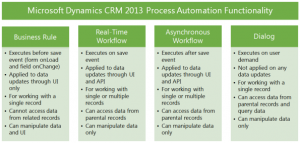
    While the synchronization options for activities and contacts were indeed expanded with CRM 2013, the tracking options were not. In addition, the combinations supported email client and server applications for each entity and action type were quite a maze to navigate in. Since this is not such an easy topic to grasp nor explain, I ended up building a support matrix of my own, so that I was able to clearly communicate the various synchronization and tracking options to our customers.

    Getting Your Head Around Dynamics CRM 2013 Processes

    (Article link)

    CRM_2013_Process_Automation_smallChanges in the application’s UI may have grabbed most of the attention when it came to the CRM 2013 release, but there were also notable enhancements made to platform capabilities behind the scenes. Business Rules and Real-time Workflows opened up a whole new world of possibilities for the system customizers to create custom business logic that had previously required JavaScript or plug-in development.
    The one process type that was highly visible to the users, Business Process Flow (BPF), was also perhaps the most demanding one when it came to applying it in real world scenarios. Since BPF’s themselves don’t provide any automation but rather rely on the other process types to work in conjunction with the BPF process stages and steps, understanding the role of each of these components will require a fair bit of experimentation. This is why I wrote a two-part article where I tried to lay out the big picture of process automation in CRM 2013.

    Connecting to CRM Online OData Feed with Excel 2013 Power Query

    (Article link)

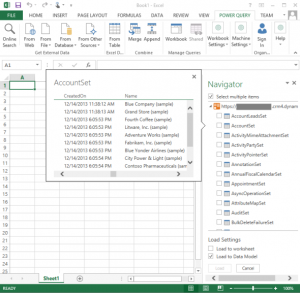
    CRM_OData_feed_Excel_Power_Query_4While the CRM 2013 release itself didn’t provide any dedicated feature for the Power BI tools announced by Microsoft a bit earlier, there were updates made to the Power Query component in Excel 2013 that made it very interesting for CRM Online customers. More specifically, the December 2013 version of Power Query finally delivered the ability to connect to OData feeds what utilize Office 365 authentication – with CRM Online being such an application.

    There isn’t a whole lot of official documentation available on the topic of how to leverage CRM Online OData feeds to build reports utilizing the Power BI toolkit. The process isn’t necessarily very straightforward and requires a fair bit of experimentation with the various Excel components (Power Query, Power Pivot, Power View). In addition to the OData feed connection part, I also wrote a couple other posts on what to do once you have the CRM data flowing into Excel via Power Query.

    Setting Up a Microsoft Dynamics CRM 2013 Development Server on Azure

    (Article link)

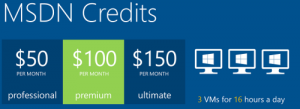
    Azure_MSDN_benefitRunning Dynamics CRM in the cloud via CRM Online is a popular option these days, but for performing testing and development tasks it’s often more convenient to have your own sandbox where you can control each and every part of the system. Azure has evolved into quite an attractive option for running virtual machines, especially with MSDN subscription credits and discounts for development environments.

    I’m not an infrastructure specialist that enjoys configuring servers very much, but when new versions of Dynamics CRM become available as preview/beta versions, it’s a good exercise to set up your own sandbox server. To better remember what the minimum steps are to be able to install the Dynamics CRM server application, I decided to document the process via screenshots and make it available on SlideShare for anyone else wanting to complete the same task.

    Expanding Add Activity Options on CRM 2013 Forms

    (Article link)

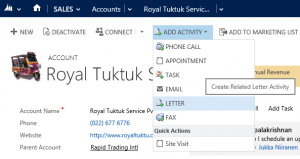
    CRM2013_Activities_2In the course of the UI refresh performed in CRM 2013, the number of menu options visible to the end users were optimized to cover only a single way to perform many of the options that previously might have had alternative route options. While the intention was noble, this did create a few situations where the navigation path required to perform an action may have not been the optimal one.

    The great thing about Dynamics CRM is that it’s a customizable platform that allows you to adjust the data model, forms and also the menu options to the specific use cases required by the customer organization – as long as you know how. With awesome community contributed tools like the Ribbon Workbench these tasks can be completed with a few clicks of a mouse, which is what I illustrated in this post where I added a new flyout menu onto the CRM 2013 Command Bar to access standard as well as custom activity records, and even launching a dialog process directly from the menu.

  • Synchronization vs. Tracking: Understanding Activity Management Options in Dynamics CRM

    Synchronization vs. Tracking: Understanding Activity Management Options in Dynamics CRM

    Long before a company has any CRM system in place they will already have a bunch of customer facing activities like emails and appointments in the personal mailboxes and calendars of their employees. Once a CRM system is implemented, these activities will not magically disappear but rather they will continue to be a key element in how the customer relationships is managed on a practical, day-to-day level. Typically companies would like to have these communications stored in the CRM database to accumulate a better understanding of both which customers are being contacted by which representatives of the company as well as the detailed information of what’s been said and agreed with the customer in these acts of communication.

    CRM_2013_Activities

    Maintaining two separate systems for entering the same information is never an attractive option for information workers who just wish to stay on top of their daily agenda and commitments, without having to worry about keeping multiple calendars in sync manually. Rather than entering an appointment in your own calendar first, then entering the same data into your CRM system for activity tracking purposes, every single user would rather have the ability to promote their selected calendar entries related to customers into their CRM system for meeting the activity reporting requirements expected by their managers. Similarly, instead of copy-pasting information from their inbox onto forms in a CRM system, anyone presented with the option to click one button in their inbox and get the full message tracked into CRM would surely prefer to take this route.

    This has been one of the founding principles behind the design of Microsoft’s CRM system since day one. With the market dominance of Microsoft’s activity management related software both on the client (Outlook) and server side (Exchange), making the flow of this data across different systems as seamless as possible can be seen as a low hanging fruit to grab when entering the CRM market with the Dynamics product. Looking back, offering users the possibility of remaining within their familiar and personal Outlook inbox and tracking information into the organization-wide CRM database has been a very compelling user experience at best. Yes, regardless of the countless hours I’ve had to spend solving Outlook related issues during my professional career in CRM, I’m still perfectly willing to admit that this type of UX is definitely worthy of pursuing in a CRM product, because it’s simply how it should work.

    How Dynamics CRM actually tracks your data

    What most organizations planning to deploy Dynamics CRM often find surprising is that up until CRM 2013 there hasn’t been much functionality on the server side related to managing the flow of activities between different systems. Even though Microsoft owns both Outlook and Exchange, they have decided to build deep hooks only onto the client side of Outlook and not the server side of Exchange. The positive side of this is that you don’t necessarily need an Exchange server for leveraging most of the activity management features of Dynamics CRM. The downside has been that you very much need the CRM Outlook client in place for things to work as you’d expect.

    When it comes to sending and receiving email, the CRM Outlook client can act as the component that takes care of all the inbound and outbound emails for CRM. However, for any organization that needs to have emails flowing directly into CRM (such as a customer support email address that feeds items into a CRM support queue) or relies on workflow based email notifications to go out even when the Outlook client of an individual user is not connected to a network, the deployment of the Dynamics CRM Email Router has been in practice a compulsory step to take. Again, this component is independent of Exchange server and can be used also with other email systems via SMTP or POP3 connections. The Email Router can replace some of the email management features of the CRM Outlook client (but not all, we’ll get to that later) and basically “email enable” your Dynamics CRM server, so that it can independently communicate with the outside world via email.

    One thing to note is that even customers who’ve chosen CRM Online as their deployment model instead of deploying an on-premises Dynamics CRM server have needed to separately deploy the CRM Email Router if they wish to send/receive email from/to CRM Online without routing all of the messages via the individual Outlook clients of their CRM users. Microsoft doesn’t offer an “Email Router in the cloud”, so you’ll either need to have a local machine available for deploying the router (doesn’t even need to be a Windows Server, also client OS like Vista or Windows 7 are supported) or get a virtual machine from some hosting service, such as Windows Azure. You can leverage the Exchange Online service in your Office 365 subscription for the actual email delivery, but the CRM Email Router cannot be purchased as a service directly from Office 365.

    CRM_2013_Server-side_SyncWith the latest CRM 2013 release Microsoft has started to address these challenges of dependency on either client machine components (Outlook client) or on-premises servers (Email Router) by introducing a feature called Server-Side Synchronization. This allows the Dynamics CRM server to communicate directly with the Exchange server, effectively replacing the email sending and delivery features of the CRM Email Router. In addition to that, server-side sync can also handle other Exchange items like appointments, tasks and contacts, which can also now flow between the CRM database and the users’ calendars and address books on various devices without any central dependency on a client-side component like the CRM Outlook client.

    Great! CRM 2013 server-side sync solves all our problems! End of blog post! Well, not quite. We’re actually just getting to the reason why I’m writing this post, which is the surprising complexity behind understanding the detailed feature sets of the various components that aim to deliver the seamless one-click UX that I was talking about earlier on. Based on what we’ve discussed so far, here’s how the big picture of synchronization methods for CRM 2013 looks like:

    CRM_2013_Synchronization_Methods_small

    As is often the case, the devil is in the details, so let’s proceed with pointing out the “gotchas” that you need to be aware when planning on managing activities in a Dynamics CRM environment. (more…)

  • Expanding “Add Activity” Options on CRM 2013 Forms

    CRM 2013 has introduced many UI features that aim to reduce the number of different windows between which the user needs to navigate while performing everyday actions on records. Since customer relationship management systems are often focused on capturing the various interactions between the company and its customers, activity management is naturally a core feature that should be as smooth as possible in a CRM application.

    The refreshed entity forms in CRM 2013 contain the Social Pane (shown as “Notes Control” in the form customization UI due to legacy reasons) that shows three tabs of interaction data related to the record: Activity Feed posts (Yammer posts if available), activities and notes/attachments. In addition to a much richer rendering of the activity content than the previously available subgrids, there’s also an inline control available for adding tasks or phone calls directly on the main entity’s form. This provides quite a slick user experience that makes CRM appear very effortless to use for activity management.

    CRM2013_Activities_1

    What’s missing from the Social Pane then? Well, for starters, not all the activity types are available to be created via the Add buttons on the top of the control. We have phone calls & tasks available immediately, clicking the ellipses (…) button gives us email & appointment, and if we’ve added any custom entities into our solutions they’ll be presented here, too. However, if you’d want to add any of the other default activities for the record you’re working on, meaning a letter, fax, recurring appointment or a service activity, then you’re out of luck. The user would need to navigate away from the form by selecting the Activities menu from the Nav Bar, create a new activity record from there, find the Regarding record to reference on the activity, save it, then return back to the original record.

    Another limitation has to do with the inline editing experience of tasks and phone calls. When you create a phone call via the Social Pane, it will always be record as a completed activity. So, no chance for planning upcoming phone calls and setting up a reminder, unless you record it as a task instead. Another downside of the inline form is that it’s not customizable, which means we can’t display any custom category fields related to a phone call or task. When implementing a CRM system for tracking the activities of sales people and account managers, it is a very common requirement to have some compulsory fields added onto the activity entities that the user must fill to categorize and describe the activity before being able to complete it. Well, since the inline form will log a completed phone call right after clicking on OK, this isn’t exactly the optimal feature for those scenarios.

    Ribbon to the rescue

    While some parts of the new UI are not yet customizable in CRM 2013, we do still have a way to introduce additional features onto the entity forms via the Rib… sorry, Command Bar. Even though in its default setup the Command Bar looks like a stripped down version of the CRM 2011 Ribbon, it’s still built on the very same  Ribbon XML definitions and it supports most of the features from its previous incarnation. As we know, CRM in itself doesn’t provide tools for configuring the contents of the Ribbon, which is why someone just had to do something about it. That “someone” is CRM MVP Scott Durow and the “thing” is his awesome Ribbon Workbench solution that gives us everything imaginable for customizing the CRM 2011 Ribbons as well as the CRM 2013 Command Bar.

    Since many of the common features presented on the CRM 2011 Ribbon get hidden away once the CRM environment is upgraded to 2013, Scott has been covering several scenarios in his blog where this functionality is restored onto the Command Bar. Among these articles is a tutorial on how to restore the Add Activity buttons into a CRM 2013 environment. By following these steps documented by Scott we can enable the creation of letter activities while on an entity form, as well as provide a navigation path to opening the full form of a phone call activity to control the business required fields as well as activity status beyond the options that the Social Pane inline activity form gives us.

    To demonstrate the possibilities of modifying the default activity management features of CRM 2013, I decided to take Scott’s example and expand it a bit further. In his blog post Scott shows you how to make the activity buttons appear on the Command Bar, but due to the limitation of max 5 items being shown directly on the form and the rest being pushed away into the “more actions” menu, it’s not going to be very easy for the CRM user to discover their existence. What I did instead was add a new flyout menu, promote it to the top 5 items on the Command Bar and arrange all the “Add Activity” buttons inside it. The screenshot below shows how this has been configured while in the Ribbon Workbench UI:

    CRM2013_Activities_RibbonWorkbench

    How do we get the buttons to do what we want them to do, meaning creating new activity records like they used to in CRM 2011? Scott’s blog post contains all the details you need for making this happen, but since the inherent complexity of the Ribbon XML language can make it challenging to grasp how the various options relate to one another (I’ll be the first to admit I struggled quite a while with the task before being able to achieve the result I wanted), I’ll recap the main steps here for your convenience.

    First of all, we’re not creating a completely new command but rather customizing a native CRM platform command. While the activity buttons aren’t visible on the Command Bar by default, they do exist in the Ribbon definition and can be accessed in the Ribbon Workbench by switching from the Command Bar tab to the Ribbon tab (bottom left corner of the top menu) and navigating to the Form ribbon (since this is where we want the flyout menu to appear in our example). You’ll see the familiar Ribbon in the format that it would be shown, with the Activity buttons available under the Add tab. Yeah, not too many end users probably ever discovered that second tab of the ribbon on their own, which is why the simplified design of CRM 2013 is definitely a step in the right direction, even if it means us consultants need to do a bit more tweaking of the system to enable the relevant features.

    CRM2013_Activities_RibbonWorkbench_2

    Anyway, now that we’ve found the buttons, we can right-click on them and select “Customise Command”. Effectively what this does is it brings the commands like Mscrm.AddPhoneToPrimaryRecord available for us to reference in the custom buttons that we create. While we’re at it, we can also re-use the icons and labels from the native buttons in our custom flyout menu buttons. The one thing we need to change, however, are the Display Rule settings of the now customized commands, as the Mscrm.HideOnCommandBar rule would otherwise do just what it says and hide the buttons from our flyout menu when viewed on a refreshed UI form.

    As mentioned, please refer to the original blog post to guide you through the detailed configuration of the custom buttons. It will give you everything except the different layout, which is the flyout menu that you can see below. In practice this method allows us to create up to five traditional dropdown menus on the form’s Command Bar. We now have a button labelled “Add Activity” that will open up a list of different activity icons, which in turn will lead the user to the traditional full create form for the chosen activity type. It will pop open in a new window, allow the user to edit the details, then close the window and return back to the parent entity form. Just like in the “good ol’ times” of pre-2013 Dynamics CRM.

    CRM2013_Activities_2

    If you took a closer look at the flyout menu shown in the picture, you may have noticed one non-standard entry at the end of the list: Site Visit. What’s that? And why’s it under a menu section called “Quick Actions”? Thanks for asking, let me explain what it’s all about. (more…)

  • Activity view default filter, missing due dates and how to modify the filter

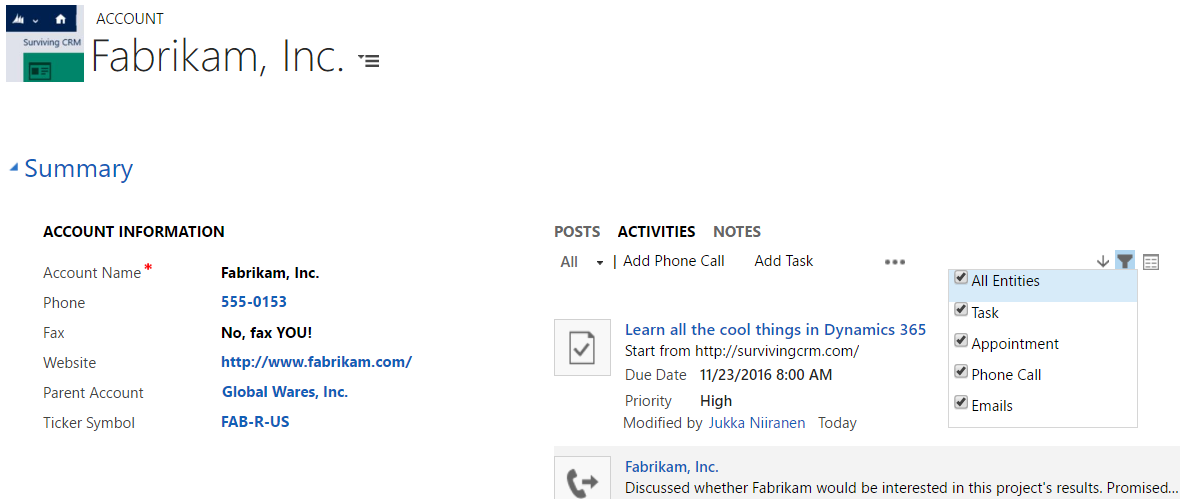
    Certain entities that contain the activity roll-up feature, namely accounts, contacts and opportunities, are also equipped with a date filter that allows you to choose whether you want to see all the activities related to the record or just a selected subset. By default this is “Next 30 days”, but you also can choose between “Overdue” or “Next 12 months”, or just go for “All”. That’s the good news.

    The bad news is that this piece of helpful functionality has remained uncustomizable throughout different Dynamics CRM versions. A lot of users were annoyed with especially the same filter in the associated history view, nowadays known as Closed Activities view in CRM 2011, which used to default to “Last 30 days” and hide away all but the most recent email threads, appointments and other information that you might have been searching for. You always had to change the filter manually to “All” to uncover the historical information about the relationship with the account or contact. However, this has changed now in the latest version and “All” has become the default filter (or should I say the filter is off by default).

    That’s definitely a step towards the right direction. It’s not exactly what the response on Microsoft Connect suggests, which claims that “we’ve allowed a user to change the default filter for associated views in CRM 2011”. I’ve yet run into such a setting and neither has The Great Internet, unless Google is hiding such instructions or blog posts. It would be useful to be able to configure or remove filters that the end users don’t want to deal with, without having to resort to unsupported customizations.

    Open vs. closed activities

    History is one thing but it’s the future actions that matter the most. Until very recently, I’d say up until Update Rollup 2 of CRM 2011 the filter functionality in the open activities associated views used to be such that the default “Next 30 days” would also show any activity that was missing a due date. By default the due dates are not a required field and sometimes they are not that practical for the CRM users, as many things in the daily life of a modern information worker don’t have strict deadlines. Also, there’s no out-of-the-box functionality in Dynamics CRM to set default values for date fields either, so setting the exact due date for every task or phone call you enter on your task list may feel too bureaucratic. An activity with a missing date should be considered as “do this as soon as you can, given all the surrounding factors”, in my personal opinion.

    In the current version of Update Rollup 5 the “Filter on” value is applied in such a way that it by default hides away all activities that don’t meet the “Next 30 days” criteria. If the due date is blank, the activities won’t show under the account/contact/opportunity. This may seem quite confusing to the user, since any new activity that he or she creates for the record will appear to “vanish” into thin air after clicking “Save and close”. In the My Activities view they will still appear on the top of the list, as null values in the Due Date column are sorted on top.

    What’s even more confusing is that CRM 2011 introduces two different ways for users to navigate to related activities on the account form: the familiar associated view and the new subgrid. If you’ve been reading my blog, you’ll know that subgrids ain’t exactly what associated views used to be. They don’t contain the activity roll-up feature, so you won’t see those activities that are set regarding a child record of an account (for example, opportunities) instead of the account record directly. Just like another filter, except you can’t even change it.

    How to change the default filter value

    There’s been numerous blog posts written on the topic of setting the filter defaults on CRM 4.0, but I was initially a bit surprised I couldn’t find a working piece of Javascript to achieve this on CRM 2011. Examples like this, this or this didn’t seem to be working for me, but luckily I ran into this post on the Microsoft Dynamics CRM German forum by Andreas Buchinger. To save you the trouble of Google Translate (well, it’s not much trouble at all when using Chrome’s built-in translation toolbar), here’s a walk through of the steps needed.

    (more…)

  • CRM 2011 subgrids ain’t what associated views used to be

    Back in the days before we had Microsoft Dynamics CRM 2011 available, it was a commonplace customization to show entities related to the parent entity directly on the parent’s form by utilizing an iFrame. Making information such as latest history items (nowadays called closed activities) quickly visible to any user opening the form is often justified, as one key functions of a CRM system is to share information about what interaction has taken place with the customer. Referencing the URL of the related view on the iFrame was not exactly supported, but it was a relatively safe customization to apply nonetheless.

    Due to popular demand, Microsoft introduced an official method for achieving this UI customization in CRM 2011 through the use of the form sub-grid element. As a part of the entity forms redesign, the subgrids have now become an out-of-the-box feature on several default entities, such as accounts, contacts and opportunities.

    Different navigation points, different views

    It’s important to note that subgrids don’t use the entity associated view definition, which is applied when traditionally navigating to the view by using left side menu items on an entity form. Instead they allow you to separately choose a filter to “view only related records”, in combination with any of the system views available for the entity in question (but not the associated views, as those are “special” views). 9 times out of 10 you’ll want to keep the filter on, as showing non-related records on the entity’s form would under normal circumstances defy the standard UI logic of how Dynamics CRM presents records in different windows.

    OK, fair enough, so that’s why the columns in a subgrid aren’t updated after you edit the entity related view, like you used to do in CRM 4.0 and previous versions. We can live with that. In order to provide a consistent user experience, I would recommend that these two views are set up so that they have identical contents. This is because an “oldskool” CRM user may navigate through the left side menu by habbit, whereas a person new to Dynamics CRM will probably prefer to just scroll through the form. Sadly there’s no “save as” functionality available on the entity related view, and you can’t promote a normal view to become a related view (since there’s only one of them). This means you have to manually configure the two views to be indentical in terms of attributes, column order, width, sorting and (in some cases) filters.

    Rolling up the records

    Another thing that may surprise a seasoned Dynamics CRM consultant until he learns the tricks of the latest version is that the aforementioned feature has further implications specific to accounts and opportunities in particular. As we’ve come to know, these entities have special capabilities enabled in the activity views: the roll-up functionality. Instead of being restricted to only activities directly related to a record, we can actually see a bit further. Let’s take a simple example of an account and it’s open activity associated view:

    It’s that “Include Related Regarding Records” selection above the grid which allows us to view activities not only related to the account itself but also the ones regarding a contact of the account and an opportunity related to it. Pretty neat, as it’s often the people working at an account that we associate communication and activities to, such as emails and appointments.

    Now, let’s take advatage of the new CRM 2011 functionalities and look at the activity subgrid that’s conveniently available in the out-of-the-box configuration of an account form:

    Huh? Where did my activities go? They’re still there, but this particular navigation path will not allow you to view them, since you’re on a subgrid and, as we previously concluded, subgrids can’t show the entity associated view. This means there’s no way for you to apply the “Including Related Regarding Records” functionality over here.

    I’ll be the first to admit I’ve fallen for this trap in customer demos more than once. The menu anchor for accessing the Notes & Activities subgrid is just too tempting to click, when what you really intended to do was to view the fully featured activity associated view and access a complete list of the related activities. If the difference between view columns was a minor inconvenience, then this is downright misleading to many users I’m sure.

    The quick solution for this would be to just remove the activity subgrids from the account and opportunity entity forms where the results can be contradicting, thus forcing the user to navigate through the old fashioned menus into the related activities views. Another option would be to perform the old iFrame trick and just embed this view onto a form iFrame, which does sound a bit 4.0-ish. The last option is to go and vote on Dynamics 365 Ideas site, requesting MS to include the full roll-up functionality for subgrid views in a future version of Dynamics CRM. (more…)